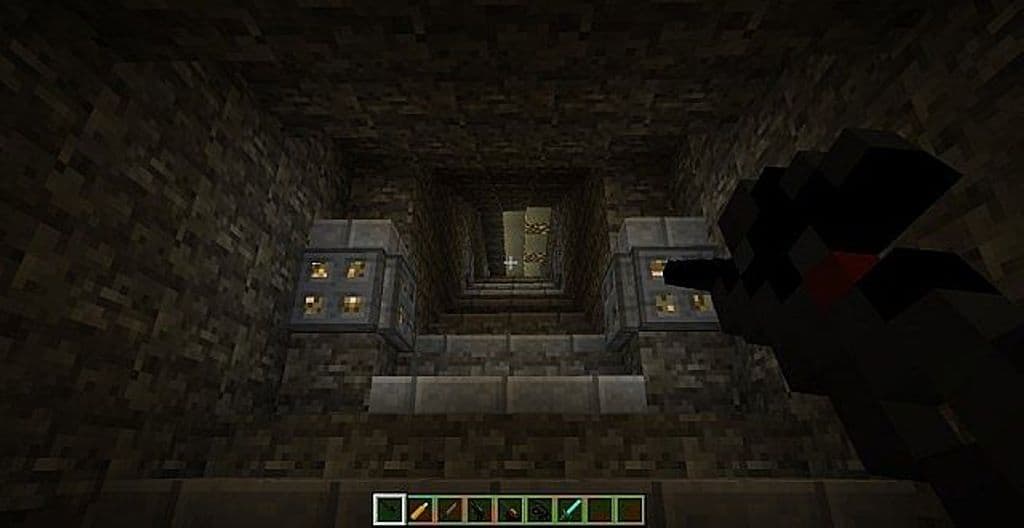
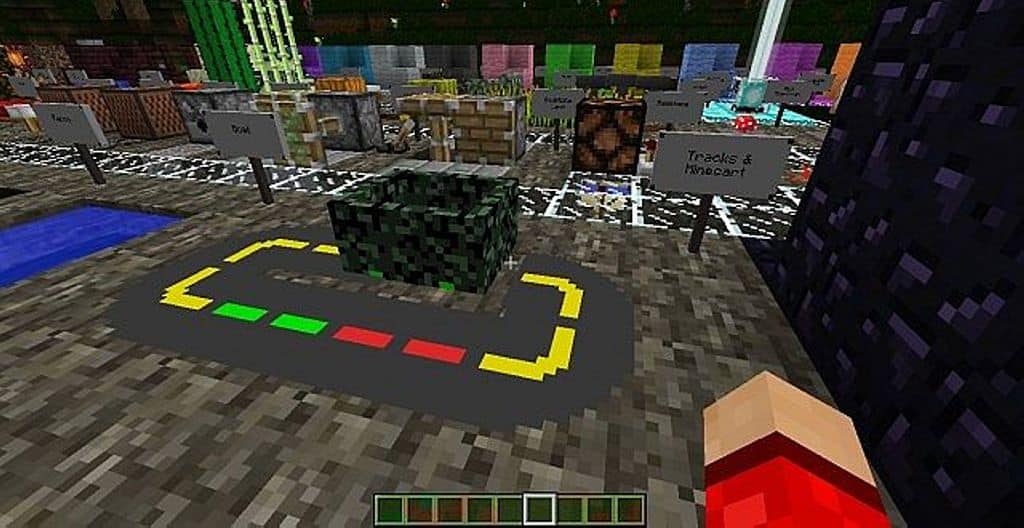
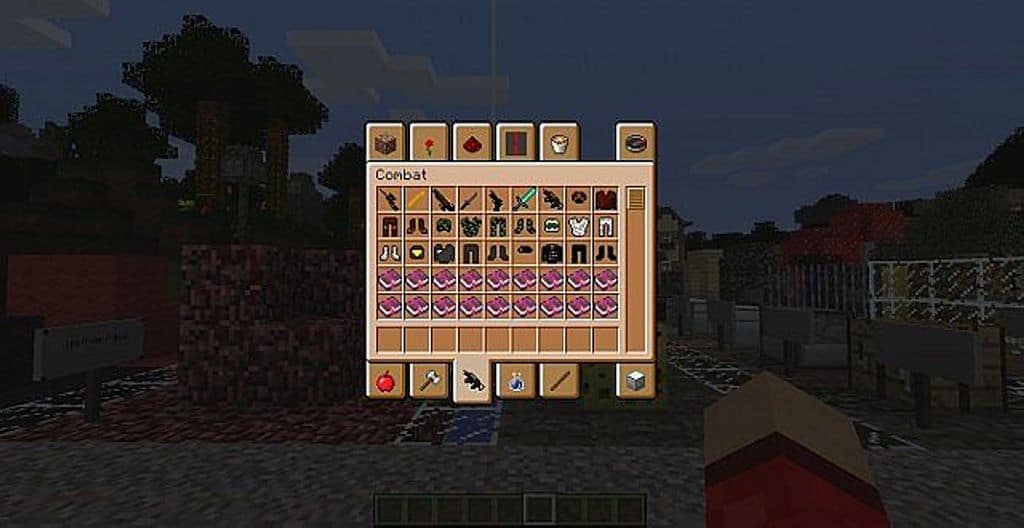
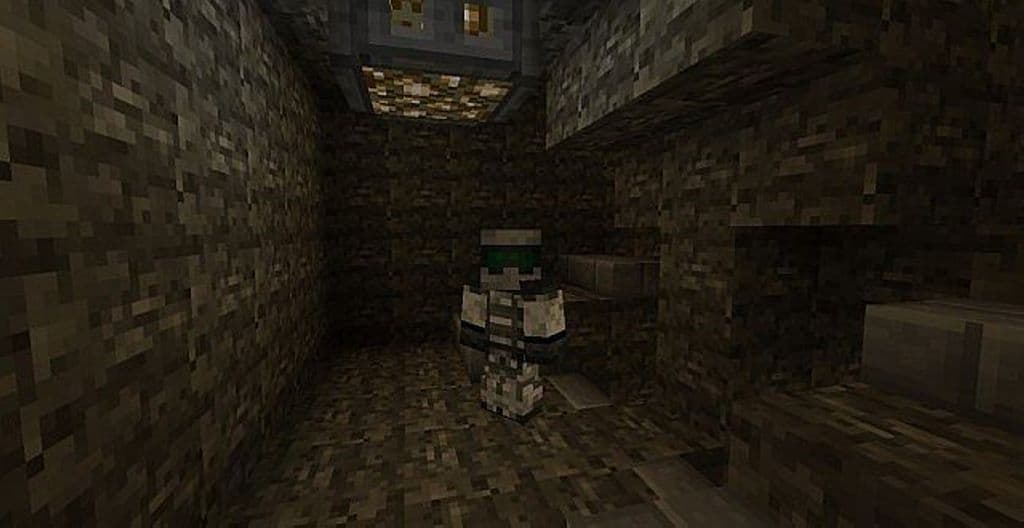
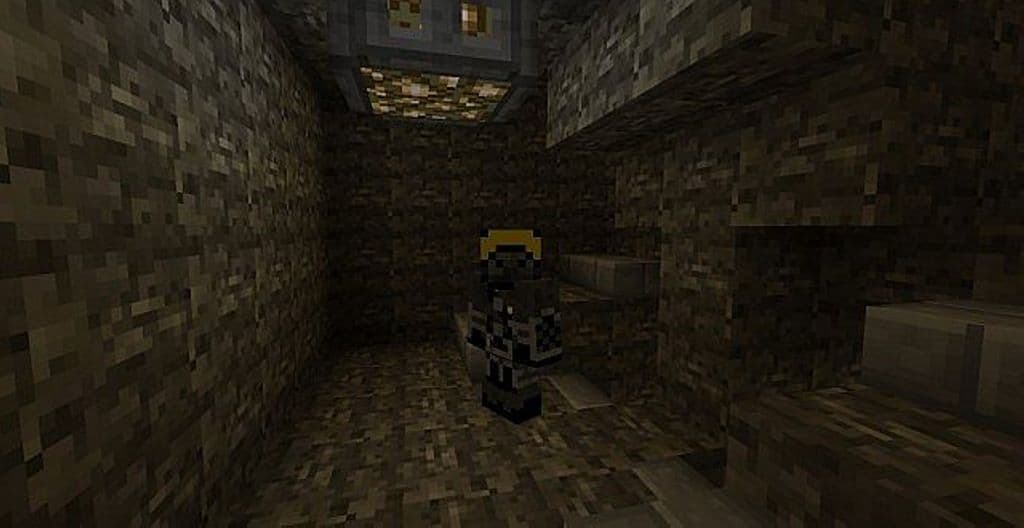
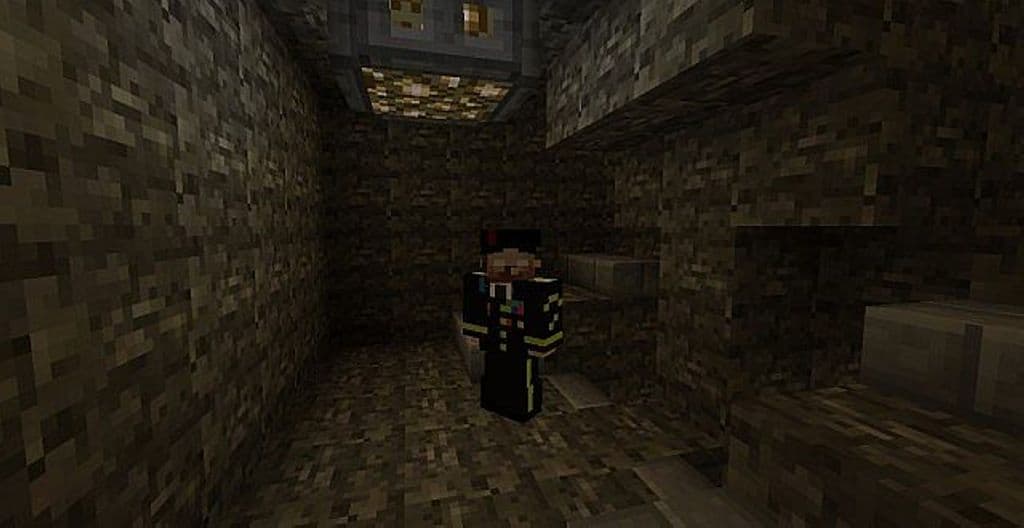
The MW3 resource pack is genuinely awesome, aimed to provide you the ultimate first-person shooter video game (Modern Warfare) visual experience right inside Minecraft. For all of you who are interested to enjoy the Call of Duty: Modern Warfare 3 theme in your favorite blocky world, I can happily say this is indeed the best texture pack to consider! I tested it out and found that this resource pack has all the right elements to offer you a genuinely nice and pleasant experience. When you install this resource pack, you will immediately notice how it elevates various objects of the game, starting seamlessly from the Minecraft blocks and weapons to various other items and object textures. Many of you do not really love or prefer the vanilla (default) Minecraft visuals, isn’t it? Luckily for those people, this MW3 resource pack is so apt and fits the bill perfectly! The main aim of this pack is to brilliantly change and fine-tune the game visuals without affecting the main objective and goals of the game at all.
So, the primary objective and goals of the game will remain entirely the same, meaning you will still happily mine, craft, build, and survive in your world. On top of that, you will notice various incredible changes in the visual aspects of the game. Please note one thing that I discovered — this resource pack does not offer you ultra-high resolution photo-realistic textures, but it will definitely provide you with a set of overall great graphics to introduce and enjoy in your gameplay. Also, note that this pack is a relatively small one and it fully supports the smooth 16x resolution. That’s why you can effortlessly run this resource pack on practically any of your PCs without a hitch. You do not have to worry about frustrating FPS related problems slowing you down. So, please feel free to run this pack on your systems and you will be completely ready to enjoy enchanting game visuals as well as excellent gaming performance. So, what are you waiting for? I wholeheartedly recommend you try the MW3 resource pack without any second thoughts.
MW3 should be compatible with all of these Minecraft versions: 1.7.10 – 1.7.9 – 1.7.4 – 1.7 – 1.6.4 – 1.6.2
Screenshots
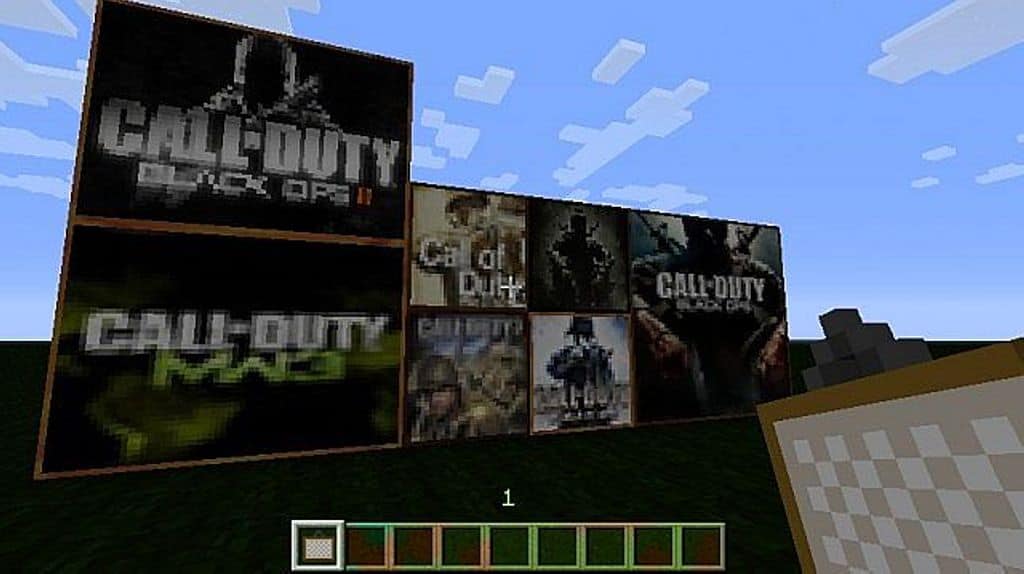
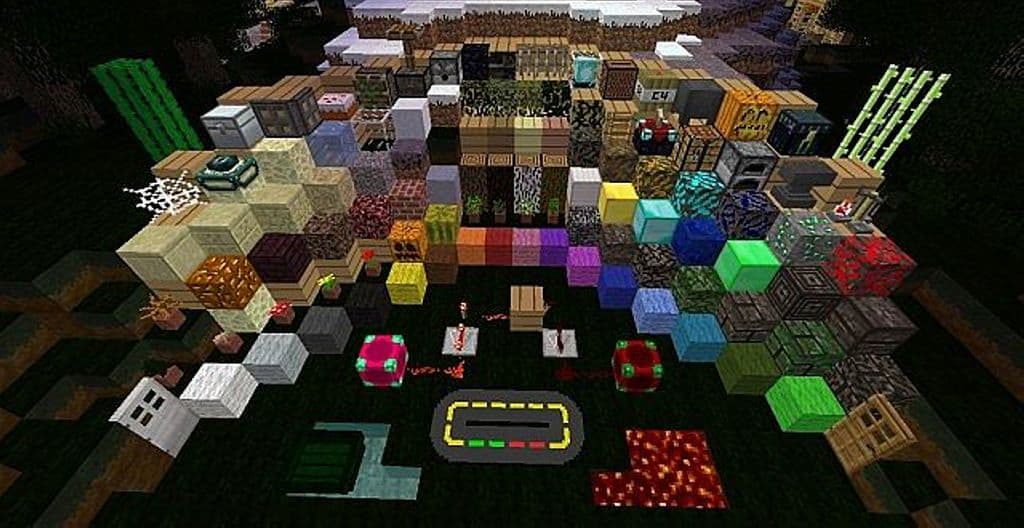

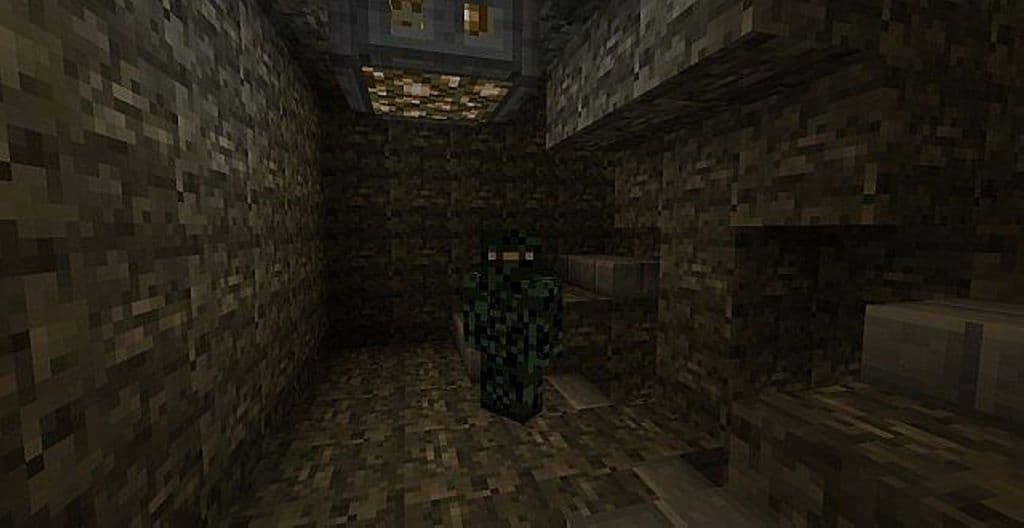
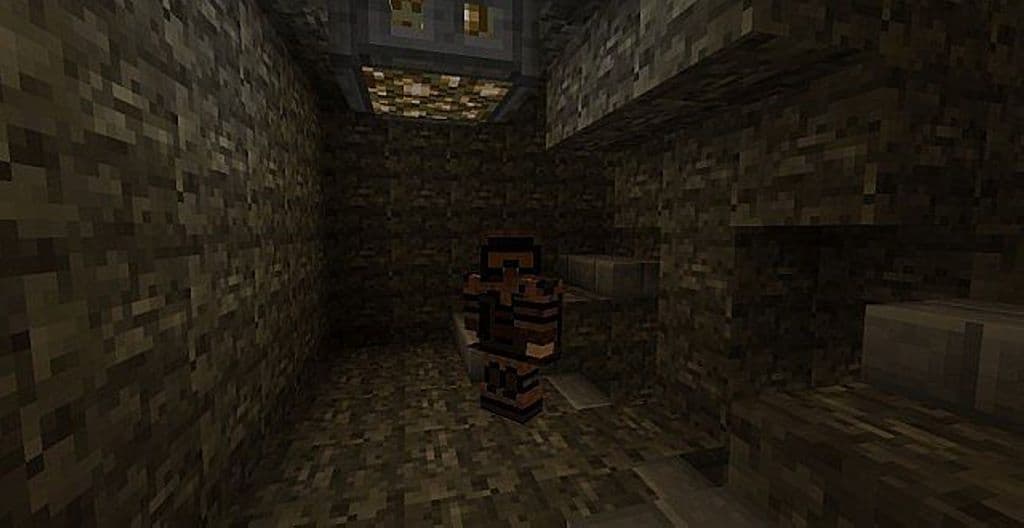
How to Install Texture Pack (Simple 10 Steps)
- Download OptiFine: Most of the texture packs and shaders need OptiFine. That’s why, first download and install OptiFine for the version of Minecraft you want to play.
- Download the Texture Pack: Get the texture pack you want from the download section. Choose the version that works with your Minecraft and your PC’s performance.
- Open Minecraft Launcher: Start Minecraft using the official game launcher — or even TLauncher, if you use that.
- Go to Options: From the main menu, click on the “Options” button.
- Open Resource Packs: Inside Options, click on “Resource Packs…”.
- Open the Resource Pack Folder: Click on “Open Resource Pack Folder” — this will open a folder named “resourcepacks”.
- Move the Pack File: Copy or move the .zip file you downloaded into that “resourcepacks” folder. (Don’t unzip the file — Minecraft uses it as-is!)
- Go Back and Refresh: Close the folder and click “Done”, then go back into “Resource Packs…” again.
- Activate the Pack: You’ll see the pack on the left side. Hover over it and click the arrow to move it to the right (active side).
Tip: If you get a message that the pack is for a different version, just click “Yes” — it usually works fine. - Click Done and Enjoy: Click “Done” again. Now your pack is ready to use in-game. It’s that easy!
Credits
This resource pack was created by SpheXii. We do not claim ownership of this creation and do not modify the original files. All rights belong to the original author. We strongly encourage you to support SpheXii and their work by downloading the pack through the official links provided.
Download Instructions
Curseforge: download starts automatically after a few seconds;
Mediafire: click the big blue button with the text “DOWNLOAD”;
Google Drive: in the top right corner you will see a small download icon (down arrow), click it and the download should start;


