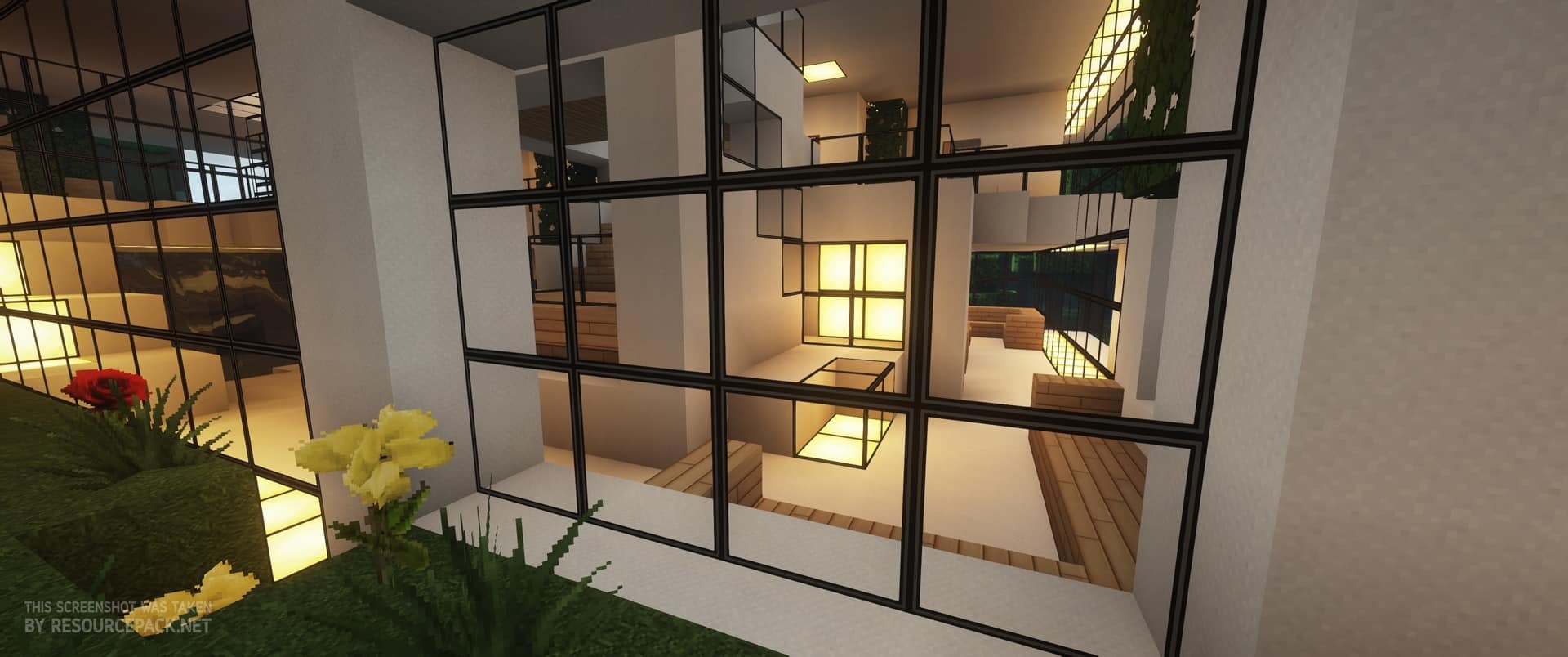
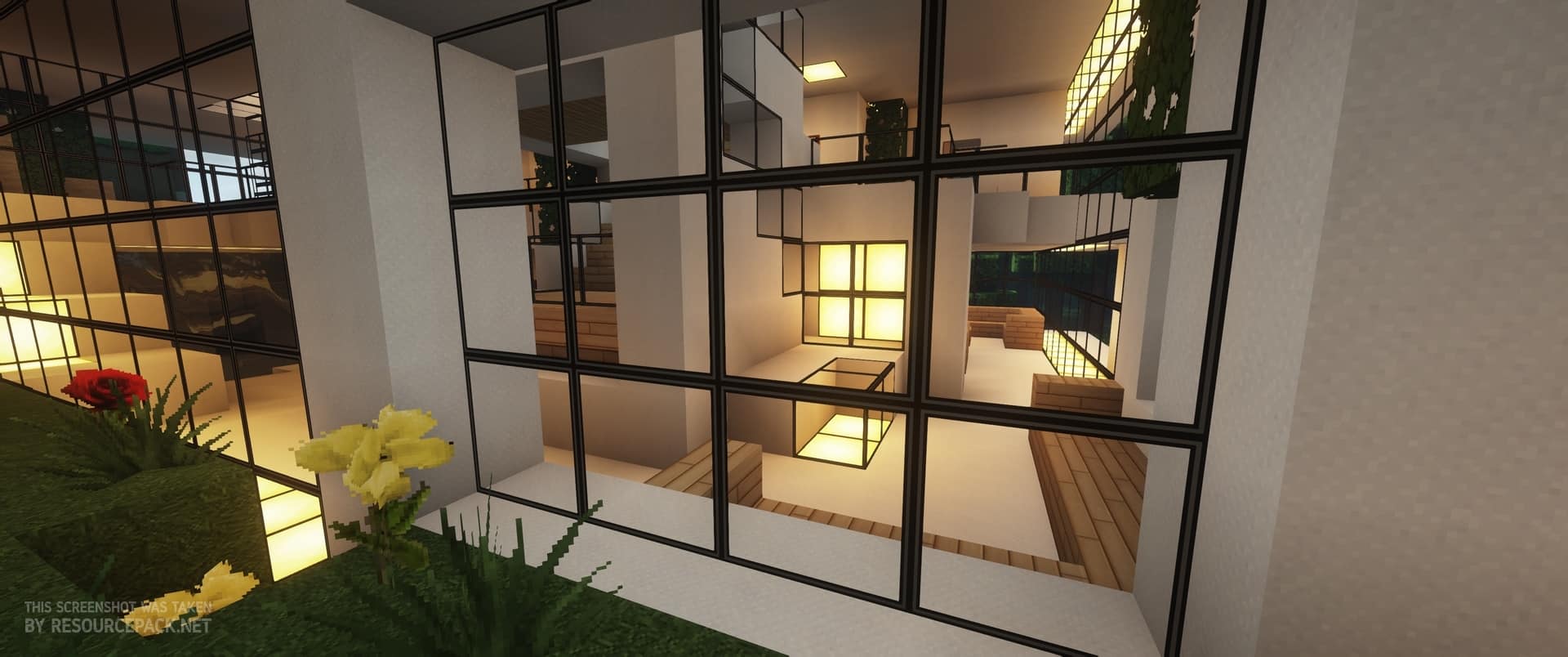
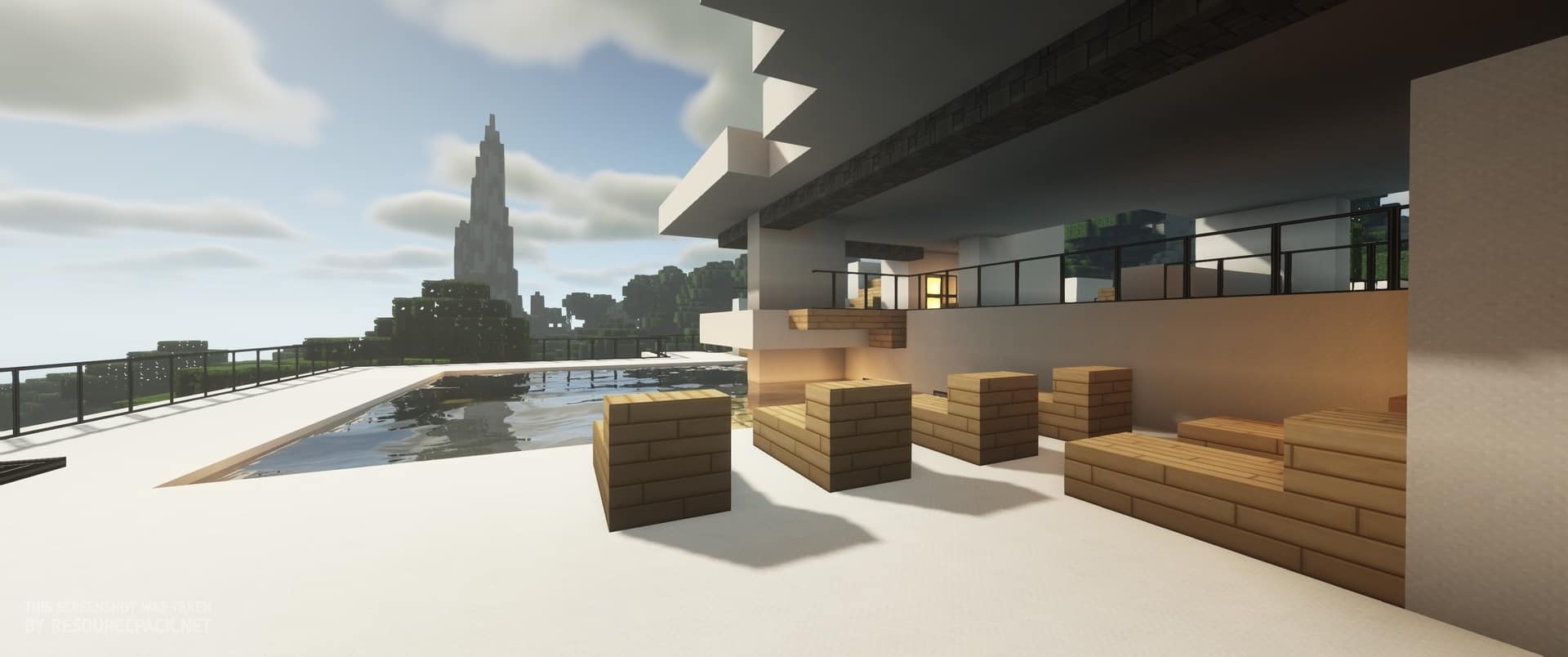
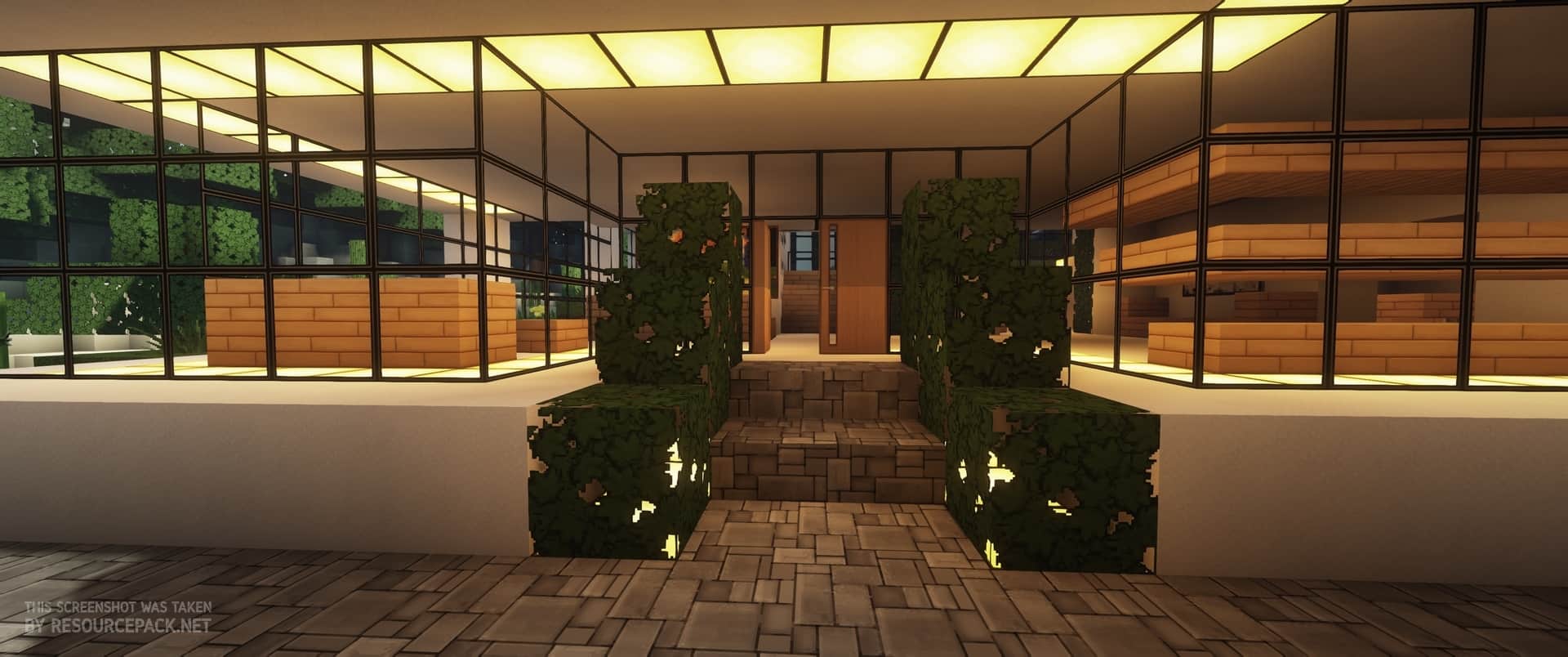
If you are a fan of packs that truly transform the entire game without leaving a single stone unturned, you should definitely check out the Modern HD resource pack. As the name suggests, all the textures in this pack take wonderful inspiration from the realistic and modern world to turn Minecraft into an entirely new experience. Even though it is over 10 years old, Modern HD remains wonderfully popular even today. Building modern architecture simply does not look nearly as appealing when using the medieval-themed packs that seem to dominate the Minecraft scene. All the textures have received a massive overhaul, and the building blocks are characterized by a wonderfully clean, uniform appearance which is why they complement each other so perfectly. Natural blocks like cobblestone, stone, wood, and others have received a remarkably realistic touch with absolutely no imperfections, while elements like the sky and water have been specifically crafted to fit this general aesthetic. The Modern HD texture pack manages to implement these modifications exceptionally well without overdoing them, ensuring you can still easily differentiate between blocks and know exactly which one is which. Looking closely at the block changes, you will probably notice that the paintings are completely different, as the developer took inspiration from real modern styles to create artwork you could easily find in a regular contemporary home. There are also a couple of major changes that might pleasantly surprise you, such as chests looking like sleek modern drawers, and the noteblock or jukebox being redesigned to represent a giant speaker. All of these modifications are more than enough to help you build modern rooms that you could only ever dream of achieving using vanilla textures. You might also be pleasantly surprised to notice that the glass is made fully transparent, which can be used to generate some incredibly creative and attractive displays. For instance, you can easily combine this feature with the Aquatic update to build an amazing aquarium for home decoration, or craft skylights and modern windows entirely without the annoying grid lines found in the vanilla game.
All of these additions clearly show that the possibilities with this pack are truly endless, and it is entirely up to you how many of these features you choose to utilize. Another massive change you will love is the GUI. As soon as you open your inventory, you will instantly notice that it follows right along with that modern, sleek style. The overlay features a gorgeous metallic gray and white base paired with crisp black letters, while certain elements like your armor attain various vibrant colors. Even the font and the buttons feel entirely different, which is a rare and welcome touch for resource packs. These gorgeous GUI changes apply seamlessly to every component containing an interface, including furnaces, chests, anvils, and more. Because this resource pack is primarily designed for builders, mobs are kept pretty much identical to their original textures, which makes total sense since it is quite difficult to make classic mobs look realistic or modern. However, you will still get to hunt them under much prettier nights, as Modern HD introduces a wonderfully bright, full moon accompanied by a dazzling field of stars that completely transforms the nighttime atmosphere. There are even some delightful new custom sounds included to further elevate your overall gameplay experience. Resource packs focused on providing modern-looking textures typically arrive in massive resolutions of 128×128 or higher, but Modern HD does things differently. No matter how modest your hardware might be, chances are you will still enjoy satisfying performance that will not ruin your immersion. The pack uses a sweet 64×64 resolution, which is a very comfortable step up from the vanilla 16×16 standard. Furthermore, Optifine is not required for Modern HD to run properly, though you can certainly install it if you want to squeeze out a few extra frames. To add even more style to your incredible builds, you can freely layer custom shaders on top of the pack. While there is no official support for shaders, it runs surprisingly well alongside popular options like SEUS and Nostalgia. If you want to take a refreshing break from some of the heavier, more demanding packs out there, I wholeheartedly recommend giving the Modern HD resource pack a try.
Modern HD should be compatible with all of these Minecraft versions: 1.13.2 – 1.13.1 – 1.13 – 1.12.2 – 1.12
Screenshots
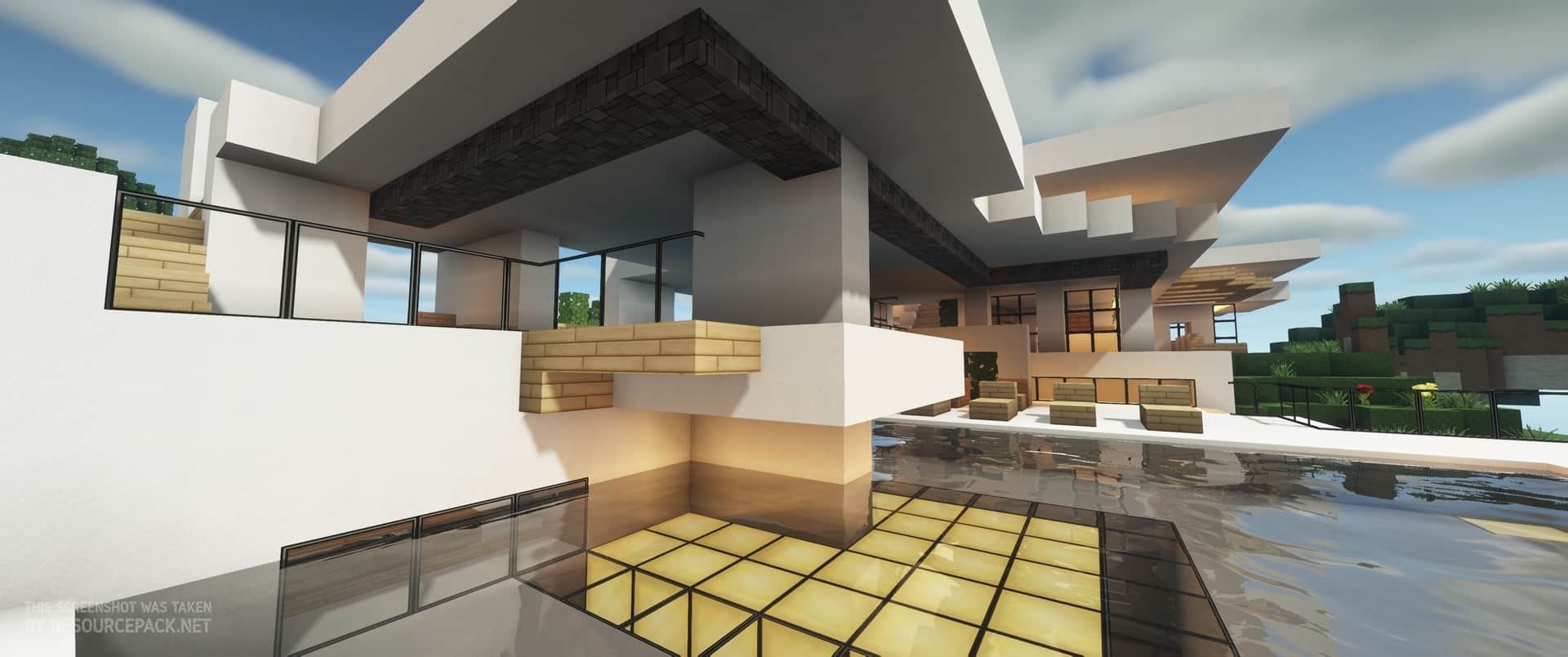

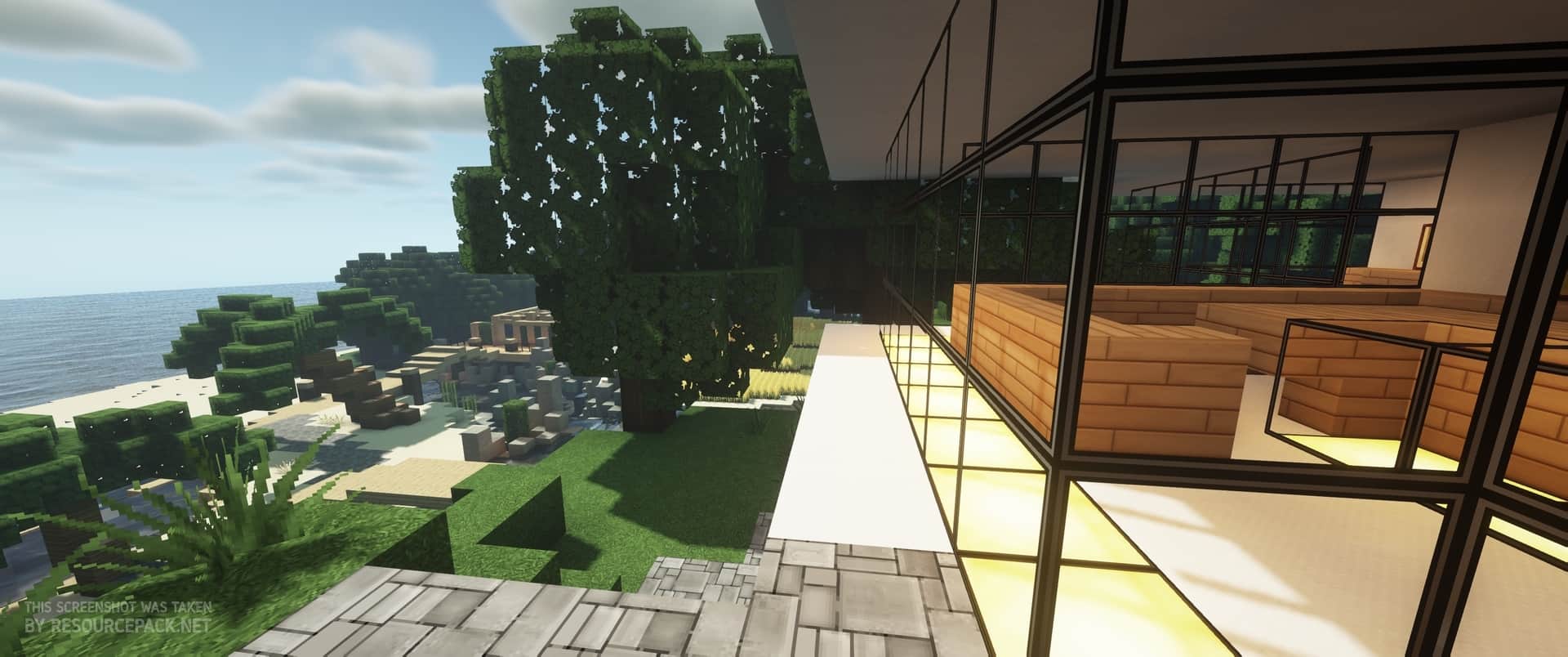

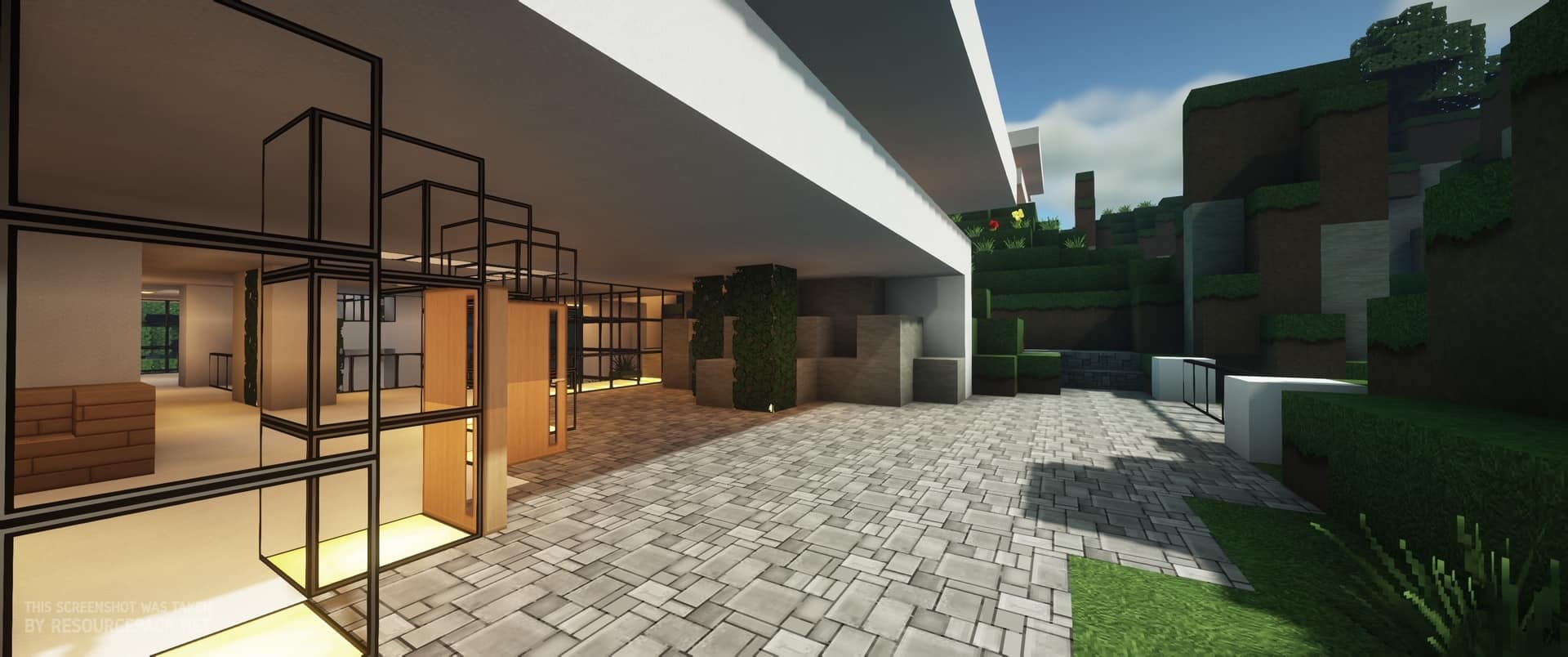
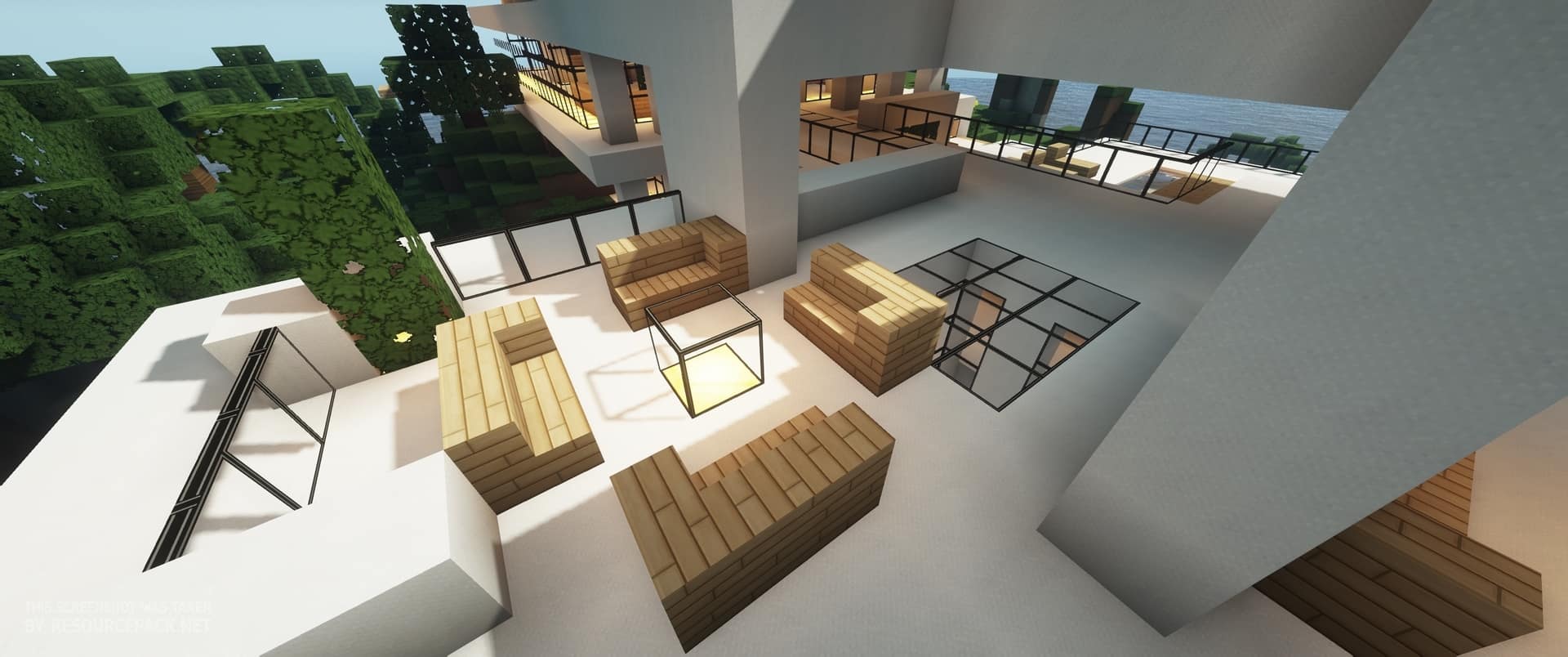
How to Install Texture Pack (Simple 10 Steps)
- Download OptiFine: Most of the texture packs and shaders need OptiFine. That’s why, first download and install OptiFine for the version of Minecraft you want to play.
- Download the Texture Pack: Get the texture pack you want from the download section. Choose the version that works with your Minecraft and your PC’s performance.
- Open Minecraft Launcher: Start Minecraft using the official game launcher — or even TLauncher, if you use that.
- Go to Options: From the main menu, click on the “Options” button.
- Open Resource Packs: Inside Options, click on “Resource Packs…”.
- Open the Resource Pack Folder: Click on “Open Resource Pack Folder” — this will open a folder named “resourcepacks”.
- Move the Pack File: Copy or move the .zip file you downloaded into that “resourcepacks” folder. (Don’t unzip the file — Minecraft uses it as-is!)
- Go Back and Refresh: Close the folder and click “Done”, then go back into “Resource Packs…” again.
- Activate the Pack: You’ll see the pack on the left side. Hover over it and click the arrow to move it to the right (active side).
Tip: If you get a message that the pack is for a different version, just click “Yes” — it usually works fine. - Click Done and Enjoy: Click “Done” again. Now your pack is ready to use in-game. It’s that easy!
Credits
Modern HD was originally created by mikeyto1o. We do not claim ownership of this content, nor have we modified the original files. We strongly encourage you to support the creator by downloading from the official links provided.
Download Instructions
Curseforge: download starts automatically after a few seconds;
Mediafire: click the big blue button with the text “DOWNLOAD”;
Google Drive: in the top right corner you will see a small download icon (down arrow), click it and the download should start;


