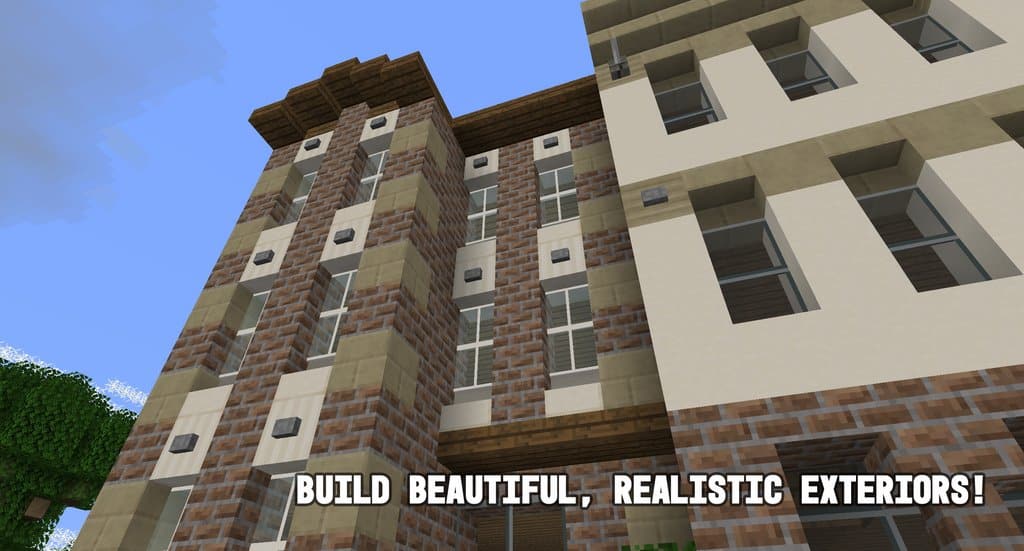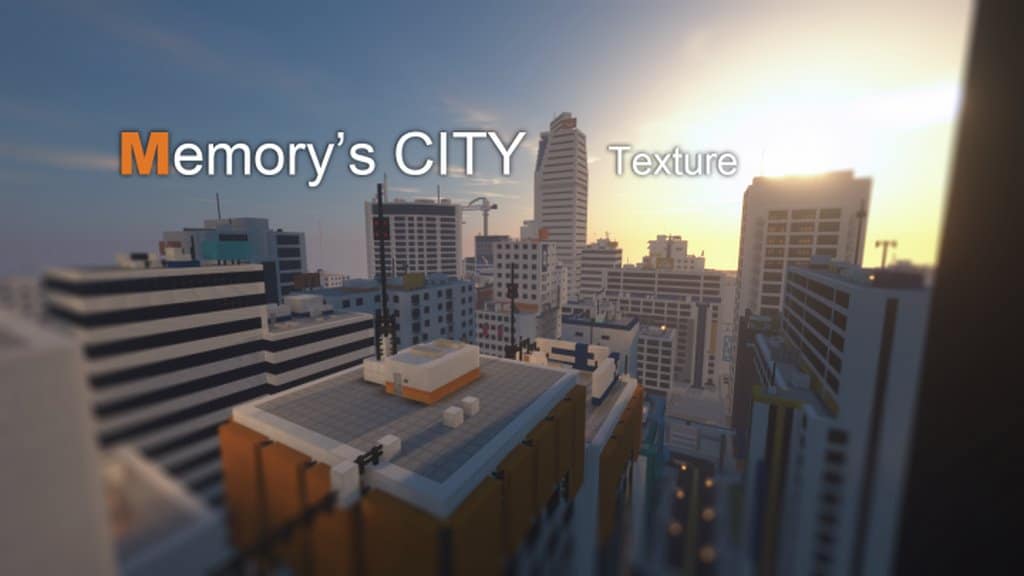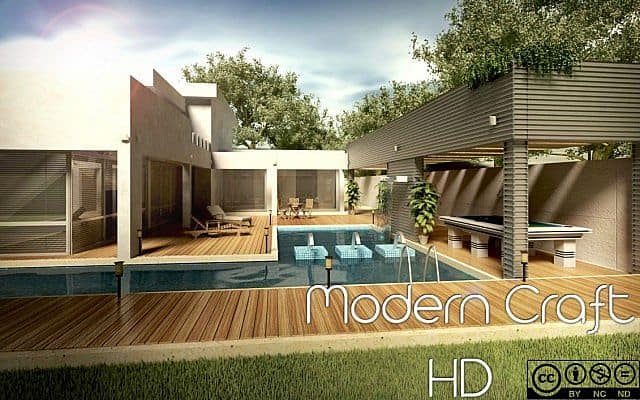
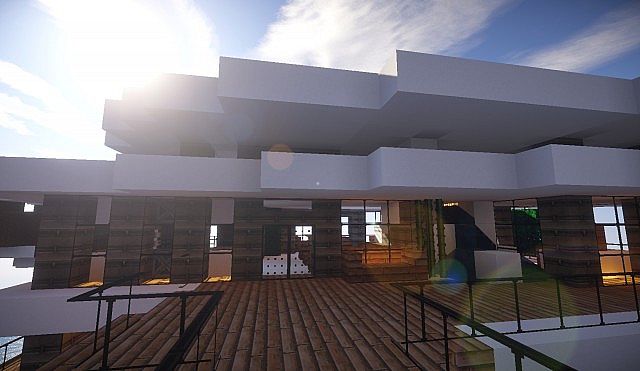
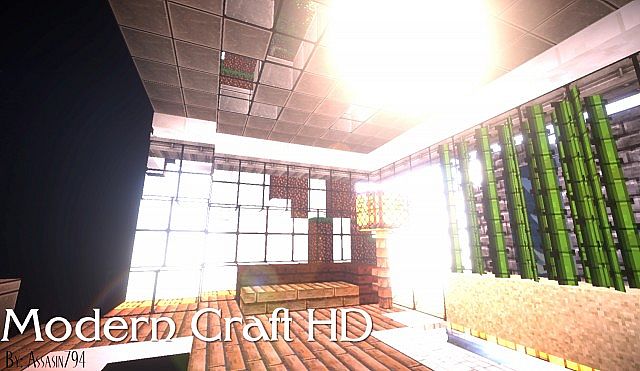
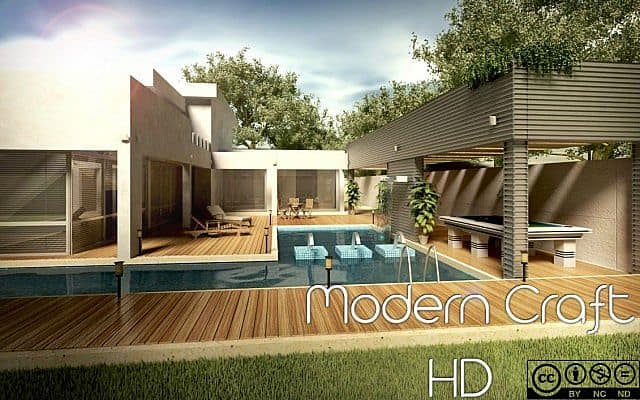
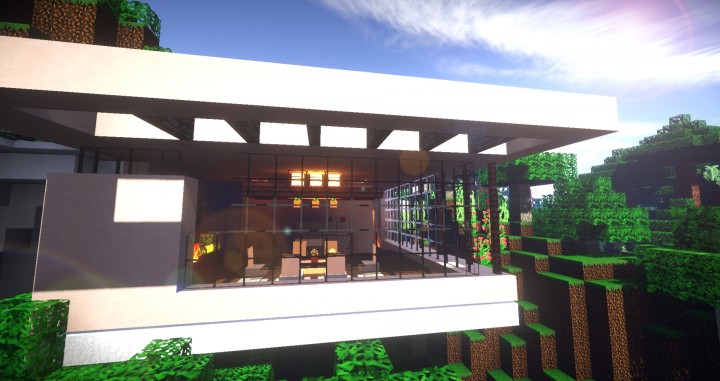
How much do you play Minecraft? I recently came across the Moderna HD resource pack, and honestly, it feels genuinely close to perfection when you are working on modern-day architecture within your Minecraft world. Also known as the Modern Craft Resource Pack, Moderna HD contains amazing modern textures that can truly turn each building project in Minecraft into an absolute masterpiece. It gives you an incredible opportunity to build realistic buildings and sophisticated infrastructures with ease! Besides, I love that it remains compatible with most Minecraft versions. If you really enjoy Minecraft, this pack highlights completely contemporary visualizations. One of the peculiar things I noticed in this pack is that, unlike most other newly developed Minecraft resource packs, it doesn’t have any overly wild unique features that would distinguish it from its competitors, making it quite a traditional and reliable pack. The updated Moderna HD doesn’t drastically extend the boundaries of this particular class of resource packs, but it is generally so well executed that almost every player will definitely get the absolute most out of it.
Moderna HD textures are among the cleanest I have experienced for some time. One of the common problems in many packs of this class is that there is simply too much visual noise in some textures, mainly due to an unnecessary amount of detail packed into them. But Moderna is exceptional as it completely avoids this noise problem because it doesn’t overflow its textures with more details than necessary, always striving to make the graphics look elegant in any way possible. Moreover, Moderna HD tries its best to make some subtle improvements to the textures of general game elements as well as the user interface. Although these changes aren’t glaringly loud, they significantly improve the visuals and make the overall gameplay experience much more engaging. In other words, it improves the game visuals by focusing cleanly on the modern designs of the Minecraft world. Best of all, Moderna HD features a comfortable 32×32 resolution which isn’t overly demanding, meaning you won’t experience annoying frame-rate issues even when playing Minecraft on a modest, low-end PC.
Moderna HD (Modern Craft) should be compatible with all of these Minecraft versions: 1.18.2 – 1.18.1 – 1.18 – 1.17.1 – 1.17 – 1.16.5 – 1.16.4 – 1.16.3 – 1.16.2 – 1.16.1 – 1.16 – 1.15.2 – 1.15.1 – 1.15 – 1.14.4 – 1.14.3 – 1.14.2 – 1.14 – 1.13.2 – 1.13.1 – 1.13
Screenshots
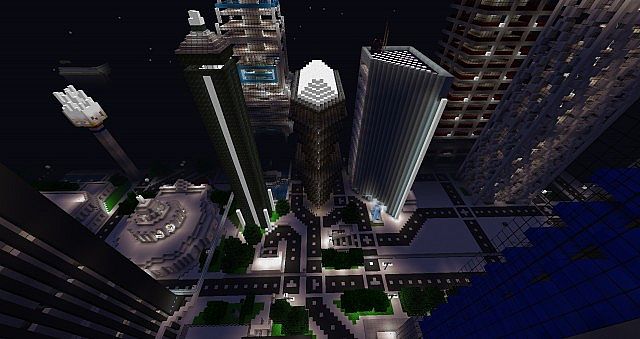
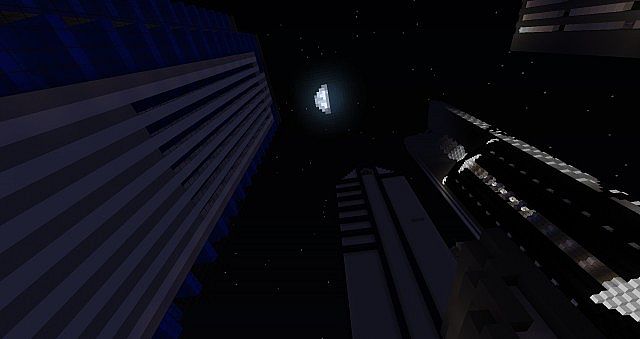
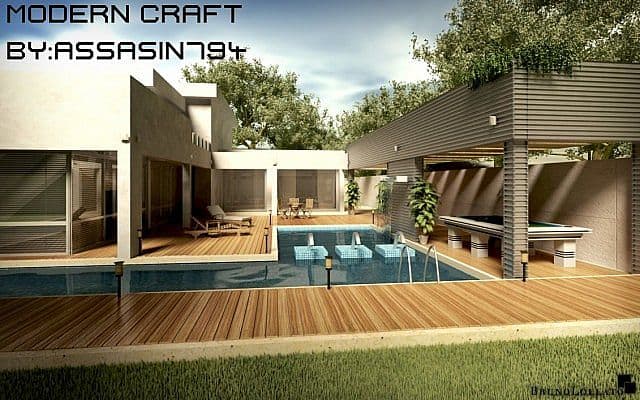
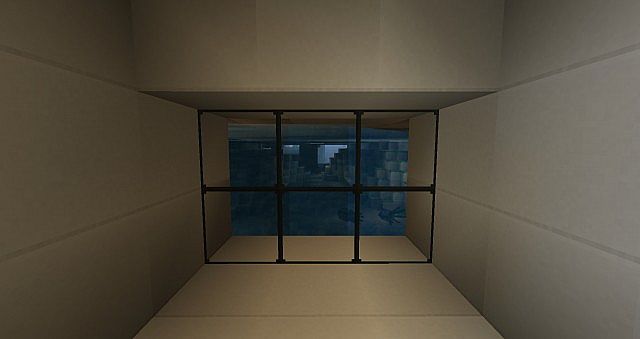
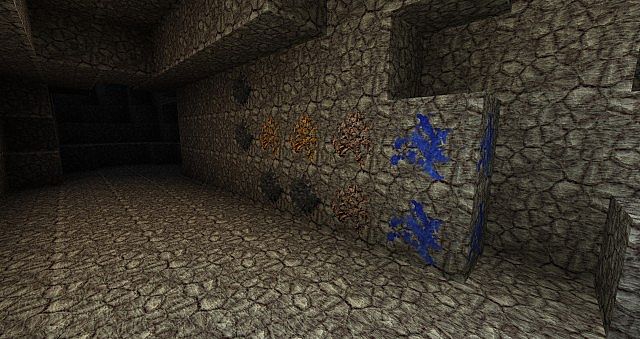
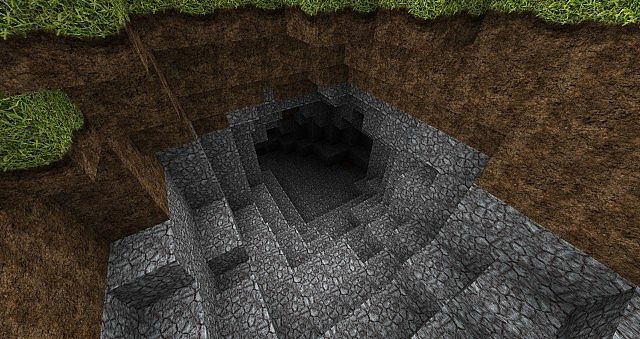
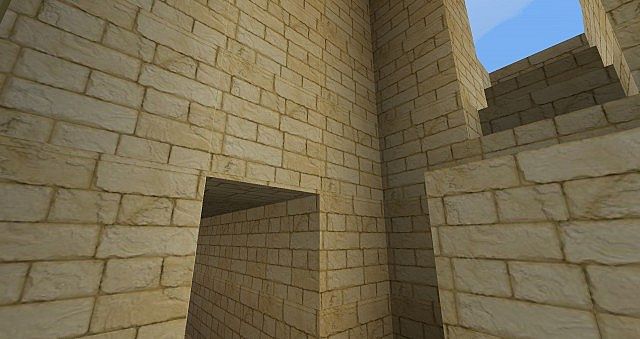
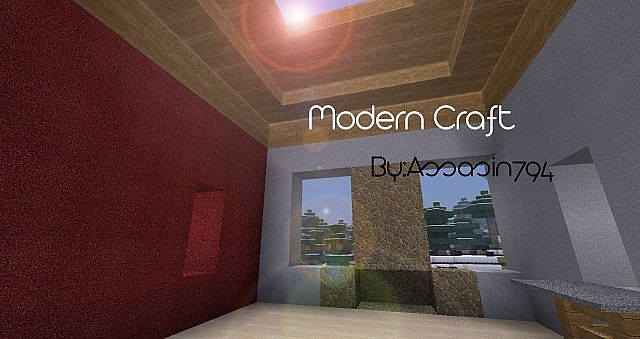
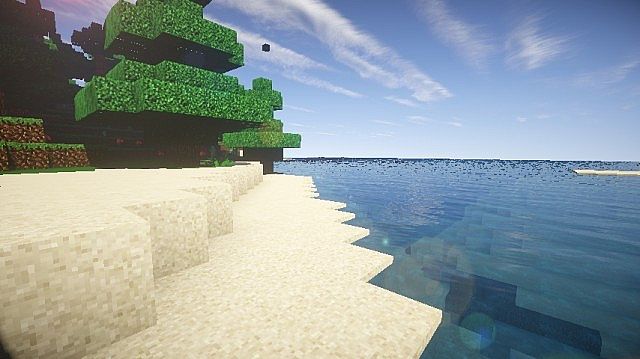
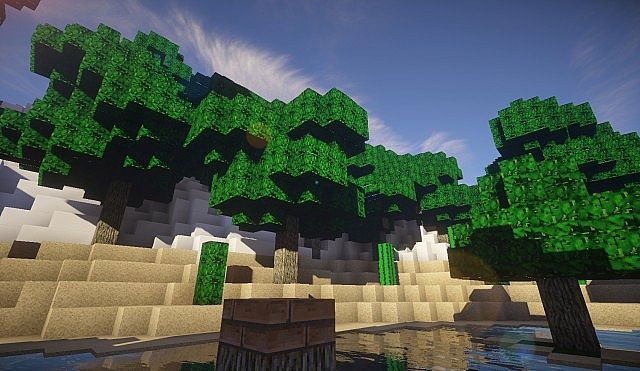
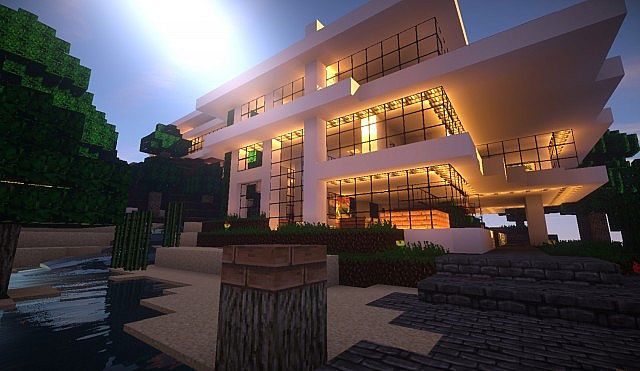
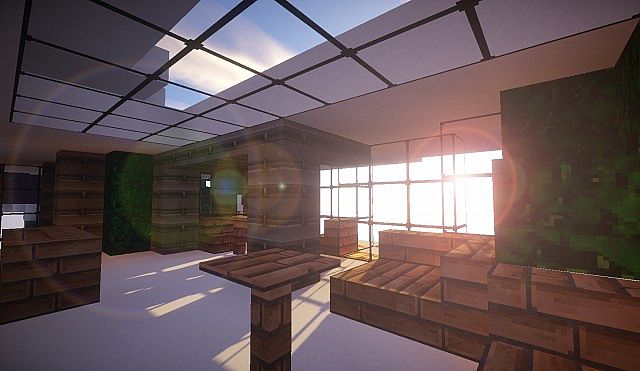
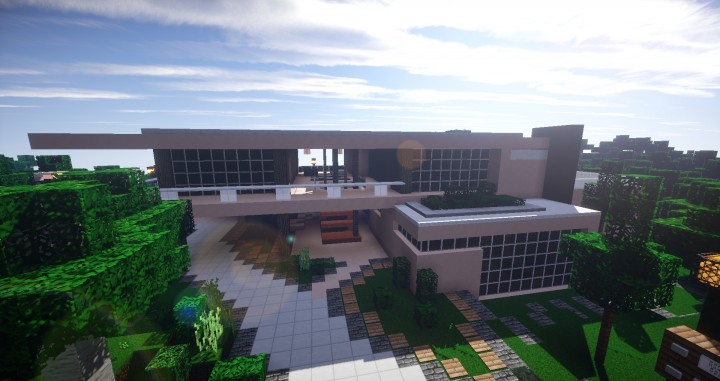
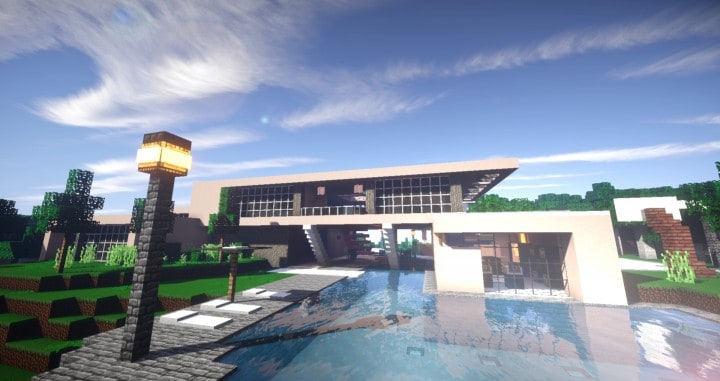
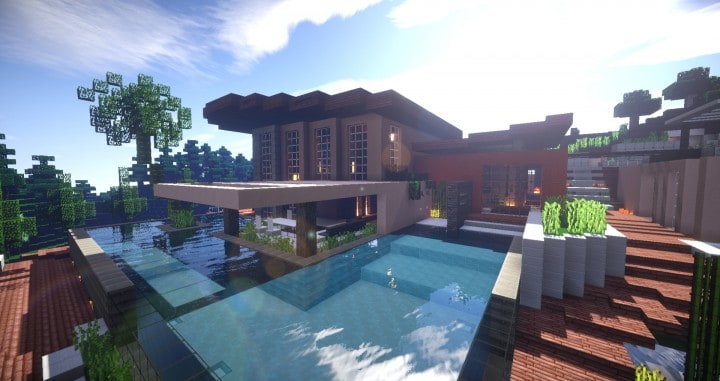
How to Install Texture Pack (Simple 10 Steps)
- Download OptiFine: Most of the texture packs and shaders need OptiFine. That’s why, first download and install OptiFine for the version of Minecraft you want to play.
- Download the Texture Pack: Get the texture pack you want from the download section. Choose the version that works with your Minecraft and your PC’s performance.
- Open Minecraft Launcher: Start Minecraft using the official game launcher — or even TLauncher, if you use that.
- Go to Options: From the main menu, click on the “Options” button.
- Open Resource Packs: Inside Options, click on “Resource Packs…”.
- Open the Resource Pack Folder: Click on “Open Resource Pack Folder” — this will open a folder named “resourcepacks”.
- Move the Pack File: Copy or move the .zip file you downloaded into that “resourcepacks” folder. (Don’t unzip the file — Minecraft uses it as-is!)
- Go Back and Refresh: Close the folder and click “Done”, then go back into “Resource Packs…” again.
- Activate the Pack: You’ll see the pack on the left side. Hover over it and click the arrow to move it to the right (active side).
Tip: If you get a message that the pack is for a different version, just click “Yes” — it usually works fine. - Click Done and Enjoy: Click “Done” again. Now your pack is ready to use in-game. It’s that easy!
Credits
Moderna HD was originally created by Assasin794 and ApexMCGaming. We do not claim ownership of this content, nor do we host or modify the original files. All rights remain with the original creators. We encourage community members to visit and support the creators through their official platforms.
Download Links
Java Edition
Download Instructions
Curseforge: download starts automatically after a few seconds;
Mediafire: click the big blue button with the text “DOWNLOAD”;
Google Drive: in the top right corner you will see a small download icon (down arrow), click it and the download should start;