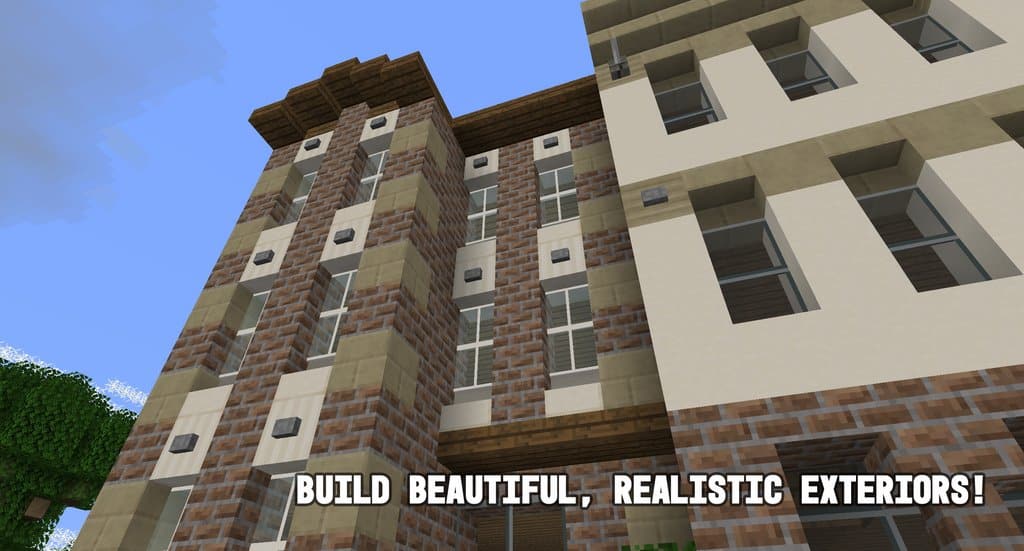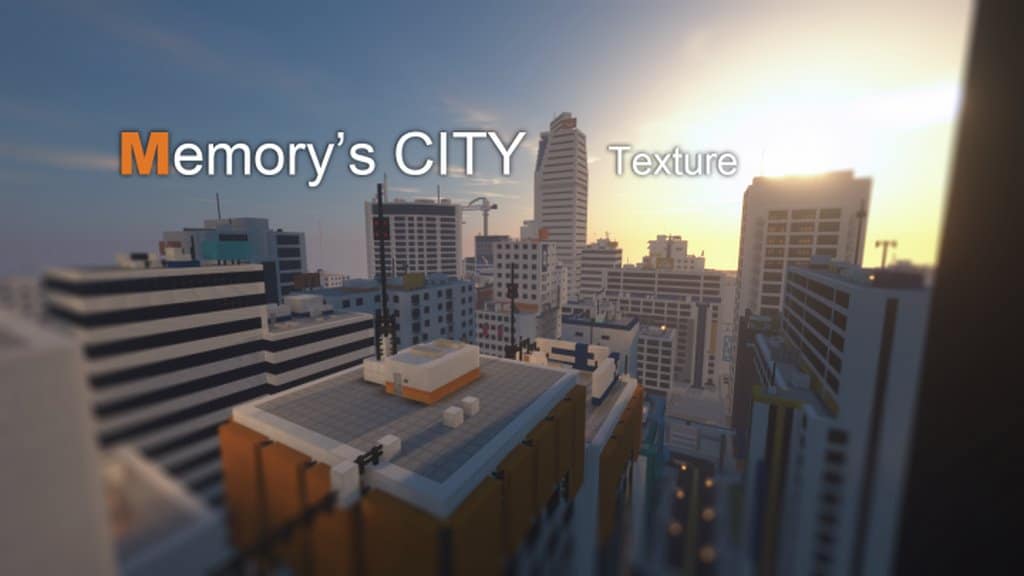
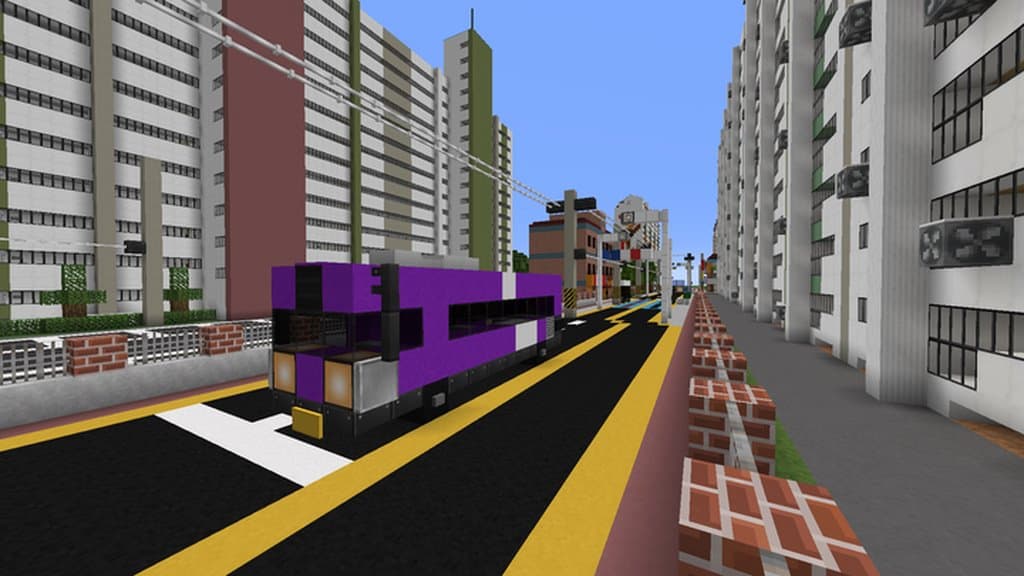
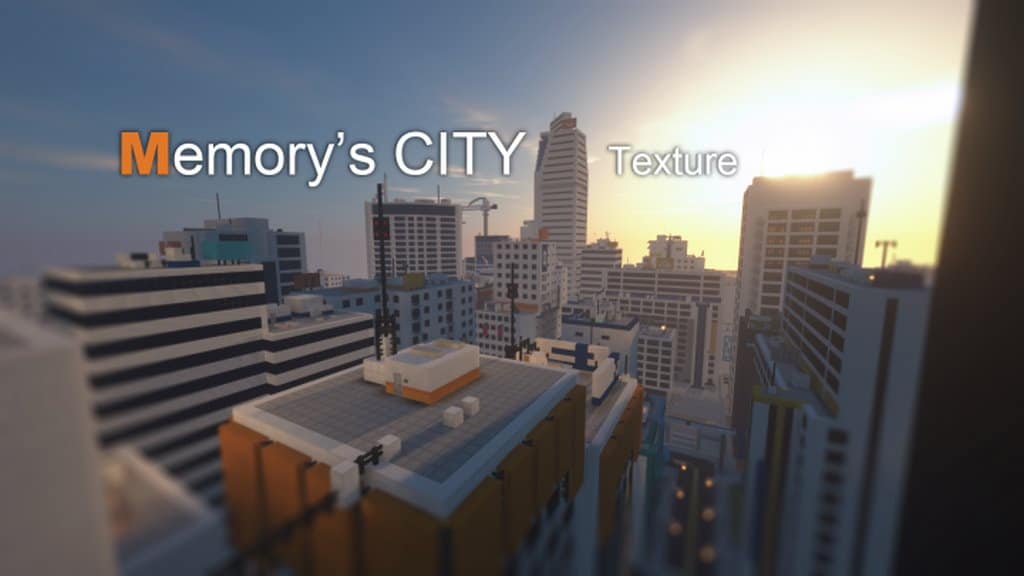
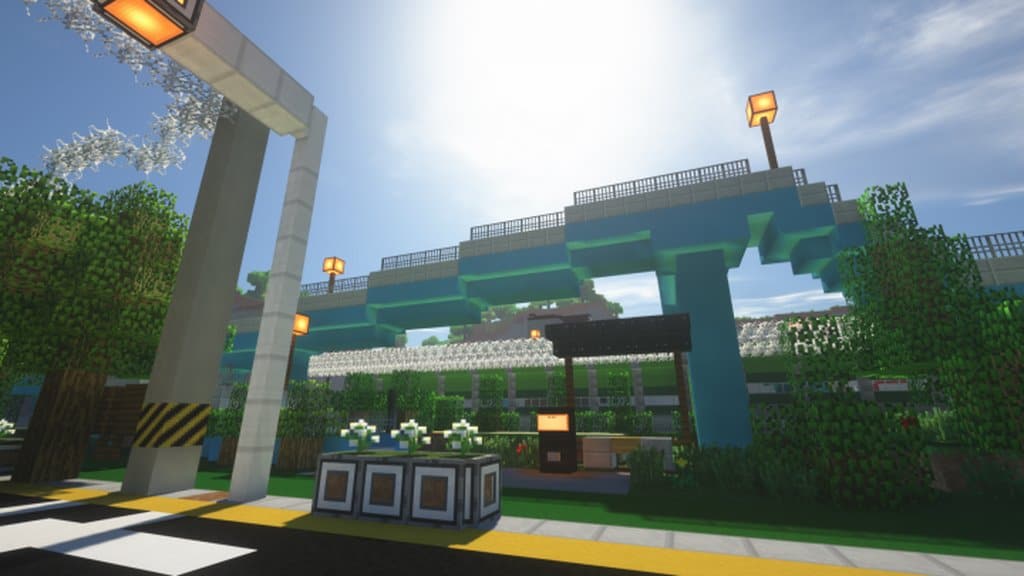
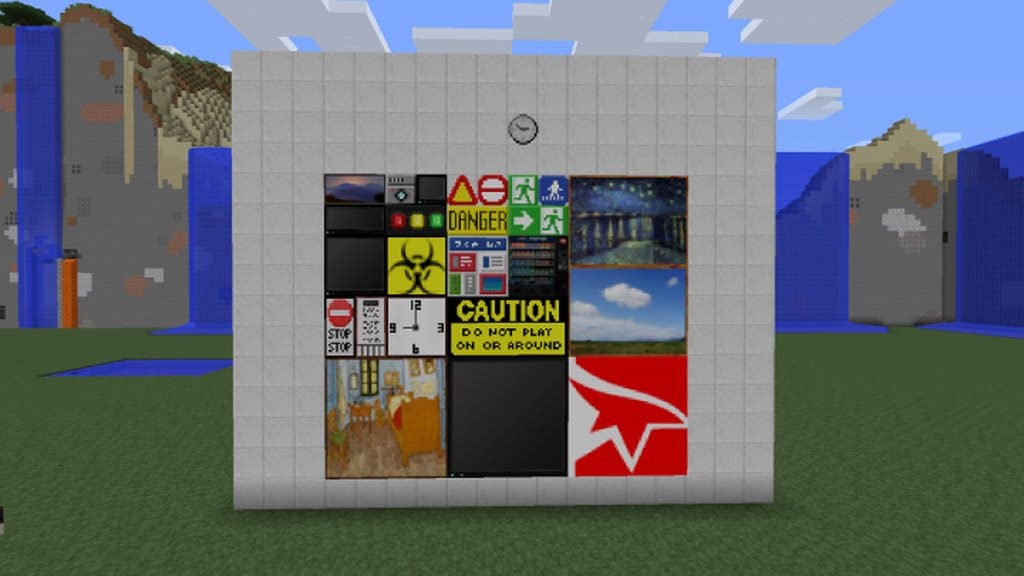
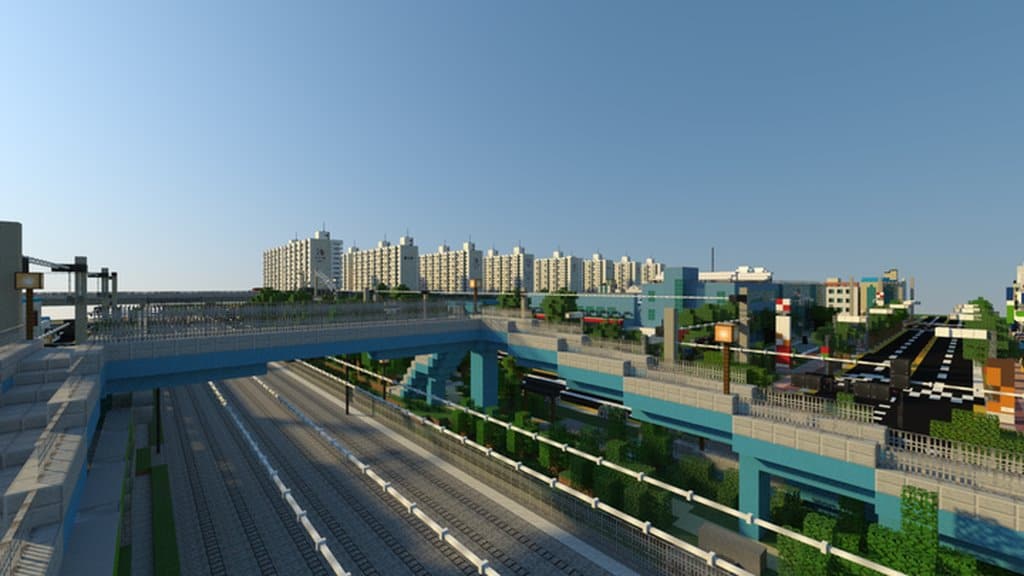
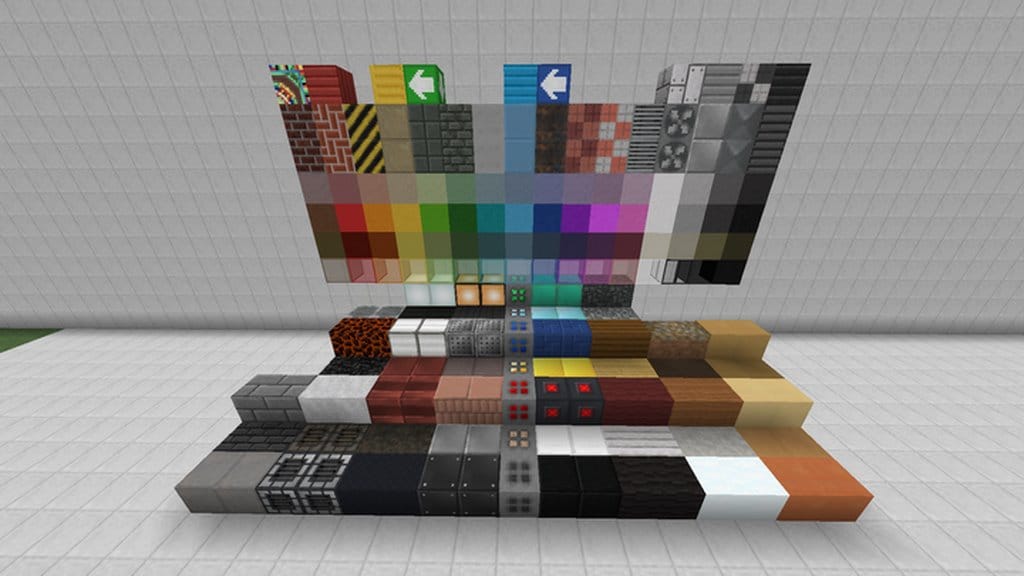
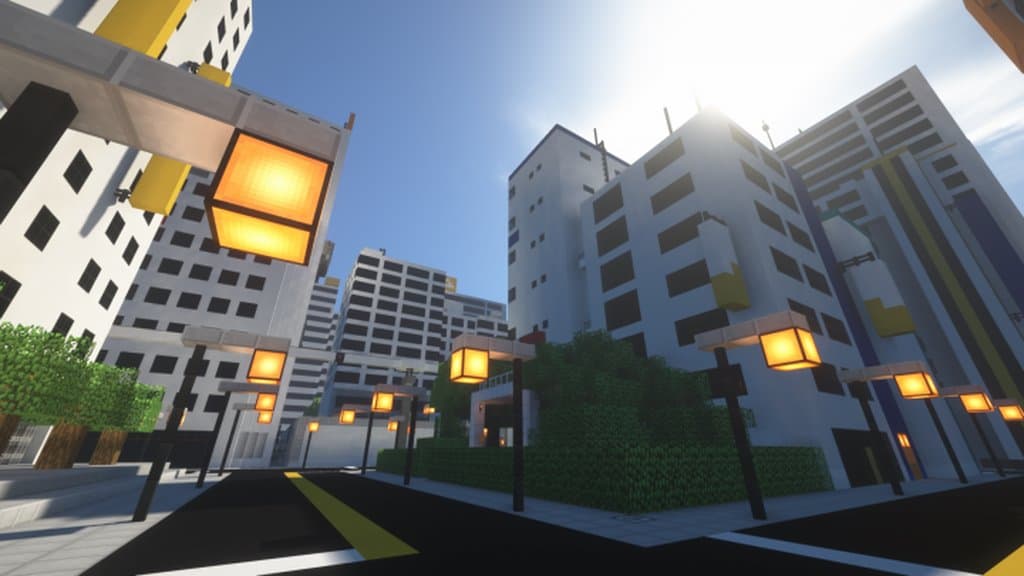
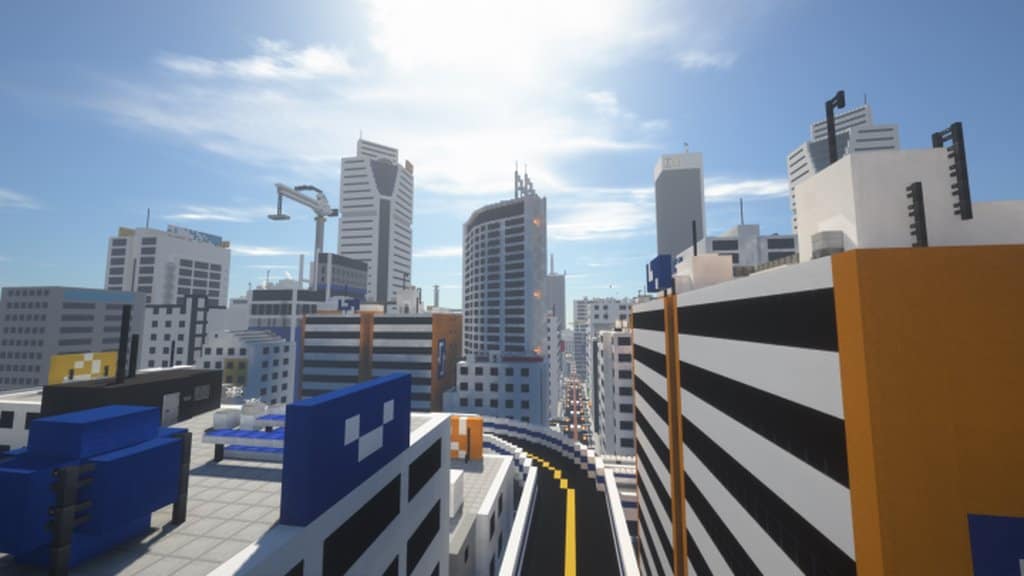
Have you heard about the incredible Memory’s City resource pack? It brings an absolutely gorgeous set of modern, beautiful, and eye-catching textures that I personally had a blast testing. It’s great for all Minecraft players that want to improve the game texture and offer it a better and more intriguing look. It’s designed by Fivetoo52 who has implemented this resource pack for those enthusiastic Minecraft players who do not like the boring, dull, and lackluster textures of the vanilla Minecraft game. This resource pack has already been on the market for more than seven years by now and Memory’s City resource pack has definitely gained well-deserved popularity. Now, it’s true that Memory’s City resource pack and its concept aren’t entirely one-of-a-kind or revolutionary, but I found that this resource pack never fails to impress Minecraft players by offering them a set of high-quality, intriguing, and exceptional texture designs. Rest assured that this resource pack can truly bring a complete makeover for your favorite game.
To be more precise, it can perfectly elevate and improve the visuals of the Minecraft game by creating an advanced and modern city look. Once you start installing and using this Memory’s City resource pack, you will no longer face the lackluster default Minecraft visuals anymore, which is a huge relief. Instead, you will immerse yourself into a fascinating and captivating gaming journey that will surely enhance your overall gaming experience. The resolution of Memory’s City resource pack is compatible with the default and standard Minecraft resolution; to be more precise, it uses the standard 16×16 resolution. To summarize, this resource pack offers you a bunch of clean, well-detailed, eye-catching, and modern-looking textures that you may not find in any other Minecraft resource packs. It will make the overall game appearance even more immersive and vibrant. Since it has the standard 16×16 resolution, you can easily use this resource pack on any of your gaming systems without facing the problems of frame-rate drop issues, running buttery smooth.
Memory’s Modern (Memory’s city) should be compatible with all of these Minecraft versions: 1.16.5 – 1.16.4 – 1.16.3 – 1.16.2 – 1.16.1 – 1.16 – 1.15.2 – 1.15.1 – 1.15 – 1.14.4 – 1.14.3 – 1.14.2 – 1.14 – 1.13.2 – 1.13.1 – 1.13 – 1.12.2 – 1.12 – 1.11.2 – 1.11 – 1.10.2 – 1.10 – 1.9.4 – 1.9 – 1.8.9 – 1.8.8 – 1.8.1 – 1.8.6 – 1.8 – 1.7.10 – 1.7.9 – 1.7.4 – 1.7
Screenshots

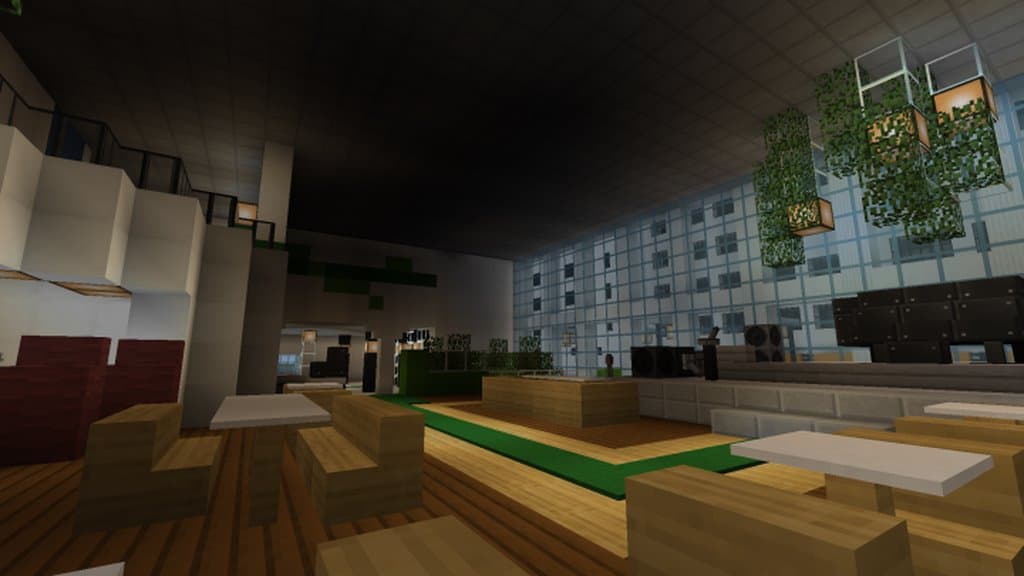
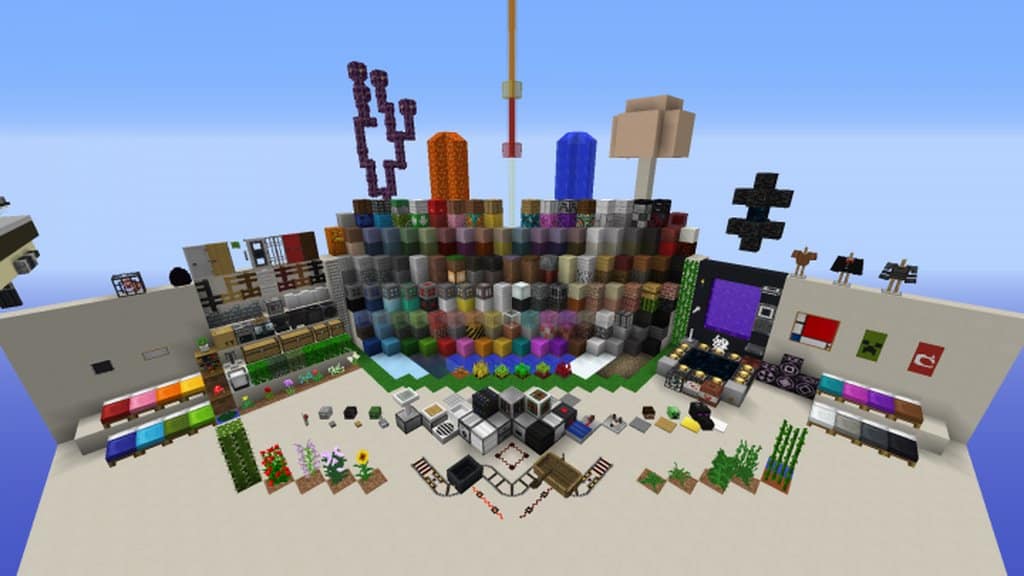
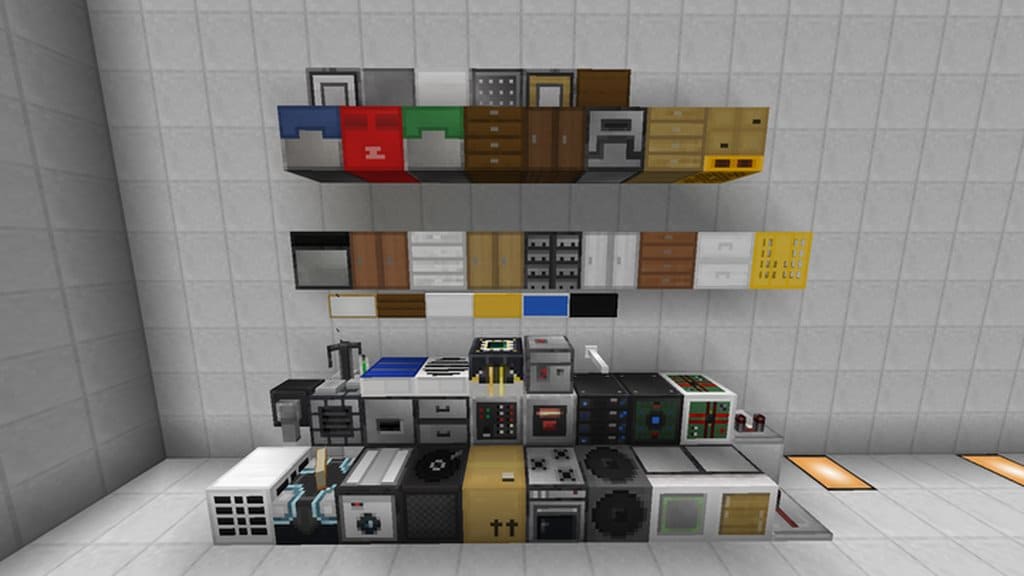
How to Install Texture Pack (Simple 10 Steps)
- Download OptiFine: Most of the texture packs and shaders need OptiFine. That’s why, first download and install OptiFine for the version of Minecraft you want to play.
- Download the Texture Pack: Get the texture pack you want from the download section. Choose the version that works with your Minecraft and your PC’s performance.
- Open Minecraft Launcher: Start Minecraft using the official game launcher — or even TLauncher, if you use that.
- Go to Options: From the main menu, click on the “Options” button.
- Open Resource Packs: Inside Options, click on “Resource Packs…”.
- Open the Resource Pack Folder: Click on “Open Resource Pack Folder” — this will open a folder named “resourcepacks”.
- Move the Pack File: Copy or move the .zip file you downloaded into that “resourcepacks” folder. (Don’t unzip the file — Minecraft uses it as-is!)
- Go Back and Refresh: Close the folder and click “Done”, then go back into “Resource Packs…” again.
- Activate the Pack: You’ll see the pack on the left side. Hover over it and click the arrow to move it to the right (active side).
Tip: If you get a message that the pack is for a different version, just click “Yes” — it usually works fine. - Click Done and Enjoy: Click “Done” again. Now your pack is ready to use in-game. It’s that easy!
Credits
This resource pack was created by Fivetoo52. We do not claim ownership of this content, nor do we host or modify any files on our servers. All rights remain with the original creator. We strongly encourage visiting the official download sources to support the author.
Download Links
Java Edition
Download Instructions
Curseforge: download starts automatically after a few seconds;
Mediafire: click the big blue button with the text “DOWNLOAD”;
Google Drive: in the top right corner you will see a small download icon (down arrow), click it and the download should start;