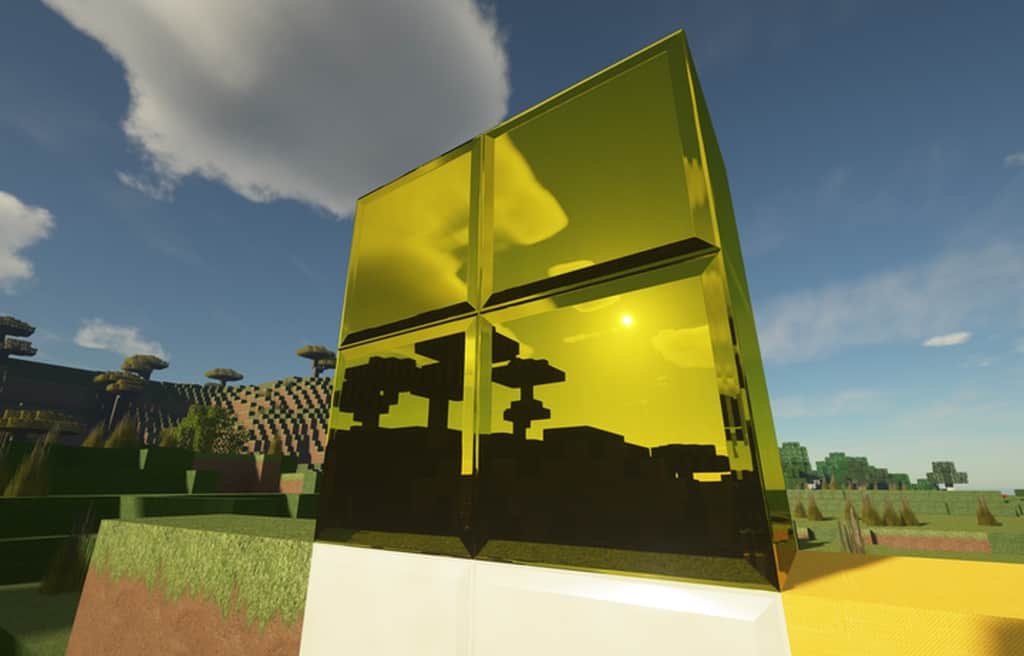
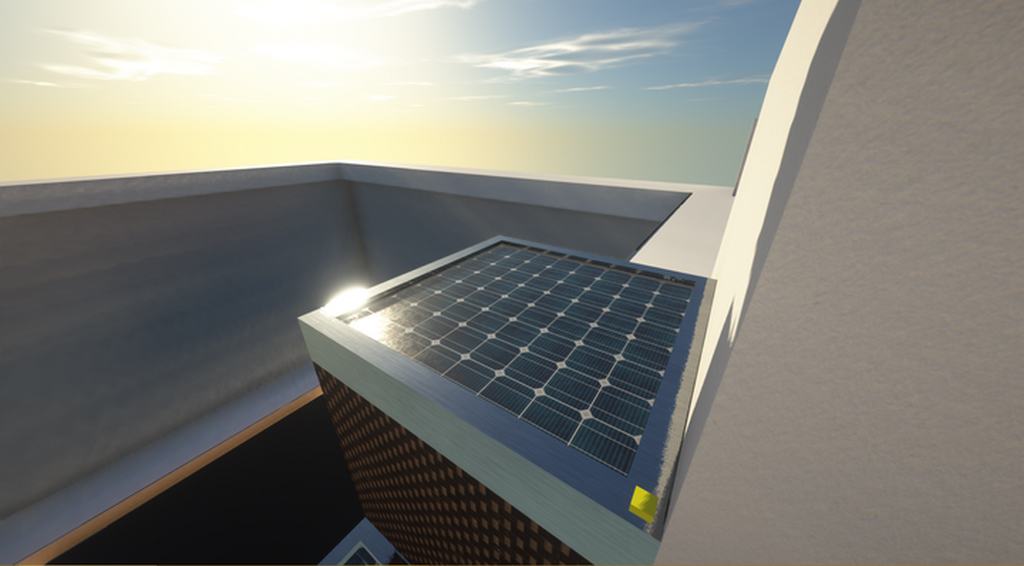
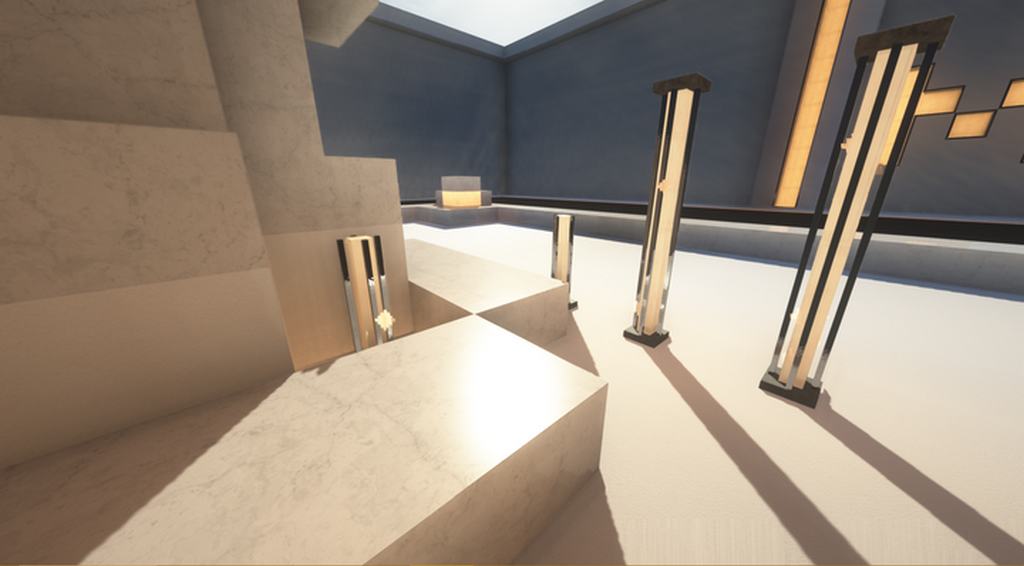
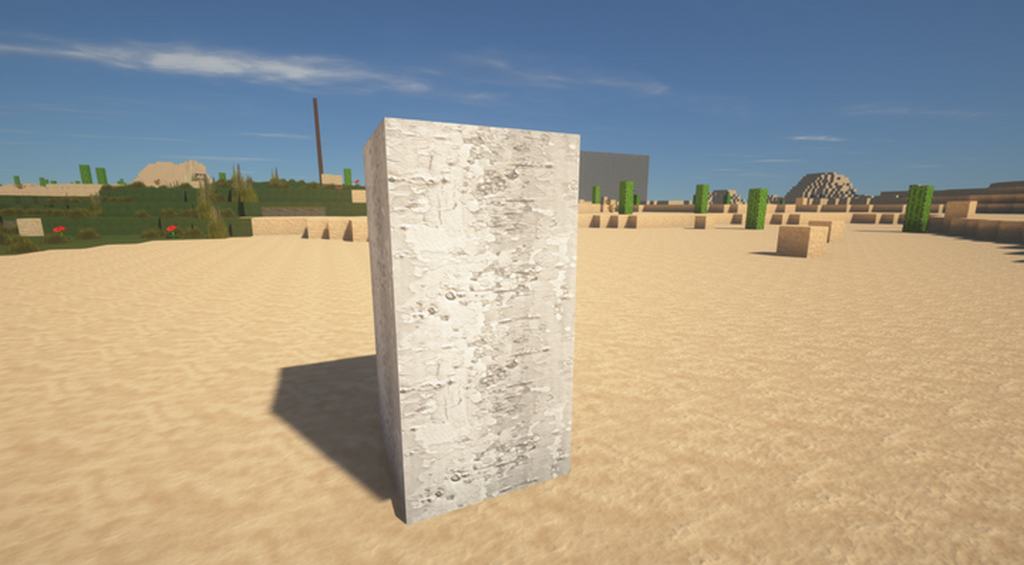
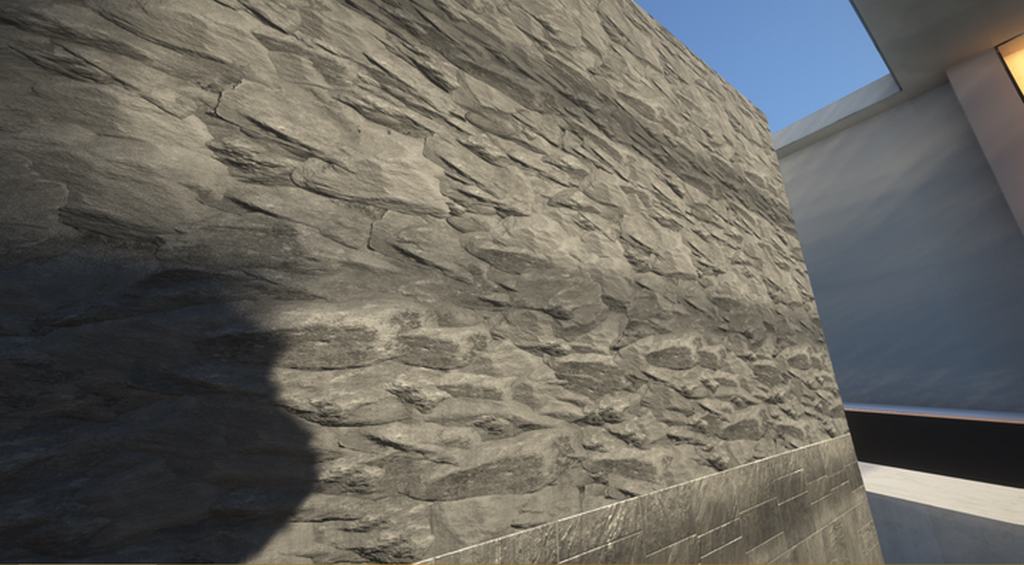
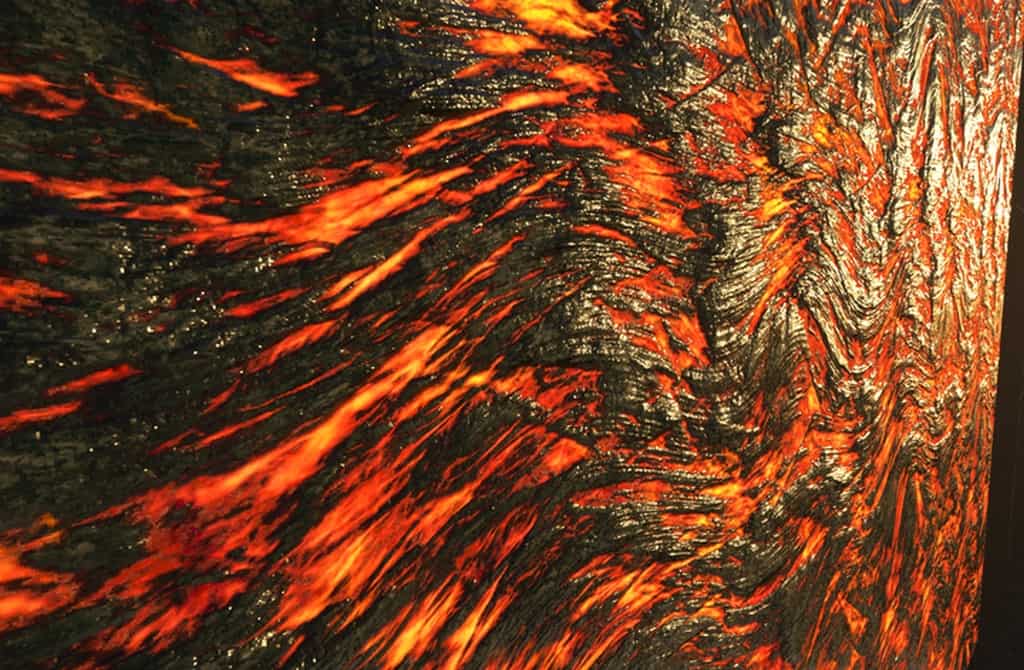
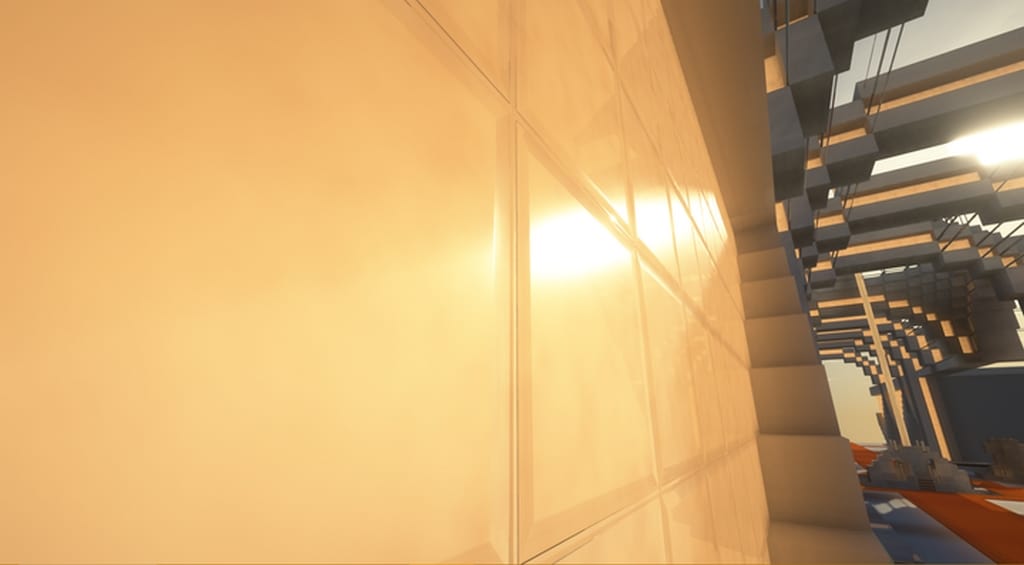
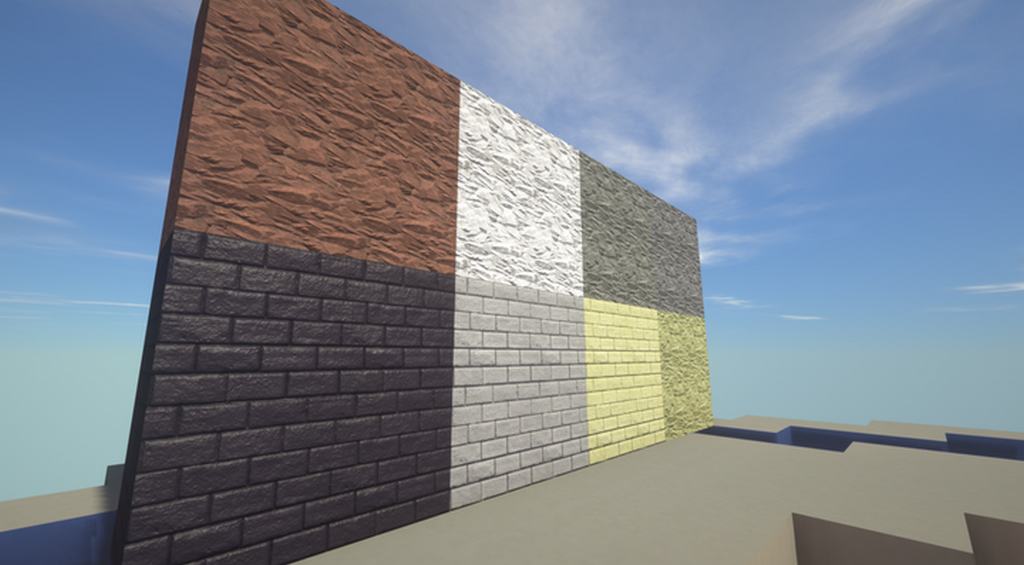
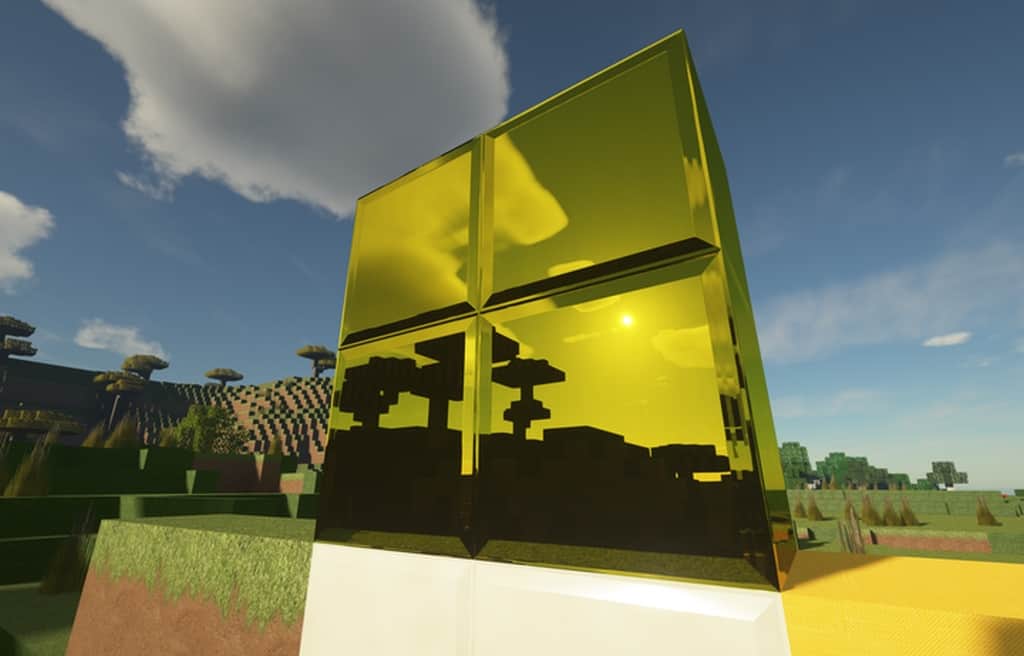
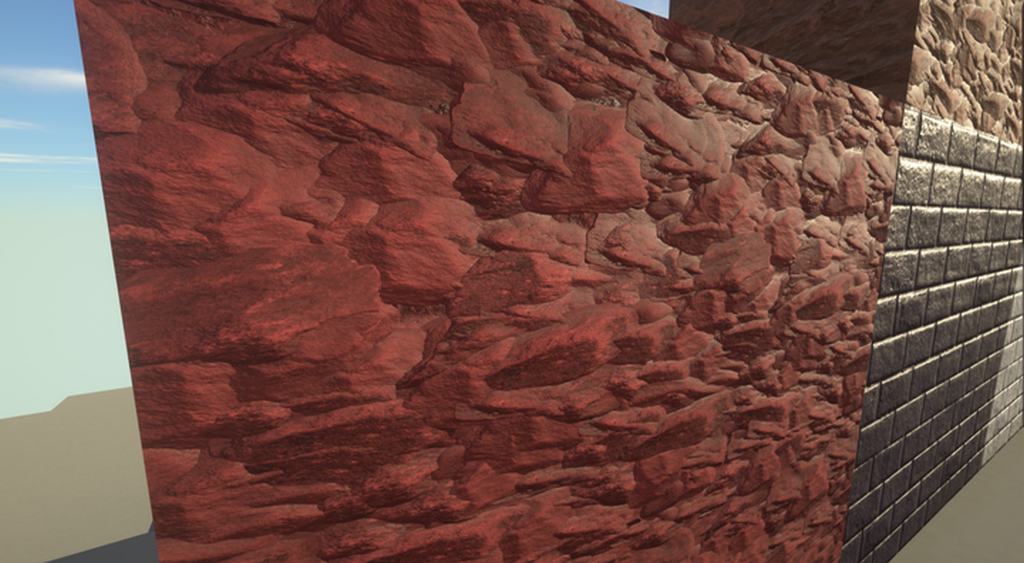
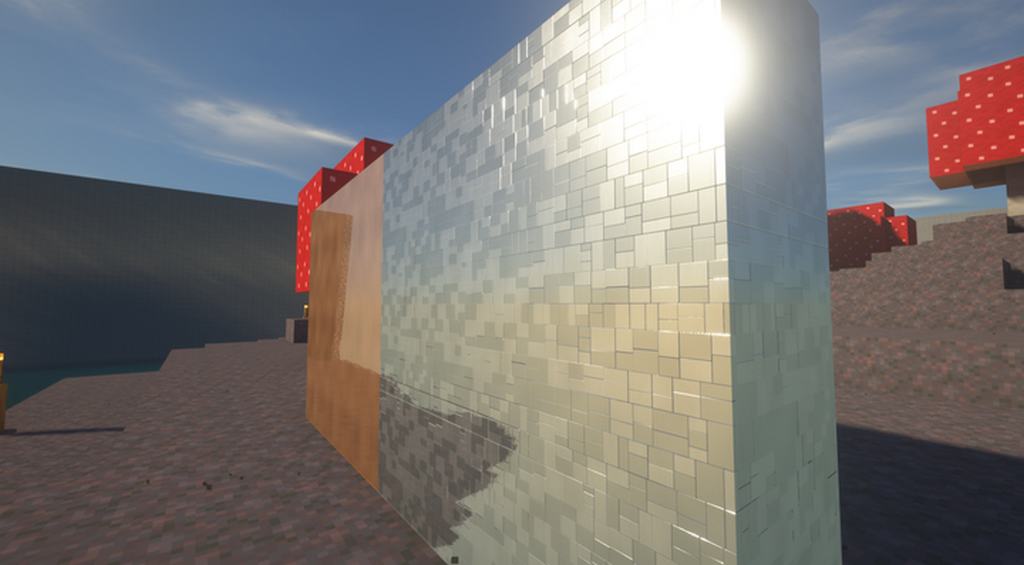
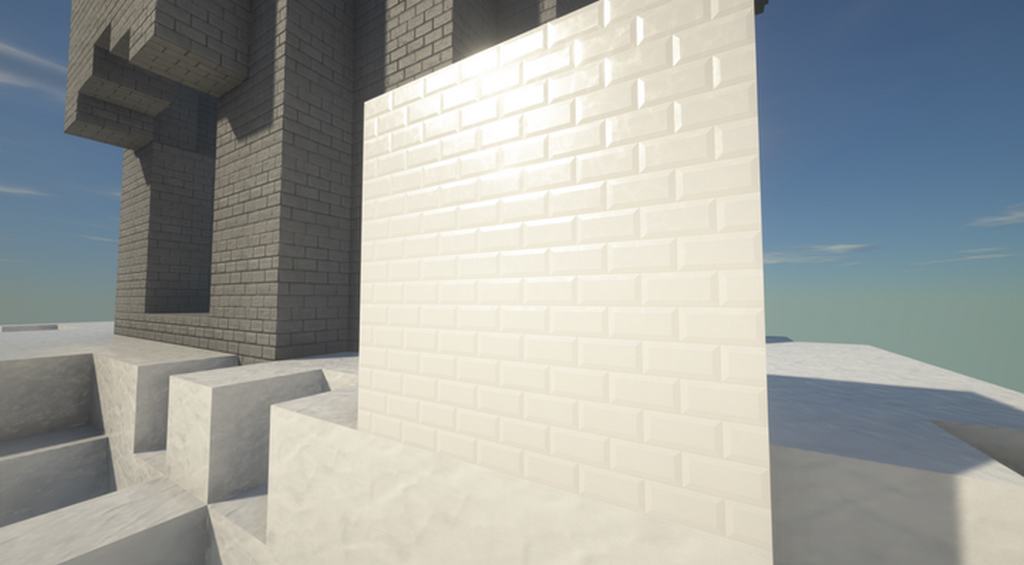
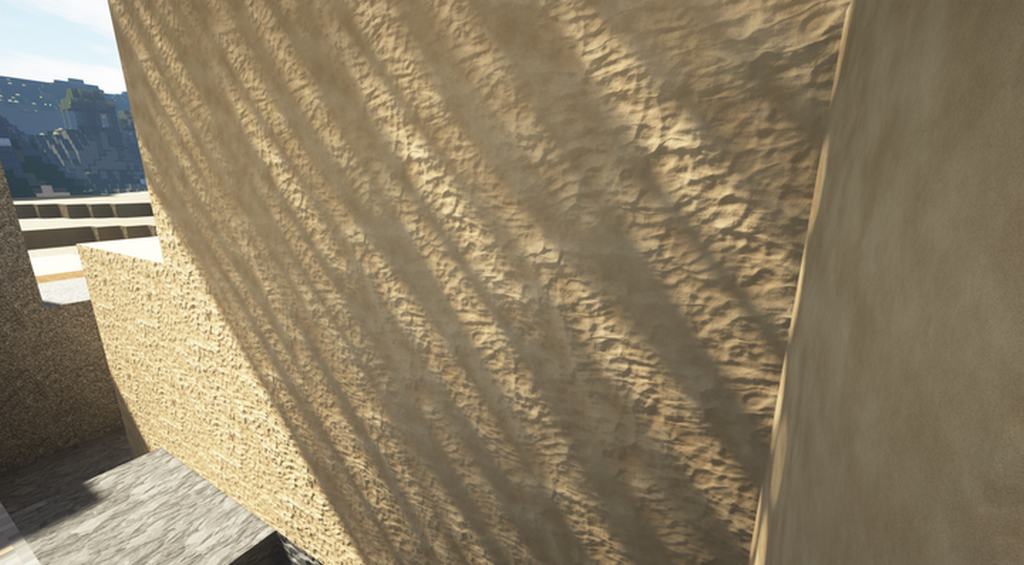
The LMX resource pack, officially known as the Luracasmus Modern Extreme resource pack, completely blew us away when we tested it! Compared to other resource packs in the same modern genre, LMX provides a visual treat at an entirely different level based on its remarkably creative design methodology. The absolute exploitation of this design method ensures an exceptionally attractive appearance for your entire game world. In all our years playing Minecraft, we have truly never seen a resource pack quite like this one. It weaves so much detail into the Minecraft universe that we just keep finding new things to appreciate about LMX. Contrary to almost any other pack out there, tracking down immersive technologies feels completely worth it once you finally get your hands on the LMX resource pack. Please note that the brilliant author behind LMX, Luracasmus, has recently rebranded the title to the Meteor resource pack. A rose by any other name still smells just as sweet, so it really does not matter that the pack has a new title. The entire texture design remains identical to the original LMX resource pack, and absolutely nothing has changed besides the name. The Meteor resource pack, formerly known as LMX, offers incredible lifelike textures that are the stunning result of an improved design featuring a clever mixture of normal maps and specular maps.
Even though adding extra details to textures can sometimes make them look overly busy, you simply cannot argue with the balance achieved here. At some point, cramming too much information into a texture can start looking unappealing, but LMX deploys tremendously creative design techniques coupled with the maximum amount of detail to create a genuinely unique and outstanding feel that is both extremely lively and immersive. We definitely recommend installing shaders for smooth functioning to get the absolute maximum mileage out of the Meteor texture pack. Please note that pairing it with shaders helps everything work properly, ensuring you get the full benefit of those gorgeous maps. Also, make sure you are playing on a system with high-end configurations to avoid any frame rate issues (FPS drops), because the public LMX resource pack boasts a massive 256×256 texture resolution! Higher resolutions like 1024×1024 and an insane 2048×2048 are also available exclusively for the author’s Patreon subscribers. You will certainly require a robust, powerful system to fully utilize this masterpiece. Finally, we want to highlight that the resource pack has reached a 65% completion level, which is completely understandable and expected given its massive scope and relatively recent release. Ambitious projects of this magnitude simply take a lot of time to develop and complete properly, and we cannot wait to see it reach 100%!
Meteor (LMX) should be compatible with all of these Minecraft versions: 1.20.4 – 1.20.3 – 1.20.2 – 1.20.1 – 1.20 – 1.19.4 – 1.19.3 – 1.19.2 – 1.19.1 – 1.19 – 1.18.2 – 1.18.1 – 1.18 – 1.17.1 – 1.17 – 1.16.5 – 1.16.4 – 1.16.3 – 1.16.2 – 1.16.1 – 1.16 – 1.15.2 – 1.15.1 – 1.15 – 1.14.4 – 1.14.3 – 1.14.2 – 1.14
Screenshots



How to Install Texture Pack (Simple 10 Steps)
- Download OptiFine: Most of the texture packs and shaders need OptiFine. That’s why, first download and install OptiFine for the version of Minecraft you want to play.
- Download the Texture Pack: Get the texture pack you want from the download section. Choose the version that works with your Minecraft and your PC’s performance.
- Open Minecraft Launcher: Start Minecraft using the official game launcher — or even TLauncher, if you use that.
- Go to Options: From the main menu, click on the “Options” button.
- Open Resource Packs: Inside Options, click on “Resource Packs…”.
- Open the Resource Pack Folder: Click on “Open Resource Pack Folder” — this will open a folder named “resourcepacks”.
- Move the Pack File: Copy or move the .zip file you downloaded into that “resourcepacks” folder. (Don’t unzip the file — Minecraft uses it as-is!)
- Go Back and Refresh: Close the folder and click “Done”, then go back into “Resource Packs…” again.
- Activate the Pack: You’ll see the pack on the left side. Hover over it and click the arrow to move it to the right (active side).
Tip: If you get a message that the pack is for a different version, just click “Yes” — it usually works fine. - Click Done and Enjoy: Click “Done” again. Now your pack is ready to use in-game. It’s that easy!
Credits
This resource pack was created by Luracasmus. We do not claim ownership of this content, nor do we host modified versions of these files. All rights belong exclusively to the original creator. We strongly encourage you to support Luracasmus by visiting their official download pages and creator platforms.
Download Links
Java Edition
Download Instructions
Curseforge: download starts automatically after a few seconds;
Mediafire: click the big blue button with the text “DOWNLOAD”;
Google Drive: in the top right corner you will see a small download icon (down arrow), click it and the download should start;


