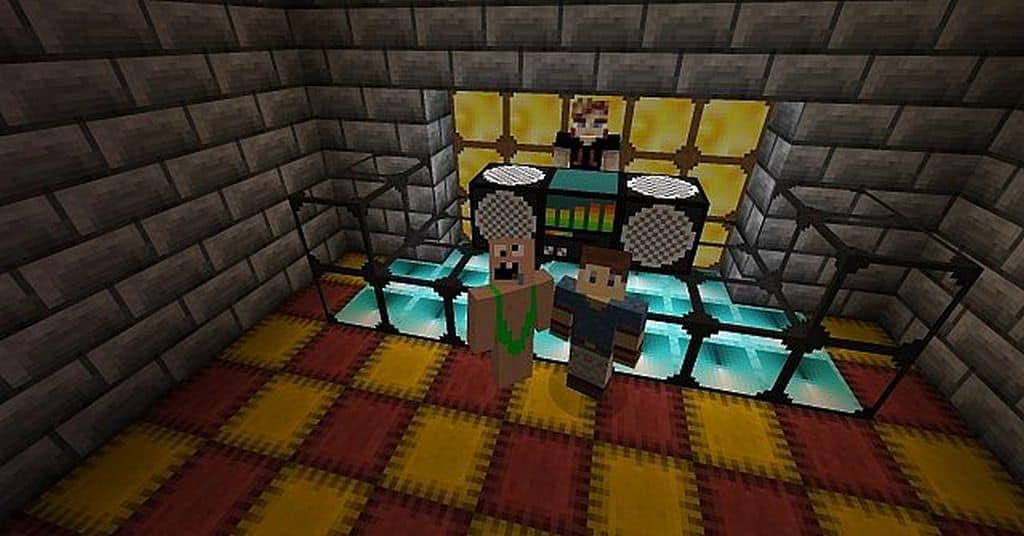
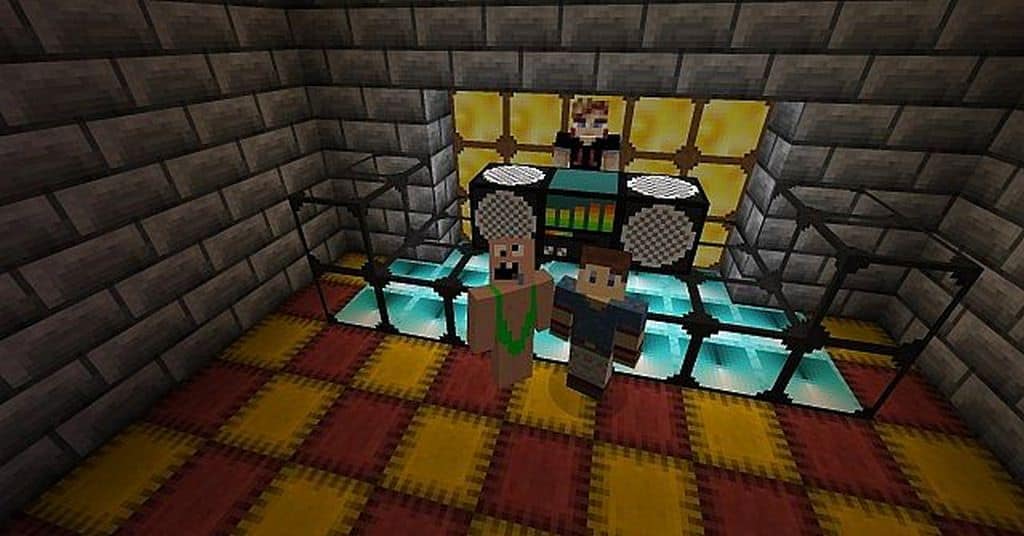
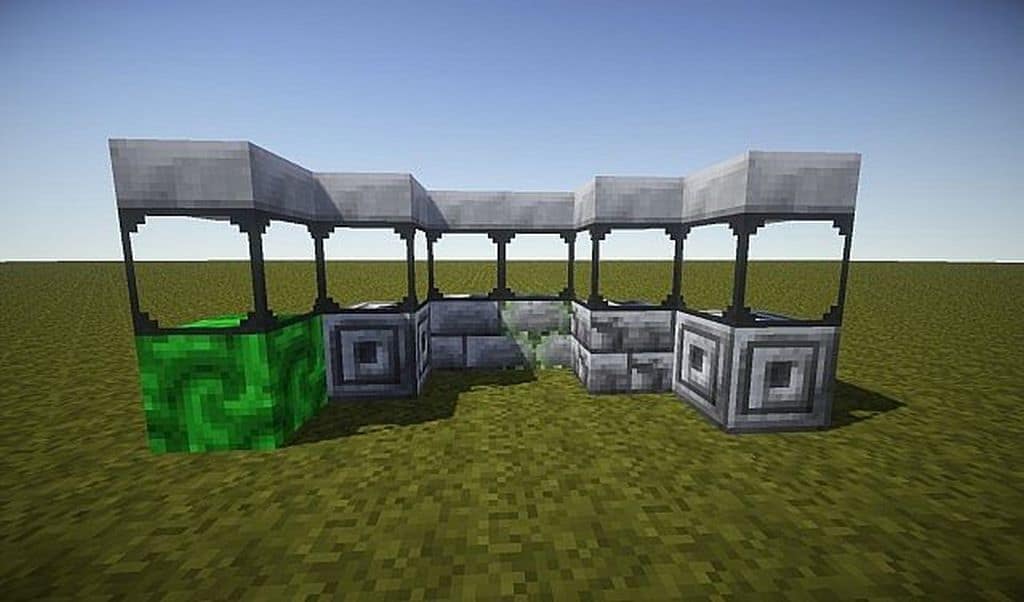
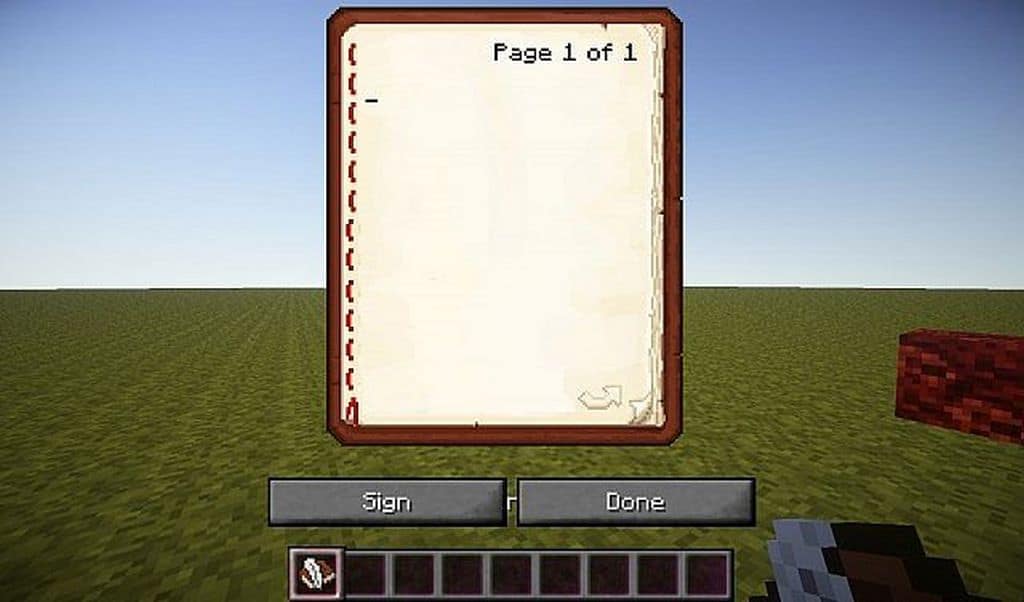
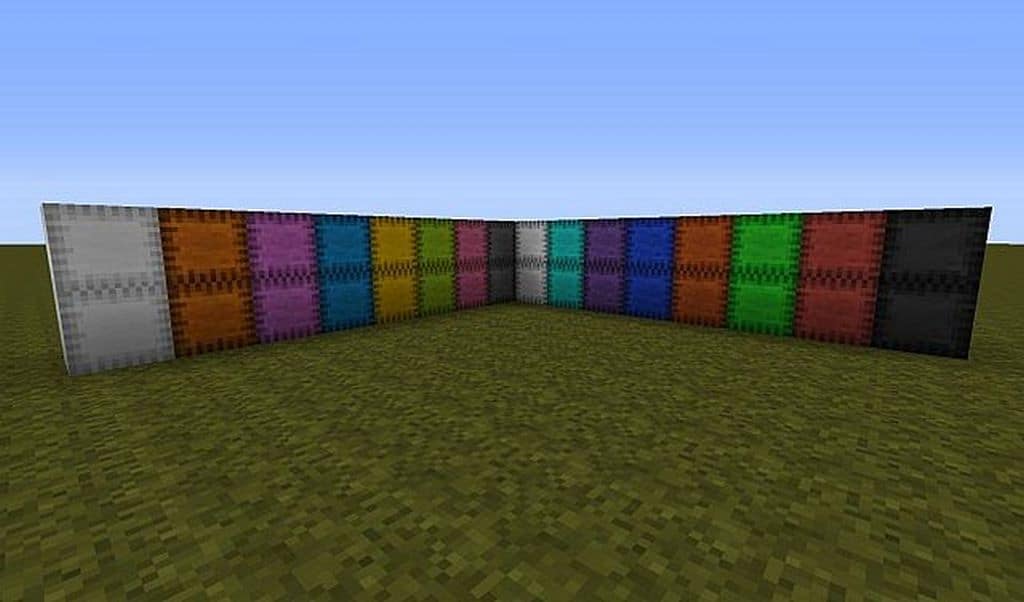
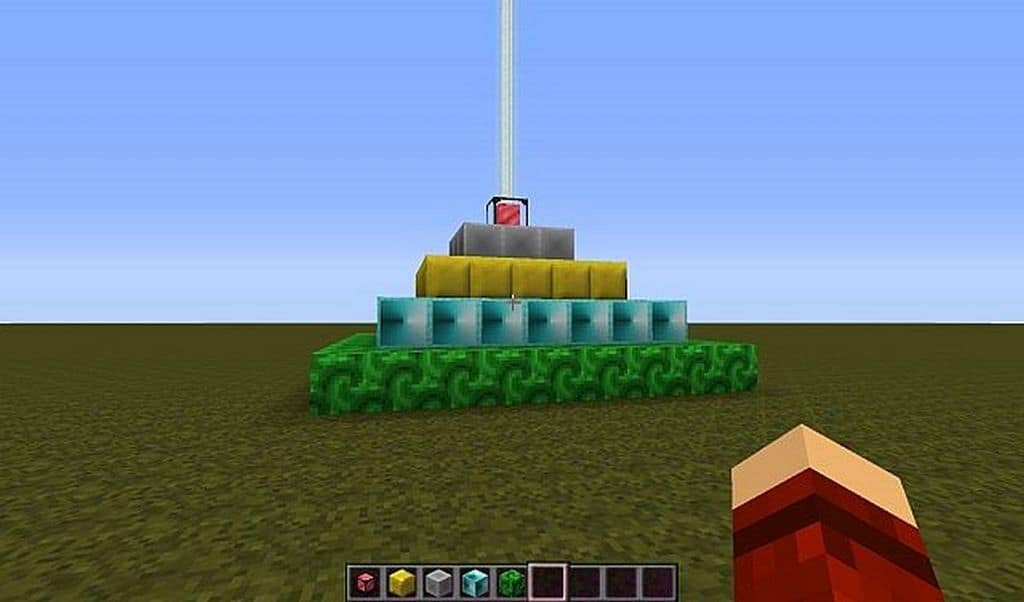
The MauZi Realistic resource pack might be considered an older project by now, but honestly, it is still a fantastic pack to play with. Eight years have passed since it was first released, and about three years have gone by since it last received any updates from the developer. Unfortunately for the passionate fans of this classic pack, the creator has not updated it to make it fully compatible with the absolute newest versions of Minecraft. However, those of us who are still happily playing on Minecraft version 1.12.x and below can still thoroughly enjoy this incredible old gem. For anyone who happens to not be familiar with it yet, the MauZi Realistic texture pack gives Minecraft’s standard visual and graphic elements a wonderful breath of fresh air. At the same time, it adds a much more realistic feel to the overall aesthetic of the game. Even though eight years definitely sounds like a very long time in the gaming world, truly good design ideas are completely timeless.
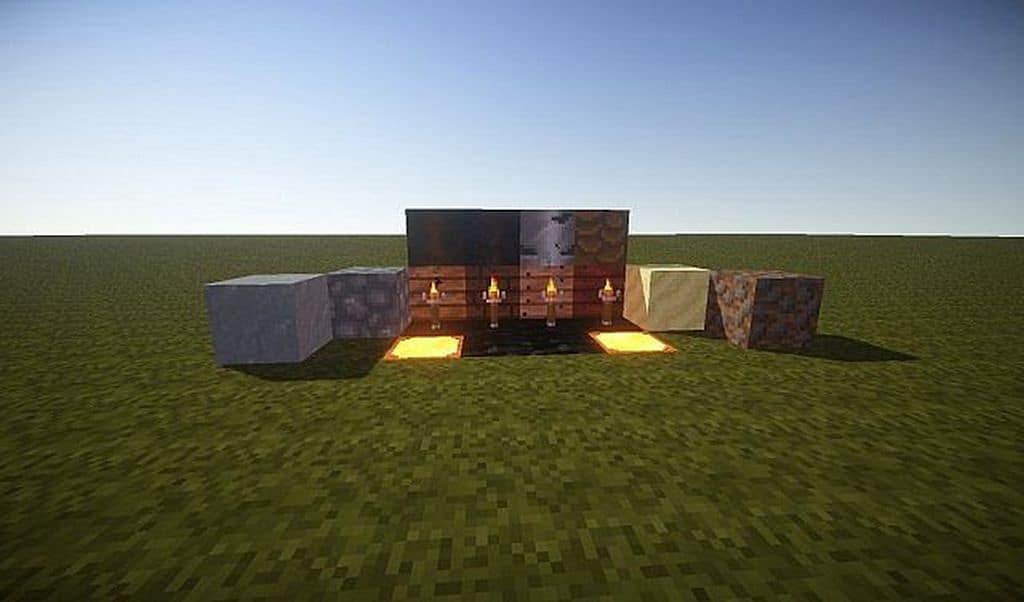
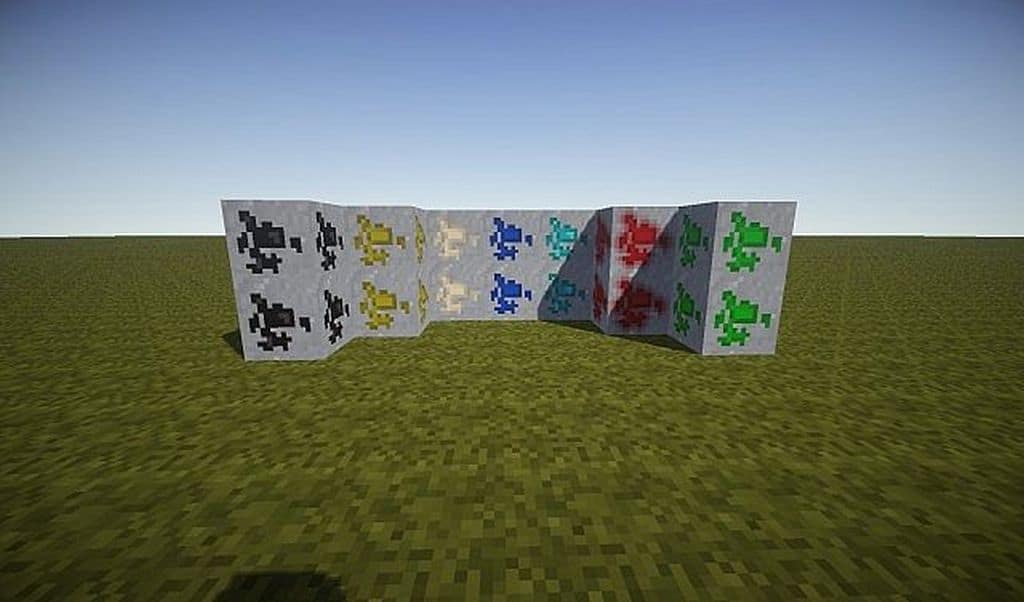
And I found that MauZi Realistic has nothing short of brilliant ideas at its core, featuring entirely new item and terrain textures that were once rightfully described as breath-taking and spectacular. Even today, the individual textures that this resource pack completely overhauls are nothing short of incredible to look at in-game. I was really glad to notice that there is only a minimum amount of unwanted visual noise in certain textures, keeping everything looking clean. If you decide to load up and use the MauZi Realistic resource pack yourself, you will genuinely be blown away by the fact that you are looking at such high-definition textures, regardless of the resolution choice you make. That is completely true: even those of us who prefer to play with a standard x16 resolution will get to enjoy the absolute highest graphic quality possible. Because of that brilliant optimization, this resource pack is my ultimate go-to recommendation for players with low-end PCs who want to experience a high-end visual overhaul without having to sacrifice playability or deal with terrible frame rates that ruin the fun of the game.
MauZi Realistic should be compatible with all of these Minecraft versions: 1.12.2 – 1.12 – 1.11.2 – 1.11 – 1.8.1 – 1.8.6 – 1.8 – 1.7.10 – 1.7.9 – 1.7.4 – 1.7 – 1.6.4 – 1.6.2
Screenshots
How to Install Texture Pack (Simple 10 Steps)
- Download OptiFine: Most of the texture packs and shaders need OptiFine. That’s why, first download and install OptiFine for the version of Minecraft you want to play.
- Download the Texture Pack: Get the texture pack you want from the download section. Choose the version that works with your Minecraft and your PC’s performance.
- Open Minecraft Launcher: Start Minecraft using the official game launcher — or even TLauncher, if you use that.
- Go to Options: From the main menu, click on the “Options” button.
- Open Resource Packs: Inside Options, click on “Resource Packs…”.
- Open the Resource Pack Folder: Click on “Open Resource Pack Folder” — this will open a folder named “resourcepacks”.
- Move the Pack File: Copy or move the .zip file you downloaded into that “resourcepacks” folder. (Don’t unzip the file — Minecraft uses it as-is!)
- Go Back and Refresh: Close the folder and click “Done”, then go back into “Resource Packs…” again.
- Activate the Pack: You’ll see the pack on the left side. Hover over it and click the arrow to move it to the right (active side).
Tip: If you get a message that the pack is for a different version, just click “Yes” — it usually works fine. - Click Done and Enjoy: Click “Done” again. Now your pack is ready to use in-game. It’s that easy!
Credits
This resource pack was originally created and developed by sunken1999. We do not own, host, or claim any rights to this modification, nor do we alter the original files in any way. All credit and appreciation belong entirely to the original author. We strongly encourage you to support the creator by visiting their official pages and downloading the files directly from their verified links.
Download Links
Java Edition
Download Instructions
Curseforge: download starts automatically after a few seconds;
Mediafire: click the big blue button with the text “DOWNLOAD”;
Google Drive: in the top right corner you will see a small download icon (down arrow), click it and the download should start;


