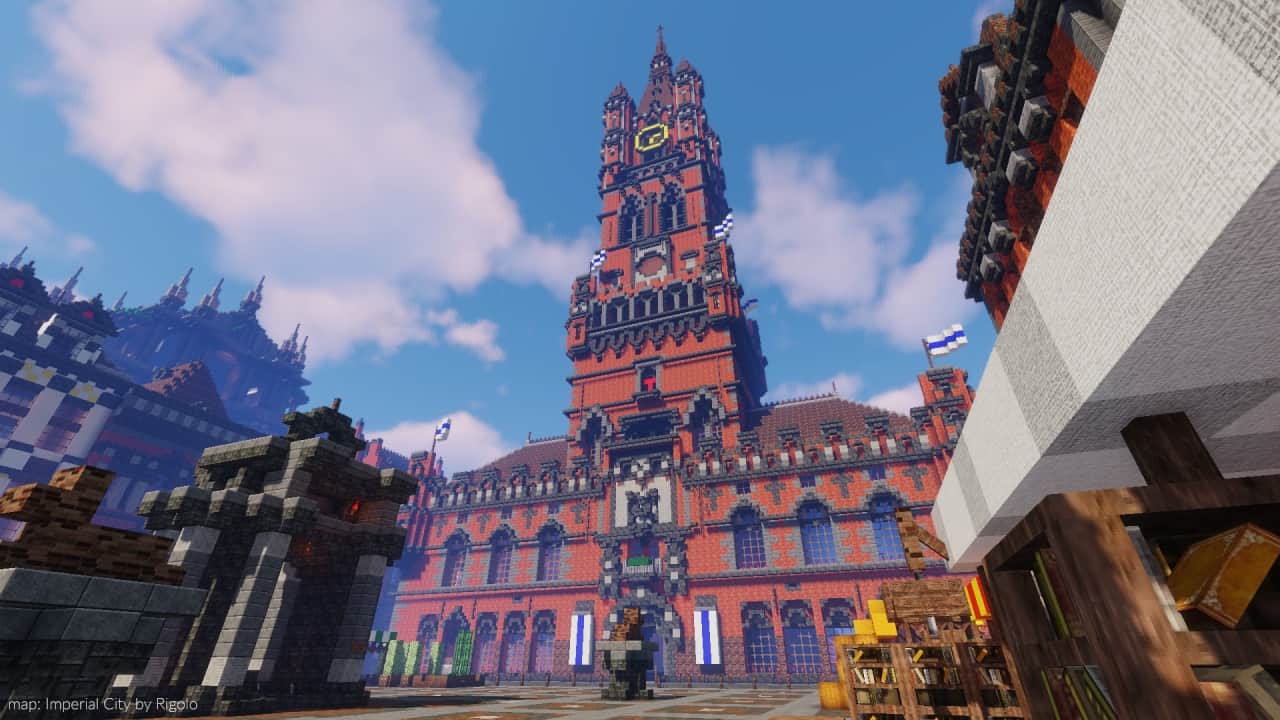
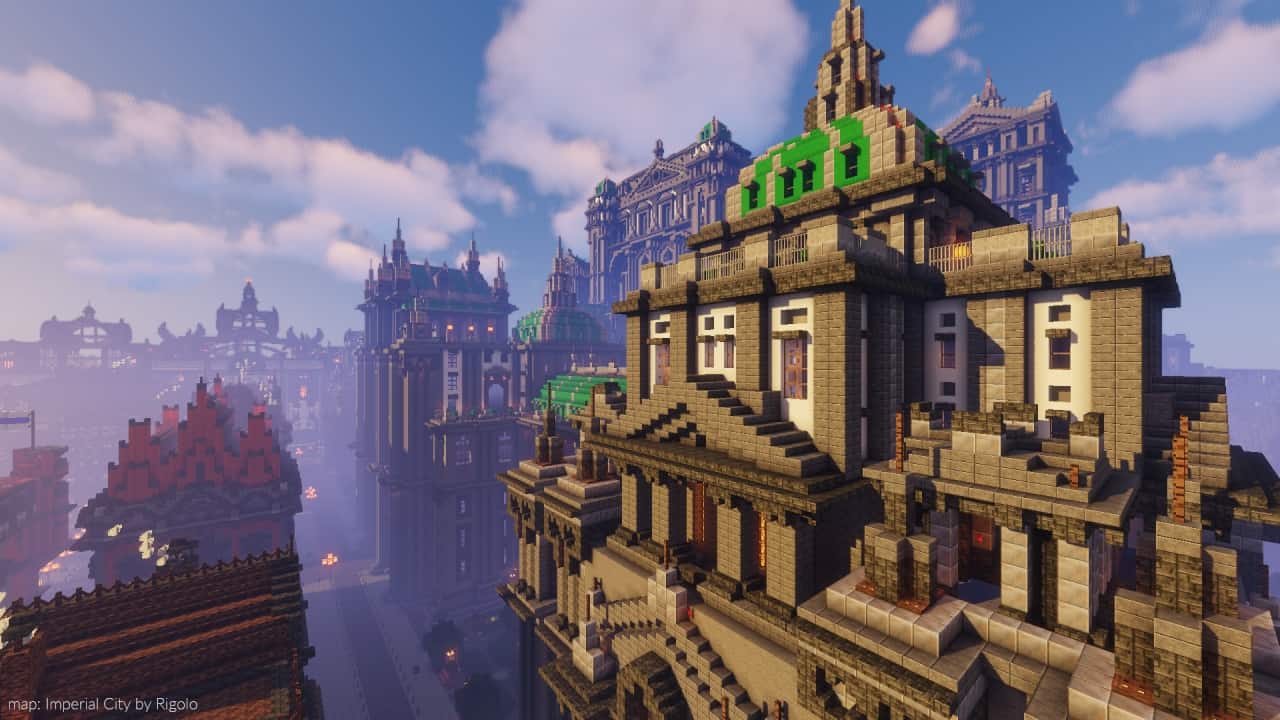
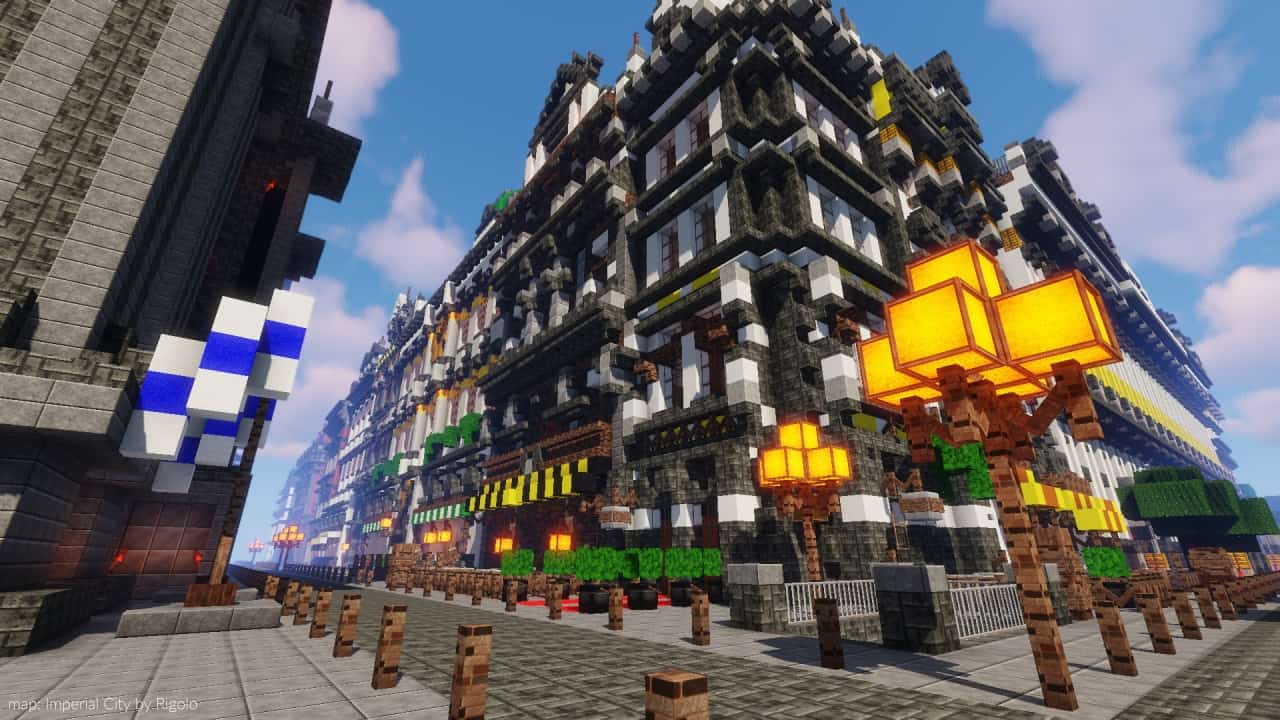
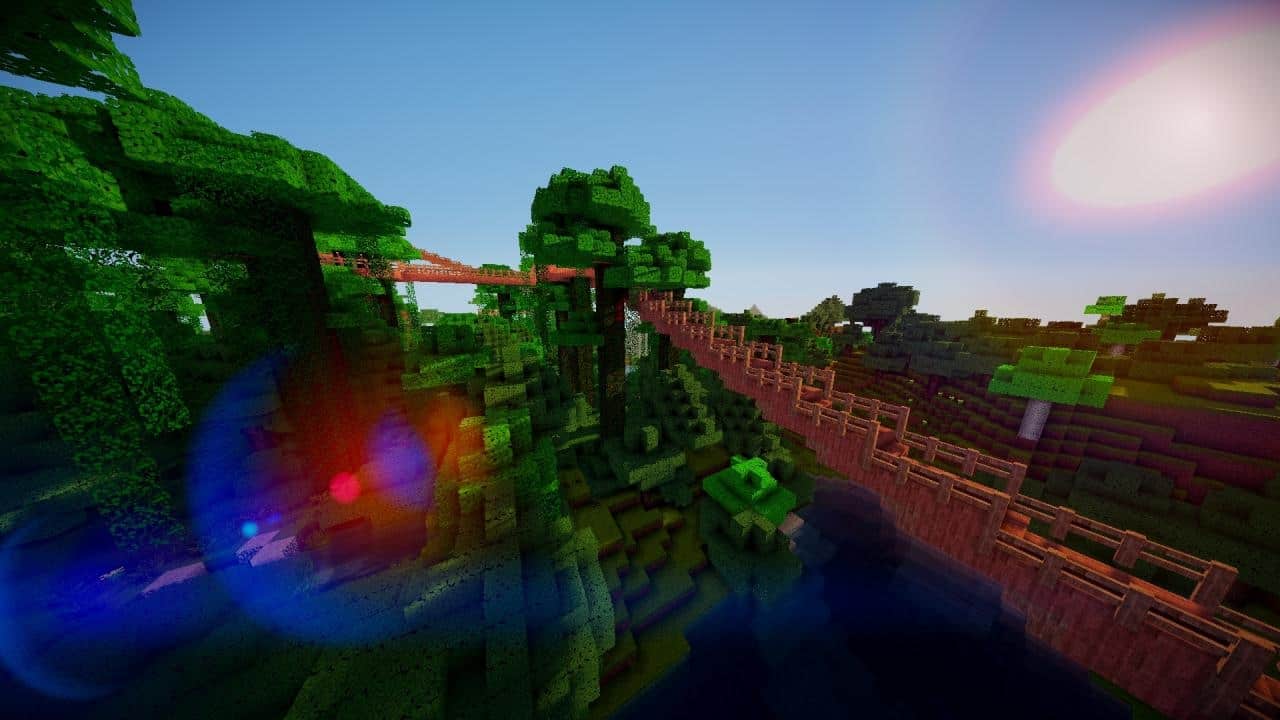
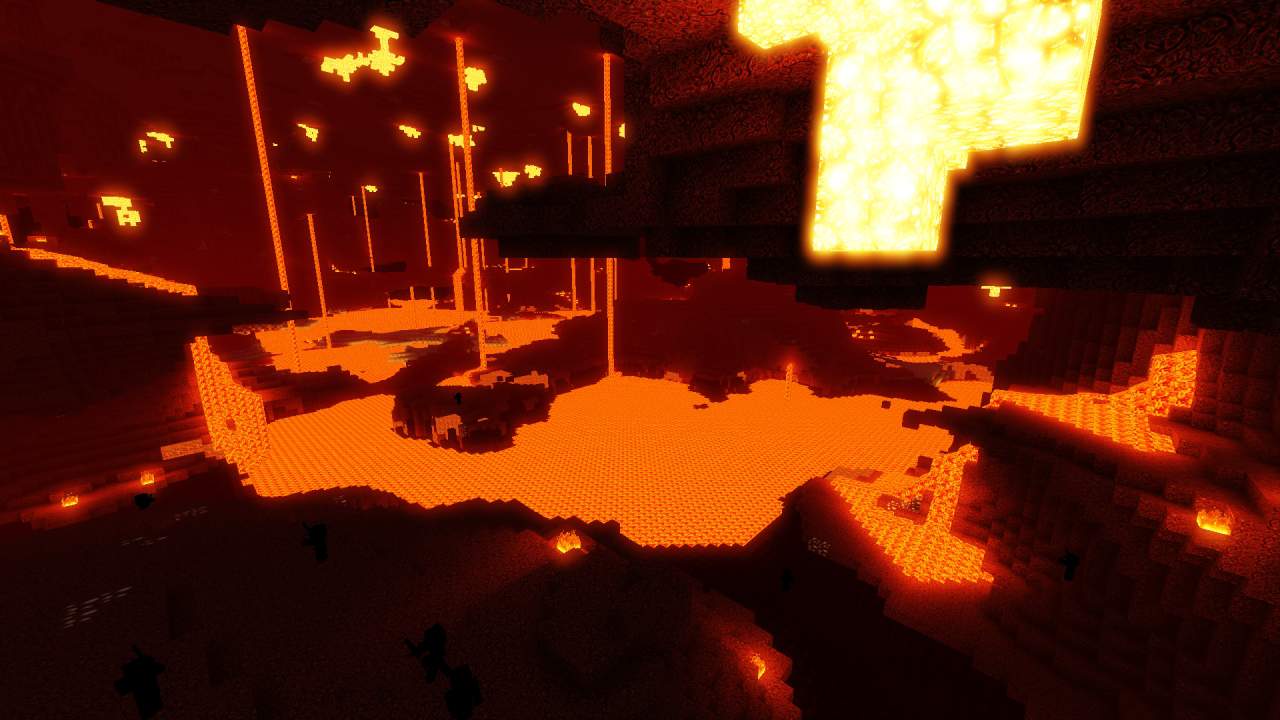
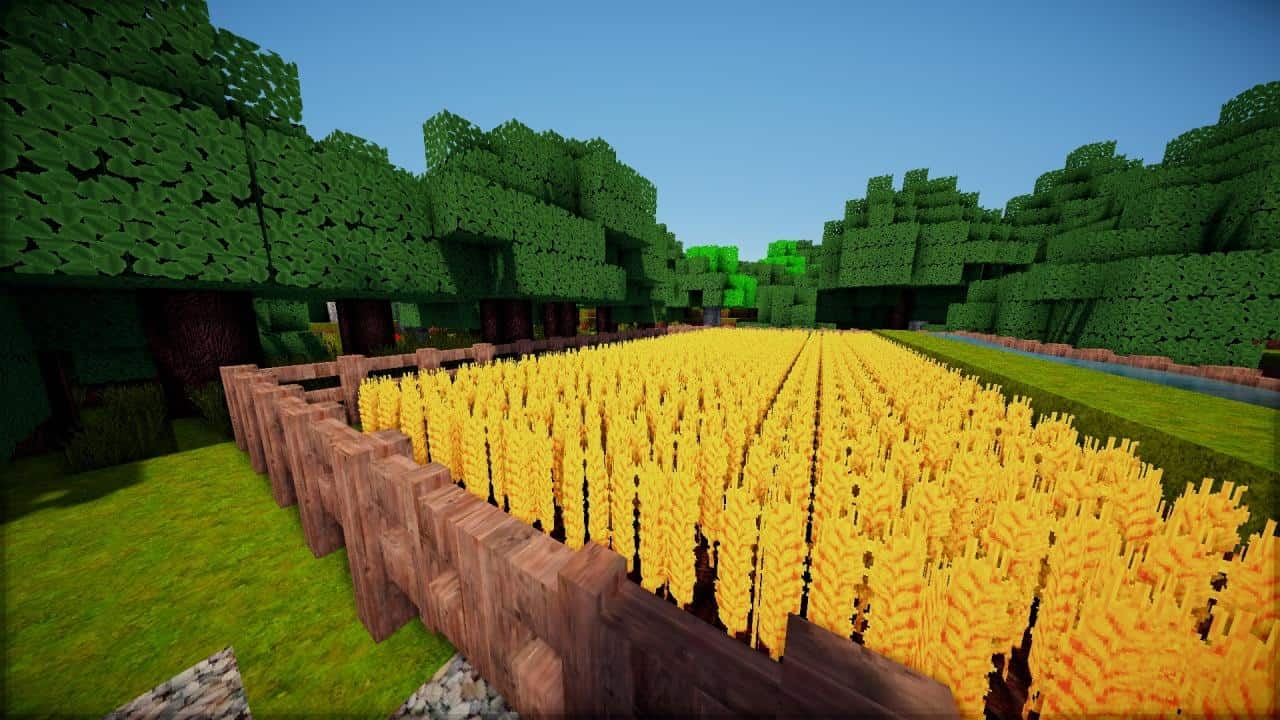
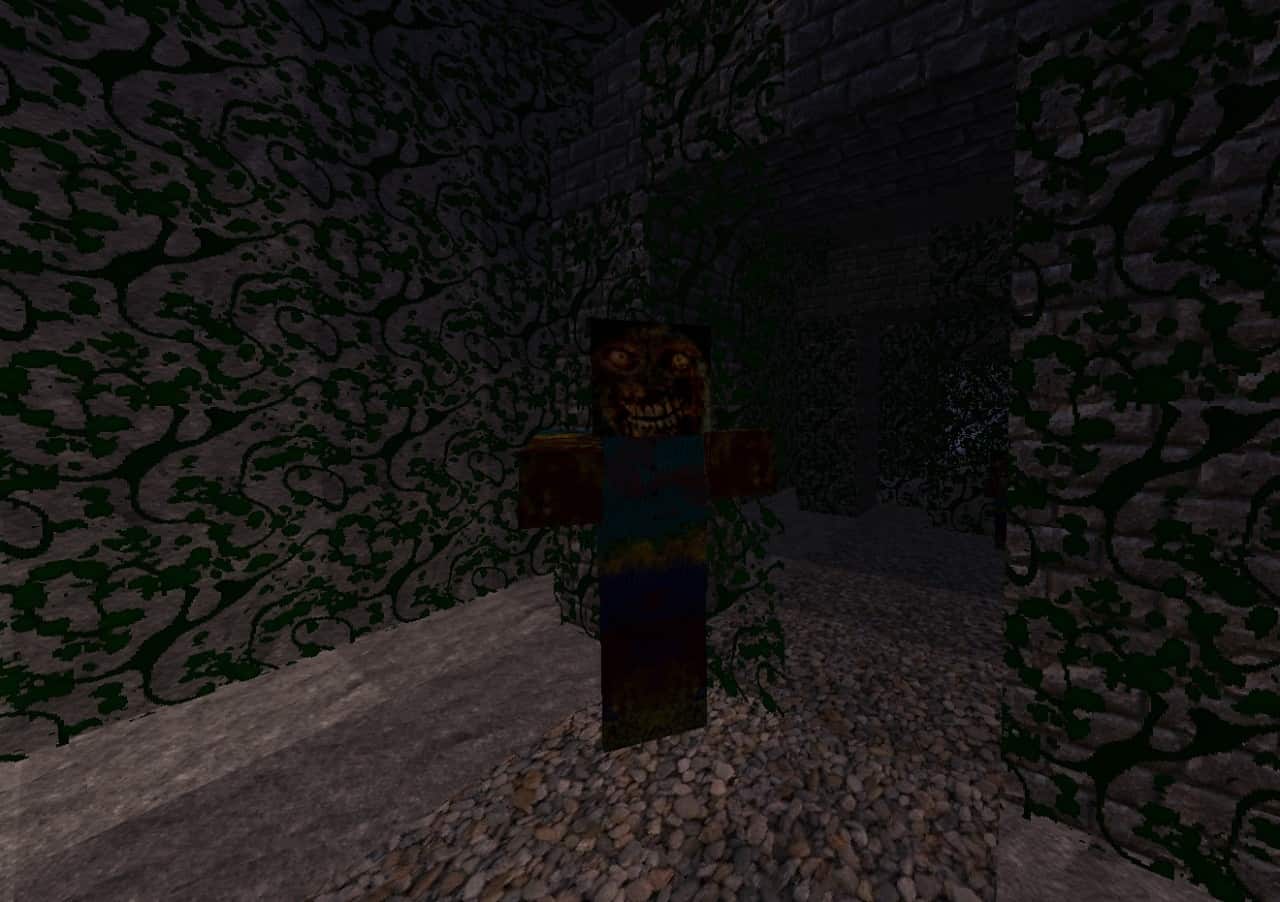
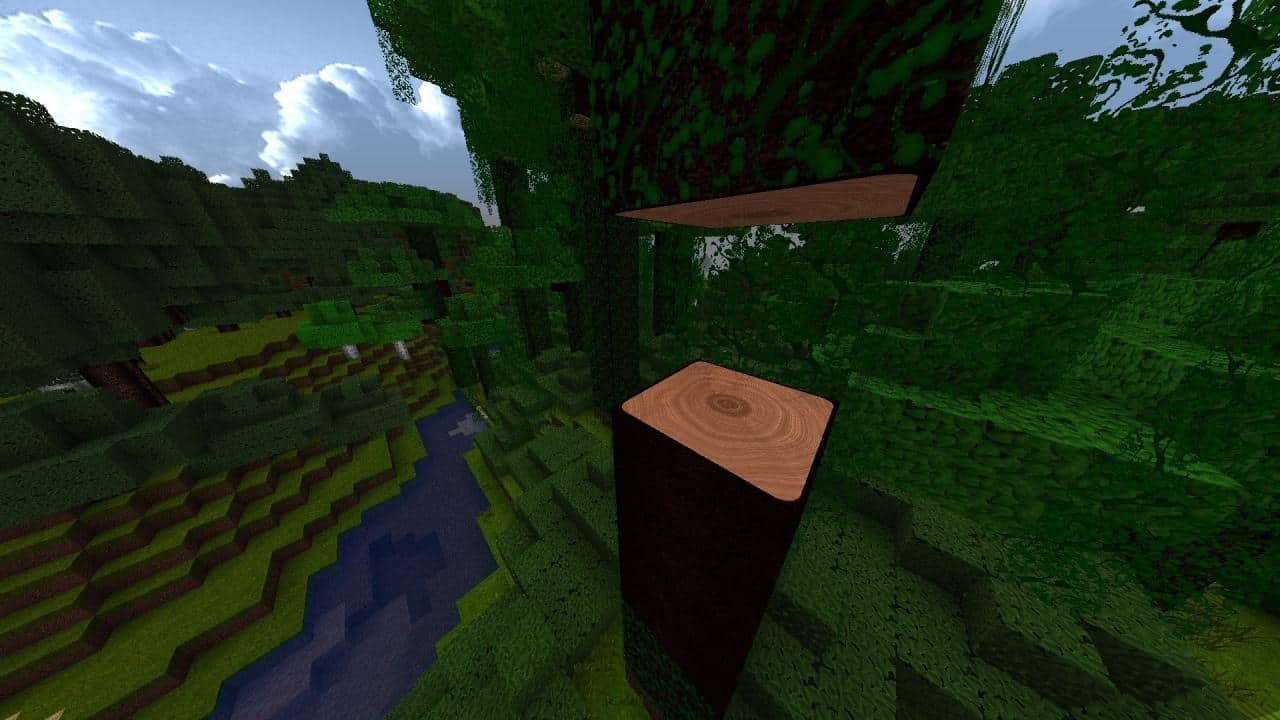
Malte Pack is honestly one of the greatest resource packs you will ever see in Minecraft! It is visually outstanding and brings a huge amount of changes that we are sure you will like a lot. This texture pack was built to load properly on 1.9 and above versions, but not lower versions. This means if you have the 1.8.9 version or anything below, it will still work, but you will find multiple bugs and errors on it. The good thing we can tell you is that there is a specific version made for any 1.8 subversion, and even if many things of the usual 1.9 version are missing, you will get it working with no visual bugs, which is really nice, and you will still be able to see the amazing look and design of this masterpiece. Malte resource pack has been developed with lots of effort and love from its creator, and they are definitely not wrong when they say they provide one of the best 3D designs and textures available.
As soon as you try it, you will quickly realize how much better the textures from this pack are compared to the default ones in the game. Special focus was put into fixing many textures that didn’t look clean and unpolluted, producing a very satisfying result with a shining and elegant style. The art of this texture pack is simply ahead of its time! During the testing and development of this resource pack, they even gave x256 and x512 resolutions a try, but these seemed like they did not fit in properly, making the end result slightly muddy and even a bit careless. As a result, they ended up rejecting those ultra-high resolutions and leaving x128 as the standard resolution, which provides an incredible level of detail and is ideal for this case. Needless to say, you will need a reasonably powerful computer to run Malte Pack smoothly without any stability issues, but it is totally worth it.
Malte Pack should be compatible with all of these Minecraft versions: 1.21.10 – 1.21.9 – 1.21.8 – 1.21.7 – 1.21.6 – 1.21.5 – 1.21.4 – 1.21.3 – 1.21.2 – 1.21.1 – 1.21 – 1.20.6 – 1.20.5 – 1.20.4 – 1.20.3 – 1.20.2 – 1.20.1 – 1.20 – 1.19.4 – 1.19.3 – 1.19.2 – 1.19.1 – 1.19 – 1.18.2 – 1.18.1 – 1.18 – 1.17.1 – 1.17 – 1.16.5 – 1.16.4 – 1.16.3 – 1.16.2 – 1.16.1 – 1.16 – 1.15.2 – 1.15.1 – 1.15 – 1.14.4 – 1.14.3 – 1.14.2 – 1.14 – 1.13.2 – 1.13.1 – 1.13 – 1.12.2 – 1.12 – 1.9.4 – 1.9 – 1.8.9 – 1.8.8 – 1.8.1 – 1.8.6 – 1.8
Screenshots
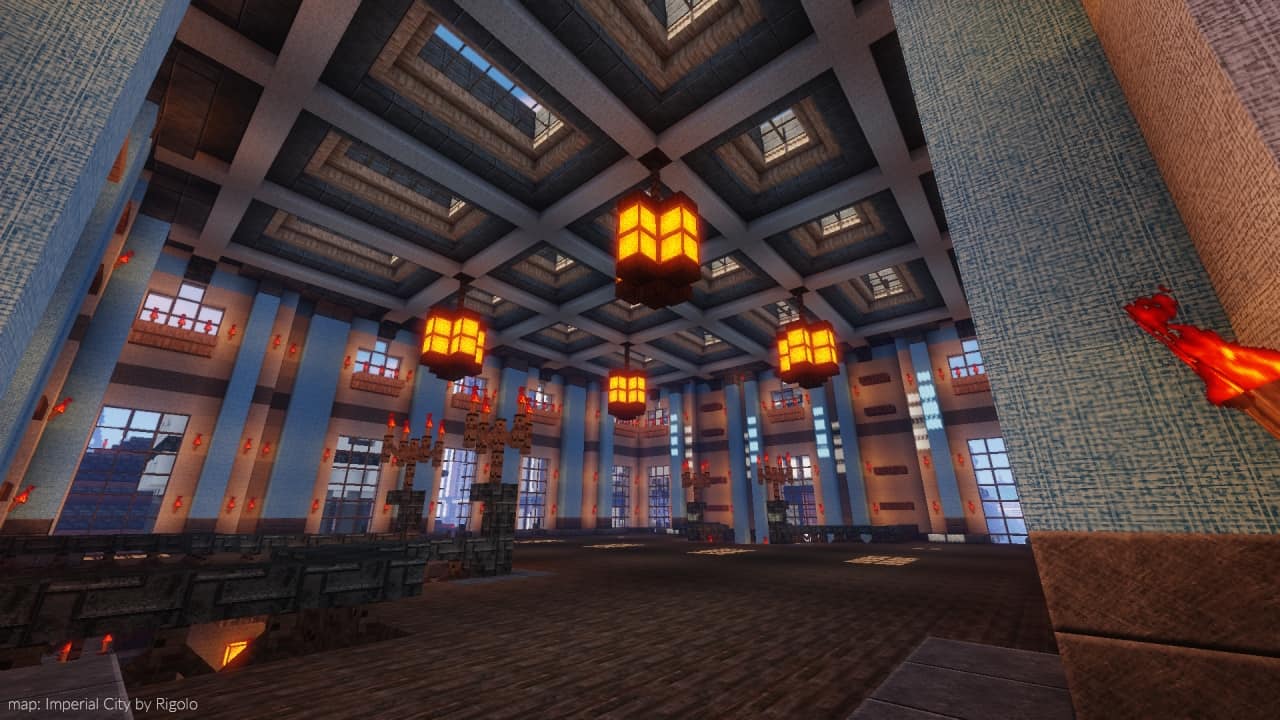
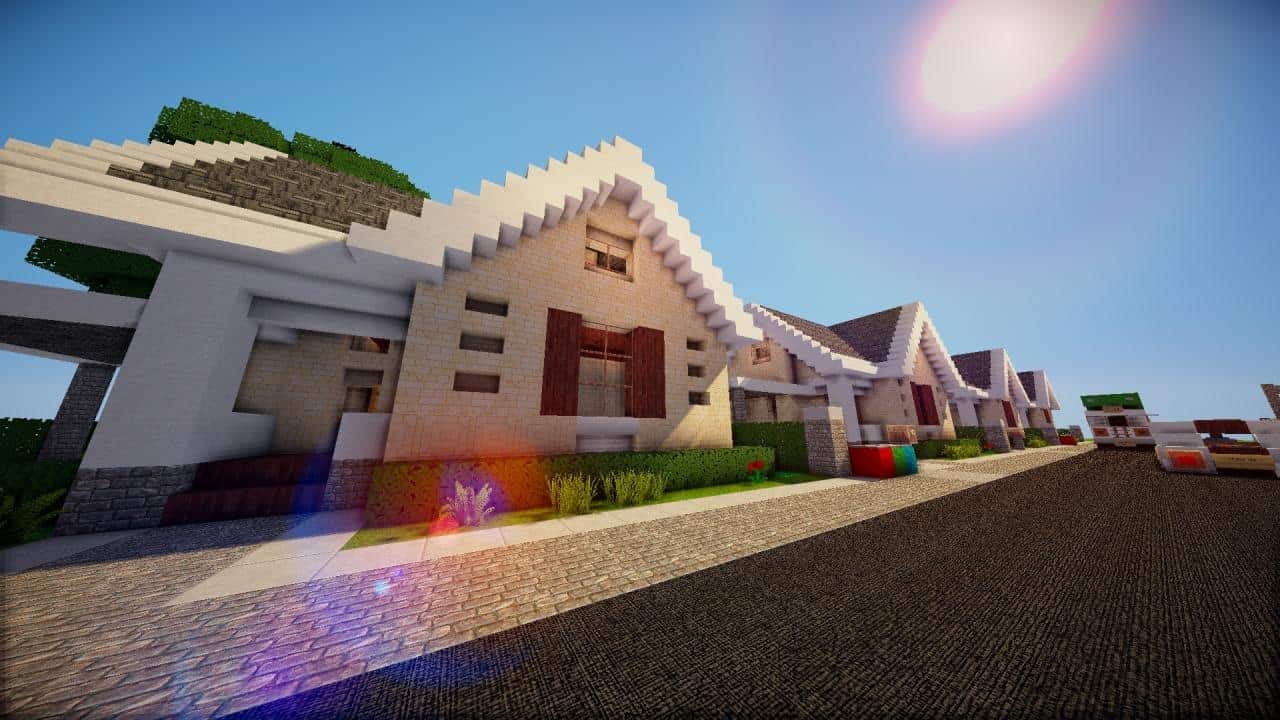
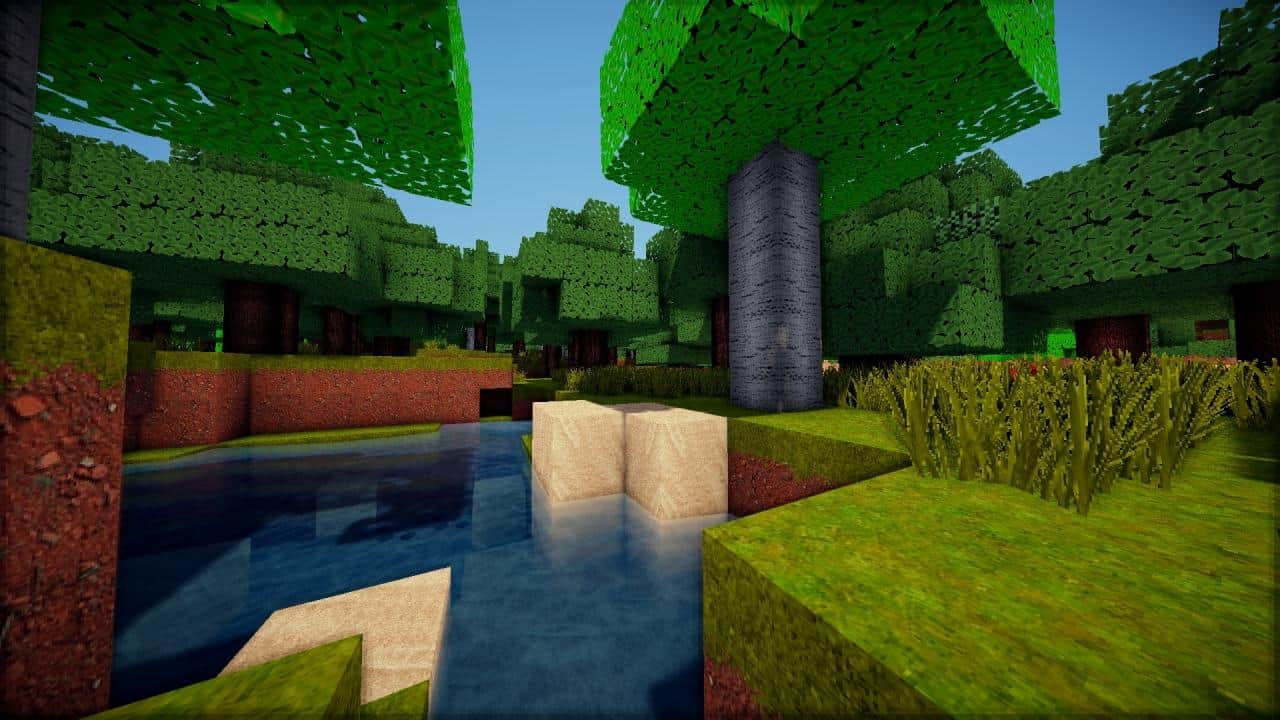
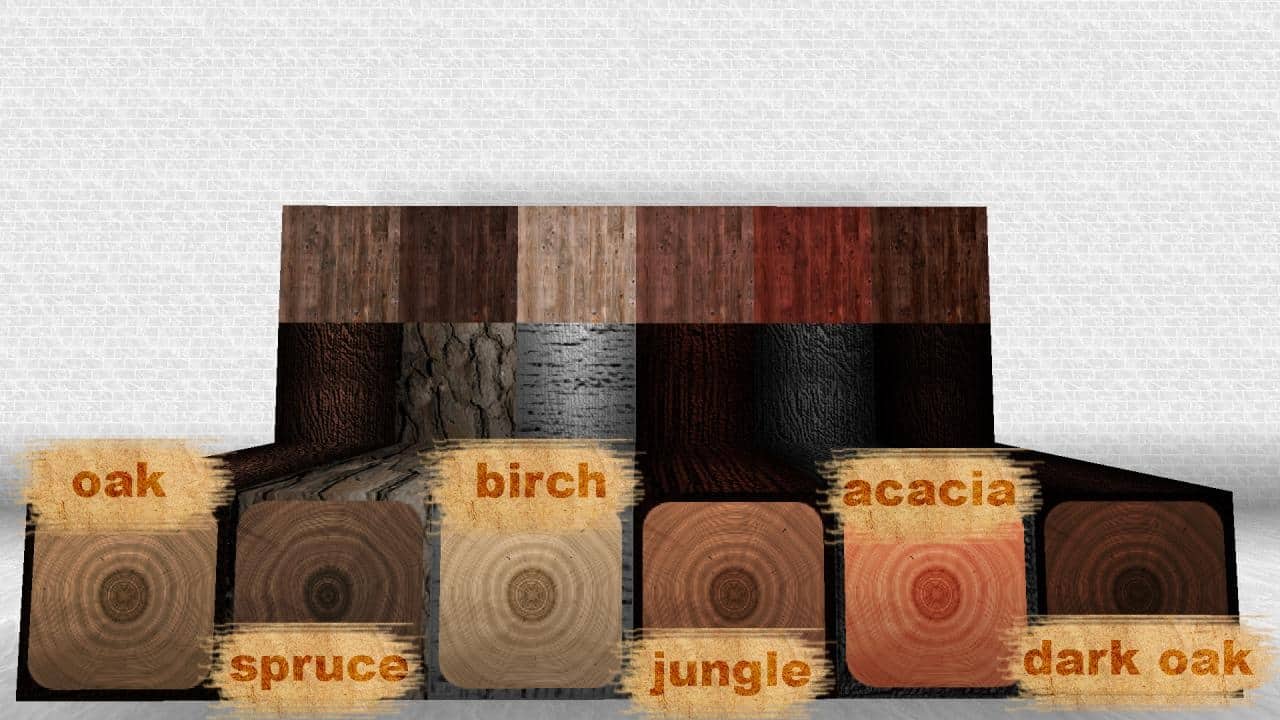
How to Install Texture Pack (Simple 10 Steps)
- Download OptiFine: Most of the texture packs and shaders need OptiFine. That’s why, first download and install OptiFine for the version of Minecraft you want to play.
- Download the Texture Pack: Get the texture pack you want from the download section. Choose the version that works with your Minecraft and your PC’s performance.
- Open Minecraft Launcher: Start Minecraft using the official game launcher — or even TLauncher, if you use that.
- Go to Options: From the main menu, click on the “Options” button.
- Open Resource Packs: Inside Options, click on “Resource Packs…”.
- Open the Resource Pack Folder: Click on “Open Resource Pack Folder” — this will open a folder named “resourcepacks”.
- Move the Pack File: Copy or move the .zip file you downloaded into that “resourcepacks” folder. (Don’t unzip the file — Minecraft uses it as-is!)
- Go Back and Refresh: Close the folder and click “Done”, then go back into “Resource Packs…” again.
- Activate the Pack: You’ll see the pack on the left side. Hover over it and click the arrow to move it to the right (active side).
Tip: If you get a message that the pack is for a different version, just click “Yes” — it usually works fine. - Click Done and Enjoy: Click “Done” again. Now your pack is ready to use in-game. It’s that easy!
Credits
This resource pack was originally created by Pixlpainter. We do not claim ownership of this content, nor do we host modified files on our servers. All rights remain with the original author. We strongly encourage you to support Pixlpainter by downloading the pack from their official links and checking out their other projects.
Download Links
Java Edition
Download Instructions
Curseforge: download starts automatically after a few seconds;
Mediafire: click the big blue button with the text “DOWNLOAD”;
Google Drive: in the top right corner you will see a small download icon (down arrow), click it and the download should start;


