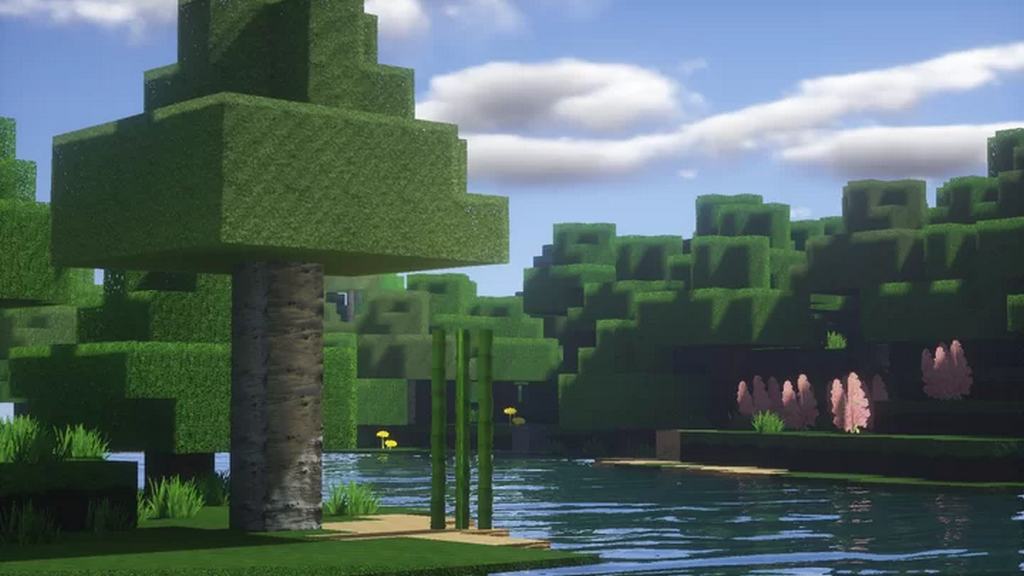
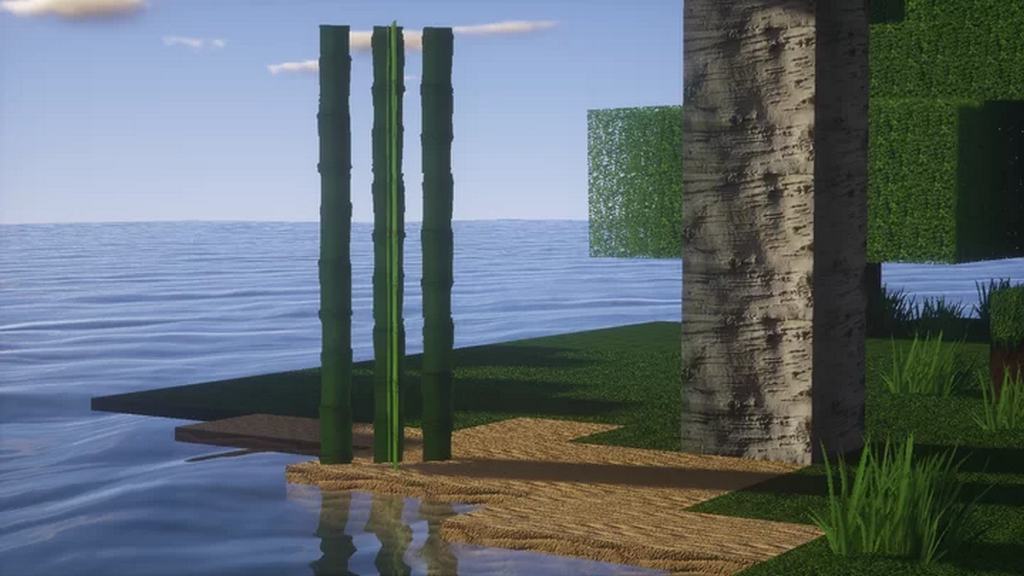
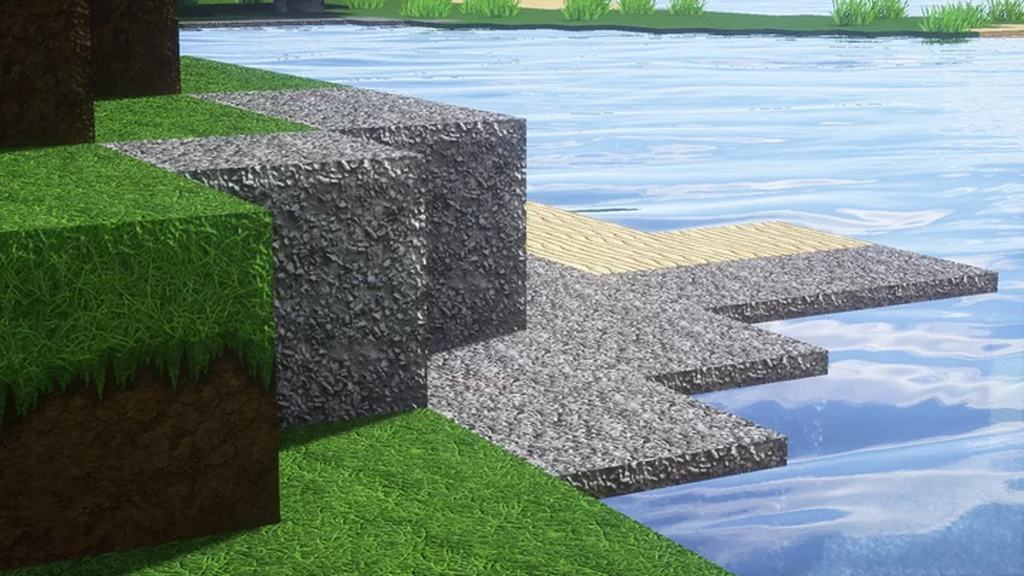
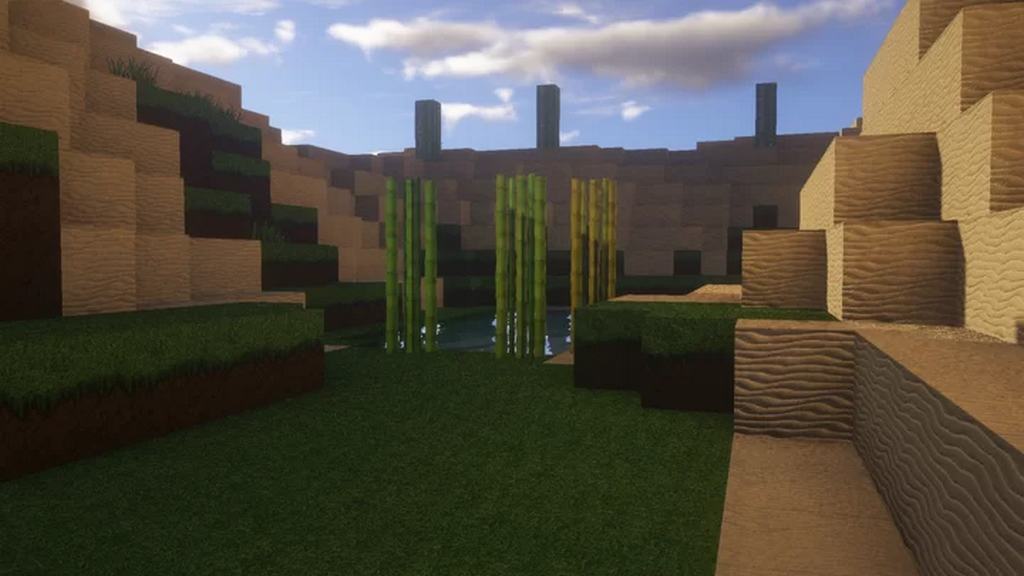
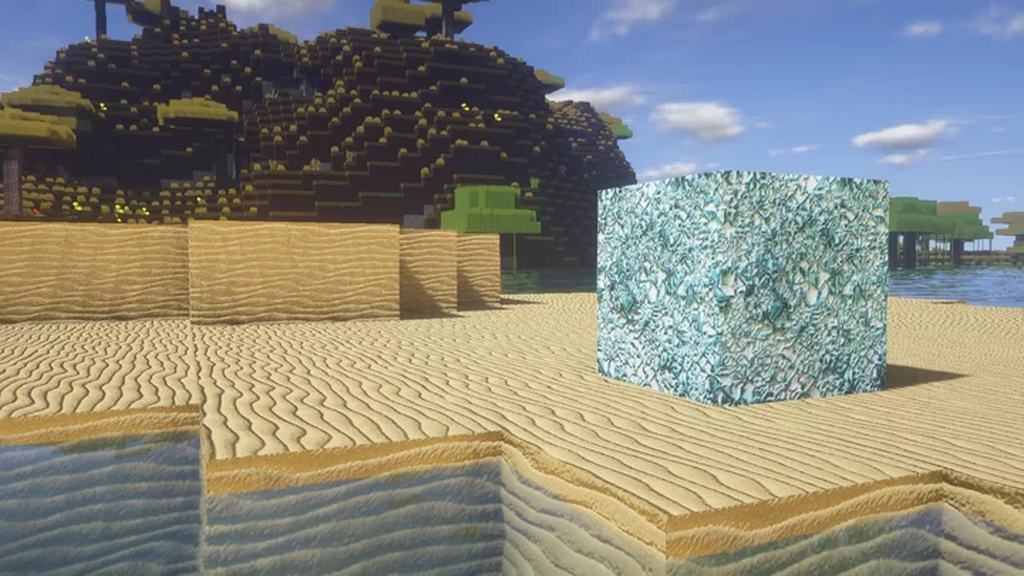
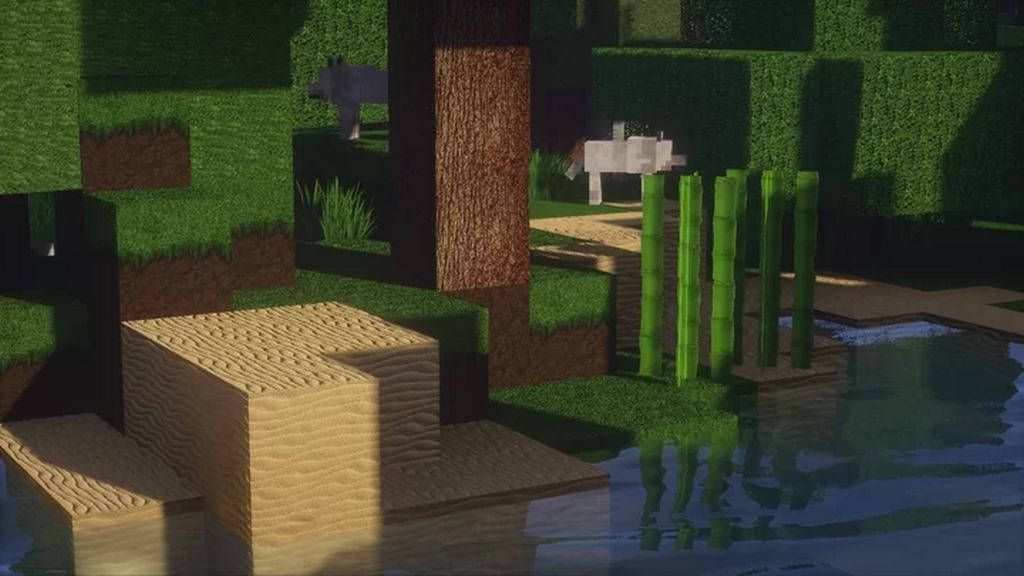
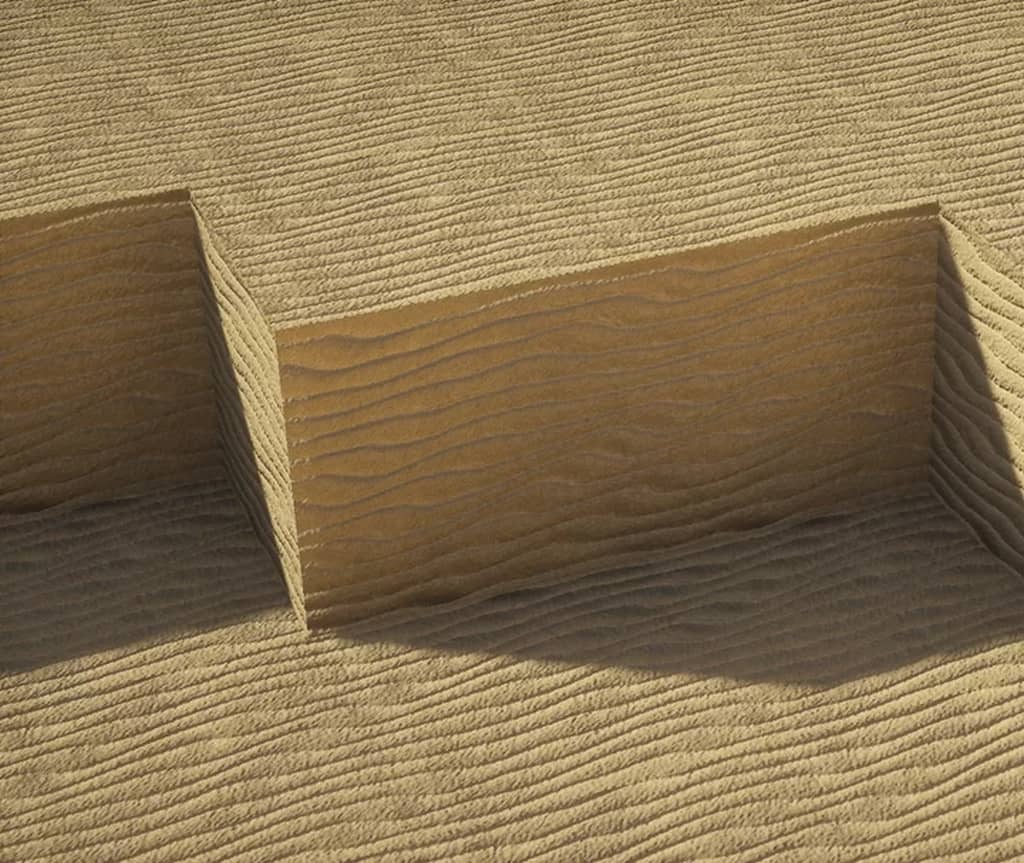
Minecraft does not use a fancy modern game engine. It was written mostly in Java and for the most part, it runs on a reasonably capable engine. However, it is limited to a certain degree. That is in most part due to the visual style that we are all familiar with. To make the game just a bit more modern, you can try one of the many photorealistic resource packs. One such pack that players have been enjoying is called the Mainly Photo Realism resource pack, and honestly, testing it out was an absolute treat for the eyes! It attempts to make the textures more realistic. This was achieved in several ways with many visuals in Minecraft being altered for the better. Mainly Photo Realism was released a couple of years ago. Made by user Marcolow, the texture pack managed to get well over a million downloads, making it one of the most popular resource packs in its category of photorealistic packs. The developer continued to release updates for a while but it appears to have abandoned the project as of late. This means that it may not be working with the latest versions of Minecraft. According to one of the latest updates, the resource pack is 75% complete, having most of the original textures replaced. There are several ways in which you can make Minecraft look better. First of all, you can increase the texture resolution and add a few more pixels for extra details. The second way is to remake the textures. The third way is to play around with lighting and shader settings. Mainly Photo Realism focuses on the first two methods. For texture resolution, Mainly Photo Realism has 3 versions to choose from. The most basic version uses 128x resolution textures. There is also a 256x and a 512x one. If you want the highest degree of detail and realistic textures, the 512x version is the one to get. As far as the textures themselves, the vast majority of them were created using Photoshop.
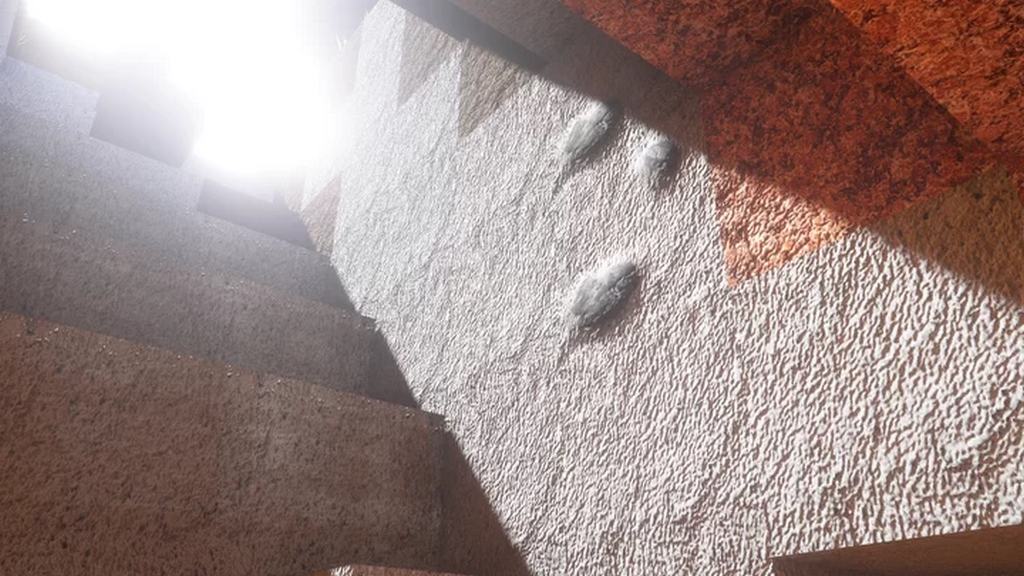
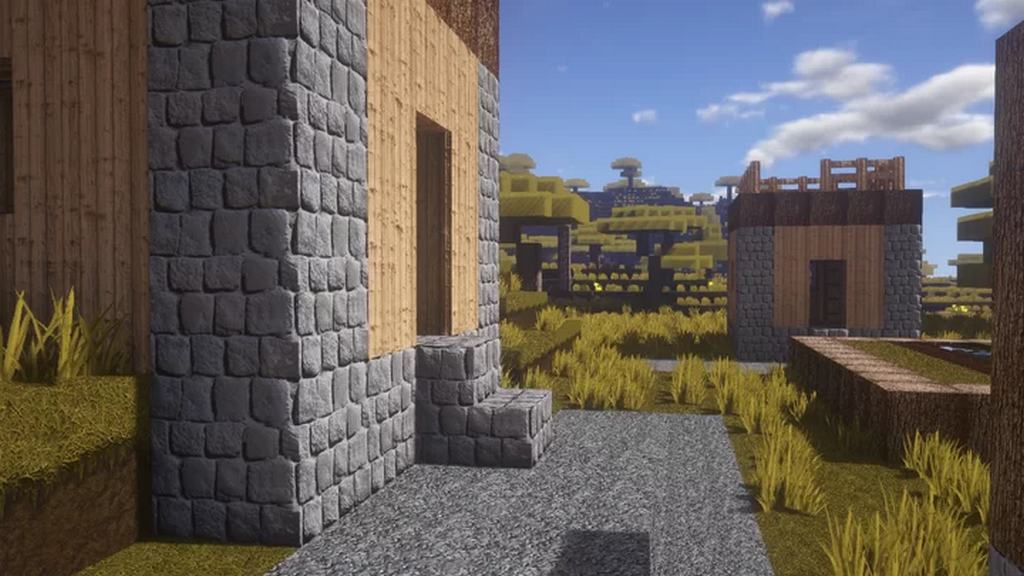
They are hand-crafted to ensure that the result is appropriate for Minecraft, and you can truly feel the dedication put into every single block. The most striking visual improvements can be observed on things such as cobblestones, dirt, bricks, sand, ores, leaves, different types of rocks, wood, trees, and more. Textures that are comprised of many smaller items or objects have stunning details handcrafted by the resource pack developer. The game simply looks stunning when running Minecraft with the Mainly Photo Realism resource pack. What has not been changed by the developer is how the menus and player GUI looks. The focus remained on the ingame textures. However, when paired with a shader pack, the Mainly Photo Realism texture pack offers a visual spectacle. One last thing that is important to take note of is that the resource pack is not hiding behind any paywall. While other resource packs offer their higher resolution versions as paid versions, the Mainly Photo Realism resource pack is completely free regardless of which version you want to install. If you plan on getting the 512x version, you may experience severe framerate drops. It requires modern and powerful hardware to run smoothly. Adding a shader pack on top may make the game unplayable for some. The middle ground would be the 256x version which is still demanding but more manageable. While the developer does not make any recommendations regarding what shader packs to use with the Mainly Photo Realism resource pack, the game does look better with one installed. If you are running Minecraft on old hardware, you may want to try the 128x version as it is the least hardware-demanding one. Keep in mind that the resource pack may not work with all shader packs. Some may cause visual bugs while others may work just fine. Because Mainly Photo Realism is demanding in terms of hardware to run smoothly, it is not the kind of resource pack that is recommended for PvP players. For PvP you want to look at a resource pack that does not use textures with resolutions higher than 64x.
Mainly Photo Realism should be compatible with all of these Minecraft versions: 1.16.5 – 1.16.4 – 1.16.3 – 1.16.2 – 1.16.1 – 1.16 – 1.15.2 – 1.15.1 – 1.15 – 1.14.4 – 1.14.3 – 1.14.2 – 1.14 – 1.13.2 – 1.13.1 – 1.13
Screenshots

How to Install Texture Pack (Simple 10 Steps)
- Download OptiFine: Most of the texture packs and shaders need OptiFine. That’s why, first download and install OptiFine for the version of Minecraft you want to play.
- Download the Texture Pack: Get the texture pack you want from the download section. Choose the version that works with your Minecraft and your PC’s performance.
- Open Minecraft Launcher: Start Minecraft using the official game launcher — or even TLauncher, if you use that.
- Go to Options: From the main menu, click on the “Options” button.
- Open Resource Packs: Inside Options, click on “Resource Packs…”.
- Open the Resource Pack Folder: Click on “Open Resource Pack Folder” — this will open a folder named “resourcepacks”.
- Move the Pack File: Copy or move the .zip file you downloaded into that “resourcepacks” folder. (Don’t unzip the file — Minecraft uses it as-is!)
- Go Back and Refresh: Close the folder and click “Done”, then go back into “Resource Packs…” again.
- Activate the Pack: You’ll see the pack on the left side. Hover over it and click the arrow to move it to the right (active side).
Tip: If you get a message that the pack is for a different version, just click “Yes” — it usually works fine. - Click Done and Enjoy: Click “Done” again. Now your pack is ready to use in-game. It’s that easy!
Credits
This resource pack was originally created by Marcolow. We do not claim ownership of this content and do not host modified versions of the files. All rights belong to the original author. We strongly recommend visiting the creator’s official release pages to download the files and support their continued work.
Download Links
Java Edition
Download Instructions
Curseforge: download starts automatically after a few seconds;
Mediafire: click the big blue button with the text “DOWNLOAD”;
Google Drive: in the top right corner you will see a small download icon (down arrow), click it and the download should start;


