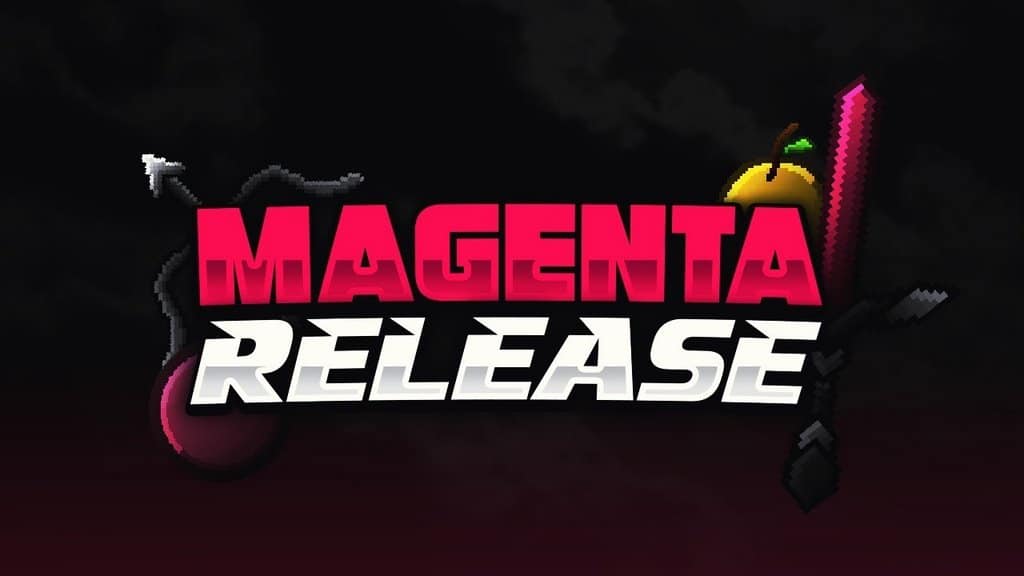
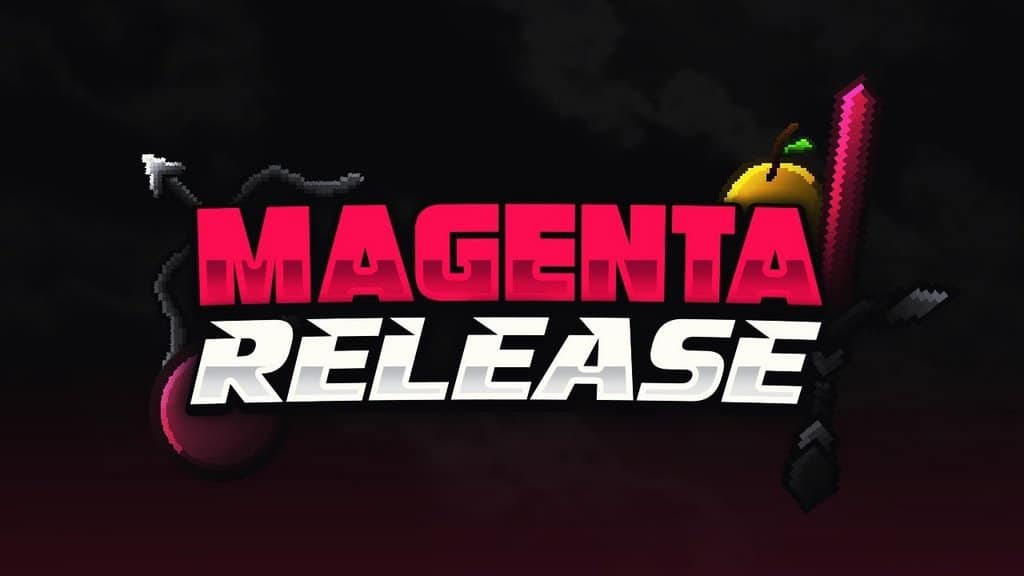
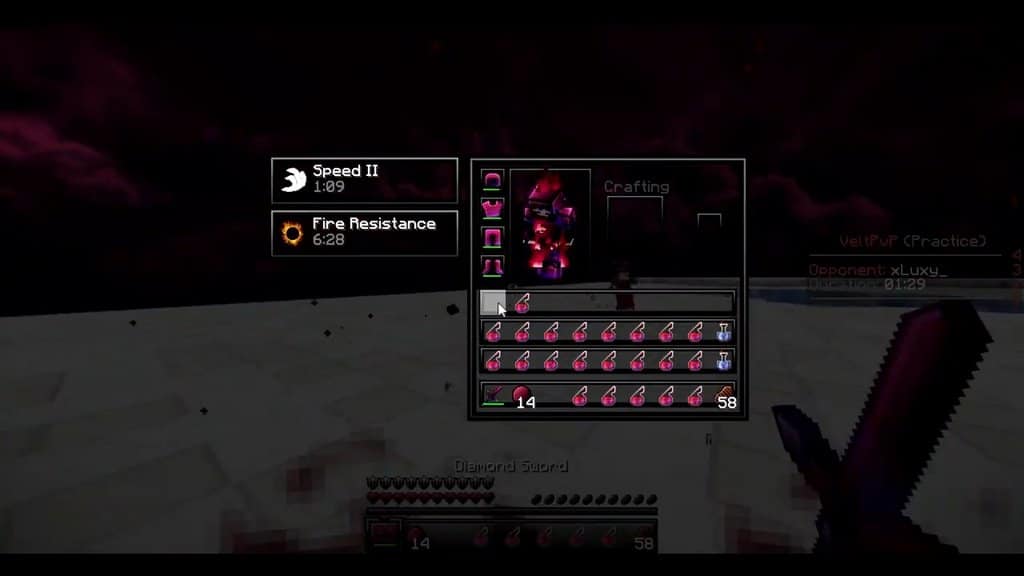
Have you ever tried out the amazing Magenta 64x PvP resource pack? It is an absolute must-play PvP texture pack that brings an extraordinarily engaging and enjoyable gaming experience right to your fingertips! Created by the talented iSparkton, I can honestly say it stands out as one of the most popular and distinct resource packs available, heavily centering around a striking magenta color scheme. While there are countless PvP packs out there aiming to spice up your Minecraft sessions, they usually lean toward completely different hues, making it tough to find a solid pack built around a magenta aesthetic. That is precisely why the Magenta 64x PvP resource pack is such a fantastic exception; alongside its dominant magenta tones, you will also discover a wonderful variety of textures featuring sleek combinations of red and crimson.
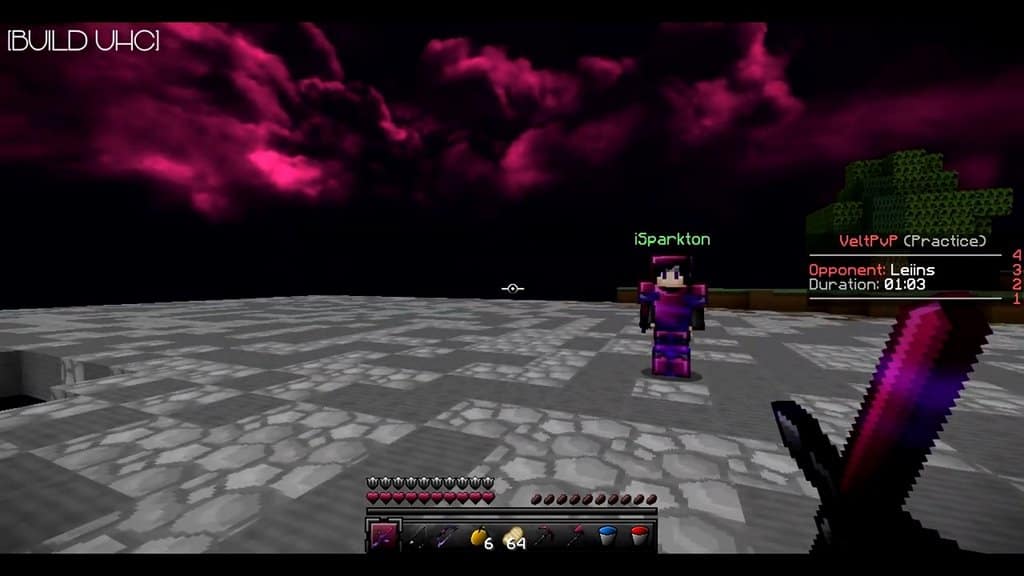
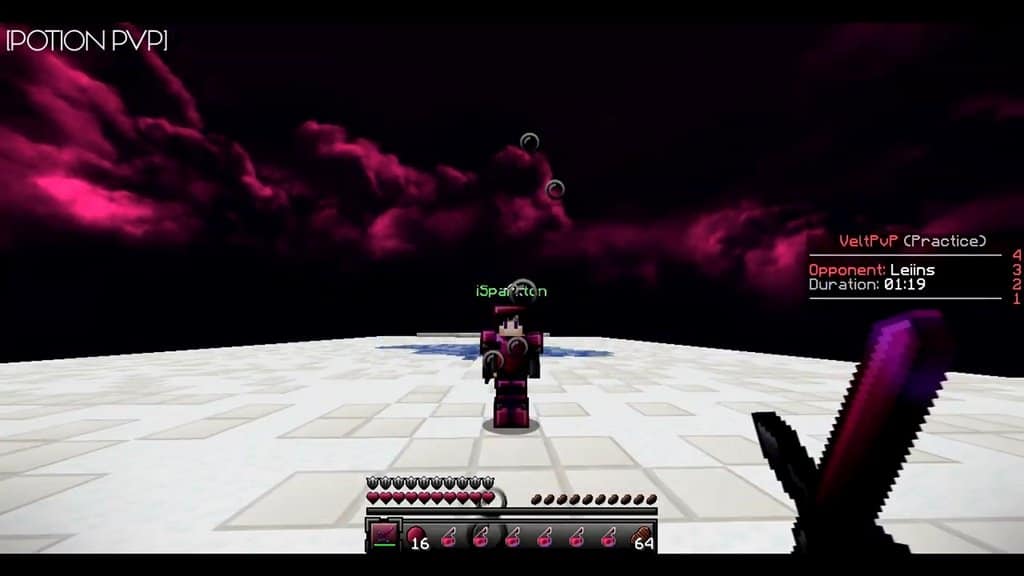
On top of that, it comes with a stunning custom night sky that completely elevates the immersion of your late-night gaming sessions. This pack lovingly revamps your classic items by replacing the standard golden apple, diamond weapon sets, diamond armor sets, and more with gorgeous new looks. Beyond that, it introduces several subtle yet captivating elements that genuinely improve your overall gameplay flow. Knowing that iSparkton designed this masterpiece—alongside other top-tier PvP packs—really shows in the incredible quality and thrilling themes brought to your screen. Some of the standout benefits you will immediately notice include vibrant color palettes, incredibly clean textures, and a gorgeously redesigned GUI, all working together to make your time in-game an absolute delight. Boasting a 64x resolution, you can comfortably run this resource pack on just about any moderate-level system with decent hardware. I am happy to report that you will not have to worry about annoying frame-rate drops, even if you are playing on slightly slower hardware setups.
Magenta 64x should be compatible with all of these Minecraft versions: 1.8.9 – 1.8.8 – 1.8.1 – 1.8.6 – 1.8
Screenshots
How to Install Texture Pack (Simple 10 Steps)
- Download OptiFine: Most of the texture packs and shaders need OptiFine. That’s why, first download and install OptiFine for the version of Minecraft you want to play.
- Download the Texture Pack: Get the texture pack you want from the download section. Choose the version that works with your Minecraft and your PC’s performance.
- Open Minecraft Launcher: Start Minecraft using the official game launcher — or even TLauncher, if you use that.
- Go to Options: From the main menu, click on the “Options” button.
- Open Resource Packs: Inside Options, click on “Resource Packs…”.
- Open the Resource Pack Folder: Click on “Open Resource Pack Folder” — this will open a folder named “resourcepacks”.
- Move the Pack File: Copy or move the .zip file you downloaded into that “resourcepacks” folder. (Don’t unzip the file — Minecraft uses it as-is!)
- Go Back and Refresh: Close the folder and click “Done”, then go back into “Resource Packs…” again.
- Activate the Pack: You’ll see the pack on the left side. Hover over it and click the arrow to move it to the right (active side).
Tip: If you get a message that the pack is for a different version, just click “Yes” — it usually works fine. - Click Done and Enjoy: Click “Done” again. Now your pack is ready to use in-game. It’s that easy!
Credits
This resource pack was originally designed and developed by iSparkton. We do not claim ownership of this modification, nor do we host altered versions of the files. All rights remain with the original creator. We strongly encourage you to support iSparkton by downloading the pack through their official links and checking out their other community creations.
Download Links
Java Edition
Download Instructions
Curseforge: download starts automatically after a few seconds;
Mediafire: click the big blue button with the text “DOWNLOAD”;
Google Drive: in the top right corner you will see a small download icon (down arrow), click it and the download should start;


