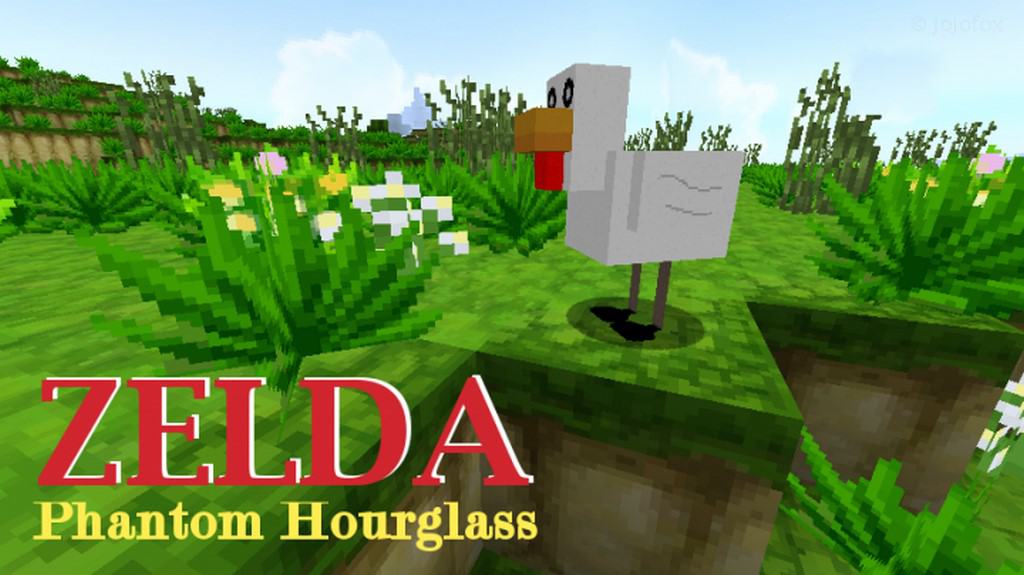
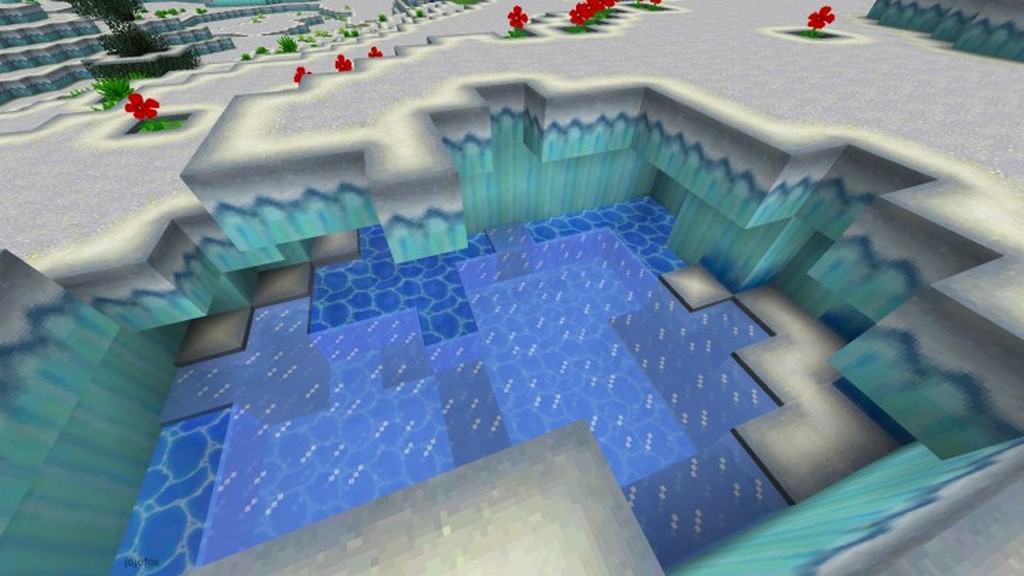
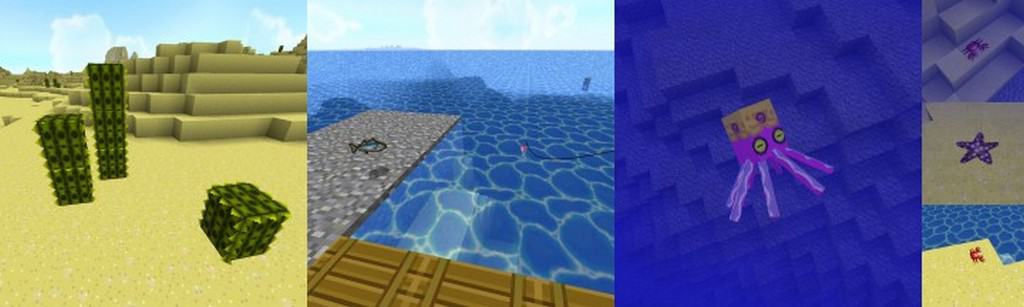
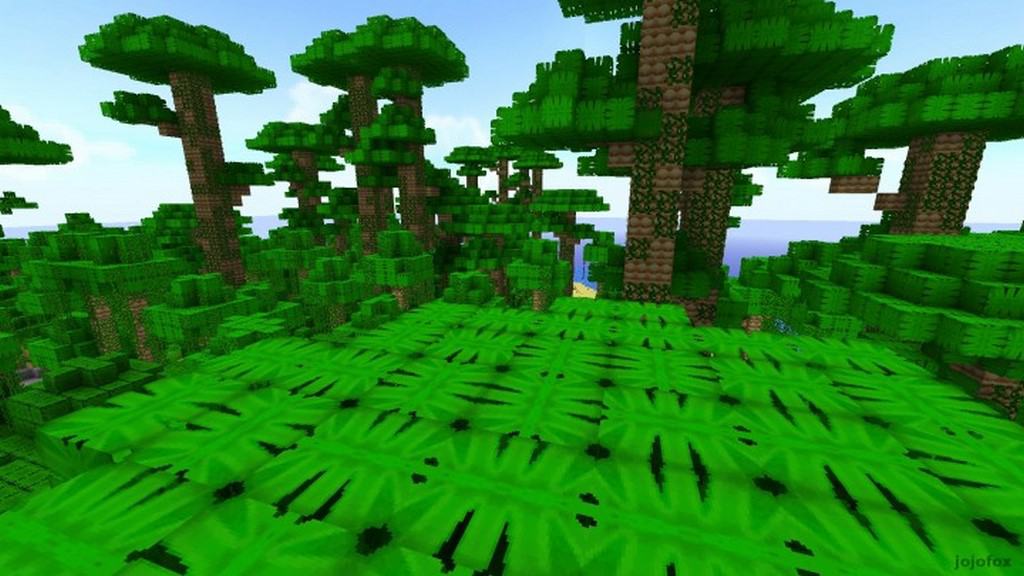
Inspired by the fantastic 2007 Nintendo DS masterpiece The Legend of Zelda: Phantom Hourglass, I found that the Zelda Phantom Hourglass resource pack brilliantly brings the gorgeous aesthetic of The Legend of Zelda games straight into the cube-like world of Minecraft graphics. The creator of this pack modified the trees, water, and other aspects of scenery to appear much more natural, creating an incredibly immersive experience akin to the hero Link’s grand adventures. The rivers and ocean contain wonderfully similar waves and patterns to Phantom Hourglass, and their crisp colors and design are definitely a massive highlight of this pack. If you want a pack to make your water look more realistic, this pack is totally worth trying just for that reason. I also love how this pack alters the textures of trees, replacing the fuzzy pixelated bunches of leaves with what appears to be large tropical leaves. The gaps in the leaves look a bit strange and unnatural, though some players may still prefer their aesthetic to the non-modified trees. As far as other textures go, there are certain blocks that vary so much in their color from the original that they can be hard to identify. This is something you will likely notice the very first time you go underground and discover a patch of obsidian.
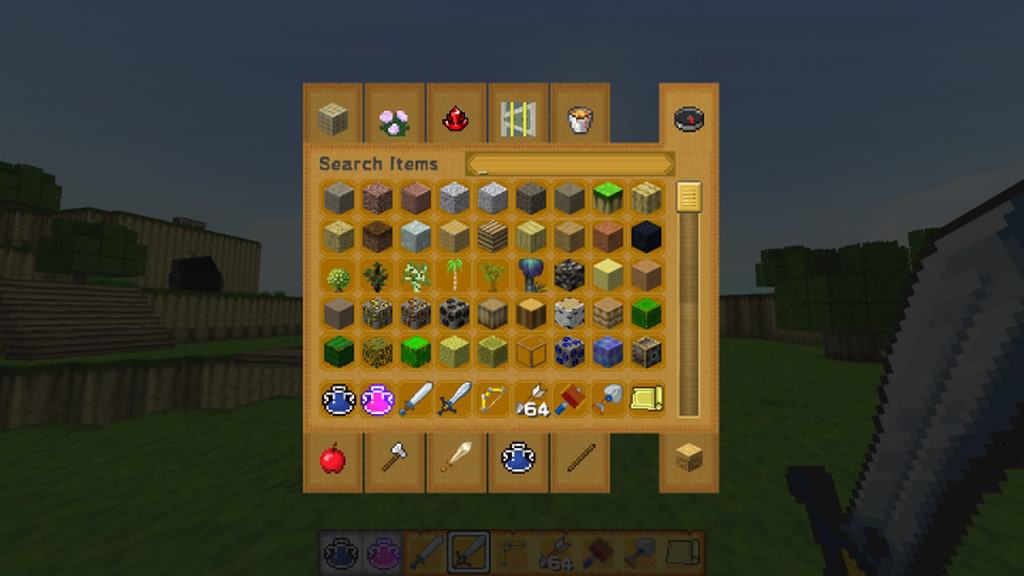
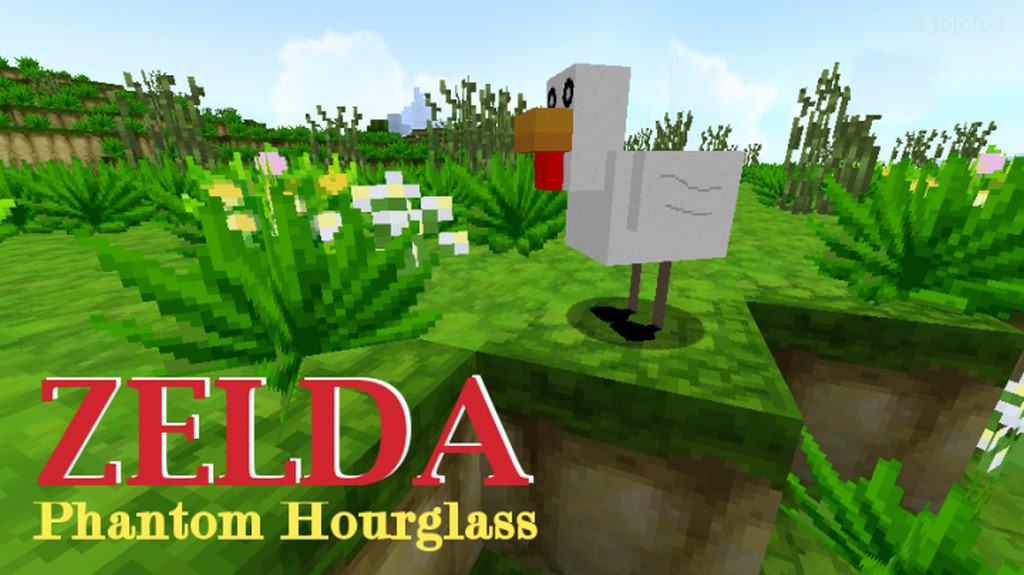
It makes your first moments with this resource pack a little confusing, but with enough time you will quickly become familiar with the new texture pack. There are many standalone resource packs that work to enhance Minecraft’s user-interface, but the Zelda Phantom Hourglass resource pack goes completely above and beyond with its GUI. The sheer creativity and quality of this pack is truly on another level. The creation of the Zelda Phantom Hourglass resource pack actually began more than five years ago, featuring continuous updates and improvements to the designs. While some default Minecraft animals still remain in this resource pack, the creator has also included the addition of other animals. As you explore, you will definitely notice certain variations in the creatures, such as in the design of the squids and chickens, to better suit the Phantom Hourglass theme. One genuinely delightful and overlooked improvement is replacing the chicken models altogether with birds more closely resembling the iconic Cuccos from The Legend of Zelda series. The resolution for the Zelda Phantom Hourglass resource pack is 32×32, rather than the common 16×16, but this likely will not affect the performance of your game. The textures are exceptionally well optimized, so the pack should run smoothly without any major hiccups. Just as this pack evokes a powerful sense of nostalgia from lovers of The Legend of Zelda franchise, I think the natural scenery and bright colors can be just as enjoyable for those who have no prior experience with the games at all.
Zelda : Phantom Hourglass should be compatible with all of these Minecraft versions: 1.13.2 – 1.13.1 – 1.13 – 1.12.2 – 1.12 – 1.11.2 – 1.11 – 1.10.2 – 1.10 – 1.9.4 – 1.9 – 1.8.9 – 1.8.8 – 1.8.1 – 1.8.6 – 1.8
Screenshots

How to Install Texture Pack (Simple 10 Steps)
- Download OptiFine: Most of the texture packs and shaders need OptiFine. That’s why, first download and install OptiFine for the version of Minecraft you want to play.
- Download the Texture Pack: Get the texture pack you want from the download section. Choose the version that works with your Minecraft and your PC’s performance.
- Open Minecraft Launcher: Start Minecraft using the official game launcher — or even TLauncher, if you use that.
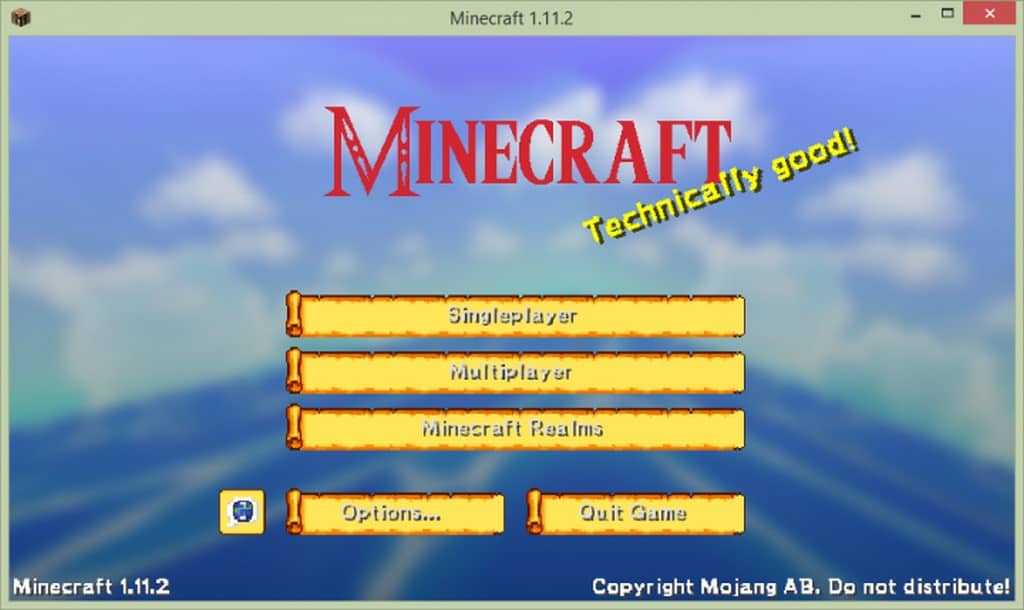
- Go to Options: From the main menu, click on the “Options” button.
- Open Resource Packs: Inside Options, click on “Resource Packs…”.
- Open the Resource Pack Folder: Click on “Open Resource Pack Folder” — this will open a folder named “resourcepacks”.
- Move the Pack File: Copy or move the .zip file you downloaded into that “resourcepacks” folder. (Don’t unzip the file — Minecraft uses it as-is!)
- Go Back and Refresh: Close the folder and click “Done”, then go back into “Resource Packs…” again.
- Activate the Pack: You’ll see the pack on the left side. Hover over it and click the arrow to move it to the right (active side).
Tip: If you get a message that the pack is for a different version, just click “Yes” — it usually works fine. - Click Done and Enjoy: Click “Done” again. Now your pack is ready to use in-game. It’s that easy!
Credits
This resource pack was originally created by jojofox. We do not claim ownership of this modification, nor do we host modified files on our servers. All rights remain with the original author. We strongly encourage visiting the official creator links to download the files and support their ongoing work.
Download Links
Java Edition
Download Instructions
Curseforge: download starts automatically after a few seconds;
Mediafire: click the big blue button with the text “DOWNLOAD”;
Google Drive: in the top right corner you will see a small download icon (down arrow), click it and the download should start;


