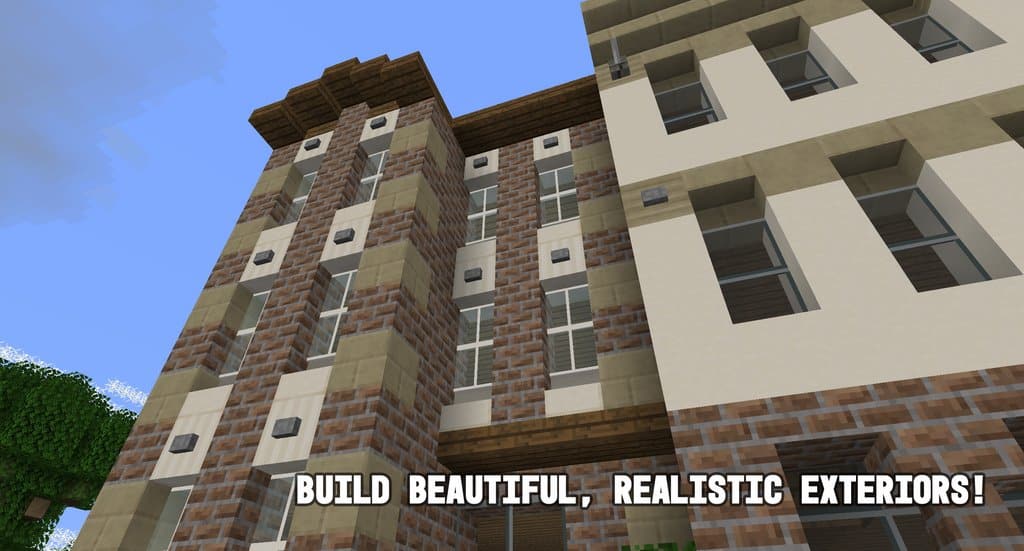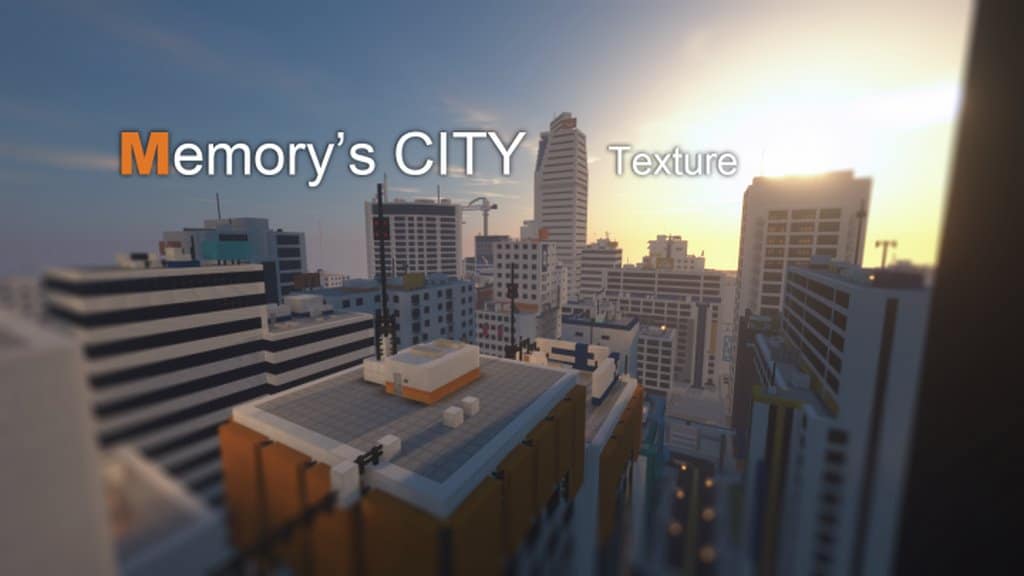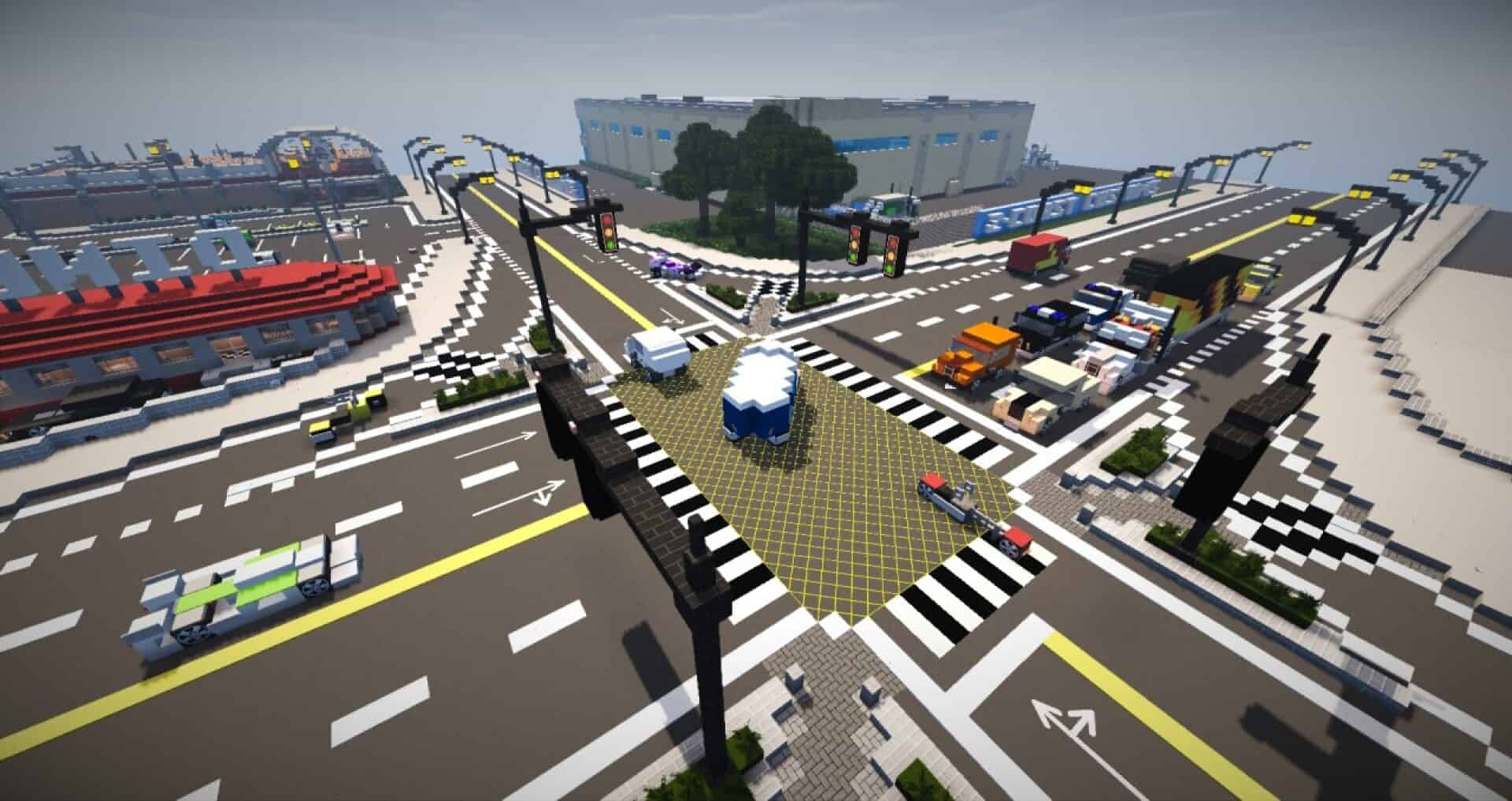
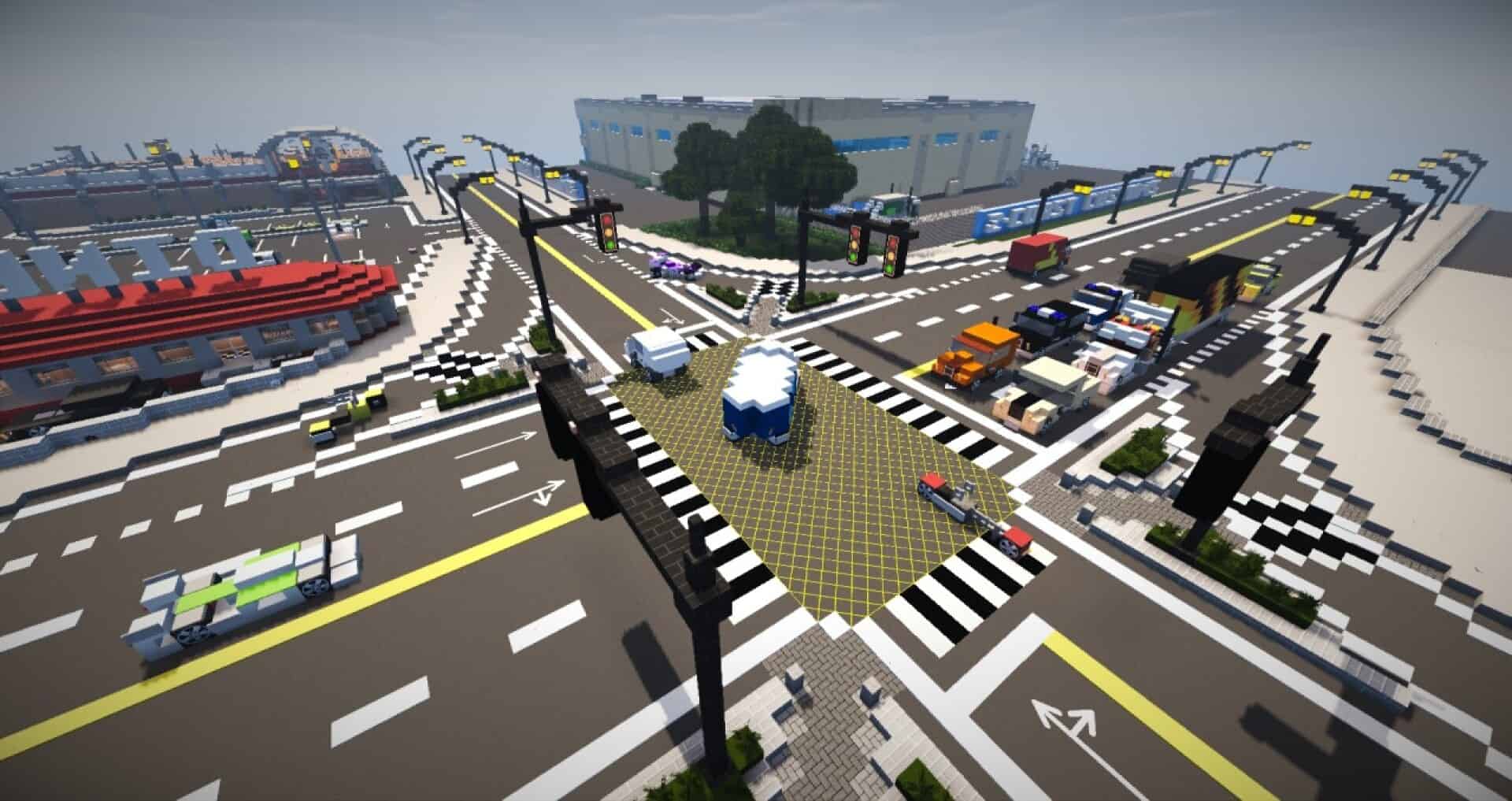
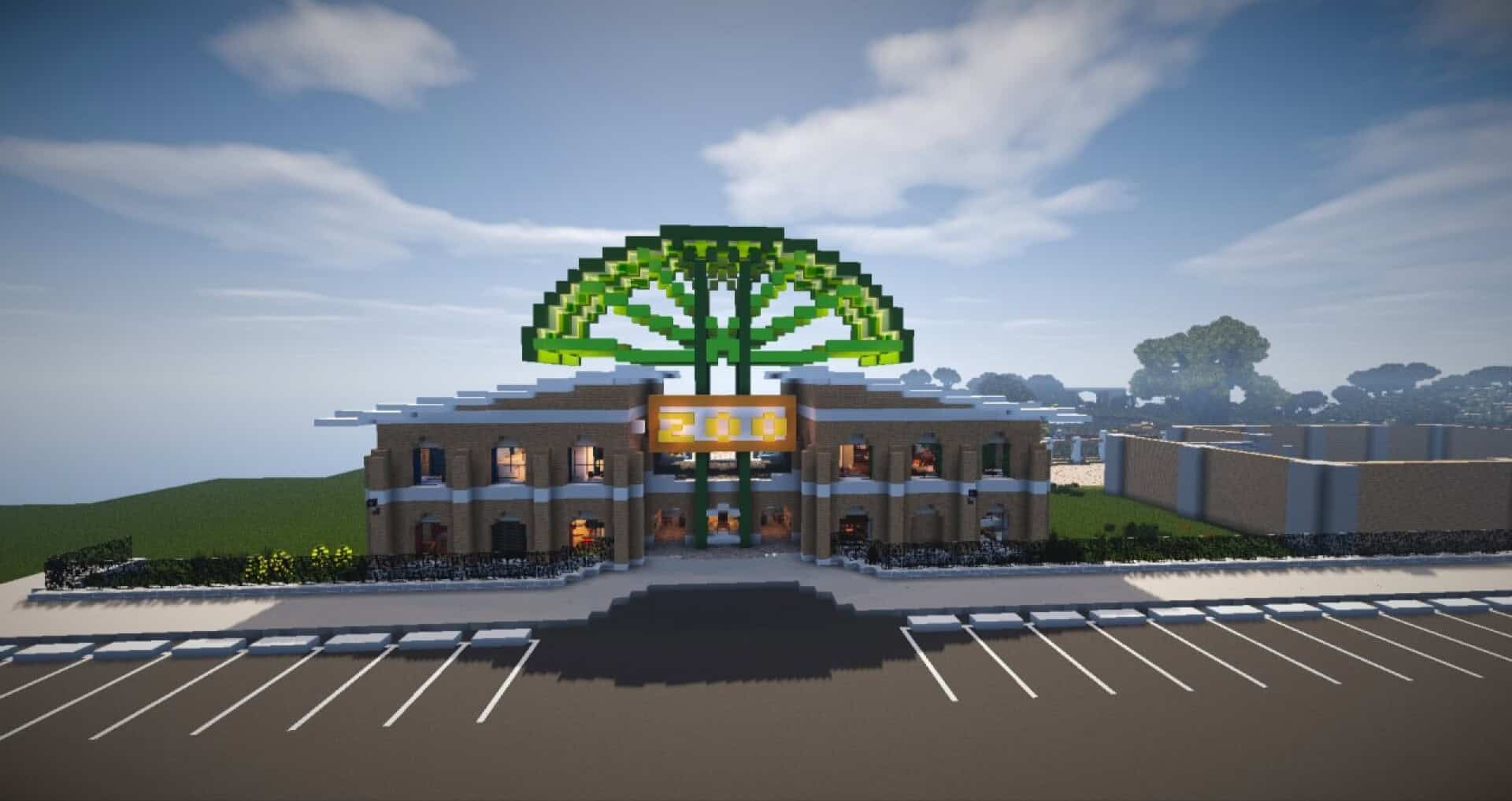
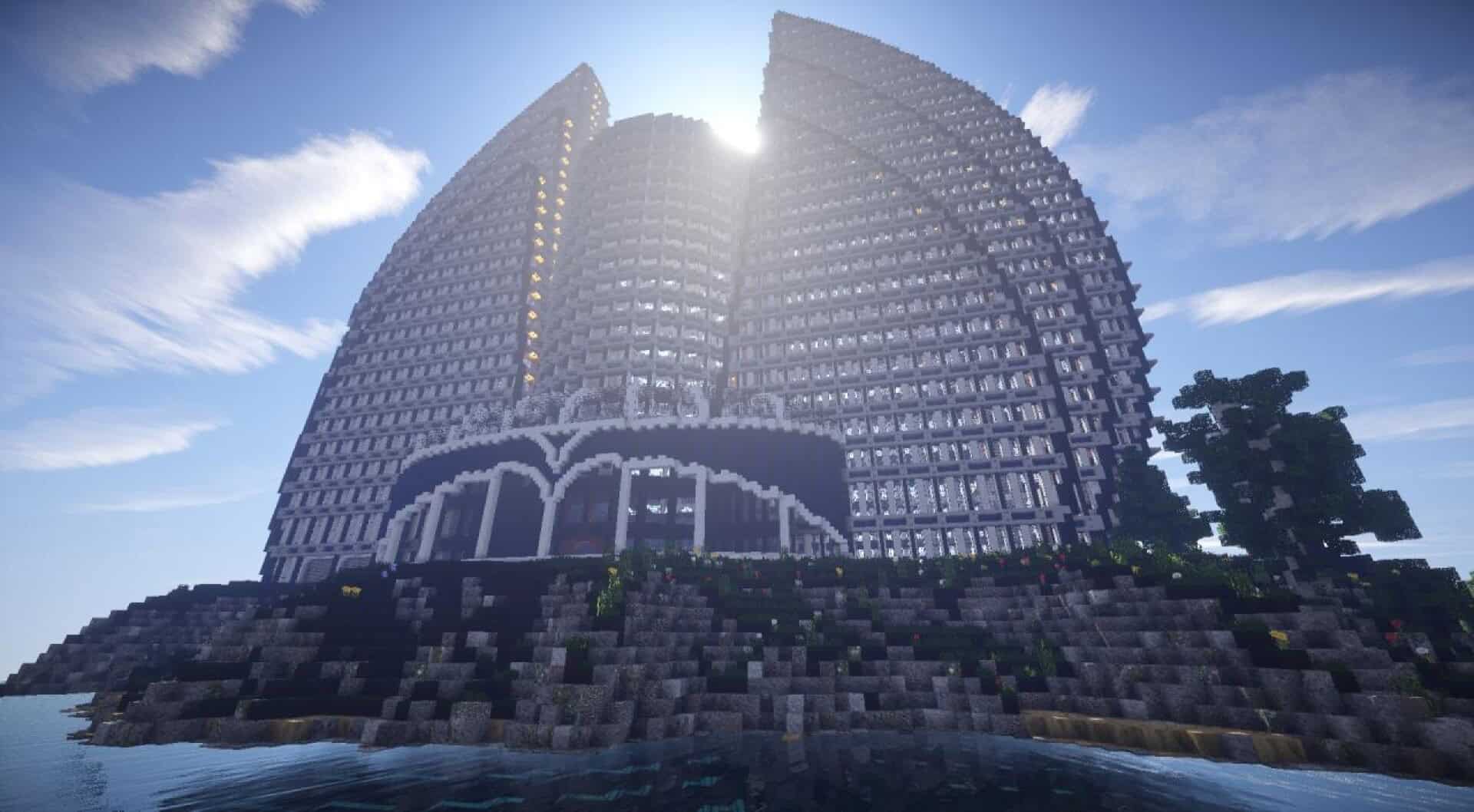
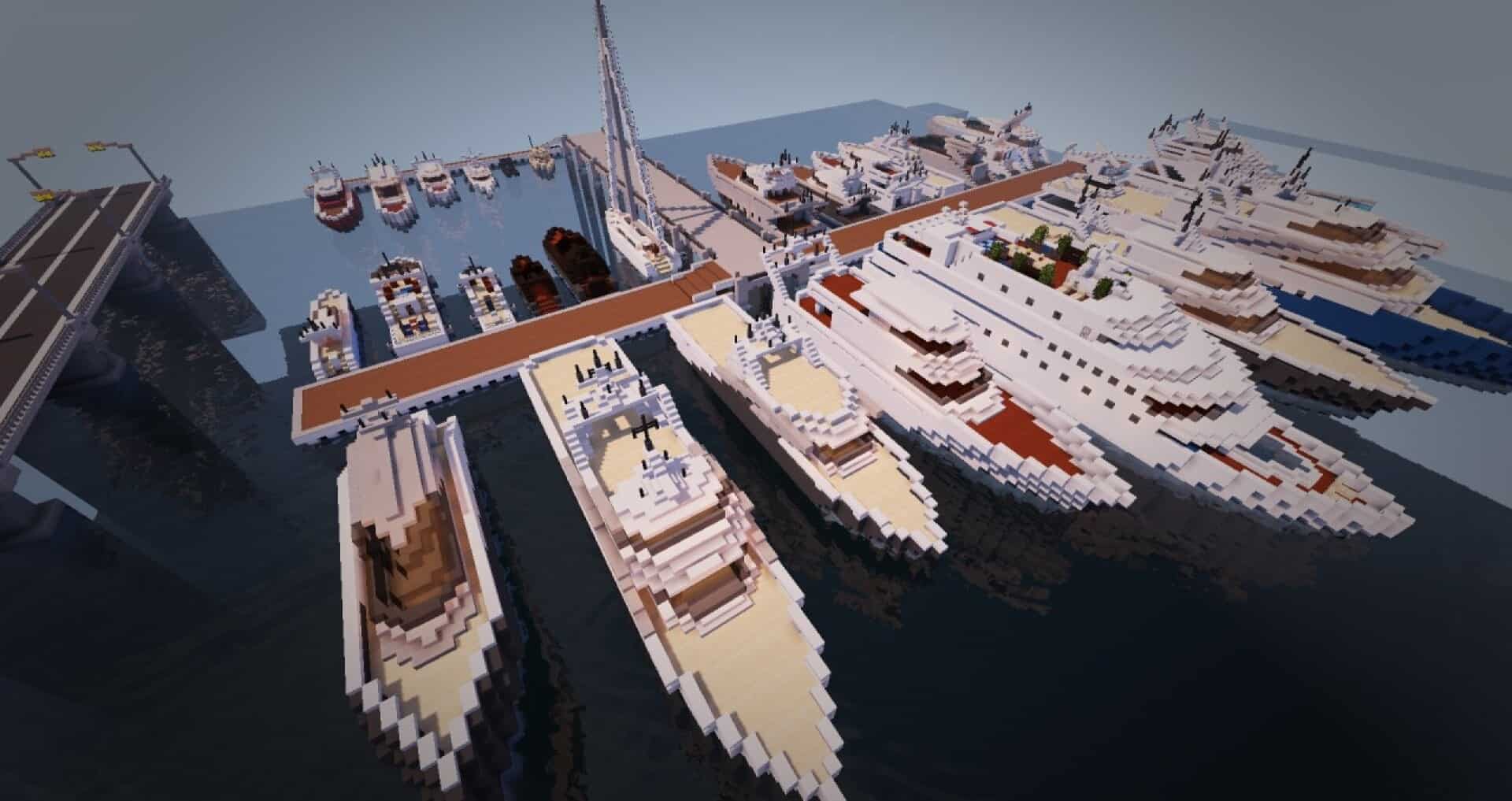
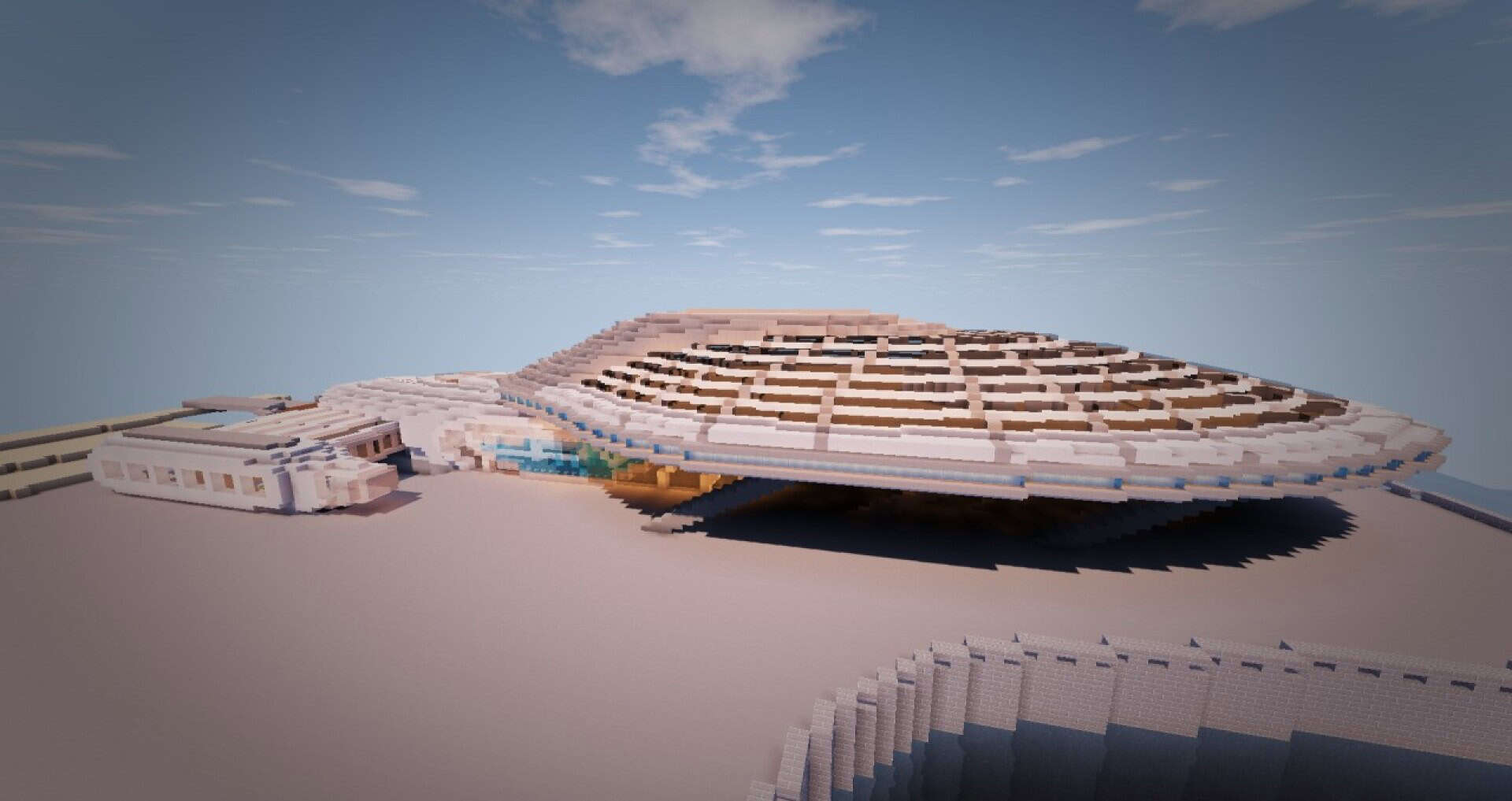
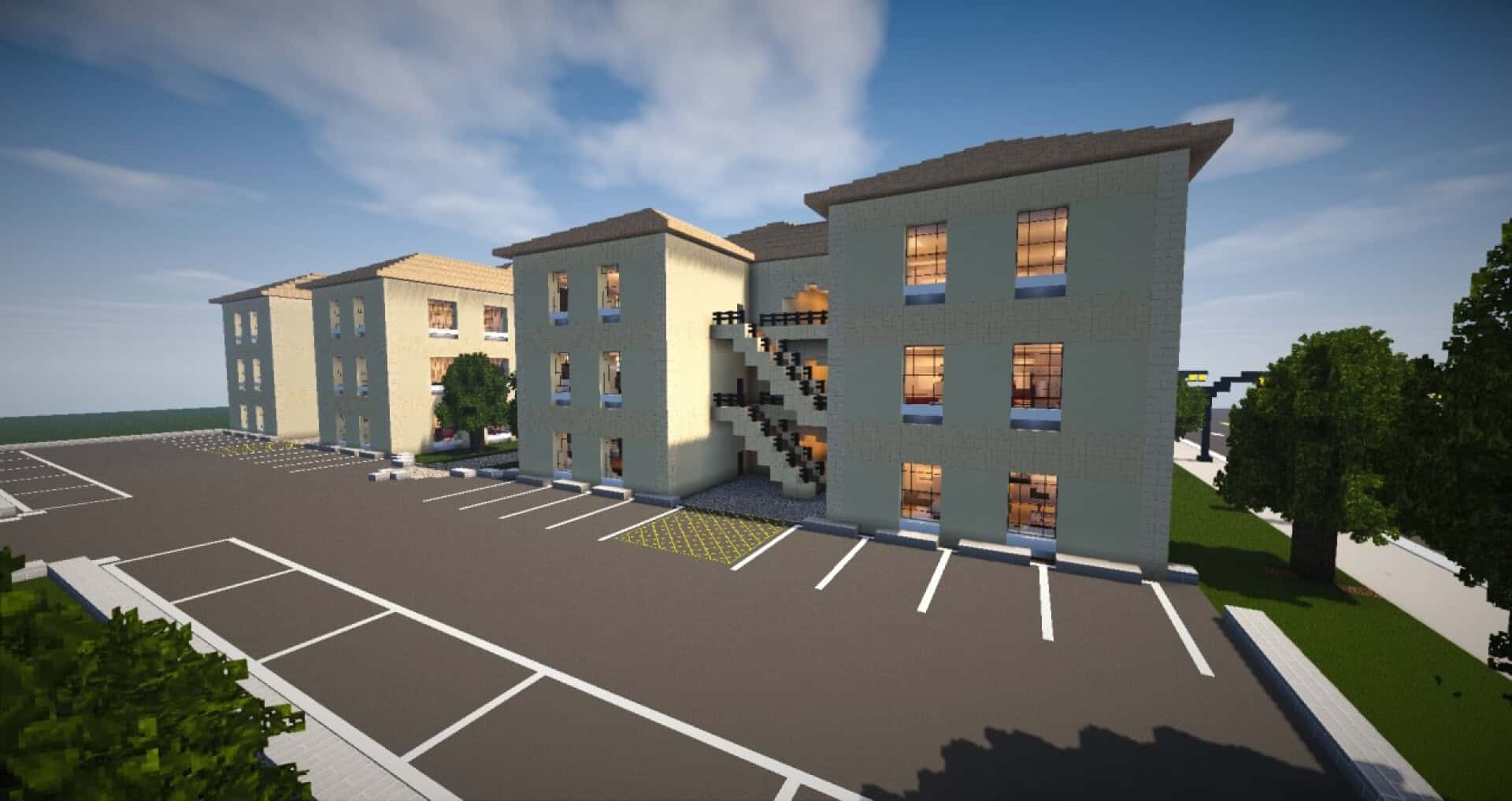
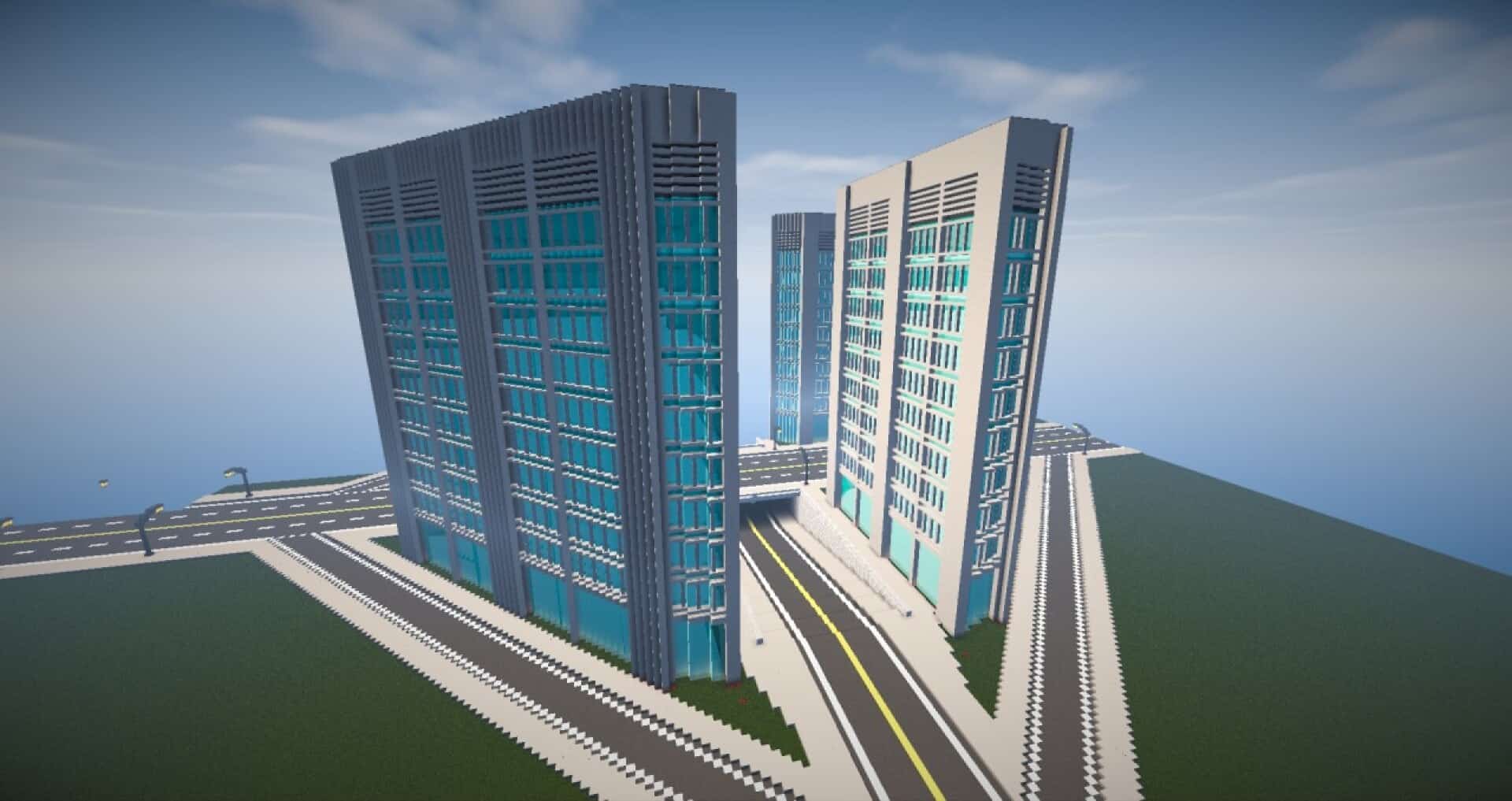
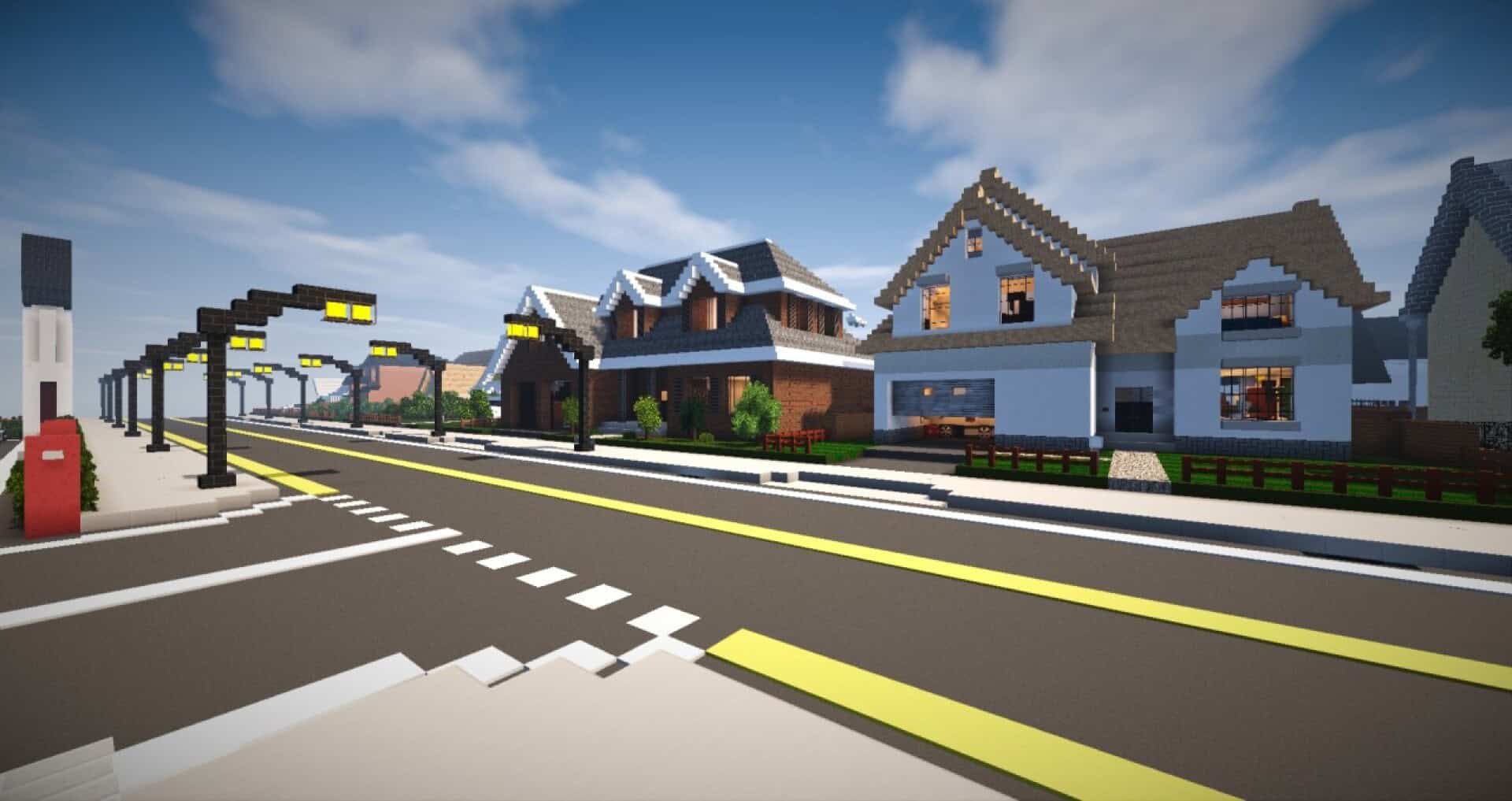
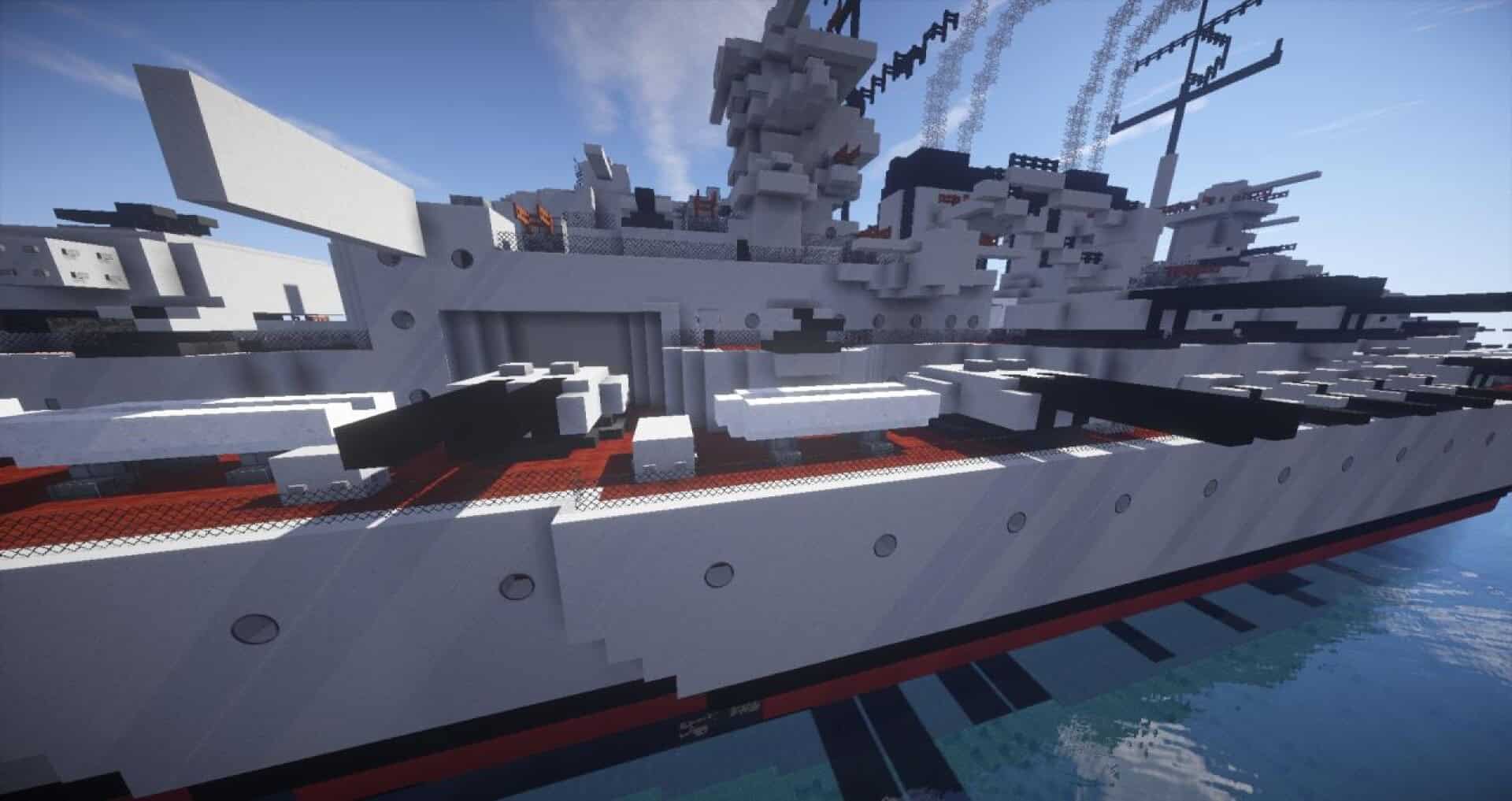
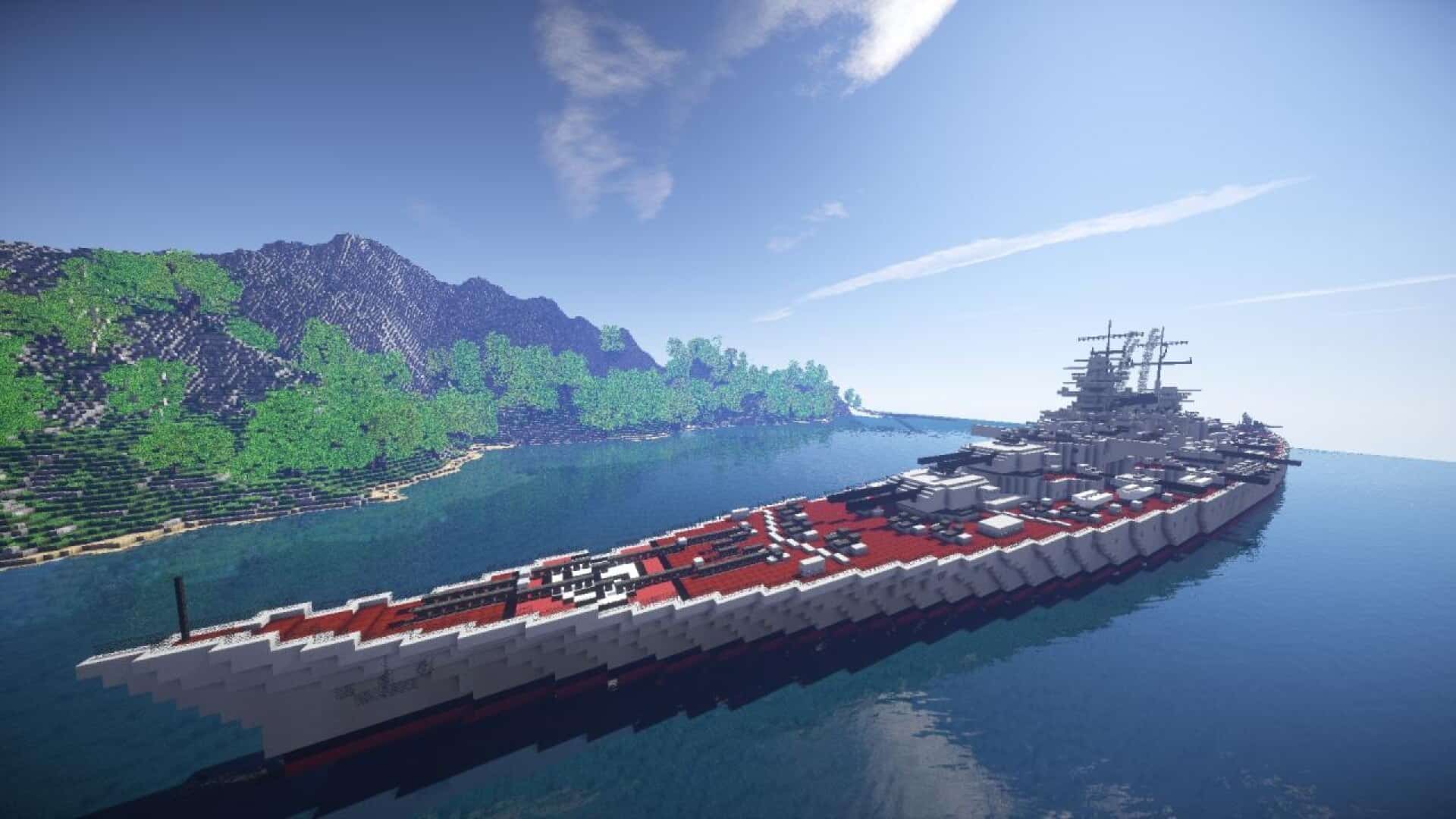
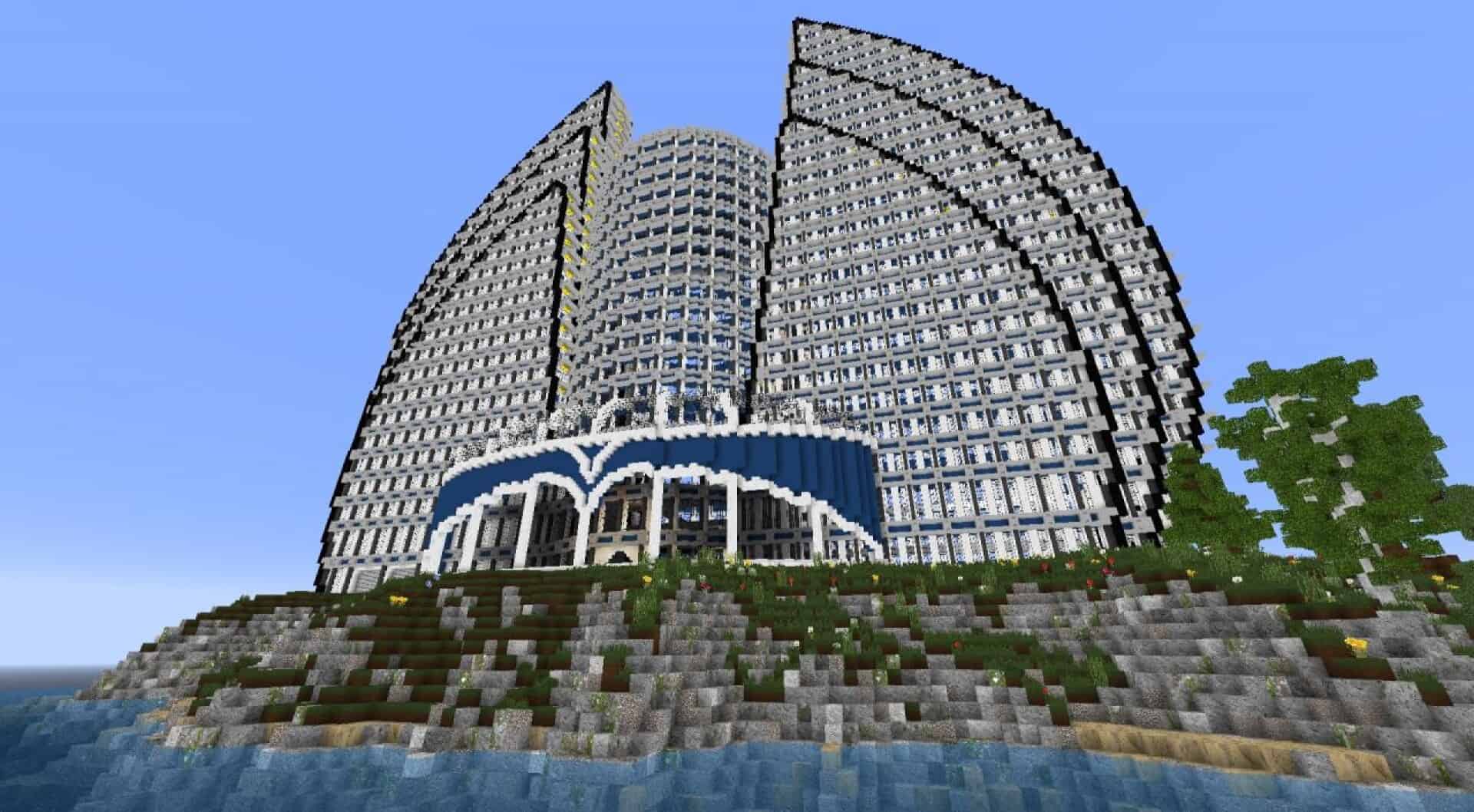
I tested out the LD Modern resource pack, and it is a fantastic 64×64 texture pack if you want a clean, modern look for city builds. It really helps you design skylines and move past the limits of vanilla textures that tend to lean cartoony. It suits wide roads, sidewalks, parking areas, huge glass towers, office blocks, and apartments. It also works well for yachts, ships, and other urban or industrial projects where modern materials matter.
The creator’s goal is to give you a large set of modern textures so you can build contemporary structures without fighting fantasy blocks. Large walls and flat areas look clean instead of patchy, which is great for big facades and long streets. The 64x resolution adds extra detail so patterns look sharper than default while keeping the Minecraft style. This helps most when your builds use repeated blocks over long stretches like highways, warehouses, or high-rise exteriors.
One of the strongest features is connected textures through OptiFine. With OptiFine, blocks join smoothly so you see fewer hard edges and more continuous lines across glass and panels. You can still run the pack without OptiFine if you do not care about connected textures. Updates slowed around Minecraft 1.7.10, with blocks nearly finished, items halfway done, and paintings complete, sitting around seventy percent overall. It is still a strong fit for building a believable modern world.
LD Modern should be compatible with all of these Minecraft versions: 1.8.9 – 1.8.8 – 1.8.1 – 1.8.6 – 1.8 – 1.7.10 – 1.7.9 – 1.7.4 – 1.7
Screenshots
How to Install Texture Pack (Simple 10 Steps)
- Download OptiFine: Most of the texture packs and shaders need OptiFine. That’s why, first download and install OptiFine for the version of Minecraft you want to play.
- Download the Texture Pack: Get the texture pack you want from the download section. Choose the version that works with your Minecraft and your PC’s performance.
- Open Minecraft Launcher: Start Minecraft using the official game launcher — or even TLauncher, if you use that.
- Go to Options: From the main menu, click on the “Options” button.
- Open Resource Packs: Inside Options, click on “Resource Packs…”.
- Open the Resource Pack Folder: Click on “Open Resource Pack Folder” — this will open a folder named “resourcepacks”.
- Move the Pack File: Copy or move the .zip file you downloaded into that “resourcepacks” folder. (Don’t unzip the file — Minecraft uses it as-is!)
- Go Back and Refresh: Close the folder and click “Done”, then go back into “Resource Packs…” again.
- Activate the Pack: You’ll see the pack on the left side. Hover over it and click the arrow to move it to the right (active side).
Tip: If you get a message that the pack is for a different version, just click “Yes” — it usually works fine. - Click Done and Enjoy: Click “Done” again. Now your pack is ready to use in-game. It’s that easy!
Credits
This resource pack was created by Lord Dakr. We do not claim ownership of this content, nor do we modify or host these files on our servers. All rights remain with the original creator. We encourage you to support Lord Dakr by visiting their official download pages.
Download Instructions
Curseforge: download starts automatically after a few seconds;
Mediafire: click the big blue button with the text “DOWNLOAD”;
Google Drive: in the top right corner you will see a small download icon (down arrow), click it and the download should start;