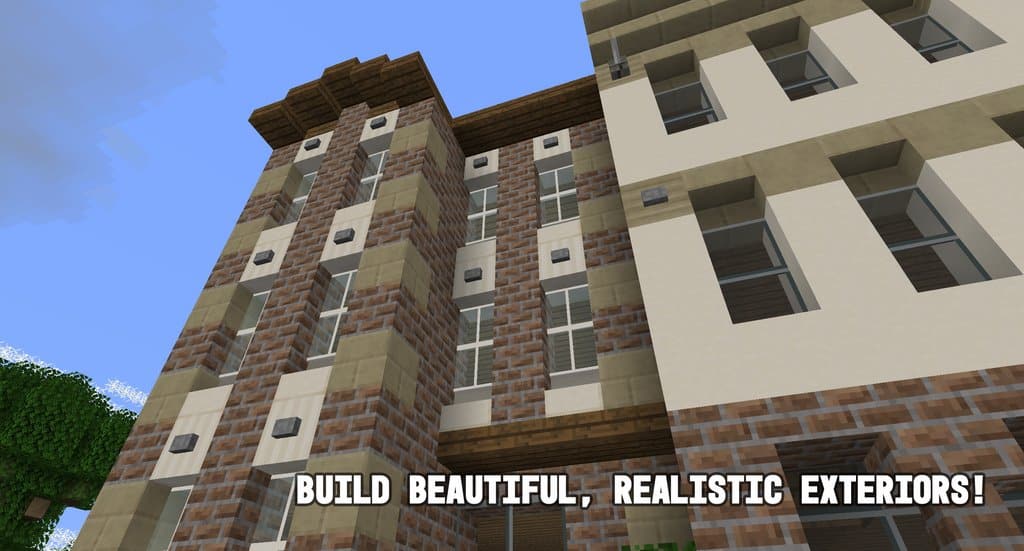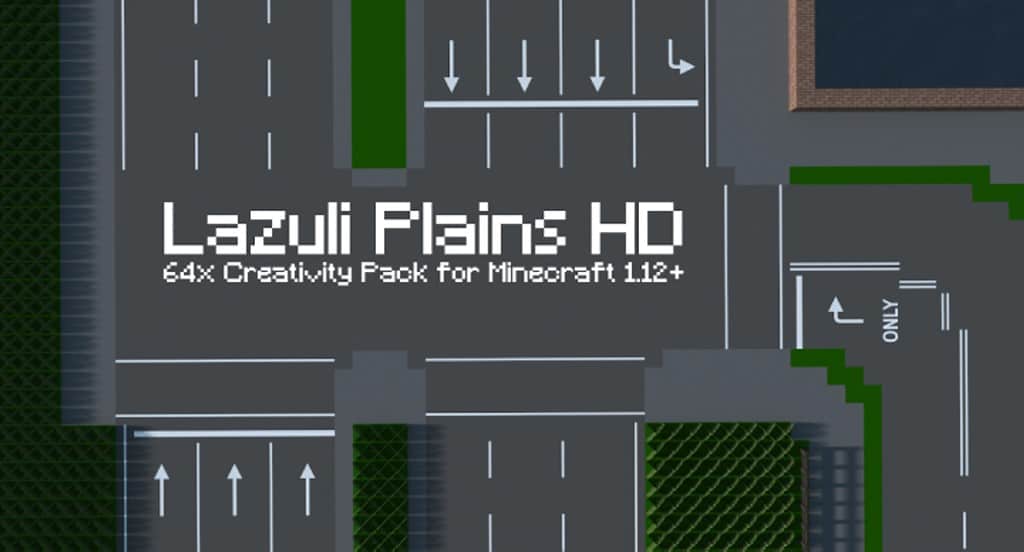
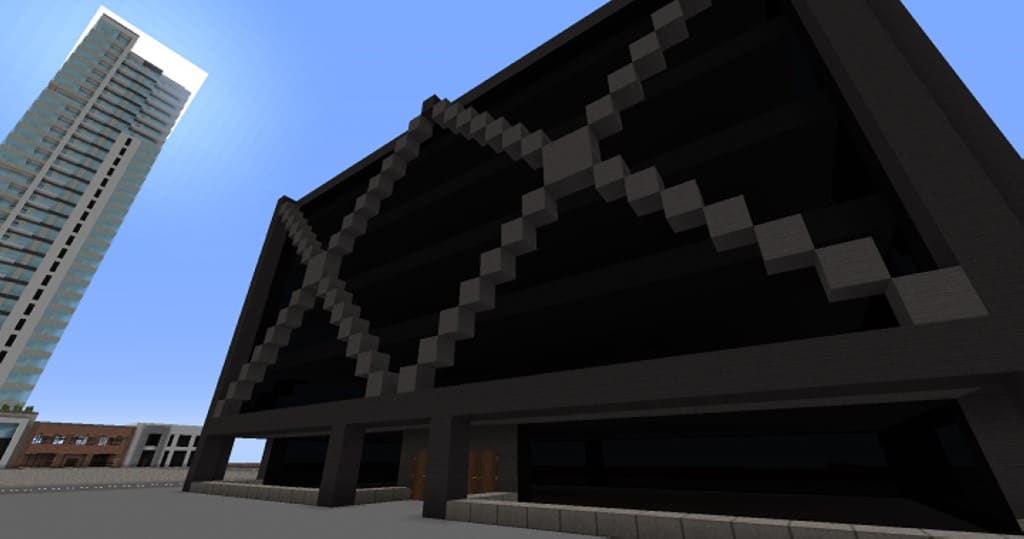
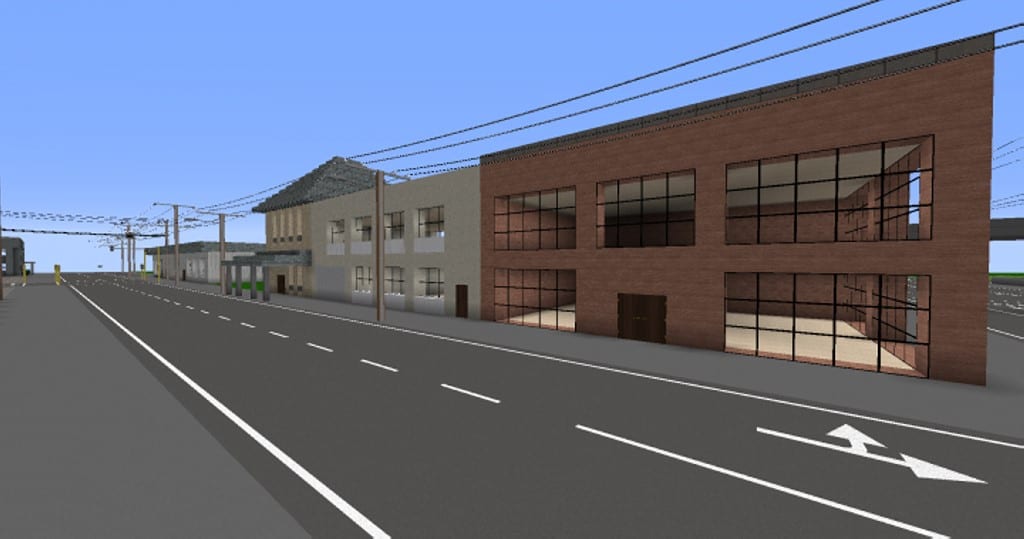
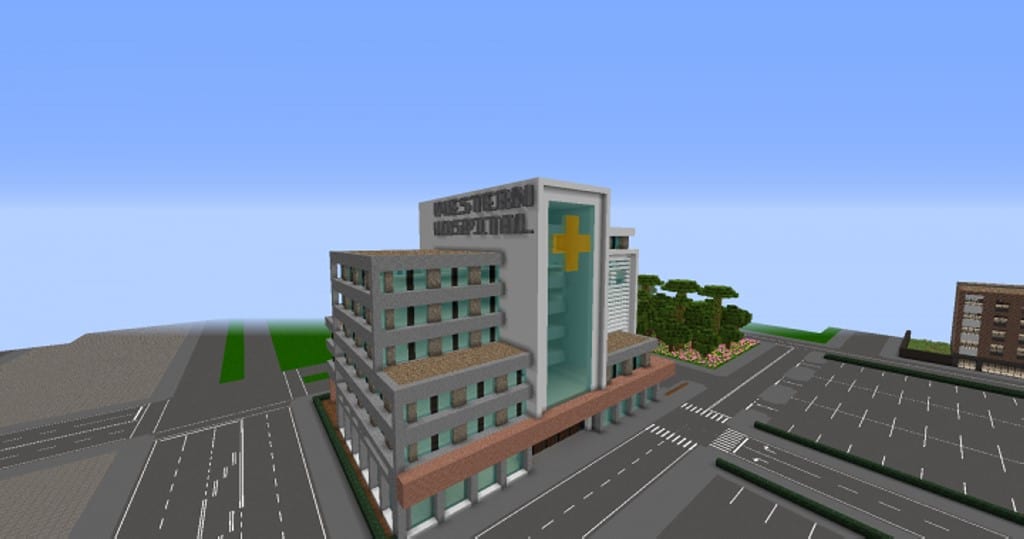
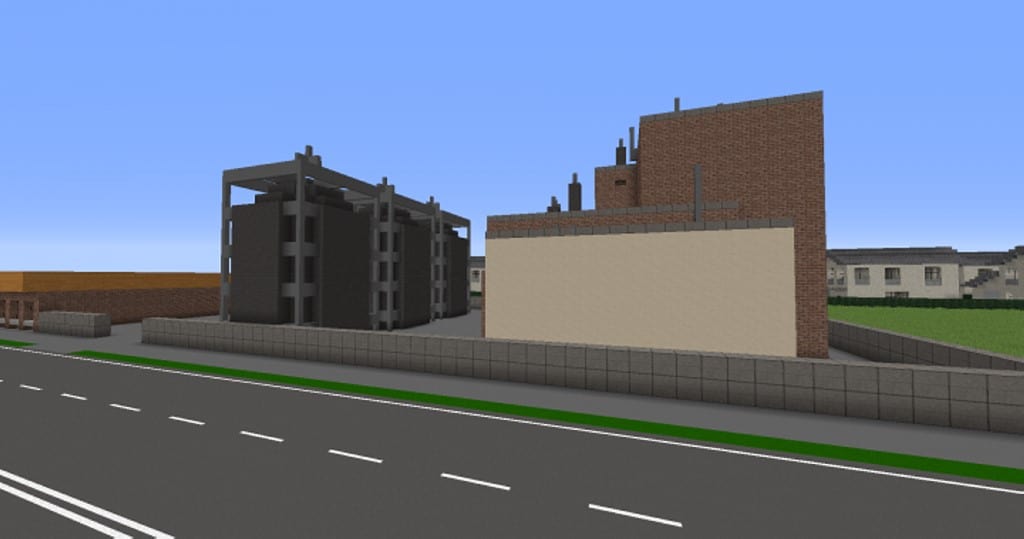
If you are looking to give your game client a fresh, contemporary look, I genuinely think the Lazuli Plains resource pack will be an ideal choice for you. While there are certainly several alternatives currently available in the community, almost every other pack tends to stick to a faithful style. Most of them usually strive to offer a more primitive touch to Minecraft. When you check out other resource packs out there, you simply do not have many good options available of such high quality as this one. It has already been out for about four years, and players have downloaded more than 3,000 copies of the Lazuli Plains HD texture pack. While that might not sound like much compared to massively famous mega-packs, it is still quite a notable achievement.
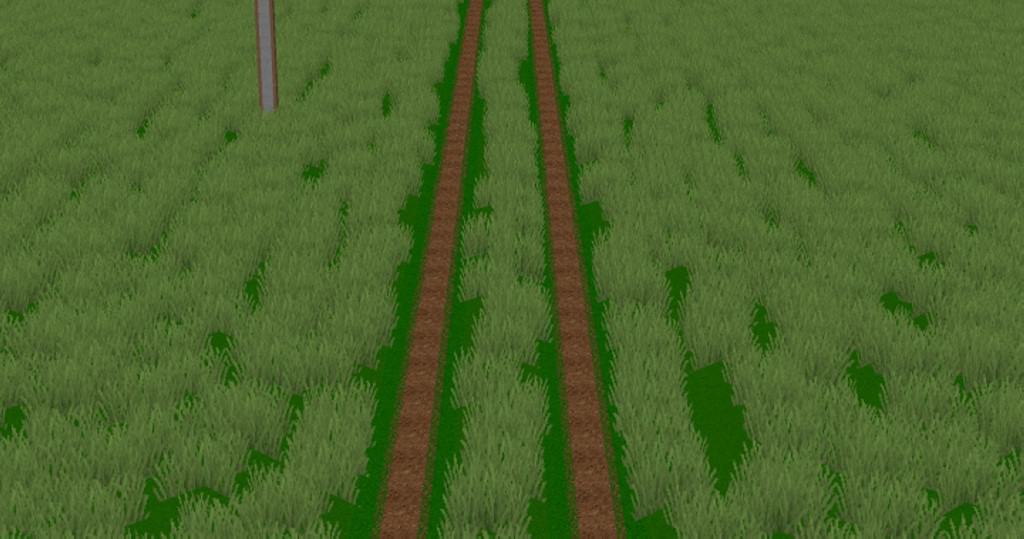
If you ask me about its most remarkable feature, I must say that the author has meticulously crafted almost every single texture completely from scratch. It features a few unique textures that appear remarkably sleeker with just the most appropriate color combinations you could ask for. You can easily go with this resource pack according to your own unique preferences, especially if you believe these stunning textures will be appropriate for your ongoing building projects. It boasts an ultra-high resolution of 256×256, leading to some of the most crisp and sharp textures that this game can possibly offer. Naturally, this implies that you will definitely need a high-end computer system to render these heavy textures smoothly without running into frustrating frame rate or FPS problems. Before you jump in and use this resource pack, please make sure that you have an up-to-date game client running a version below 1.12.x, otherwise it will most probably not work properly for you.
Lazuli Plains should be compatible with all of these Minecraft versions: 1.12.2 – 1.12 – 1.11.2 – 1.11 – 1.10.2 – 1.10 – 1.9.4 – 1.9 – 1.8.9 – 1.8.8 – 1.8.1 – 1.8.6 – 1.8
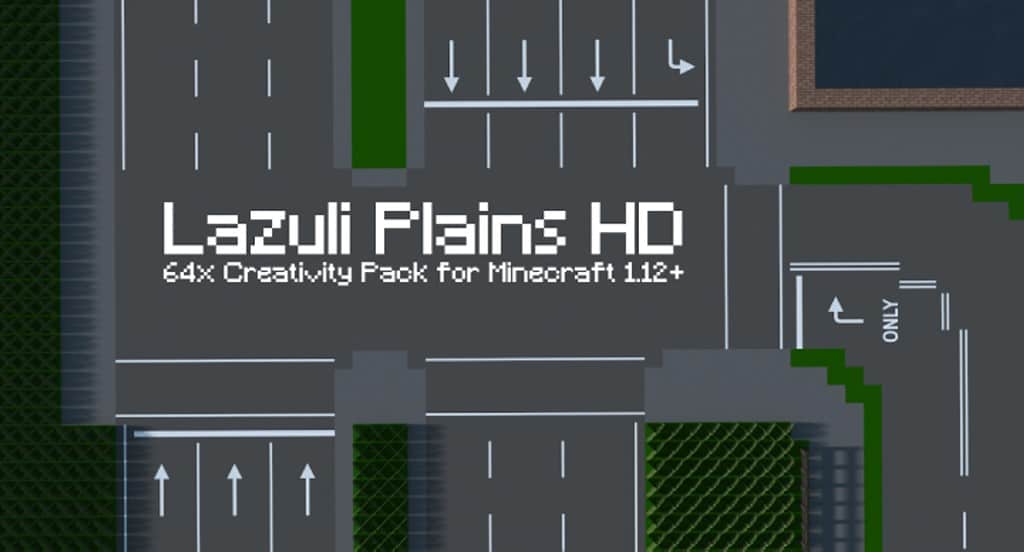
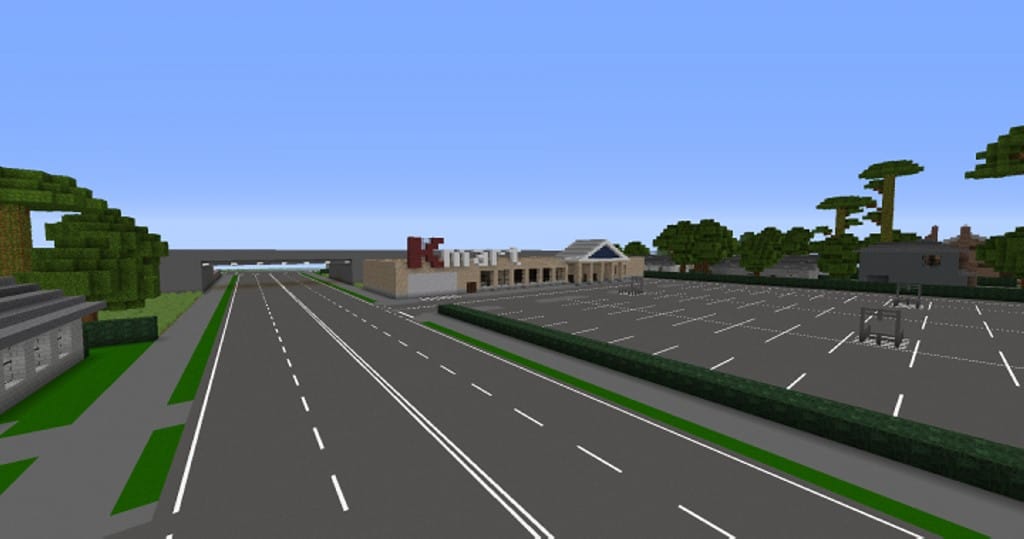
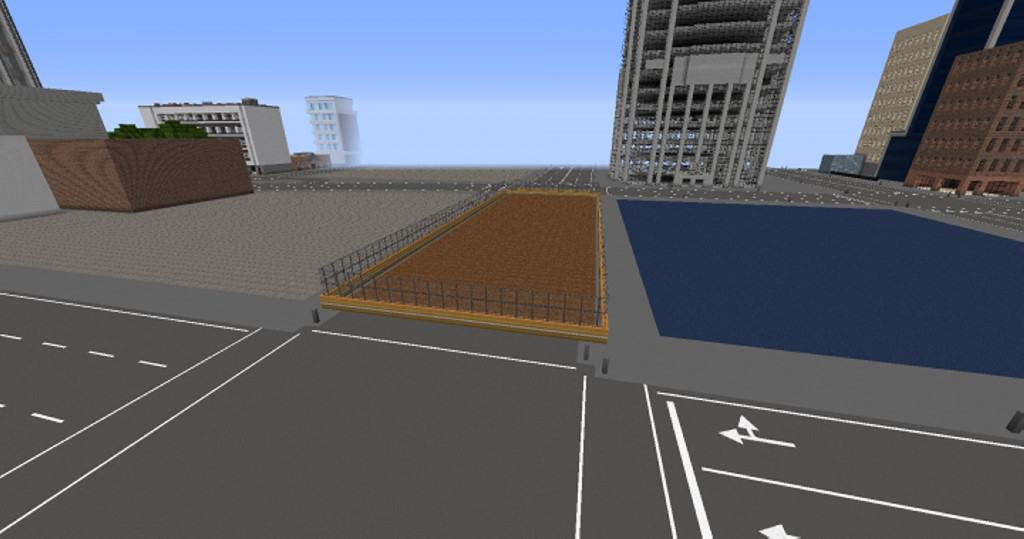
Screenshots
How to Install Texture Pack (Simple 10 Steps)
- Download OptiFine: Most of the texture packs and shaders need OptiFine. That’s why, first download and install OptiFine for the version of Minecraft you want to play.
- Download the Texture Pack: Get the texture pack you want from the download section. Choose the version that works with your Minecraft and your PC’s performance.
- Open Minecraft Launcher: Start Minecraft using the official game launcher — or even TLauncher, if you use that.
- Go to Options: From the main menu, click on the “Options” button.
- Open Resource Packs: Inside Options, click on “Resource Packs…”.
- Open the Resource Pack Folder: Click on “Open Resource Pack Folder” — this will open a folder named “resourcepacks”.
- Move the Pack File: Copy or move the .zip file you downloaded into that “resourcepacks” folder. (Don’t unzip the file — Minecraft uses it as-is!)
- Go Back and Refresh: Close the folder and click “Done”, then go back into “Resource Packs…” again.
- Activate the Pack: You’ll see the pack on the left side. Hover over it and click the arrow to move it to the right (active side).
Tip: If you get a message that the pack is for a different version, just click “Yes” — it usually works fine. - Click Done and Enjoy: Click “Done” again. Now your pack is ready to use in-game. It’s that easy!
Credits
This resource pack was created by Saracalia. We do not own, host, or modify this pack in any way. All rights and original ownership belong solely to Saracalia. We strongly encourage you to support the creator by visiting their official pages and downloading directly from their designated links.
Download Links
Java Edition
Download Instructions
Curseforge: download starts automatically after a few seconds;
Mediafire: click the big blue button with the text “DOWNLOAD”;
Google Drive: in the top right corner you will see a small download icon (down arrow), click it and the download should start;