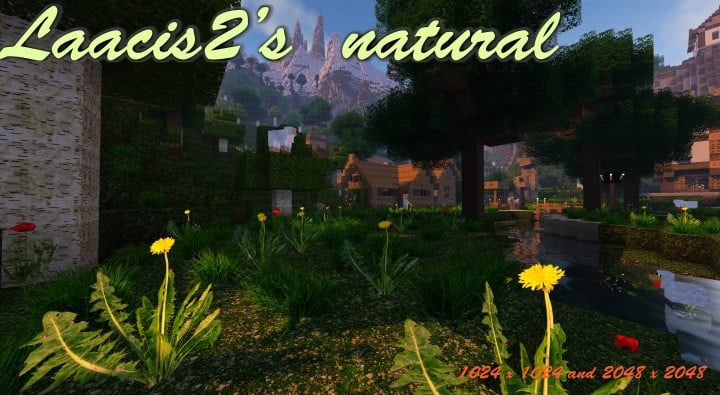
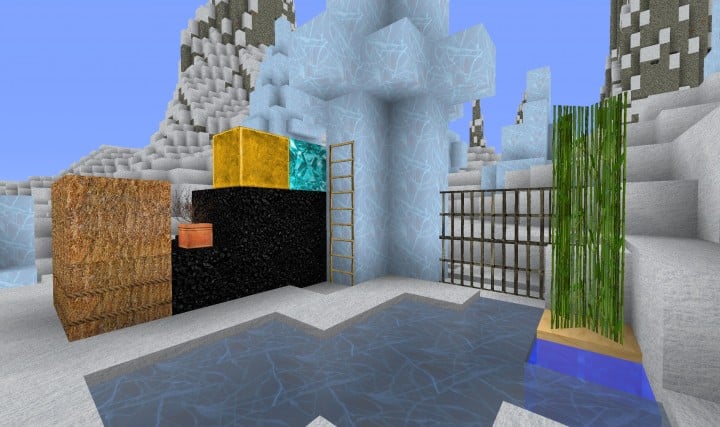
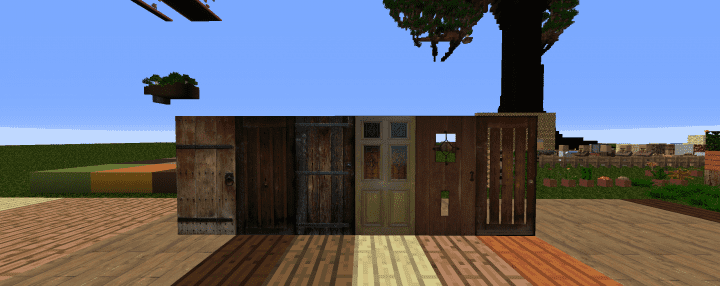
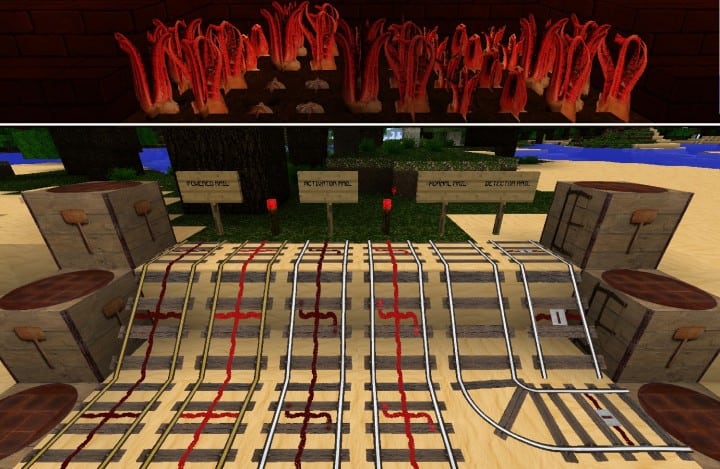
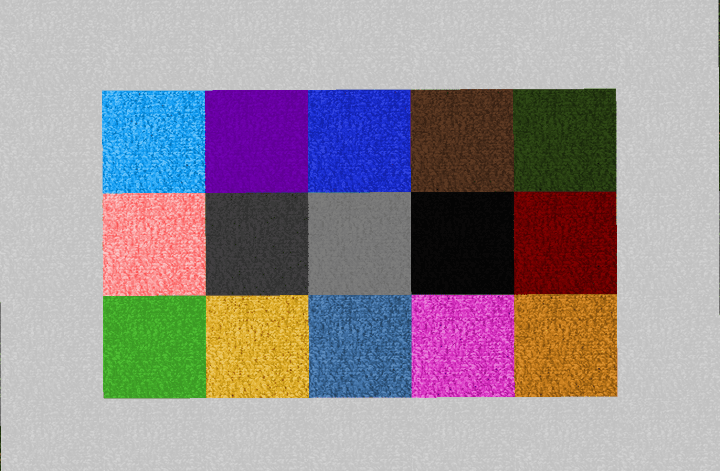
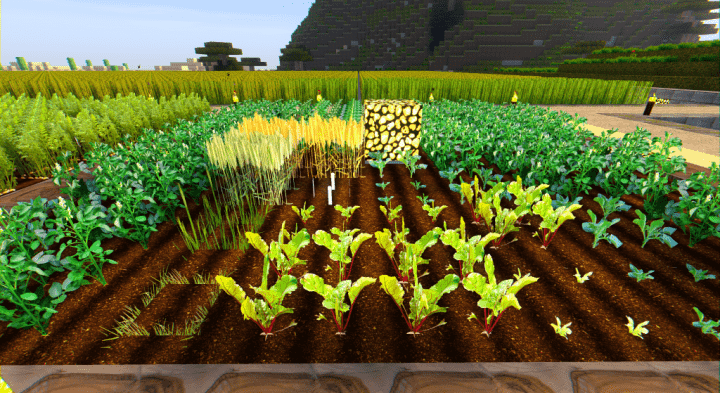
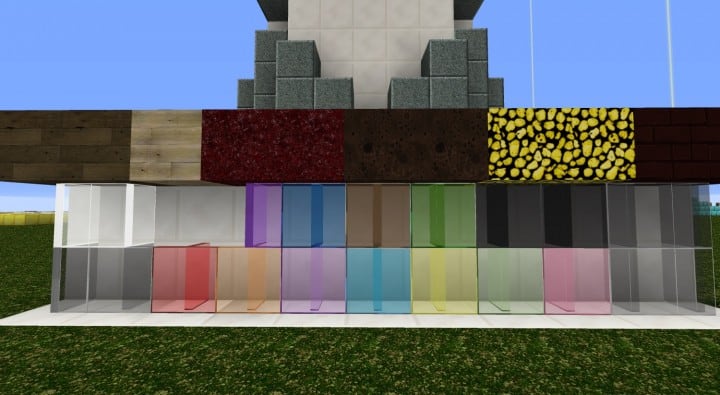
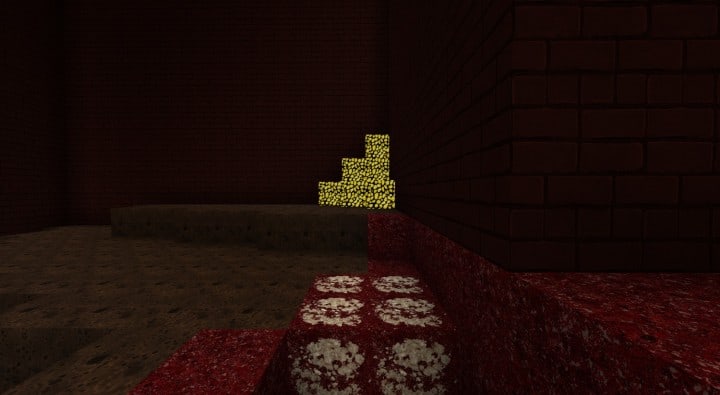
Over the past few years, Minecraft packs have truly come a long way. One notable milestone is the stunning natural resource pack developed by Laacis2. In the early days, Minecraft packs used to be of low resolution and relatively straightforward, making minor alterations to the game that resulted in a better overall experience for players. As time passed, these packs progressed tremendously, and we began seeing revolutionary creations featuring extremely high resolutions like x512 or x256. A prime example of this evolution is Laacis2’s Natural Pack. This incredible pack makes Minecraft look phenomenal with its breathtaking resolutions of x2048, x1024, and x512. Developer Laacis2 explains that a simple photograph was what originally inspired him to come up with this fantastic natural resource pack.
He always wanted to make maximum utilization of the real-world images he had taken to craft a visually stunning Minecraft resource pack, and he has definitely succeeded through this great release. You simply need to install it, and it will immediately make the game look incredibly sharp and immersive. Although some textures might still be incomplete, future updates will surely patch them in. It is definitely worth noting that to get the absolute fullest out of Laacis2’s Natural resource pack, you must have a powerful high-end PC to run it smoothly due to its insanely high resolution. If you have a top-tier machine readily available at your disposal, feel free to go for the magnificent x2048 variant. However, if you are running a mid-to-high-tier computer, consider opting for the x1024 or x512 variants instead. All of these options are fully capable of taking your Minecraft experience to a completely new level by radically elevating how the world looks.
Laacis2’s Natural should be compatible with all of these Minecraft versions: 1.14.4 – 1.14.3 – 1.14.2 – 1.14 – 1.13.2 – 1.13.1 – 1.13 – 1.12.2 – 1.12 – 1.11.2 – 1.11 – 1.10.2 – 1.10 – 1.9.4 – 1.9 – 1.8.9 – 1.8.8 – 1.8.1 – 1.8.6 – 1.8
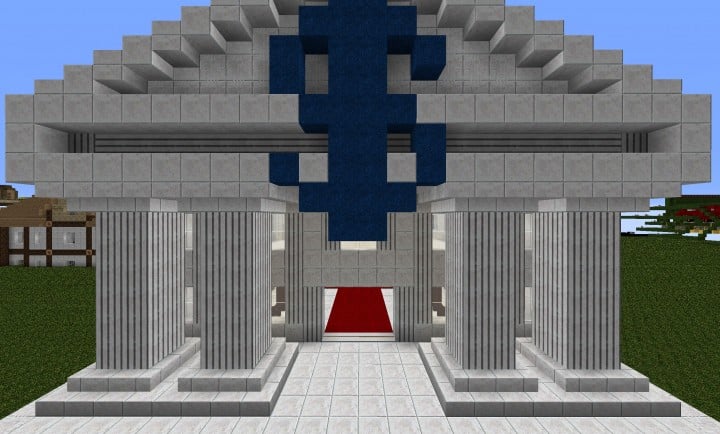
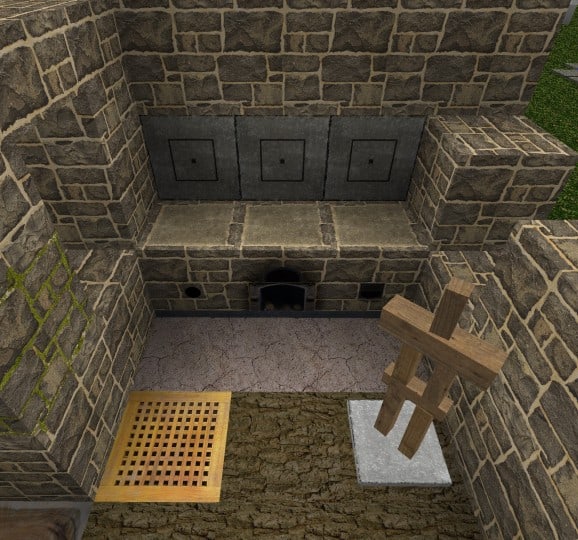
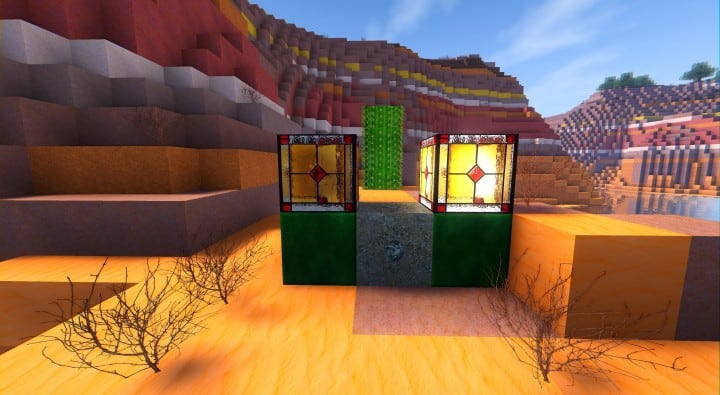
Screenshots




How to Install Texture Pack (Simple 10 Steps)
- Download OptiFine: Most of the texture packs and shaders need OptiFine. That’s why, first download and install OptiFine for the version of Minecraft you want to play.
- Download the Texture Pack: Get the texture pack you want from the download section. Choose the version that works with your Minecraft and your PC’s performance.
- Open Minecraft Launcher: Start Minecraft using the official game launcher — or even TLauncher, if you use that.
- Go to Options: From the main menu, click on the “Options” button.
- Open Resource Packs: Inside Options, click on “Resource Packs…”.
- Open the Resource Pack Folder: Click on “Open Resource Pack Folder” — this will open a folder named “resourcepacks”.
- Move the Pack File: Copy or move the .zip file you downloaded into that “resourcepacks” folder. (Don’t unzip the file — Minecraft uses it as-is!)
- Go Back and Refresh: Close the folder and click “Done”, then go back into “Resource Packs…” again.
- Activate the Pack: You’ll see the pack on the left side. Hover over it and click the arrow to move it to the right (active side).
Tip: If you get a message that the pack is for a different version, just click “Yes” — it usually works fine. - Click Done and Enjoy: Click “Done” again. Now your pack is ready to use in-game. It’s that easy!
Credits
This resource pack was created by laacis2. We do not claim ownership of this content, nor do we host or modify the original files. All rights and intellectual property belong strictly to the original author. We strongly encourage you to support laacis2 by following their official release channels and checking out their other work.
Download Links
Java Edition
Download Instructions
Curseforge: download starts automatically after a few seconds;
Mediafire: click the big blue button with the text “DOWNLOAD”;
Google Drive: in the top right corner you will see a small download icon (down arrow), click it and the download should start;


