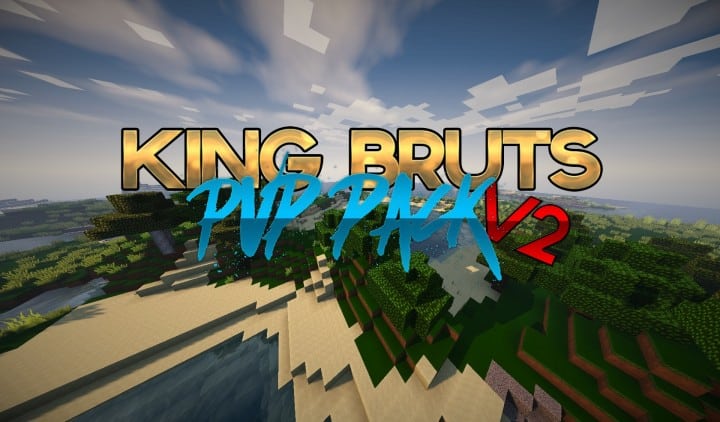
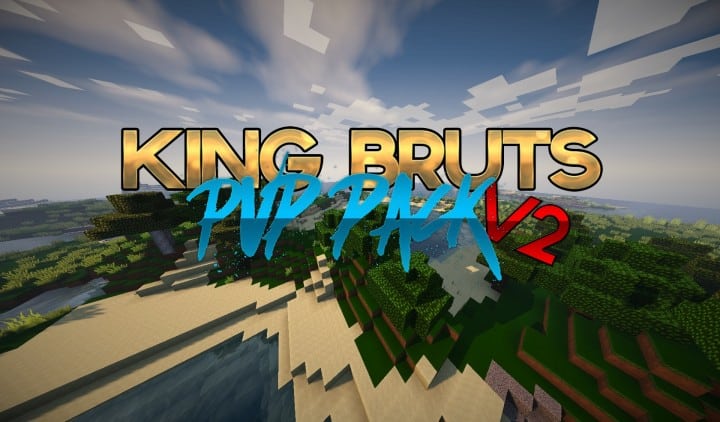
PvP resource packs were uniquely created to assist in providing seamless and fluid play by simplifying the textures, clearing of the HUD, and performing other important roles including a unique graphic flash capable of informing the player of instances of full power arrow launch. Initially, the original creator meant to give the players a smooth play experience by performing hardware acceleration, something that is very essential where the best PvP resource packs available are concerned. In contrast to vanilla, this PvP resource pack operates on a 32x resolution, consequently, the bits of its textures are doubled, even though the resource pack has been proven to be more efficient by being less stressful on the GPU and processor and is fancied to have simpler graphics.
There is always a noticeable difference in the look of many Minecraft items and blocks which are less boxy and rough with a neat finish due to the resolution setup. To give even a more seamless gaming experience, the pack’s in-game chat fonts have been changed to effectively eliminate any distraction at the screen’s bottom left corner. There are different types of players; some do not chat much, while others enjoy the in-game chats, something that can be very distracting when it cuts off the bottom left corner of the screen. Many enthusiasts, especially those who play on servers that host hundreds of users playing in real-time, can attest to the distraction that comes with real-time in-play chats. Even though there are a number of great things about this PvP resource pack, it is not entirely flawless, as lava particles and fire effects are not as good as those of vanilla.
King Bruts PvP should be compatible with all of these Minecraft versions: 1.9.4 – 1.9 – 1.8.9 – 1.8.8 – 1.8.1 – 1.8.6 – 1.8
Screenshots
How to Install Texture Pack (Simple 10 Steps)
- Download OptiFine: Most of the texture packs and shaders need OptiFine. That’s why, first download and install OptiFine for the version of Minecraft you want to play.
- Download the Texture Pack: Get the texture pack you want from the download section. Choose the version that works with your Minecraft and your PC’s performance.
- Open Minecraft Launcher: Start Minecraft using the official game launcher — or even TLauncher, if you use that.
- Go to Options: From the main menu, click on the “Options” button.
- Open Resource Packs: Inside Options, click on “Resource Packs…”.
- Open the Resource Pack Folder: Click on “Open Resource Pack Folder” — this will open a folder named “resourcepacks”.
- Move the Pack File: Copy or move the .zip file you downloaded into that “resourcepacks” folder. (Don’t unzip the file — Minecraft uses it as-is!)
- Go Back and Refresh: Close the folder and click “Done”, then go back into “Resource Packs…” again.
- Activate the Pack: You’ll see the pack on the left side. Hover over it and click the arrow to move it to the right (active side).
Tip: If you get a message that the pack is for a different version, just click “Yes” — it usually works fine. - Click Done and Enjoy: Click “Done” again. Now your pack is ready to use in-game. It’s that easy!
Credits
This resource pack was created by kingbrutt. We do not claim ownership of this content, and we have not modified the download files. All rights and credits belong entirely to kingbrutt. Please visit the creator’s official platforms to support their ongoing work.
Download Instructions
Curseforge: download starts automatically after a few seconds;
Mediafire: click the big blue button with the text “DOWNLOAD”;
Google Drive: in the top right corner you will see a small download icon (down arrow), click it and the download should start;


