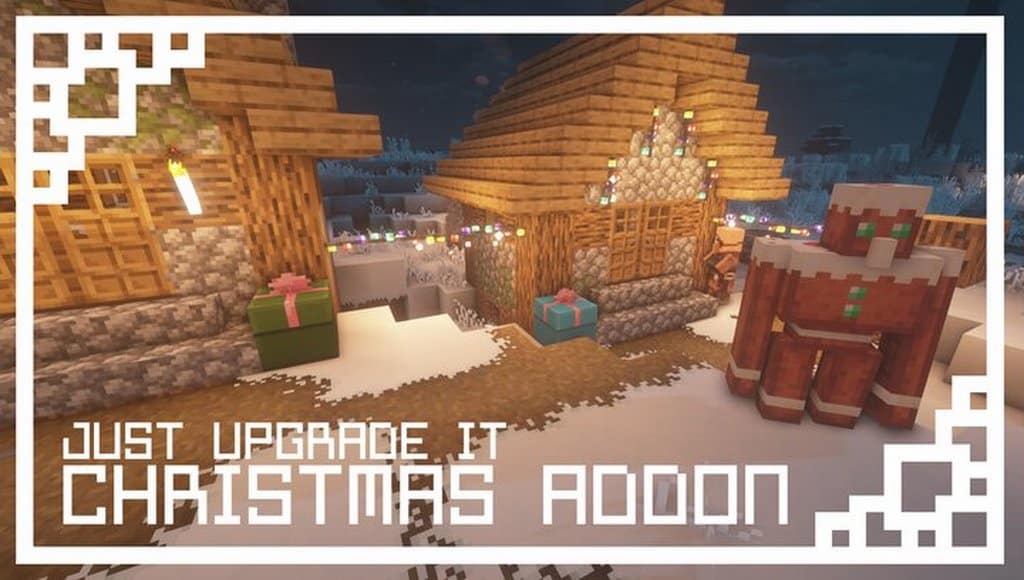
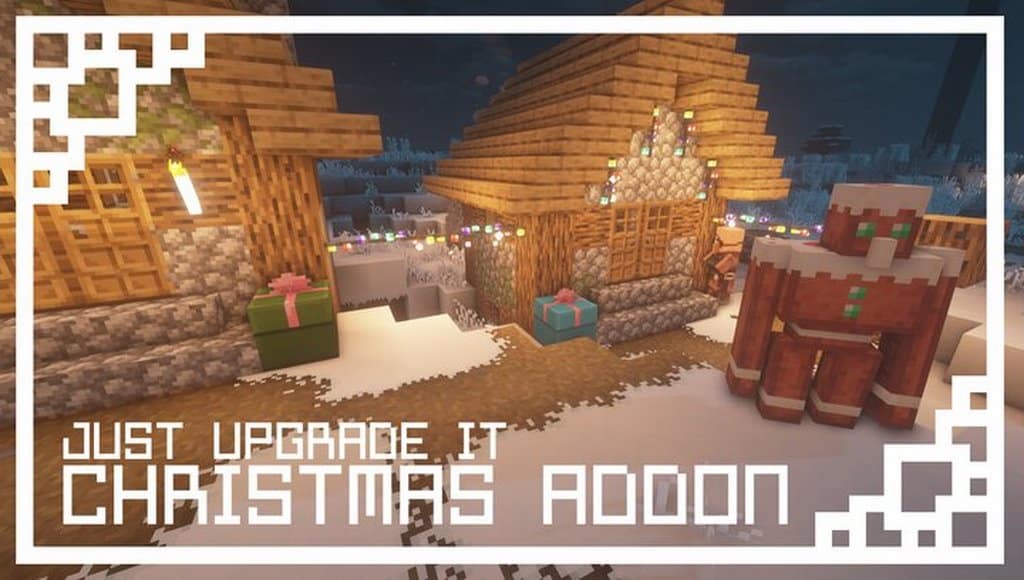
Since the release of the Christmas version, the Just Upgrade It resource pack has been turning heads once again. The 2019 Christmas season has seen the release of so much Minecraft content that is based on the season, and since the start of December, we have thoroughly enjoyed testing the numerous different packs being released. Minecraft users have been wowed by the range of choices that they have been given this season, and one of the most popular of all these releases is the recently launched Just Upgrade It Christmas Edition resource pack made by xalixilax. We highly recommend you try it if you want to enhance your visual experience with a little bit of holiday spirit, all the while creating a more immersive and colourful experience. It is important to note that the Christmas Edition is just an add-on, and for a better experience, we suggest using it with any winter-themed resource pack.
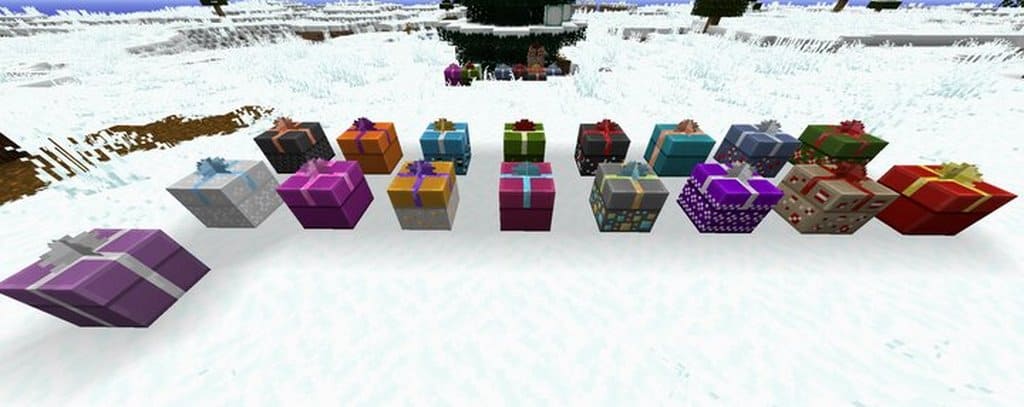
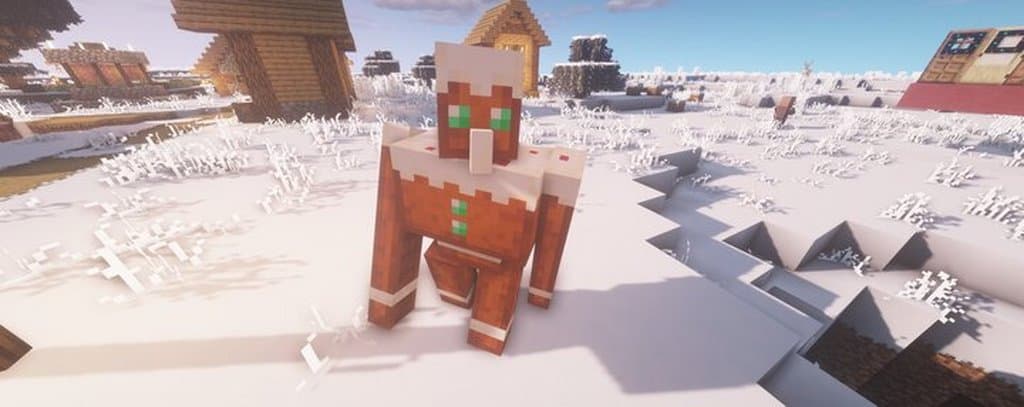
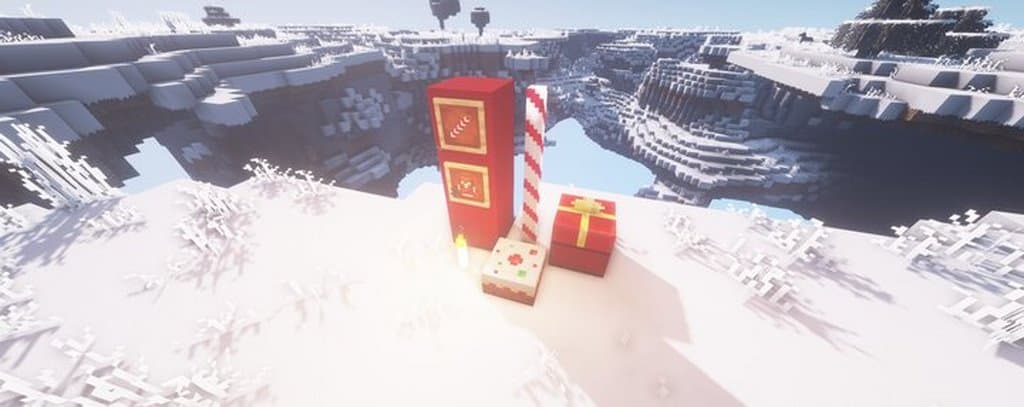
The xmas-themed version is similar to its original pack as it utilizes a variety of techniques that are both unique and creative; the authors have introduced more high-end visuals all based around the use of more creative textures. We found that it is a lot of fun to explore your world using this pack as it provides stunning textures that present a beautiful Christmas theme. Top your already stunning creations with a coat of snow to enhance those holiday feelings! Boasting a texture resolution of a default 16×16, Just Upgrade It has pulled out all the stops for their Christmas-themed pack. Textures are designed to run comfortably on most systems that can already run vanilla Minecraft with little or no difficulties with frame rates. For best results, you should run Optifine alongside the resource pack, which will enable the resource pack to run at full optimisation, helping all its best features function to give its customers exactly what they want.
Just Upgrade It: Christmas Edition should be compatible with all of these Minecraft versions: 1.14.4 – 1.14.3 – 1.14.2 – 1.14 – 1.13.2 – 1.13.1 – 1.13
Screenshots
How to Install Texture Pack (Simple 10 Steps)
- Download OptiFine: Most of the texture packs and shaders need OptiFine. That’s why, first download and install OptiFine for the version of Minecraft you want to play.
- Download the Texture Pack: Get the texture pack you want from the download section. Choose the version that works with your Minecraft and your PC’s performance.
- Open Minecraft Launcher: Start Minecraft using the official game launcher — or even TLauncher, if you use that.
- Go to Options: From the main menu, click on the “Options” button.
- Open Resource Packs: Inside Options, click on “Resource Packs…”.
- Open the Resource Pack Folder: Click on “Open Resource Pack Folder” — this will open a folder named “resourcepacks”.
- Move the Pack File: Copy or move the .zip file you downloaded into that “resourcepacks” folder. (Don’t unzip the file — Minecraft uses it as-is!)
- Go Back and Refresh: Close the folder and click “Done”, then go back into “Resource Packs…” again.
- Activate the Pack: You’ll see the pack on the left side. Hover over it and click the arrow to move it to the right (active side).
Tip: If you get a message that the pack is for a different version, just click “Yes” — it usually works fine. - Click Done and Enjoy: Click “Done” again. Now your pack is ready to use in-game. It’s that easy!
Credits
This resource pack was created by xalixilax. We do not own or claim ownership of this content, and no modifications have been made to the original files provided by the author. We fully respect the creator’s work and strongly encourage all users to support xalixilax by downloading the pack from the official sources.
Download Instructions
Curseforge: download starts automatically after a few seconds;
Mediafire: click the big blue button with the text “DOWNLOAD”;
Google Drive: in the top right corner you will see a small download icon (down arrow), click it and the download should start;


