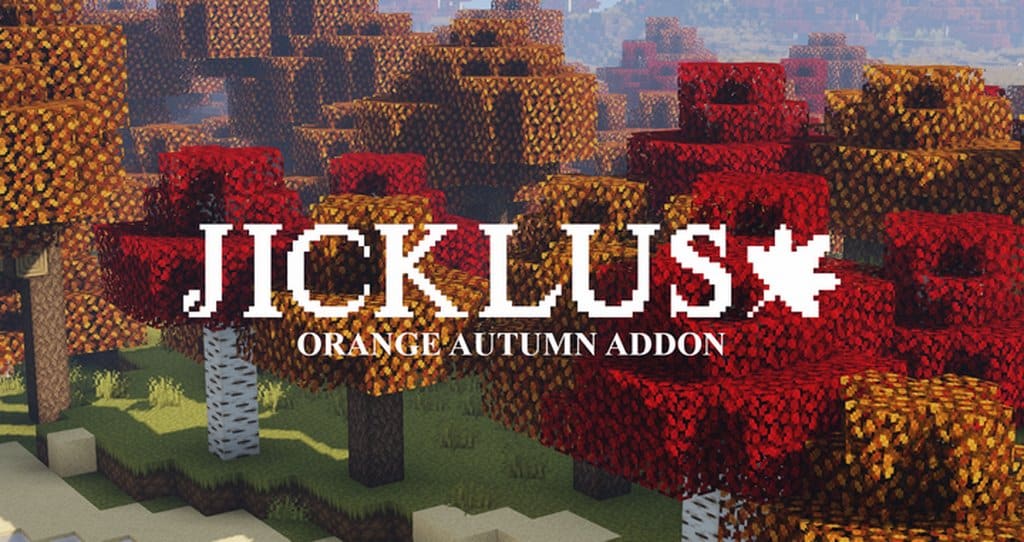
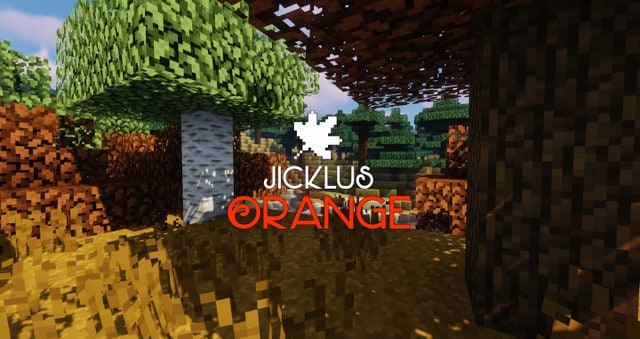
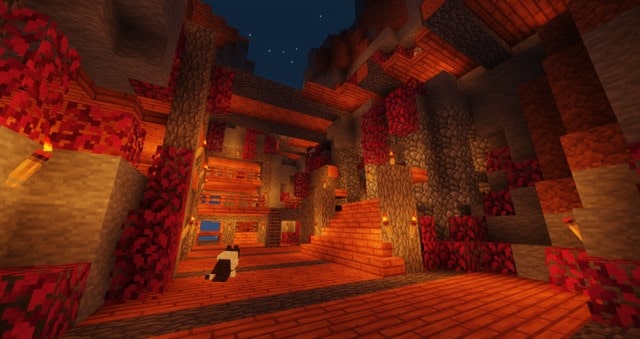
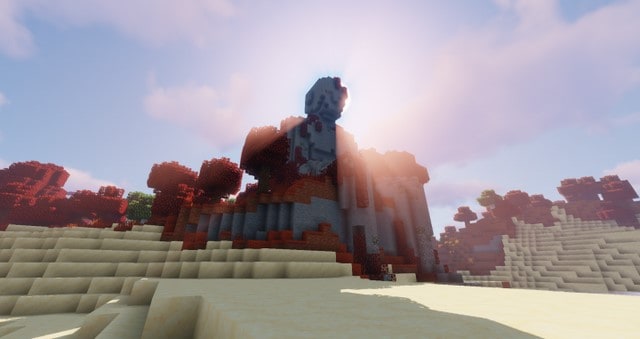
Minecraft is truly the ultimate video game for escaping reality. Ever since its launch, players have thoroughly enjoyed the endless ways to experience this beloved game, whether it is freely exploring intricate new worlds, constructing dream architectural projects, or tackling difficult survival challenges. Even with all these engaging ways to play, you might eventually find your excitement starting to fade. If you are searching for a fantastic way to revitalize your Minecraft adventures, I definitely recommend checking out the Jicklus Orange resource pack. Resource packs genuinely have the power to completely transform your visual experience and offer a fresh perspective on your favorite pastime. If you adore change, especially stunning seasonal shifts, the Jicklus Orange pack by Jicklus will certainly not disappoint. This resource pack beautifully brings the vibrant, warm red and orange tones of autumn right onto your gaming screen.
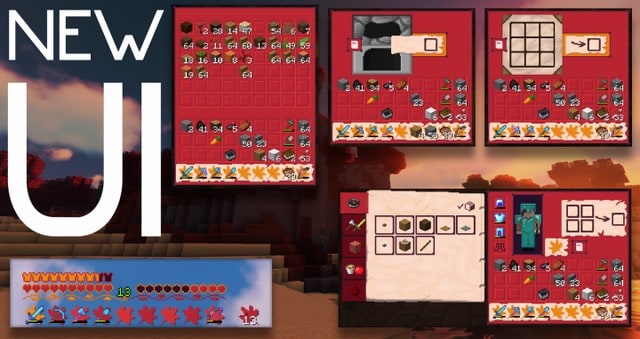
You can still comfortably interact with all the incredible worlds you have built and the friends you have met, just immersed in a breathtaking new color palette! The Jicklus Orange resource pack is simply the ideal way to spice up your gameplay. Once you apply this resource pack, you honestly won’t ever want to return to the standard vanilla look. While celebrated for its rich red and orange hues, this pack doesn’t overcomplicate texture details, yet the fidelity is still notably sharper and more prominent than what you get with default Minecraft textures. The wonderfully smooth and clean aesthetic that Jicklus Orange provides will truly leave you mesmerized. Best of all, Jicklus Orange was thoughtfully designed so you never have to stress about performance compatibility. Featuring a standard 16×16 resolution that most systems handle with ease, you can install this resource pack effortlessly and dive straight into enjoying its gorgeous seasonal color scheme.
Jicklus Orange should be compatible with all of these Minecraft versions: 1.17.1 – 1.17 – 1.16.5 – 1.16.4 – 1.16.3 – 1.16.2 – 1.16.1 – 1.16 – 1.15.2 – 1.15.1 – 1.15 – 1.14.4 – 1.14.3 – 1.14.2 – 1.14 – 1.13.2 – 1.13.1 – 1.13 – 1.12.2 – 1.12
Screenshots
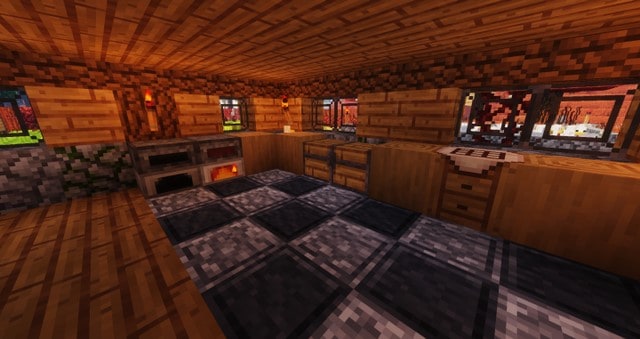
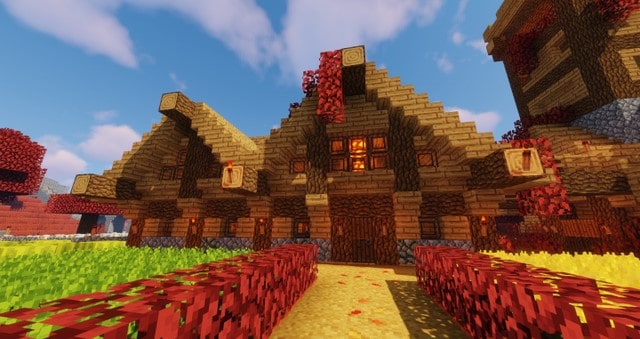
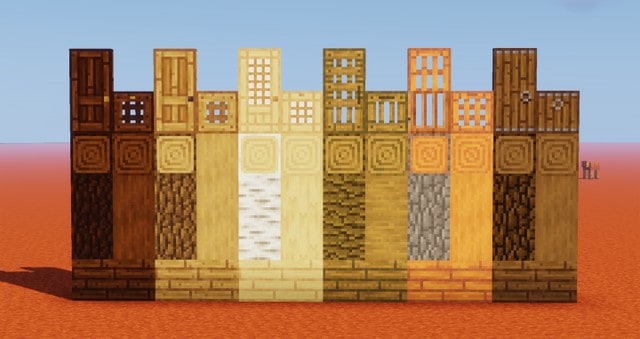
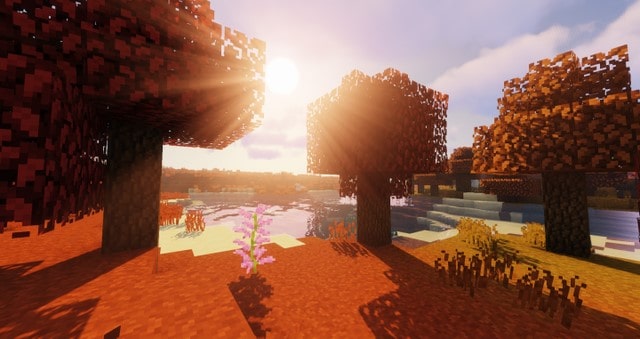
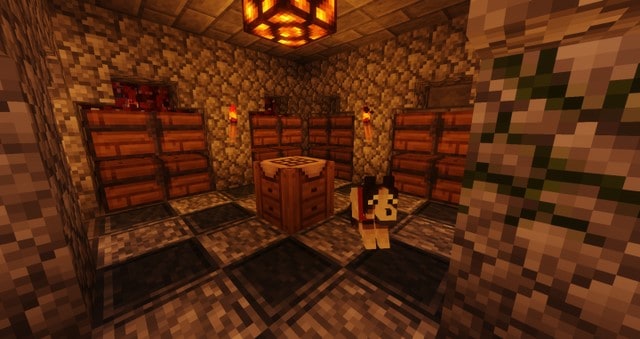
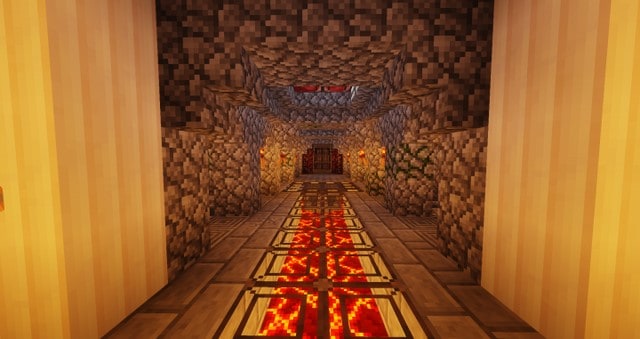
How to Install Texture Pack (Simple 10 Steps)
- Download OptiFine: Most of the texture packs and shaders need OptiFine. That’s why, first download and install OptiFine for the version of Minecraft you want to play.
- Download the Texture Pack: Get the texture pack you want from the download section. Choose the version that works with your Minecraft and your PC’s performance.
- Open Minecraft Launcher: Start Minecraft using the official game launcher — or even TLauncher, if you use that.
- Go to Options: From the main menu, click on the “Options” button.
- Open Resource Packs: Inside Options, click on “Resource Packs…”.
- Open the Resource Pack Folder: Click on “Open Resource Pack Folder” — this will open a folder named “resourcepacks”.
- Move the Pack File: Copy or move the .zip file you downloaded into that “resourcepacks” folder. (Don’t unzip the file — Minecraft uses it as-is!)
- Go Back and Refresh: Close the folder and click “Done”, then go back into “Resource Packs…” again.
- Activate the Pack: You’ll see the pack on the left side. Hover over it and click the arrow to move it to the right (active side).
Tip: If you get a message that the pack is for a different version, just click “Yes” — it usually works fine. - Click Done and Enjoy: Click “Done” again. Now your pack is ready to use in-game. It’s that easy!
Credits
The Jicklus Orange resource pack was created by Jicklus. We are not the original owners or developers of this content, and we do not host or modify any files on our servers. All rights remain strictly with the original creator. We strongly encourage you to support Jicklus by visiting their official download pages and following their ongoing creative work.
Download Links
Java Edition
Download Instructions
Curseforge: download starts automatically after a few seconds;
Mediafire: click the big blue button with the text “DOWNLOAD”;
Google Drive: in the top right corner you will see a small download icon (down arrow), click it and the download should start;


