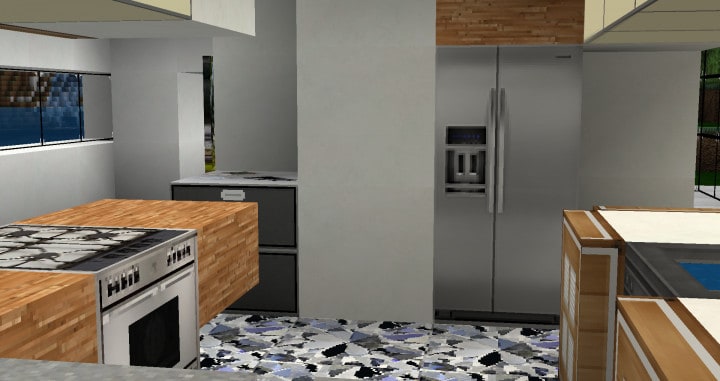
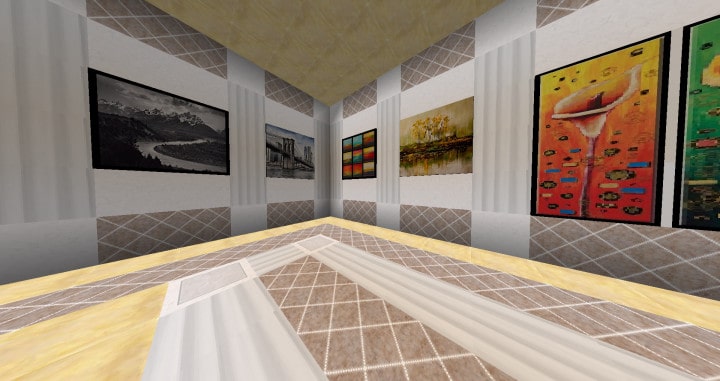
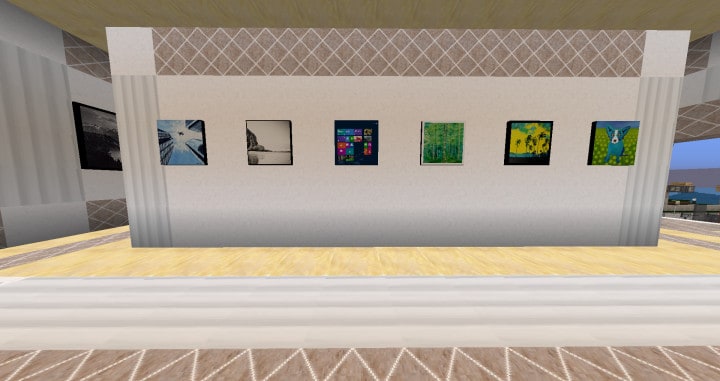
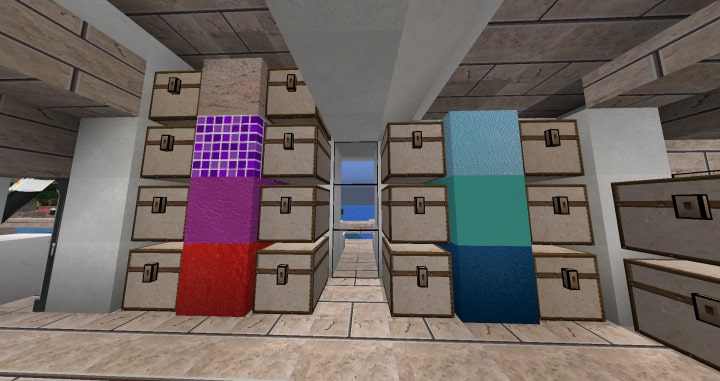
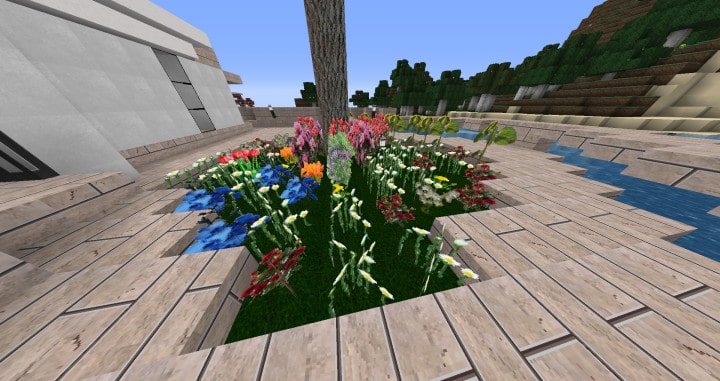
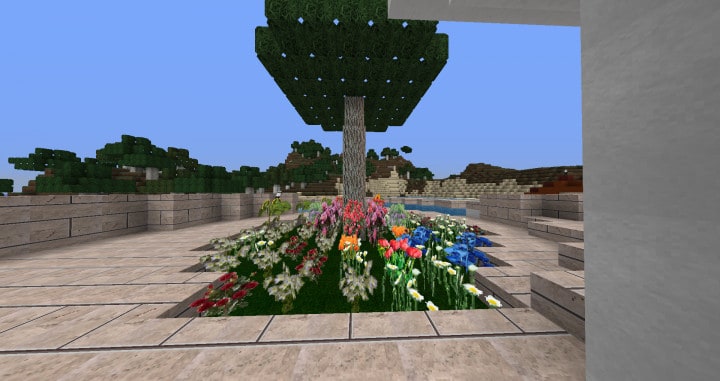
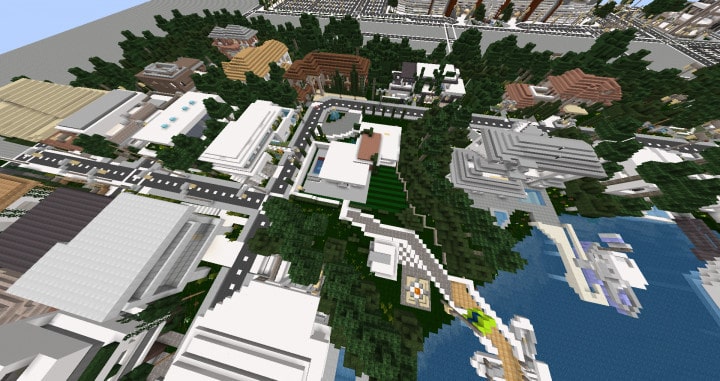
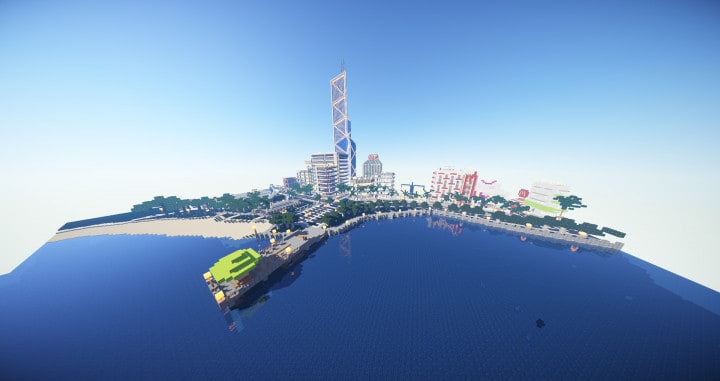
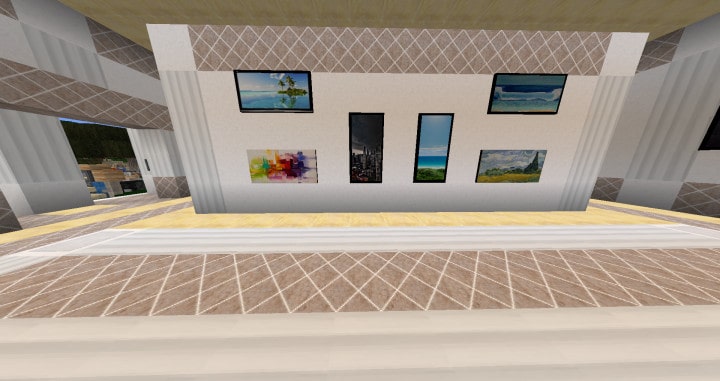
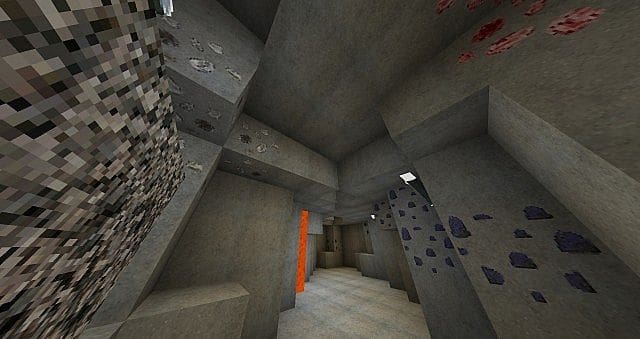
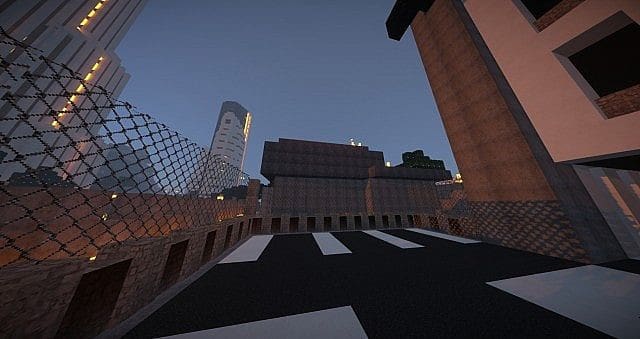
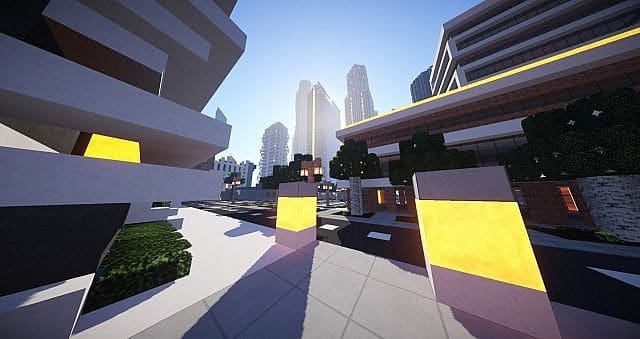
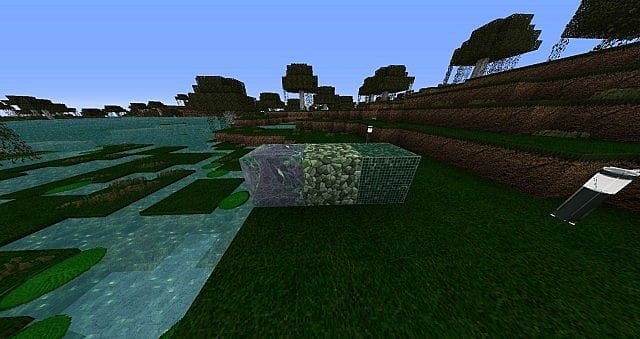
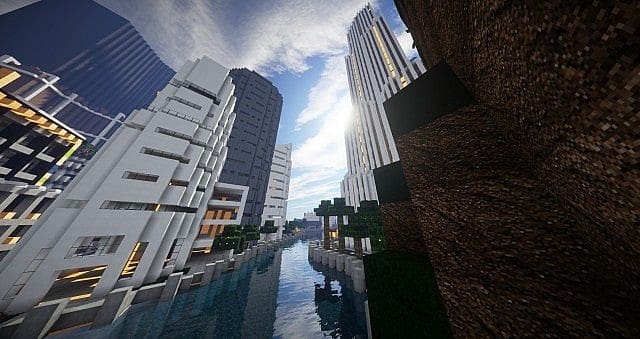
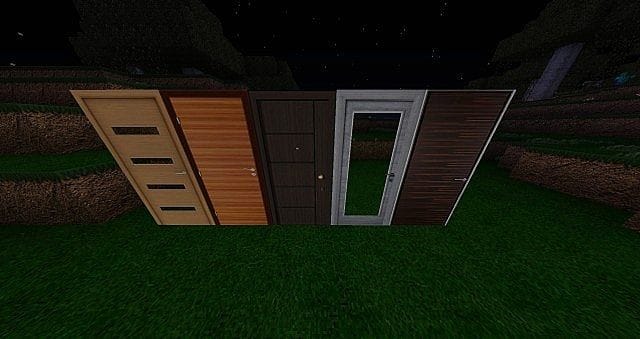
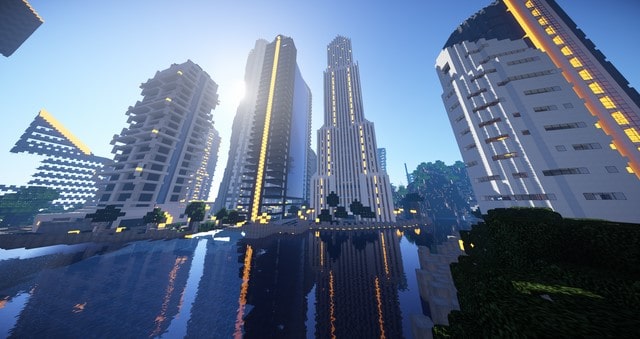
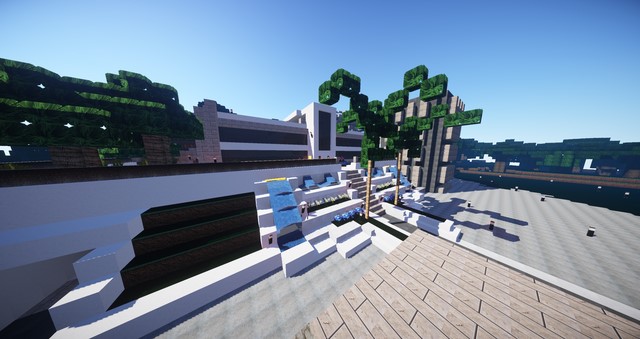
The JammerCraft resource pack has finally received an amazing facelift, and I am so excited to share it with you! JammerCraft originally became widely popular quite a while ago due to its intriguing modern-day setting and the absolutely stunning visuals it offered to users, though it certainly had its share of flaws and bugs. Thankfully, the new JammerCraft Modern texture pack addresses the most pressing concerns previously reported by the community, and so much more. The developers also took the time to introduce several brand-new features to make the visuals you already loved even more crisp and refreshing. While there are plenty of resource packs out there featuring modern themes, JammerCraft Modern confidently stands out as the absolute best. The visual textures are stunningly realistic, maintaining wonderfully clean designs with little to no extra clutter or visual noise.
When you pair that clean aesthetic with a bright, vibrant color palette and a complete reworking of the in-game items for heightened realism, you will find yourself far more pleased with this immersive, modern resource pack than any other. Truly, JammerCraft Modern is in a league of its own! You will definitely appreciate the 64x resolution as a massive step up from vanilla Minecraft’s standard 16x resolution, which makes all the modern textures infinitely more detailed and visually pleasing. That said, you will need a slightly more capable PC to run JammerCraft Modern smoothly without running into frame rate drops. Because this is a continuously evolving resource pack, you might occasionally encounter a few missing textures, but the development team works hard to resolve texture issues as quickly as possible in subsequent updates. I strongly recommend downloading the JammerCraft Modern resource pack today to dive straight into a much more modern, vibrant, and realistic Minecraft world!
JammerCraft should be compatible with all of these Minecraft versions: 1.21.5 – 1.21.4 – 1.21.3 – 1.21.2 – 1.21.1 – 1.21 – 1.20.6 – 1.20.5 – 1.20.4 – 1.20.3 – 1.20.2 – 1.20.1 – 1.20 – 1.15.2 – 1.15.1 – 1.15 – 1.11.2 – 1.11 – 1.10.2 – 1.10
Screenshots
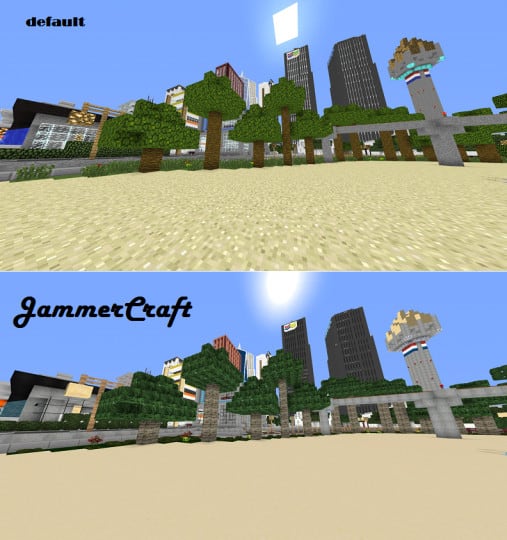
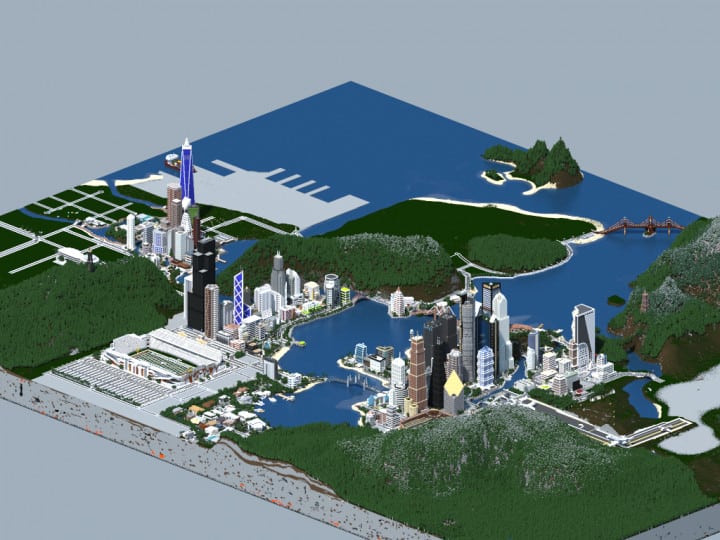
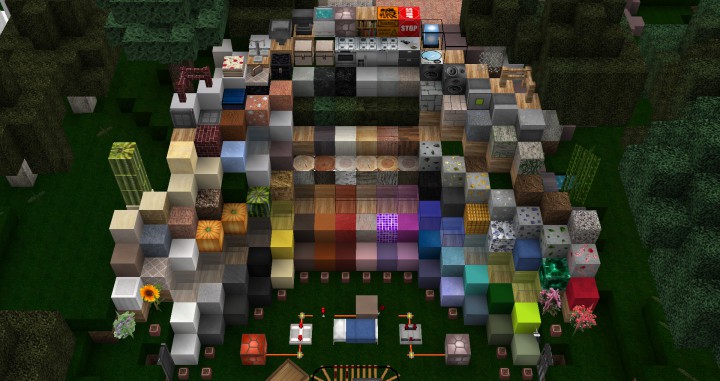
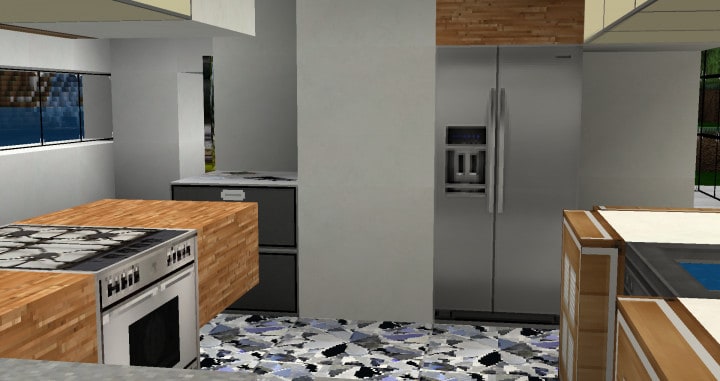
How to Install Texture Pack (Simple 10 Steps)
- Download OptiFine: Most of the texture packs and shaders need OptiFine. That’s why, first download and install OptiFine for the version of Minecraft you want to play.
- Download the Texture Pack: Get the texture pack you want from the download section. Choose the version that works with your Minecraft and your PC’s performance.
- Open Minecraft Launcher: Start Minecraft using the official game launcher — or even TLauncher, if you use that.
- Go to Options: From the main menu, click on the “Options” button.
- Open Resource Packs: Inside Options, click on “Resource Packs…”.
- Open the Resource Pack Folder: Click on “Open Resource Pack Folder” — this will open a folder named “resourcepacks”.
- Move the Pack File: Copy or move the .zip file you downloaded into that “resourcepacks” folder. (Don’t unzip the file — Minecraft uses it as-is!)
- Go Back and Refresh: Close the folder and click “Done”, then go back into “Resource Packs…” again.
- Activate the Pack: You’ll see the pack on the left side. Hover over it and click the arrow to move it to the right (active side).
Tip: If you get a message that the pack is for a different version, just click “Yes” — it usually works fine. - Click Done and Enjoy: Click “Done” again. Now your pack is ready to use in-game. It’s that easy!
Credits
This resource pack was created by MammerJammer. We do not claim ownership of this content, and all original rights remain with the author. We encourage you to support MammerJammer by downloading the pack from the official links provided and checking out their official channels.
Download Links
Java Edition
Download Instructions
Curseforge: download starts automatically after a few seconds;
Mediafire: click the big blue button with the text “DOWNLOAD”;
Google Drive: in the top right corner you will see a small download icon (down arrow), click it and the download should start;


