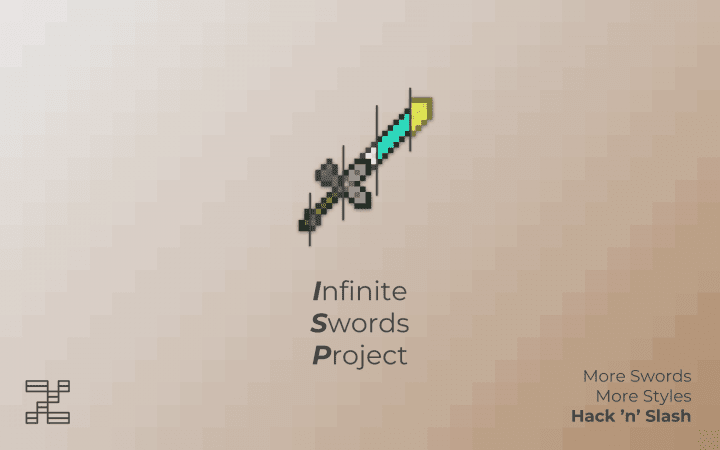
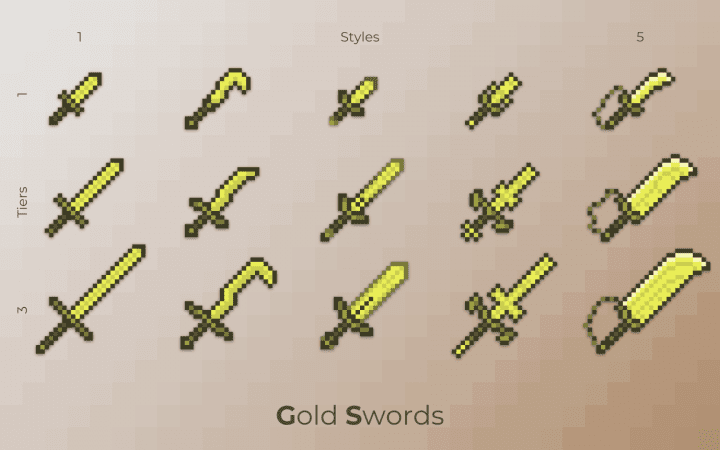
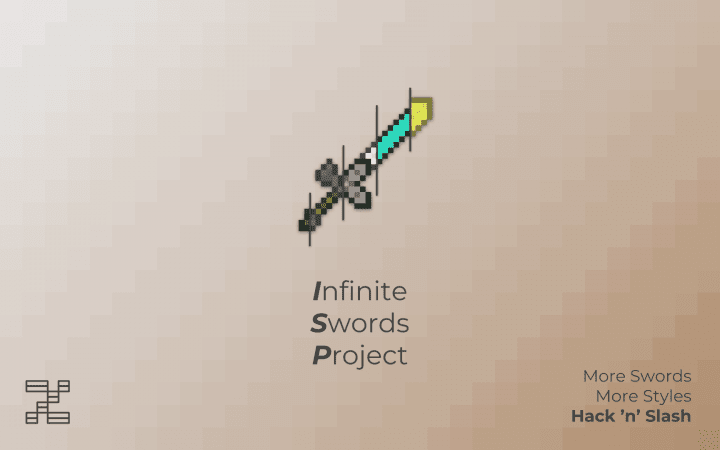
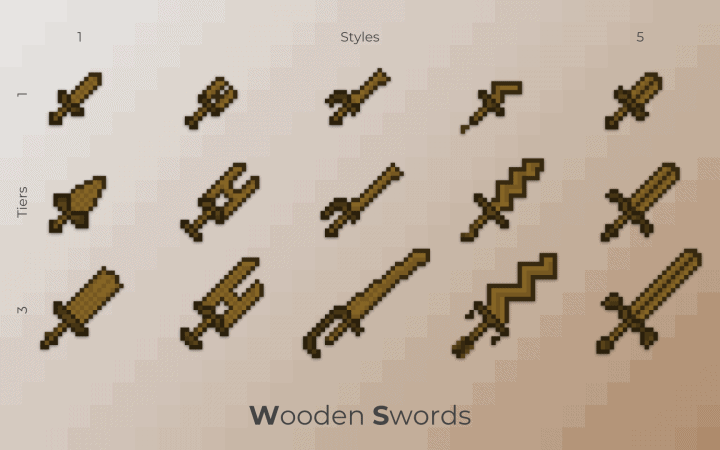
Are you getting totally bored of vanilla Minecraft gameplay and those same old repetitive layers of graphics over and over again? Wouldn’t it be rather great to bring the thrilling gameplay style of SAO, ALO, and GGO directly into your Minecraft world? The Infinite Swords Project resource pack, or ISP for short, is an incredible ‘Sword Art Online’ inspired project that does precisely that, aiming to transform your standard Minecraft gameplay into something infinitely more exciting and inciting. Now, I can read the question in your eyes as to how on Earth a resource pack can possibly alter actual gameplay, but hold on just a minute because we are not done yet, as this resource pack is only the very first part of a much larger project. The second part is yet to be fully decided, though it is planned to go down one of two fantastic potential paths, with the first option being the construction of a custom adventure map complete with a liberal dose of redstone engineering to deliver results you can easily imagine.
It is truly a fantastic SAO-styled RPG experience that will leave anyone playing wanting more, while the second option actually depends on Minecraft’s 1.13 release since, if permitted, the creator might develop an awesome data pack introducing cool new items and recipes that makes the game feel just like it is heavily modded. It will be a great experiment that really depends on Minecraft’s release updates, but in short, the Infinite Swords Project aims to genuinely revolutionize our Minecraft gaming experience by ultimately delivering either an adventure map or a data pack alongside the textures. You can rest assured that it is a game-changing product guaranteed to alter online combat experiences forever, ensuring that after the Infinite Swords Project gains popularity, your Player versus Player or Player versus Environment experiences will simply never be the same again.
Infinite Swords Project should be compatible with all of these Minecraft versions: 1.14.4 – 1.14.3 – 1.14.2 – 1.14 – 1.13.2 – 1.13.1 – 1.13
Screenshots
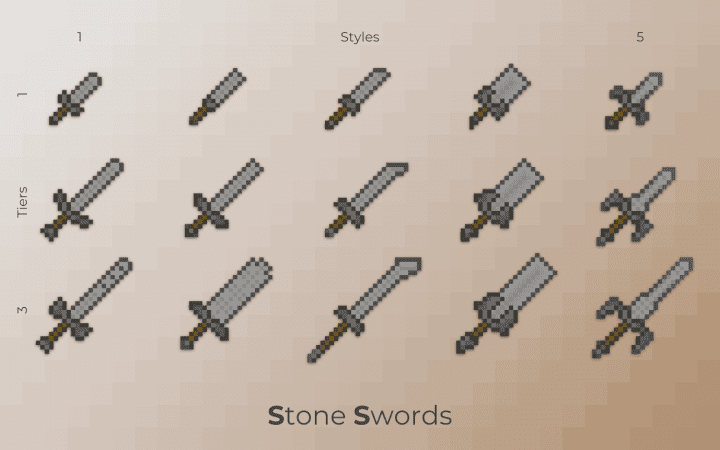
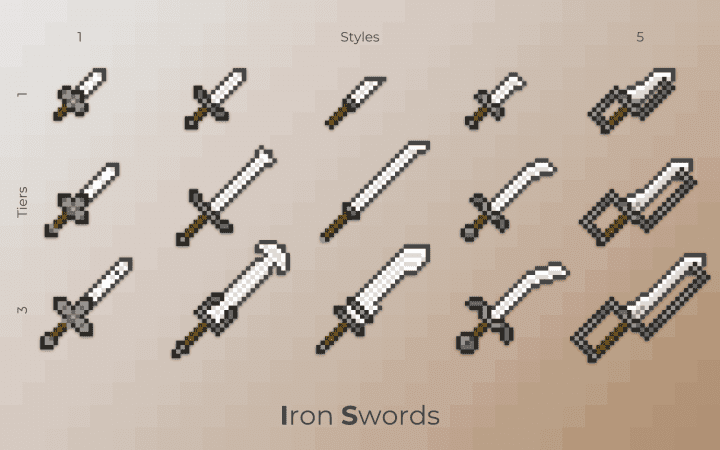
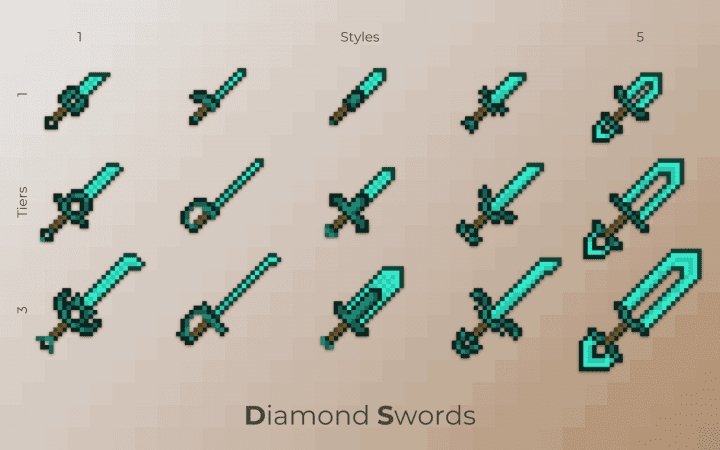
How to Install Texture Pack (Simple 10 Steps)
- Download OptiFine: Most of the texture packs and shaders need OptiFine. That’s why, first download and install OptiFine for the version of Minecraft you want to play.
- Download the Texture Pack: Get the texture pack you want from the download section. Choose the version that works with your Minecraft and your PC’s performance.
- Open Minecraft Launcher: Start Minecraft using the official game launcher — or even TLauncher, if you use that.
- Go to Options: From the main menu, click on the “Options” button.
- Open Resource Packs: Inside Options, click on “Resource Packs…”.
- Open the Resource Pack Folder: Click on “Open Resource Pack Folder” — this will open a folder named “resourcepacks”.
- Move the Pack File: Copy or move the .zip file you downloaded into that “resourcepacks” folder. (Don’t unzip the file — Minecraft uses it as-is!)
- Go Back and Refresh: Close the folder and click “Done”, then go back into “Resource Packs…” again.
- Activate the Pack: You’ll see the pack on the left side. Hover over it and click the arrow to move it to the right (active side).
Tip: If you get a message that the pack is for a different version, just click “Yes” — it usually works fine. - Click Done and Enjoy: Click “Done” again. Now your pack is ready to use in-game. It’s that easy!
Credits
This resource pack was originally created by Insanial. We do not own or claim ownership of this content, and we do not host modified files on our servers. All rights and intellectual property belong exclusively to the original creator. We strongly encourage you to visit the official download sources and support Insanial for their amazing work.
Download Instructions
Curseforge: download starts automatically after a few seconds;
Mediafire: click the big blue button with the text “DOWNLOAD”;
Google Drive: in the top right corner you will see a small download icon (down arrow), click it and the download should start;


