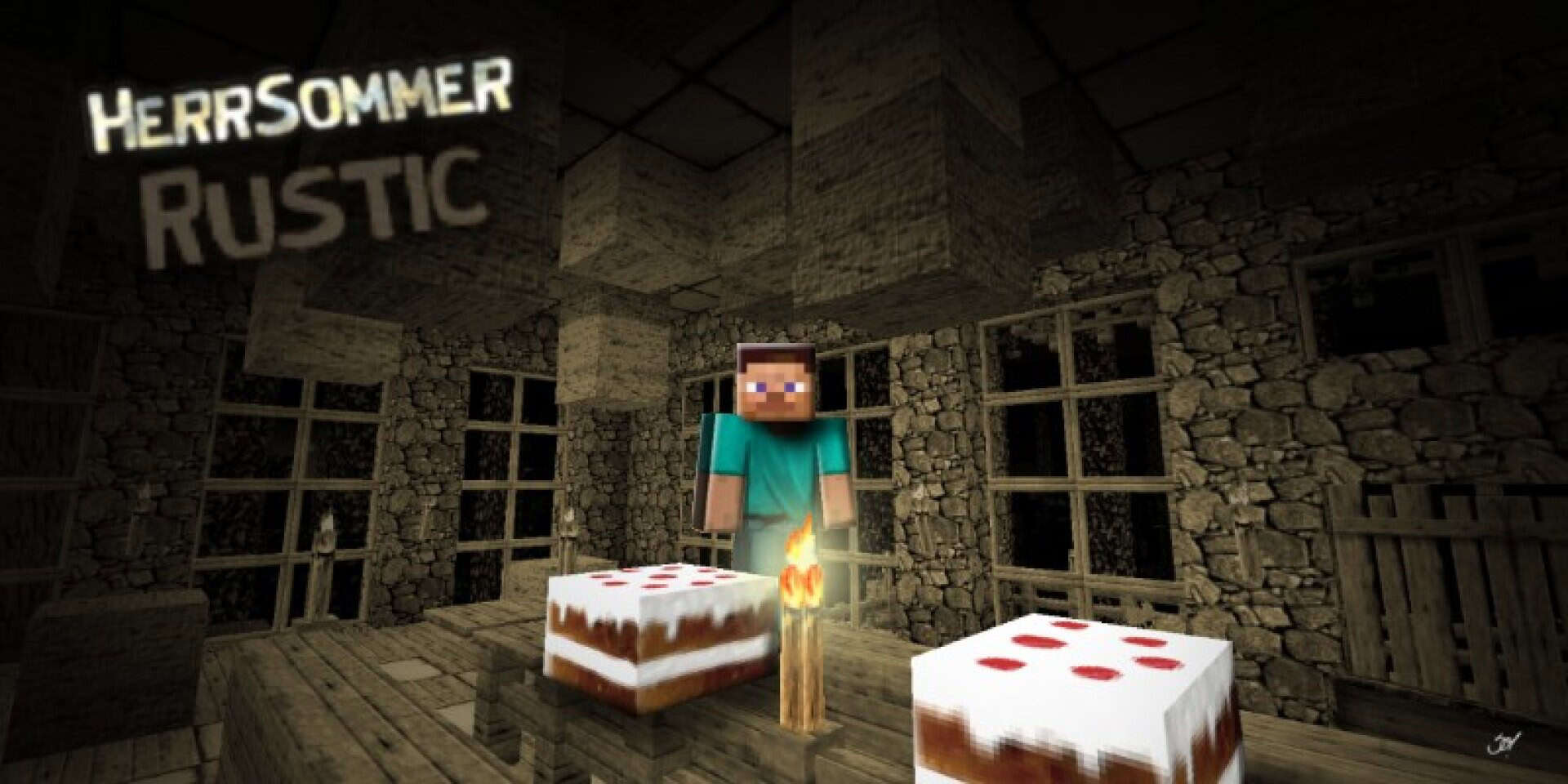
If you ever type HerrSommer Rustic resource pack into a search bar, you will quickly discover why it has earned such a stellar reputation among Minecraft fans. The original HerrSommer pack by DerSommer became popular years ago, and its success led to several spin-off versions, each tailored to different tastes. Minecraft has a massive and diverse player base; some prefer modern-looking builds, others lean toward medieval fantasy, and many enjoy something in between. By releasing variants of the original pack, the creator managed to appeal to this wide spectrum of players and ensure that no matter your style, there is likely a HerrSommer pack that fits your vision. The HerrSommer Rustic texture pack is one of the standout variants because it takes the polished quality of the original and shifts the atmosphere entirely. Instead of offering bright, cheerful colors that make the world feel like a cartoon, it brilliantly aims for a weathered countryside look.
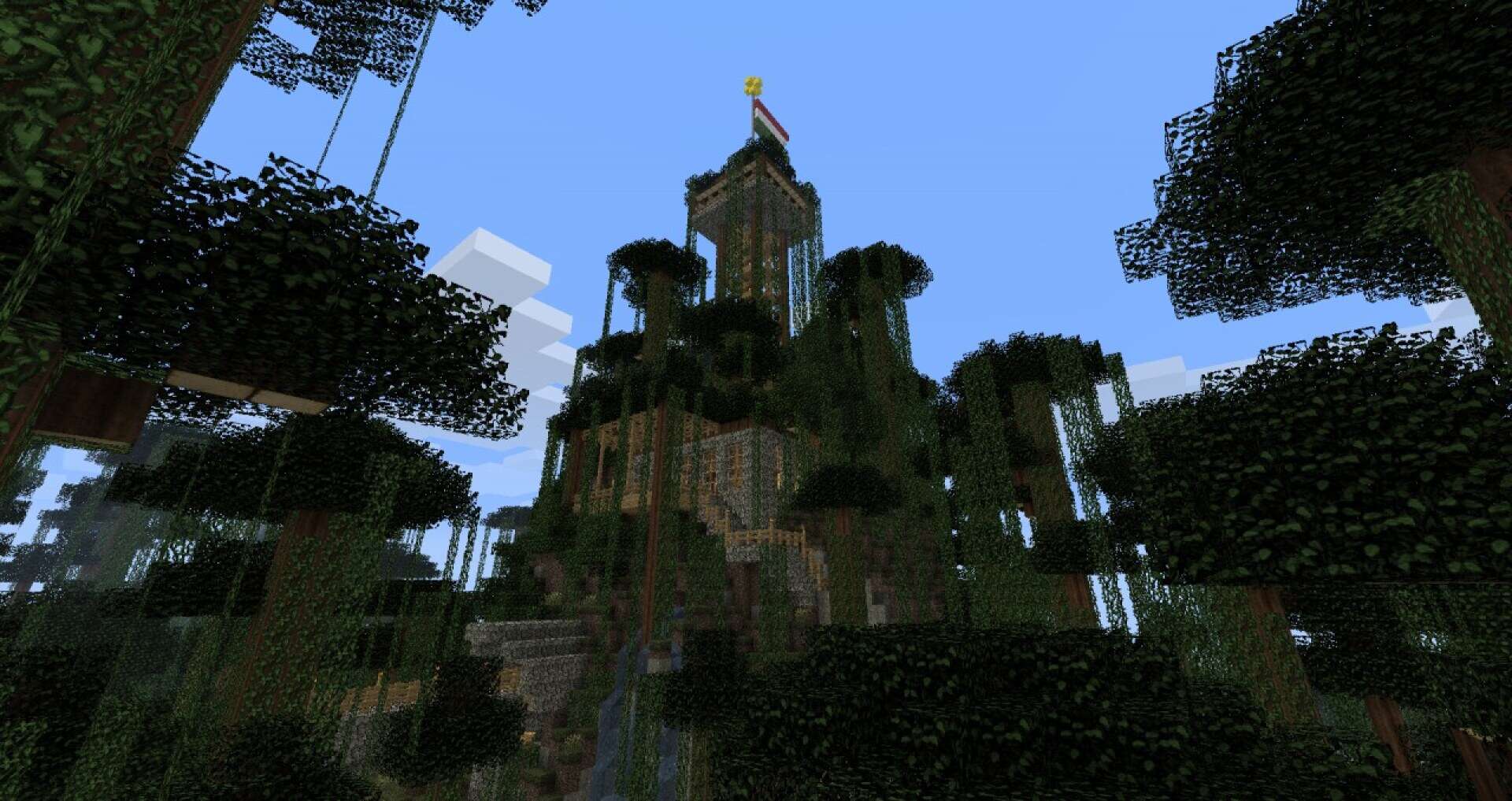
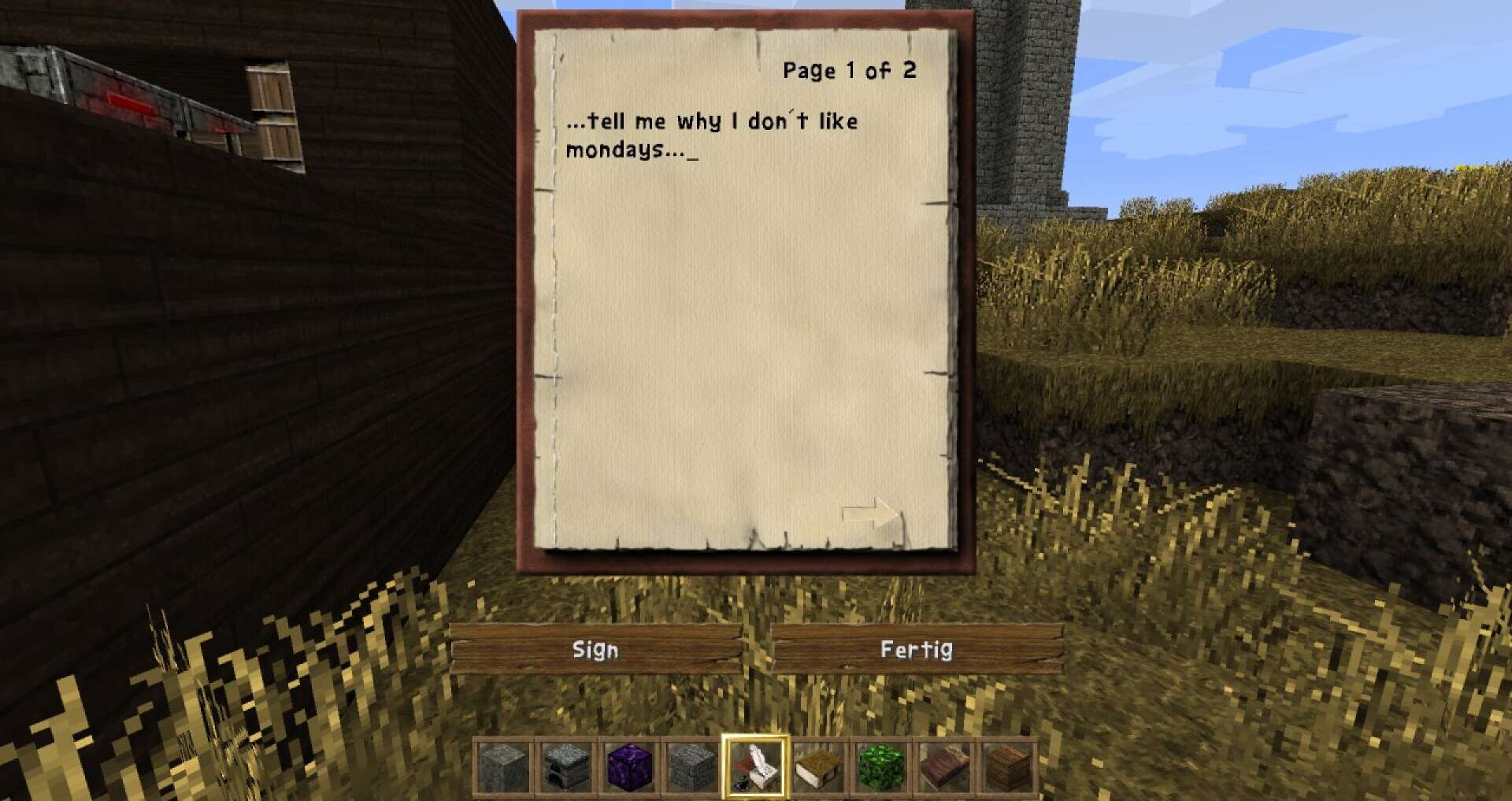
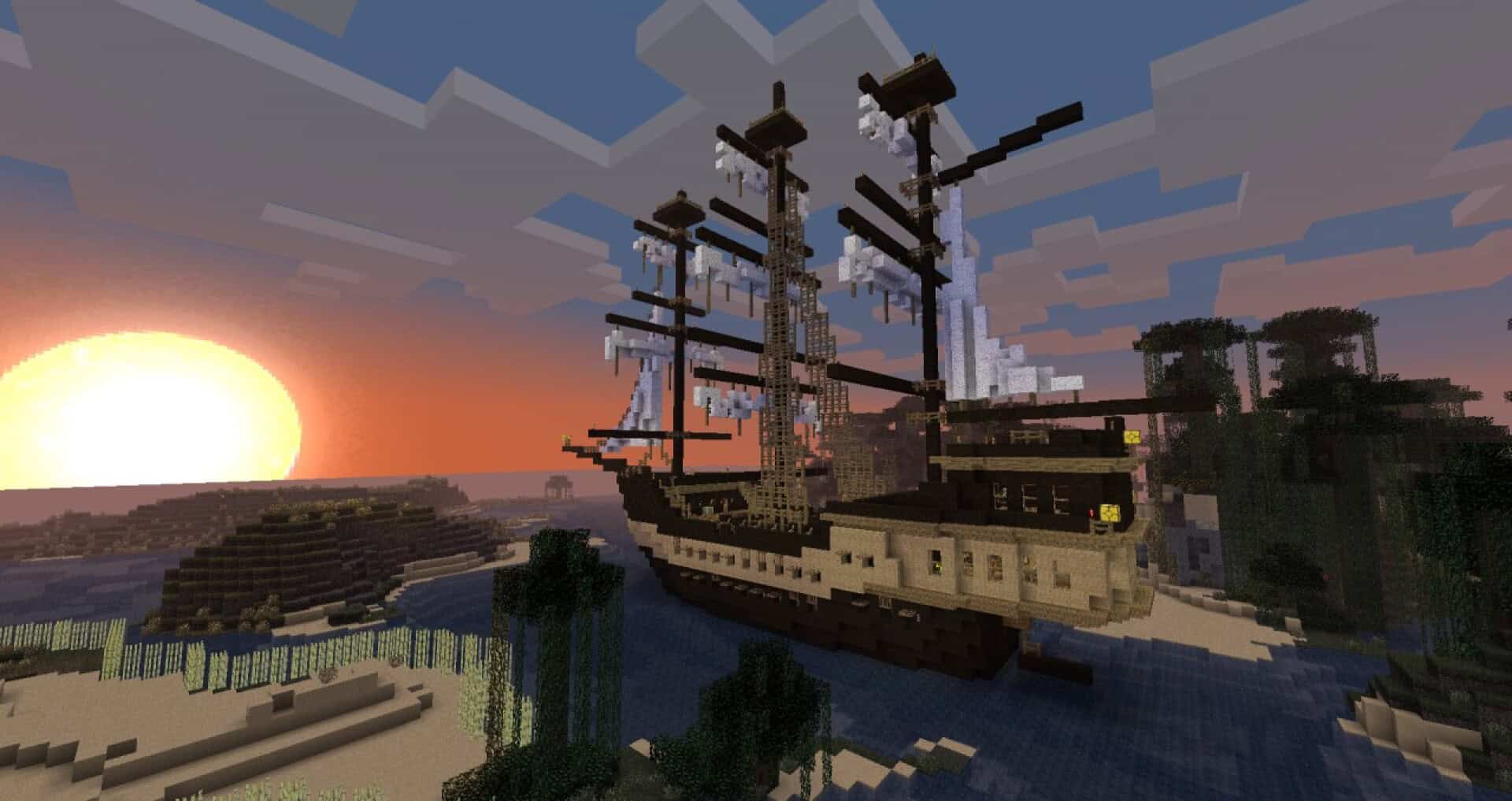
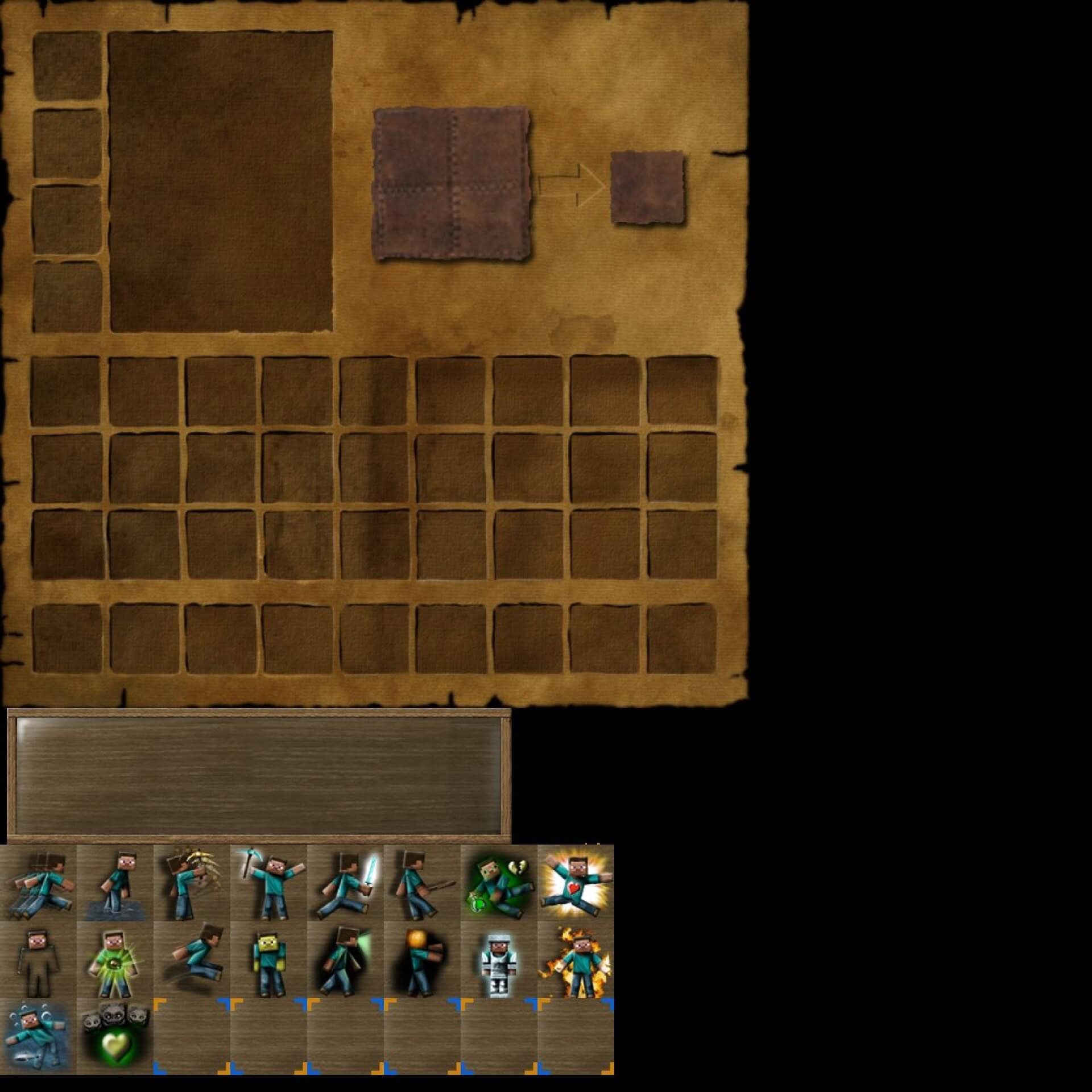
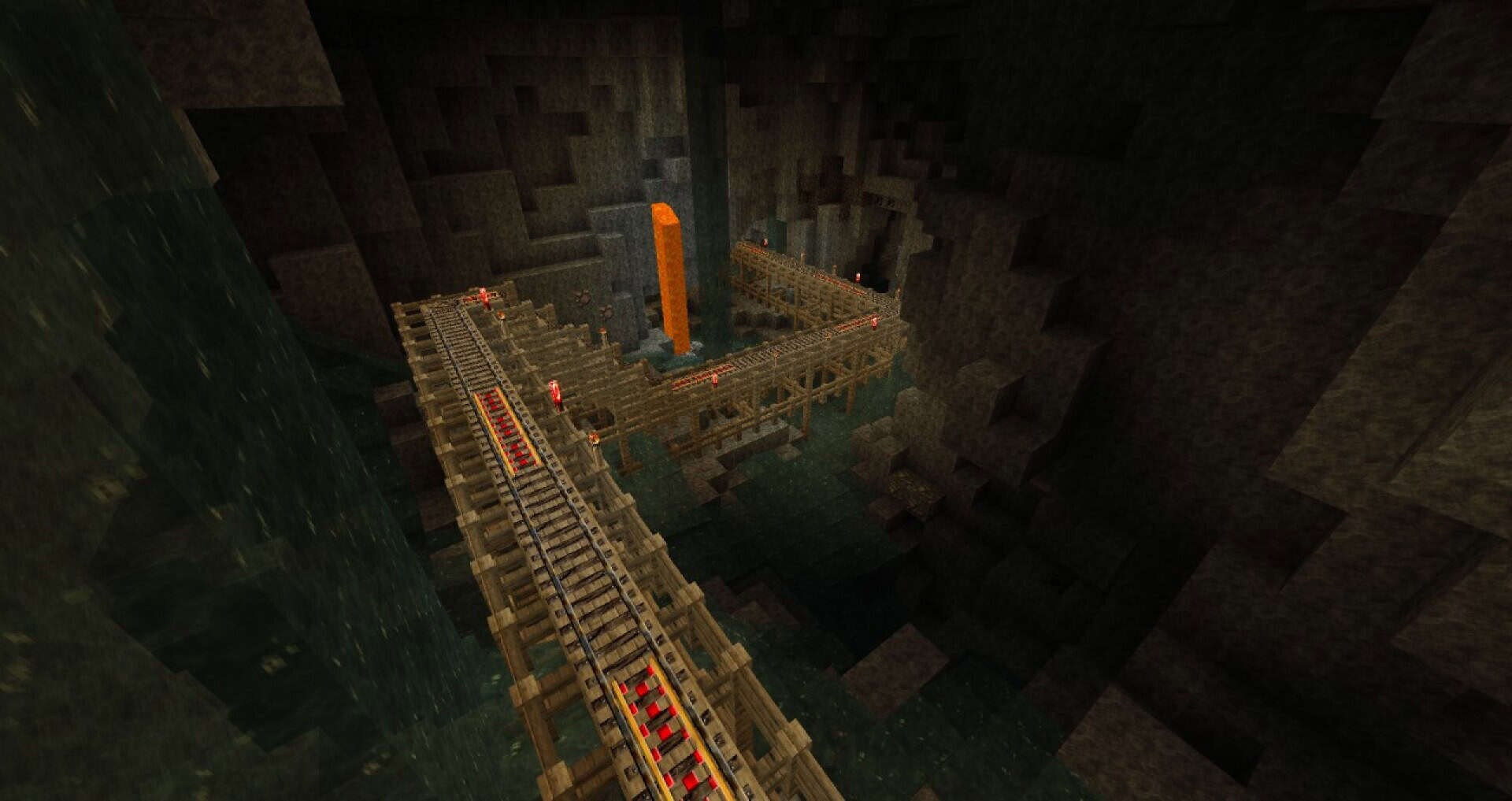
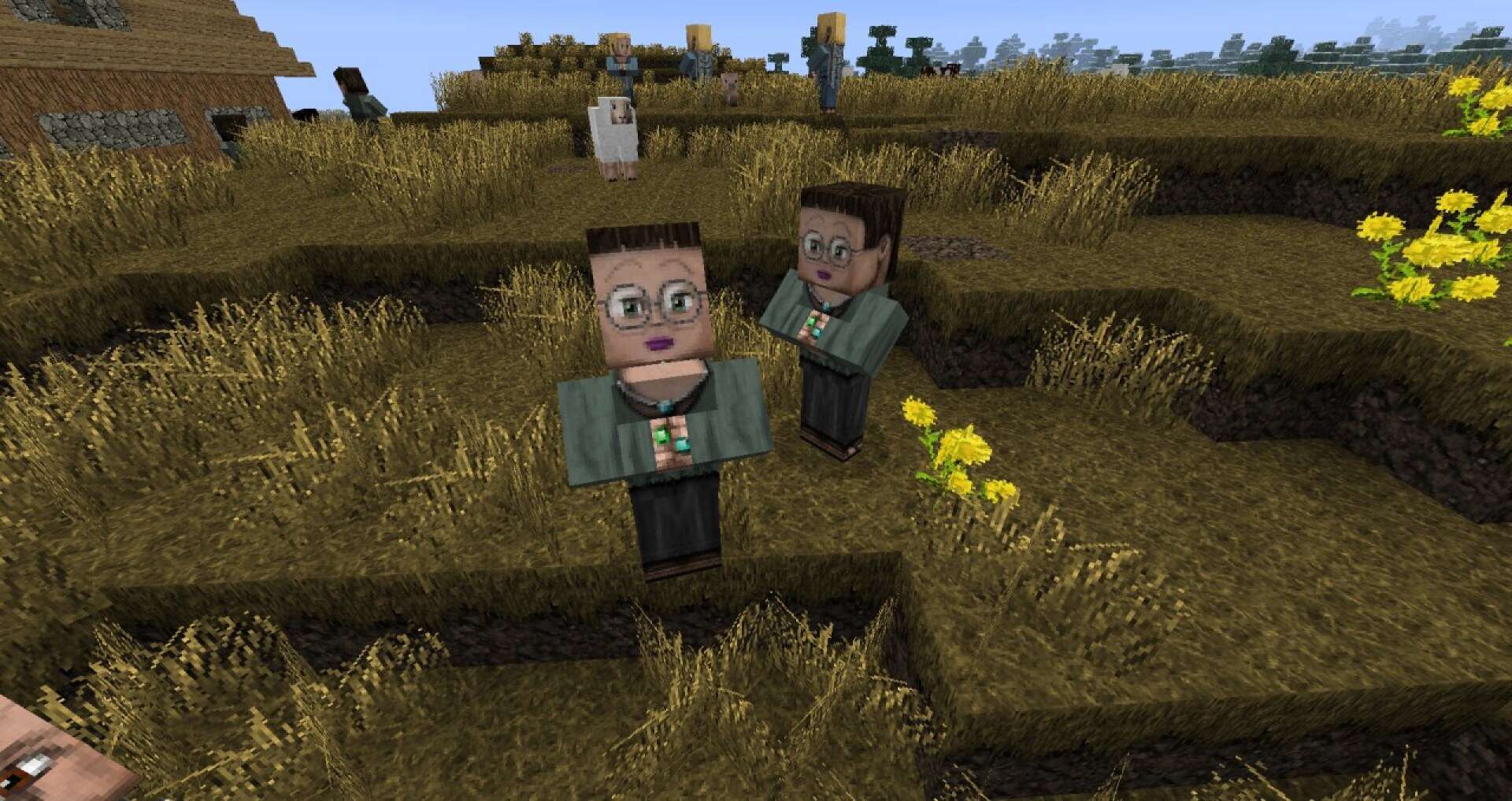
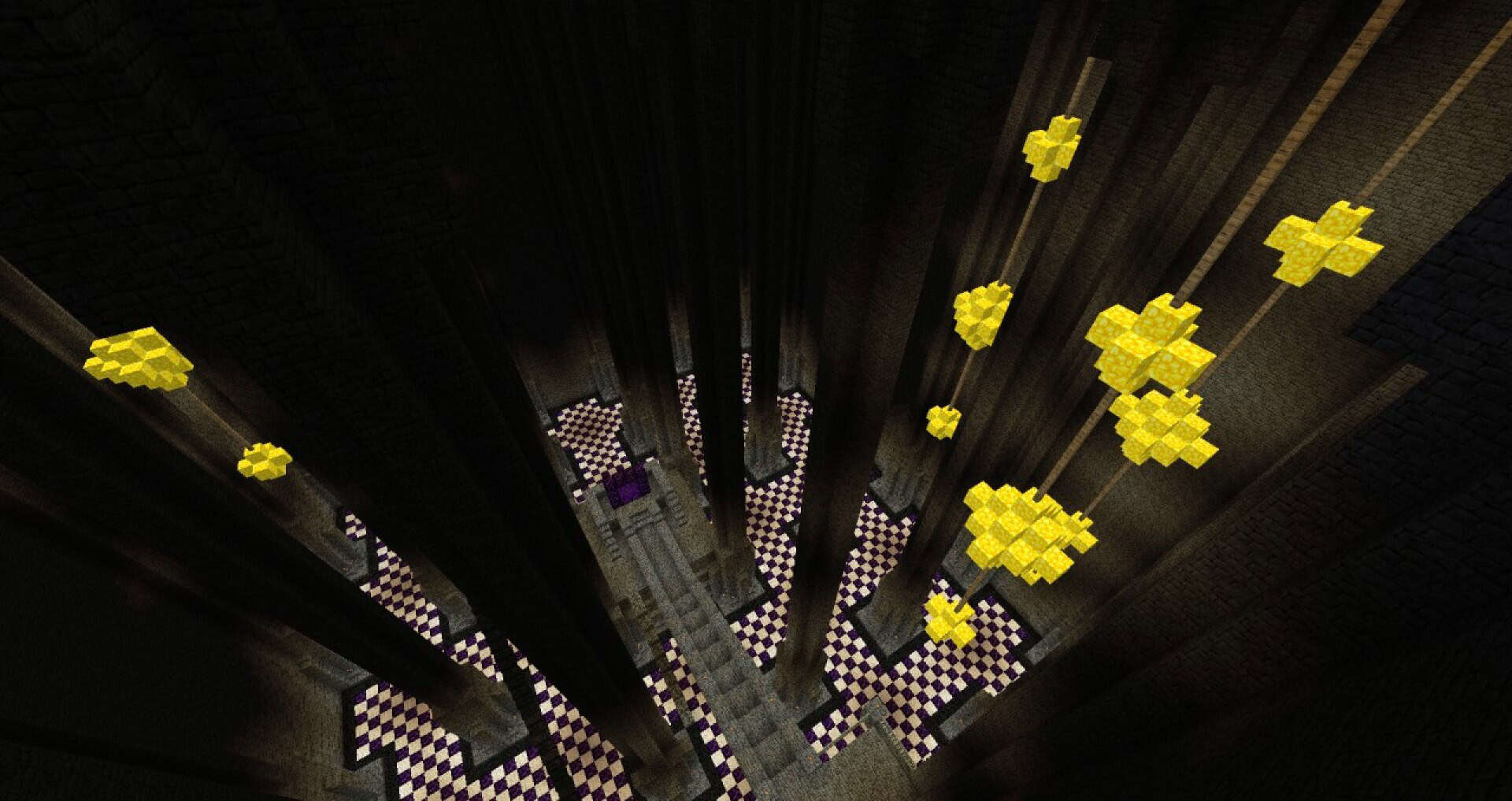
The textures are masterfully toned down, the color palette is warmer, and the result is a game world that feels genuinely aged and lived-in. This rustic aesthetic effortlessly transforms simple builds into charming farmhouses, castles into old stone fortresses, and villages into cozy rural communities. What makes this pack so appealing is how seamlessly it balances quality with mood. You are not overwhelmed with excessive detail that clashes with Minecraft’s blocky style, but you are also not left with plain vanilla visuals either. The rustic theme works in total harmony with the game’s mechanics, giving players the impression of an older painting brought to vibrant life. For players who never connected with the bright cartoon feel of vanilla or other colorful resource packs, HerrSommer Rustic provides an incredible alternative that feels much more mature and serious. The screenshots below capture the true essence of this transformation, and for many players, that alone is enough to decide whether this is the style they want to bring into their world. Whether you want to build a sprawling medieval town, explore weathered landscapes, or simply tone down the cheerful brightness of default Minecraft, this fantastic pack delivers an atmosphere that feels truly unique.
HerrSommer Rustic should be compatible with all of these Minecraft versions: 1.7.10 – 1.7.9 – 1.7.4 – 1.7 – 1.6.4 – 1.6.2
Screenshots
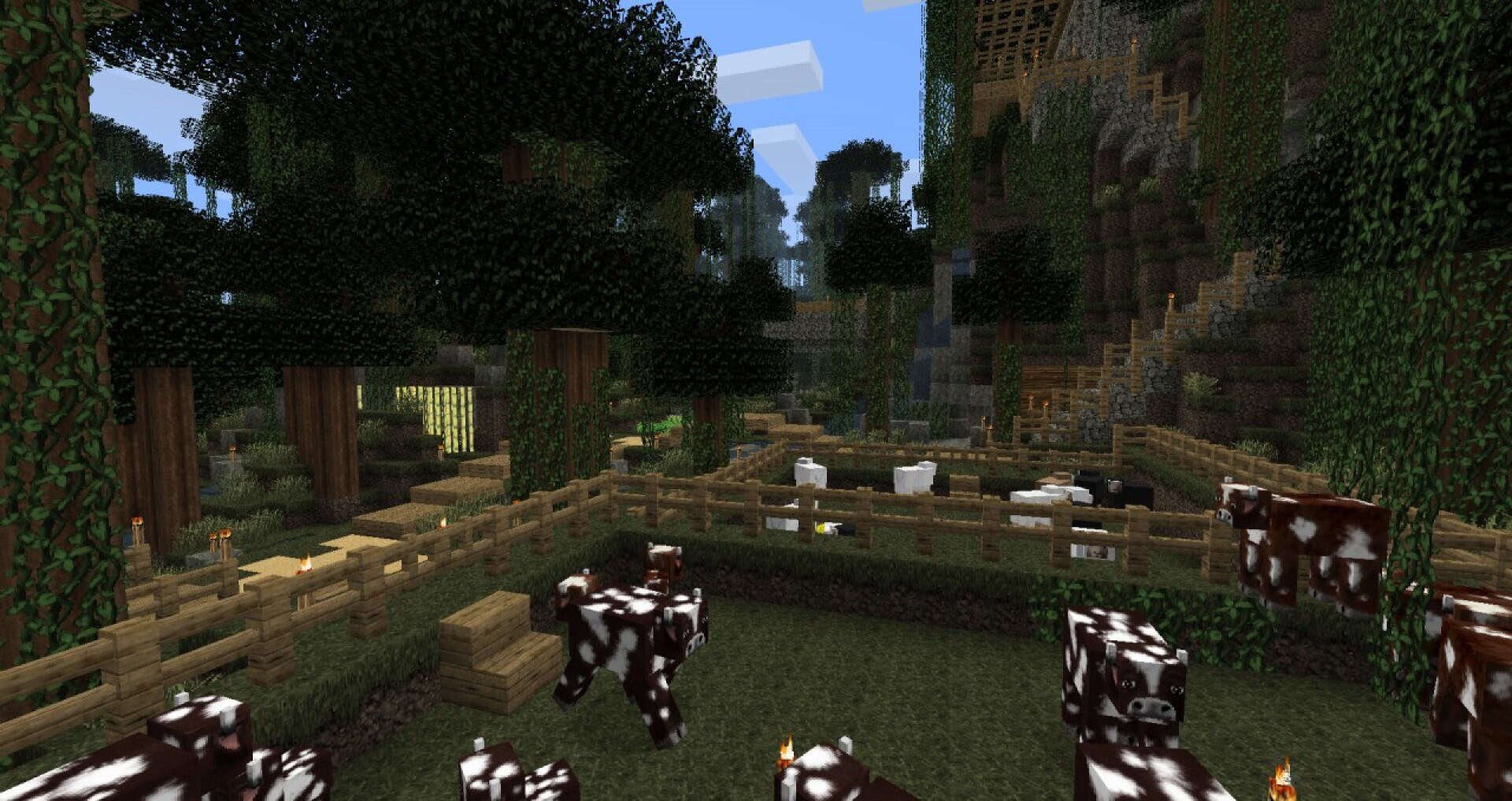
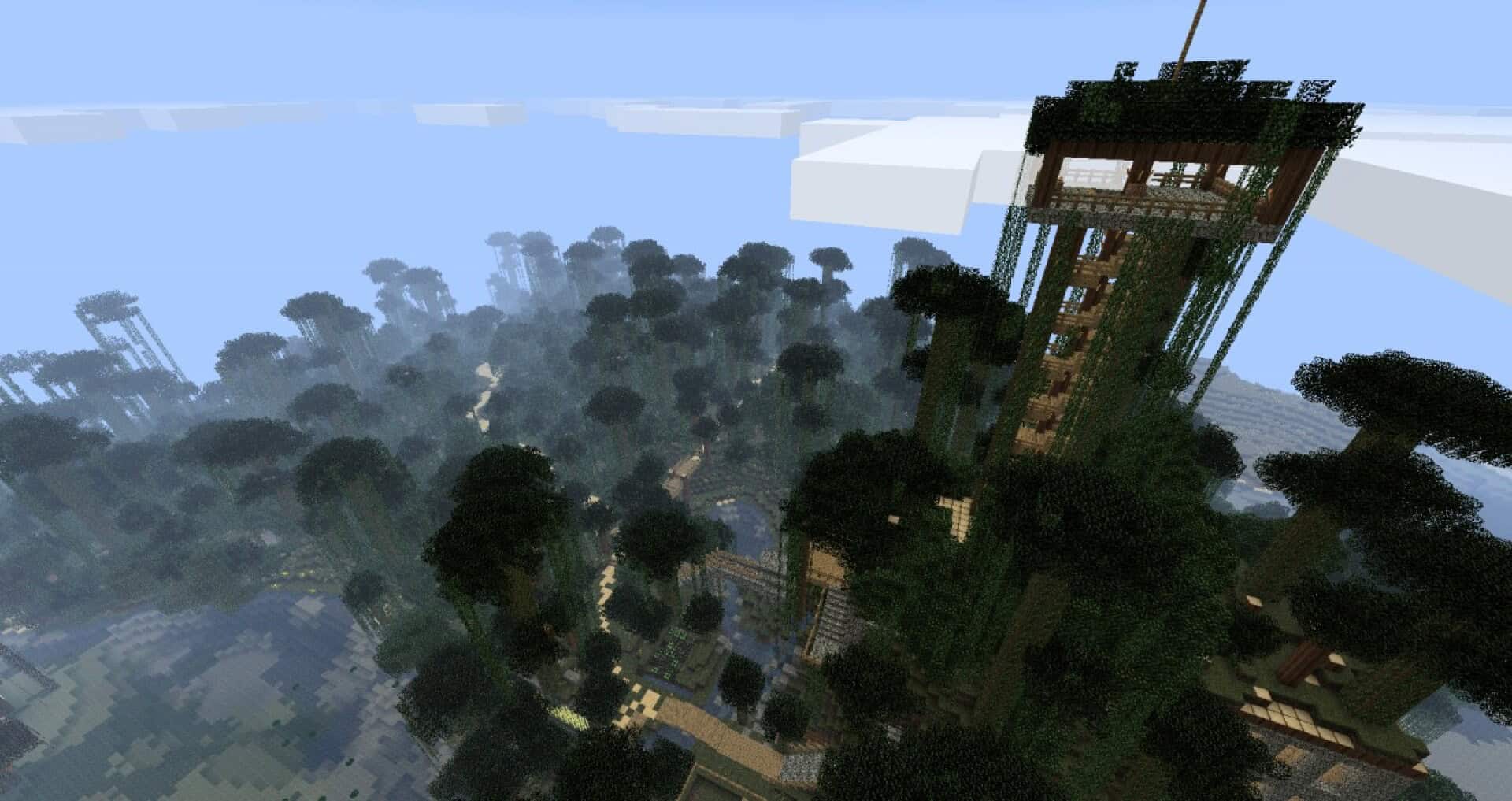
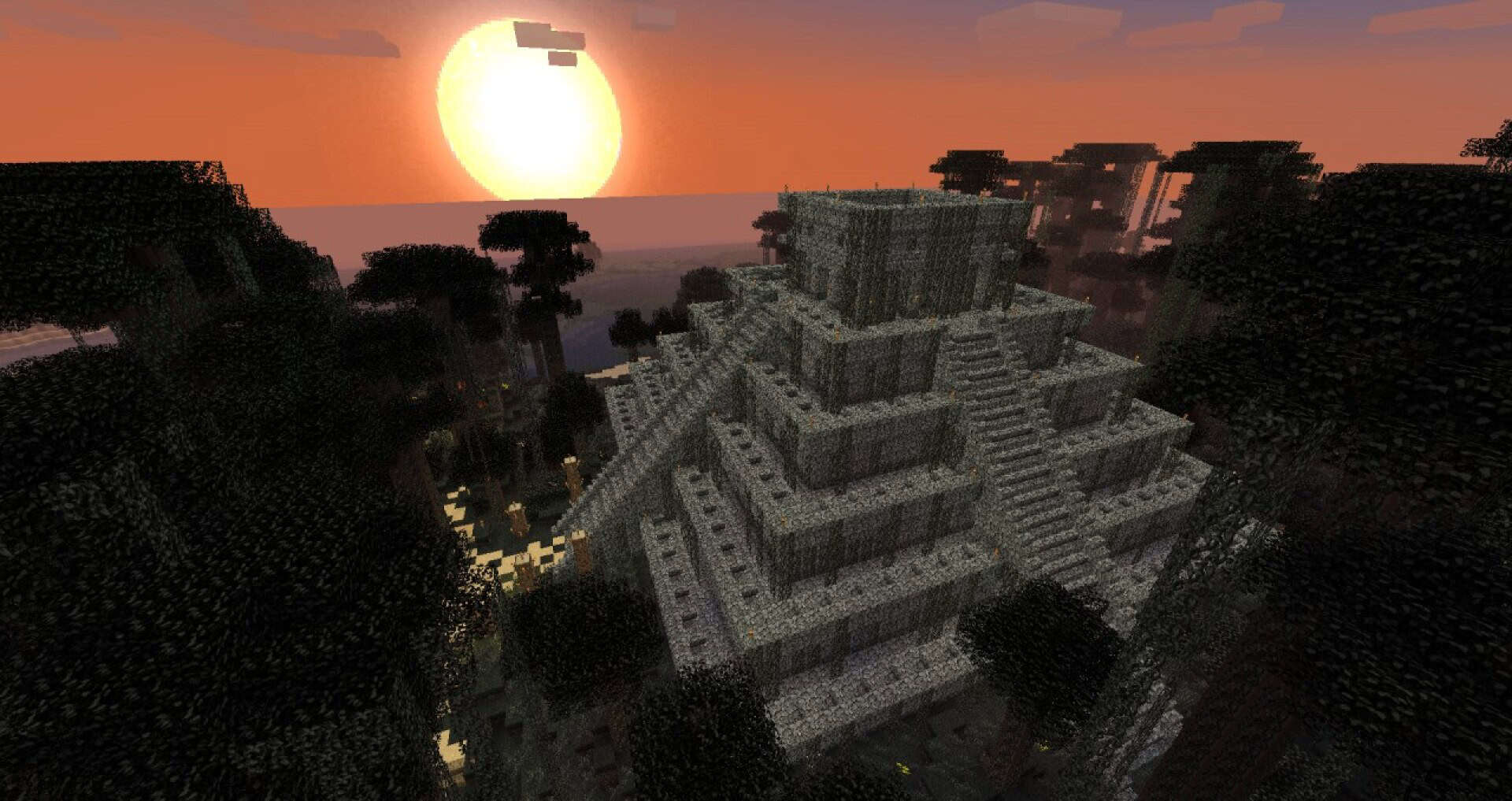
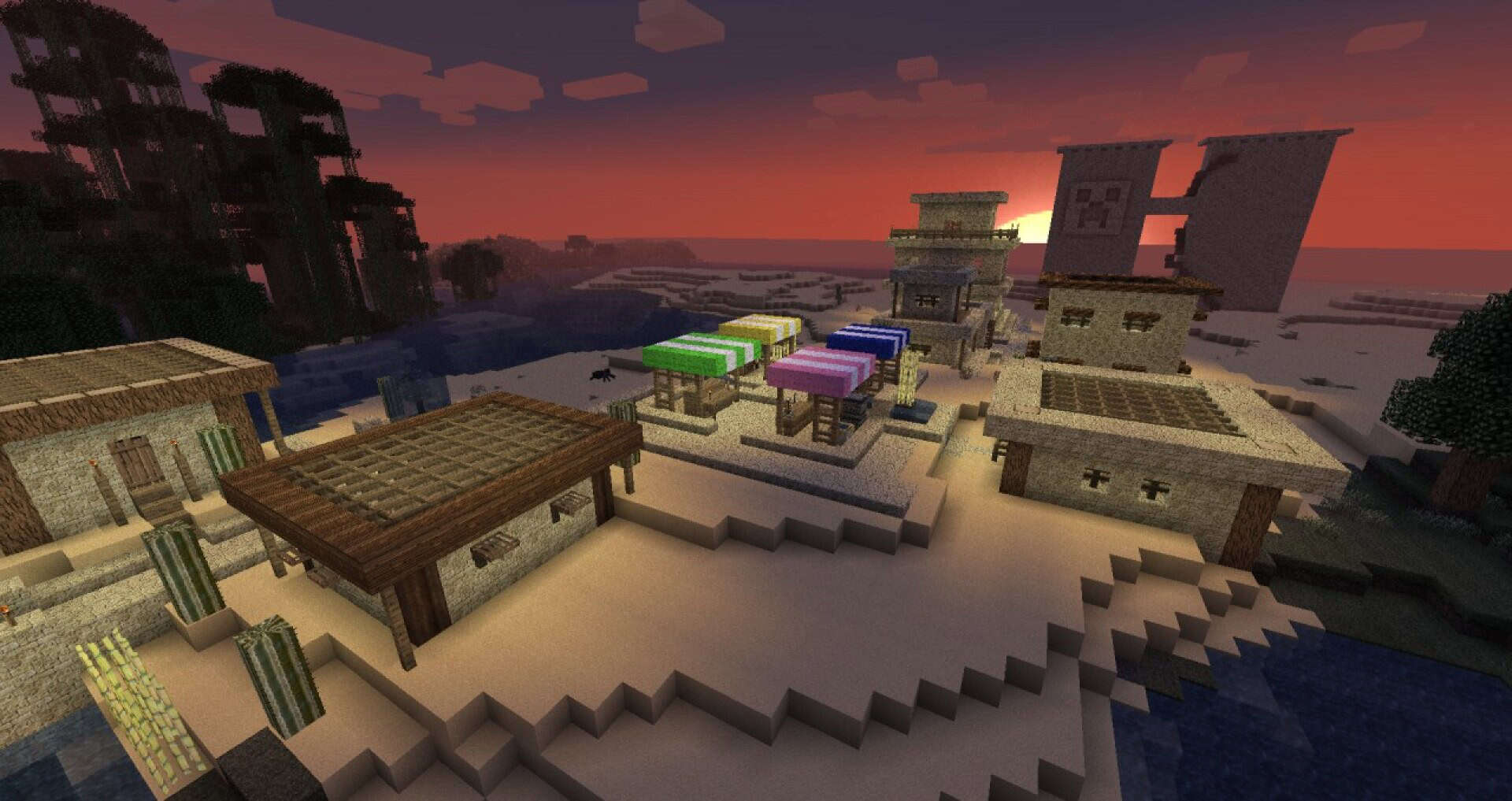
How to Install Texture Pack (Simple 10 Steps)
- Download OptiFine: Most of the texture packs and shaders need OptiFine. That’s why, first download and install OptiFine for the version of Minecraft you want to play.
- Download the Texture Pack: Get the texture pack you want from the download section. Choose the version that works with your Minecraft and your PC’s performance.
- Open Minecraft Launcher: Start Minecraft using the official game launcher — or even TLauncher, if you use that.
- Go to Options: From the main menu, click on the “Options” button.
- Open Resource Packs: Inside Options, click on “Resource Packs…”.
- Open the Resource Pack Folder: Click on “Open Resource Pack Folder” — this will open a folder named “resourcepacks”.
- Move the Pack File: Copy or move the .zip file you downloaded into that “resourcepacks” folder. (Don’t unzip the file — Minecraft uses it as-is!)
- Go Back and Refresh: Close the folder and click “Done”, then go back into “Resource Packs…” again.
- Activate the Pack: You’ll see the pack on the left side. Hover over it and click the arrow to move it to the right (active side).
Tip: If you get a message that the pack is for a different version, just click “Yes” — it usually works fine. - Click Done and Enjoy: Click “Done” again. Now your pack is ready to use in-game. It’s that easy!
Credits
This resource pack was created by DerSommer. We do not own, host, or modify this file. All rights remain with the original author. Please support the creator by downloading from their official links and visiting their community pages.
Download Instructions
Curseforge: download starts automatically after a few seconds;
Mediafire: click the big blue button with the text “DOWNLOAD”;
Google Drive: in the top right corner you will see a small download icon (down arrow), click it and the download should start;


