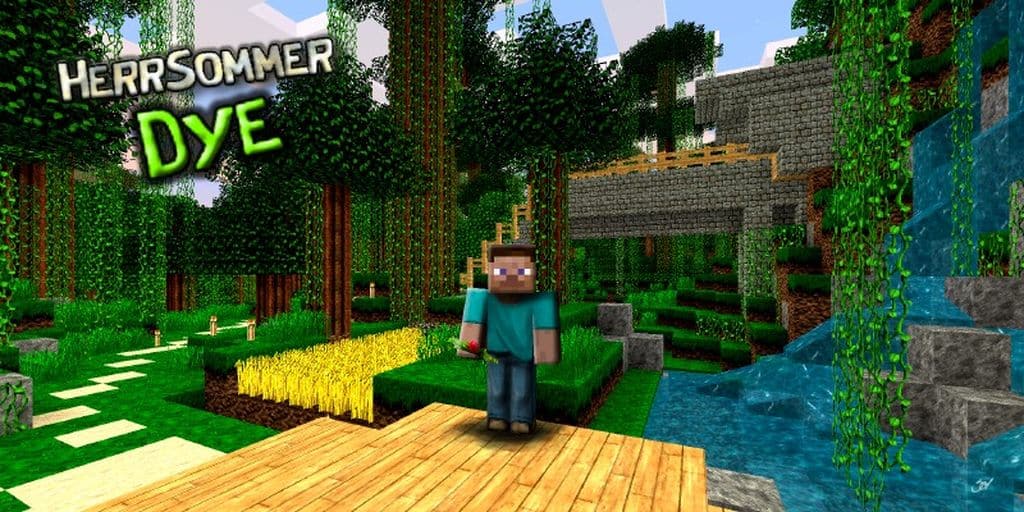
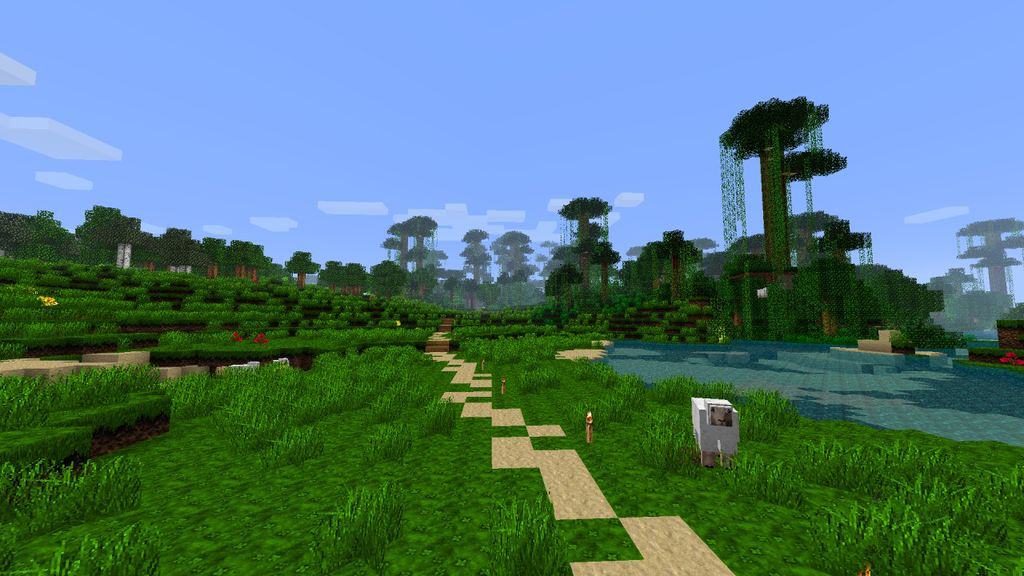
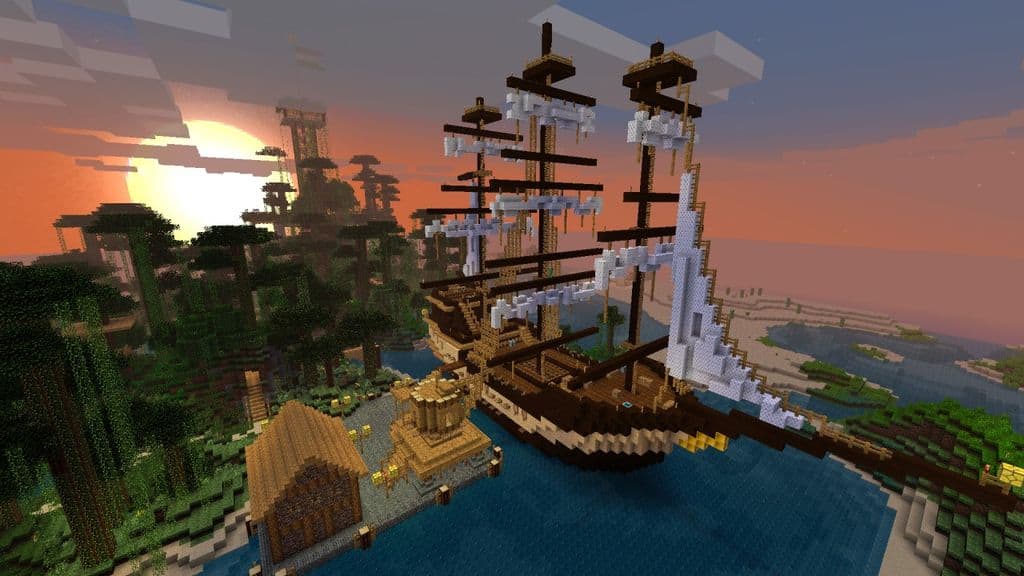
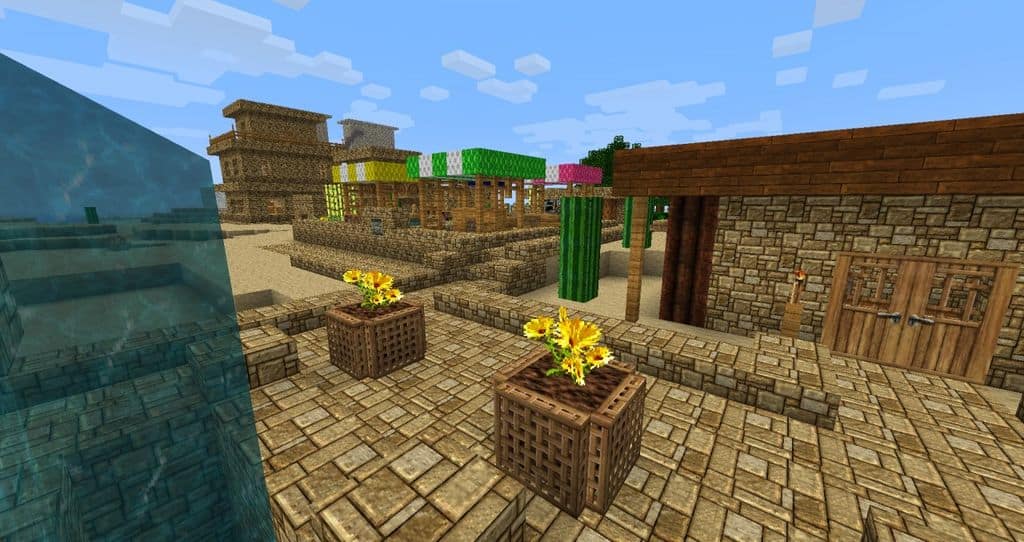
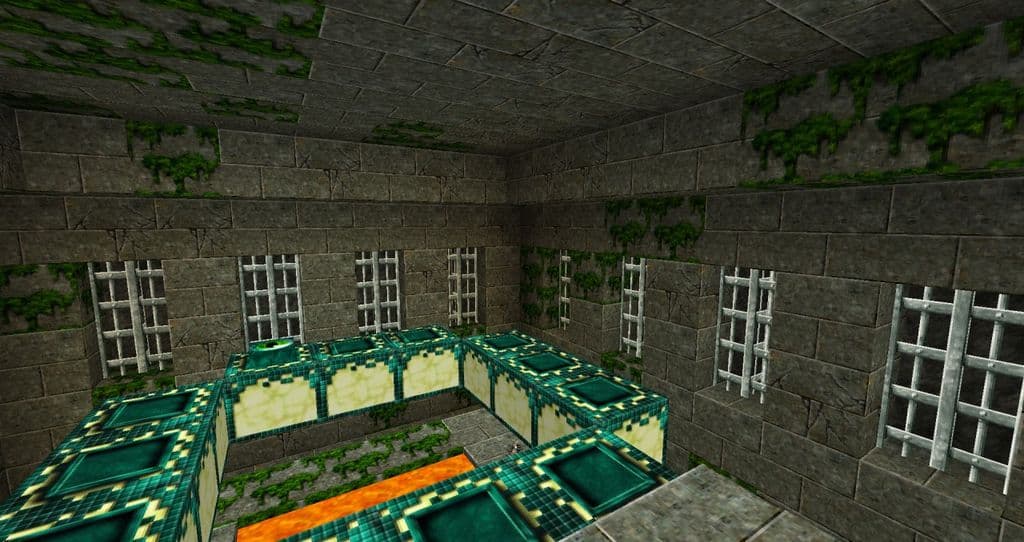
If you are a huge fan of vibrant, comic book style textures, then you really need to check out the HerrSommer Dye resource pack. Honestly, unlike the extremely cartoonish packs by the likes of PureBDCraft, it manages to perfectly combine the original Minecraft feel and the more energetic look that accurately mimics that of comic books. When you first load it up, you will almost feel like the brightness and gamma are increased by more than the game itself allows due to how wonderfully vibrant everything is. One of the best advantages of this pack is that you won’t have to deal with the pixels of the original blocks sticking out, which is a common annoyance with resource packs that are still a work in progress. The HerrSommer Dye pack is over 90% complete, meaning even those rarely used blocks are going to be completely revamped and totally up-to-date.
While the textures still carry that traditional blocky feel we all know and love, you will notice a significant jump in quality mostly where the rough edges would be with the original game textures. Also, the extremely bright look takes over wonderfully even in some of the darker areas, such as strongholds, mines, and even the End itself. Once you have gotten used to it, you honestly won’t be able to go back to the original textures because they will feel way too grim. Even though the pack is almost fully complete, the last version is built for Minecraft 1.8.x. Additionally, if you want to experience the true potential of this pack, you really should use it alongside Optifine. This will also help keep your performance completely intact, as the pack itself is at a gorgeous 64×64 resolution, which is four times that of the original textures. All in all, the HerrSommer Dye texture pack remains among the absolute favorites of the entire Minecraft community, even with its updates being few and far between.
HerrSommer Dye should be compatible with all of these Minecraft versions: 1.8.9 – 1.8.8 – 1.8.1 – 1.8.6 – 1.8 – 1.7.10 – 1.7.9 – 1.7.4 – 1.7
Screenshots

How to Install Texture Pack (Simple 10 Steps)
- Download OptiFine: Most of the texture packs and shaders need OptiFine. That’s why, first download and install OptiFine for the version of Minecraft you want to play.
- Download the Texture Pack: Get the texture pack you want from the download section. Choose the version that works with your Minecraft and your PC’s performance.
- Open Minecraft Launcher: Start Minecraft using the official game launcher — or even TLauncher, if you use that.
- Go to Options: From the main menu, click on the “Options” button.
- Open Resource Packs: Inside Options, click on “Resource Packs…”.
- Open the Resource Pack Folder: Click on “Open Resource Pack Folder” — this will open a folder named “resourcepacks”.
- Move the Pack File: Copy or move the .zip file you downloaded into that “resourcepacks” folder. (Don’t unzip the file — Minecraft uses it as-is!)
- Go Back and Refresh: Close the folder and click “Done”, then go back into “Resource Packs…” again.
- Activate the Pack: You’ll see the pack on the left side. Hover over it and click the arrow to move it to the right (active side).
Tip: If you get a message that the pack is for a different version, just click “Yes” — it usually works fine. - Click Done and Enjoy: Click “Done” again. Now your pack is ready to use in-game. It’s that easy!
Credits
The HerrSommer Dye resource pack was originally created and developed by DerSommer. We do not claim ownership of this modification, nor do we host modified files on our servers. All rights and intellectual property belong strictly to the original author. We strongly recommend supporting DerSommer by downloading the resource pack from the official links provided.
Download Instructions
Curseforge: download starts automatically after a few seconds;
Mediafire: click the big blue button with the text “DOWNLOAD”;
Google Drive: in the top right corner you will see a small download icon (down arrow), click it and the download should start;


