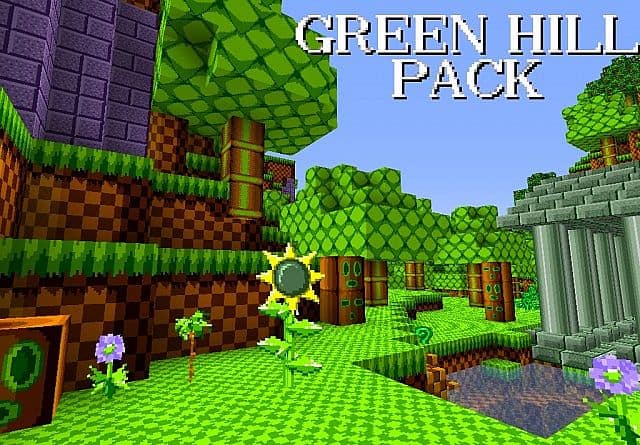
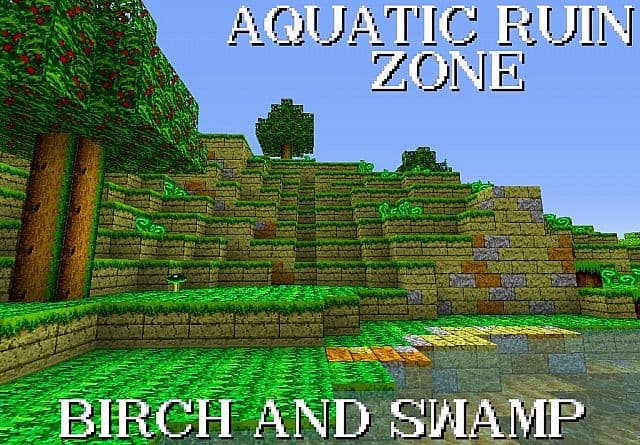
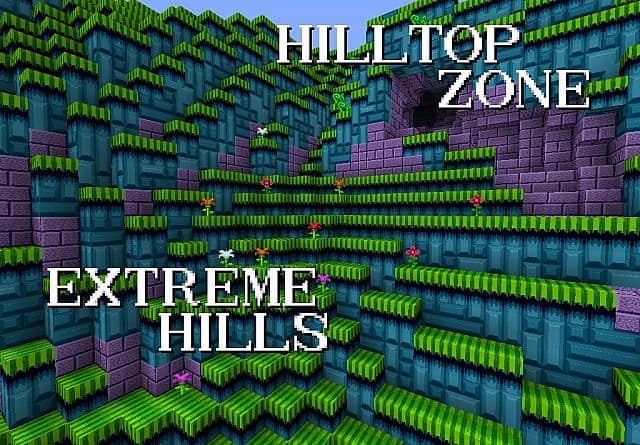
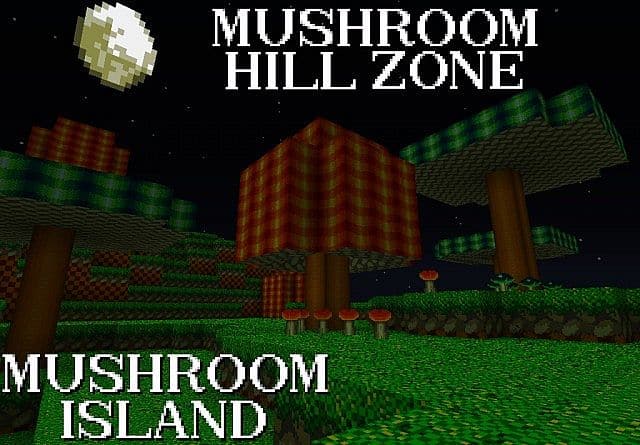
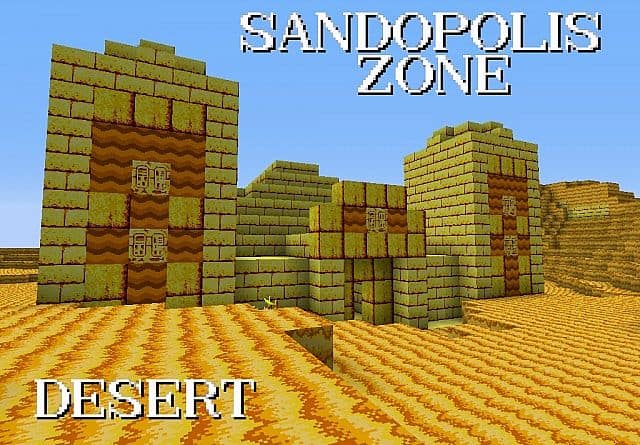
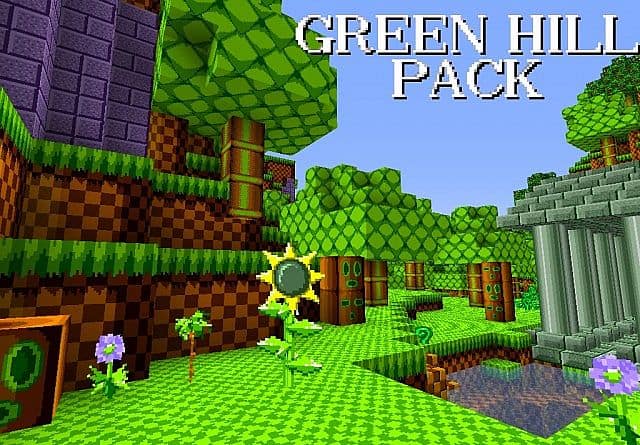
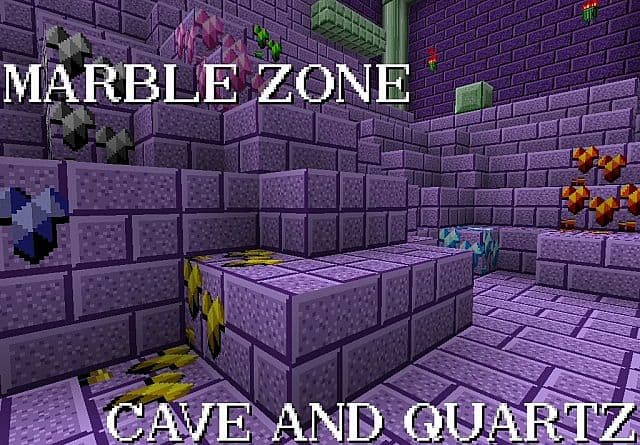
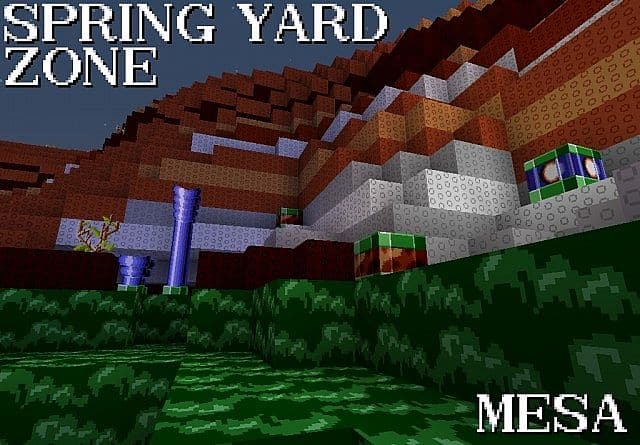
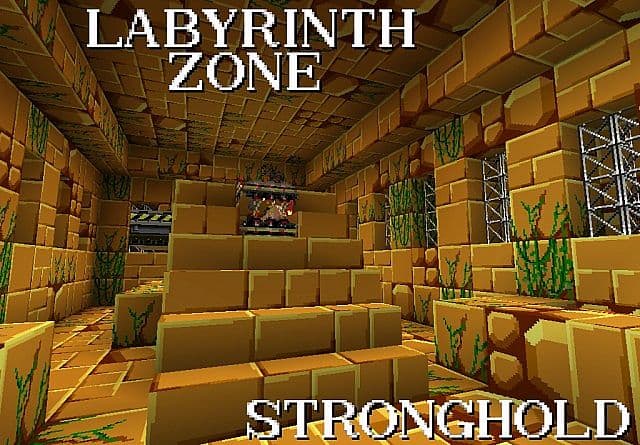
If you are part of that wonderful generation that grew up playing classic Sega consoles, you are going to fall in love with the Green Hill Pack because it will suit your nostalgic tastes one hundred percent! All of the gorgeous graphics and vibrant textures found within this pack are wonderfully borrowed straight from iconic console games, making it a fantastic cartoon-styled pack that boasts wonderfully bright, eye-popping colors everywhere you look. While this texture set is undeniably a dream come true for die-hard fans of old game consoles, it also stands out as a genuinely unique and delightfully interesting resource pack for anyone looking to shake up their visual experience. I truly think you should give it a try for yourself, as it is a really nice pack that brings a whole lot of joyful energy to your worlds.
Green Hill Pack should be compatible with all of these Minecraft versions: 1.7.10 – 1.7.9 – 1.7.4 – 1.7 – 1.6.4 – 1.6.2
Screenshots
How to Install Texture Pack (Simple 10 Steps)
- Download OptiFine: Most of the texture packs and shaders need OptiFine. That’s why, first download and install OptiFine for the version of Minecraft you want to play.
- Download the Texture Pack: Get the texture pack you want from the download section. Choose the version that works with your Minecraft and your PC’s performance.
- Open Minecraft Launcher: Start Minecraft using the official game launcher — or even TLauncher, if you use that.
- Go to Options: From the main menu, click on the “Options” button.
- Open Resource Packs: Inside Options, click on “Resource Packs…”.
- Open the Resource Pack Folder: Click on “Open Resource Pack Folder” — this will open a folder named “resourcepacks”.
- Move the Pack File: Copy or move the .zip file you downloaded into that “resourcepacks” folder. (Don’t unzip the file — Minecraft uses it as-is!)
- Go Back and Refresh: Close the folder and click “Done”, then go back into “Resource Packs…” again.
- Activate the Pack: You’ll see the pack on the left side. Hover over it and click the arrow to move it to the right (active side).
Tip: If you get a message that the pack is for a different version, just click “Yes” — it usually works fine. - Click Done and Enjoy: Click “Done” again. Now your pack is ready to use in-game. It’s that easy!
Credits
This project was originally created by Drazile12. We do not claim ownership of this content and provide these files strictly as hosted by the original author. We encourage you to support Drazile12 and their ongoing work.
Download Instructions
Curseforge: download starts automatically after a few seconds;
Mediafire: click the big blue button with the text “DOWNLOAD”;
Google Drive: in the top right corner you will see a small download icon (down arrow), click it and the download should start;


