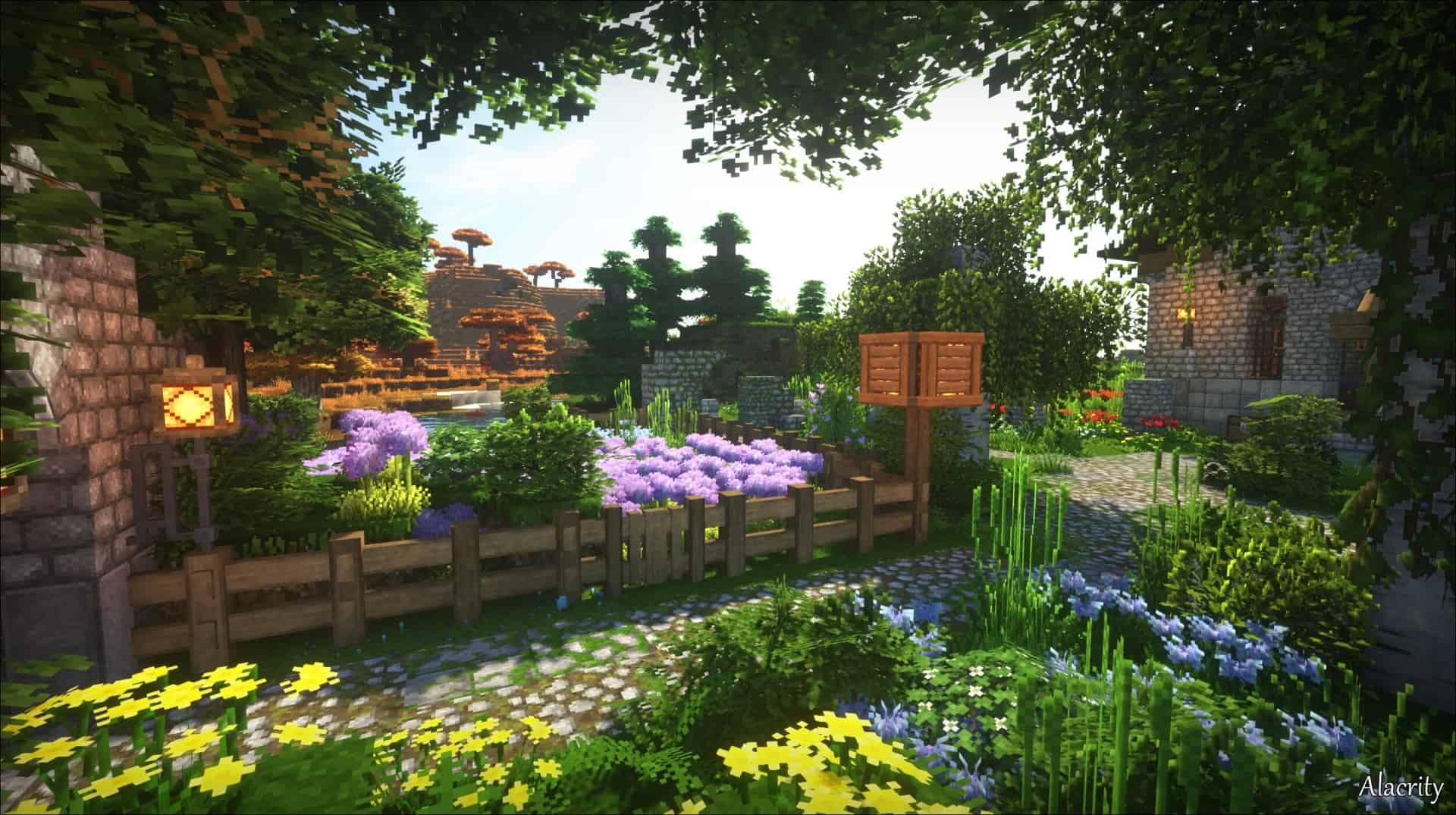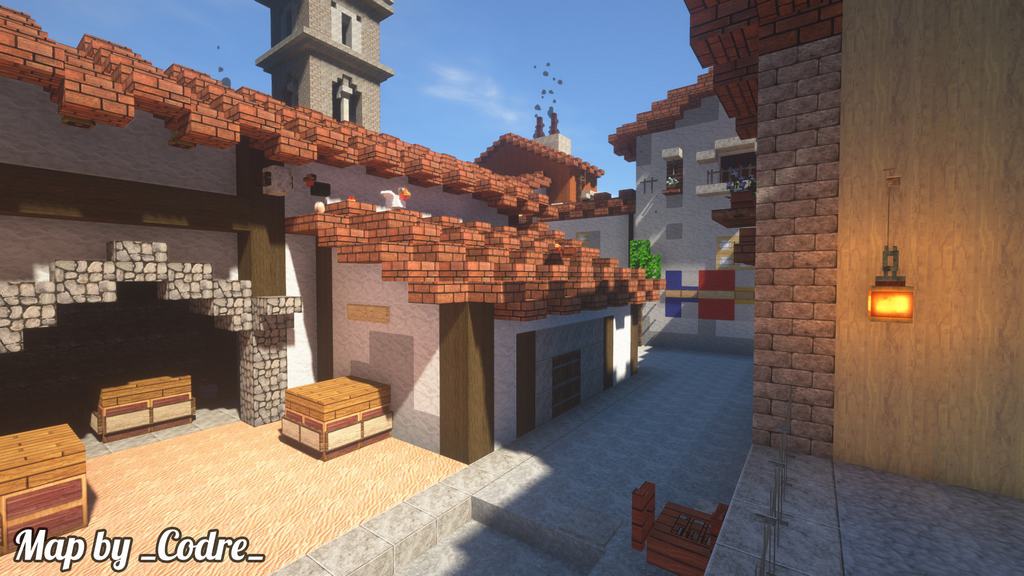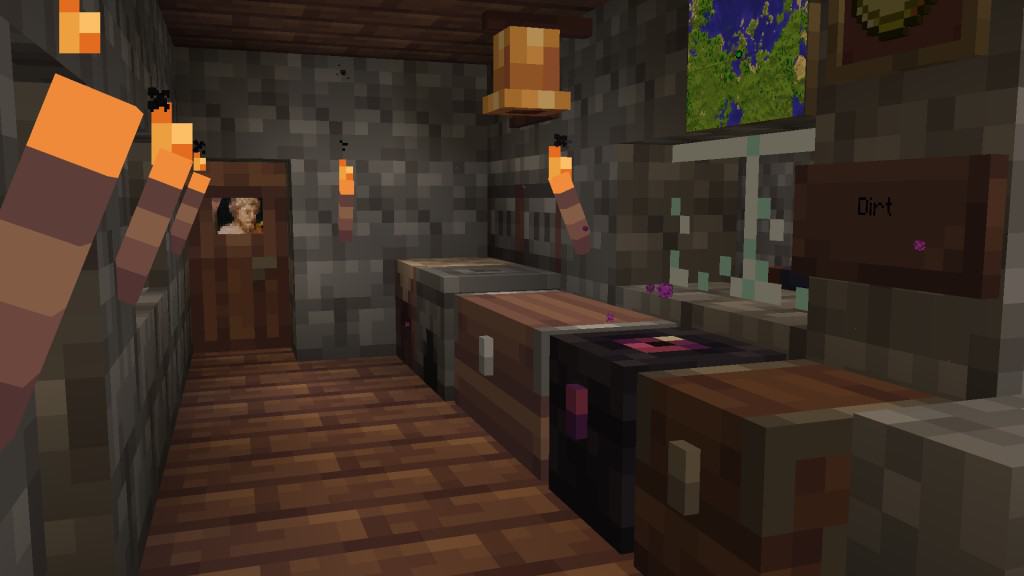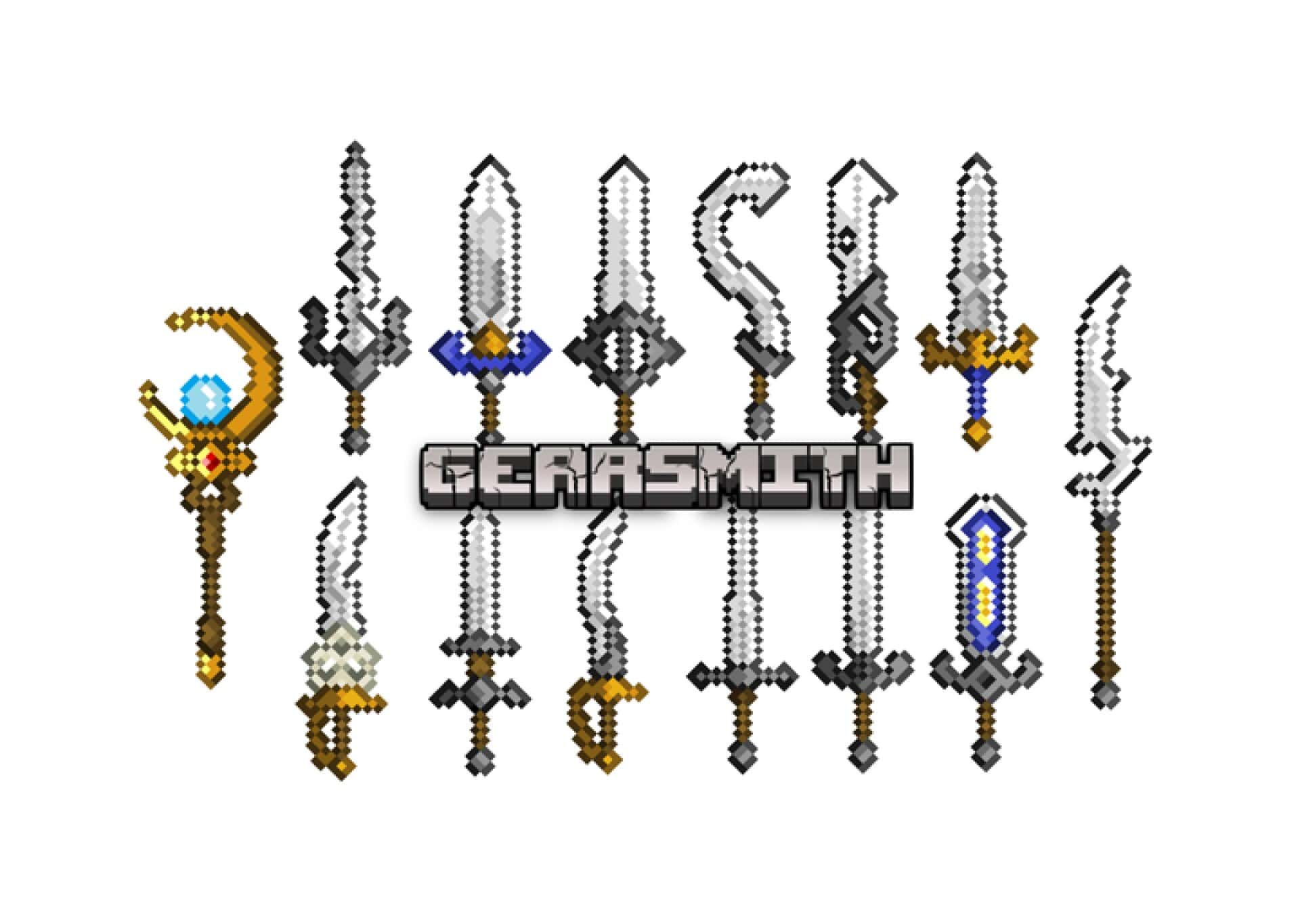
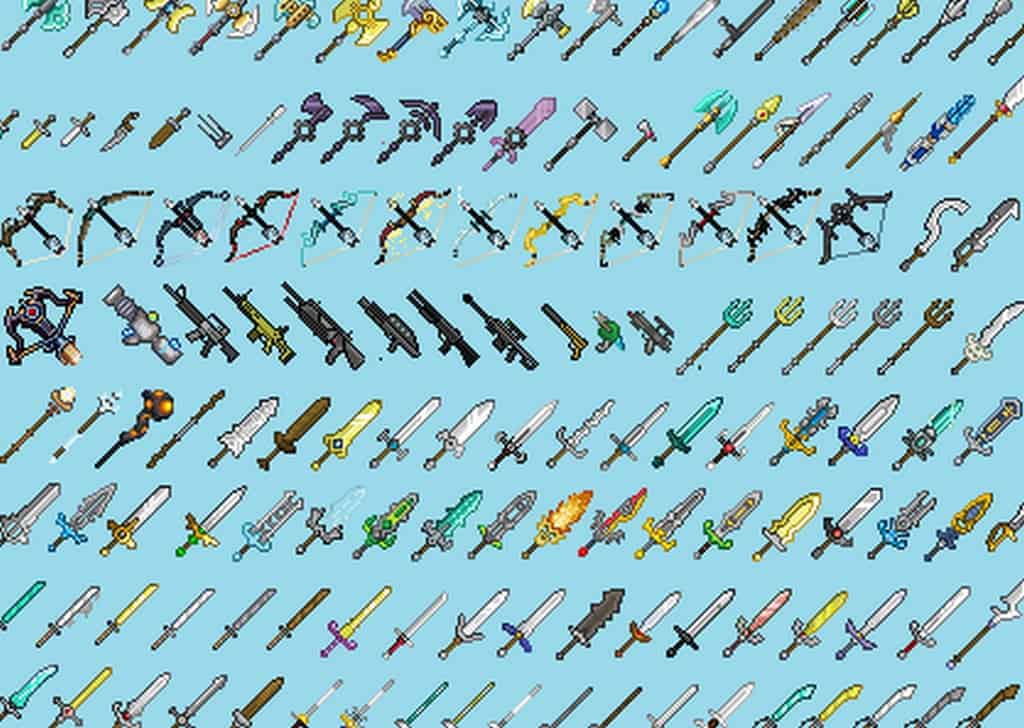
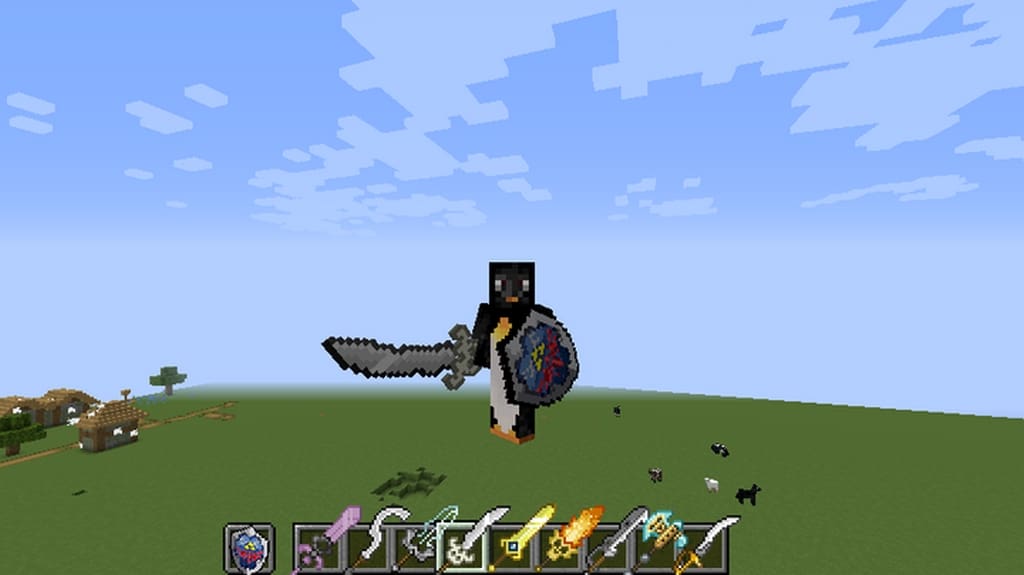
The GearPlus resource pack comes with way more advantages over many traditional resource packs as regards armor, weapon, and item textures, among other features, and I honestly think it is an absolute game-changer! However, before we look at what GearPlus has to offer, it is important to note that you need to have OptiFine 1.12.2_HD_U_B327 or a higher mod to use the resource pack, which makes complete sense once you see it in action. This is because GearPlus item textures rely, to a great extent, on Optifine’s CIT features to function well. So if you have Optifine, then you should probably go ahead and download GearPlus right away as it has an exceptional design and the textures are remarkably impressive. However, if you don’t, the pack just won’t work. As noted, GearPlus will offer you a variety of armor, weapon as well as other item textures, and besides that, you have total freedom to select whichever of them.
Unlike with some other packs, this pack does not change any particular textures, which means that you get to use any of them for absolutely anything. The pack has a wide range of textures, so you can’t run out of options. Again, more interestingly, in-game vanilla textures can be swapped out seamlessly. Most importantly, the textures are of top-class quality, and there’s tremendous detail in each one of them that I genuinely appreciate. The textures are designed to offer better gaming experience than what usual resource packs are offering. GearPlus’ textures come with a 32×32 resolution, unlike default minecraft texture resolution which don’t go beyond 16×16. The resource pack makes adjustments only to the items of Minecraft. Nothing else is changed, which means that even when playing the game on a low-end hardware PC, you will hardly have any troubles with performance. If you are growing tired of the performance and features of traditional minecraft gear, download GearPlus, and you’ll like it straight up!
GearSmith (previously GearPlus) should be compatible with all of these Minecraft versions: 1.20.6 – 1.20.5 – 1.20.4 – 1.20.3 – 1.20.2 – 1.20.1 – 1.20 – 1.19.4 – 1.19.3 – 1.19.2 – 1.19.1 – 1.19 – 1.18.2 – 1.18.1 – 1.18 – 1.17.1 – 1.17 – 1.16.5 – 1.16.4 – 1.16.3 – 1.16.2 – 1.16.1 – 1.16 – 1.15.2 – 1.15.1 – 1.15 – 1.14.4 – 1.14.3 – 1.14.2 – 1.14 – 1.13.2 – 1.13.1 – 1.13 – 1.12.2 – 1.12
Screenshots
How to Install Texture Pack (Simple 10 Steps)
- Download OptiFine: Most of the texture packs and shaders need OptiFine. That’s why, first download and install OptiFine for the version of Minecraft you want to play.
- Download the Texture Pack: Get the texture pack you want from the download section. Choose the version that works with your Minecraft and your PC’s performance.
- Open Minecraft Launcher: Start Minecraft using the official game launcher — or even TLauncher, if you use that.
- Go to Options: From the main menu, click on the “Options” button.
- Open Resource Packs: Inside Options, click on “Resource Packs…”.
- Open the Resource Pack Folder: Click on “Open Resource Pack Folder” — this will open a folder named “resourcepacks”.
- Move the Pack File: Copy or move the .zip file you downloaded into that “resourcepacks” folder. (Don’t unzip the file — Minecraft uses it as-is!)
- Go Back and Refresh: Close the folder and click “Done”, then go back into “Resource Packs…” again.
- Activate the Pack: You’ll see the pack on the left side. Hover over it and click the arrow to move it to the right (active side).
Tip: If you get a message that the pack is for a different version, just click “Yes” — it usually works fine. - Click Done and Enjoy: Click “Done” again. Now your pack is ready to use in-game. It’s that easy!
Credits
The GearSmith (GearPlus) resource pack was created by Nate33730. We do not claim ownership of this content, nor have we modified the original files. All rights remain with the original author. We strongly encourage you to support Nate33730 by downloading the pack from their official links and checking out their other projects.
Download Links
Java Edition
- [32x] [1.20.x] Download GearSmith Resource Pack
- [32x] [1.19.x – 1.18.x] Download GearPlus Resource Pack
- [32x] [1.17.x – 1.16.x] Download GearPlus Resource Pack
- [32x] [1.15.x – 1.14.x] Download GearPlus Resource Pack
- [32x] [1.13.x] Download GearPlus Resource Pack
- [32x] [1.12.x] Download GearPlus Resource Pack
- GearSmith Crafting Guide
Download Instructions
Curseforge: download starts automatically after a few seconds;
Mediafire: click the big blue button with the text “DOWNLOAD”;
Google Drive: in the top right corner you will see a small download icon (down arrow), click it and the download should start;