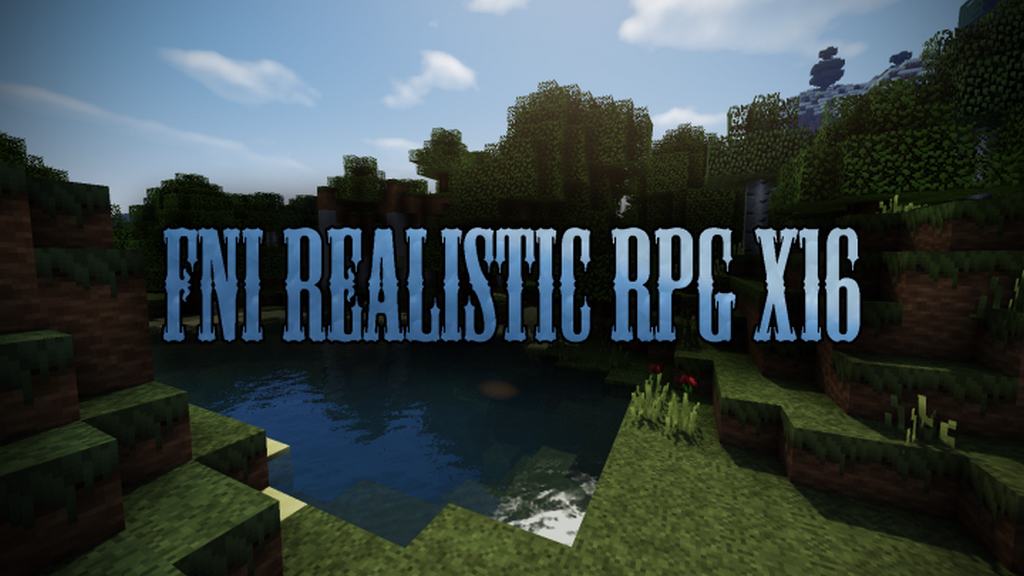
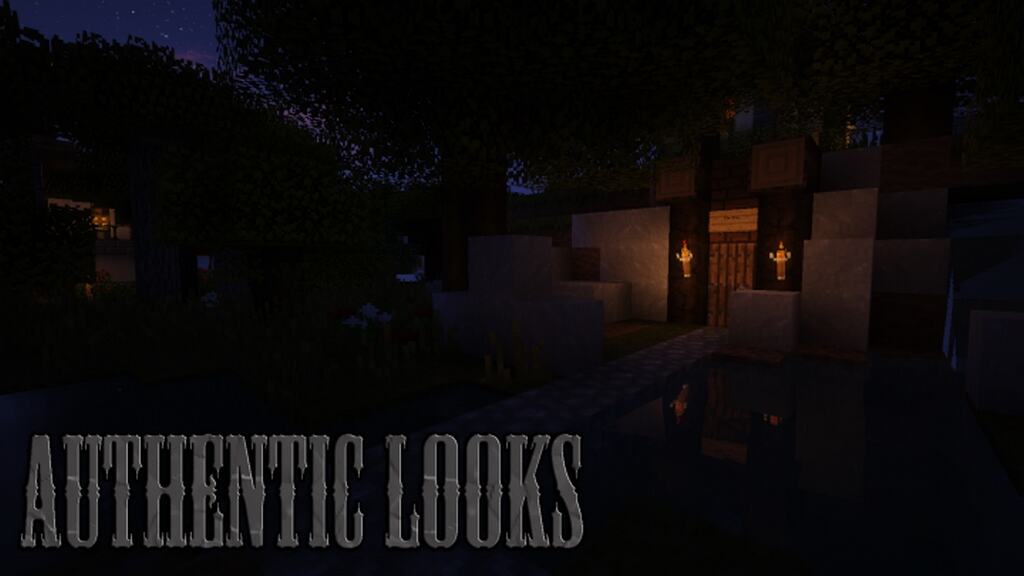
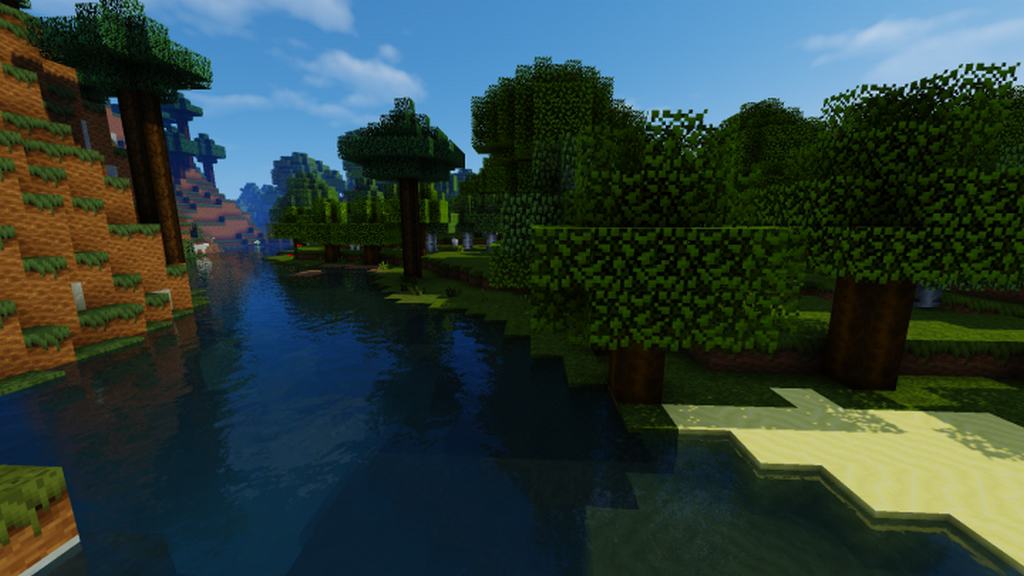
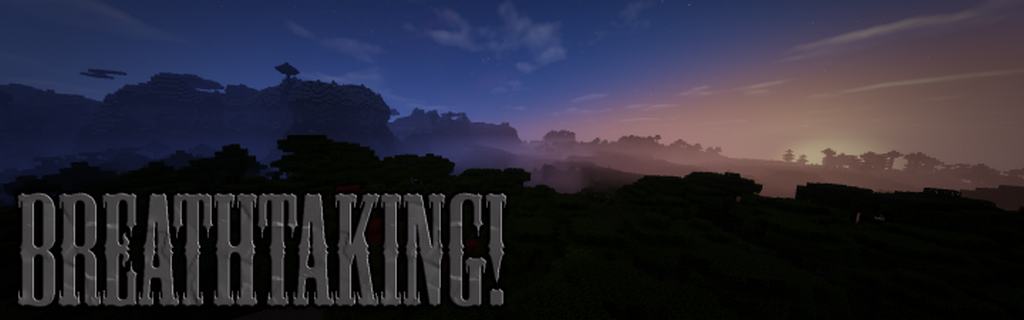
When it first dropped three years ago, I felt like the FNI Realistic RPG resource pack was honestly light-years ahead of its time. Getting a complete visual overhaul like that just wasn’t a common thing back then, and it naturally pulled in a massive wave of positive feedback. Because updates were so scarce for a while, it kind of slipped under the radar until the original creator, FireandIce, finally pushed out an update bringing full compatibility to the newest Minecraft versions. Old-school players who remember how innovative this pack always was went wild for it, and honestly, seeing it skyrocket back into popularity made me so happy. Don’t let its age fool you for a single second—FNI Realistic delivers some of the most authentic, true-to-life RPG elements you can possibly find anywhere, easily standing shoulder-to-shoulder with modern releases. I really love how the pack tones down the aggressively bright default Minecraft environment, perfectly capturing that moody, gritty medieval aesthetic you expect from classic RPGs.
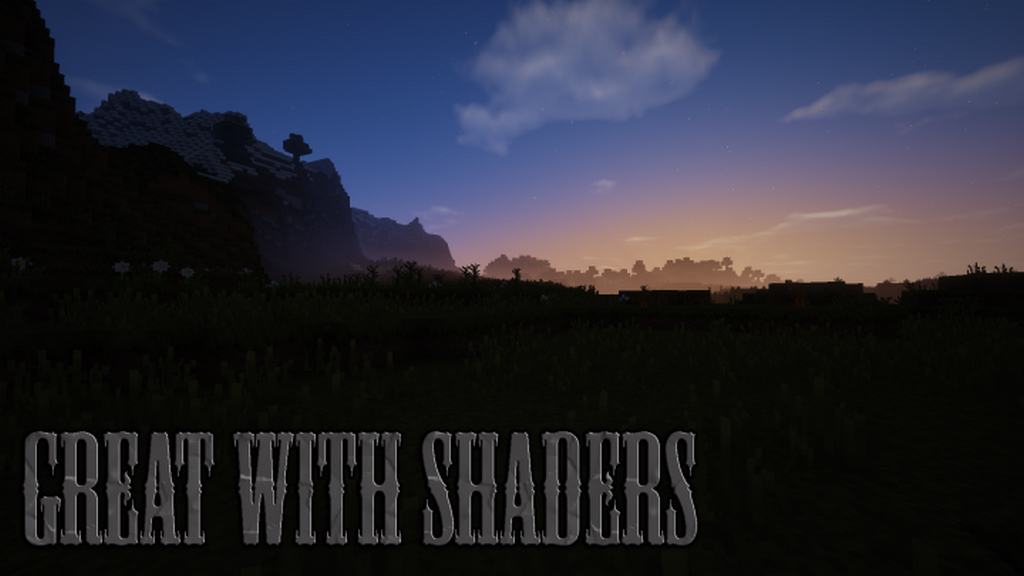
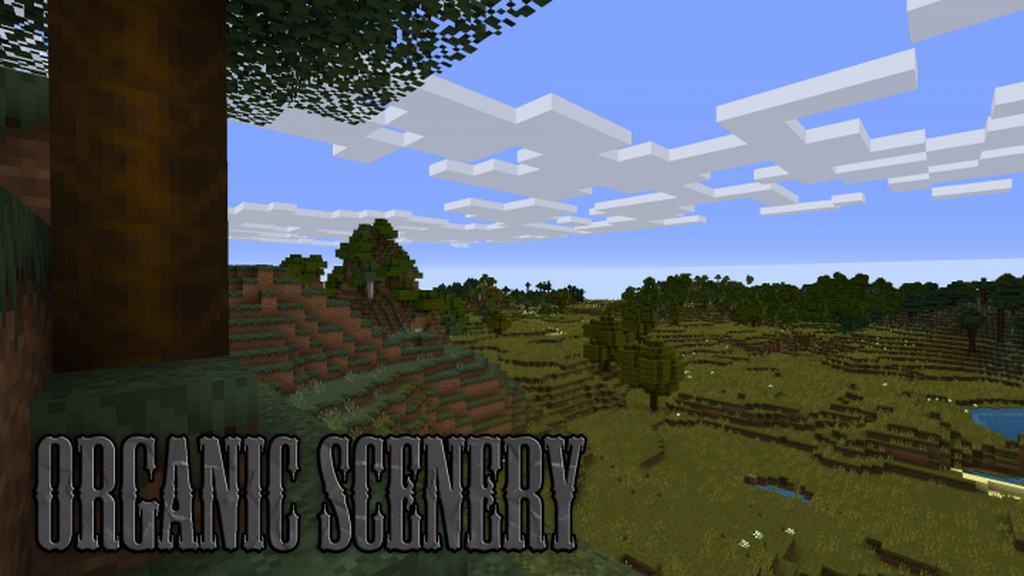
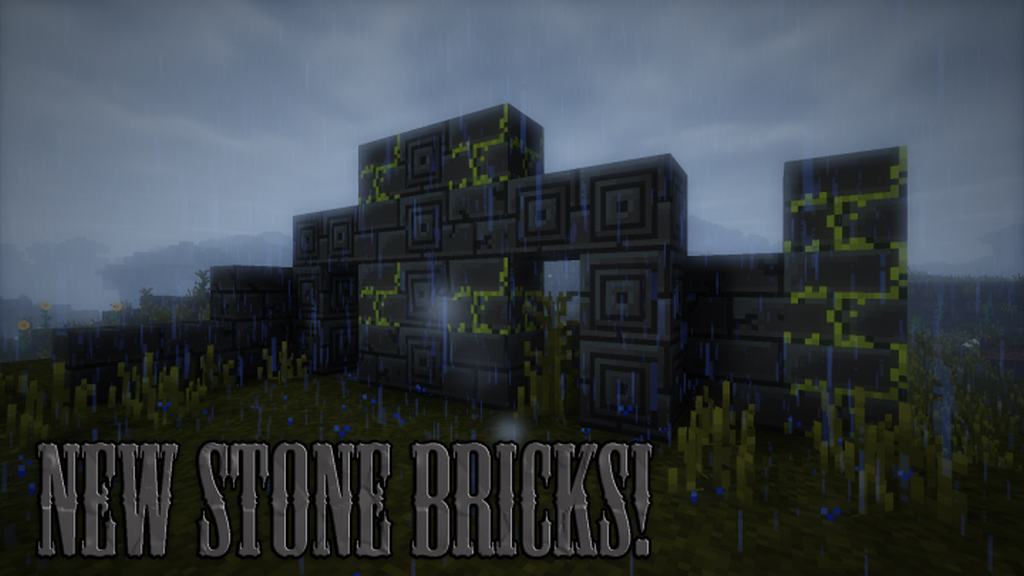
All the textures are surprisingly detailed while keeping just enough graininess to completely transform the atmosphere. I noticed these changes the most on weapons, where the models accurately show off their exact tiers from humble wood all the way up to diamond. The fresh update even introduces cool block tweaks, particularly for stone bricks, which honestly lets you pull off breathtaking, archaic builds that look like they belong in a totally different game. Arguably the most mind-blowing aspect of this pack is that it manages all this at a humble 16×16 resolution. While a low resolution might scare some texture snobs away at first, the actual visual quality FNI Realistic RPG achieves is on a completely different level. This is a massive win not just for your world’s aesthetic, but also for your PC’s hardware, meaning you won’t have to melt your graphics card trying to render giant high-res packs. As if that wasn’t already enough, FNI Realistic pairs amazingly well with custom shaders—trust me, once you load up some shaders, throw down a few torches inside your medieval base, and look around, you’re never going to want to touch default Minecraft again.
FNI Realistic RPG should be compatible with all of these Minecraft versions: 1.12.2 – 1.12 – 1.11.2 – 1.11 – 1.7.10 – 1.7.9 – 1.7.4 – 1.7 – 1.6.4 – 1.6.2
Screenshots
How to Install Texture Pack (Simple 10 Steps)
- Download OptiFine: Most of the texture packs and shaders need OptiFine. That’s why, first download and install OptiFine for the version of Minecraft you want to play.
- Download the Texture Pack: Get the texture pack you want from the download section. Choose the version that works with your Minecraft and your PC’s performance.
- Open Minecraft Launcher: Start Minecraft using the official game launcher — or even TLauncher, if you use that.
- Go to Options: From the main menu, click on the “Options” button.
- Open Resource Packs: Inside Options, click on “Resource Packs…”.
- Open the Resource Pack Folder: Click on “Open Resource Pack Folder” — this will open a folder named “resourcepacks”.
- Move the Pack File: Copy or move the .zip file you downloaded into that “resourcepacks” folder. (Don’t unzip the file — Minecraft uses it as-is!)
- Go Back and Refresh: Close the folder and click “Done”, then go back into “Resource Packs…” again.
- Activate the Pack: You’ll see the pack on the left side. Hover over it and click the arrow to move it to the right (active side).
Tip: If you get a message that the pack is for a different version, just click “Yes” — it usually works fine. - Click Done and Enjoy: Click “Done” again. Now your pack is ready to use in-game. It’s that easy!
Credits
This resource pack was created by FireandIce. We are not the original owners or developers of this content, and we do not host modified versions of the files. All rights belong strictly to the original author. We strongly encourage you to support FireandIce by visiting their official source and downloading directly from them.
Download Links
Java Edition
Download Instructions
Curseforge: download starts automatically after a few seconds;
Mediafire: click the big blue button with the text “DOWNLOAD”;
Google Drive: in the top right corner you will see a small download icon (down arrow), click it and the download should start;


