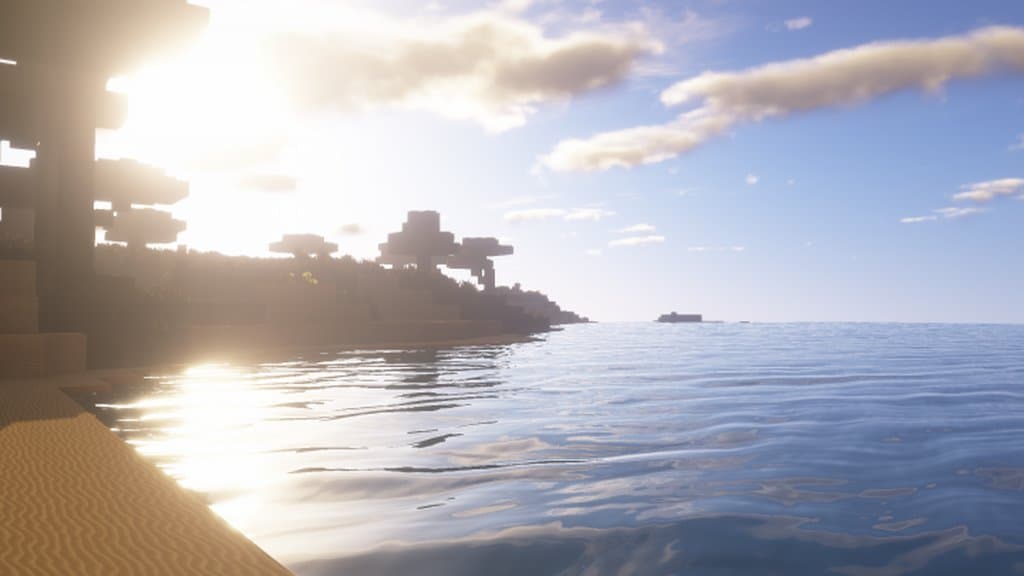
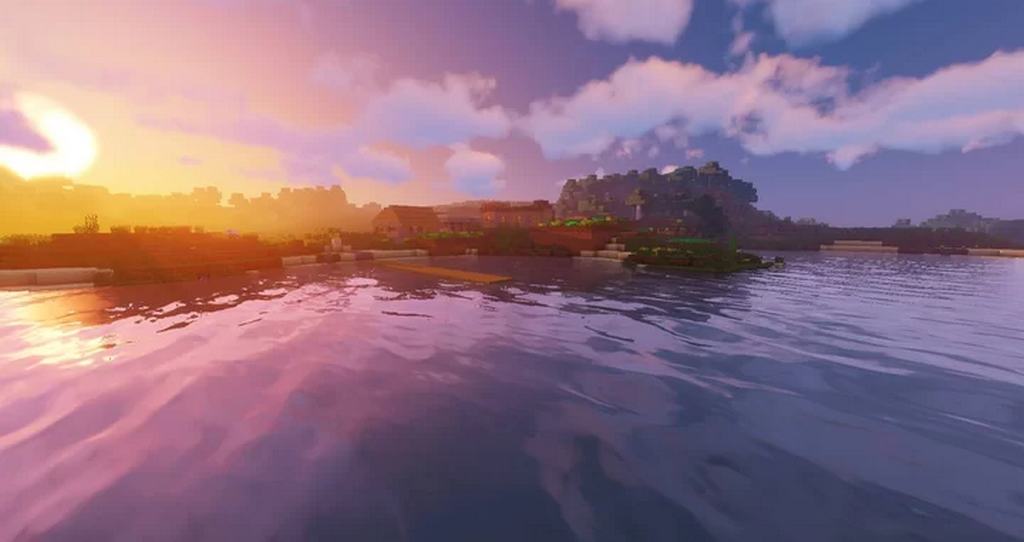
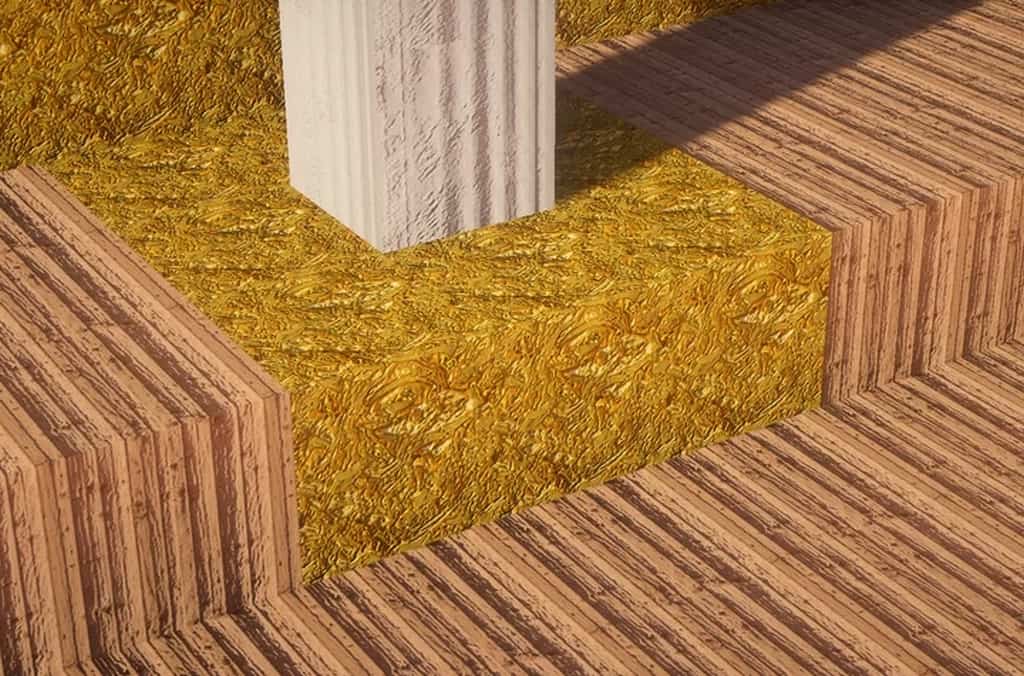
Minecraft is an absolute masterpiece loved by players of all ages everywhere. What truly elevates the game is the incredible community-made content, and resource packs have always played a huge role in that success. Released about four months ago, the Faraway Realism resource pack has already blown past 60,000 downloads, and I honestly think that milestone is totally well-deserved. When I finally installed it and tested it out for myself, I was simply thrilled by how visually gorgeous it turned out to be and how much it genuinely enriches the gameplay experience. Crafted as the brilliant second attempt by its creator, Carriebestie, this pack maintains an astonishingly high standard of quality from start to finish. If you are currently hunting for a genuinely breathtaking realistic resource pack, you should definitely give Faraway Realism a try.
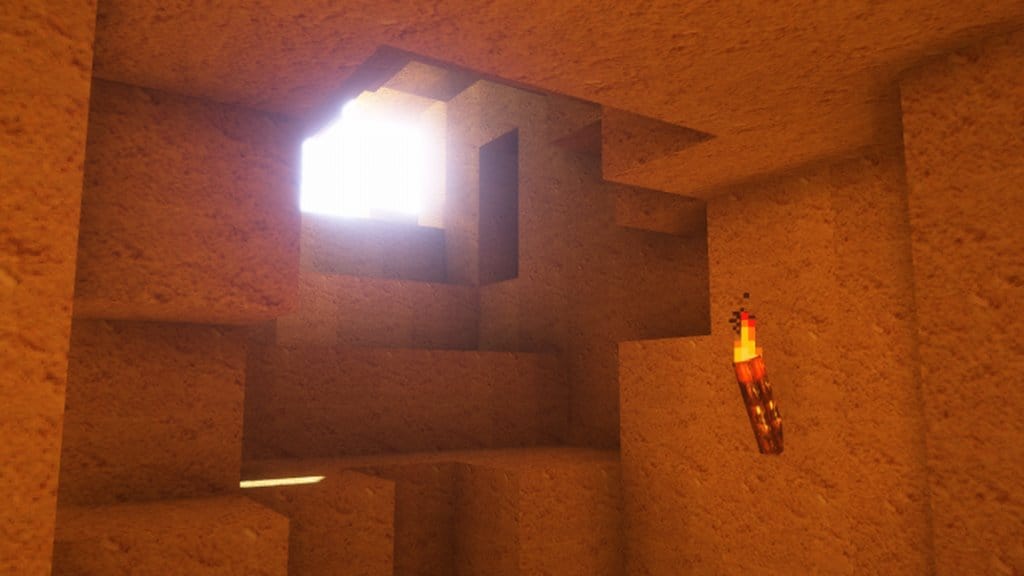
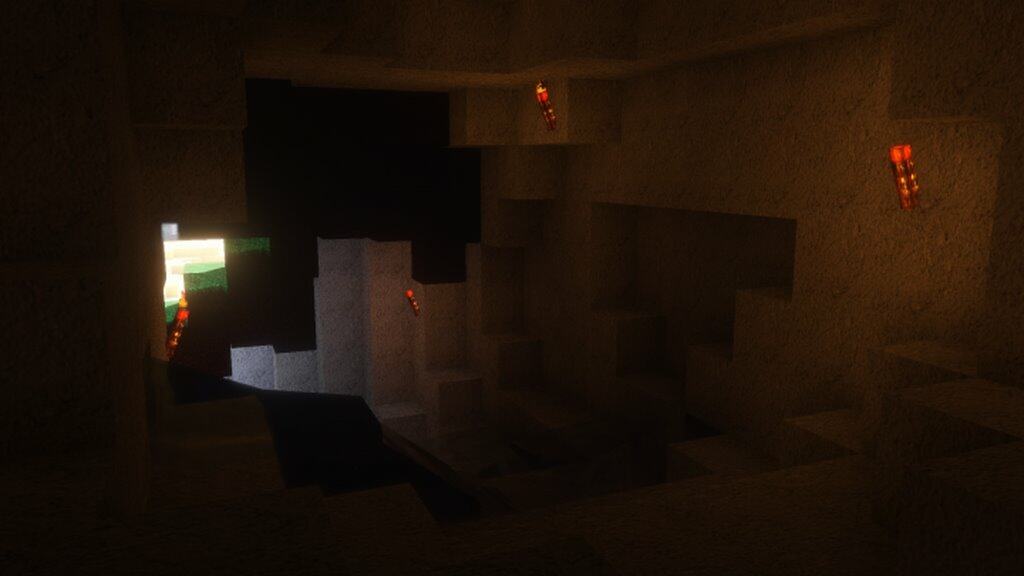
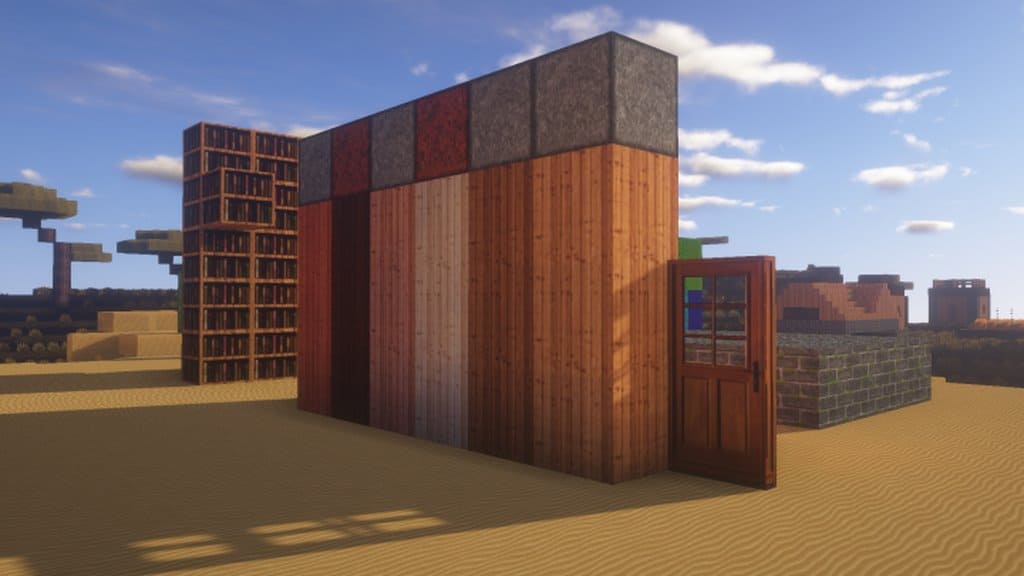
The main design objective of the Faraway Realism pack is to push Minecraft’s realism to the absolute limit by injecting an incredible amount of raw detail into every single texture. Usually, this hyper-realistic design approach in games ends up creating textures that look overly noisy or overwhelmingly busy. However, I noticed that the Faraway Realism pack completely avoids this pitfall, delivering an end result that is surprisingly smooth and visually pleasing. Every single texture is packed with intricate detail while miraculously keeping visual noise to an absolute minimum. Because of this, I experienced some truly breathtaking sights while exploring the world with this pack enabled. Just keep in mind that it features a hefty 512×512 ultra-high texture resolution, meaning your computer hardware needs to be powerful enough to handle it, or you might run into some noticeable frame-rate drops.
Faraway Realism should be compatible with all of these Minecraft versions: 1.16.5 – 1.16.4 – 1.16.3 – 1.16.2 – 1.16.1 – 1.16 – 1.15.2 – 1.15.1 – 1.15 – 1.14.4 – 1.14.3 – 1.14.2 – 1.14
Screenshots
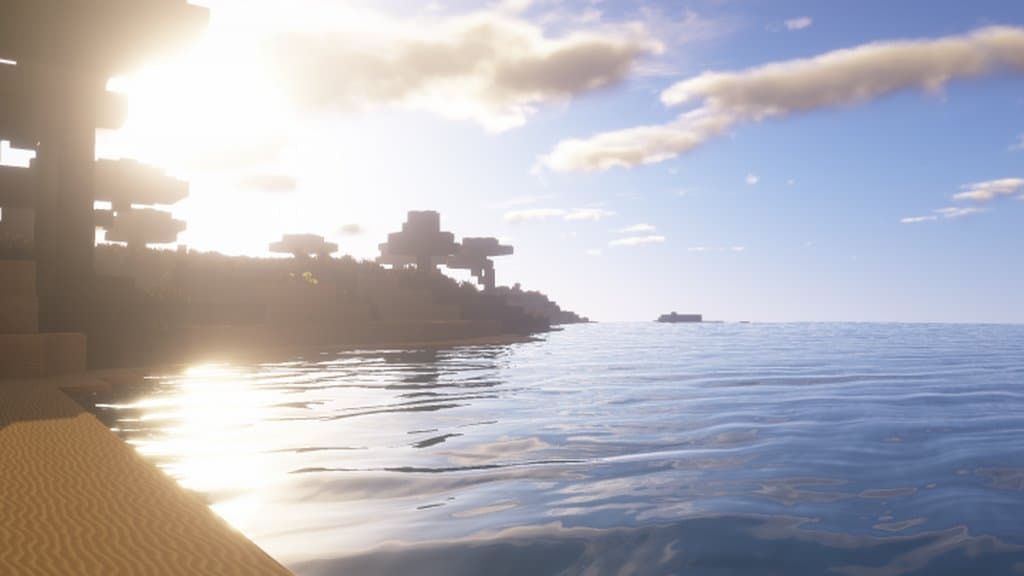
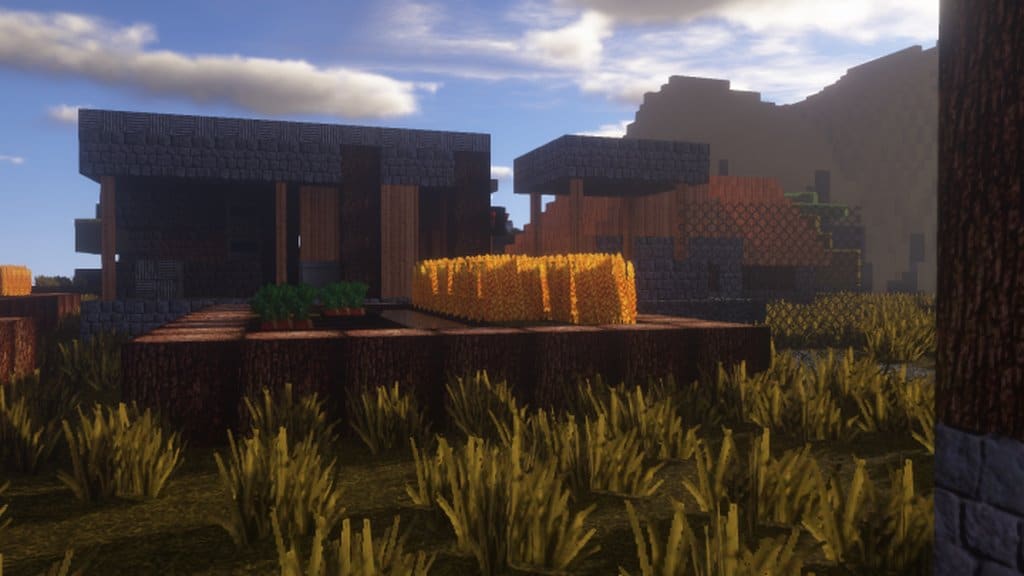
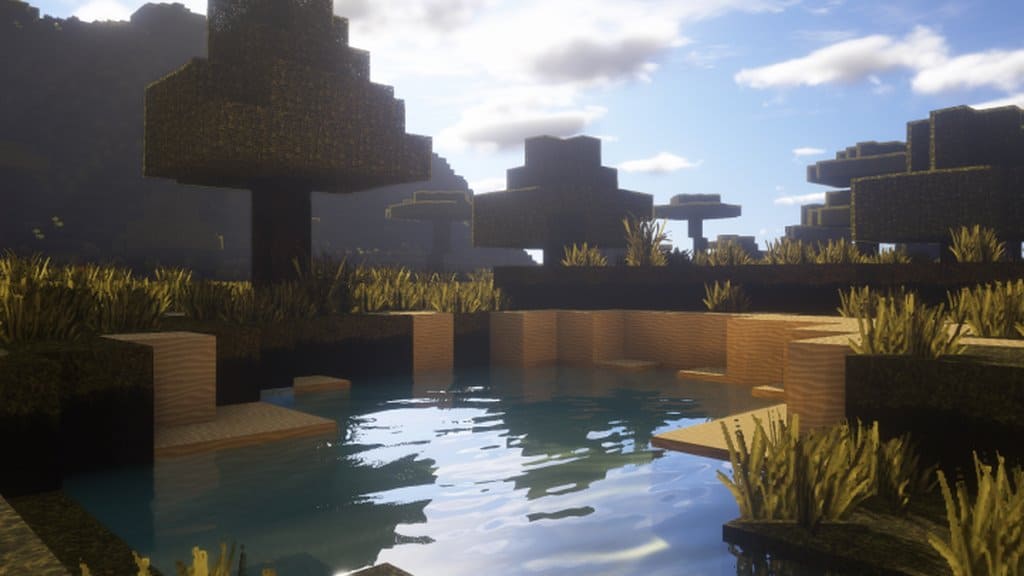
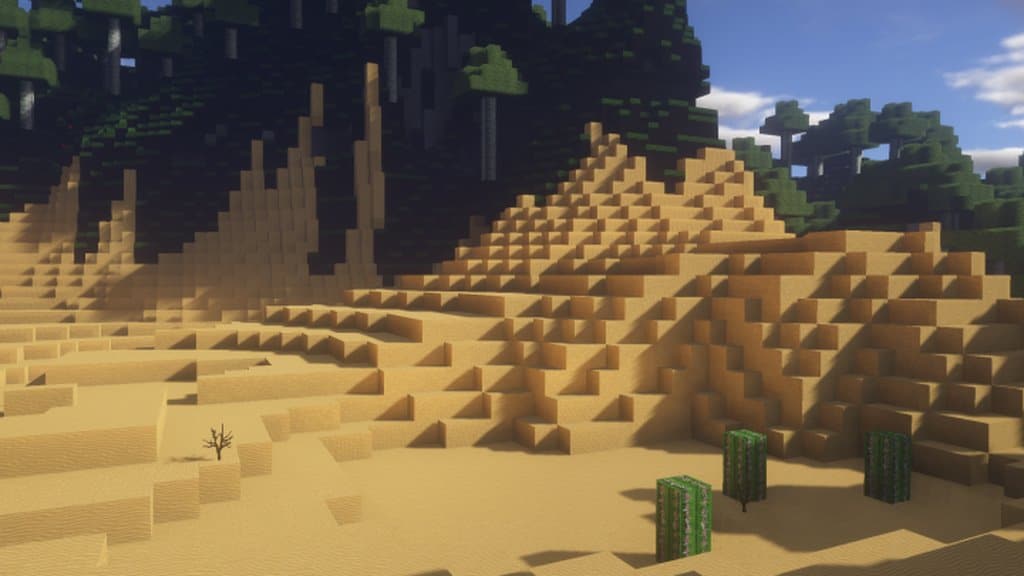
How to Install Texture Pack (Simple 10 Steps)
- Download OptiFine: Most of the texture packs and shaders need OptiFine. That’s why, first download and install OptiFine for the version of Minecraft you want to play.
- Download the Texture Pack: Get the texture pack you want from the download section. Choose the version that works with your Minecraft and your PC’s performance.
- Open Minecraft Launcher: Start Minecraft using the official game launcher — or even TLauncher, if you use that.
- Go to Options: From the main menu, click on the “Options” button.
- Open Resource Packs: Inside Options, click on “Resource Packs…”.
- Open the Resource Pack Folder: Click on “Open Resource Pack Folder” — this will open a folder named “resourcepacks”.
- Move the Pack File: Copy or move the .zip file you downloaded into that “resourcepacks” folder. (Don’t unzip the file — Minecraft uses it as-is!)
- Go Back and Refresh: Close the folder and click “Done”, then go back into “Resource Packs…” again.
- Activate the Pack: You’ll see the pack on the left side. Hover over it and click the arrow to move it to the right (active side).
Tip: If you get a message that the pack is for a different version, just click “Yes” — it usually works fine. - Click Done and Enjoy: Click “Done” again. Now your pack is ready to use in-game. It’s that easy!
Credits
This resource pack was originally created by Carriebestie and Paolla. We do not claim ownership of this modification, nor do we host any modified files on our servers. All rights and intellectual property remain with the original authors. We highly encourage players to visit the official sources and support the creators for their incredible work.
Download Links
Java Edition
Download Instructions
Curseforge: download starts automatically after a few seconds;
Mediafire: click the big blue button with the text “DOWNLOAD”;
Google Drive: in the top right corner you will see a small download icon (down arrow), click it and the download should start;


