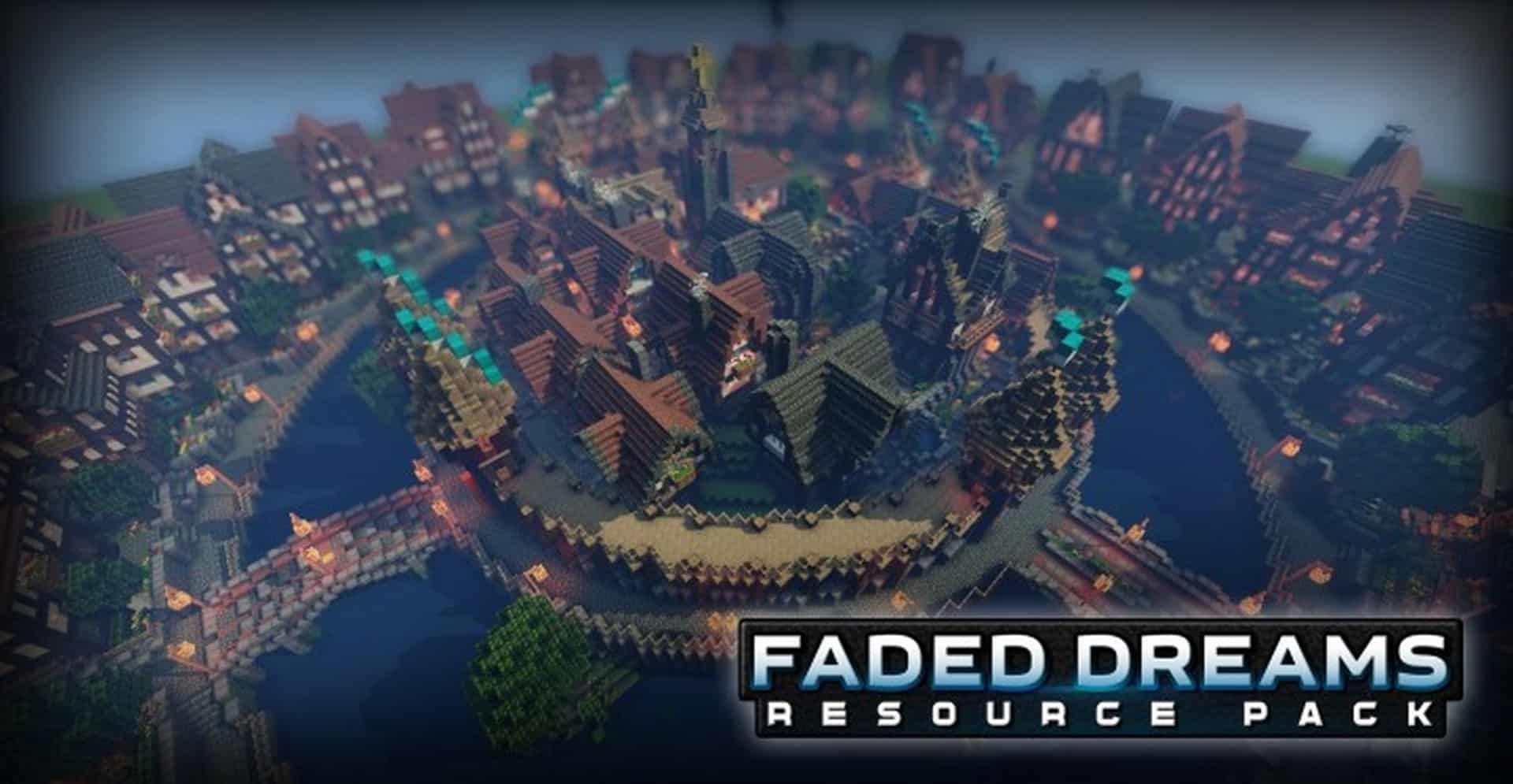
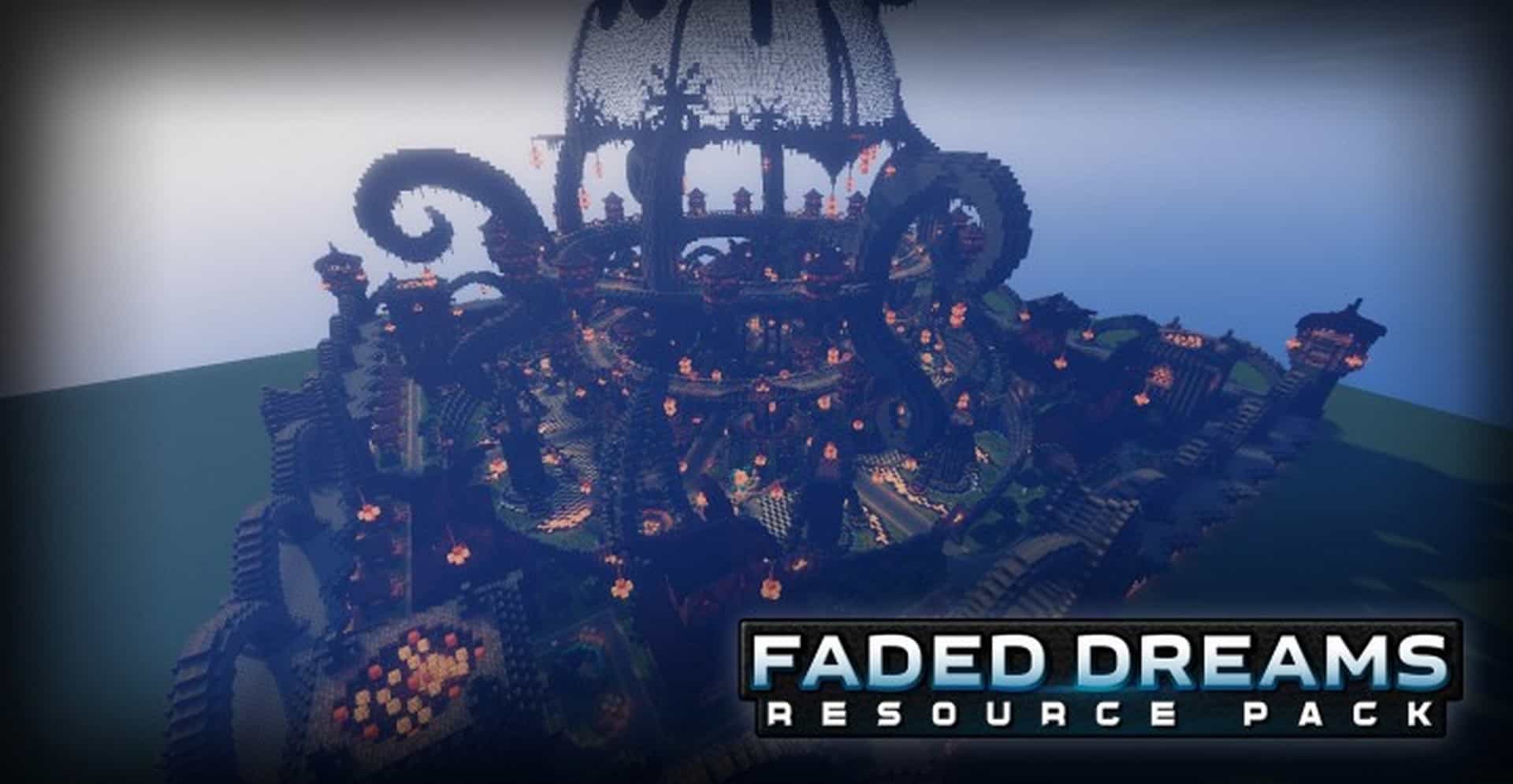
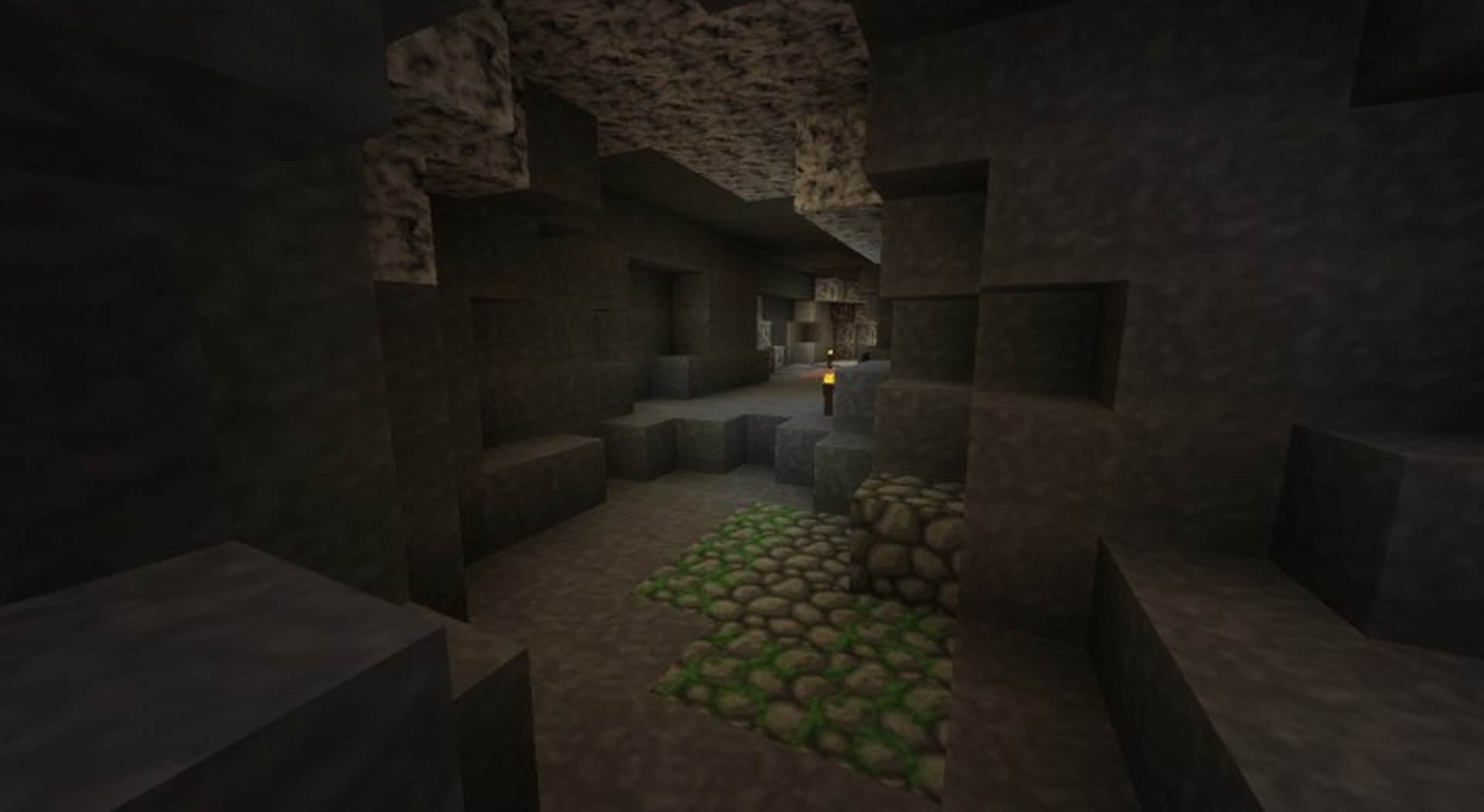
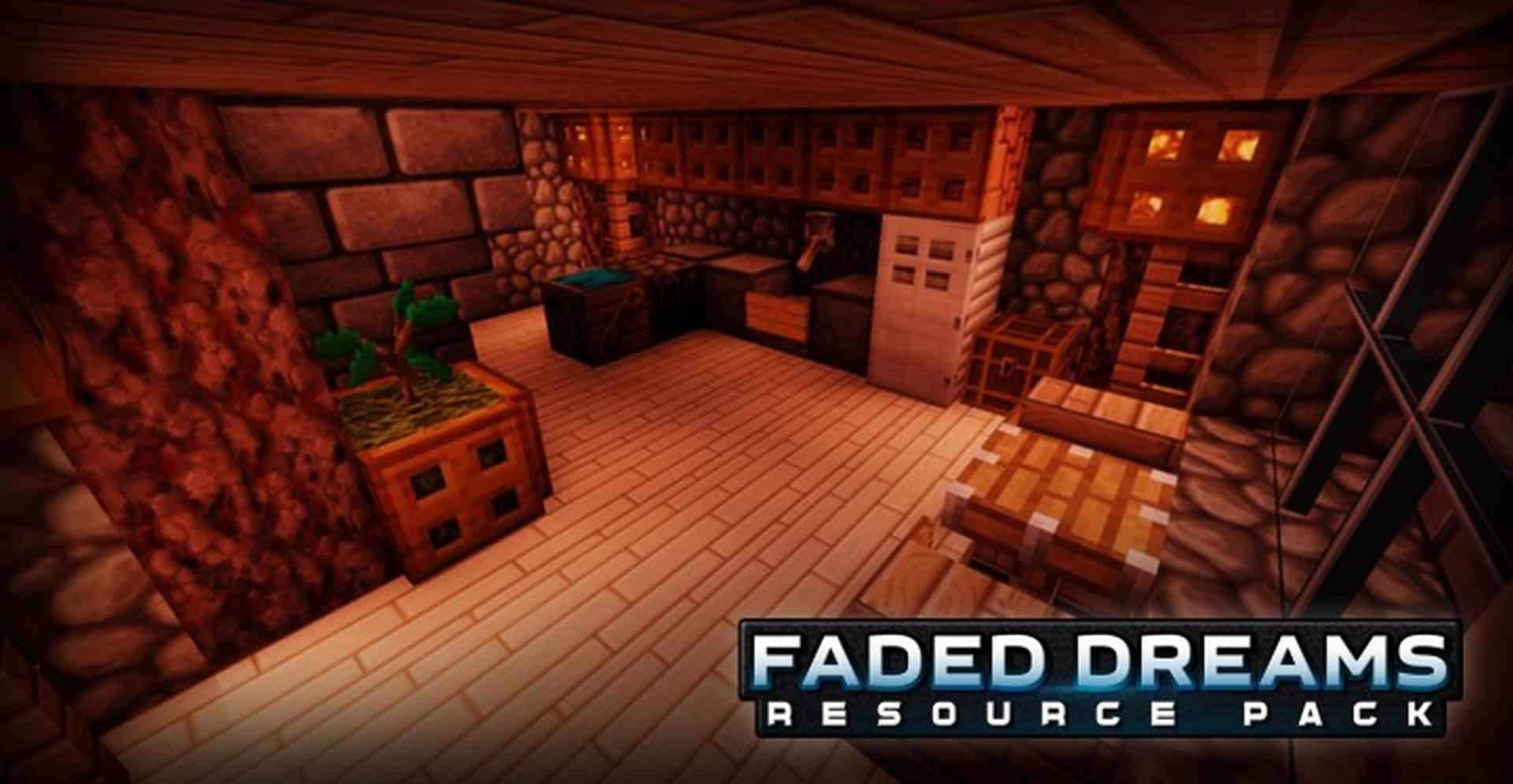
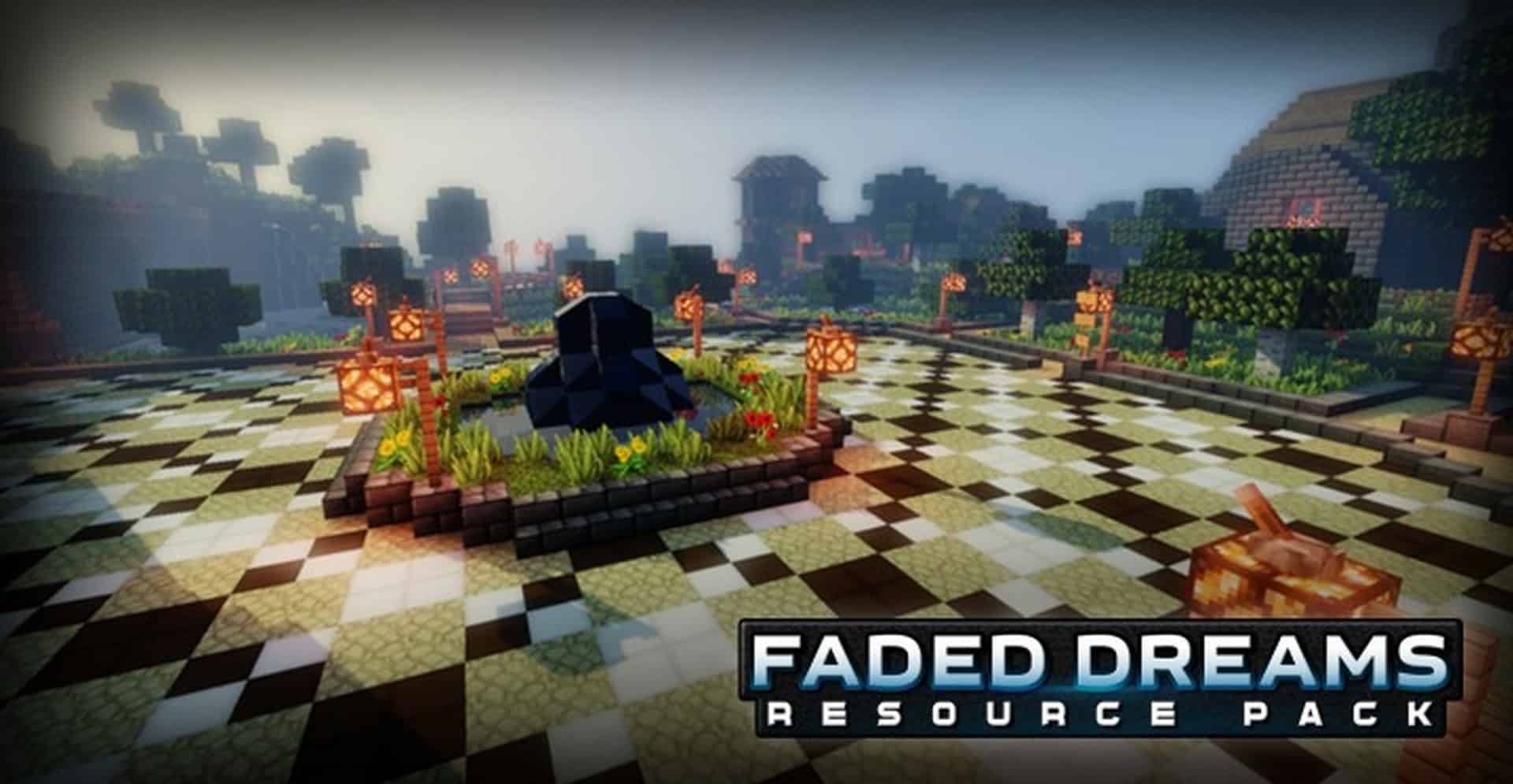
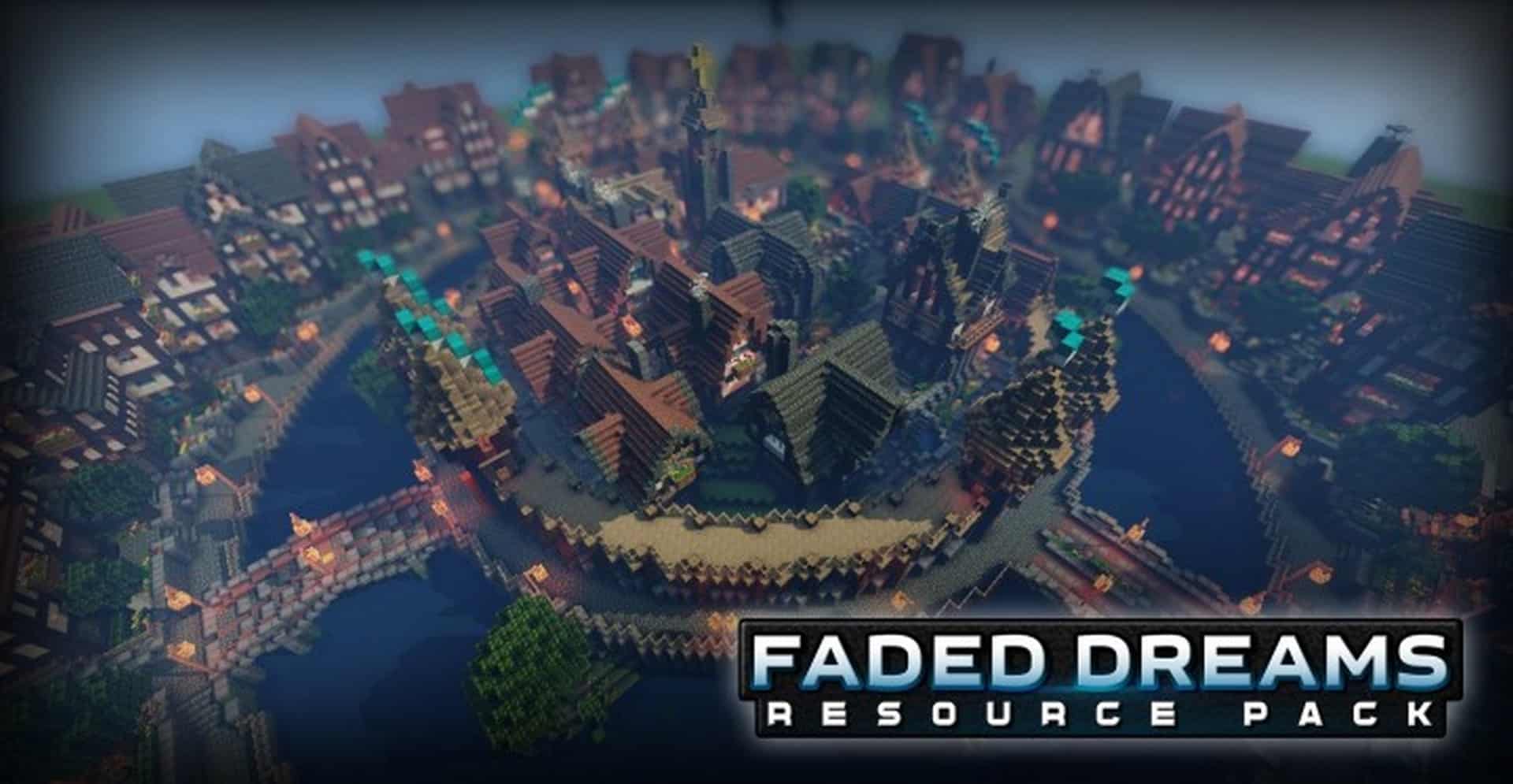
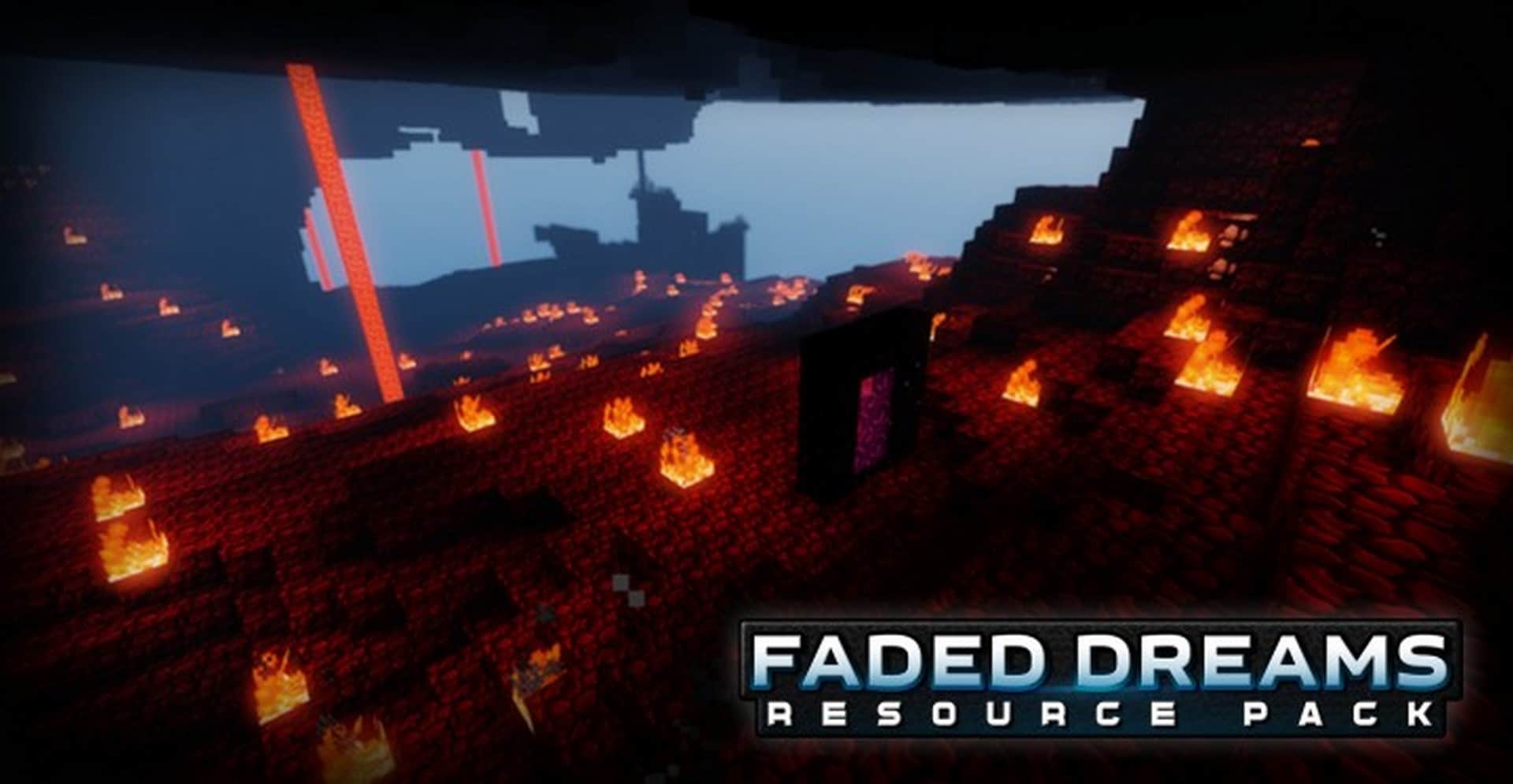
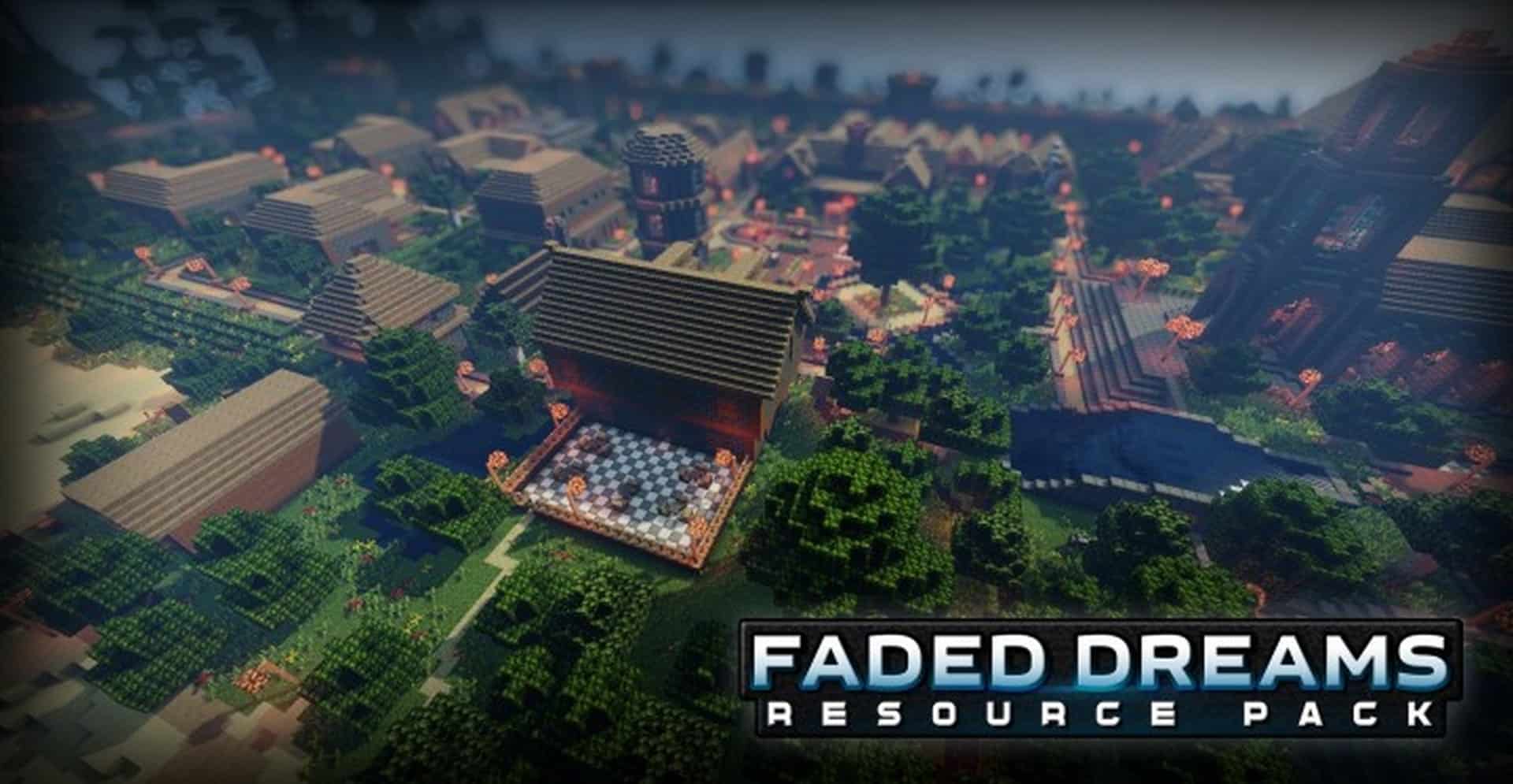
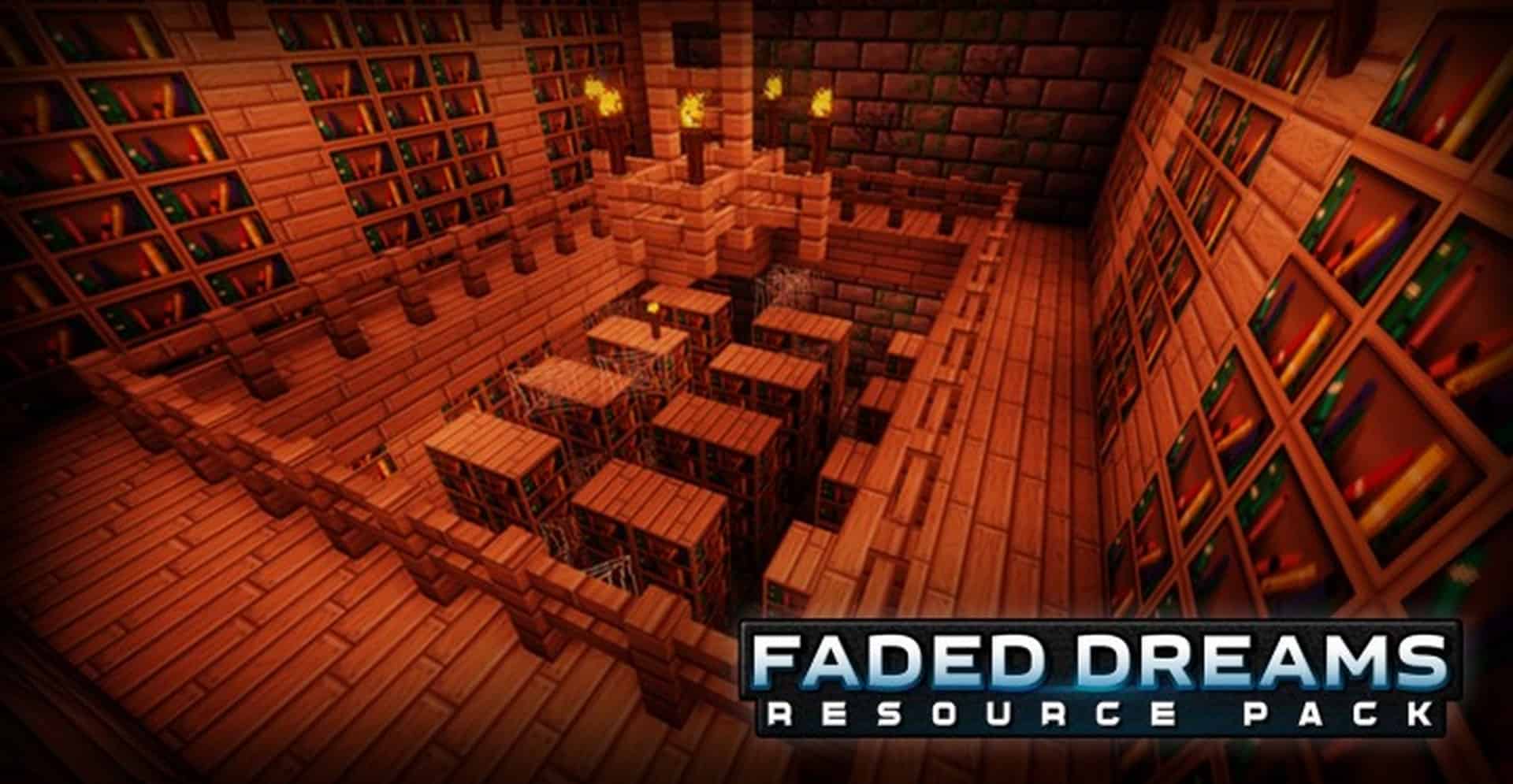
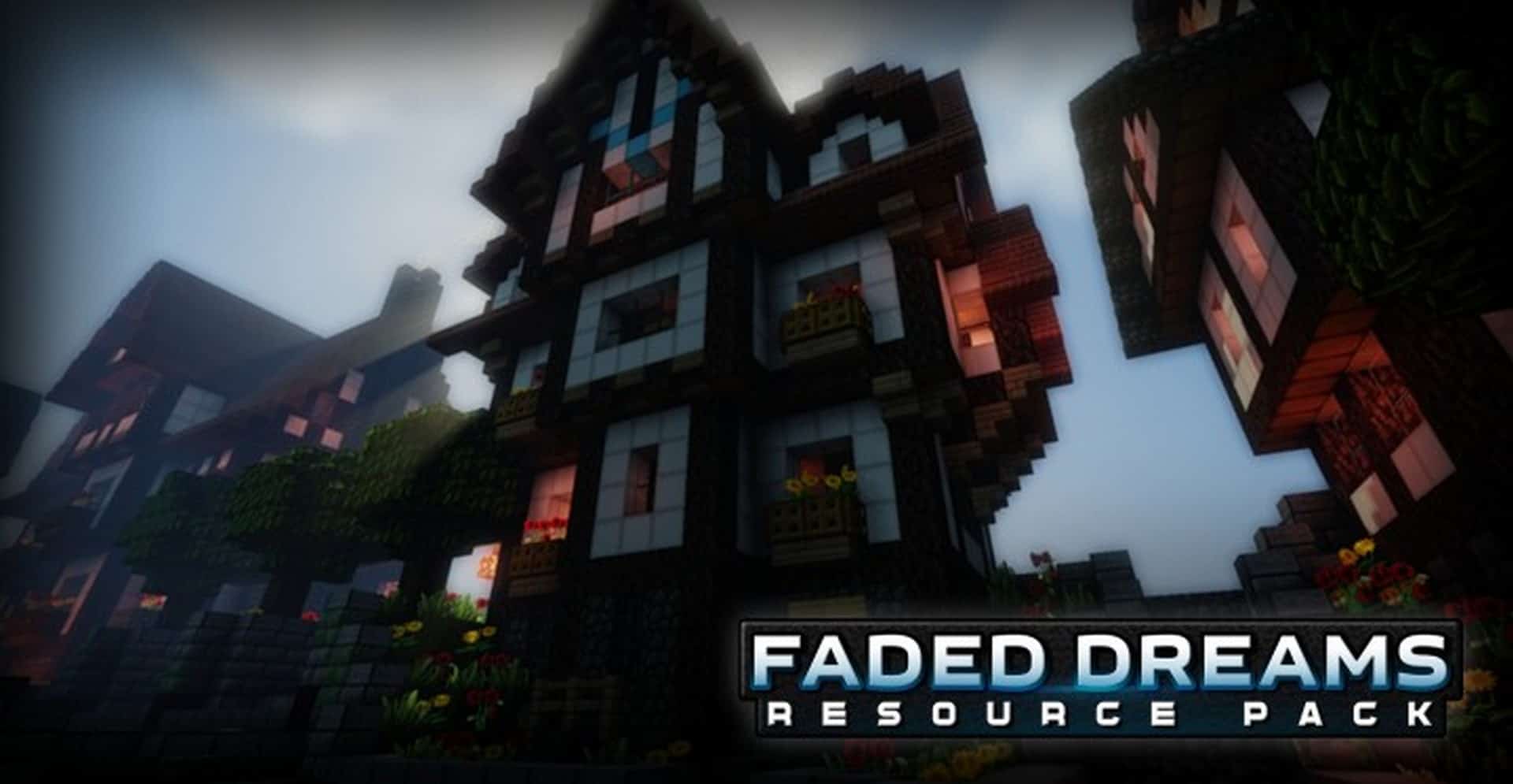
The Faded Dreams resource pack is an absolute classic among vanilla Minecraft resource packs. First launched back in 2015, this enduring favorite still holds up remarkably well today. The original creator set out to deliver a simple yet wonderfully refreshing pack by introducing several thoughtful changes to elevate vanilla Minecraft’s visuals. Even though many players genuinely love the original look of Minecraft, Faded Dreams serves as a fantastic alternative for anyone craving a neat visual upgrade. Right away, you will notice that the developer bumped up the texture resolution. Standard Minecraft relies on basic 16x textures, whereas Faded Dreams steps it up with crisp 64x textures. This pixel increase translates directly into richer details and noticeably higher fidelity. Naturally, stepping up the resolution also brought along brand-new textures for grass, leaves, trees, wood, sand, dirt, ores, and a whole lot more.
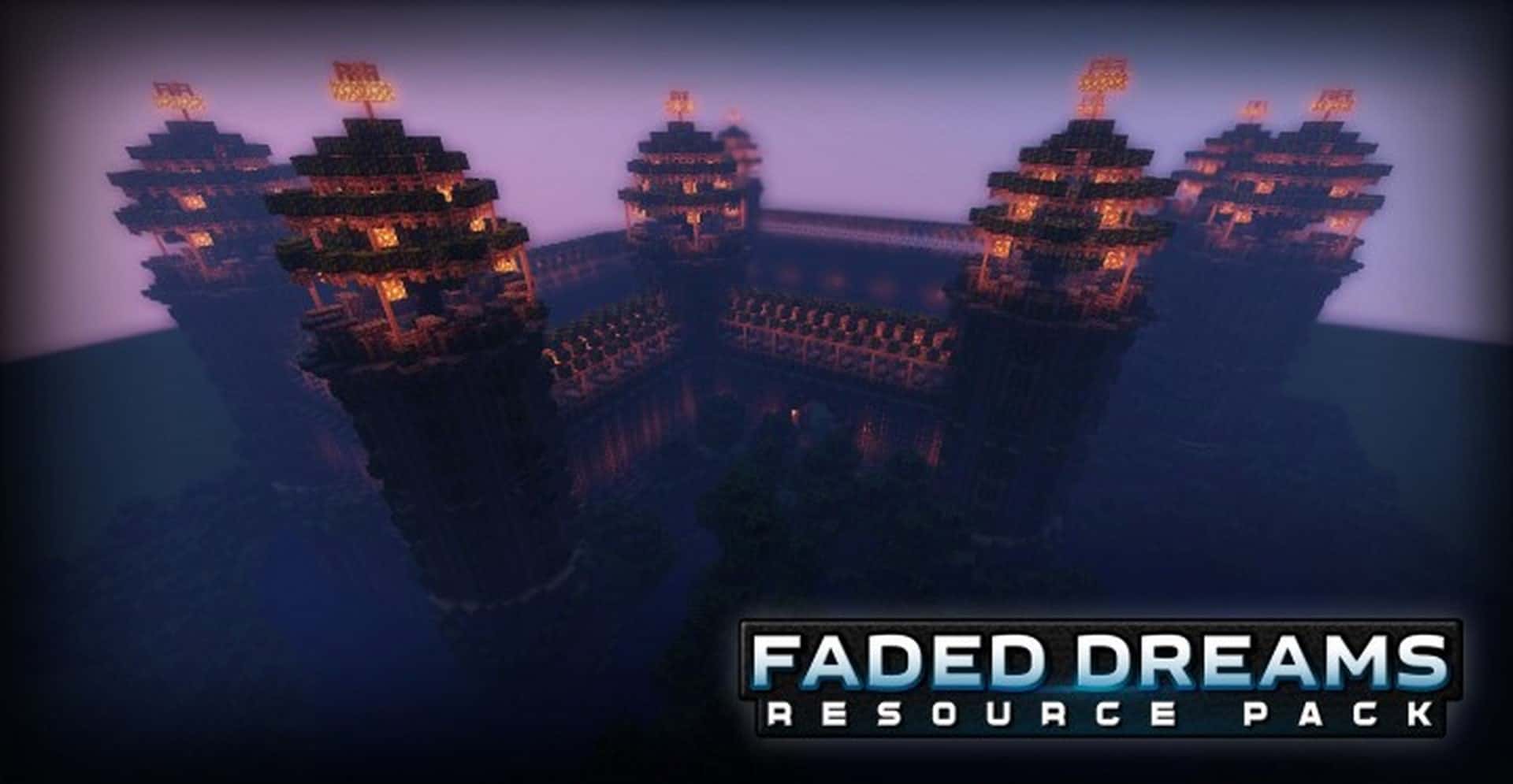
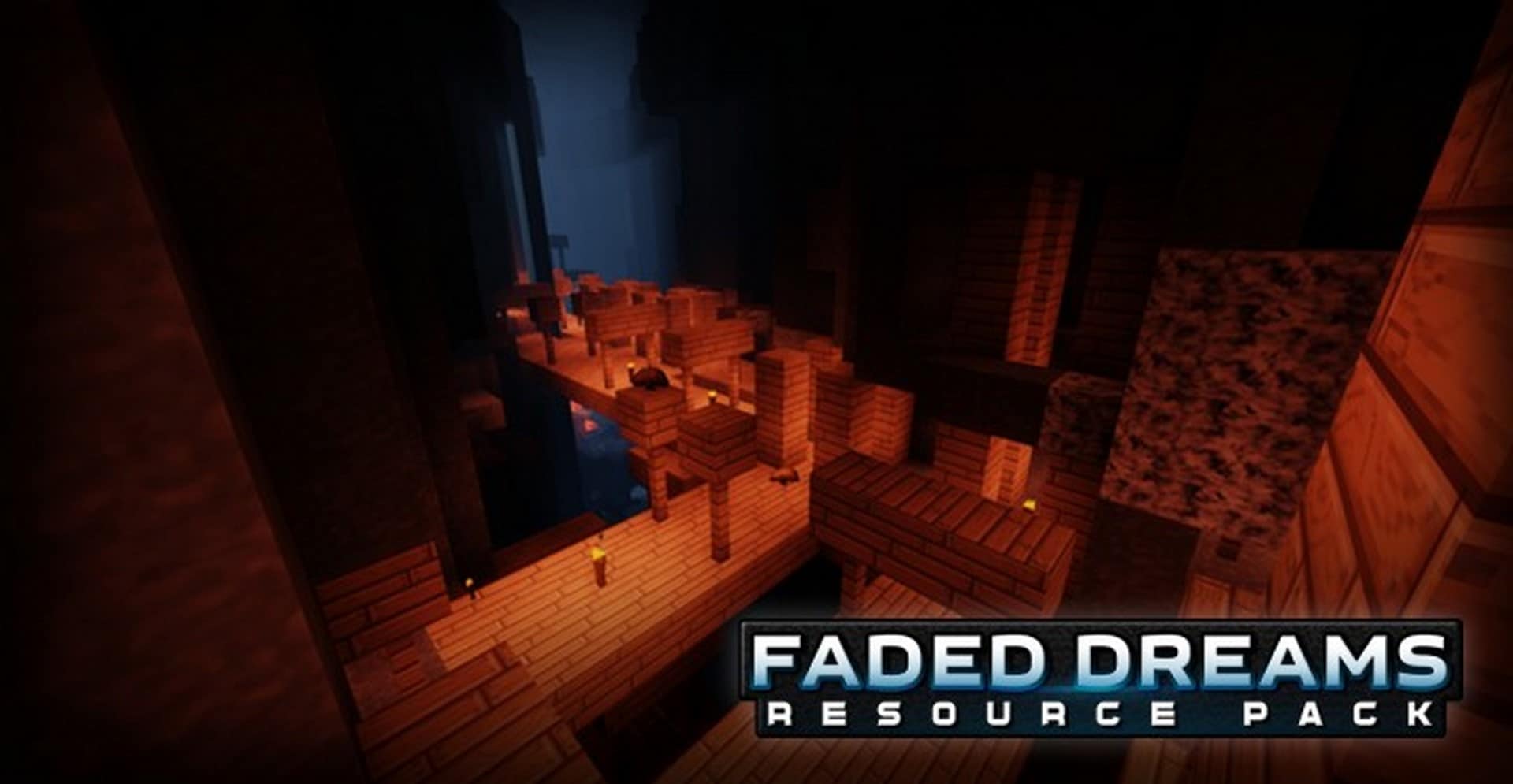
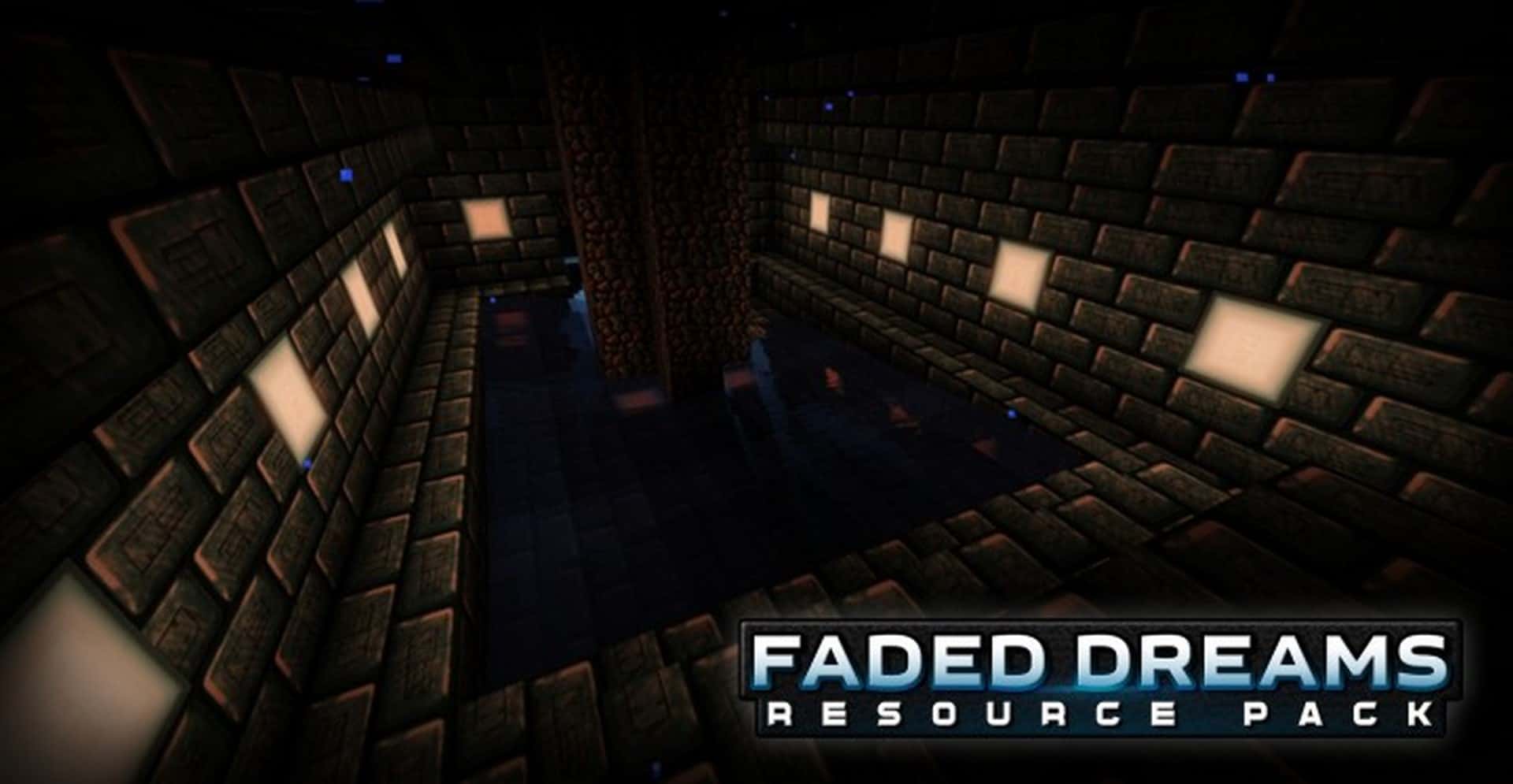
It also introduces gorgeous new water textures alongside several brand-new blocks. While not every single texture in the game was swapped out, many of them received careful color adjustments and extra detailing. On top of that, the resource pack goes the extra mile by replacing a selection of in-game sounds. Although sounds do not directly alter the graphics, they fit the aesthetic wonderfully and make a very welcome addition to vanilla Minecraft. The combination of fresh sounds, updated textures, and an atmospheric color palette lets you craft incredible worlds that perfectly capture medieval settings, grand castles, spooky dungeons, and classic villages. You can easily install Faded Dreams manually. Since it leaves sky textures untouched, it does not require special features usually provided by mods like MCPatcher or OptiFine, though both tools remain totally compatible if you prefer using them. Because Faded Dreams only swaps out existing textures and sticks to a 64x resolution, it does not noticeably drag down your framerates. PvP players can jump right in and enjoy it without stressing over performance hits.
Faded Dreams should be compatible with all of these Minecraft versions: 1.8.9 – 1.8.8 – 1.8.1 – 1.8.6 – 1.8 – 1.7.10 – 1.7.9 – 1.7.4 – 1.7
Screenshots


How to Install Texture Pack (Simple 10 Steps)
- Download OptiFine: Most of the texture packs and shaders need OptiFine. That’s why, first download and install OptiFine for the version of Minecraft you want to play.
- Download the Texture Pack: Get the texture pack you want from the download section. Choose the version that works with your Minecraft and your PC’s performance.
- Open Minecraft Launcher: Start Minecraft using the official game launcher — or even TLauncher, if you use that.
- Go to Options: From the main menu, click on the “Options” button.
- Open Resource Packs: Inside Options, click on “Resource Packs…”.
- Open the Resource Pack Folder: Click on “Open Resource Pack Folder” — this will open a folder named “resourcepacks”.
- Move the Pack File: Copy or move the .zip file you downloaded into that “resourcepacks” folder. (Don’t unzip the file — Minecraft uses it as-is!)
- Go Back and Refresh: Close the folder and click “Done”, then go back into “Resource Packs…” again.
- Activate the Pack: You’ll see the pack on the left side. Hover over it and click the arrow to move it to the right (active side).
Tip: If you get a message that the pack is for a different version, just click “Yes” — it usually works fine. - Click Done and Enjoy: Click “Done” again. Now your pack is ready to use in-game. It’s that easy!
Credits
This resource pack was originally created by Siyliss. We do not claim ownership of this modification, nor do we host altered files. All rights remain with the original creator. We strongly encourage you to support Siyliss and their work by downloading the pack from the official sources.
Download Instructions
Curseforge: download starts automatically after a few seconds;
Mediafire: click the big blue button with the text “DOWNLOAD”;
Google Drive: in the top right corner you will see a small download icon (down arrow), click it and the download should start;


