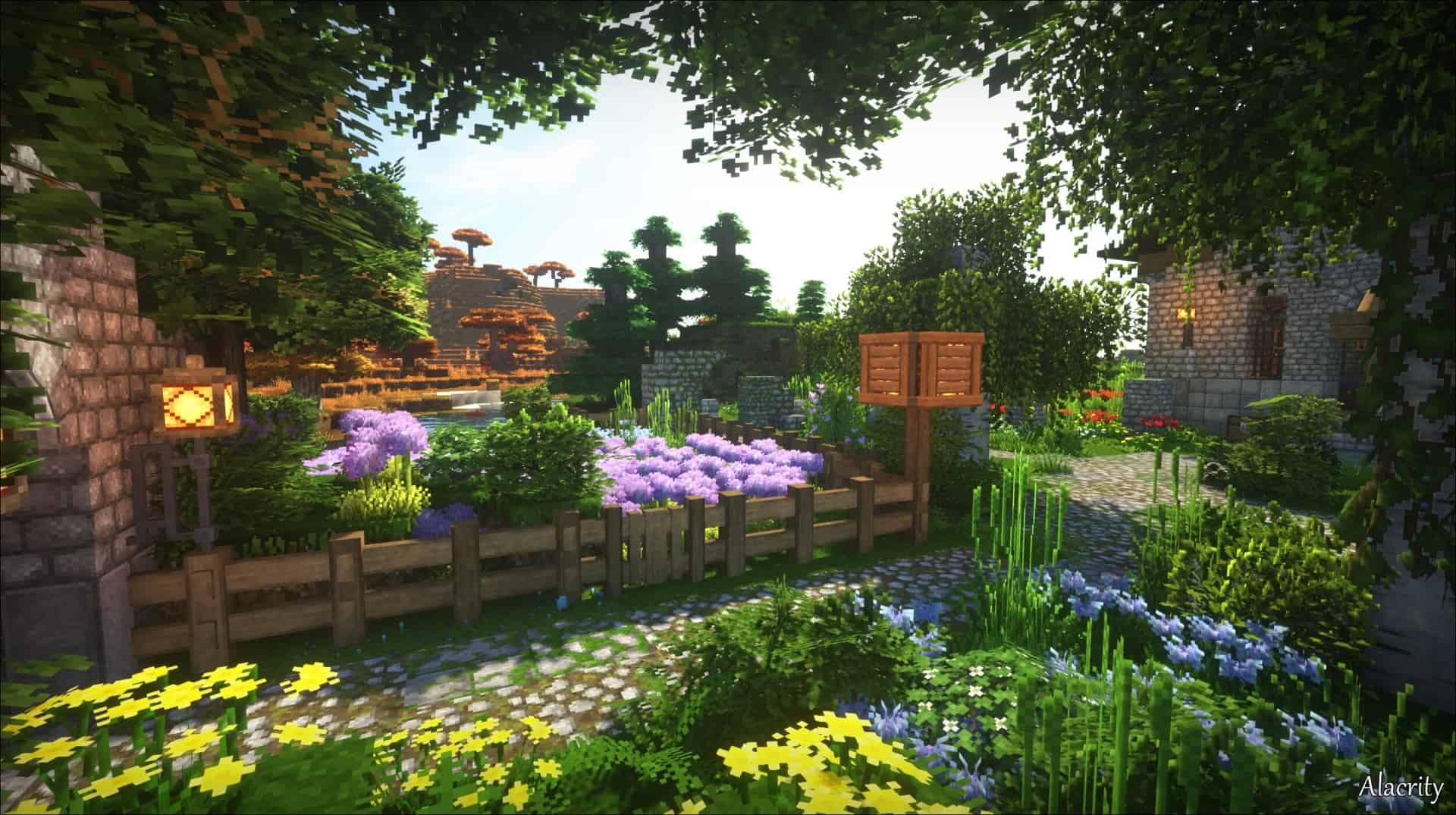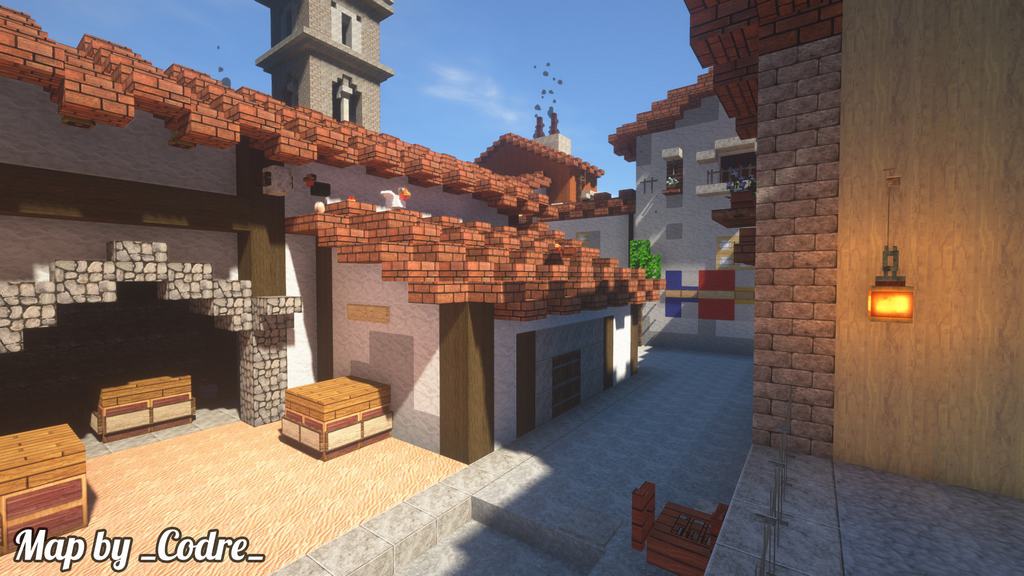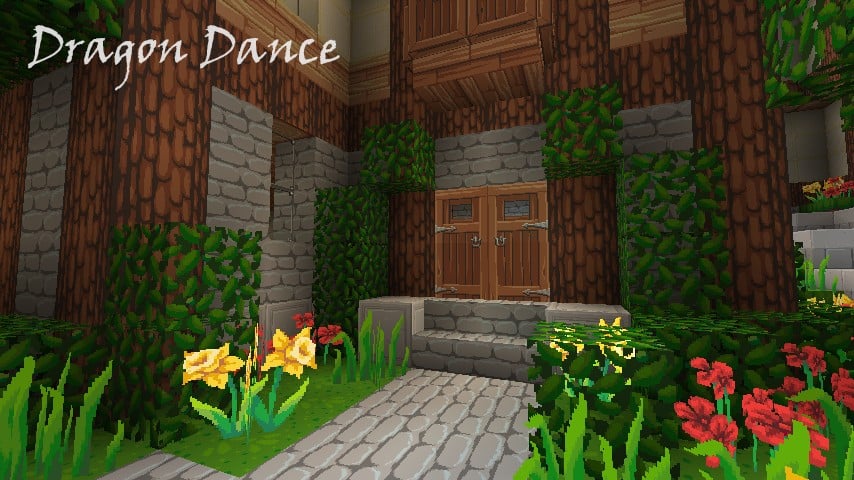
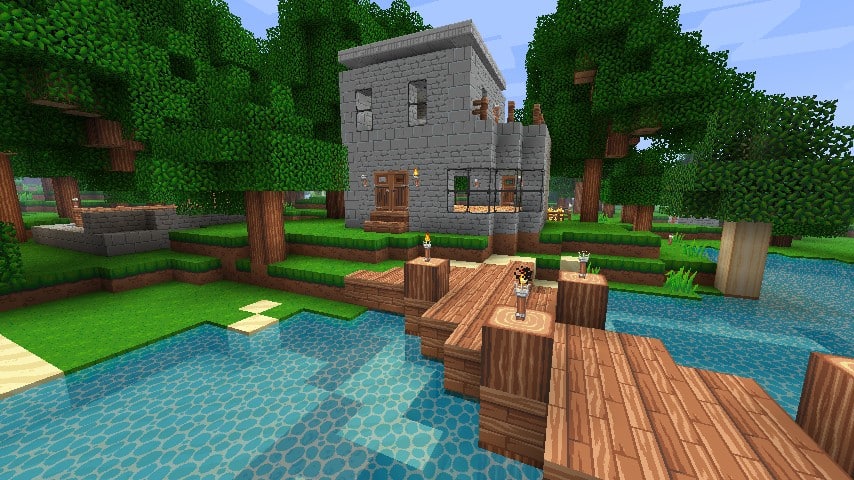
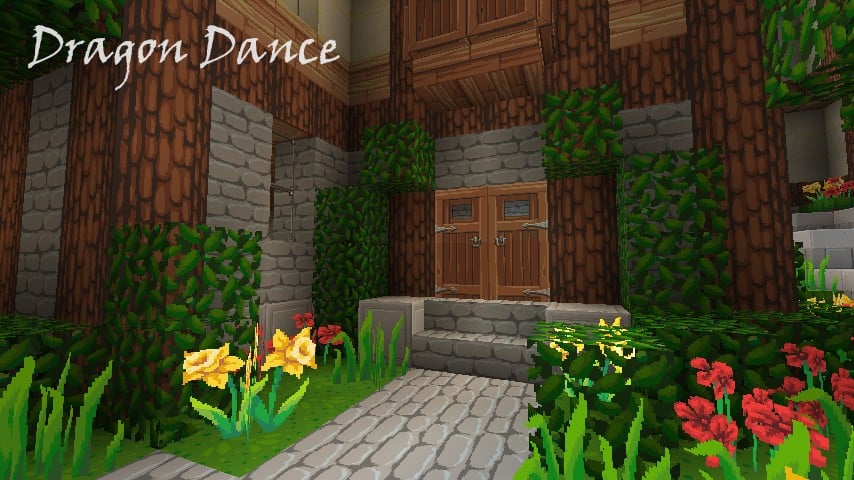
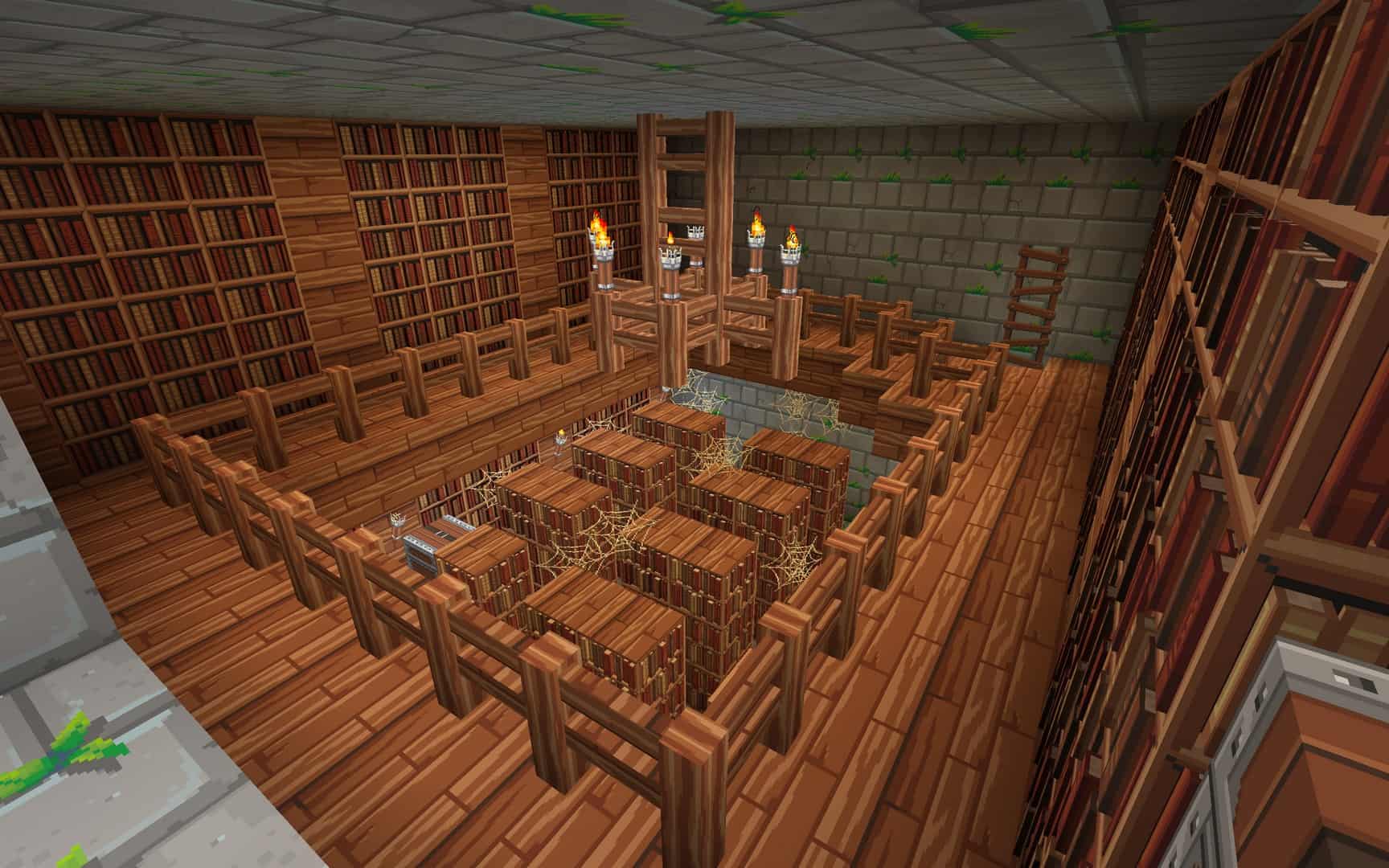
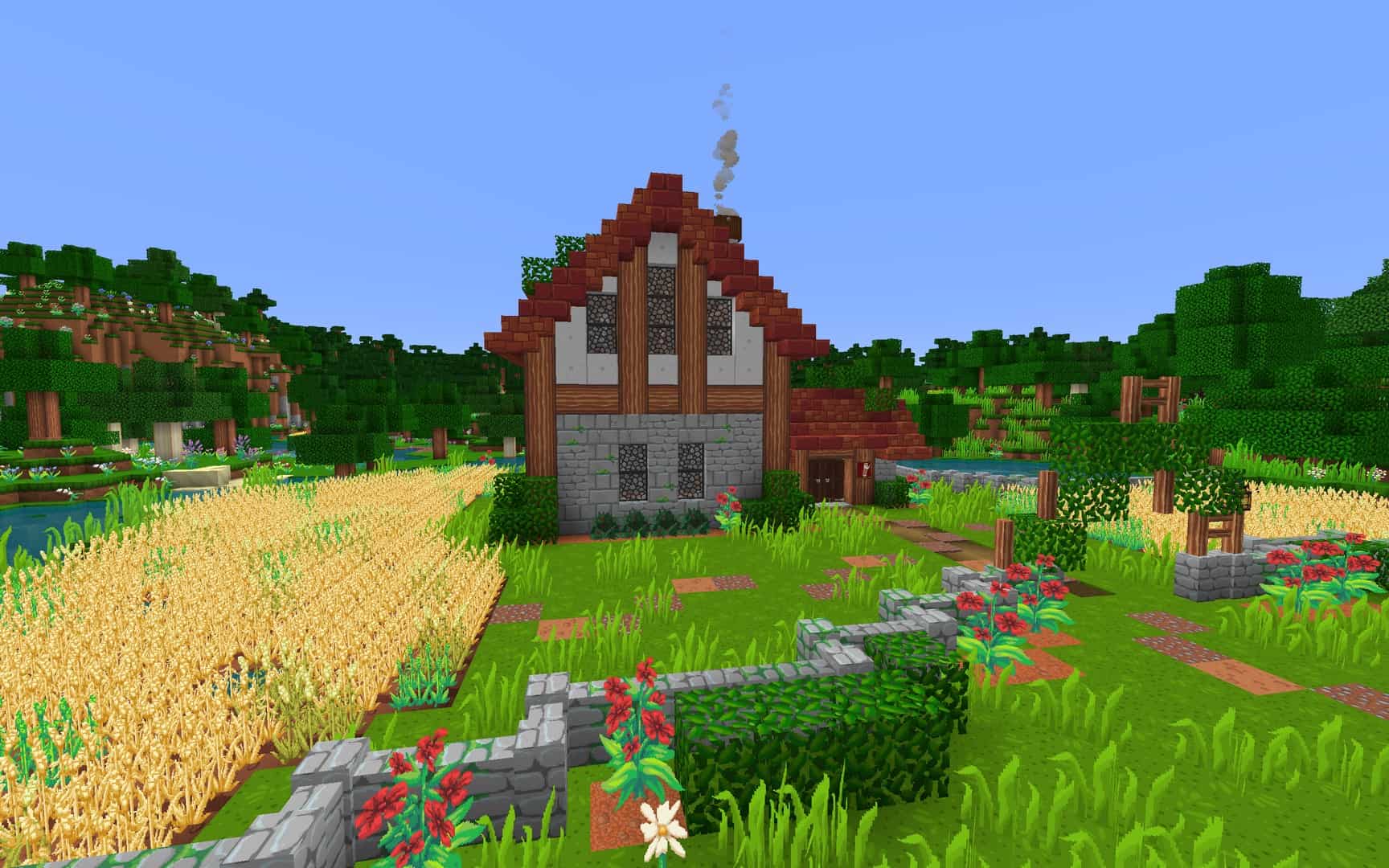
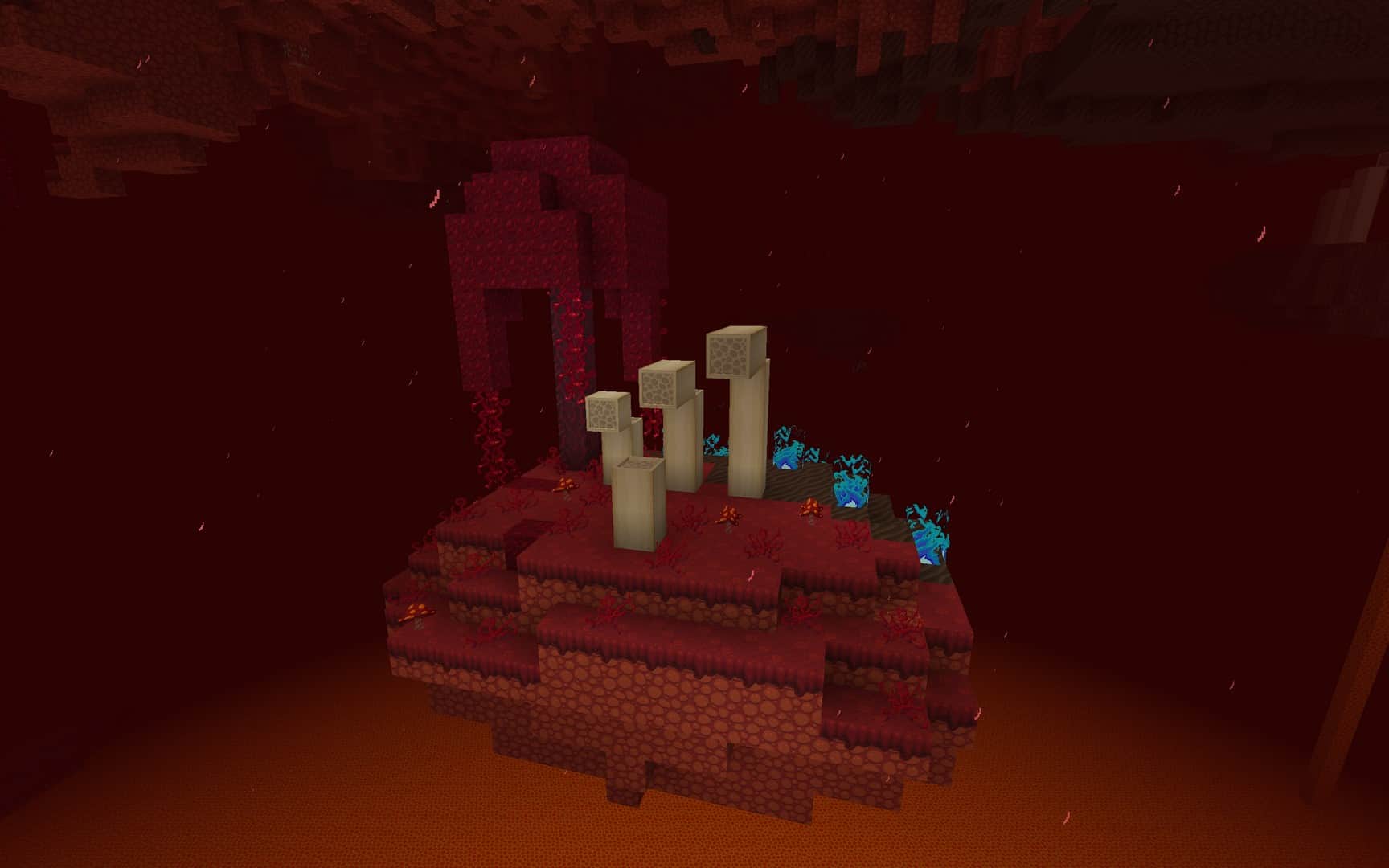
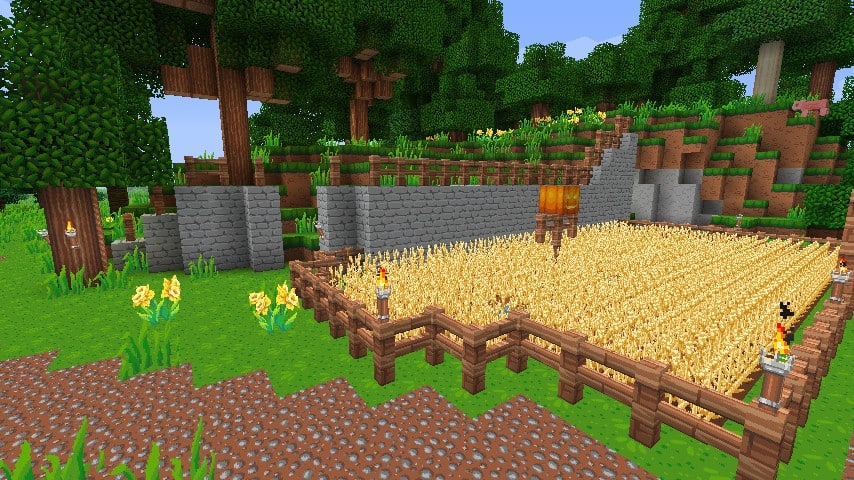
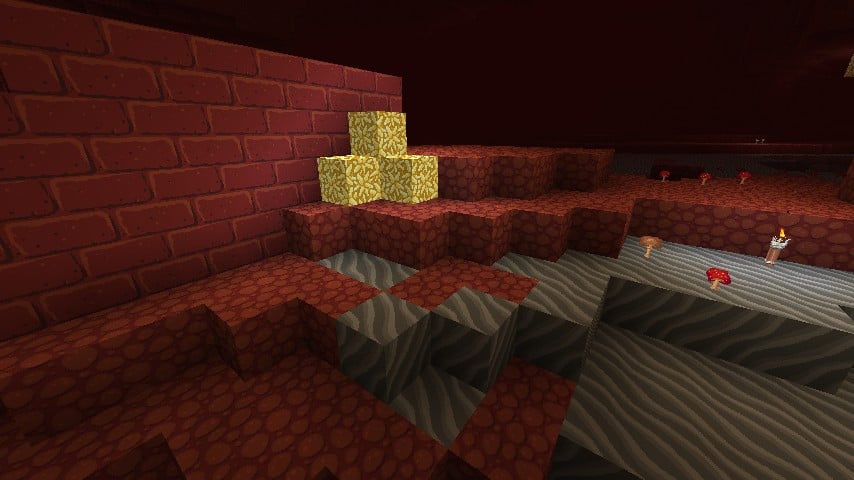
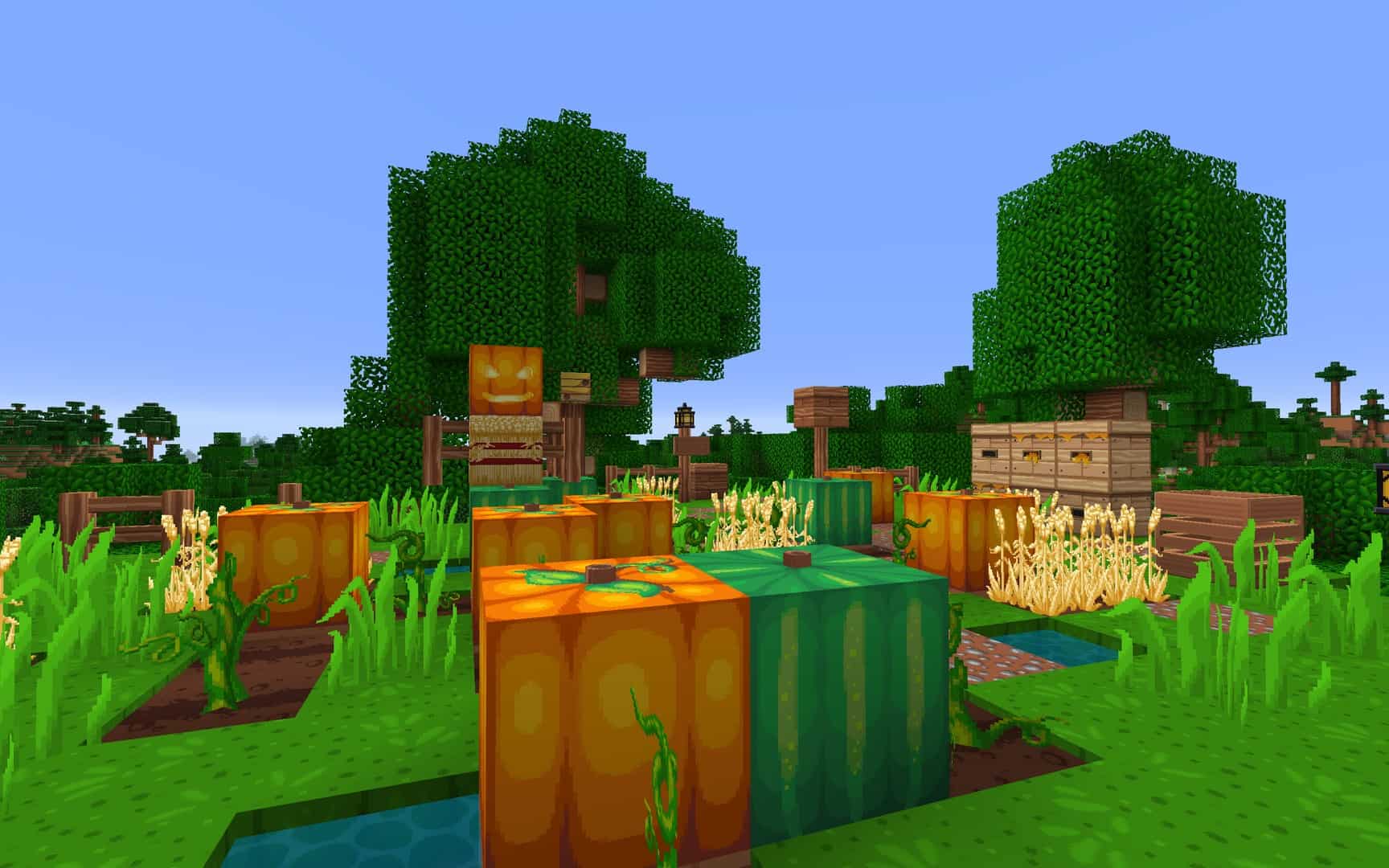
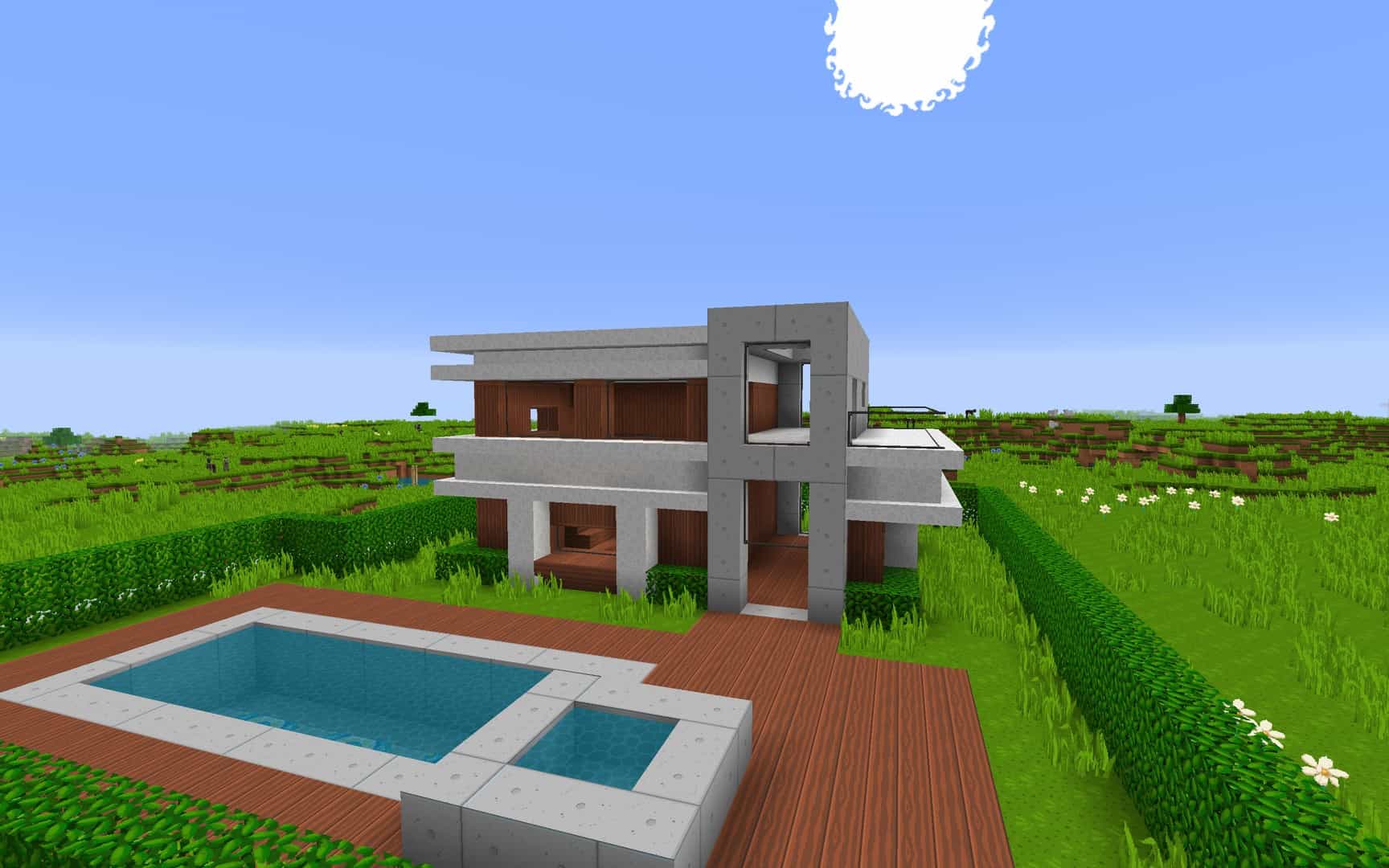
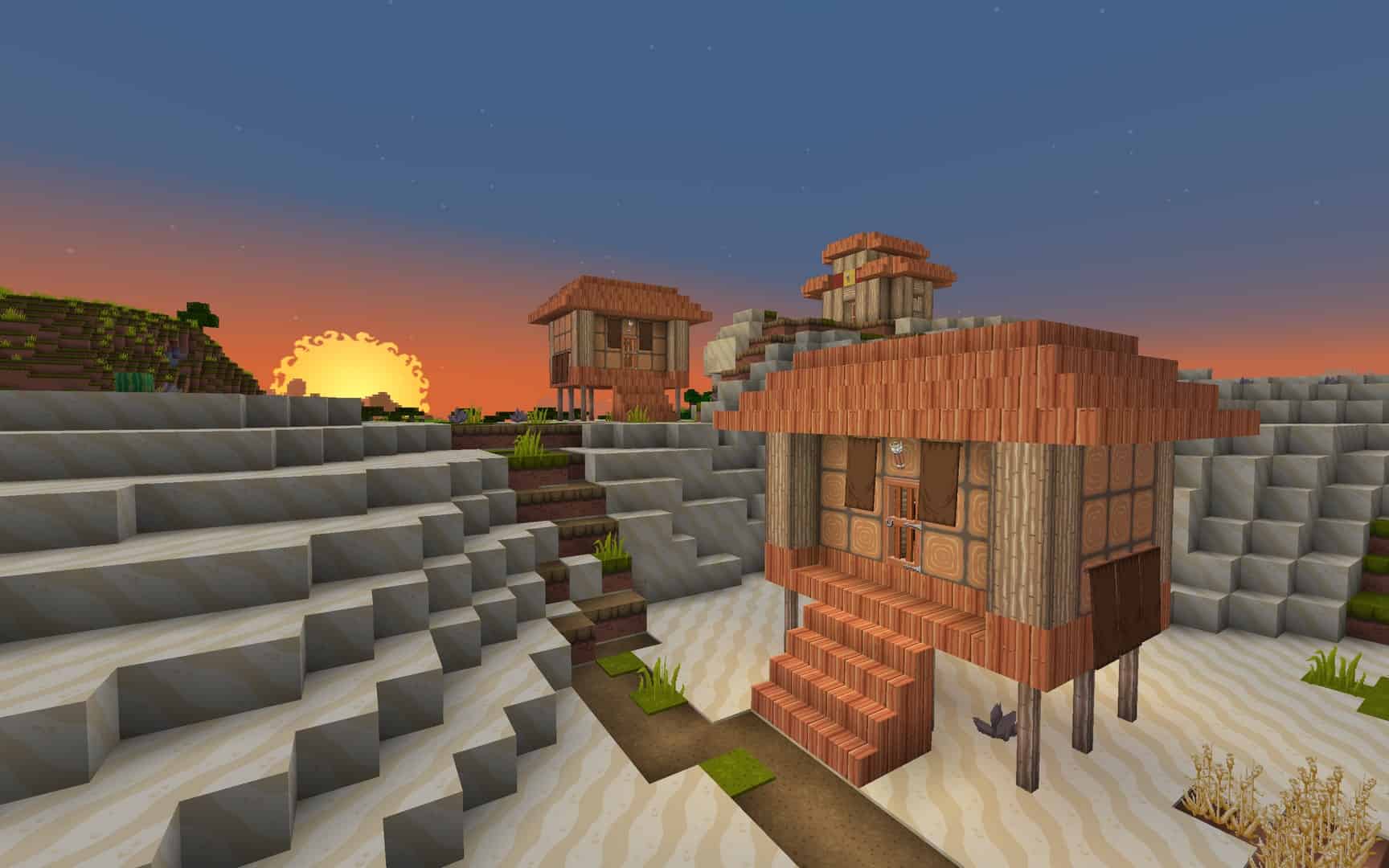
Transform your Minecraft world into a fantastical realm with the Dragon Dance resource pack! I tested it out and its vibrant textures and whimsical designs leave everything from dirt to diamonds feeling like a trip to Hyrule. Dragon Dance updates lots more than the Ender Dragon; it gives a new sheen to just about every texture you can think of. You won’t have to worry about this resource pack ruining your immersion either- the bright coloration blends together for a completely natural feel. No annoying pastels or unnatural colors will plague your experience with this resource pack.
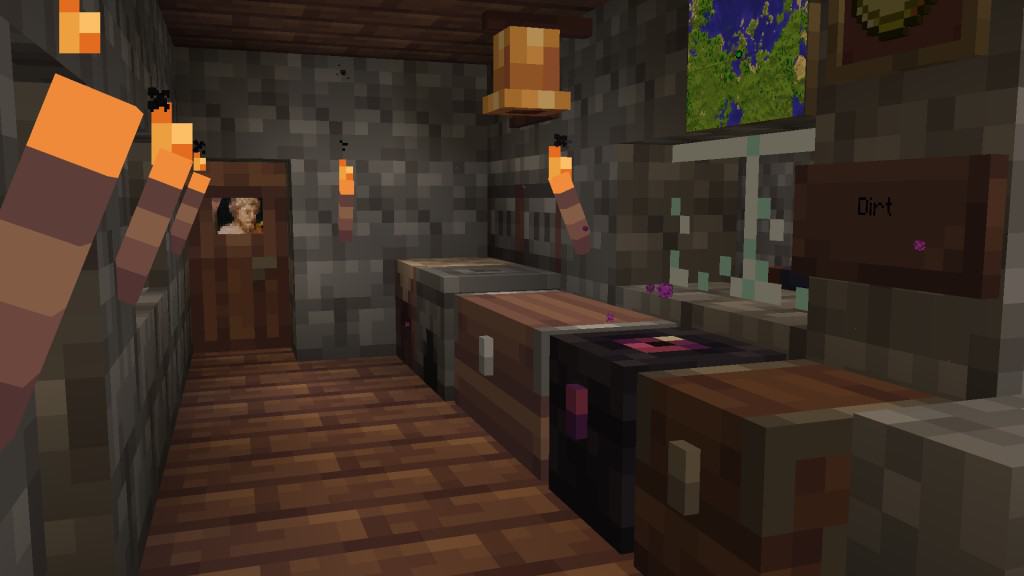
A 64x resolution gives Dragon Dance resource pack enough detail to suck you into your Minecraft world without turning it into a monster file. Every texture was carefully hand drawn down to the smallest details without the use of vectors or pre-existing textures. It even looks better than some higher resolution resource packs, a fact made clear as soon as you boot up your world. Because of the vibrancy of the colors, even underground, it is possible to go mining without torches or other sources of light, This keeps you from using up your valuable resources and, while some may consider it cheating, it offers more ways to play the game and makes it enjoyable for a wider audience. Dragon Dance supports many popular mods.
Dragon Dance should be compatible with all of these Minecraft versions: 1.17.1 – 1.17 – 1.16.5 – 1.16.4 – 1.16.3 – 1.16.2 – 1.16.1 – 1.16 – 1.15.2 – 1.15.1 – 1.15 – 1.14.4 – 1.14.3 – 1.14.2 – 1.14 – 1.13.2 – 1.13.1 – 1.13 – 1.8.9 – 1.8.8 – 1.8.1 – 1.8.6 – 1.8 – 1.7.10 – 1.7.9 – 1.7.4 – 1.7 – 1.6.4 – 1.6.2
Screenshots
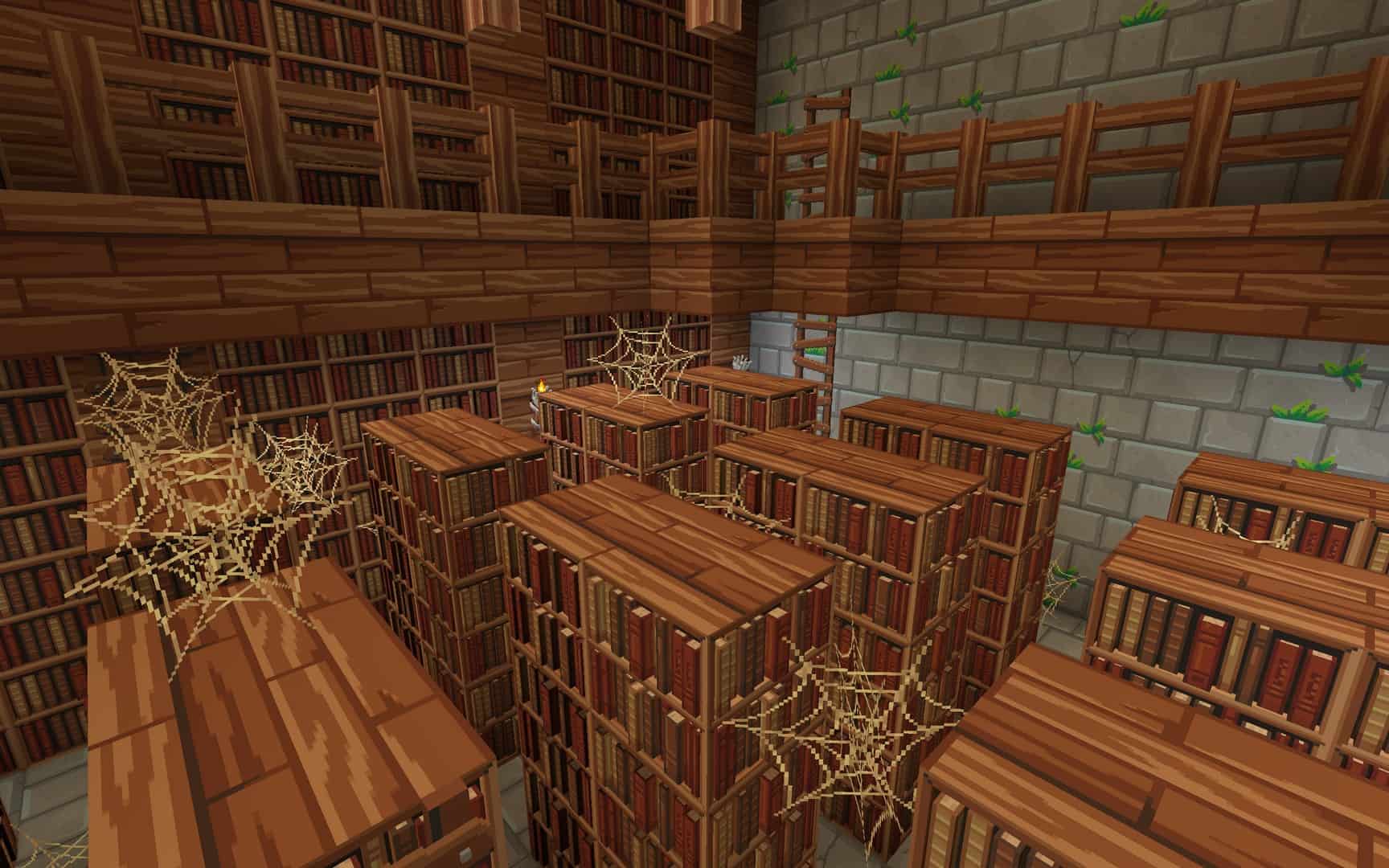
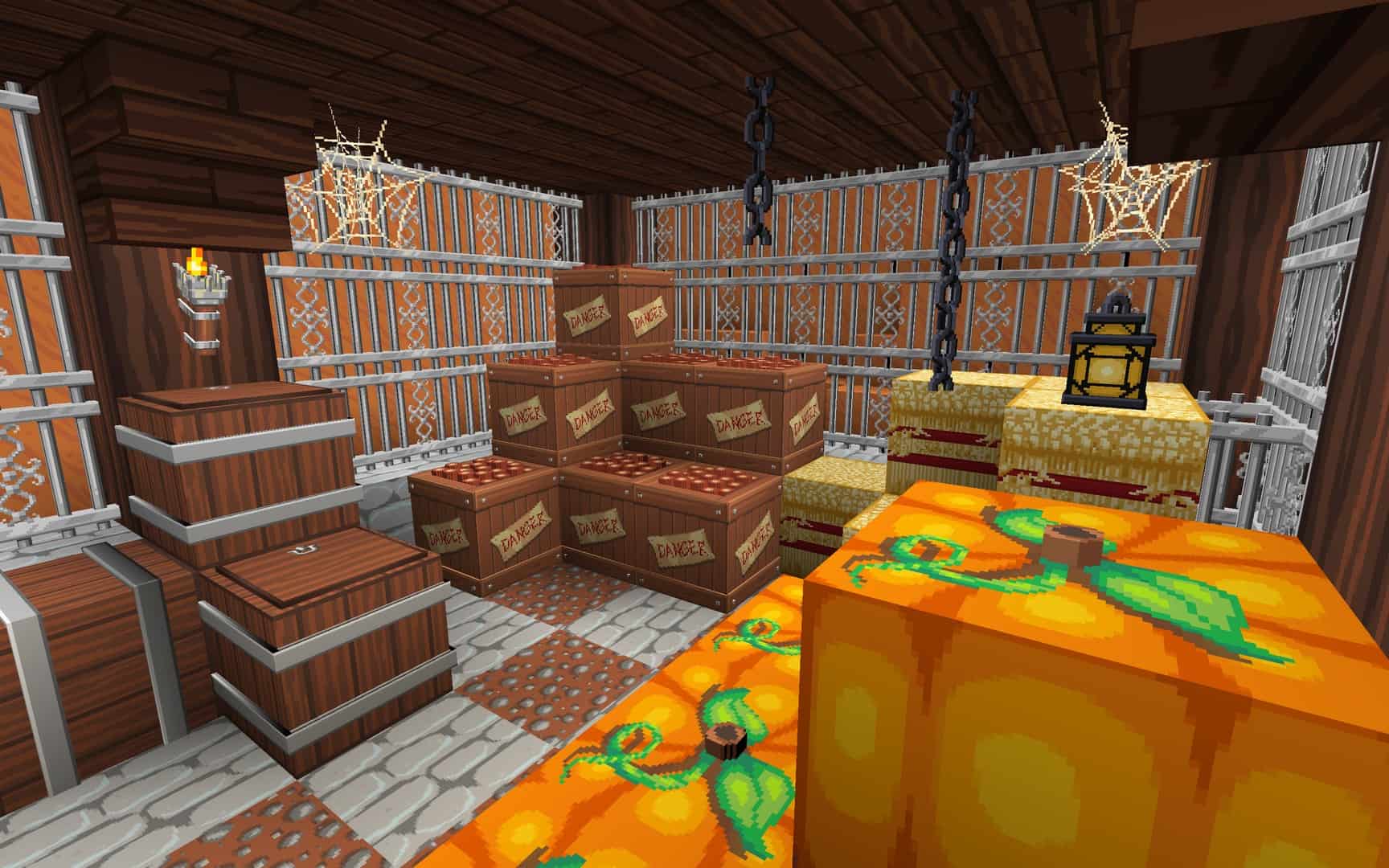
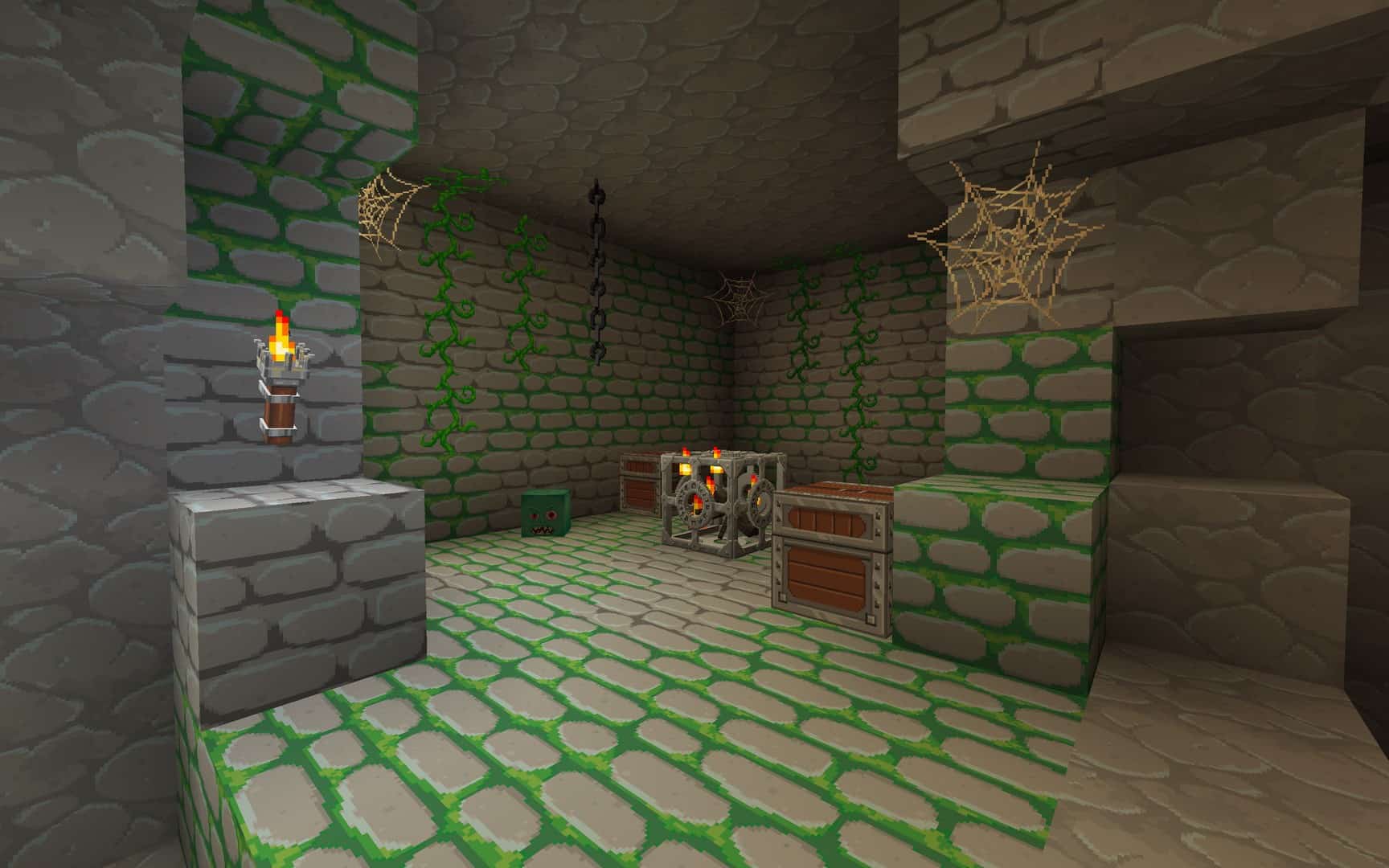
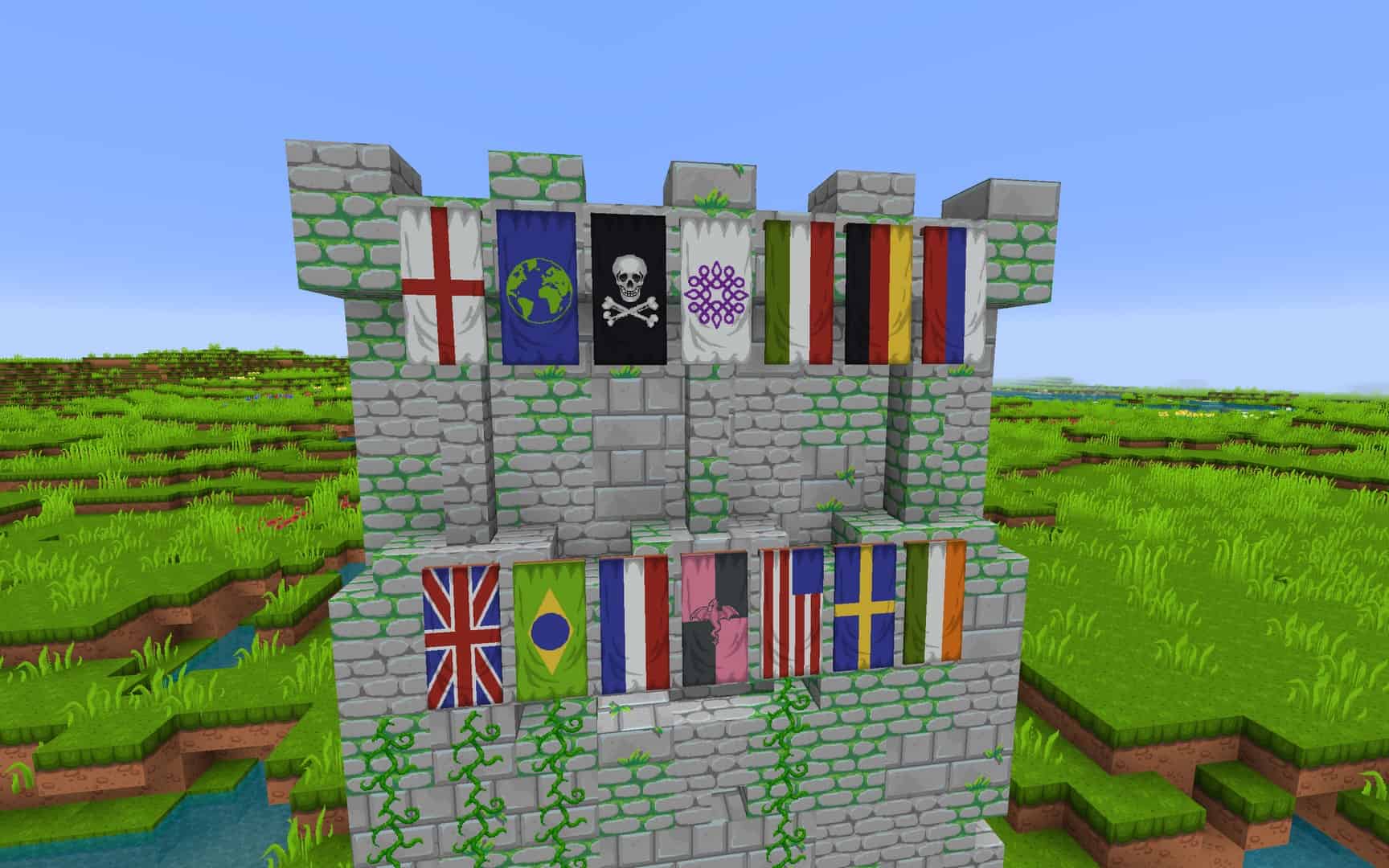
How to Install Texture Pack (Simple 10 Steps)
- Download OptiFine: Most of the texture packs and shaders need OptiFine. That’s why, first download and install OptiFine for the version of Minecraft you want to play.
- Download the Texture Pack: Get the texture pack you want from the download section. Choose the version that works with your Minecraft and your PC’s performance.
- Open Minecraft Launcher: Start Minecraft using the official game launcher — or even TLauncher, if you use that.
- Go to Options: From the main menu, click on the “Options” button.
- Open Resource Packs: Inside Options, click on “Resource Packs…”.
- Open the Resource Pack Folder: Click on “Open Resource Pack Folder” — this will open a folder named “resourcepacks”.
- Move the Pack File: Copy or move the .zip file you downloaded into that “resourcepacks” folder. (Don’t unzip the file — Minecraft uses it as-is!)
- Go Back and Refresh: Close the folder and click “Done”, then go back into “Resource Packs…” again.
- Activate the Pack: You’ll see the pack on the left side. Hover over it and click the arrow to move it to the right (active side).
Tip: If you get a message that the pack is for a different version, just click “Yes” — it usually works fine. - Click Done and Enjoy: Click “Done” again. Now your pack is ready to use in-game. It’s that easy!
Credits
This resource pack was originally created by Steelfeathers, Excederus, and fuazk. We do not own or modify this content. Please support the creators by downloading and using the pack from their official sources.
Download Links
Java Edition
Download Instructions
Curseforge: download starts automatically after a few seconds;
Mediafire: click the big blue button with the text “DOWNLOAD”;
Google Drive: in the top right corner you will see a small download icon (down arrow), click it and the download should start;