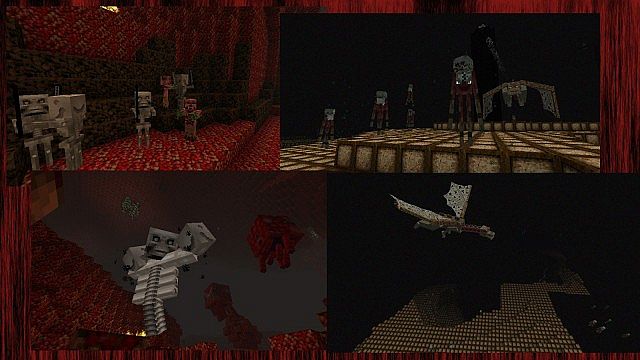
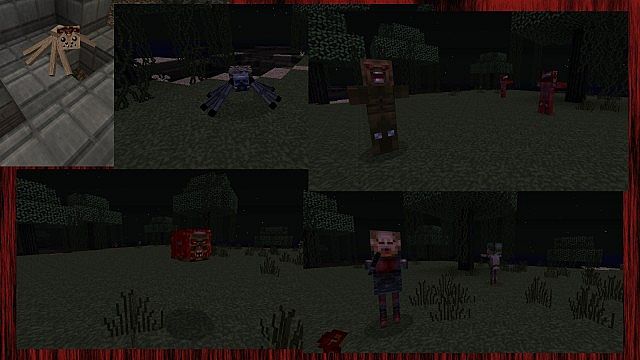
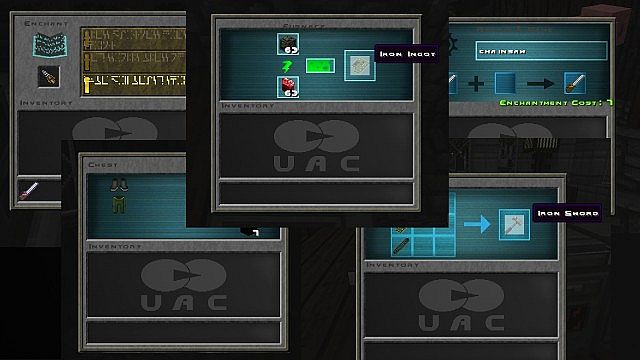
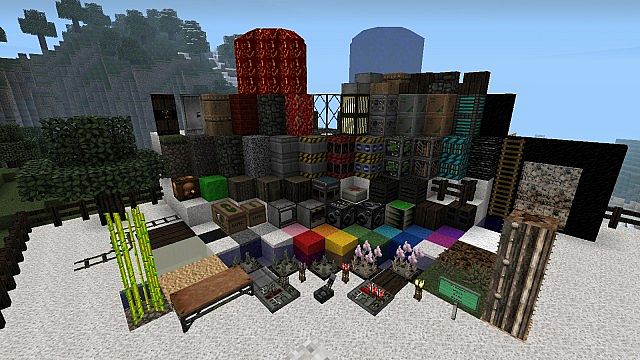
Hey everyone! If you are like me and grew up loving the iconic Doom franchise, you are going to be absolutely thrilled to bring that exact same intense familiarity straight into your favorite blocky world with the incredible Doom Craft resource pack. Years of dedicated attention to the Doom franchise have finally earned it a well-deserved spot in Minecraft, which is proudly where the Doom Craft resource pack got its name. Longtime fans of Doom will be beyond excited to experience a doom-themed world designed specifically for us Minecraft players. Even though this resource pack has been around for quite a while—just about seven years—it continues to delight players day after day and remains a perennial favorite, largely because the resource pack still receives regular updates. If you know the Doom franchise well, you will feel completely at home with the striking colors and designs packed into this collaborative resource pack, while newer players will surely be drawn right in by the dark, intriguing color palette that brilliantly refreshes your whole view.
As you explore, attentive players will definitely notice how closely the colors in this pack match an authentic Doom experience, and you are bound to enjoy everything this resource pack has to offer. For anyone more accustomed to a standard traditional Minecraft resource pack, trying out the Doom Craft resource pack will feel like a wonderfully refreshing change that completely elevates the gameplay. You will also spot amazing finer details in your textures while using the Doom Craft resource pack, because it features a crisp higher resolution of x32, which is a fantastic step up from the more standard x16 resolution resource packs. Keep in mind, though, that this extra detail might occasionally cause slight slowdowns in performance if your computer struggles with the heavier load. But for those whose setups can handle it, you are guaranteed to notice a massive improvement in overall visual quality as you appreciate the smoothness and striking appeal of this more demanding texturing resource pack.
Doom Craft should be compatible with all of these Minecraft versions: 1.14.4 – 1.14.3 – 1.14.2 – 1.14 – 1.13.2 – 1.13.1 – 1.13 – 1.12.2 – 1.12 – 1.11.2 – 1.11 – 1.10.2 – 1.10
Screenshots
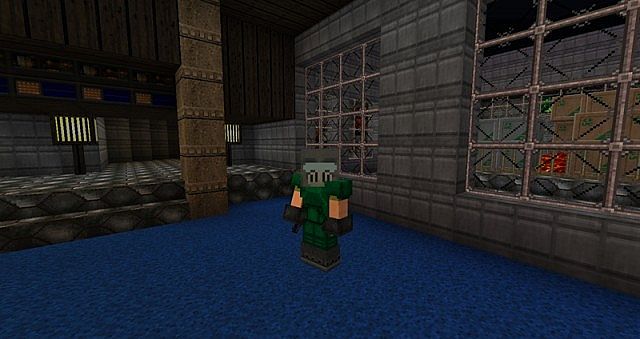

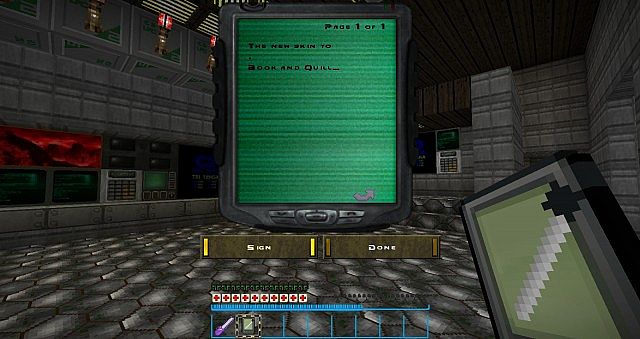
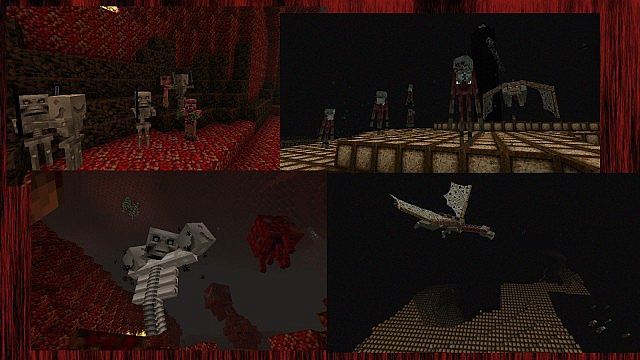
How to Install Texture Pack (Simple 10 Steps)
- Download OptiFine: Most of the texture packs and shaders need OptiFine. That’s why, first download and install OptiFine for the version of Minecraft you want to play.
- Download the Texture Pack: Get the texture pack you want from the download section. Choose the version that works with your Minecraft and your PC’s performance.
- Open Minecraft Launcher: Start Minecraft using the official game launcher — or even TLauncher, if you use that.
- Go to Options: From the main menu, click on the “Options” button.
- Open Resource Packs: Inside Options, click on “Resource Packs…”.
- Open the Resource Pack Folder: Click on “Open Resource Pack Folder” — this will open a folder named “resourcepacks”.
- Move the Pack File: Copy or move the .zip file you downloaded into that “resourcepacks” folder. (Don’t unzip the file — Minecraft uses it as-is!)
- Go Back and Refresh: Close the folder and click “Done”, then go back into “Resource Packs…” again.
- Activate the Pack: You’ll see the pack on the left side. Hover over it and click the arrow to move it to the right (active side).
Tip: If you get a message that the pack is for a different version, just click “Yes” — it usually works fine. - Click Done and Enjoy: Click “Done” again. Now your pack is ready to use in-game. It’s that easy!
Credits
Doom Craft was originally created by DenicioC. We do not own or modify this resource pack, and all rights remain with the original author. We strongly encourage you to support DenicioC by downloading the pack from the official sources.
Download Instructions
Curseforge: download starts automatically after a few seconds;
Mediafire: click the big blue button with the text “DOWNLOAD”;
Google Drive: in the top right corner you will see a small download icon (down arrow), click it and the download should start;


