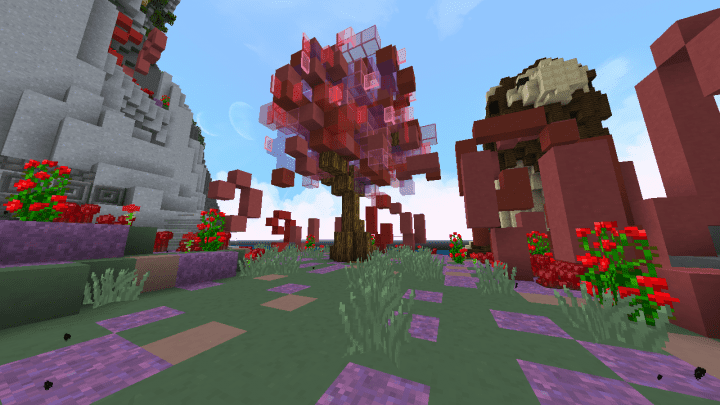
The Devine resource pack marks SidGames_YT’s very first attempt at creating a pack, and while it might be somewhat unpolished in certain areas, he truly did an excellent job bringing it to life. Now that we have that out of the way, the Devine resource pack stands out as a dedicated and exceptionally well-designed PvP pack. The new and improved graphics in PvP mode genuinely make the entire pack all the better. Playing PvP on Minecraft has to be one of the most difficult skills to master, as very few mistakes go unpunished in this mode. A single misstep in PvP frequently results in an unfortunate defeat. Most veteran players know this intimately and deeply appreciate a resource pack that actually makes it easier to defeat an opponent. Sadly, very few resource packs manage to get this balance right, with most of them being so inundated with unnecessary details that even the simplest of tasks, such as tracking a moving opponent, becomes infinitely infuriating. With the Devine resource pack, the graphics are wonderfully clean, making it remarkably easy to lock onto an opponent and crush them in battle. There are several standout features that easily make the Devine resource pack one of the absolute best choices for competitive play. For starters, the pack makes minimal use of animation particles, which renders animations much smaller and significantly less of a distraction during intense fights. The custom rendered sky and the wonderfully clear water serve as stunning visual delights that firmly establish this resource pack as a natural choice for PvP enthusiasts. These clear and minimalist graphics make a massive difference in PvP, ensuring the environment remains uncluttered and leaving your opponent sticking out like a sore thumb. But that is not even the best feature of the resource pack; by effectively increasing Minecraft’s native FPS, the game redraws images on the screen much faster. This ultimately means all in-game actions happen more fluidly, giving you a serious edge in PvP mode because the game responds to your inputs almost immediately.
Devine should be compatible with all of these Minecraft versions: 1.8.9 – 1.8.8 – 1.8.1 – 1.8.6 – 1.8 – 1.7.10 – 1.7.9 – 1.7
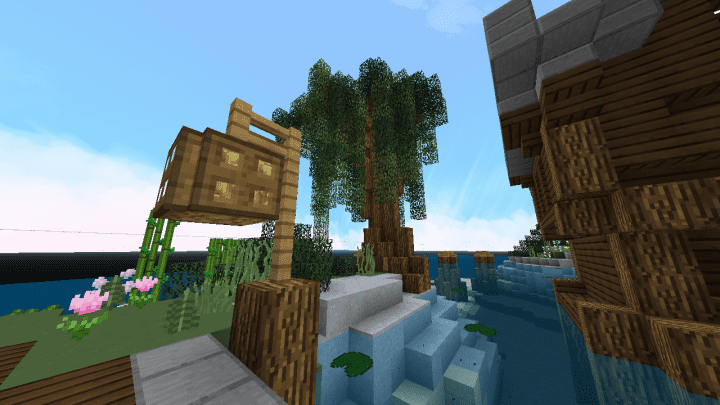
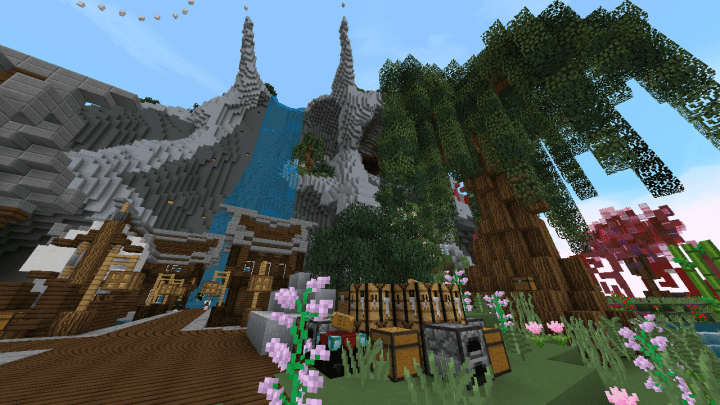
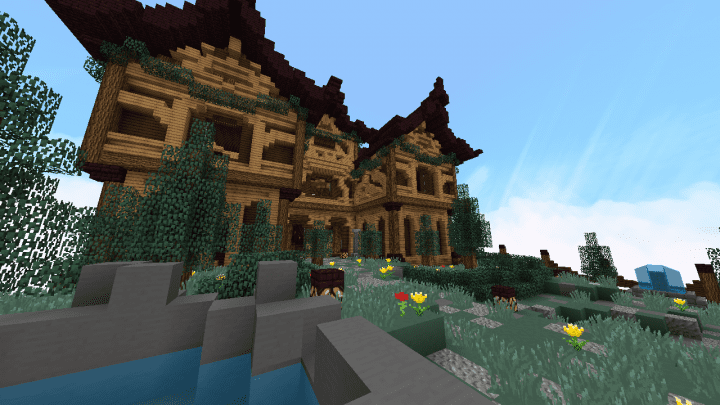
Screenshots
How to Install Texture Pack (Simple 10 Steps)
- Download OptiFine: Most of the texture packs and shaders need OptiFine. That’s why, first download and install OptiFine for the version of Minecraft you want to play.
- Download the Texture Pack: Get the texture pack you want from the download section. Choose the version that works with your Minecraft and your PC’s performance.
- Open Minecraft Launcher: Start Minecraft using the official game launcher — or even TLauncher, if you use that.
- Go to Options: From the main menu, click on the “Options” button.
- Open Resource Packs: Inside Options, click on “Resource Packs…”.
- Open the Resource Pack Folder: Click on “Open Resource Pack Folder” — this will open a folder named “resourcepacks”.
- Move the Pack File: Copy or move the .zip file you downloaded into that “resourcepacks” folder. (Don’t unzip the file — Minecraft uses it as-is!)
- Go Back and Refresh: Close the folder and click “Done”, then go back into “Resource Packs…” again.
- Activate the Pack: You’ll see the pack on the left side. Hover over it and click the arrow to move it to the right (active side).
Tip: If you get a message that the pack is for a different version, just click “Yes” — it usually works fine. - Click Done and Enjoy: Click “Done” again. Now your pack is ready to use in-game. It’s that easy!
Credits
This resource pack was originally created by SidGamez_YT and Duststorm. We do not claim ownership of this content, nor do we modify the download files. All rights and intellectual property belong strictly to the original authors. We strongly recommend visiting the official sources to support the creators and ensure you always have the most up-to-date version.
Download Instructions
Curseforge: download starts automatically after a few seconds;
Mediafire: click the big blue button with the text “DOWNLOAD”;
Google Drive: in the top right corner you will see a small download icon (down arrow), click it and the download should start;


