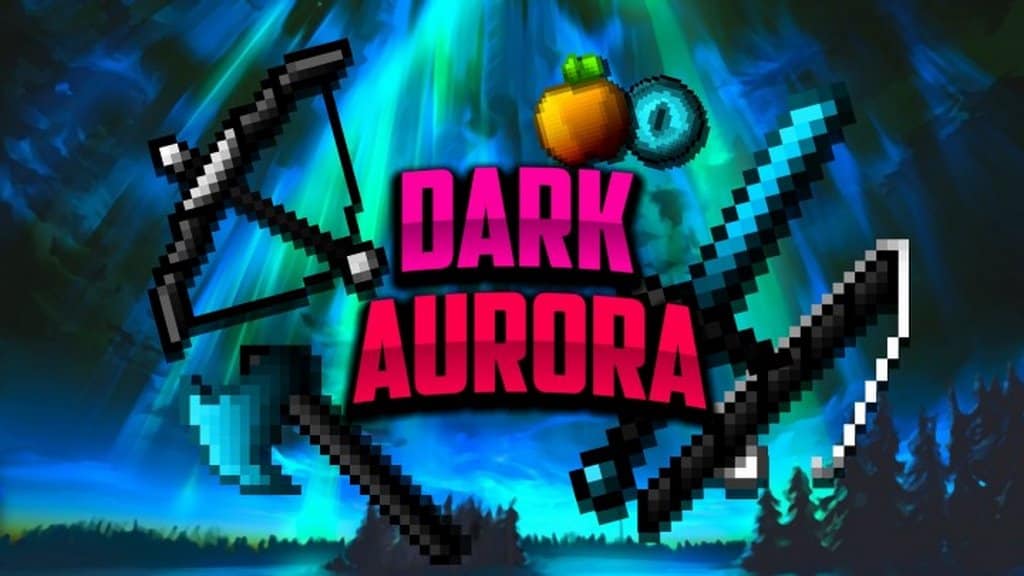
If you play a lot of Player versus Player (PvP) modes in Minecraft, you probably already know that typical PvP resource packs usually go for an ultra-clean look that strips away heavy details to keep things running smoothly. While great for performance, these minimalist packs can often feel a bit dull and visually unappealing. Thankfully, the Dark Aurora 32x resource pack was created specifically for Minecraft players who want a fantastic pack tailored for competitive PvP that actually keeps gorgeous textures intact without harming your framerate! Diving into the game with the Dark Aurora pack lets you enjoy stunning, thoughtfully designed graphics while still experiencing significantly better performance compared to the default vanilla textures. To give you a genuine edge during fast-paced PvP matches, I really love how the Dark Aurora 32x pack thoughtfully includes helpful features like crystal-clear textures, reduced fire heights that won’t block your vision, and smooth animations that make tracking opposing players so much easier.
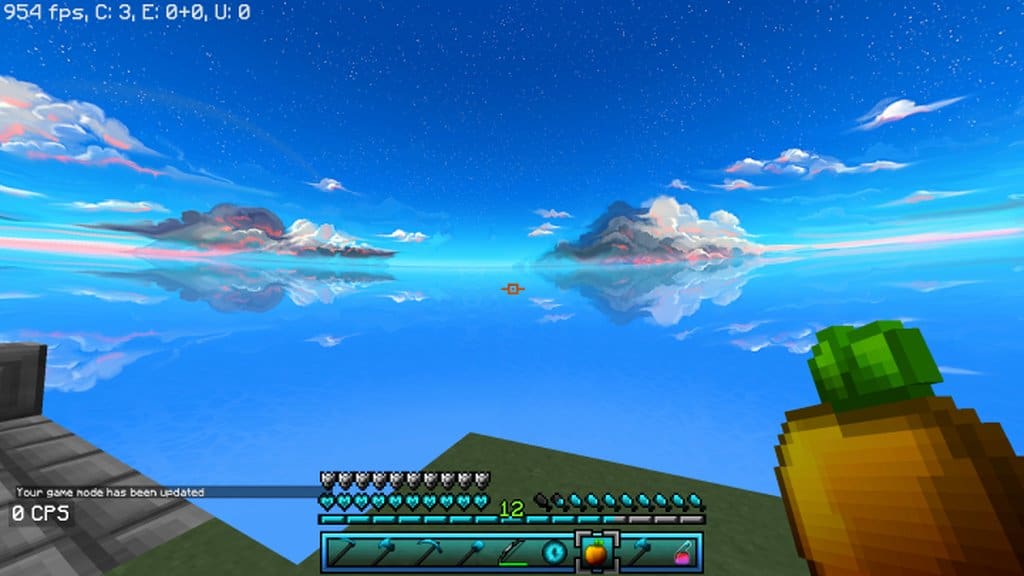
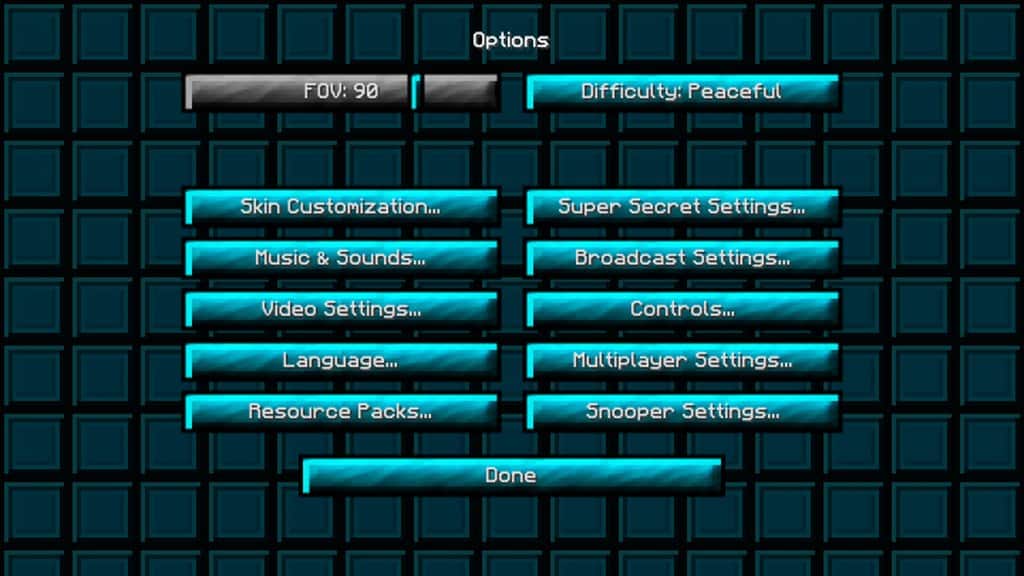
On top of that, the sky in this resource pack has been completely overhauled to look breathtakingly gorgeous, and the color palette chosen for all the various items is wonderfully vibrant. Even the graphical user interface (GUI) has been given a fresh redesign, making your entire Minecraft session look miles better than the plain vanilla experience. While standard Minecraft uses a classic 16×16 resolution, and most computer systems handle that easily, Dark Aurora steps things up just a bit to a crisp 32×32 resolution. Even with the resolution bump, you are honestly unlikely to notice any performance drops on your system while using this incredible PvP pack. This stellar optimization means the textures consume minimal system resources, allowing you to enjoy a gorgeous game without ever missing a beat.
Dark Aurora 32x should be compatible with all of these Minecraft versions: 1.16.2 – 1.16.1 – 1.16 – 1.15.2 – 1.15.1 – 1.15 – 1.14.4 – 1.14.3 – 1.14.2 – 1.14 – 1.13.2 – 1.13.1 – 1.13 – 1.8.9 – 1.8.8 – 1.8.1 – 1.8.6 – 1.8 – 1.7.10 – 1.7.9 – 1.7.4 – 1.7
Screenshots
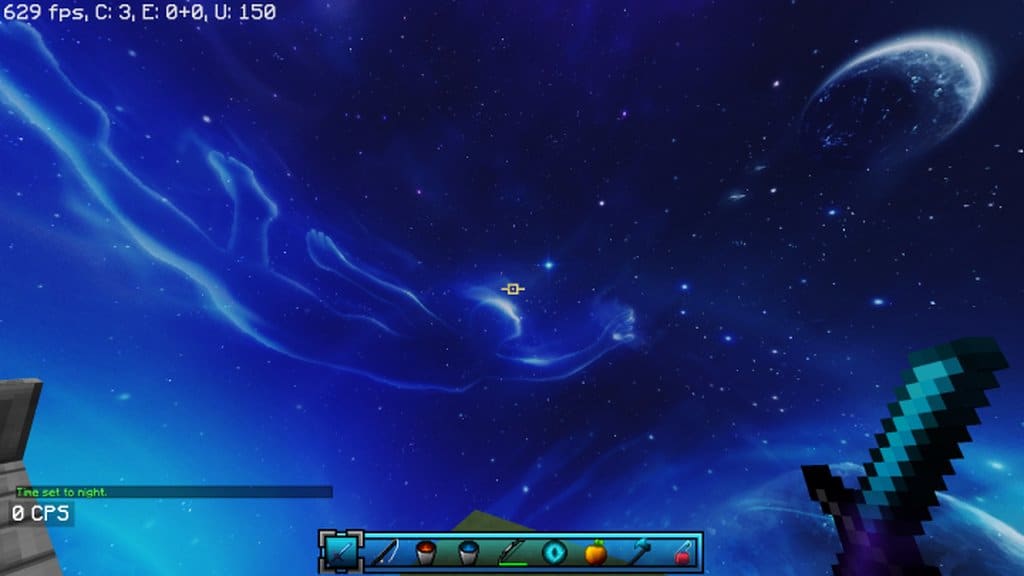
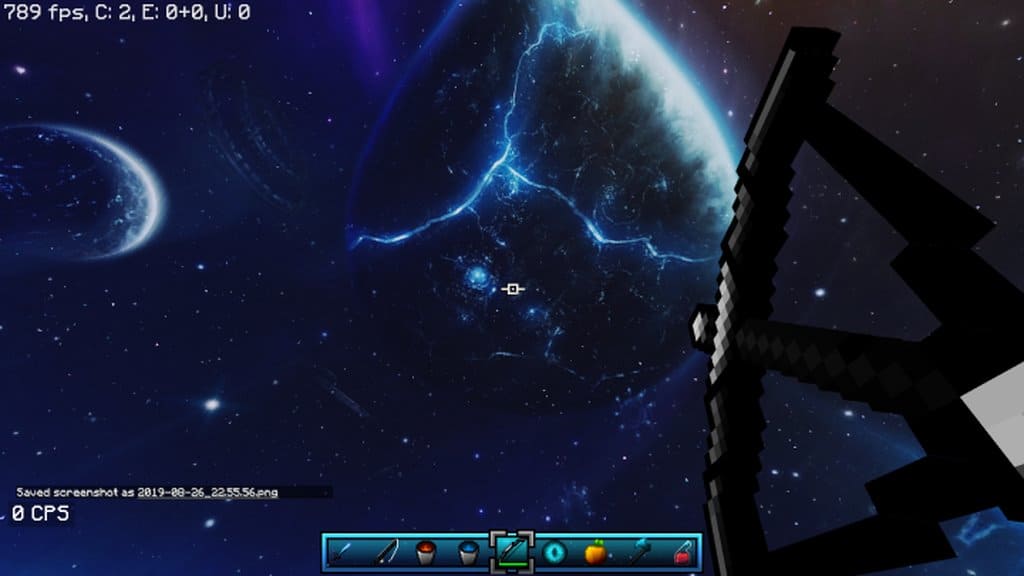
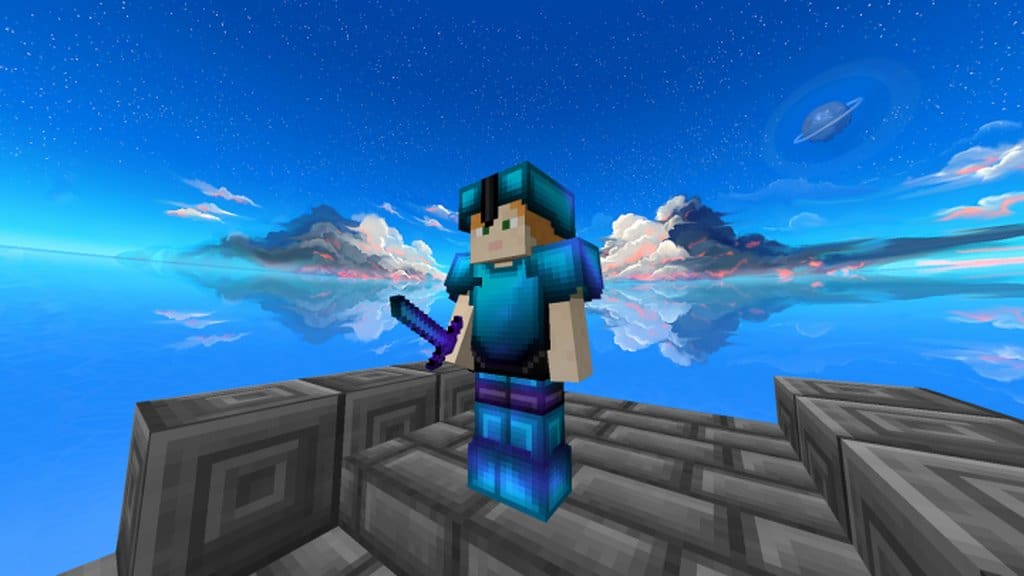
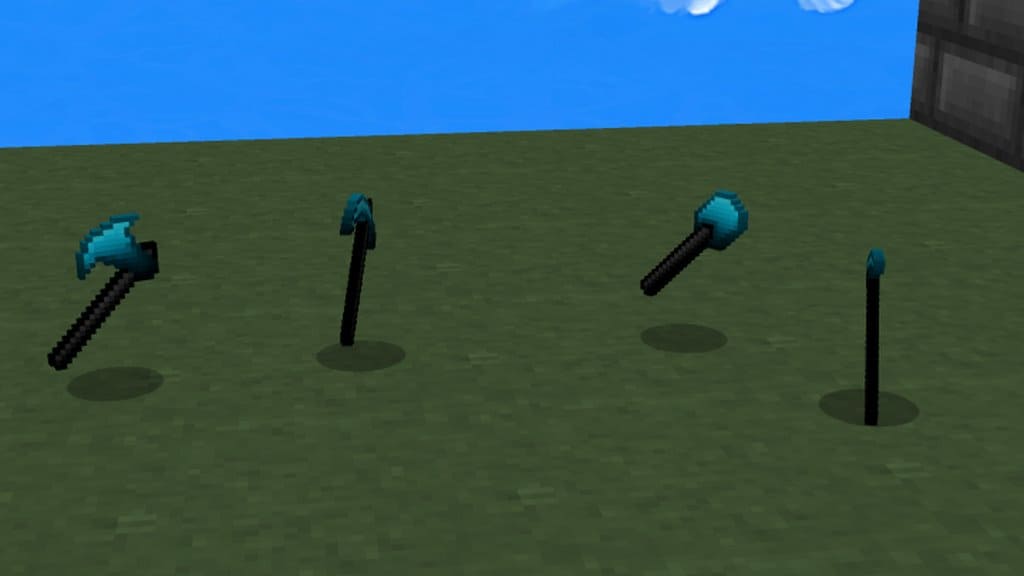
How to Install Texture Pack (Simple 10 Steps)
- Download OptiFine: Most of the texture packs and shaders need OptiFine. That’s why, first download and install OptiFine for the version of Minecraft you want to play.
- Download the Texture Pack: Get the texture pack you want from the download section. Choose the version that works with your Minecraft and your PC’s performance.
- Open Minecraft Launcher: Start Minecraft using the official game launcher — or even TLauncher, if you use that.
- Go to Options: From the main menu, click on the “Options” button.
- Open Resource Packs: Inside Options, click on “Resource Packs…”.
- Open the Resource Pack Folder: Click on “Open Resource Pack Folder” — this will open a folder named “resourcepacks”.
- Move the Pack File: Copy or move the .zip file you downloaded into that “resourcepacks” folder. (Don’t unzip the file — Minecraft uses it as-is!)
- Go Back and Refresh: Close the folder and click “Done”, then go back into “Resource Packs…” again.
- Activate the Pack: You’ll see the pack on the left side. Hover over it and click the arrow to move it to the right (active side).
Tip: If you get a message that the pack is for a different version, just click “Yes” — it usually works fine. - Click Done and Enjoy: Click “Done” again. Now your pack is ready to use in-game. It’s that easy!
Credits
This resource pack was created by Yuruze. We do not own or modify the files hosted here; all rights belong to the original creator. We encourage you to support Yuruze by visiting their official sources.
Download Links
Java Edition
Download Instructions
Curseforge: download starts automatically after a few seconds;
Mediafire: click the big blue button with the text “DOWNLOAD”;
Google Drive: in the top right corner you will see a small download icon (down arrow), click it and the download should start;


