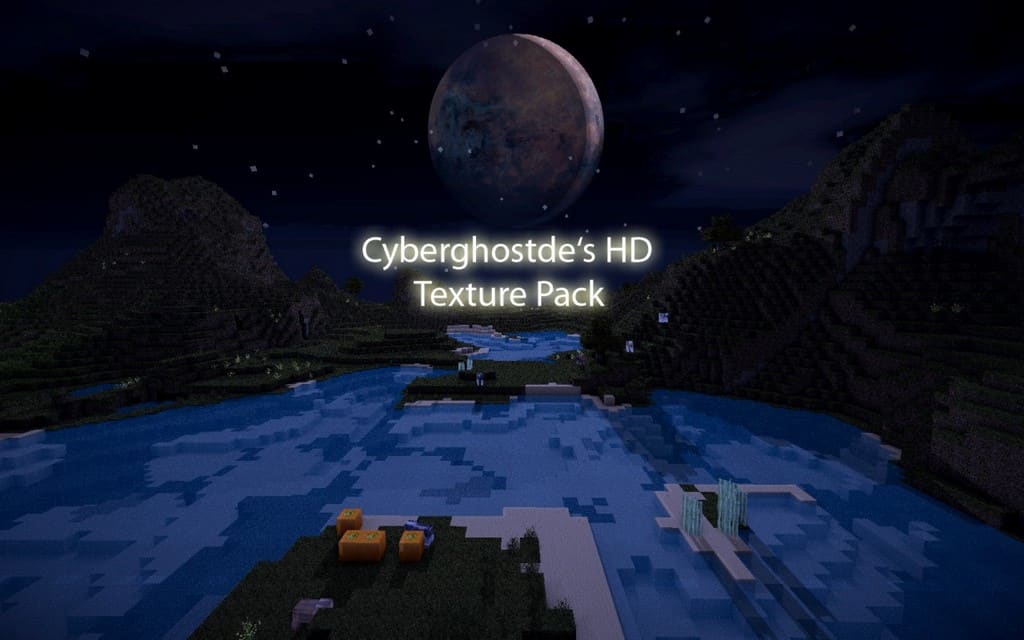
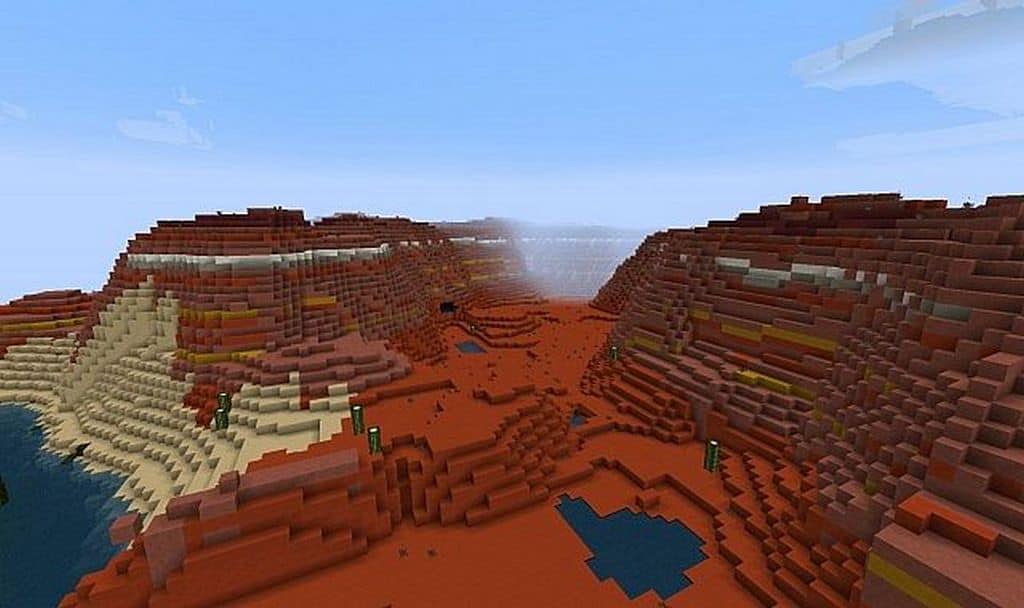
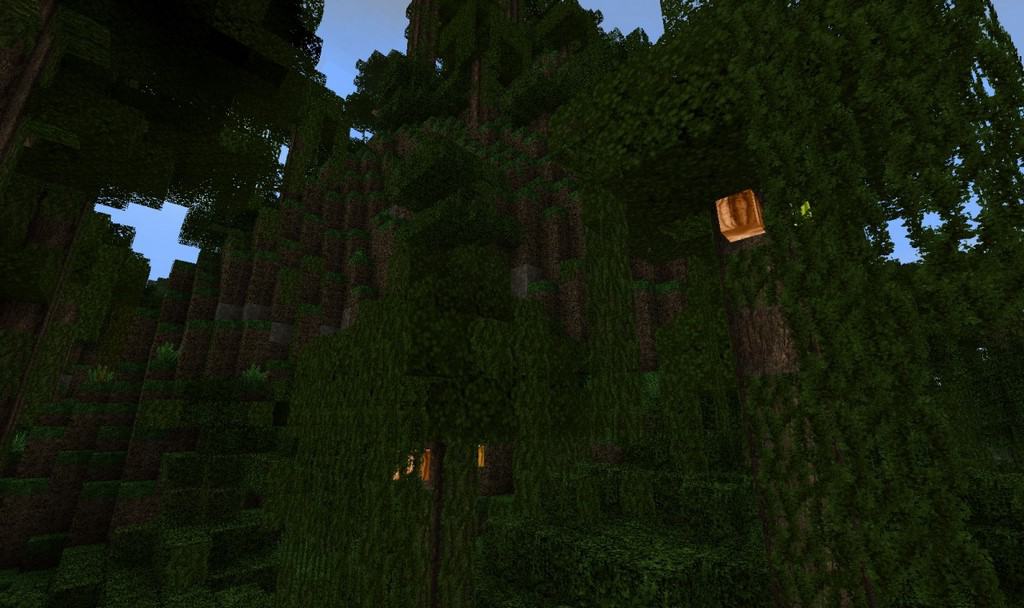
I recently tested Cyberghostde’s HD resource pack, and it is an absolute game-changer! It is a high-definition Minecraft texture set that brilliantly blends medieval and modern aesthetics using rich, dark tones. It achieves a completely immersive and realistic mix, allowing players to combine different styles that complement each other wonderfully. Whether you want a texture pack to craft incredible architectural structures in creative mode or crave a deeply atmospheric survival experience away from the standard vanilla look, you have truly found your ideal resource pack. If you are bored of the default textures, I can definitely say that Cyberghostde’s HD pack gives a wonderfully fresh, renewed, and high-quality feel to your Minecraft worlds, all while preserving the core spirit of the game’s original gameplay. Best of all, it offers a wide range of resolutions to fit your PC’s performance, starting at 64x and 128x, all the way up to a stunning 256x option which delivers premium quality for those with capable rigs.
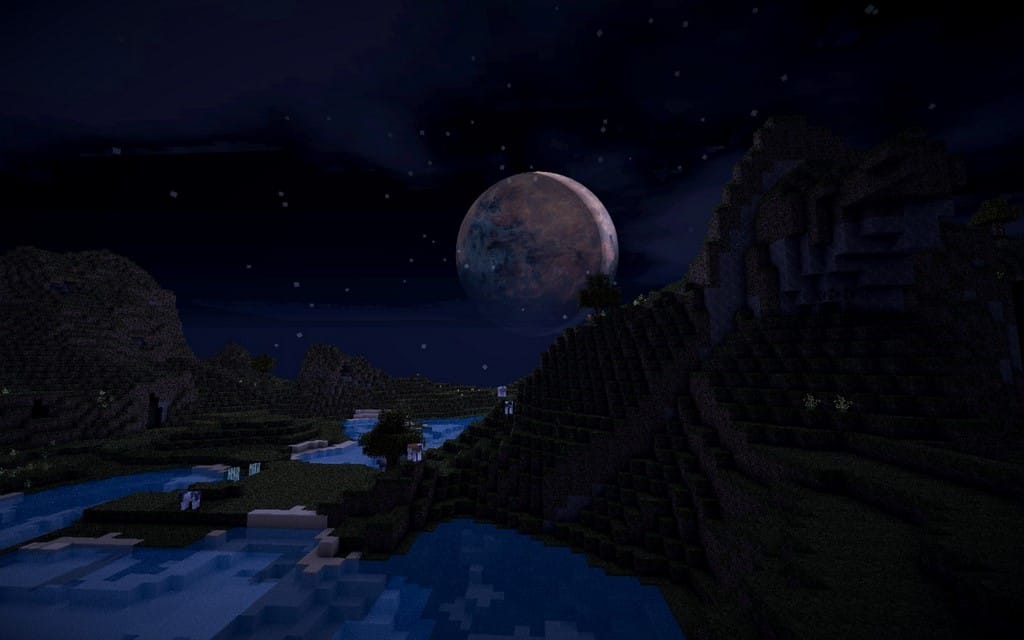
Just as you would expect with high-end resource packs, the different quality tiers scale noticeably in both visual fidelity and performance impact. The higher the resolution, the heavier the load on your system, but the breathtaking graphics are well worth it. Players equipped with powerful computers will adore experiencing a totally overhauled and remarkably realistic Minecraft. This texture pack successfully softens many of the blocky edges, introduces a realistic sun and moon—a delightful detail that many players appreciate—and most importantly, incorporates realistic shadows and lighting that make the entire gameplay experience vastly more attractive and immersive. Thankfully, the author did not forget players with less powerful or older machines, as the 64x option is readily available. It delivers slightly reduced detail yet still modernizes your Minecraft world in a spectacular fashion. I strongly recommend using this pack alongside OptiFine to ensure the best possible compatibility and frame rates in-game.
Cyberghostde’s HD should be compatible with all of these Minecraft versions: 1.16.5 – 1.16.4 – 1.16.3 – 1.16.2 – 1.16.1 – 1.16 – 1.15.2 – 1.15.1 – 1.9.4 – 1.9 – 1.8.9 – 1.8.8 – 1.8.1 – 1.8.6 – 1.8 – 1.7.10 – 1.7.9 – 1.7
Screenshots
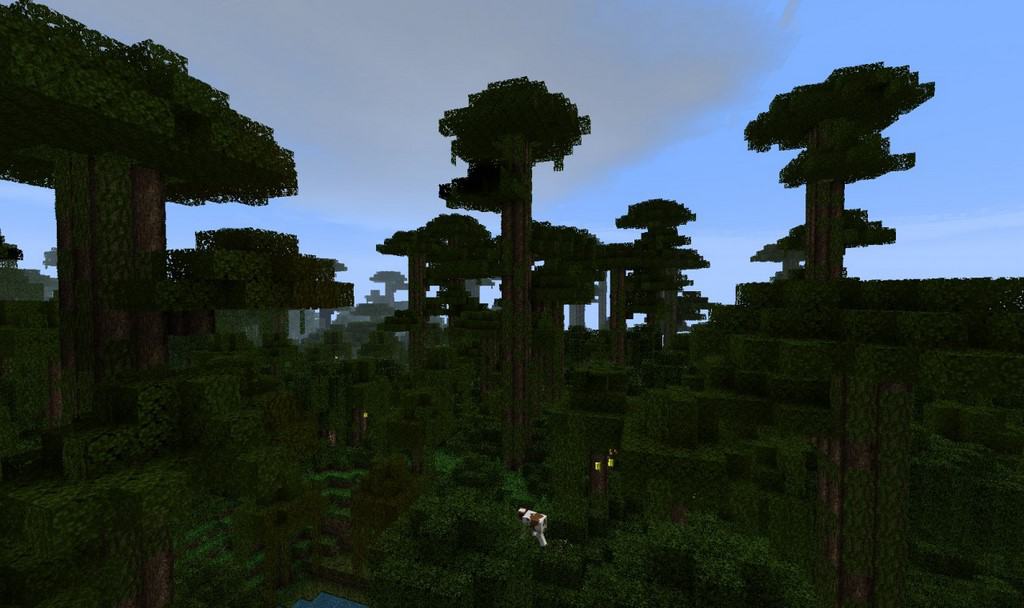
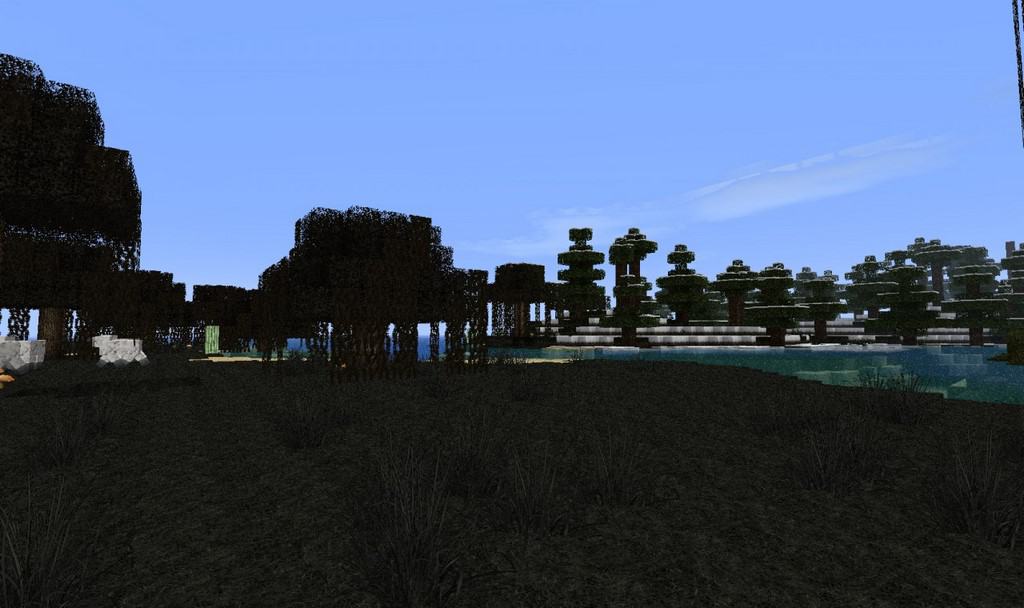
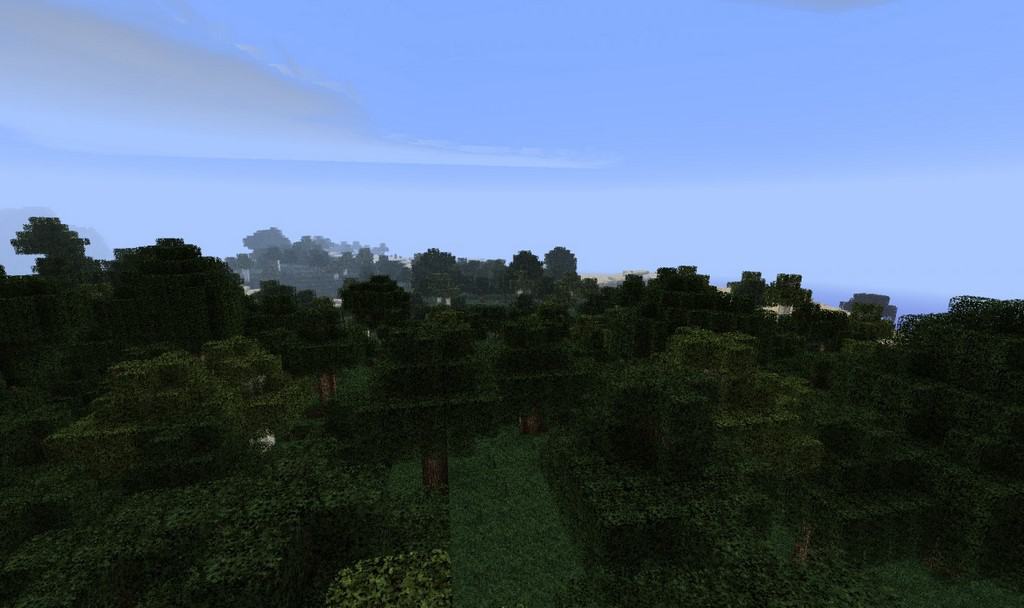
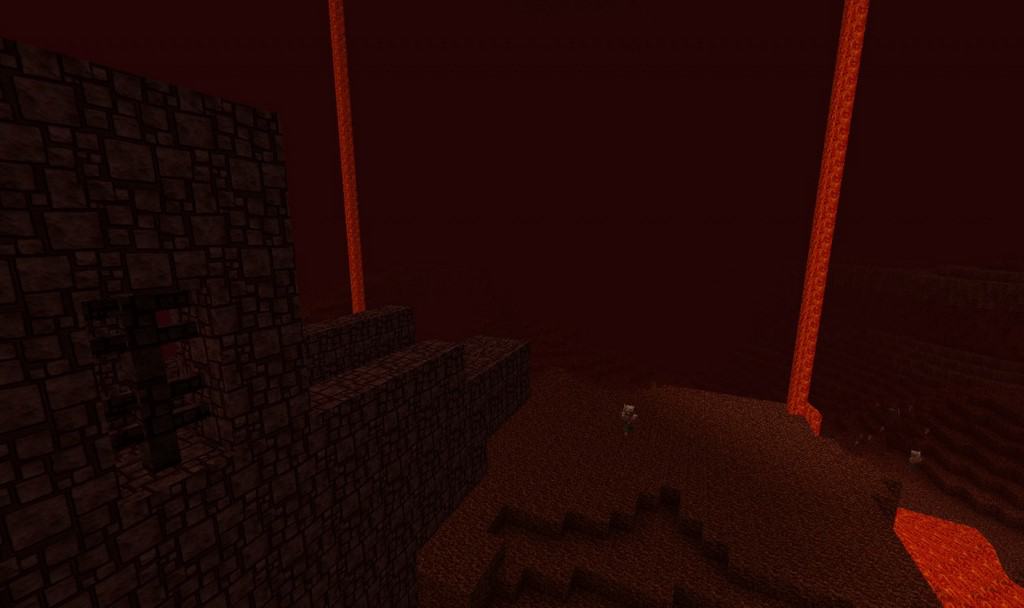
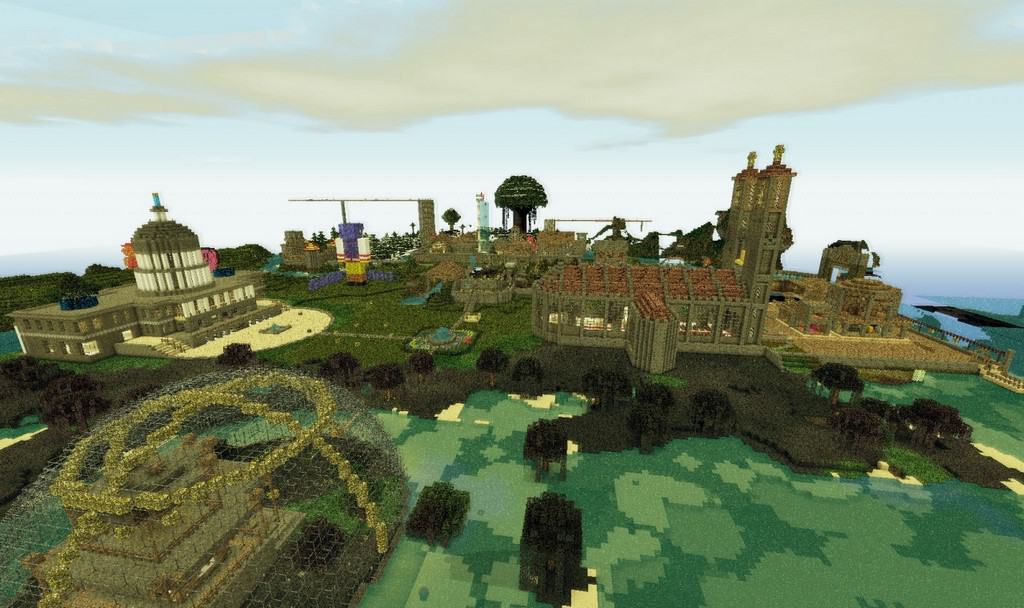
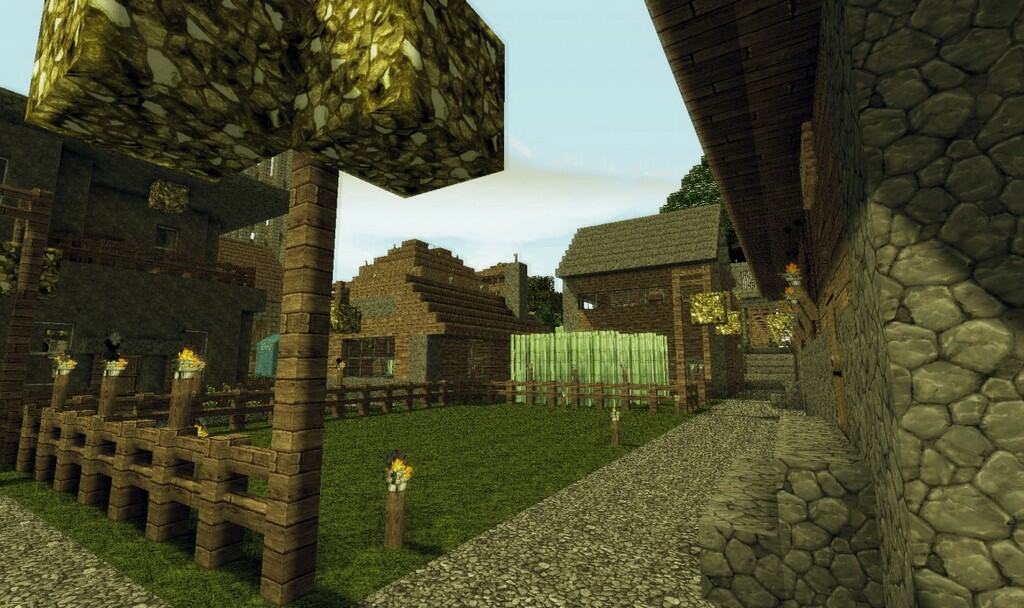
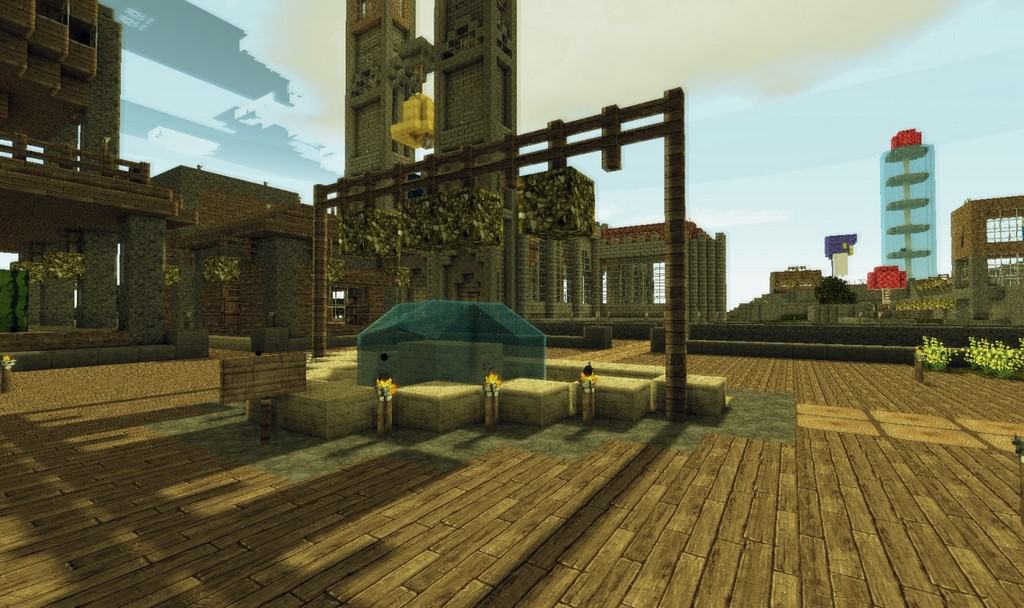
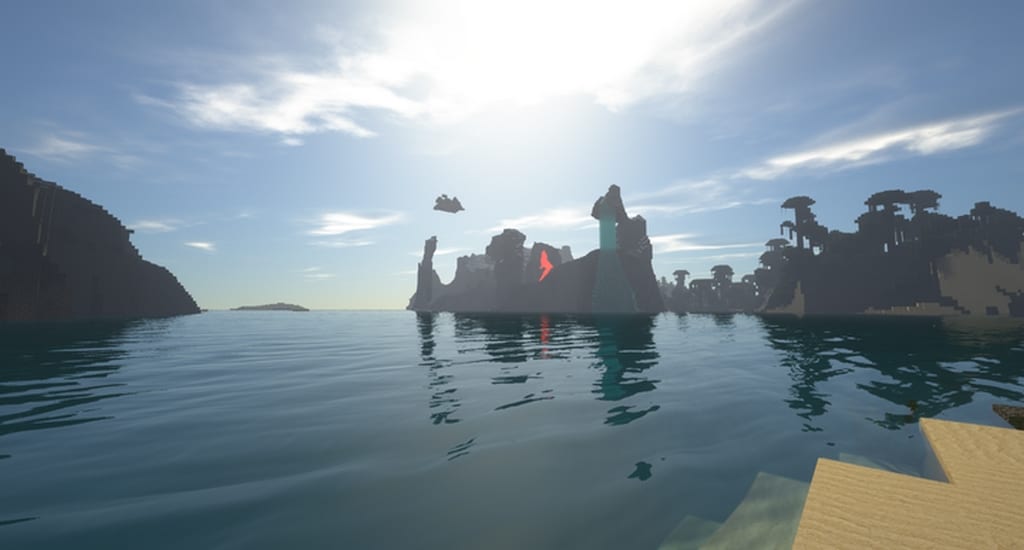
How to Install Texture Pack (Simple 10 Steps)
- Download OptiFine: Most of the texture packs and shaders need OptiFine. That’s why, first download and install OptiFine for the version of Minecraft you want to play.
- Download the Texture Pack: Get the texture pack you want from the download section. Choose the version that works with your Minecraft and your PC’s performance.
- Open Minecraft Launcher: Start Minecraft using the official game launcher — or even TLauncher, if you use that.
- Go to Options: From the main menu, click on the “Options” button.
- Open Resource Packs: Inside Options, click on “Resource Packs…”.
- Open the Resource Pack Folder: Click on “Open Resource Pack Folder” — this will open a folder named “resourcepacks”.
- Move the Pack File: Copy or move the .zip file you downloaded into that “resourcepacks” folder. (Don’t unzip the file — Minecraft uses it as-is!)
- Go Back and Refresh: Close the folder and click “Done”, then go back into “Resource Packs…” again.
- Activate the Pack: You’ll see the pack on the left side. Hover over it and click the arrow to move it to the right (active side).
Tip: If you get a message that the pack is for a different version, just click “Yes” — it usually works fine. - Click Done and Enjoy: Click “Done” again. Now your pack is ready to use in-game. It’s that easy!
Credits
This resource pack was originally created by Cyberghostde. We do not claim ownership of this modification, nor have we altered the original files. We fully support the original creator and encourage all players to visit and support Cyberghostde for their incredible work.
Download Links
Java Edition
Download Instructions
Curseforge: download starts automatically after a few seconds;
Mediafire: click the big blue button with the text “DOWNLOAD”;
Google Drive: in the top right corner you will see a small download icon (down arrow), click it and the download should start;


