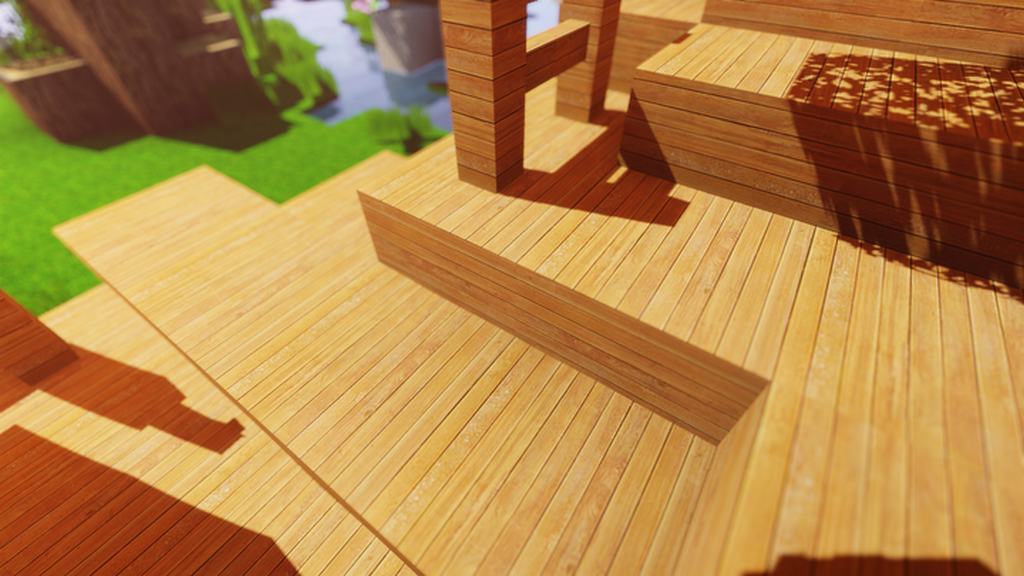
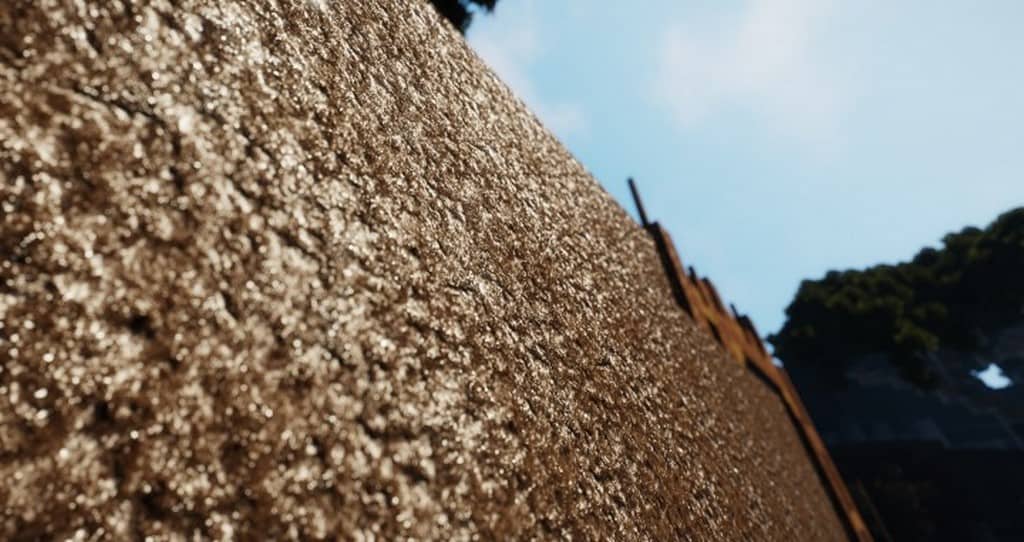
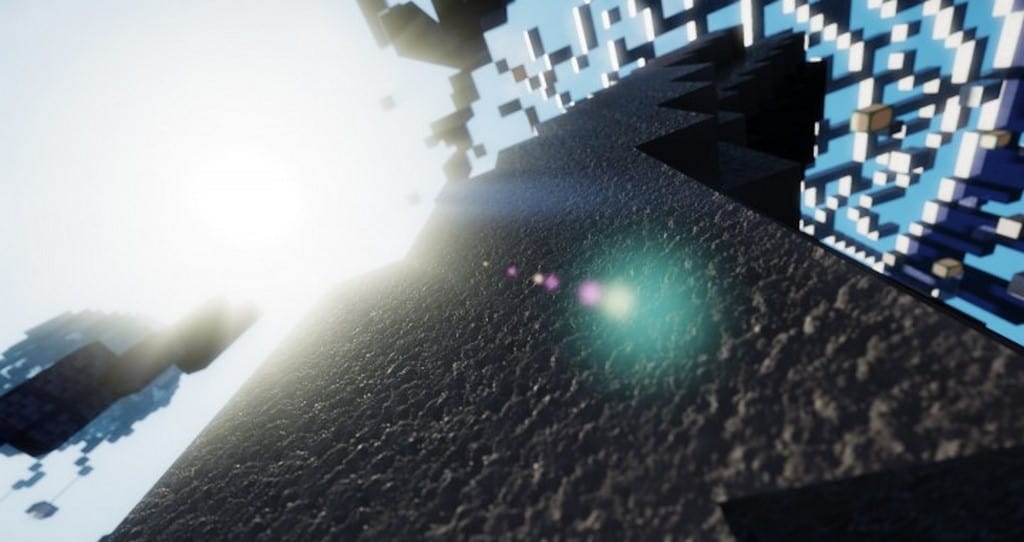
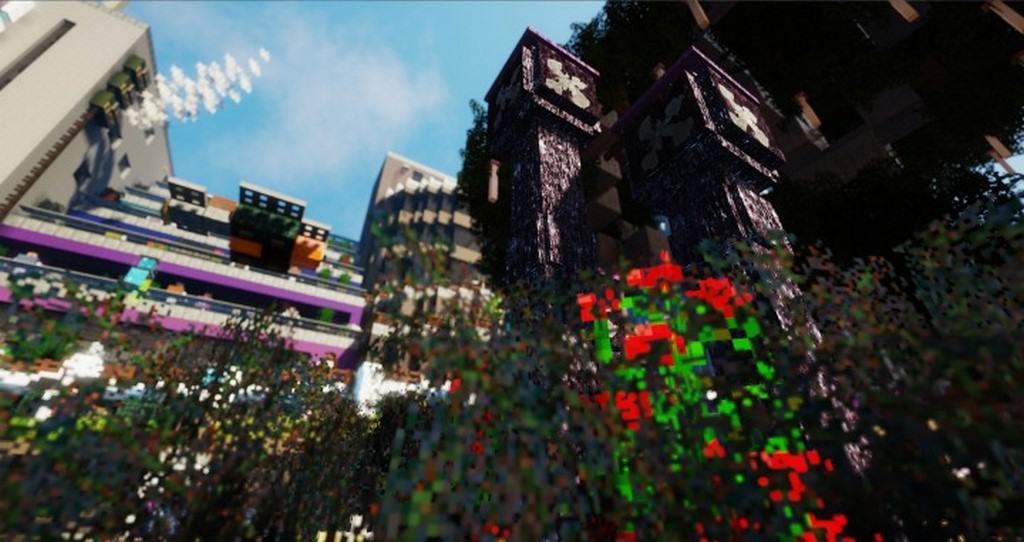
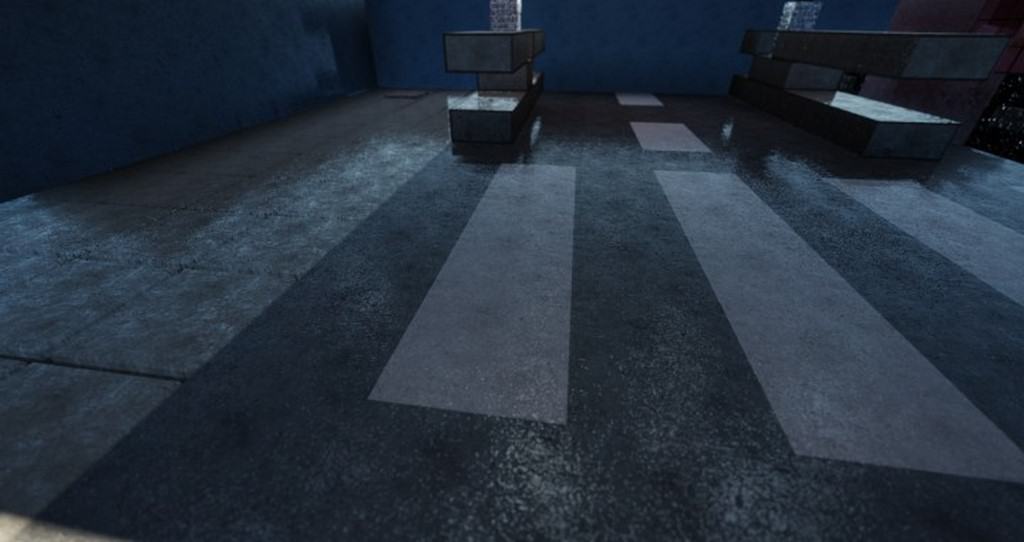
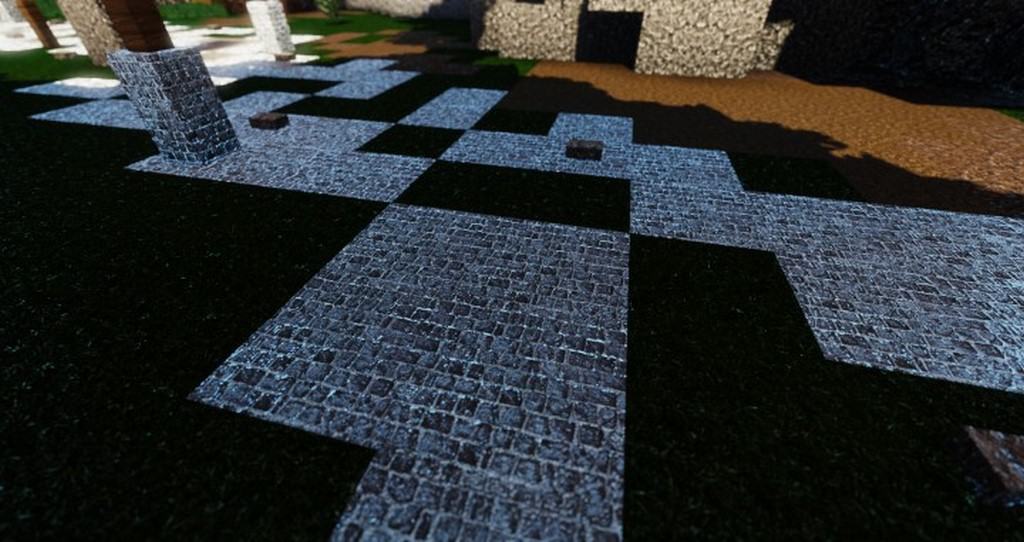
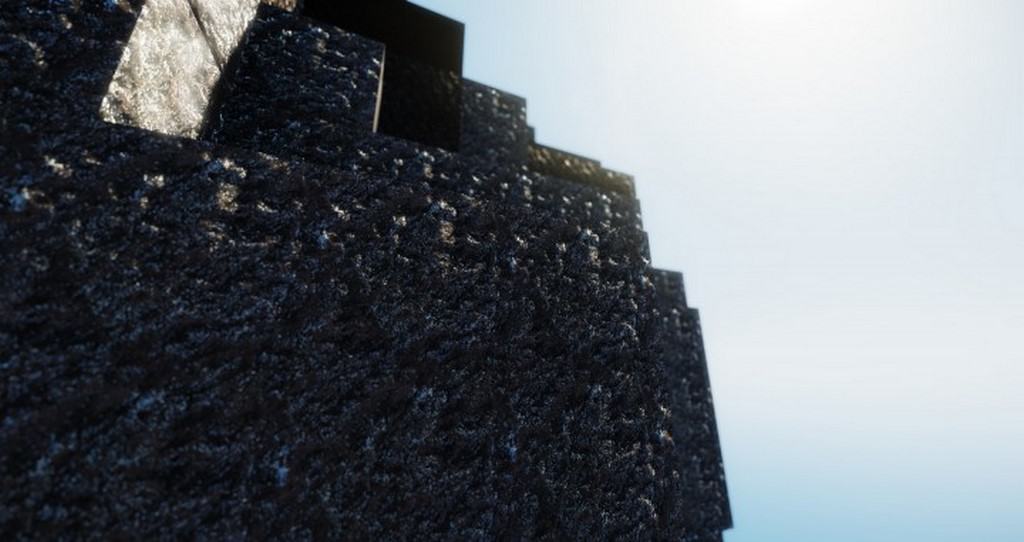
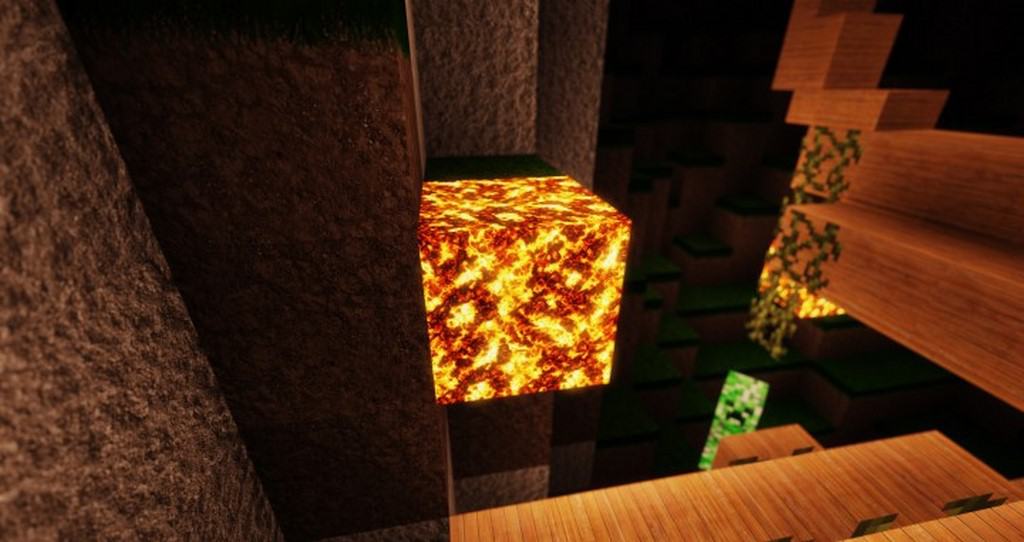
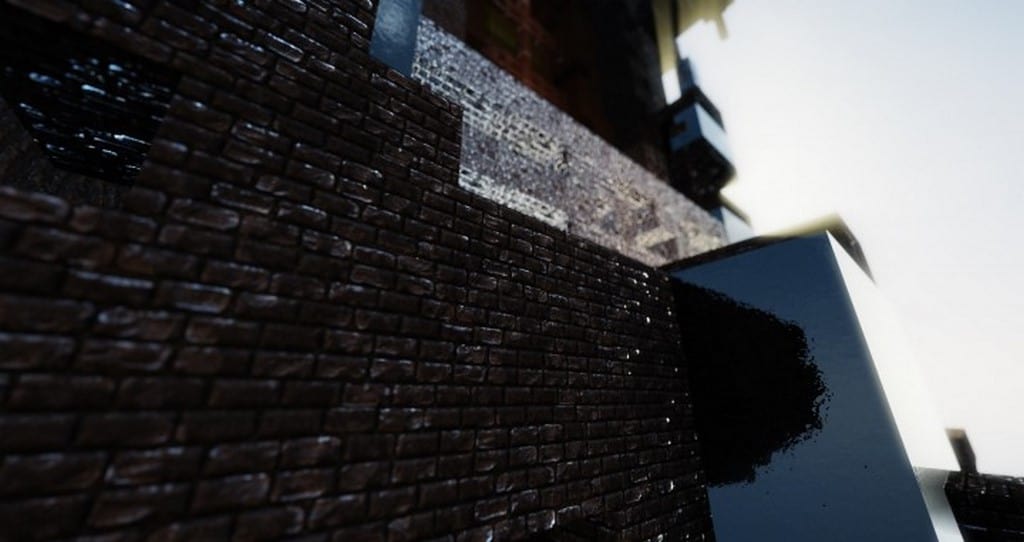
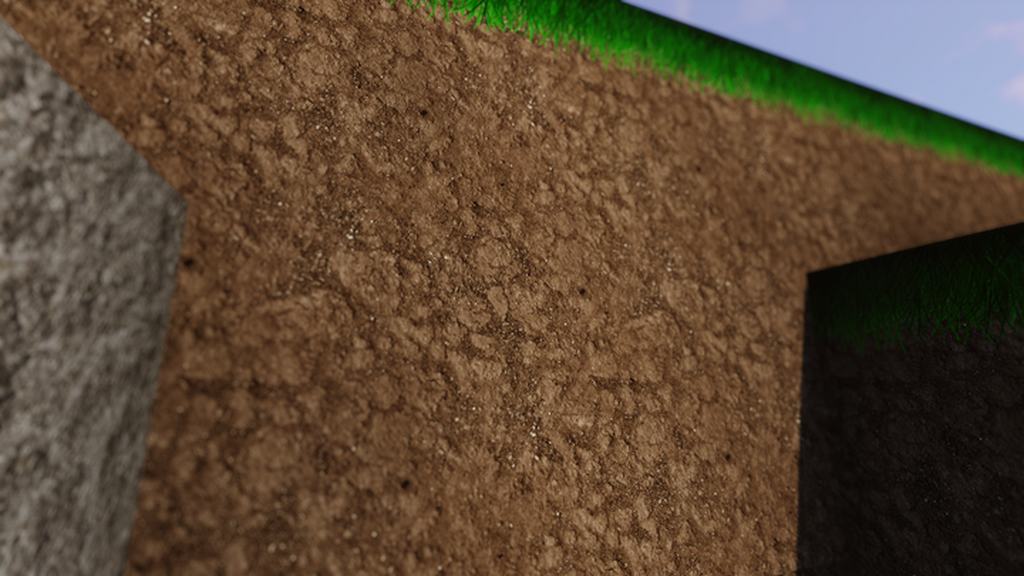
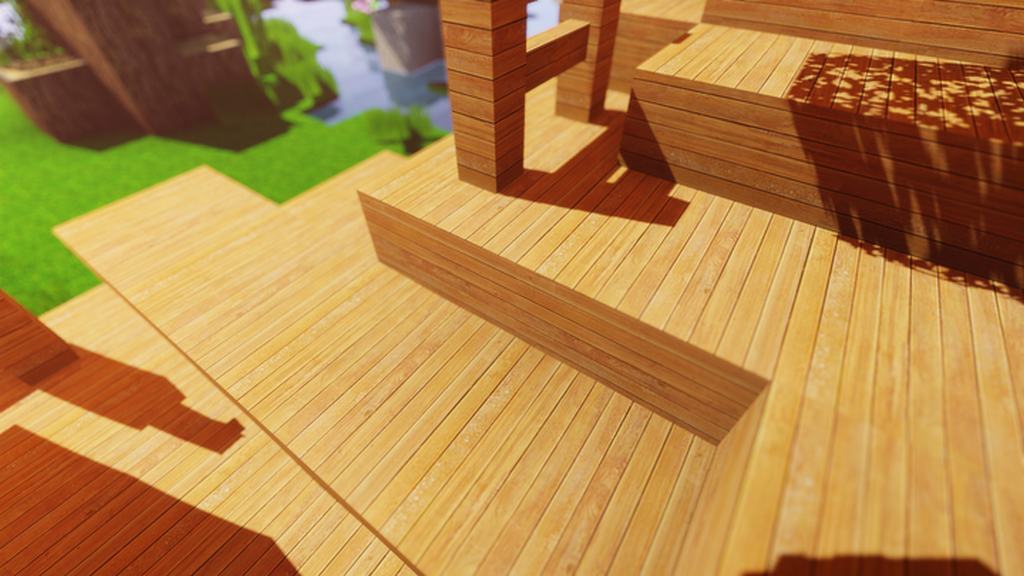
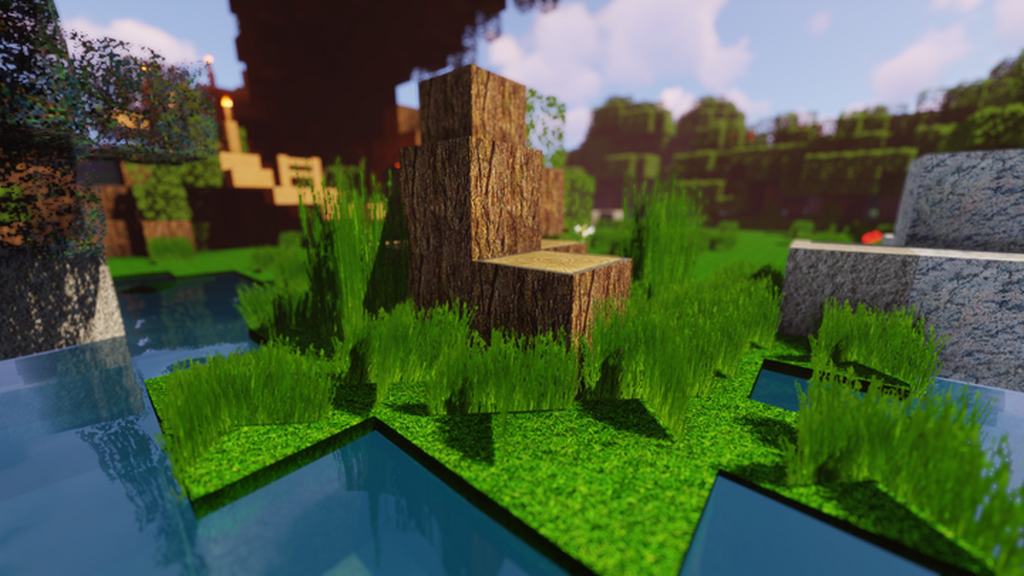
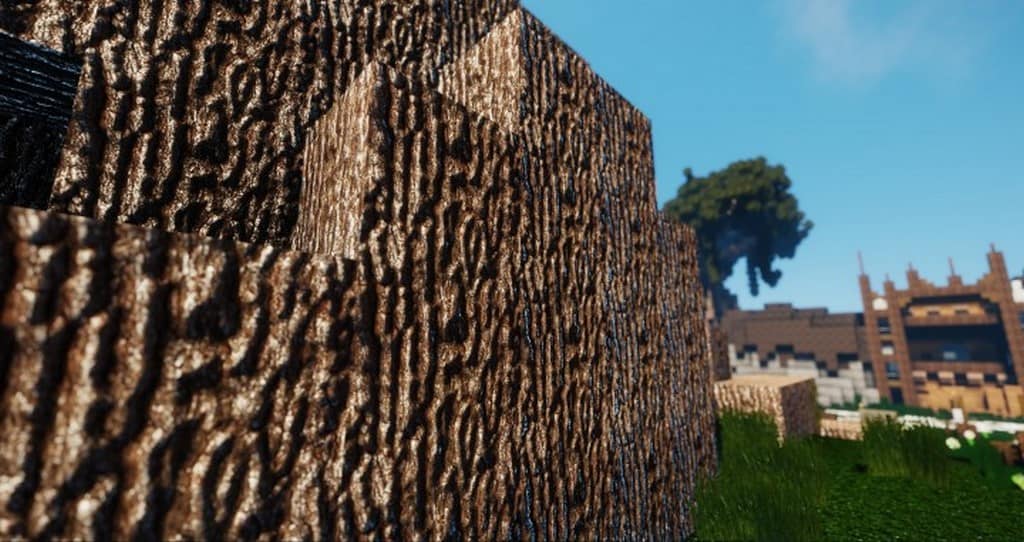
For most of us, the CMR Extreme Realistic pack is a name that immediately generates a lot of excitement and enthusiasm, and I can totally see why! This pack is no different because it claims to provide an incredibly realistic graphics setting and a similar overall gaming experience. Luckily for all Minecraft fans, I found that the pack absolutely does this and goes even beyond its initial promise. The community of Minecraft gamers has had a lot of experience with packs that promise realistic visuals over the previous years, but it has to be said that the CMR Extreme Realistic resource pack is on a whole new level. This pack managed to substantially elevate the visual realism thanks to its diverse techniques used for making its designs, along with almost flawless texture execution. After you get a chance to experience the game with the resource pack from the CMR Extreme Realistic brand, you will likely shun anything else after it, just like I did! This pack simply provides a level of quality above anything else and it looks completely stunning in action. The amount and level of details present in the texture is truly amazing. At the same time, the textures do not come with a huge amount of noise, which makes them look awesome from virtually any angle of view. The color palette of the texture is slightly more toned down from what is usually expected in terms of brightness and vibrancy. However, in this setup, the same works great because it underlines the lively and exceedingly realistic look which is employed by CMR Extreme Realistic. The pack, as expected, comes with an x256 resolution so anyone trying to use it will need a PC with some strong hardware if they want to enjoy it to the fullest. Otherwise, you might end up with some issues related to your frame-rate. If you want to try the pack out, do not forget to use it with the shaders option. This provides an additional enhancement to the visual experience that comes from using this superb pack.
CMR Extreme Realistic should be compatible with all of these Minecraft versions: 1.16.5 – 1.16.4 – 1.16.3 – 1.16.2 – 1.16.1 – 1.16 – 1.15.2 – 1.15.1 – 1.15 – 1.12.2 – 1.12 – 1.11.2 – 1.11
Screenshots

How to Install Texture Pack (Simple 10 Steps)
- Download OptiFine: Most of the texture packs and shaders need OptiFine. That’s why, first download and install OptiFine for the version of Minecraft you want to play.
- Download the Texture Pack: Get the texture pack you want from the download section. Choose the version that works with your Minecraft and your PC’s performance.
- Open Minecraft Launcher: Start Minecraft using the official game launcher — or even TLauncher, if you use that.
- Go to Options: From the main menu, click on the “Options” button.
- Open Resource Packs: Inside Options, click on “Resource Packs…”.
- Open the Resource Pack Folder: Click on “Open Resource Pack Folder” — this will open a folder named “resourcepacks”.
- Move the Pack File: Copy or move the .zip file you downloaded into that “resourcepacks” folder. (Don’t unzip the file — Minecraft uses it as-is!)
- Go Back and Refresh: Close the folder and click “Done”, then go back into “Resource Packs…” again.
- Activate the Pack: You’ll see the pack on the left side. Hover over it and click the arrow to move it to the right (active side).
Tip: If you get a message that the pack is for a different version, just click “Yes” — it usually works fine. - Click Done and Enjoy: Click “Done” again. Now your pack is ready to use in-game. It’s that easy!
Credits
Credits to CemreK as the original creator and owner of the CMR Extreme Realistic Resource Pack. We do not claim ownership of this content nor do we host modified files. We encourage all players to support the creator by visiting their official distribution channels.
Download Links
Java Edition
Download Instructions
Curseforge: download starts automatically after a few seconds;
Mediafire: click the big blue button with the text “DOWNLOAD”;
Google Drive: in the top right corner you will see a small download icon (down arrow), click it and the download should start;


