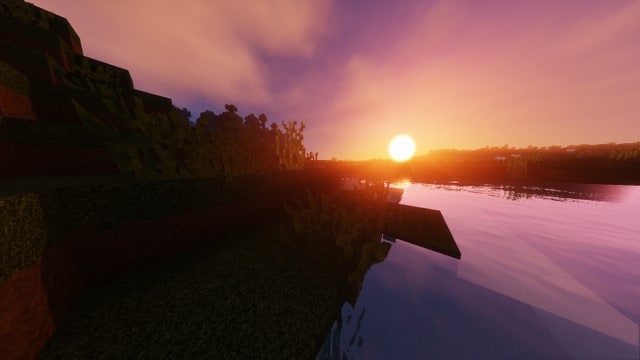
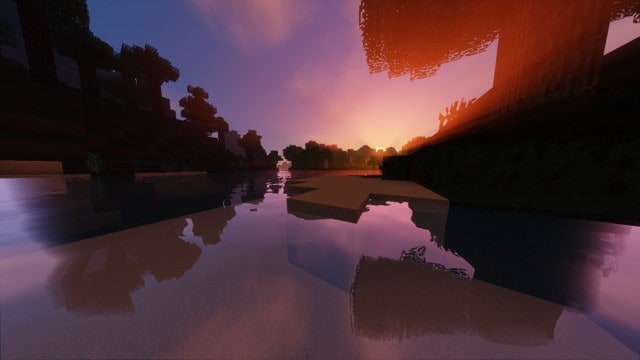
Approximately a year ago, the Bright Shadows resource pack was originally released, so today we are going to dive back in and talk about this classic addition to the Minecraft world. As we know, most realistically themed packs work towards creating an environment that is as realistic as possible while still trying to keep the default Minecraft gameplay style intact. Also, we all know that not every pack in the realistic category has completely succeeded in doing that. Bright Shadows achieves this beautifully—it creates a realistic atmosphere, but it also manages to turn the game into a truly spectacular artwork. The resource pack does not change vanilla sounds, effects, or animations of the game; instead, it contains carefully crafted block textures that transform the Minecraft environment, making it remarkably realistic and visually pleasant.
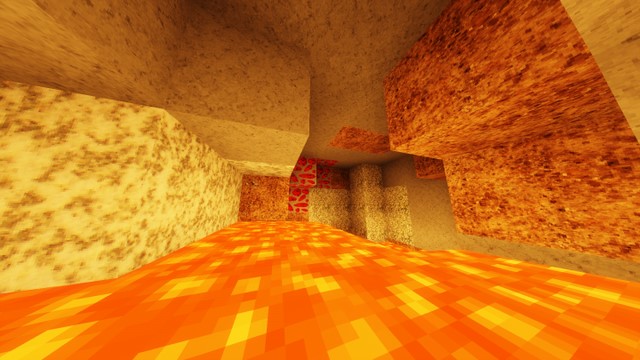
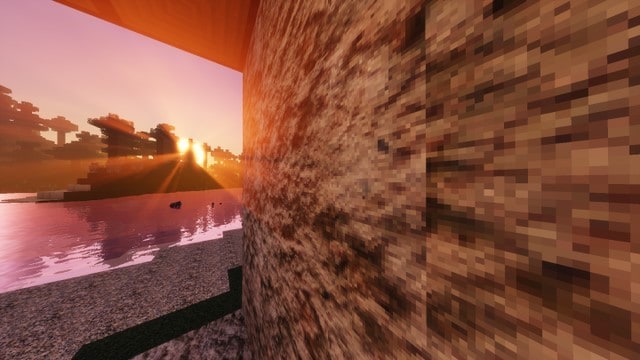
Bright Shadows features textures in a 128×128 resolution, which makes it necessary for you to use it on a computer with decent hardware to run it smoothly. It is very important to note that the textures in the Bright Shadows resource pack are wonderfully clean and crisp. Also, even though this pack is quite old by now, it is still only about 40% complete. Don’t worry, though, as it slowly but steadily gets updated over time. The incredible amount of detail makes the pack an absolute blast to use in your world. Sure, the pack is not entirely feature-rich yet, but it truly elevates the Minecraft environment to feel much more realistic. Talking about the color palette, it slightly deviates from Minecraft’s vanilla palette by leaning much darker, which brilliantly helps convey its distinct artistic style realistically.
Bright Shadows should be compatible with all of these Minecraft versions: 1.11.2 – 1.11 – 1.10.2 – 1.10
Screenshots
How to Install Texture Pack (Simple 10 Steps)
- Download OptiFine: Most of the texture packs and shaders need OptiFine. That’s why, first download and install OptiFine for the version of Minecraft you want to play.
- Download the Texture Pack: Get the texture pack you want from the download section. Choose the version that works with your Minecraft and your PC’s performance.
- Open Minecraft Launcher: Start Minecraft using the official game launcher — or even TLauncher, if you use that.
- Go to Options: From the main menu, click on the “Options” button.
- Open Resource Packs: Inside Options, click on “Resource Packs…”.
- Open the Resource Pack Folder: Click on “Open Resource Pack Folder” — this will open a folder named “resourcepacks”.
- Move the Pack File: Copy or move the .zip file you downloaded into that “resourcepacks” folder. (Don’t unzip the file — Minecraft uses it as-is!)
- Go Back and Refresh: Close the folder and click “Done”, then go back into “Resource Packs…” again.
- Activate the Pack: You’ll see the pack on the left side. Hover over it and click the arrow to move it to the right (active side).
Tip: If you get a message that the pack is for a different version, just click “Yes” — it usually works fine. - Click Done and Enjoy: Click “Done” again. Now your pack is ready to use in-game. It’s that easy!
Credits
This resource pack was created by AJCoolHD. We do not claim ownership of this content, nor do we modify the original download files. All rights and intellectual property belong strictly to the original creator. We highly encourage you to support AJCoolHD and their ongoing work by downloading the pack through their official links.
Download Links
Java Edition
Download Instructions
Curseforge: download starts automatically after a few seconds;
Mediafire: click the big blue button with the text “DOWNLOAD”;
Google Drive: in the top right corner you will see a small download icon (down arrow), click it and the download should start;


