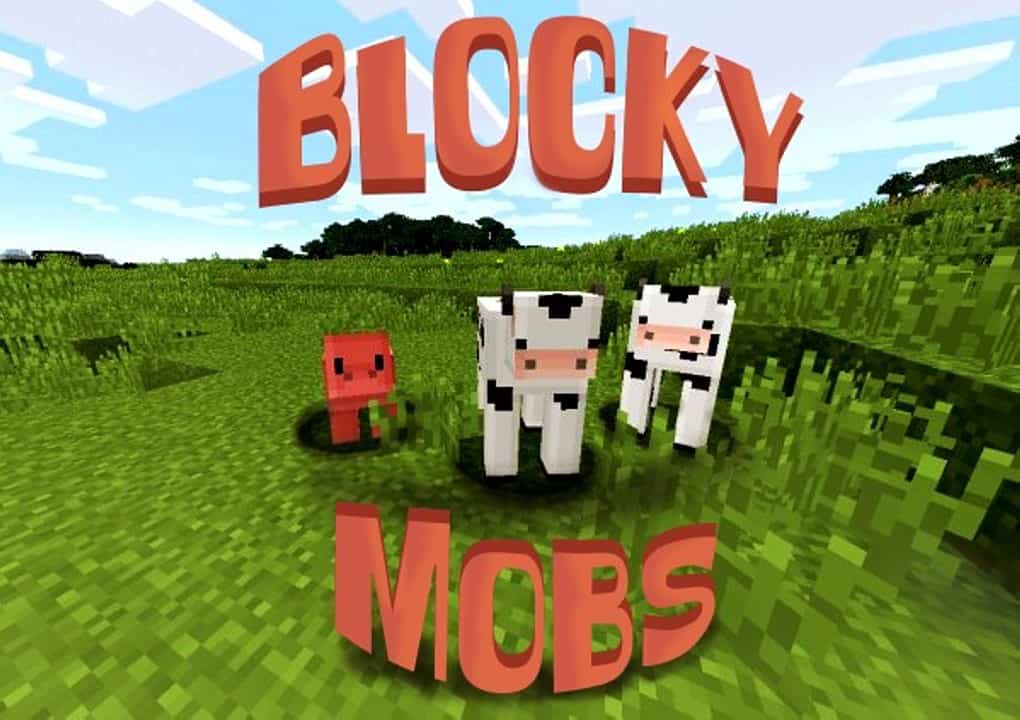
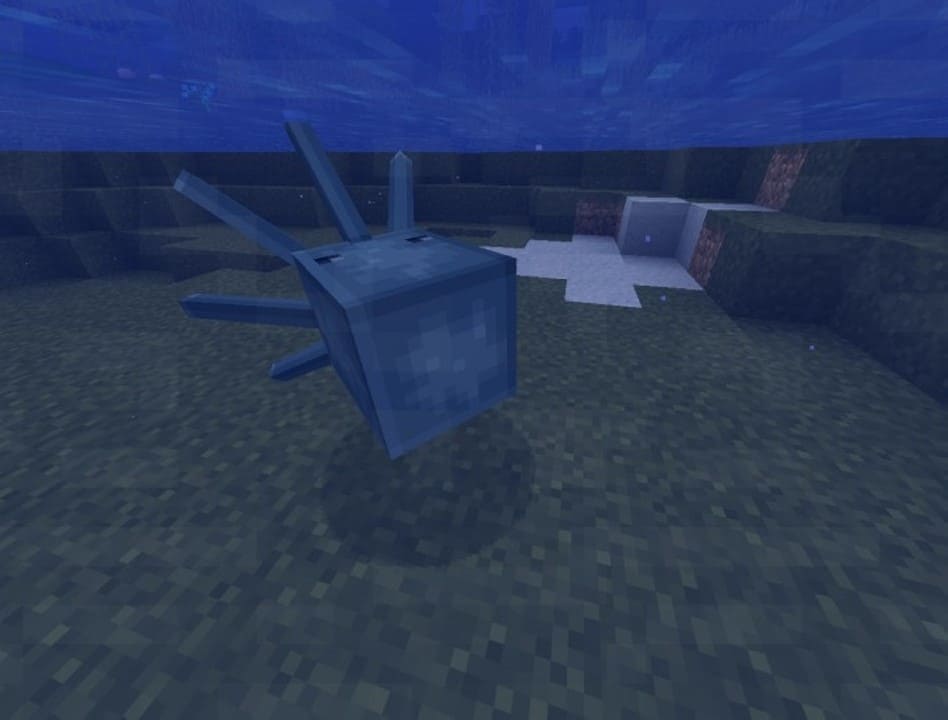
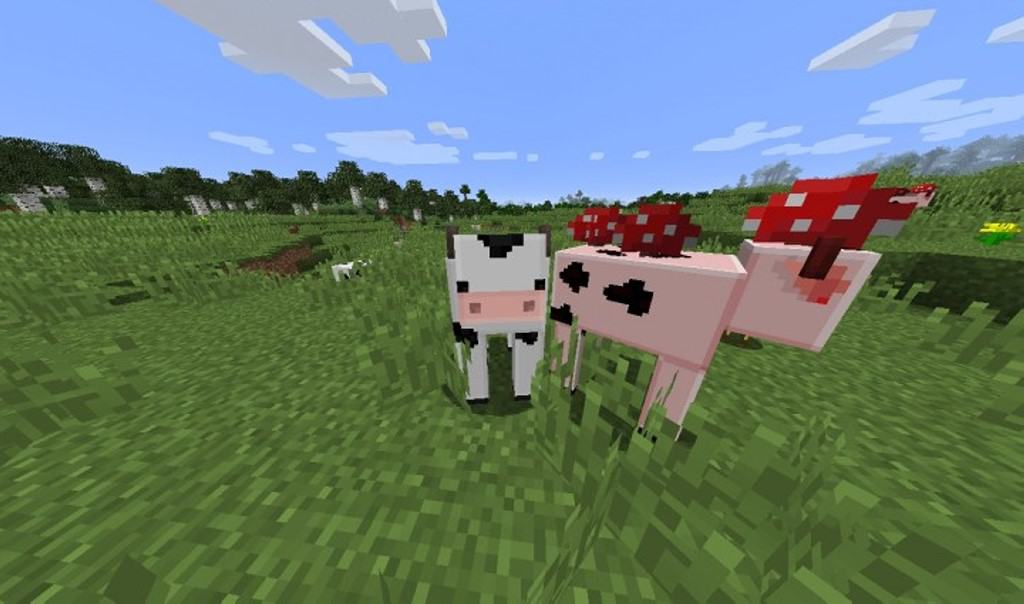
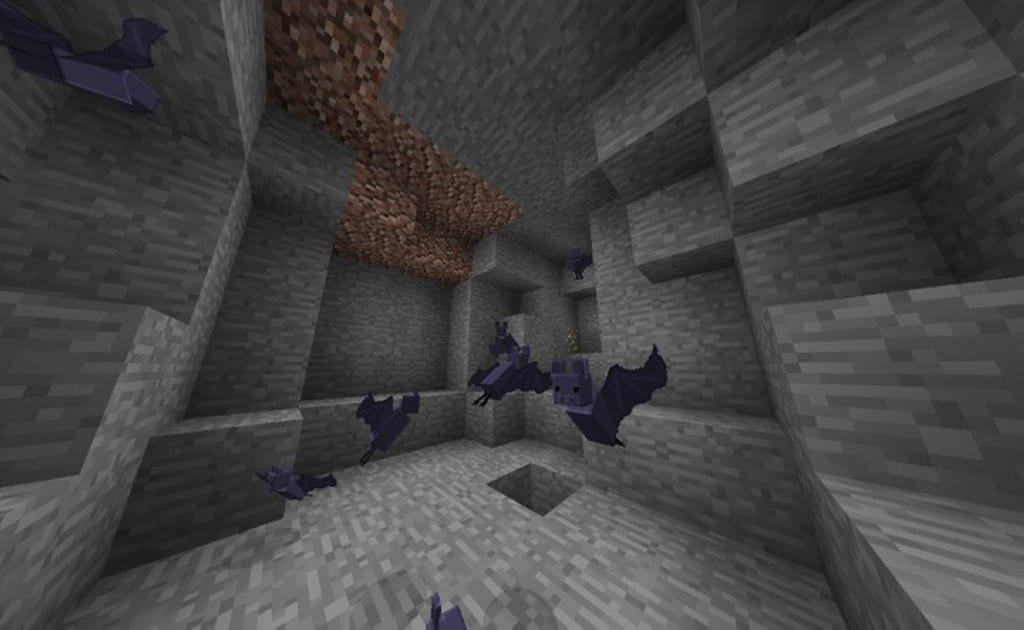
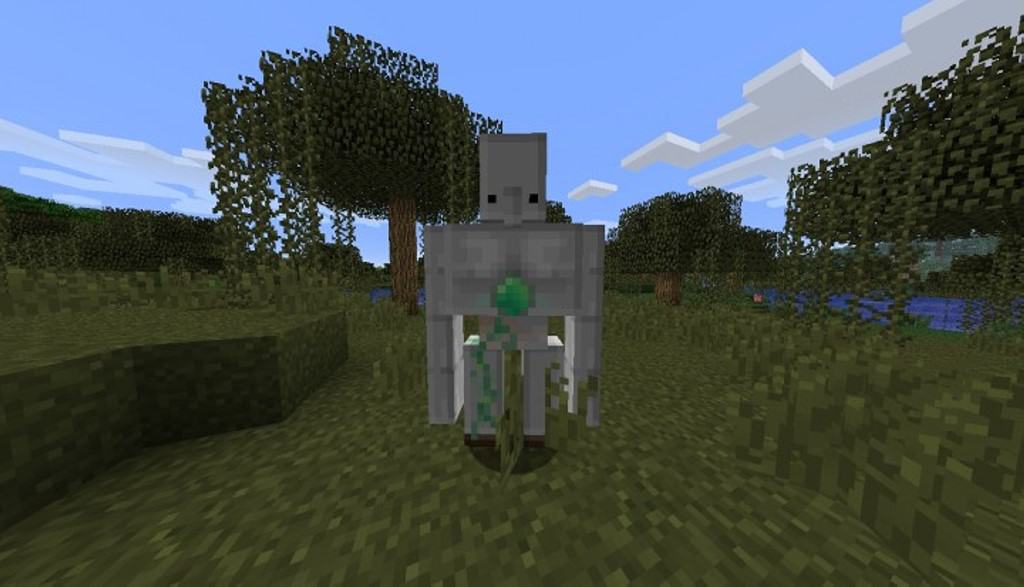
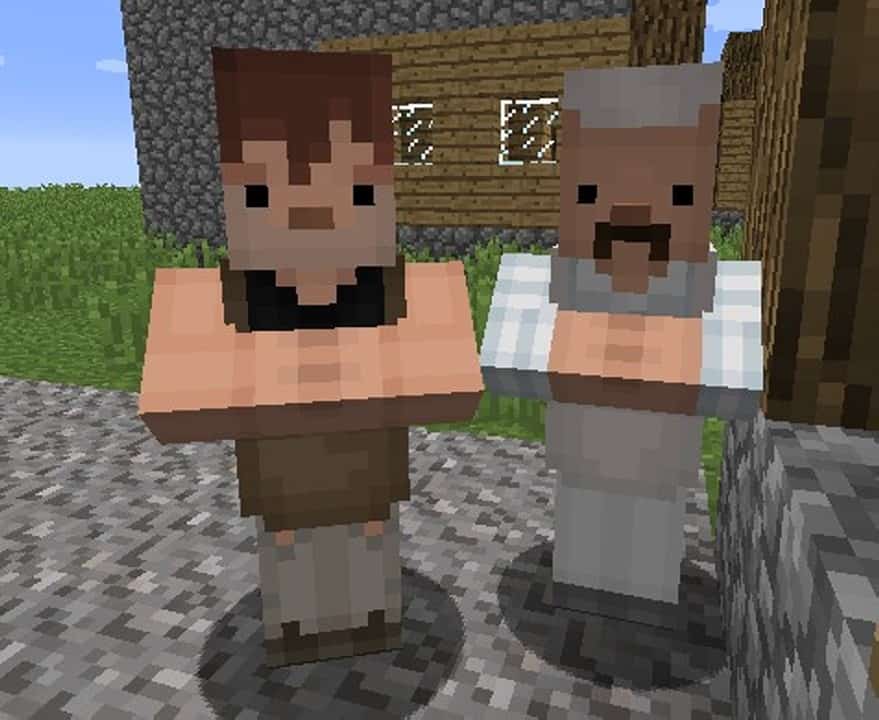
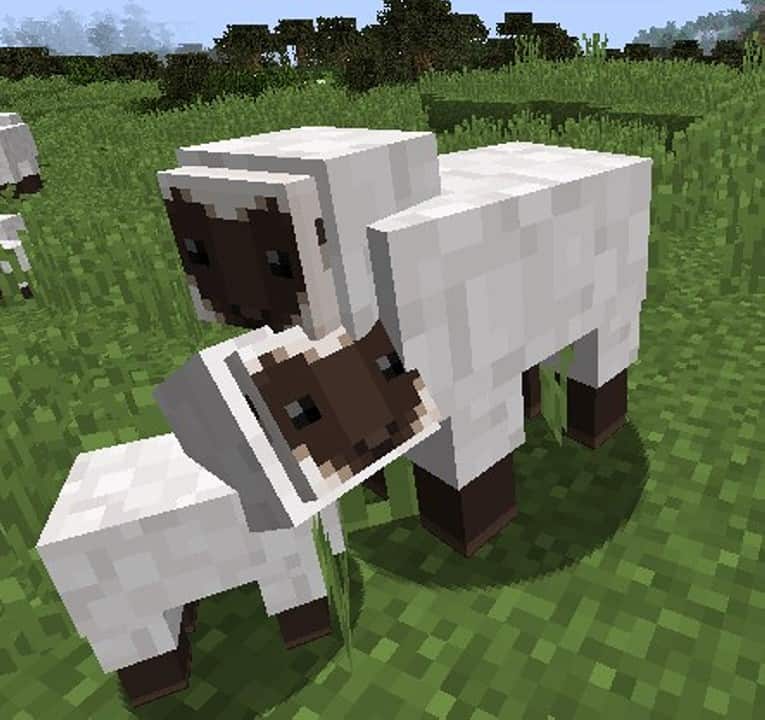
The Blocky Mobs resource pack completely transforms the appearance of the game to be even more wonderfully blocky. You might initially wonder what the purpose of using this texture pack is when Minecraft itself already features an overall blocky environment everywhere. Well, that is not entirely the case here! Once you install this pack, you will immediately notice a striking, charmingly rigid symmetry applied to all the mobs in Minecraft. This makes every creature look like a classic 8-bit character, giving the overall visual vibe a heavy resemblance to old-school retro Nintendo games. It is worth noting that Blocky Mobs does not necessarily improve or enhance the standard textures of items, icons, blocks, or the GUI. Instead, the pack focuses entirely on reshaping the overall appearance of the mobs as mentioned above.
The Blocky Mobs pack is crafted with a lovely 32x resolution. This means that when you install this particular pack, it pushes the graphical style firmly into retro gaming territory. If you deeply appreciate the aesthetic of classic Nintendo games, you are definitely going to prefer having this Blocky Mobs pack installed. The pack is surprisingly detailed and thorough in its execution. When it comes to completely changing the look of mobs in Minecraft, this pack truly stands out. Rest assured that every single mob in Minecraft 1.8.X and below receives a major stylistic overhaul after installing. For instance, you will notice that friendly mobs like tamed wolves and villagers look distinctively different and wonderfully unique. So, what are you waiting for? Feel free to try out Blocky Mobs and enjoy a fantastic retro gaming interface today!
Blocky Mobs should be compatible with all of these Minecraft versions: 1.8.9 – 1.8.8 – 1.8.1 – 1.8.6 – 1.8 – 1.7.10 – 1.7.9 – 1.7.4 – 1.7
Screenshots
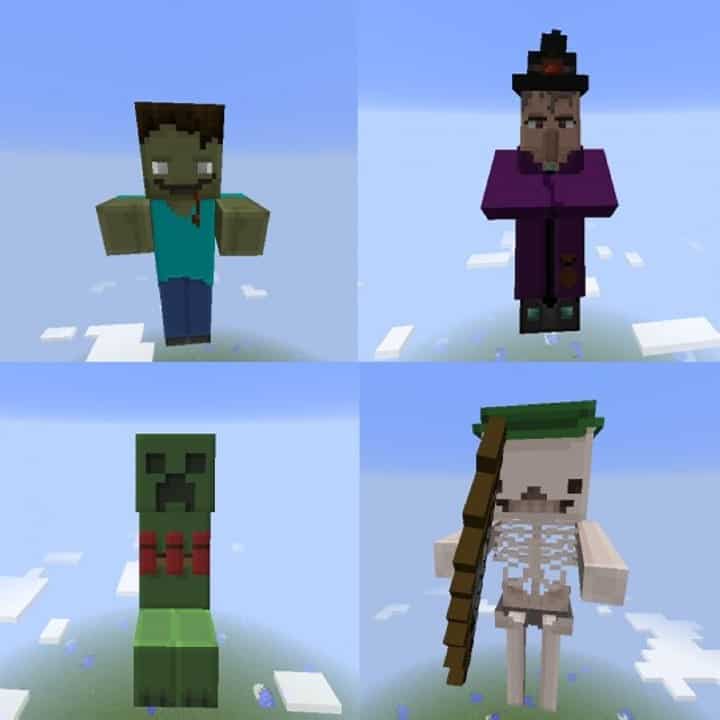
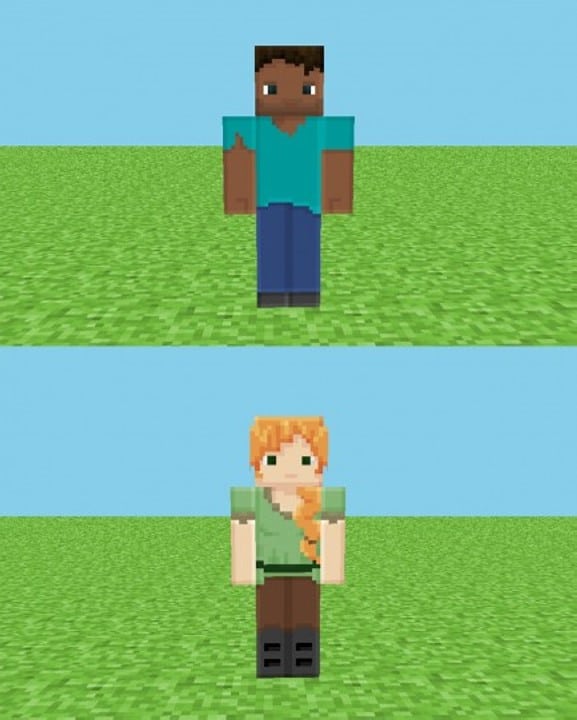
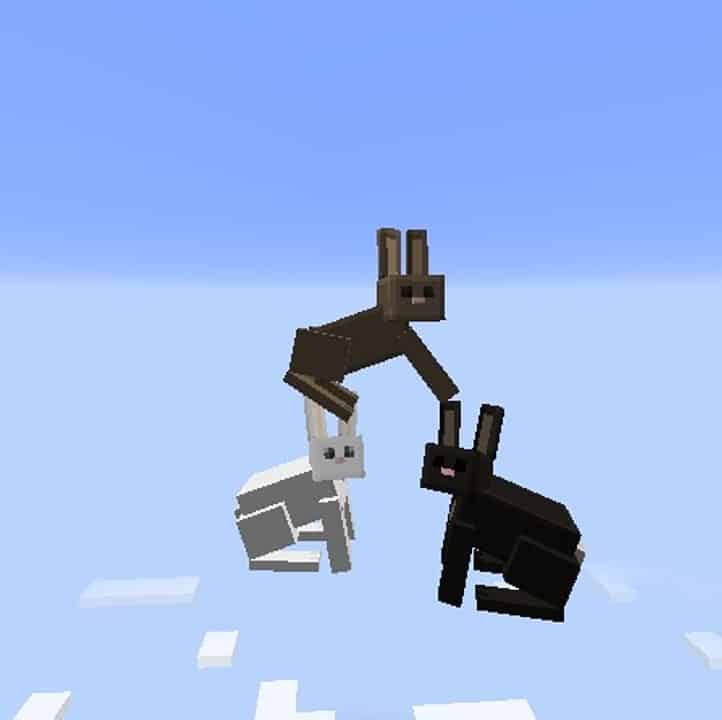
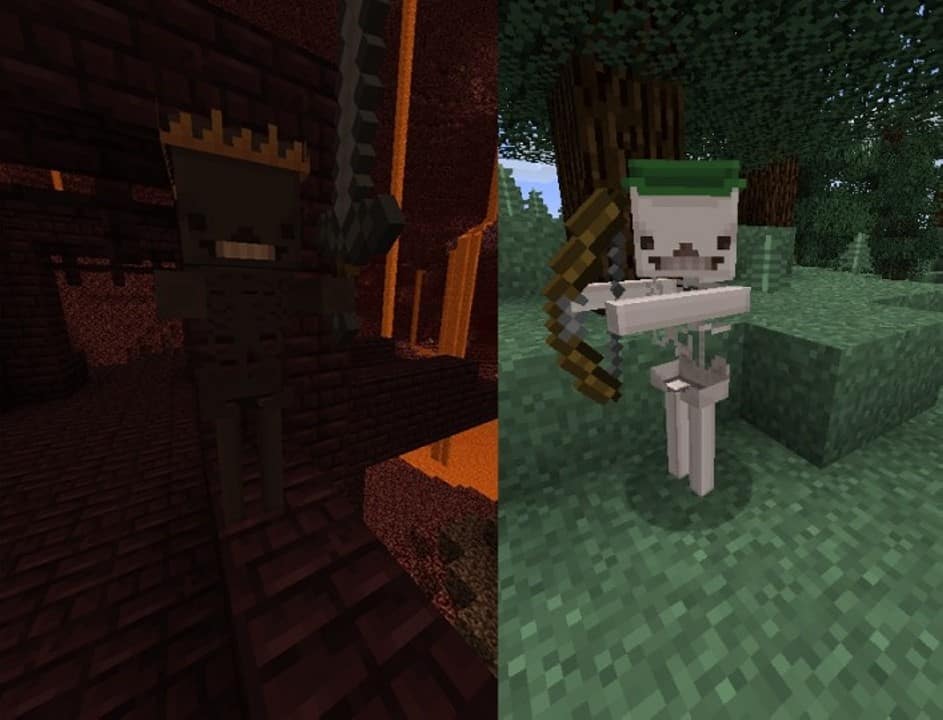
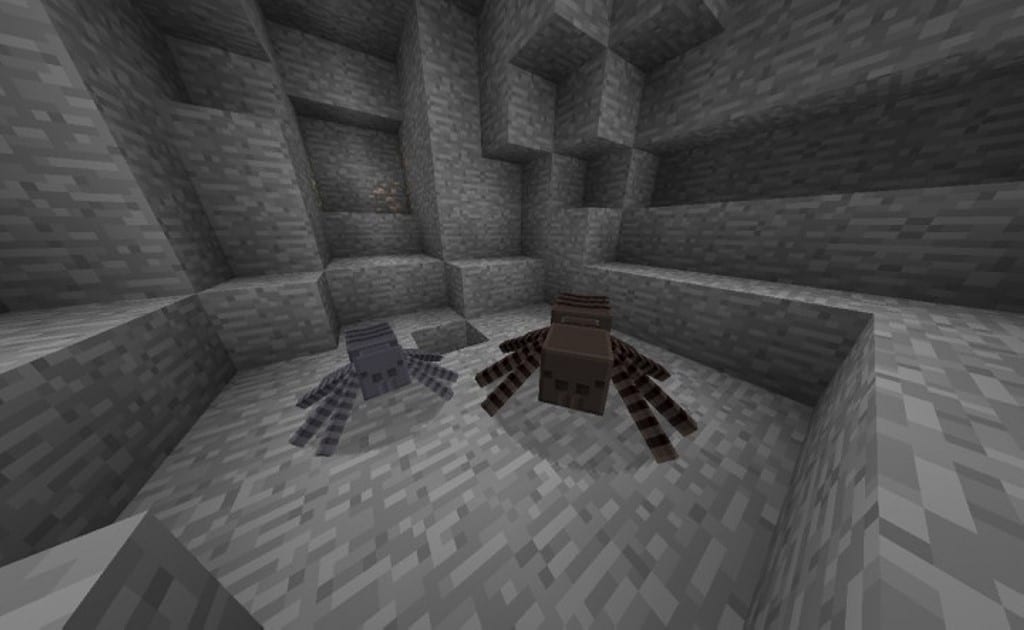
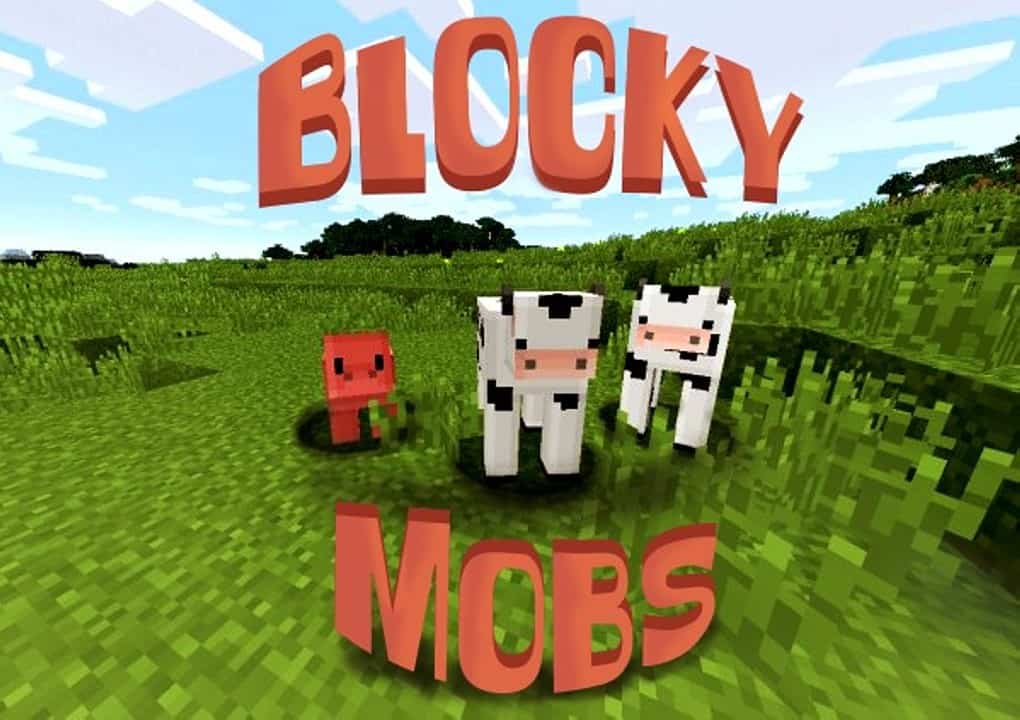
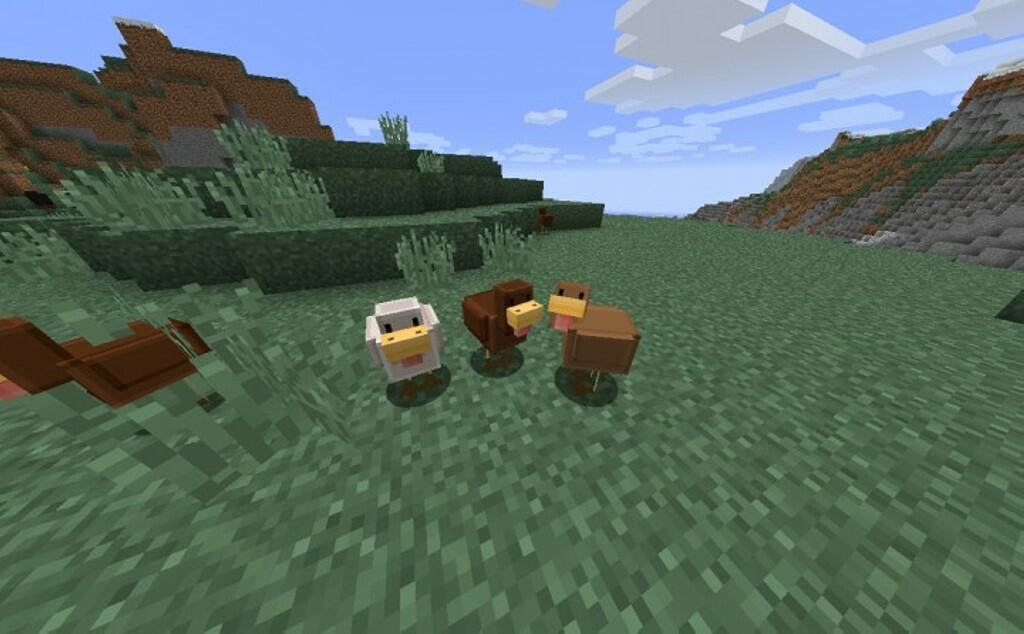
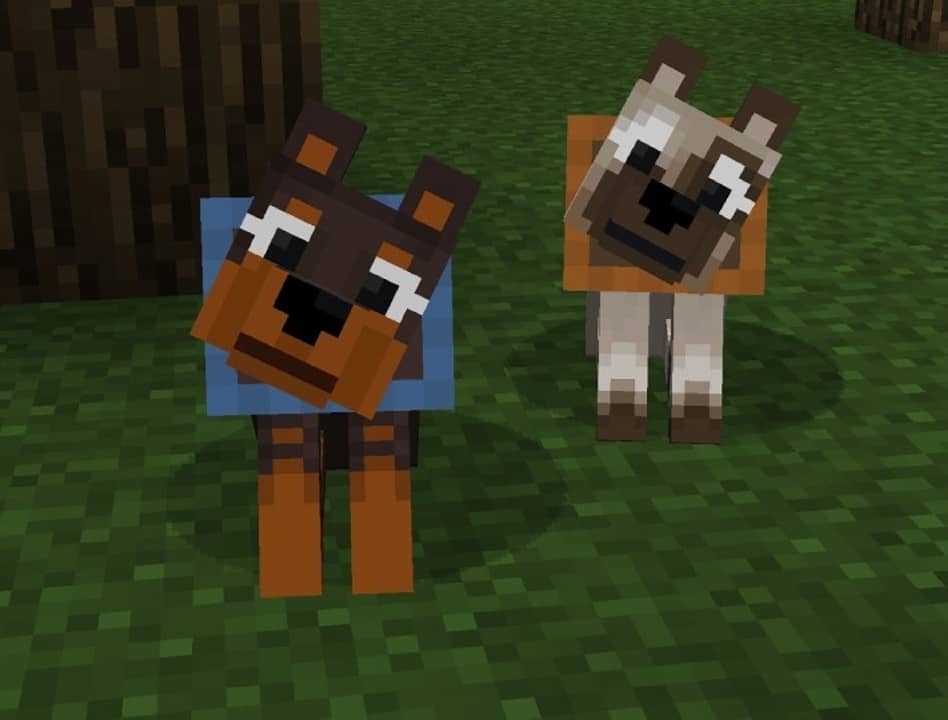

How to Install Texture Pack (Simple 10 Steps)
- Download OptiFine: Most of the texture packs and shaders need OptiFine. That’s why, first download and install OptiFine for the version of Minecraft you want to play.
- Download the Texture Pack: Get the texture pack you want from the download section. Choose the version that works with your Minecraft and your PC’s performance.
- Open Minecraft Launcher: Start Minecraft using the official game launcher — or even TLauncher, if you use that.
- Go to Options: From the main menu, click on the “Options” button.
- Open Resource Packs: Inside Options, click on “Resource Packs…”.
- Open the Resource Pack Folder: Click on “Open Resource Pack Folder” — this will open a folder named “resourcepacks”.
- Move the Pack File: Copy or move the .zip file you downloaded into that “resourcepacks” folder. (Don’t unzip the file — Minecraft uses it as-is!)
- Go Back and Refresh: Close the folder and click “Done”, then go back into “Resource Packs…” again.
- Activate the Pack: You’ll see the pack on the left side. Hover over it and click the arrow to move it to the right (active side).
Tip: If you get a message that the pack is for a different version, just click “Yes” — it usually works fine. - Click Done and Enjoy: Click “Done” again. Now your pack is ready to use in-game. It’s that easy!
Credits
This resource pack was created by MaskedTrinity. We do not claim ownership of this content, nor have we modified the original files. All rights belong to the original author, and we highly recommend supporting MaskedTrinity by checking out their official source and download links.
Download Instructions
Curseforge: download starts automatically after a few seconds;
Mediafire: click the big blue button with the text “DOWNLOAD”;
Google Drive: in the top right corner you will see a small download icon (down arrow), click it and the download should start;


