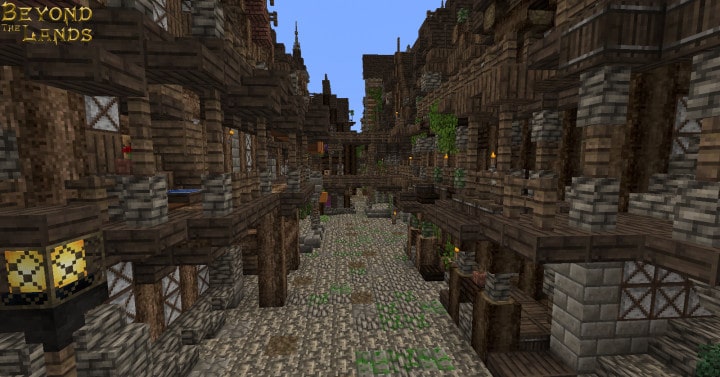
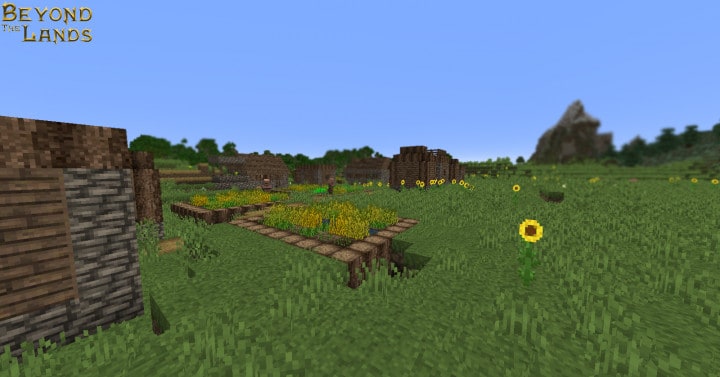
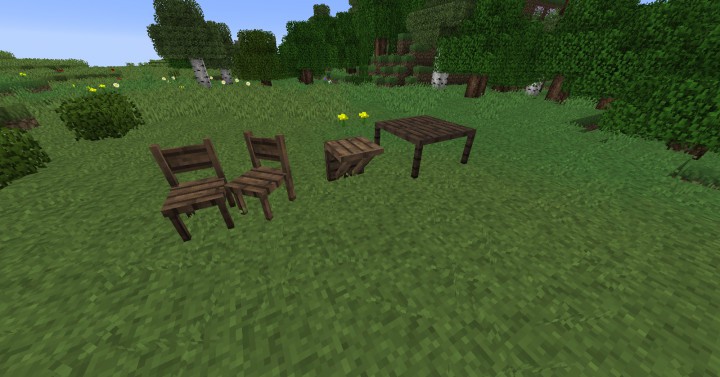
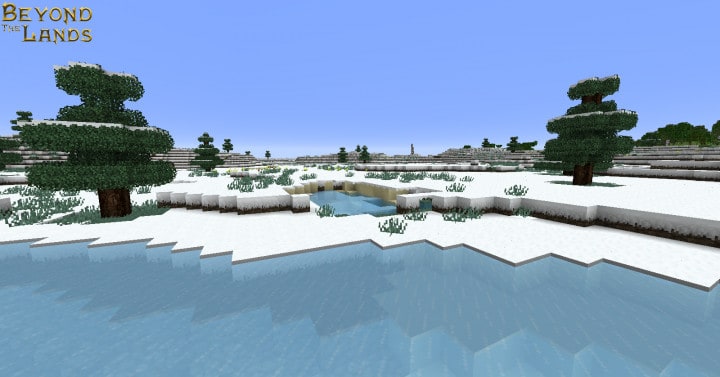
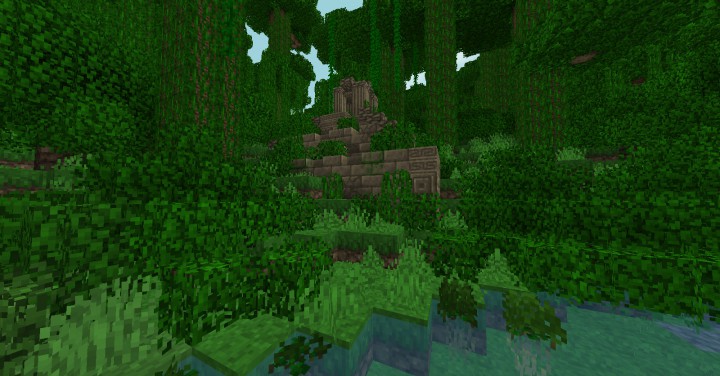
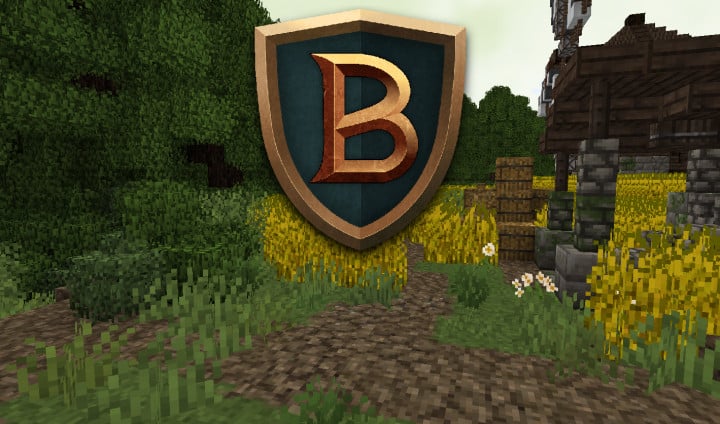
I had an absolute blast testing out Beyond The Lands, an incredible 16x resource pack for Minecraft that truly makes the game look fascinating. When I loaded it up, I quickly realized why this extensive pack is considered one of the most brilliant options currently available. With the Beyond The Lands set of textures, your game will simply look much better. The reason behind it is that all of its textures have been manually refined to result in top-notch products so to speak. I love how the resource pack captures an art style that is realistic or medieval in nature and achieves this with minimum effort. Its medieval theme feels remarkably similar to the vanilla Minecraft art style, meaning the default aesthetic is preserved while seamlessly transforming into a gorgeous medieval style that will most certainly be enjoyed by players who want their Minecraft experience to be more medieval themed.
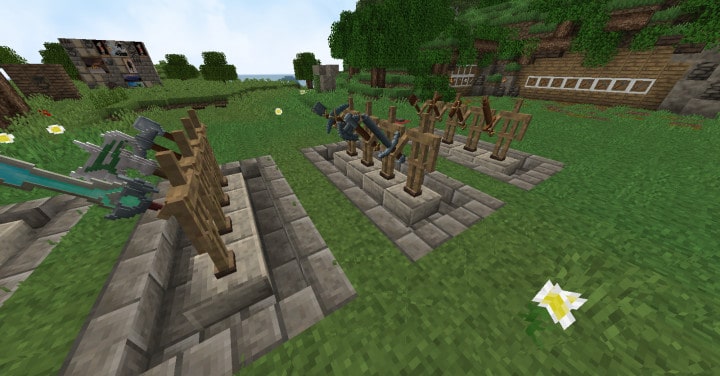
Beyond The Lands is not just a straightforward and elegant resource pack designed in a medieval theme, but it is also one of the most comprehensive packs on the market. In addition to changing the textures of items and blocks, the pack pays keen attention to the visual aspects of the game, including the user interface (UI), tools, weapons, entities, blocks, and equipment. After installing this resource pack, you will immediately notice that the textures appear impressively sharp and rich in detail. Just like most great medieval resource packs, Beyond The Lands styles its UI in darker, immersive colors. I was also very pleased to find that the textures are completely devoid of even the slightest noise issues. Overall, Beyond The Lands doesn’t try to rely on overwhelming effects, yet it still manages to deliver an unforgettable and exceptional experience through its fantastic medieval and realistic presentation using only 16×16 resolution textures.
Beyond The Lands should be compatible with all of these Minecraft versions: 1.16.5 – 1.16.4 – 1.16.3 – 1.16.2 – 1.16.1 – 1.16 – 1.15.2 – 1.15.1 – 1.15 – 1.14.4 – 1.14.3 – 1.14.2 – 1.14 – 1.13.1 – 1.13 – 1.12.2 – 1.12 – 1.11.2 – 1.11 – 1.10.2 – 1.10
Screenshots
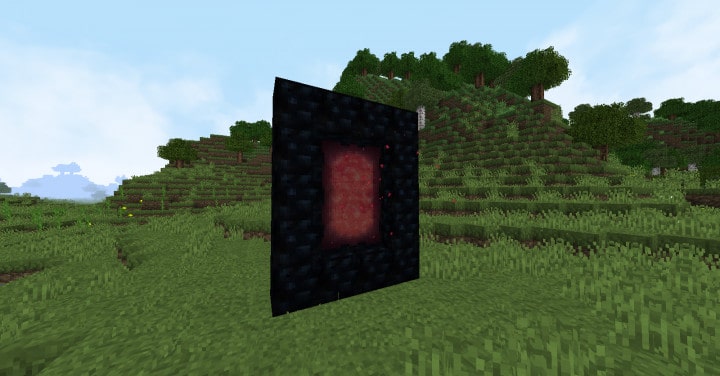
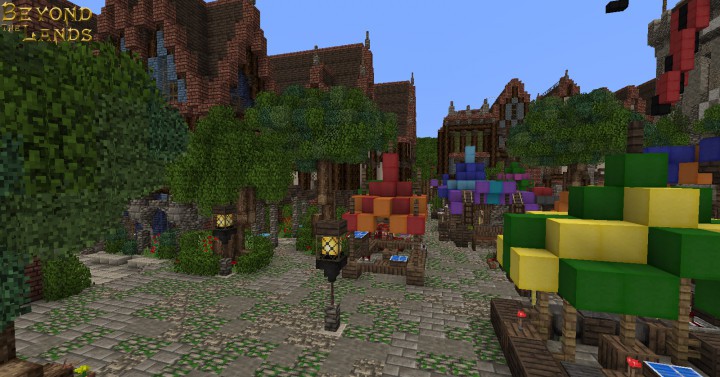
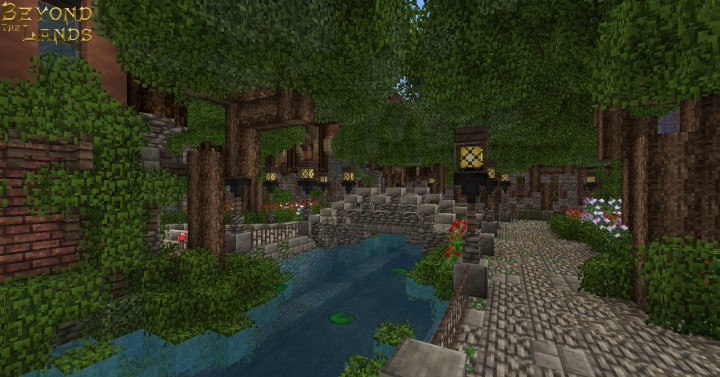
How to Install Texture Pack (Simple 10 Steps)
- Download OptiFine: Most of the texture packs and shaders need OptiFine. That’s why, first download and install OptiFine for the version of Minecraft you want to play.
- Download the Texture Pack: Get the texture pack you want from the download section. Choose the version that works with your Minecraft and your PC’s performance.
- Open Minecraft Launcher: Start Minecraft using the official game launcher — or even TLauncher, if you use that.
- Go to Options: From the main menu, click on the “Options” button.
- Open Resource Packs: Inside Options, click on “Resource Packs…”.
- Open the Resource Pack Folder: Click on “Open Resource Pack Folder” — this will open a folder named “resourcepacks”.
- Move the Pack File: Copy or move the .zip file you downloaded into that “resourcepacks” folder. (Don’t unzip the file — Minecraft uses it as-is!)
- Go Back and Refresh: Close the folder and click “Done”, then go back into “Resource Packs…” again.
- Activate the Pack: You’ll see the pack on the left side. Hover over it and click the arrow to move it to the right (active side).
Tip: If you get a message that the pack is for a different version, just click “Yes” — it usually works fine. - Click Done and Enjoy: Click “Done” again. Now your pack is ready to use in-game. It’s that easy!
Credits
This resource pack was created by tomaxed44. We do not own or modify the files provided here; all rights and original ownership belong entirely to the creator. We strongly encourage you to visit the official source and support tomaxed44 for their amazing work.
Download Links
Java Edition
Download Instructions
Curseforge: download starts automatically after a few seconds;
Mediafire: click the big blue button with the text “DOWNLOAD”;
Google Drive: in the top right corner you will see a small download icon (down arrow), click it and the download should start;


