Minecraft is an incredible game, but it definitely has its fair share of flaws. While there is a ton to love about the vanilla experience, players quickly notice that hundreds, if not thousands, of resource packs have been developed over the years to tweak the game, improve visuals, or add fresh blocks. Surprisingly, very few resource packs actually address core gameplay problems. There are certain aspects of the game that many players simply dislike, and one such frustrating problem is the endless grinding required in Minecraft. To achieve any real progression while playing, you absolutely need to mine massive amounts of ores and diamonds. Not only are these resources scarce, but they are also notoriously difficult to find. Certain items and activities in the game are locked behind having considerable quantities of the rarest diamonds in your inventory, meaning you can easily end up mining for tens or even hundreds of hours just to reach your progression goals. Several community packs offer various solutions to this tedious mechanic, and the Better X-Ray resource pack is easily one of the best out there. Published back in 2021 by AlleCraft, this fantastic texture pack was designed to be a vastly improved version of older, clunkier resource packs by allowing you to clearly see only ores and diamond blocks. Thanks to its smart implementation and compatibility with both newer and older versions of Minecraft, Better X-Ray gained massive popularity almost instantly. Accumulating hundreds of thousands of downloads in less than a year, the dedicated developer continues to push out frequent updates, constantly improving the overall experience. The way Better X-Ray works is wonderfully simple: without ever changing core game mechanics, injecting malicious code, or functioning as external software or a mod, it operates entirely like a regular resource pack. Of course, keep in mind that some servers might restrict you from using a resource pack like Better X-Ray; while it is not strictly cheating in the traditional sense, it definitely offers an undeniable advantage over players who are playing completely vanilla. Understanding how Better X-Ray functions is anything but complicated, and you will get the hang of it right away.
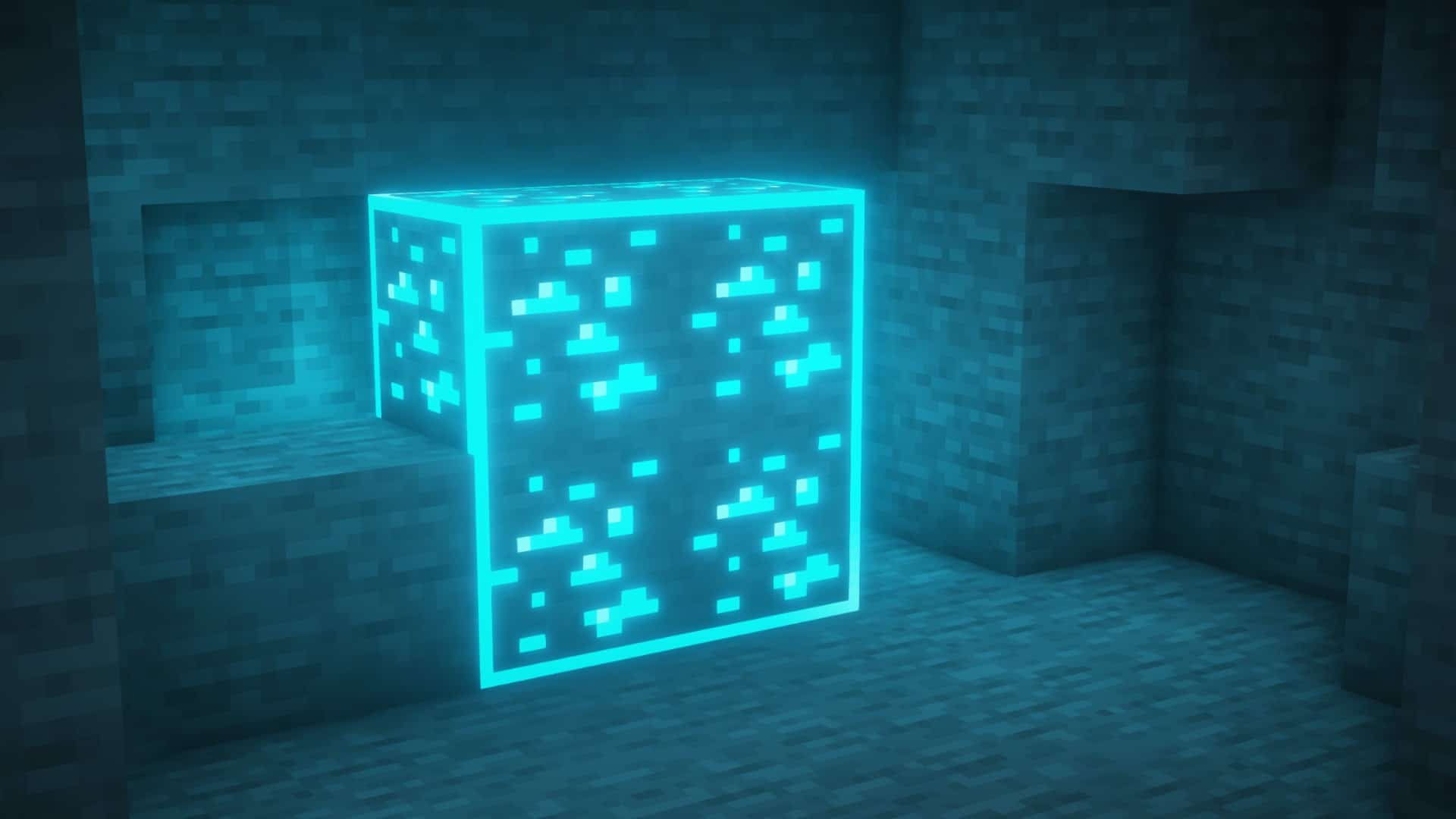
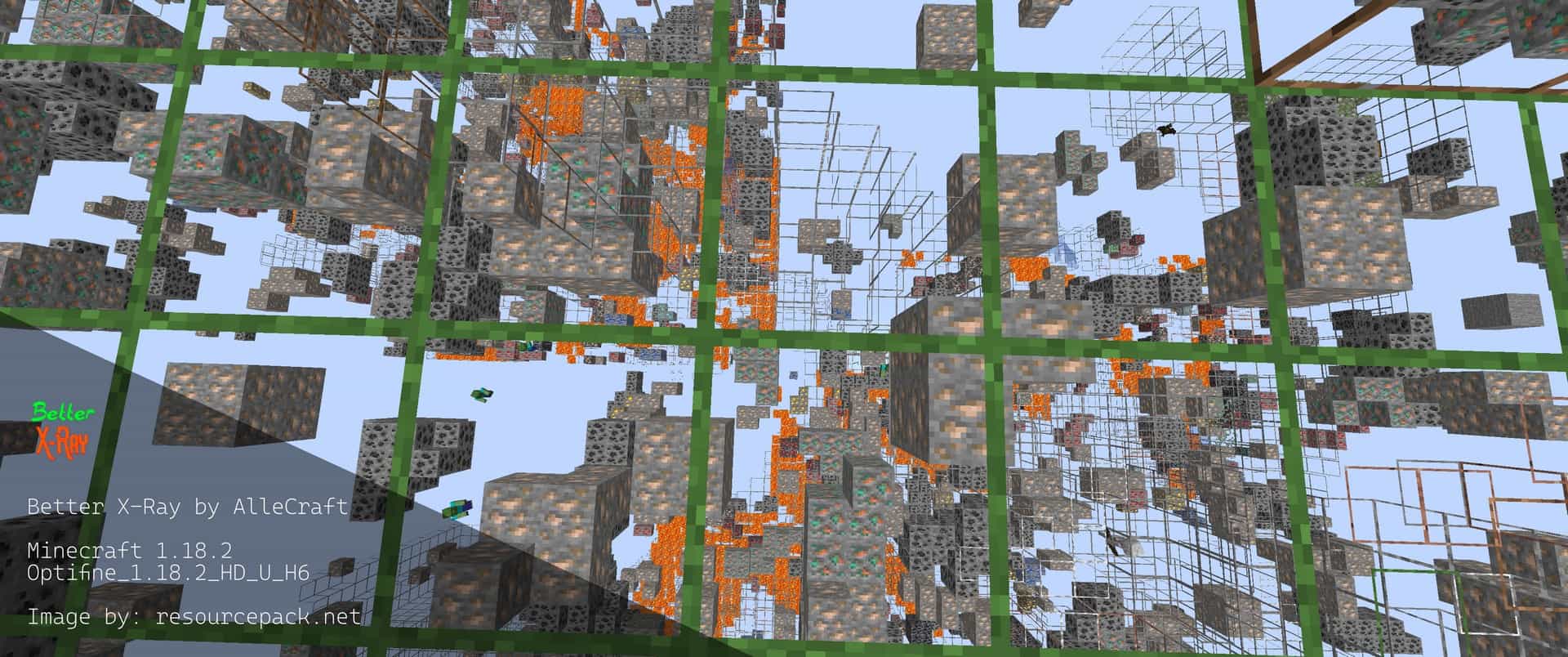
What this pack actually does is strip away the solid textures of standard blocks while leaving the textures on valuable blocks, such as ores and diamonds, completely untouched. This does not mean that all other blocks become completely invisible, which would honestly make the game utterly unplayable by leaving you totally blind to the terrain and causing you to accidentally fall straight into lava without any warning. Instead, the resource pack cleverly outlines regular blocks; for instance, a standard block with a grass texture will appear as a transparent frame with a clean green outline defining its edges. As an awesome bonus, Better X-Ray even works seamlessly in other dimensions, including the Nether! This is super important because you desperately need to head into the Nether if you want to hunt down ancient debris, and with this resource pack installed, tracking down netherite materials is easier than it has ever been. Because of how the Better X-Ray resource pack is engineered, it does not add any heavy custom assets to the game. It preserves standard vanilla texture resolutions and does not introduce any custom blocks, making the overall file size wonderfully compact. Even better, because most regular block textures are rendered invisible, your graphics card actually has a much easier time rendering the world, resulting in a nice, slight framerate boost. While your vanilla frame rate should already be smooth, using Better X-Ray won’t drag your system down at all. That said, it is worth noting that this is not an ideal pack for competitive PvP players; failing to see solid blocks can put you at a major disadvantage in combat, though it can occasionally help you spot hidden enemies more clearly. The only minor downside is that Better X-Ray cannot be dynamically toggled on or off while you are actively playing in a world. Once you load up with the pack enabled, the effect stays active, meaning the only way to return to normal vision is to simply disable or uninstall the resource pack from your settings before jumping into your world. Setting everything up is a breeze, though you will want to use Optifine for the absolute best results. Plus, you will love that there are multiple editions available to suit your preference, including handy Lite and Standard versions where the Standard version is four times lighter than the traditional X-Ray Ultimate, and the Lite version is a staggering eight times lighter!
Better X-Ray should be compatible with all of these Minecraft versions: 26.2 – 26.1.2 – 26.1.1 – 26.1 – 1.21.11 – 1.21.10 – 1.21.9 – 1.21.8 – 1.21.7 – 1.21.6 – 1.21.5 – 1.21.4 – 1.21.3 – 1.21.2 – 1.21.1 – 1.21 – 1.20.6 – 1.20.5 – 1.20.4 – 1.20.3 – 1.20.2 – 1.20.1 – 1.20 – 1.19.4 – 1.19.3 – 1.19.2 – 1.19.1 – 1.19 – 1.18.2 – 1.18.1 – 1.18 – 1.17.1 – 1.17 – 1.16.5 – 1.16.4 – 1.16.3 – 1.16.2 – 1.16.1 – 1.16 – 1.15.2 – 1.15.1 – 1.15 – 1.14.4 – 1.14.3 – 1.14.2 – 1.14 – 1.13.2 – 1.13.1 – 1.13 – 1.21.11
Screenshots
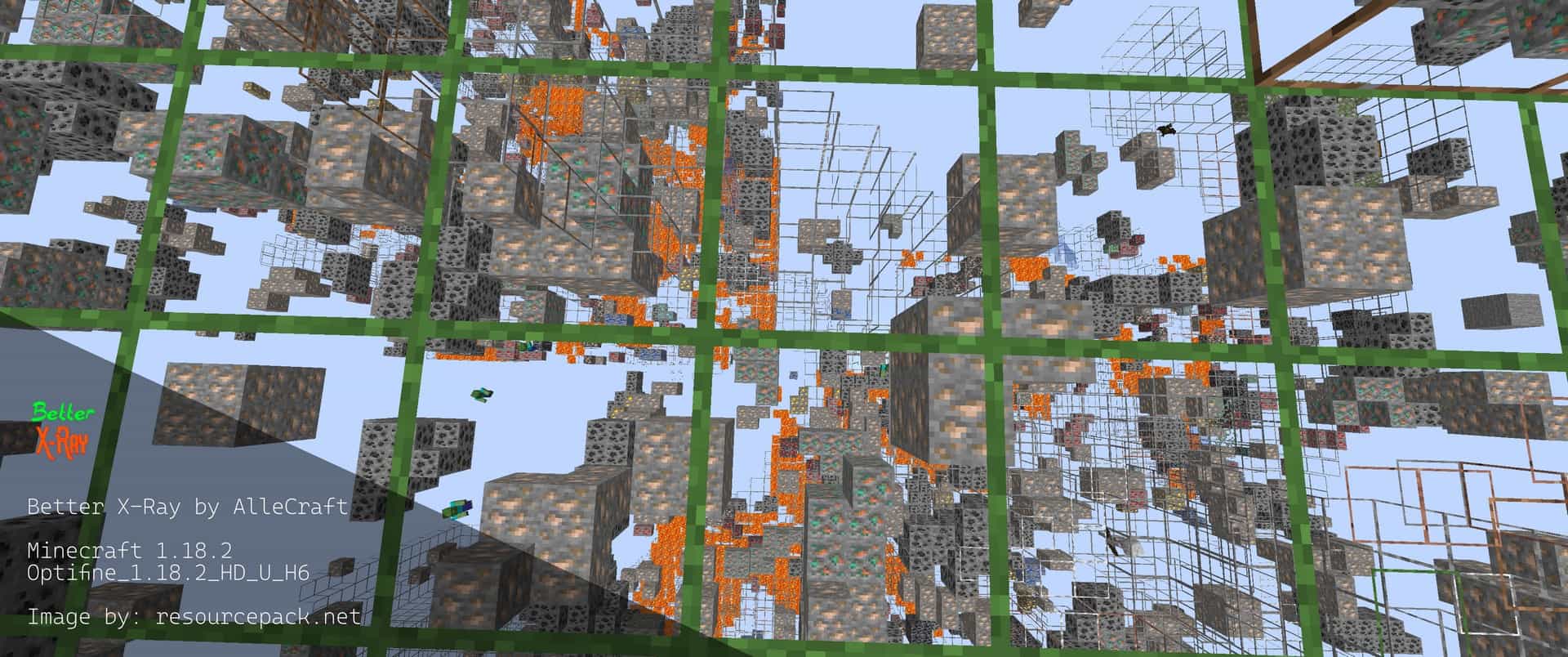
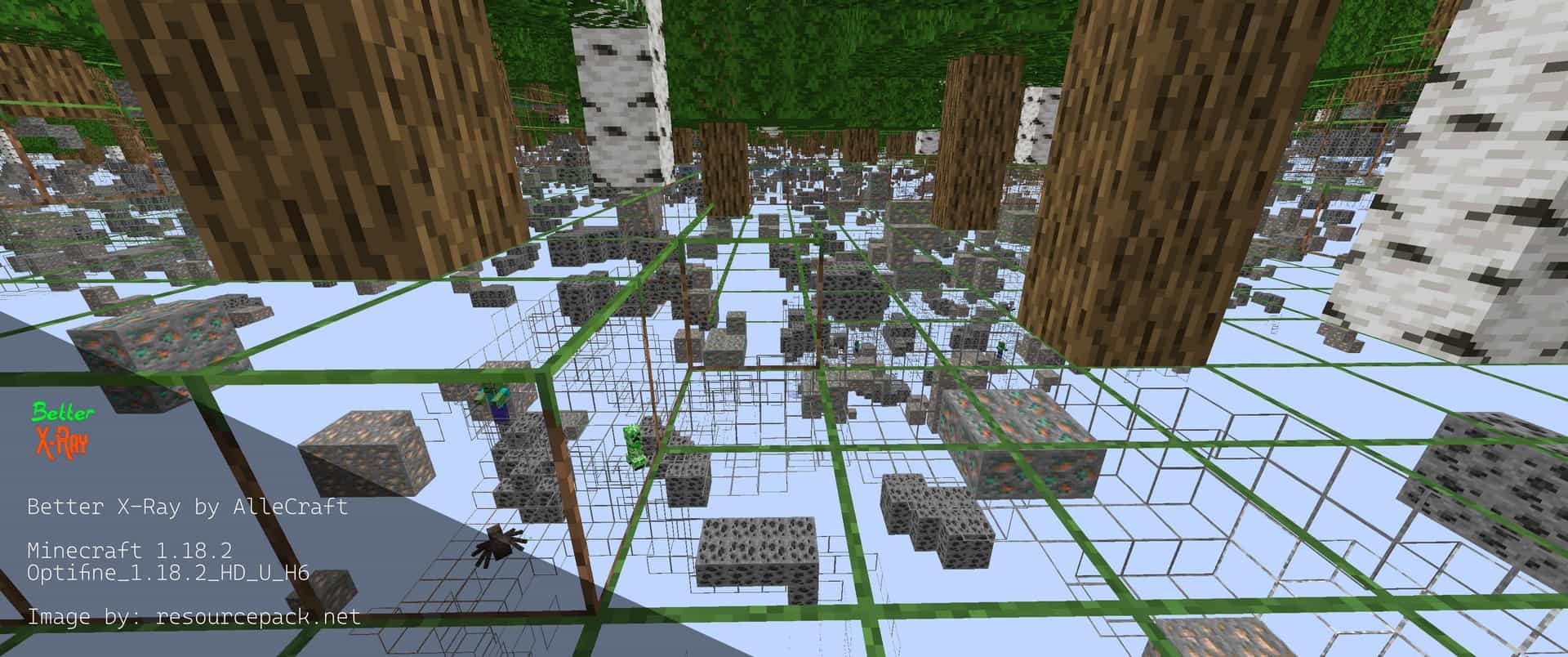
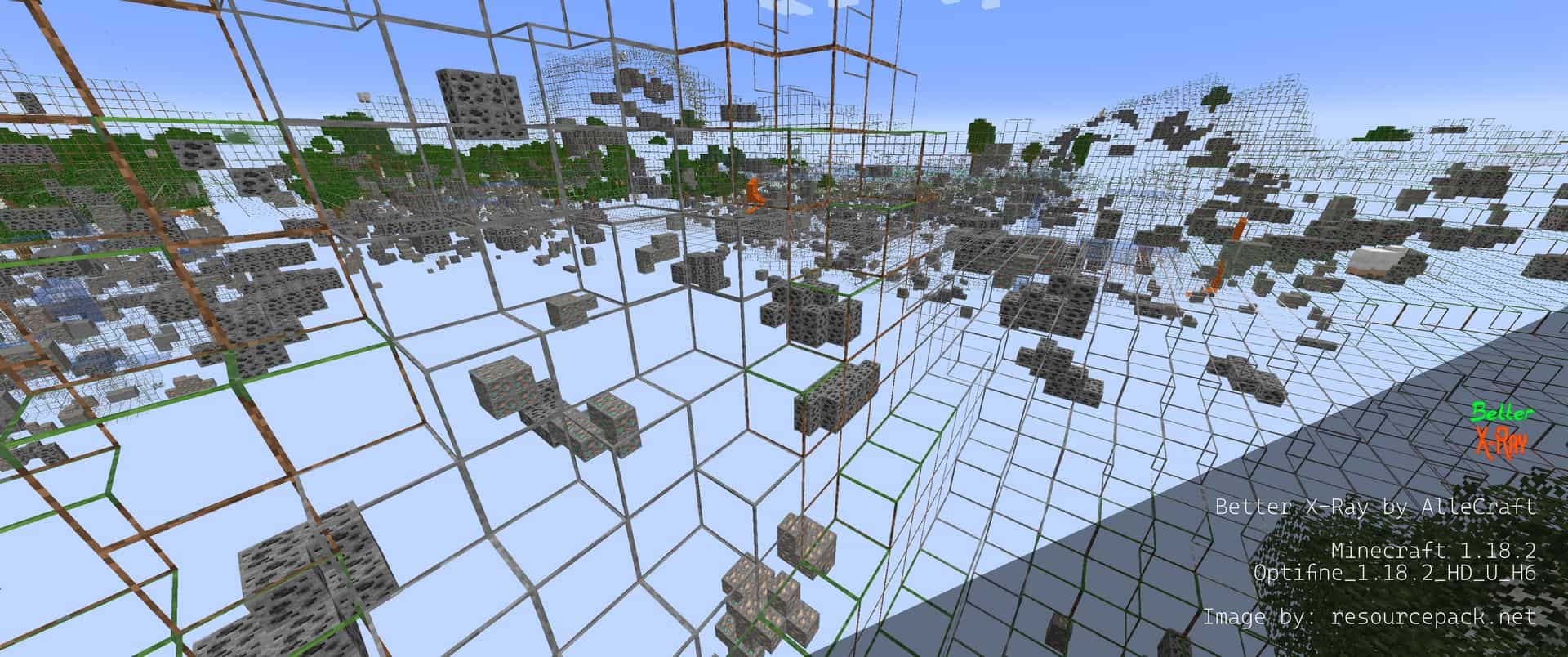
How to Install Texture Pack (Simple 10 Steps)
- Download OptiFine: Most of the texture packs and shaders need OptiFine. That’s why, first download and install OptiFine for the version of Minecraft you want to play.
- Download the Texture Pack: Get the texture pack you want from the download section. Choose the version that works with your Minecraft and your PC’s performance.
- Open Minecraft Launcher: Start Minecraft using the official game launcher — or even TLauncher, if you use that.
- Go to Options: From the main menu, click on the “Options” button.
- Open Resource Packs: Inside Options, click on “Resource Packs…”.
- Open the Resource Pack Folder: Click on “Open Resource Pack Folder” — this will open a folder named “resourcepacks”.
- Move the Pack File: Copy or move the .zip file you downloaded into that “resourcepacks” folder. (Don’t unzip the file — Minecraft uses it as-is!)
- Go Back and Refresh: Close the folder and click “Done”, then go back into “Resource Packs…” again.
- Activate the Pack: You’ll see the pack on the left side. Hover over it and click the arrow to move it to the right (active side).
Tip: If you get a message that the pack is for a different version, just click “Yes” — it usually works fine. - Click Done and Enjoy: Click “Done” again. Now your pack is ready to use in-game. It’s that easy!
Credits
This resource pack was created by AlleCraft. We do not claim ownership of this content, and we do not modify or host the original files on our servers. All rights belong entirely to the original author. We strongly encourage you to support the creator by downloading the pack directly from their official release pages and checking out their other community contributions.
Download Links
Java Edition
- [16x] Minecraft 26.2.x – 26.1.x
- [16x] Minecraft 1.21.x – 1.20.x
- [16x] Minecraft 1.19.x
- [16x] Minecraft 1.18.x
- [16x] Minecraft 1.17.x
- [16x] Minecraft 1.16.x – 1.15.x
- [16x] Minecraft 1.14.x – 1.13.x
- [16x] Minecraft 1.19.x (Alternate)
- [16x] Minecraft 1.18.x (Alternate)
- [16x] Minecraft 1.17.x (Alternate)
- [16x] Minecraft 1.16.x – 1.15.x (Alternate)
- [16x] Minecraft 1.14.x – 1.13.x (Alternate)
Download Instructions
Curseforge: download starts automatically after a few seconds;
Mediafire: click the big blue button with the text “DOWNLOAD”;
Google Drive: in the top right corner you will see a small download icon (down arrow), click it and the download should start;