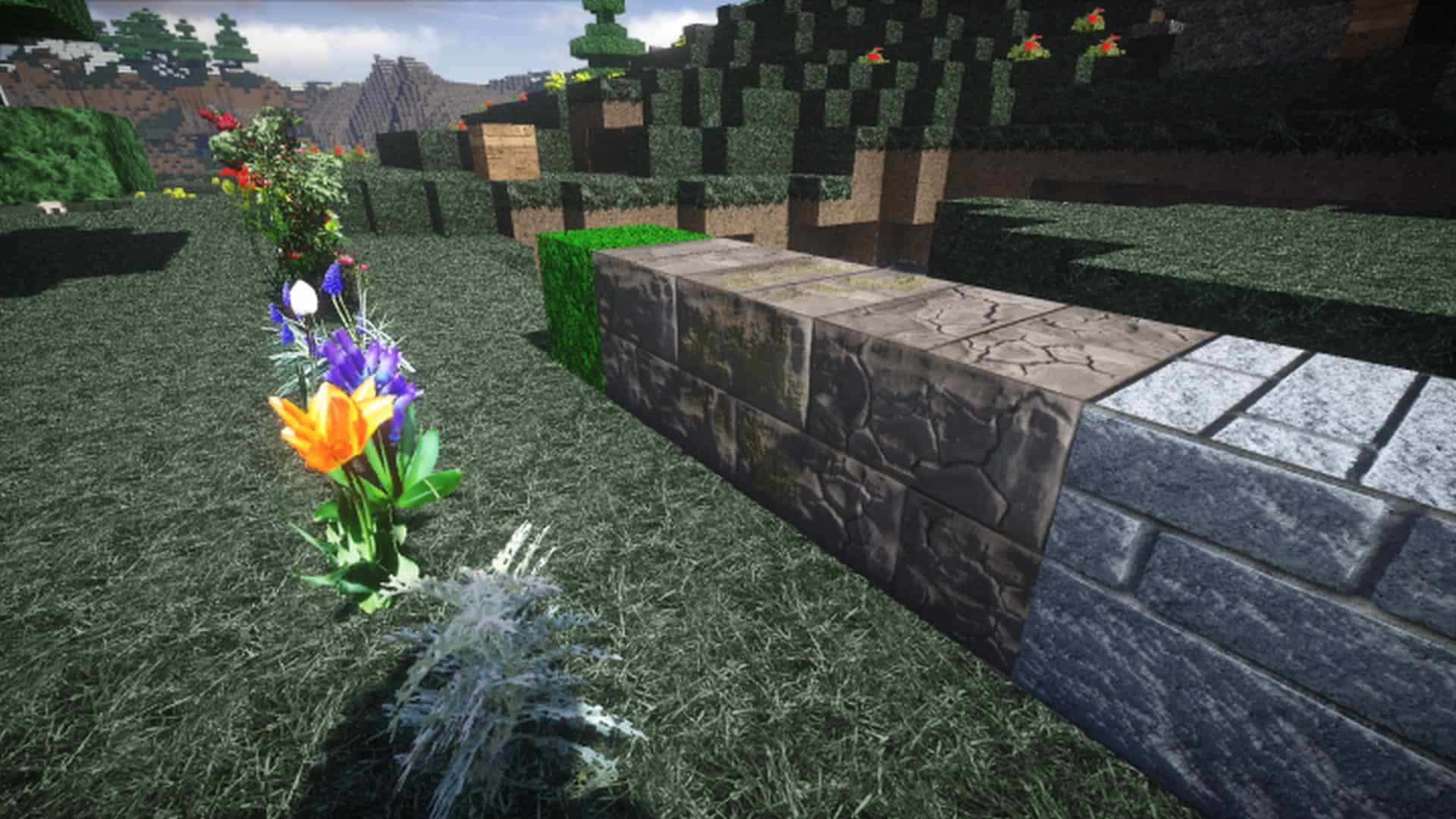
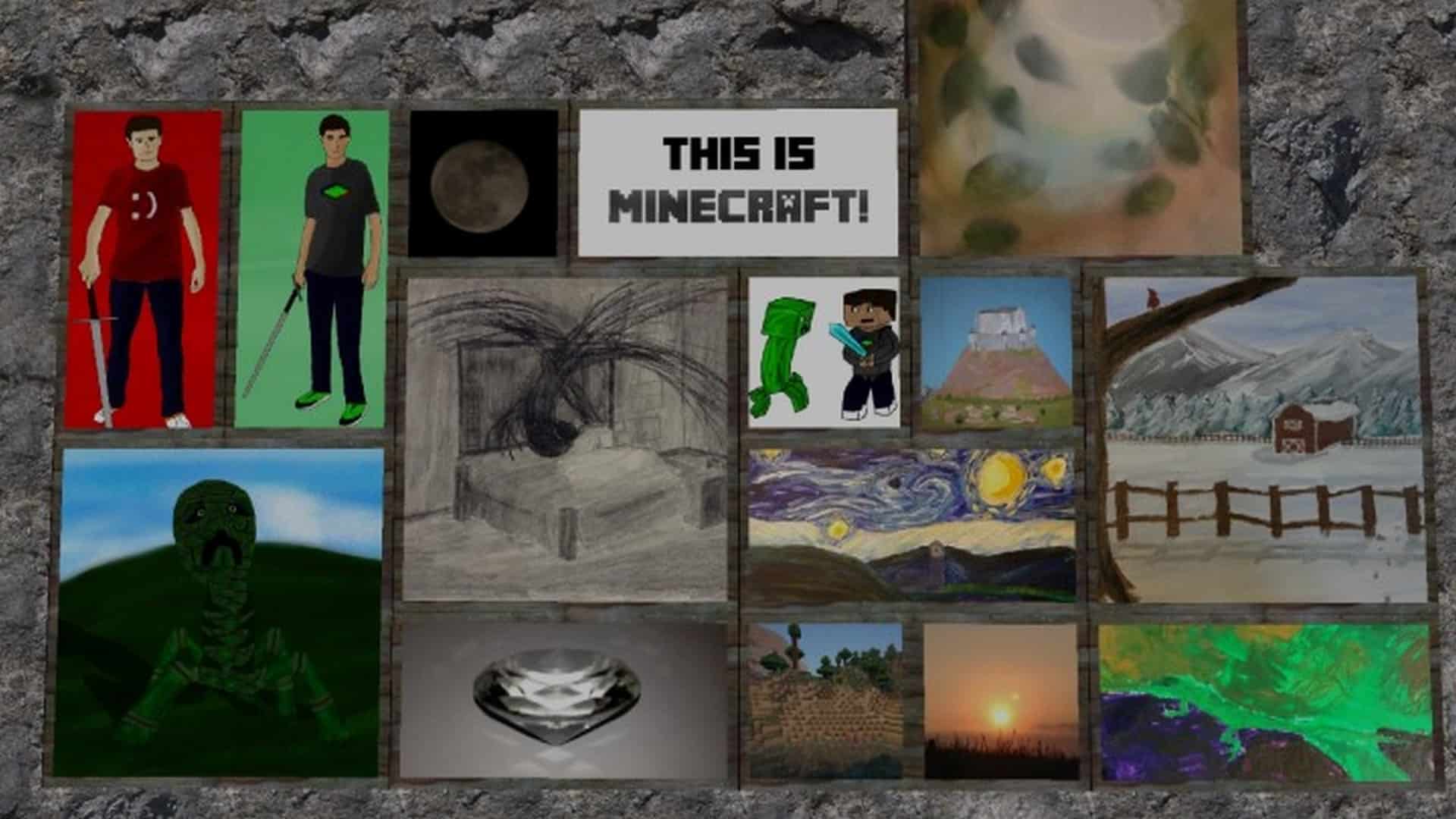
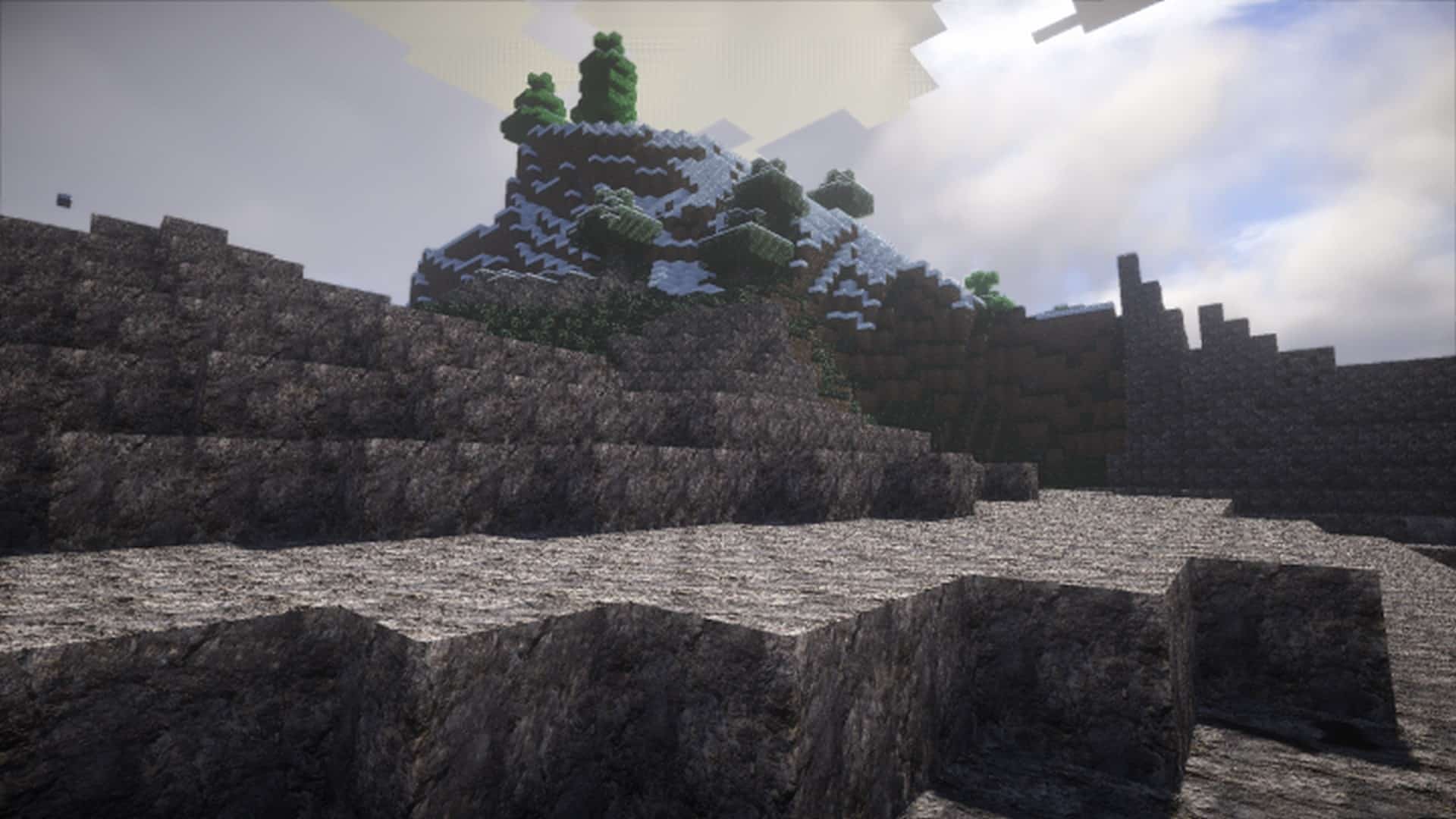
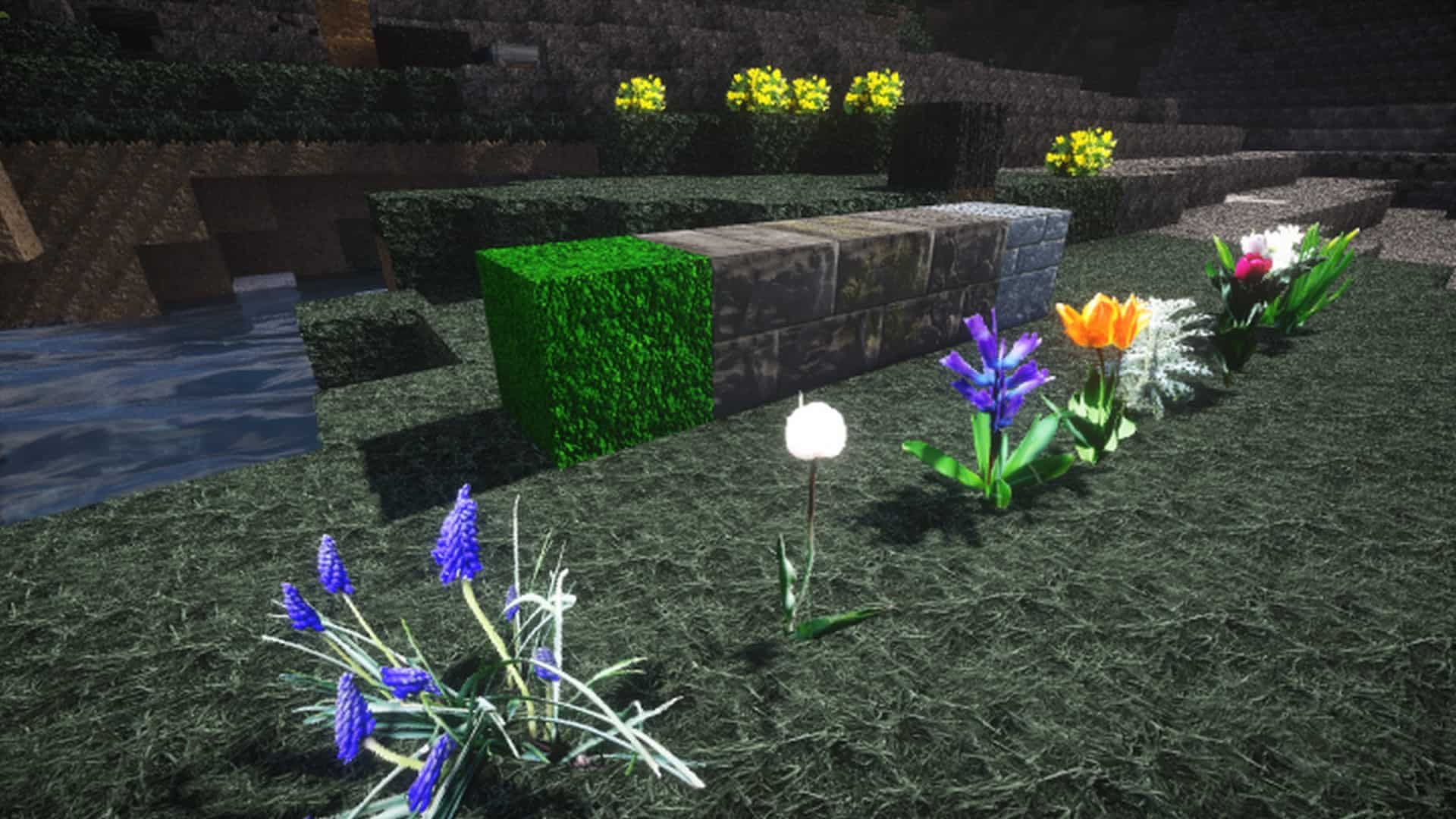
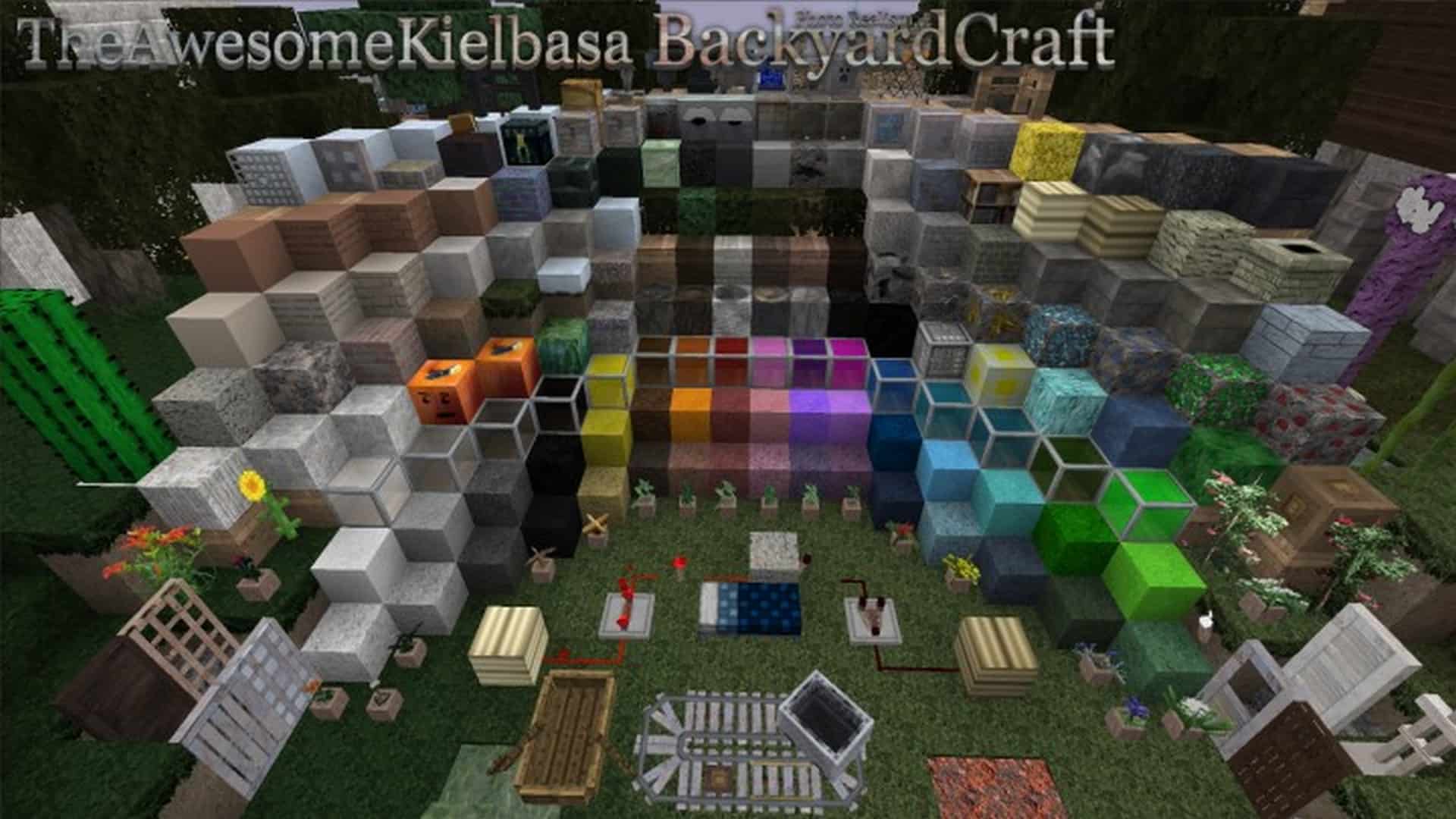
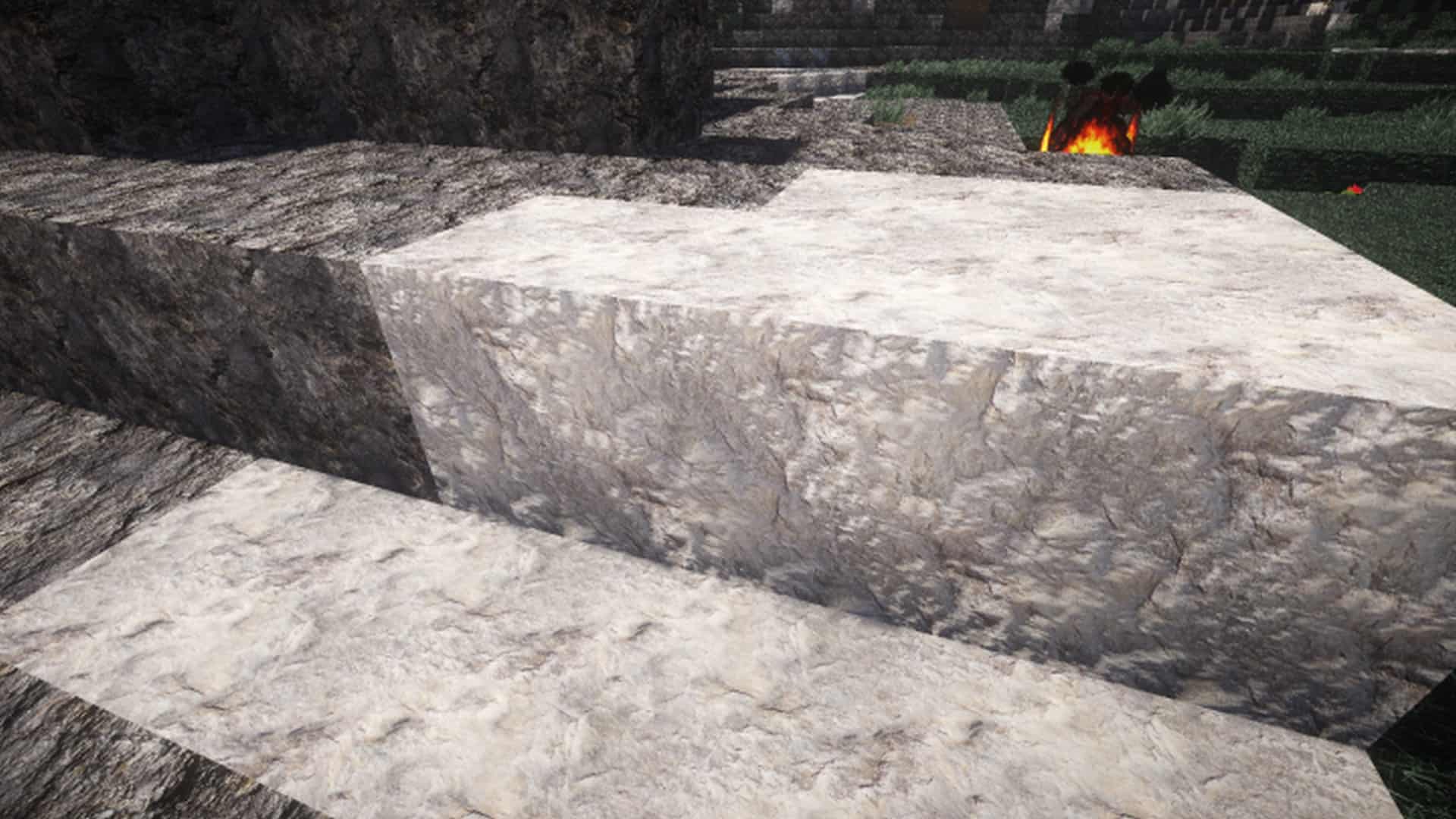
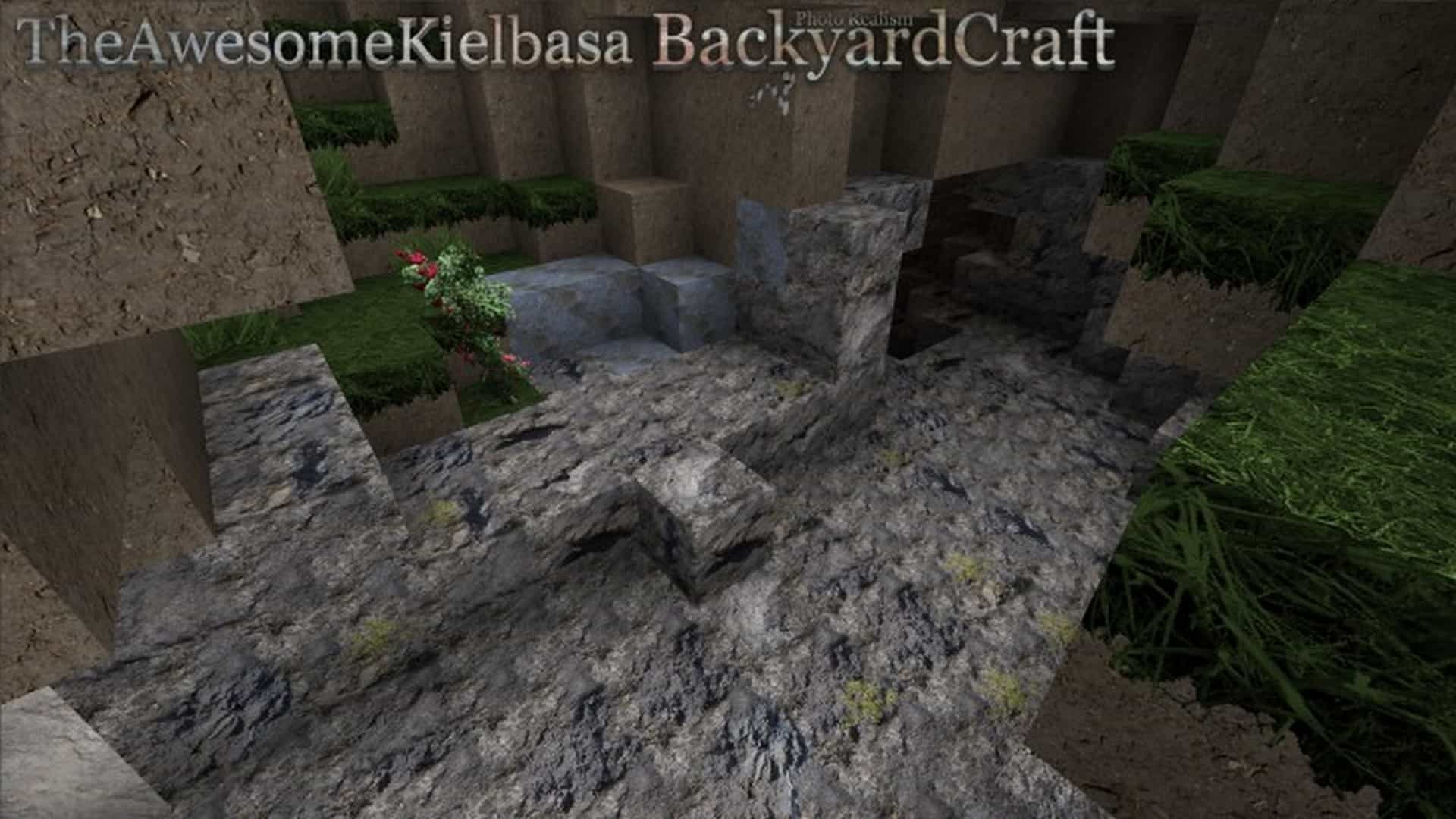
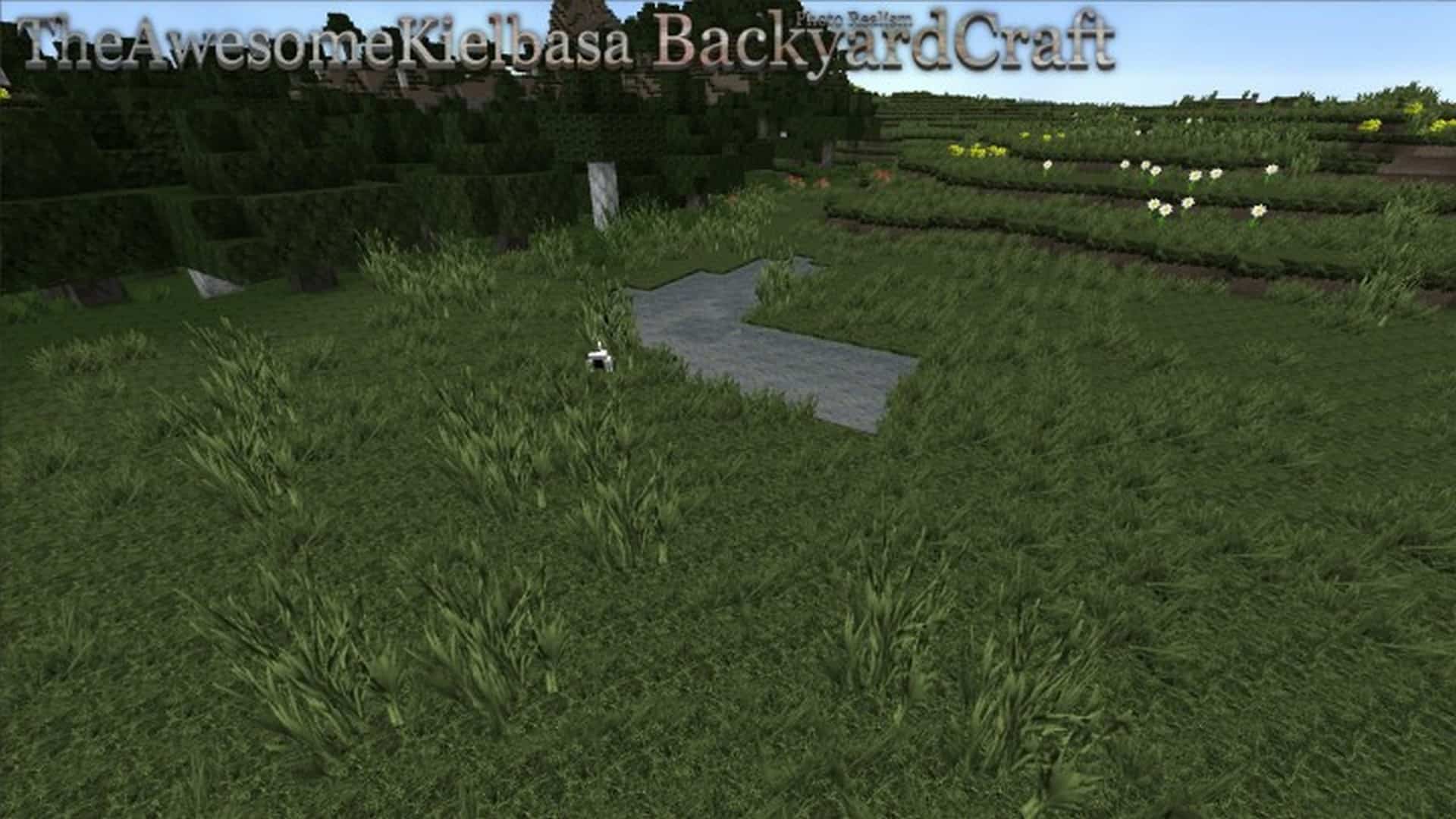
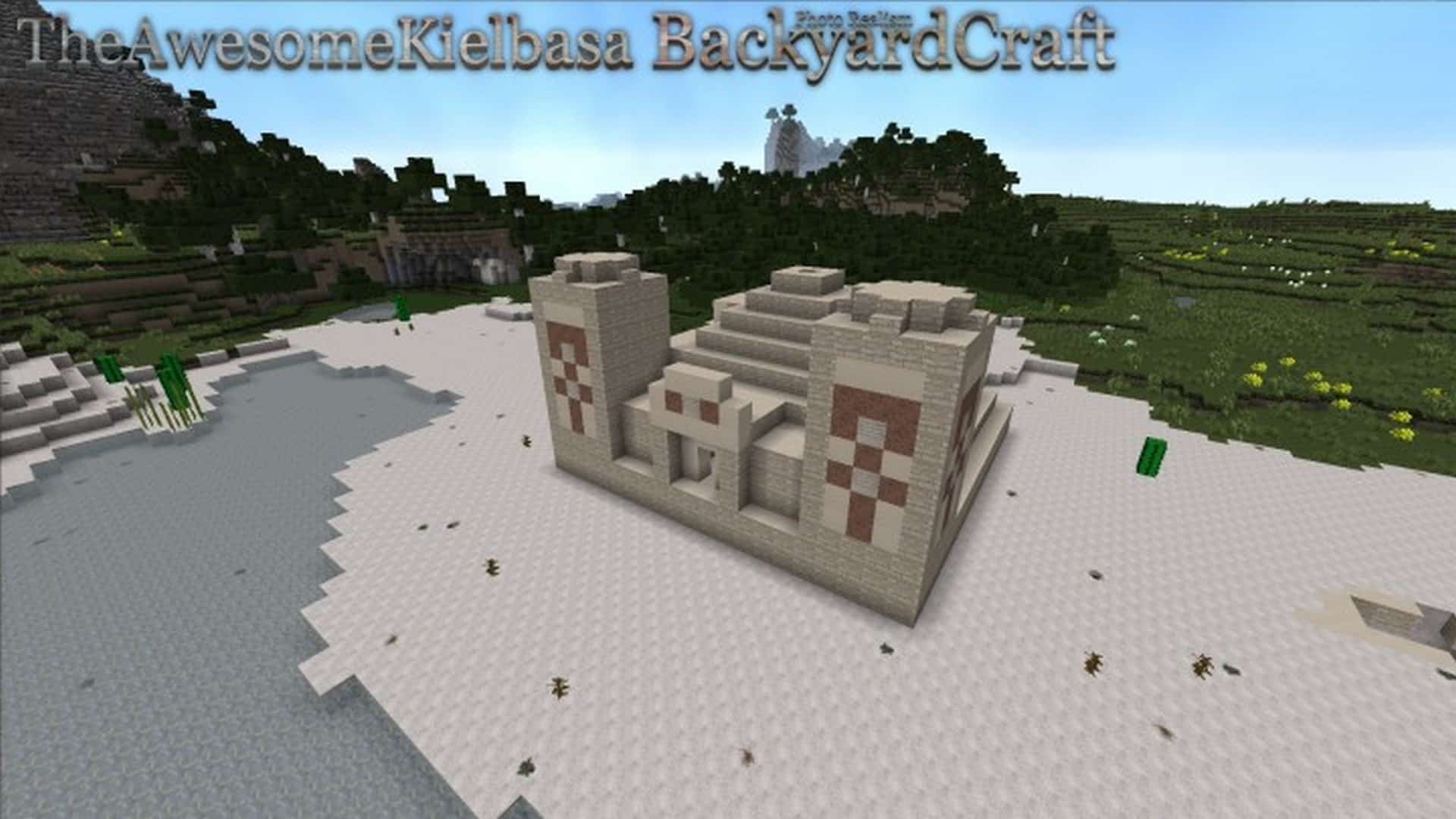
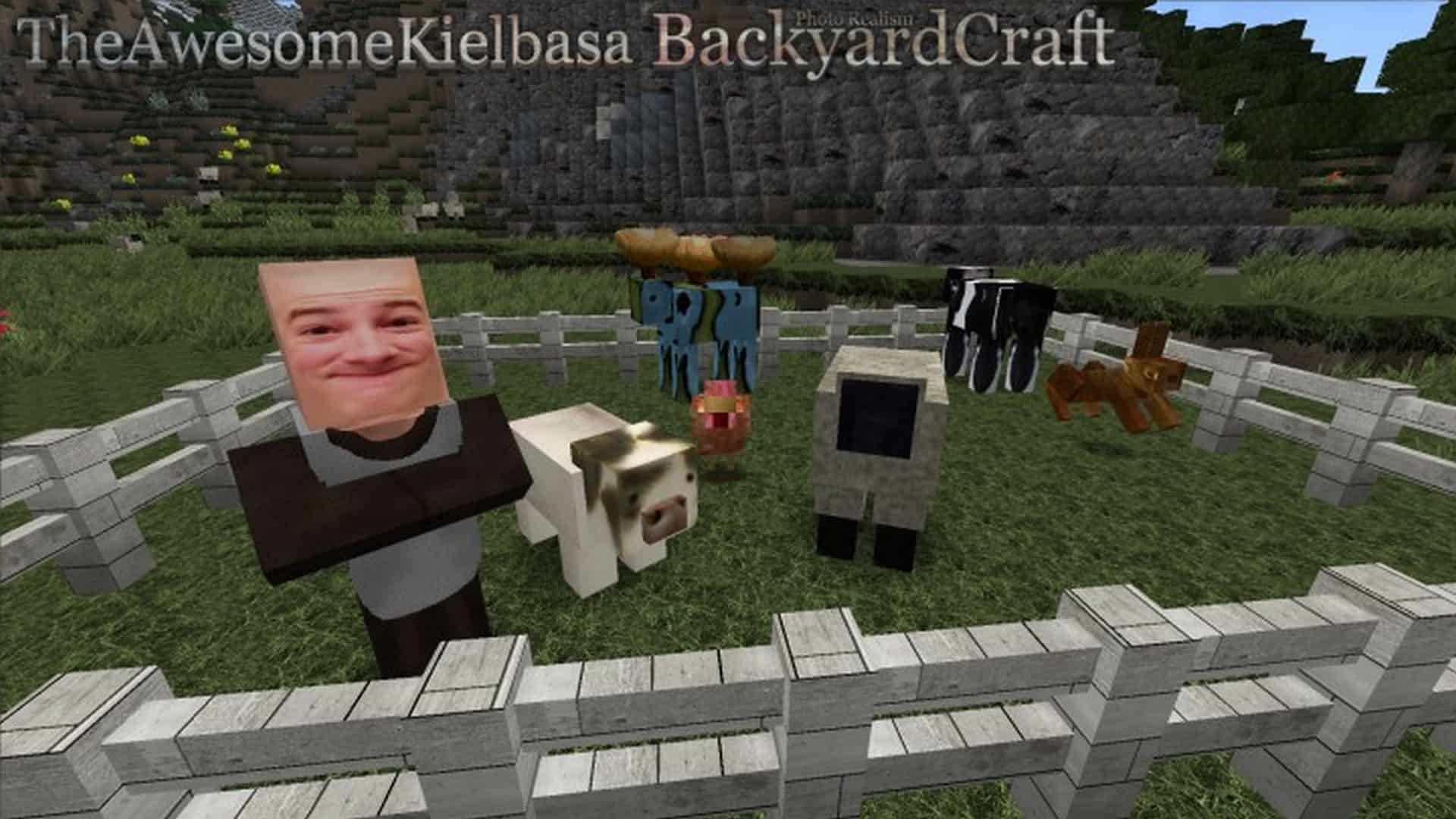
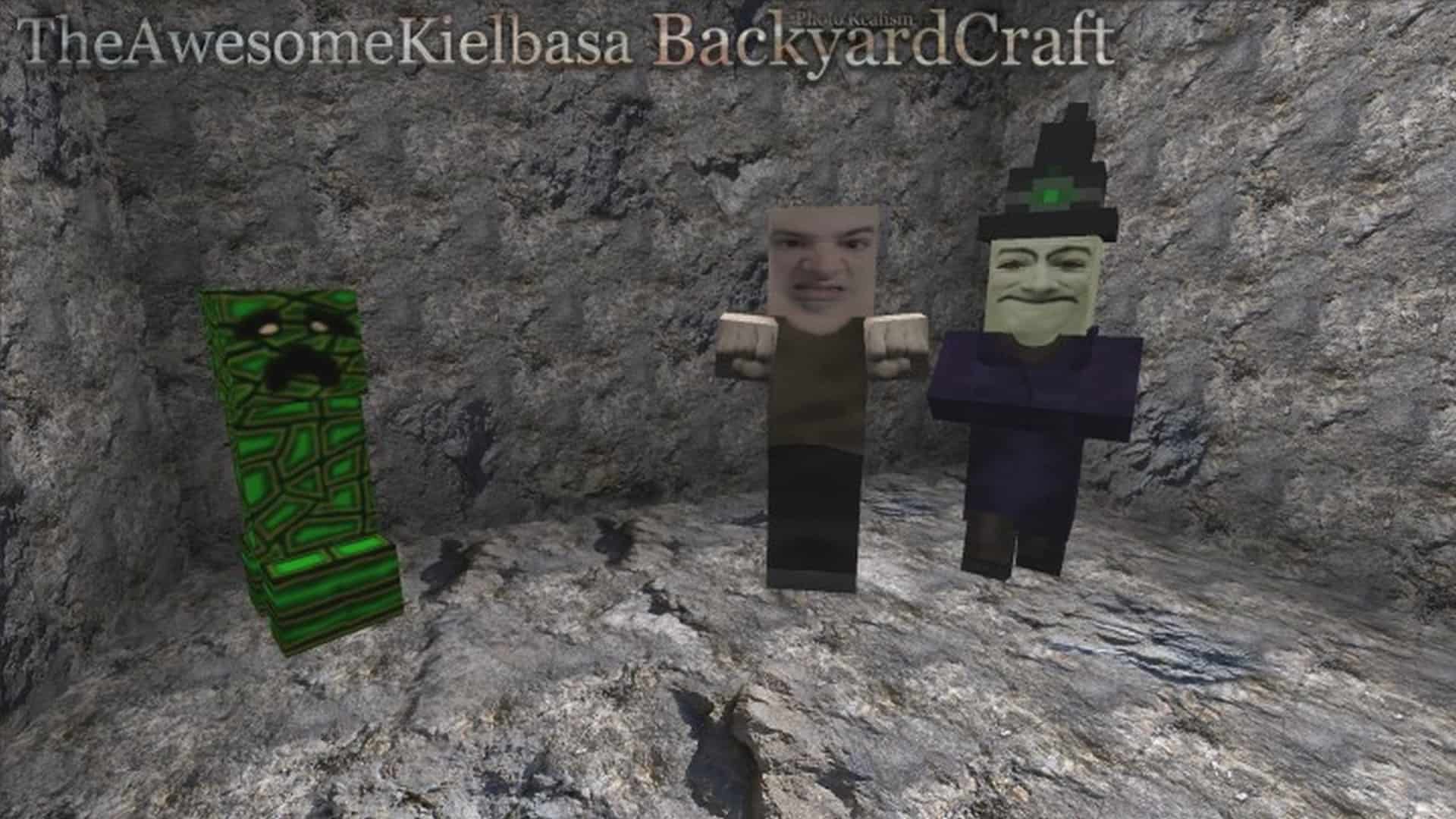
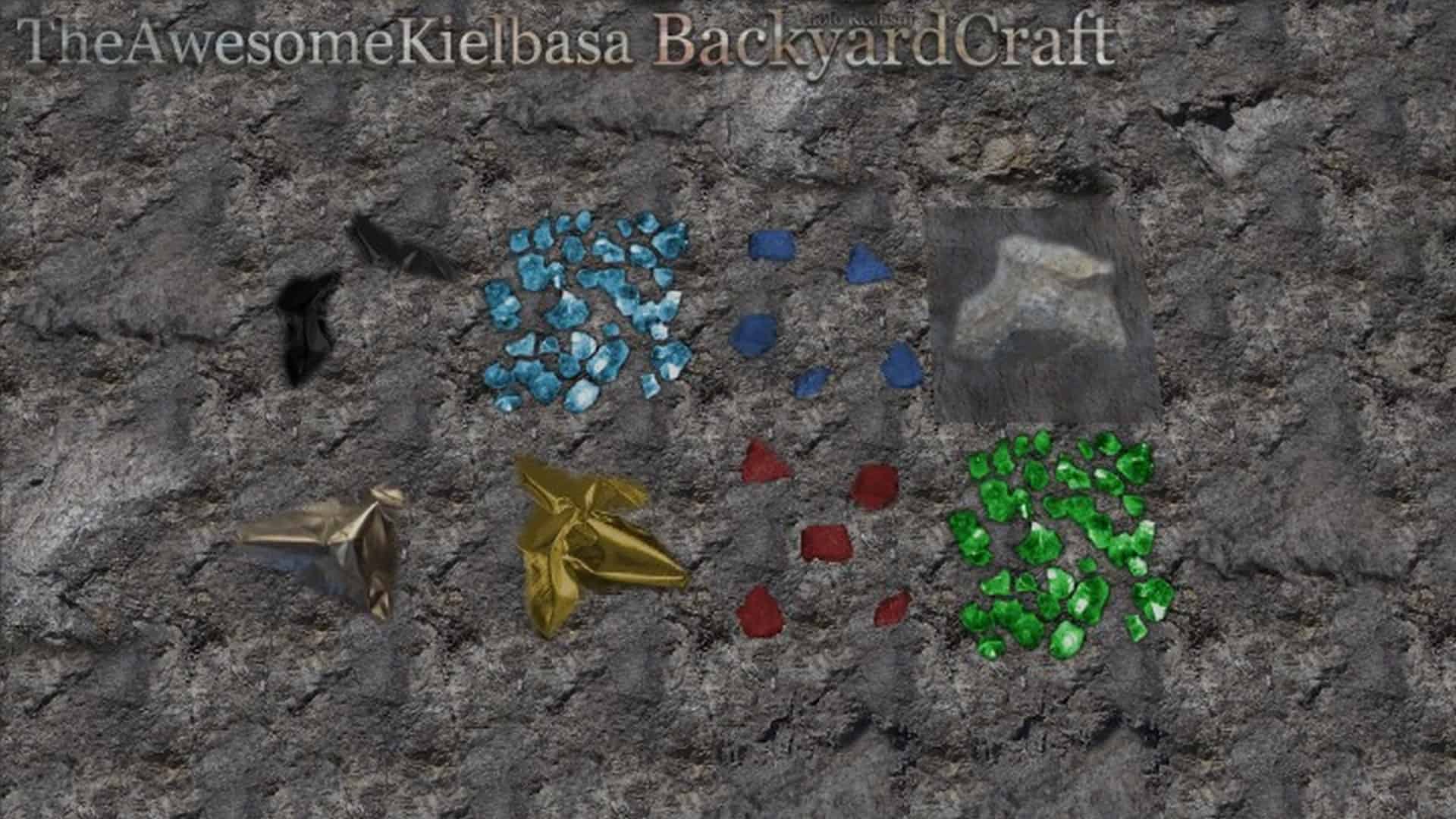
If there is one thing that we have plenty of, it is photo-realistic resource packs! There is truly no shortage of photo-realistic texture packs for Minecraft, which can sometimes make it rather difficult to pick one to play and stick with for the long haul. The BackyardCraft resource pack is one such example of a photo-realistic resource pack that has a few fantastic things going for it, making it extremely recommendable for your next survival world. One really interesting take about BackyardCraft is that its textures are not entirely smooth and flawless; instead, they are deliberately made to be wonderfully imperfect. The developer of the resource pack blatantly and truthfully stated that our real world is never that neat and smooth. BackyardCraft successfully improves visuals in Minecraft with higher resolution and brand-new textures while keeping a certain degree of ruggedness intact. The problem with many other photo-realistic resource packs is that they add perfectly smooth textures, symmetrical patterns, and designs when, in reality, symmetry and smoothness of surfaces are considered artificial and unnatural. To achieve this level of realism based on imperfect but high-resolution textures, the developer changed most of the textures in Minecraft. There are gorgeous new textures for water, clouds, sky, trees, leaves, sand, gravel, dirt, rocks, bricks, and much more.
While these textures are still applied to the familiar blocky models, the visual improvements genuinely make the resource pack stunning from a visual perspective. When looking at textures from a close distance, you can truly appreciate the small imperfections that are deliberately added. Sadly, there have not been any major updates to the resource pack in several years. Released back in 2014, BackyardCraft received constant updates for several years, with the developer continuing to add new textures or replace old ones for various game versions. BackyardCraft is made available in 64x, 128x, 256x, and 512x texture resolutions. Depending on what your computer can handle, you may want to switch between them in order to get the absolute best balance between visuals and performance. The 64x version, while it replaces classic textures, is not a considerable visual improvement; for truly noticeable visual upgrades, the 128x version is the minimum recommended. For the 256x and 512x versions, there may be some performance degradation for players with older systems, so keep your specs in mind! Installing the resource pack requires tools such as MCPatcher or Optifine to enable all features such as alternate blocks, custom sky textures, or mobs. You will also need one of these tools to install a shader pack, and the developer highly recommends using a shader pack such as Continuum in order to get the absolute most out of your BackyardCraft experience.
BackyardCraft should be compatible with all of these Minecraft versions: 1.12.2 – 1.12 – 1.8.9 – 1.8.8 – 1.8.1 – 1.8.6 – 1.8 – 1.7.10 – 1.7.9 – 1.7.4 – 1.7 – 1.6.4 – 1.6.2
Screenshots

How to Install Texture Pack (Simple 10 Steps)
- Download OptiFine: Most of the texture packs and shaders need OptiFine. That’s why, first download and install OptiFine for the version of Minecraft you want to play.
- Download the Texture Pack: Get the texture pack you want from the download section. Choose the version that works with your Minecraft and your PC’s performance.
- Open Minecraft Launcher: Start Minecraft using the official game launcher — or even TLauncher, if you use that.
- Go to Options: From the main menu, click on the “Options” button.
- Open Resource Packs: Inside Options, click on “Resource Packs…”.
- Open the Resource Pack Folder: Click on “Open Resource Pack Folder” — this will open a folder named “resourcepacks”.
- Move the Pack File: Copy or move the .zip file you downloaded into that “resourcepacks” folder. (Don’t unzip the file — Minecraft uses it as-is!)
- Go Back and Refresh: Close the folder and click “Done”, then go back into “Resource Packs…” again.
- Activate the Pack: You’ll see the pack on the left side. Hover over it and click the arrow to move it to the right (active side).
Tip: If you get a message that the pack is for a different version, just click “Yes” — it usually works fine. - Click Done and Enjoy: Click “Done” again. Now your pack is ready to use in-game. It’s that easy!
Credits
Credits to TheAwesomeKielbasa for the original creation of BackyardCraft. We do not own or modify this resource pack. Please visit the official source to support the creator.
Download Links
Java Edition
Download Instructions
Curseforge: download starts automatically after a few seconds;
Mediafire: click the big blue button with the text “DOWNLOAD”;
Google Drive: in the top right corner you will see a small download icon (down arrow), click it and the download should start;


