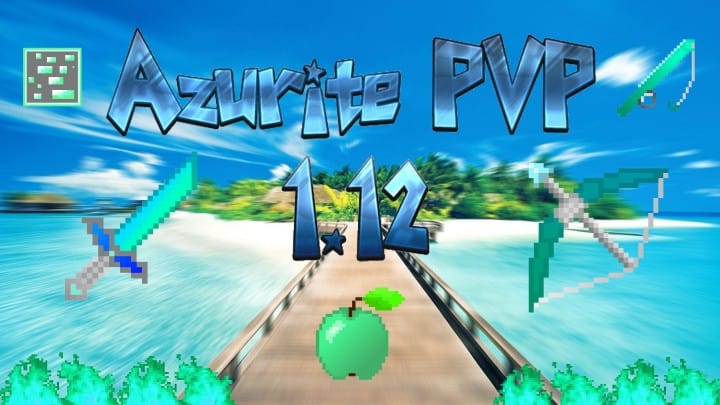
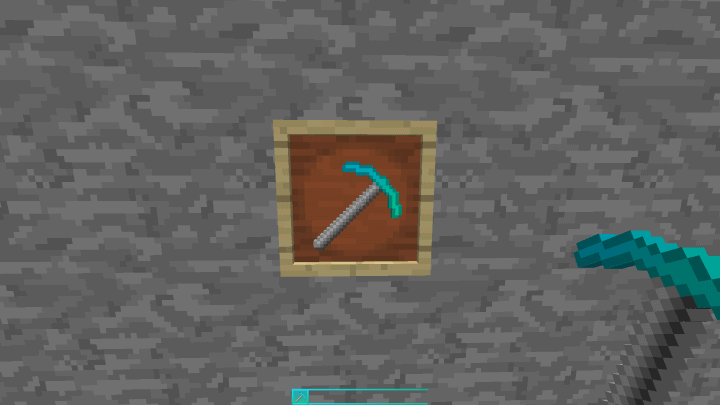
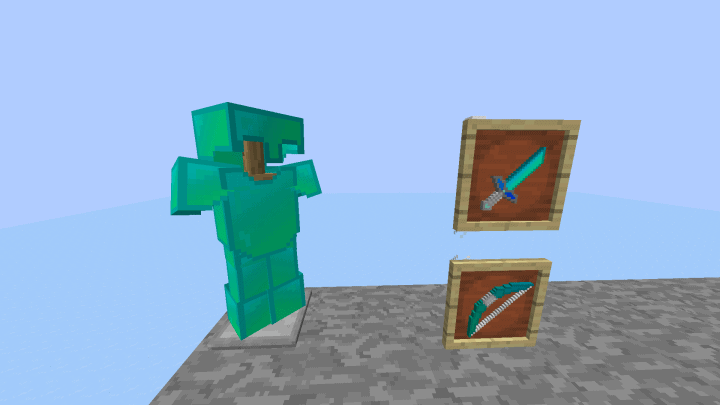
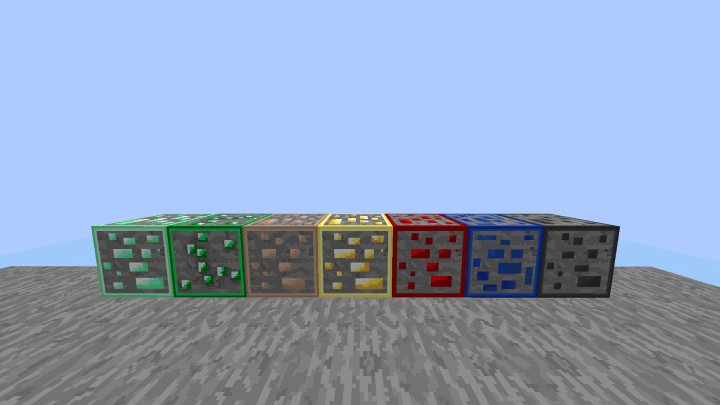
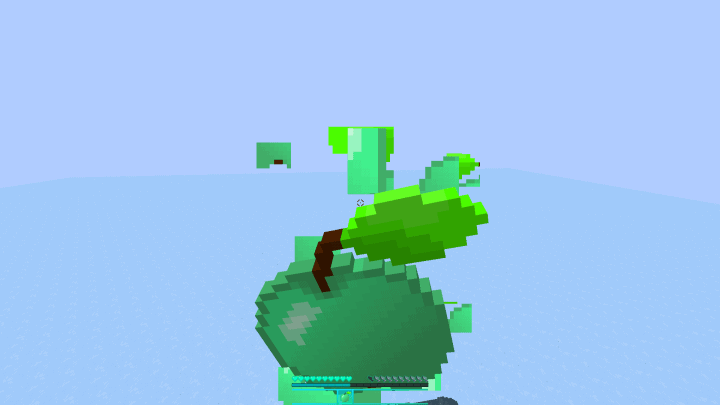
Azurite PvP is the fantastic debut resource pack crafted by Tomkr, and I was so excited when it finally dropped onto the packs market! Honestly, for a first-time project designed by a fresh creator, it completely blows past expectations and comfortably stands shoulder-to-shoulder with the finest PvP packs released lately. Even though Minecraft PvP packs are a dime a dozen, I have always noticed that the vast majority of them suffer from seriously low quality. Most creators just phone it in by making tiny, basic edits instead of pouring their energy into crafting something truly unique and polished. The Azurite PvP resource pack completely breaks this mold because Tomkr clearly poured immense dedication into delivering an incredible product, and the final result is honestly breathtaking.
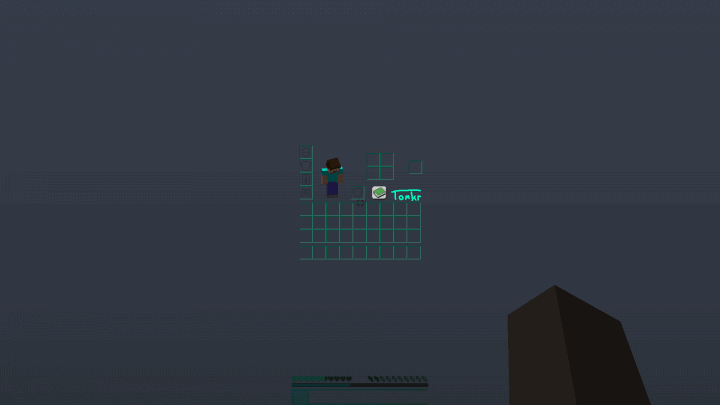
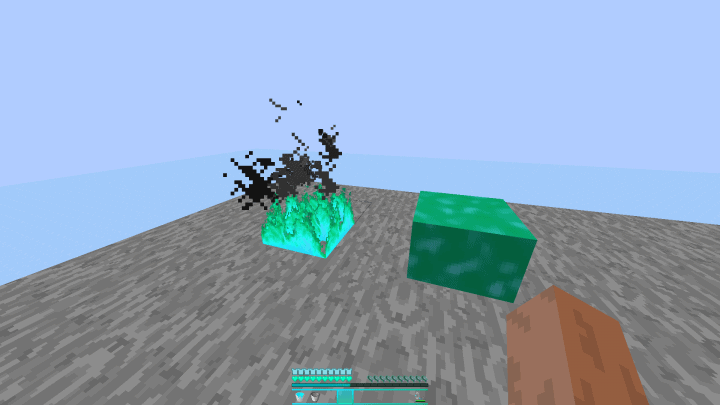
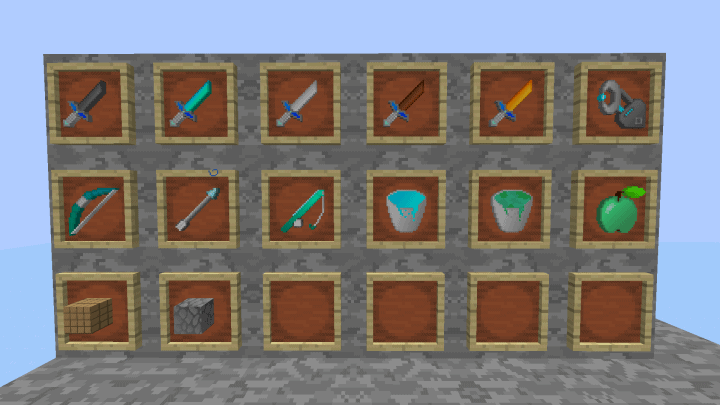
Aside from bringing all the classic staples we love in a good PvP pack—like crystal clear water, trimmed low fire, compact swords, and an uncluttered inventory that makes item management an absolute breeze—the Azurite pack delivers noticeably sharper textures than vanilla Minecraft. One of my absolute favorite things about this pack is how it makes the entire gaming world look remarkably tidy and streamlined compared to the standard look. This immaculate aesthetic completely elevates every match by giving you an unobstructed line of sight on your opponents, making it so much easier to spot and eliminate them. On top of that, the Azurite PvP resource pack boasts gorgeous 32×32 high-resolution textures, which is a massive step up from the standard 16x market average. Thanks to some seriously impressive technical optimization and wonderfully smooth texturing, you can enjoy these crisp, higher-resolution visuals without taking any hit to your frame rate.
Azurite PvP should be compatible with all of these Minecraft versions: 1.12.2 – 1.12 – 1.11.2 – 1.11
Screenshots
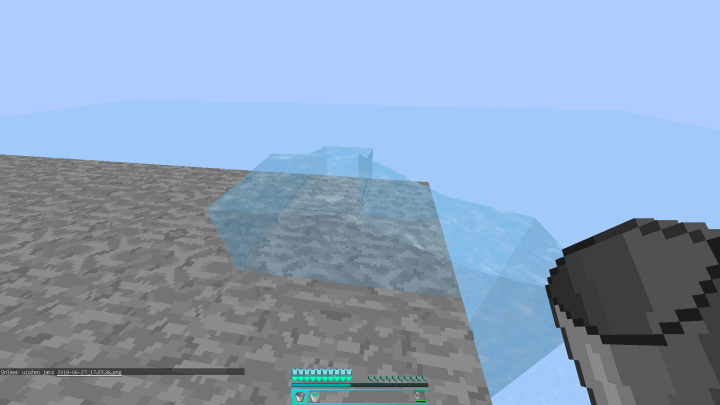
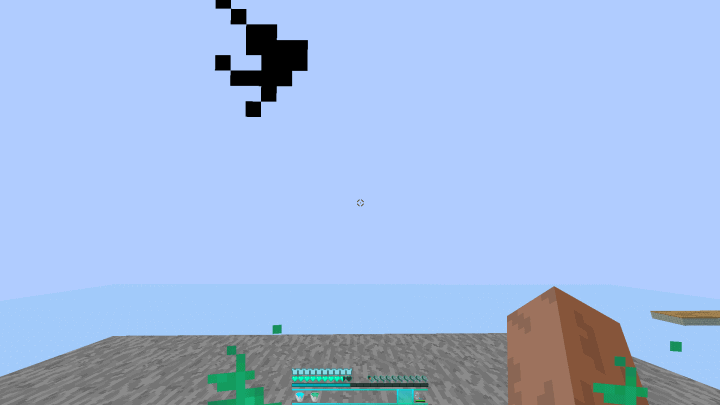
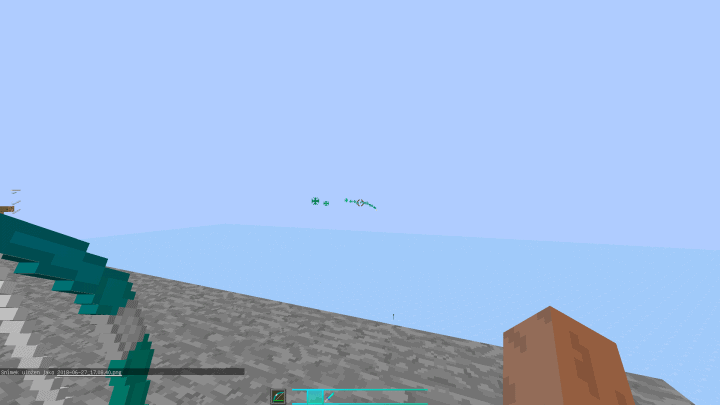
How to Install Texture Pack (Simple 10 Steps)
- Download OptiFine: Most of the texture packs and shaders need OptiFine. That’s why, first download and install OptiFine for the version of Minecraft you want to play.
- Download the Texture Pack: Get the texture pack you want from the download section. Choose the version that works with your Minecraft and your PC’s performance.
- Open Minecraft Launcher: Start Minecraft using the official game launcher — or even TLauncher, if you use that.
- Go to Options: From the main menu, click on the “Options” button.
- Open Resource Packs: Inside Options, click on “Resource Packs…”.
- Open the Resource Pack Folder: Click on “Open Resource Pack Folder” — this will open a folder named “resourcepacks”.
- Move the Pack File: Copy or move the .zip file you downloaded into that “resourcepacks” folder. (Don’t unzip the file — Minecraft uses it as-is!)
- Go Back and Refresh: Close the folder and click “Done”, then go back into “Resource Packs…” again.
- Activate the Pack: You’ll see the pack on the left side. Hover over it and click the arrow to move it to the right (active side).
Tip: If you get a message that the pack is for a different version, just click “Yes” — it usually works fine. - Click Done and Enjoy: Click “Done” again. Now your pack is ready to use in-game. It’s that easy!
Credits
This resource pack was created by tomkr. We do not claim ownership of this content, nor do we host or modify any files on our servers. All rights belong to the original author. We strongly encourage you to support the creator by downloading the pack through their official links.
Download Instructions
Curseforge: download starts automatically after a few seconds;
Mediafire: click the big blue button with the text “DOWNLOAD”;
Google Drive: in the top right corner you will see a small download icon (down arrow), click it and the download should start;


