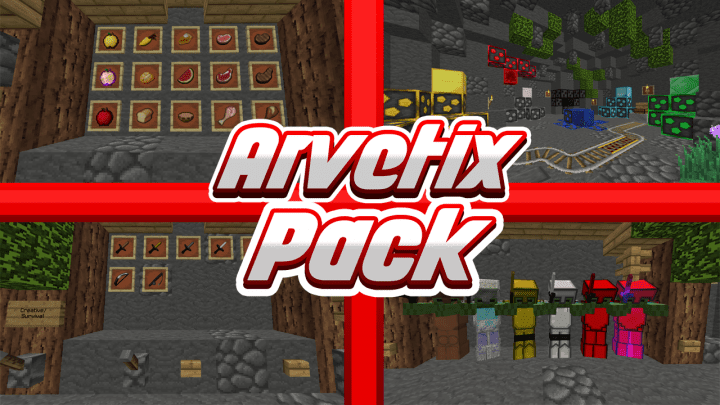
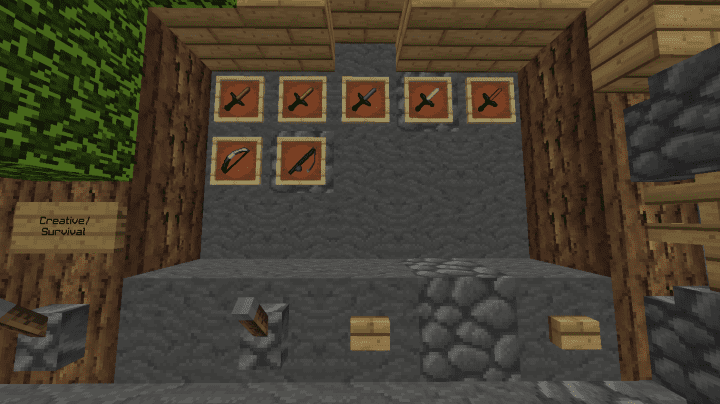
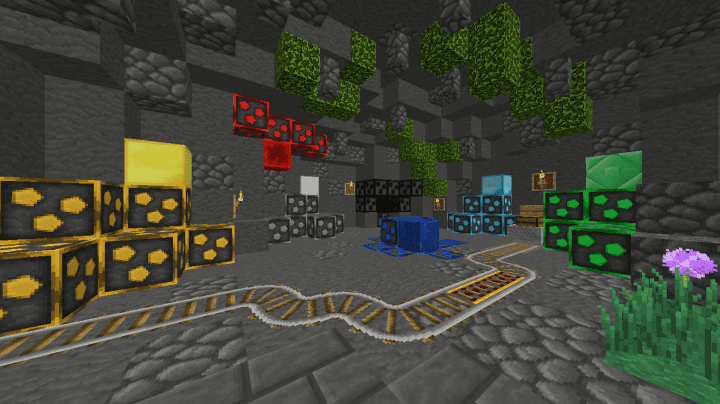
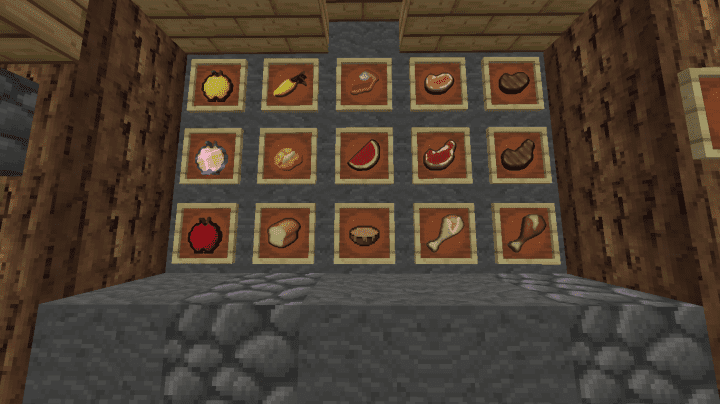
If you are a player who often practices in PvP sessions, then ArvetixPvP is an amazing pack for you. It is a texture pack which helps you to a large extent. Although there are a large number of PvP oriented packs available in the market right now, most of which are for PvP, ArvetixPvP is definitely one of the best. If you yourself as a player are looking for a really nice and good PvP related resource pack that is able to display a lot of polish and finesse, ArvetixPvP is our number one recommendation. It provides players with a truly impressive experience. The best and most important aspect about the ArvetixPvP resource pack is its capability to display highly detailed textures.
One common drawback among the PvP packs available in the market is the fact that they often reduce visual quality so that they can provide a stable fps. However, ArvetixPvP stands out. It perfectly displays highly detailed visuals on a very stable frame rate, thus giving the players best visuals and good frame rate. The textures and other details are displayed in sharp textures and very bright colour schemes. This PvP pack comes with 64 by 64 resolution which is quite uncommon in the pvp market. The reason for this being the drop in frame rates per second. But Arvetix stands out and gives such high resolutions at just the perfect frame rate. Arvetix is compatible with both Minecraft 1.8 and 1.7. If you are running any other version of Minecraft, you need to downgrade or upgrade so that it is compatible with this resource pack.
ArvetixPvP should be compatible with all of these Minecraft versions: 1.8.9 – 1.8.8 – 1.8.1 – 1.8.6 – 1.8
Screenshots
How to Install Texture Pack (Simple 10 Steps)
- Download OptiFine: Most of the texture packs and shaders need OptiFine. That’s why, first download and install OptiFine for the version of Minecraft you want to play.
- Download the Texture Pack: Get the texture pack you want from the download section. Choose the version that works with your Minecraft and your PC’s performance.
- Open Minecraft Launcher: Start Minecraft using the official game launcher — or even TLauncher, if you use that.
- Go to Options: From the main menu, click on the “Options” button.
- Open Resource Packs: Inside Options, click on “Resource Packs…”.
- Open the Resource Pack Folder: Click on “Open Resource Pack Folder” — this will open a folder named “resourcepacks”.
- Move the Pack File: Copy or move the .zip file you downloaded into that “resourcepacks” folder. (Don’t unzip the file — Minecraft uses it as-is!)
- Go Back and Refresh: Close the folder and click “Done”, then go back into “Resource Packs…” again.
- Activate the Pack: You’ll see the pack on the left side. Hover over it and click the arrow to move it to the right (active side).
Tip: If you get a message that the pack is for a different version, just click “Yes” — it usually works fine. - Click Done and Enjoy: Click “Done” again. Now your pack is ready to use in-game. It’s that easy!
Credits
This resource pack was originally created by Lorente. We do not claim ownership of this content and provide these download links as originally sourced. We strongly encourage you to support Lorente and their future projects.
Download Instructions
Curseforge: download starts automatically after a few seconds;
Mediafire: click the big blue button with the text “DOWNLOAD”;
Google Drive: in the top right corner you will see a small download icon (down arrow), click it and the download should start;


