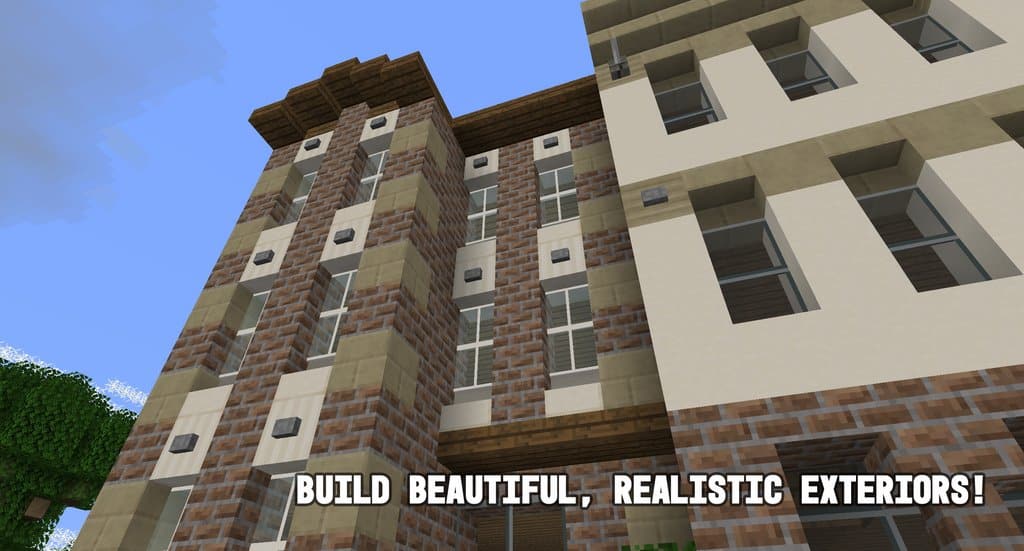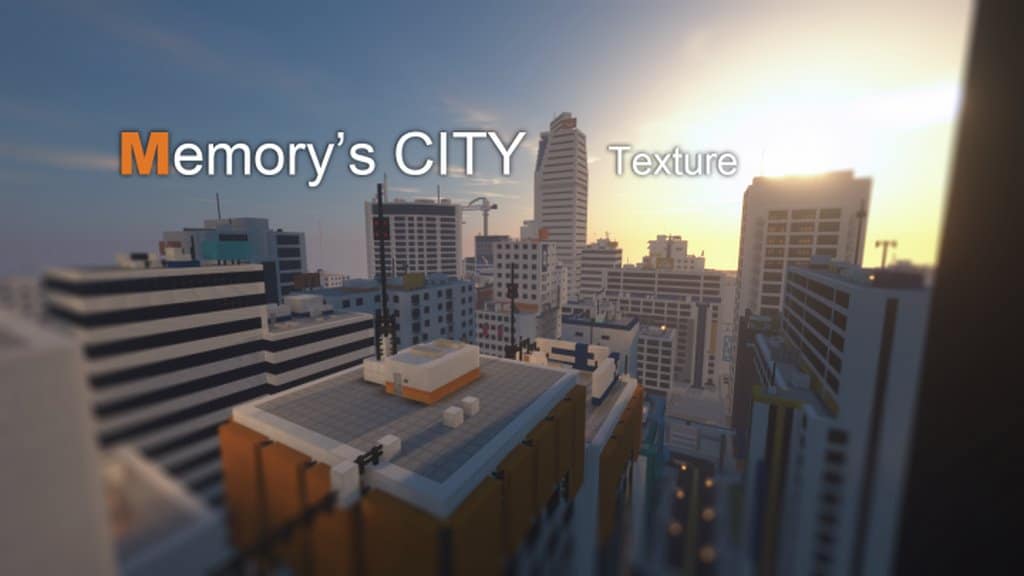
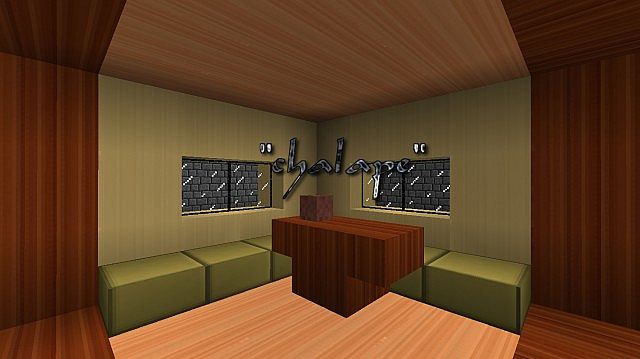
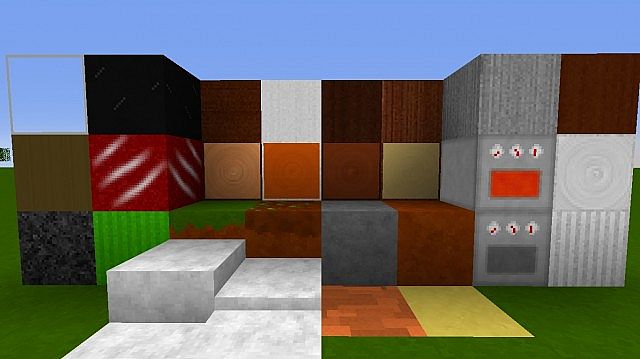
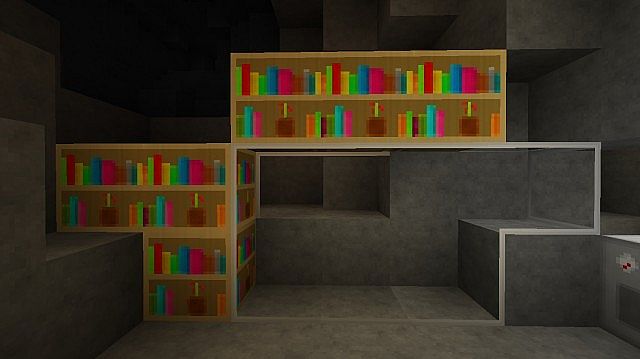
Oh man, you have to check out The Architect’s Dream Resource Pack crafted by wafflemaker1 and first dropped back in 2013! It has honestly become such a nostalgic favorite for so many of us in the Minecraft community who are obsessed with modern and clean aesthetics. Even though it is technically incomplete with about 85% of its textures fully finished, this pack has truly left a massive, lasting impression on all of us. The design specifically caters to anyone who loves constructing sleek, contemporary structures, making it an absolute dream for creative mode builds while still being totally and comfortably usable in survival mode too. Running at a 32x resolution, the pack offers double the detail compared to Minecraft’s default 16x textures, and trust me, that visual bump makes everything look so crisp without ever dragging down your hardware performance, ensuring super smooth gameplay for practically everyone!
If you are running Optifine—which I totally recommend—you are in for a real treat because this resource pack fully supports connected textures, meaning matching blocks actually blend together into unified surfaces. This feature is an absolute game-changer for modern architecture, letting you pull off seamless transitions for things like glass panes and blocks that instantly give your builds that polished, professional look we all strive for. The Architect’s Dream resource pack really puts its heart into simplicity and elegance, and its heavy focus on minimalism makes it such a fantastic choice for putting together modern suburban homes, entire cities if you have the patience, and stylish custom interiors. Even though it sadly hasn’t received official updates past Minecraft version 1.7.10, the pack remains an absolute beloved classic for anyone looking for that timeless, clean design.
Architects Dream should be compatible with all of these Minecraft versions: 1.7.10 – 1.7.9 – 1.7.4 – 1.7 – 1.6.4 – 1.6.2
Screenshots
How to Install Texture Pack (Simple 10 Steps)
- Download OptiFine: Most of the texture packs and shaders need OptiFine. That’s why, first download and install OptiFine for the version of Minecraft you want to play.
- Download the Texture Pack: Get the texture pack you want from the download section. Choose the version that works with your Minecraft and your PC’s performance.
- Open Minecraft Launcher: Start Minecraft using the official game launcher — or even TLauncher, if you use that.
- Go to Options: From the main menu, click on the “Options” button.
- Open Resource Packs: Inside Options, click on “Resource Packs…”.
- Open the Resource Pack Folder: Click on “Open Resource Pack Folder” — this will open a folder named “resourcepacks”.
- Move the Pack File: Copy or move the .zip file you downloaded into that “resourcepacks” folder. (Don’t unzip the file — Minecraft uses it as-is!)
- Go Back and Refresh: Close the folder and click “Done”, then go back into “Resource Packs…” again.
- Activate the Pack: You’ll see the pack on the left side. Hover over it and click the arrow to move it to the right (active side).
Tip: If you get a message that the pack is for a different version, just click “Yes” — it usually works fine. - Click Done and Enjoy: Click “Done” again. Now your pack is ready to use in-game. It’s that easy!
Credits
This resource pack was originally created by wafflemaker1. We do not claim ownership of this modification, nor do we host or distribute modified versions of these files. We encourage all players to support the original creator and their work.
Download Instructions
Curseforge: download starts automatically after a few seconds;
Mediafire: click the big blue button with the text “DOWNLOAD”;
Google Drive: in the top right corner you will see a small download icon (down arrow), click it and the download should start;