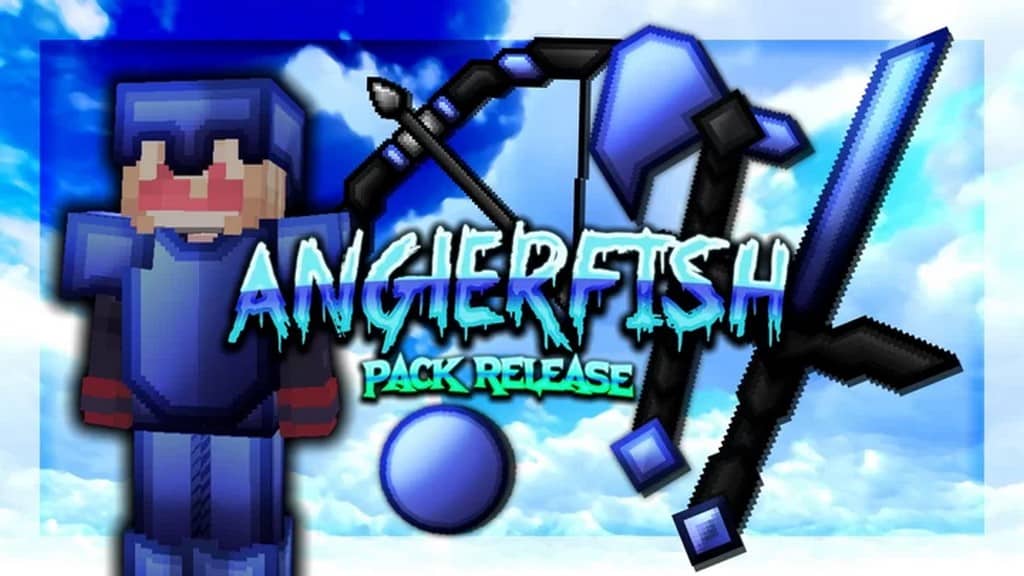
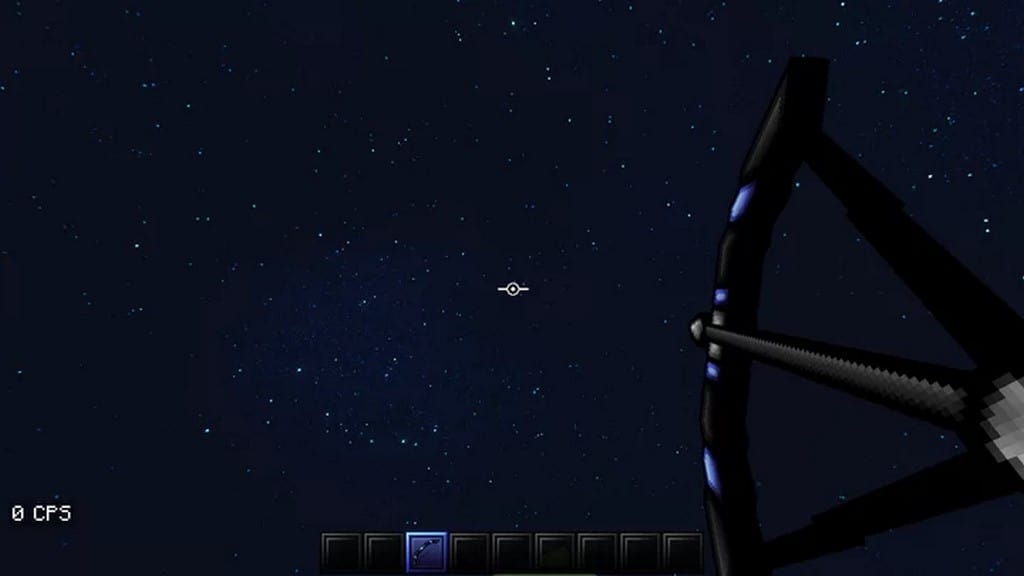
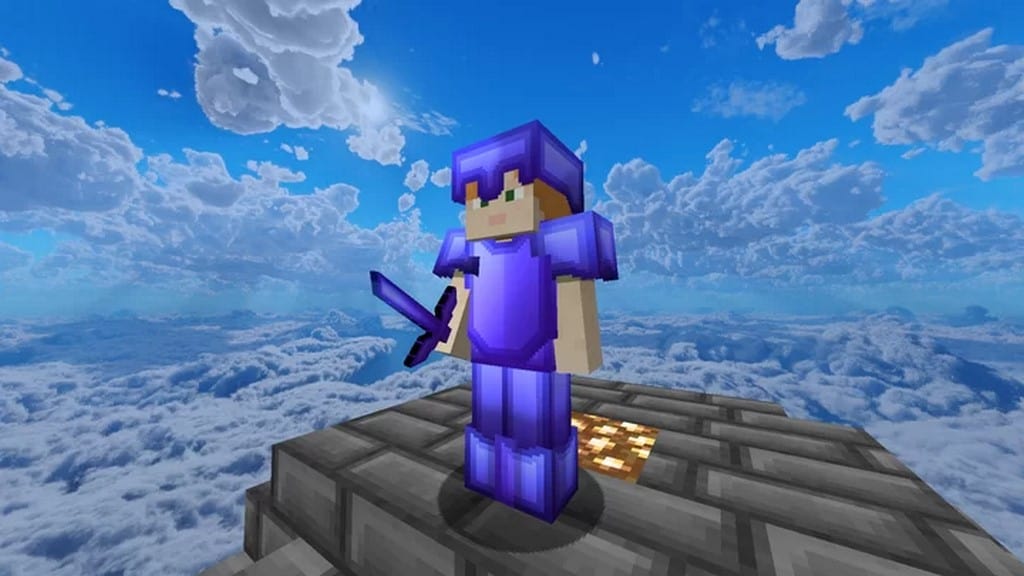
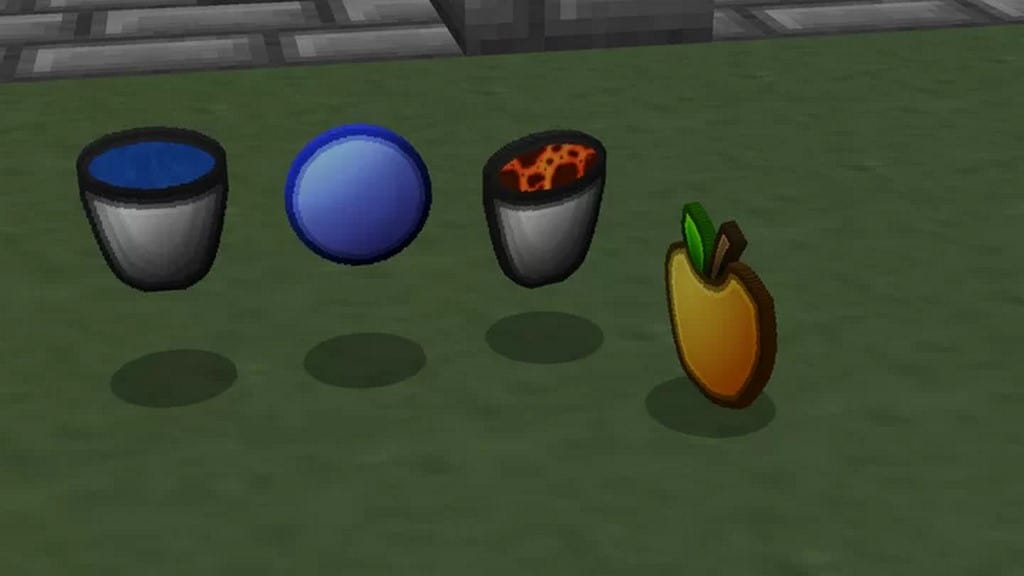
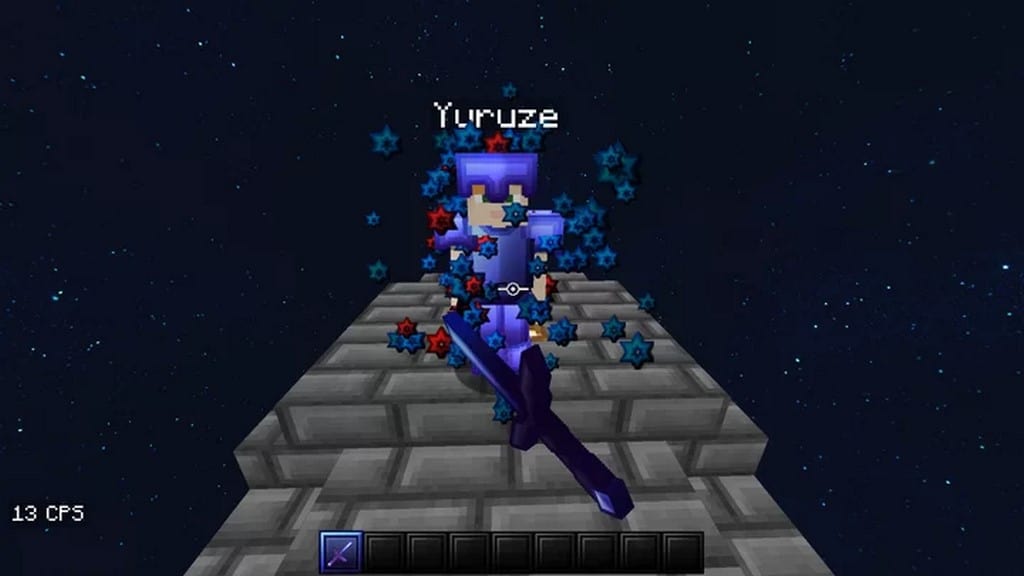
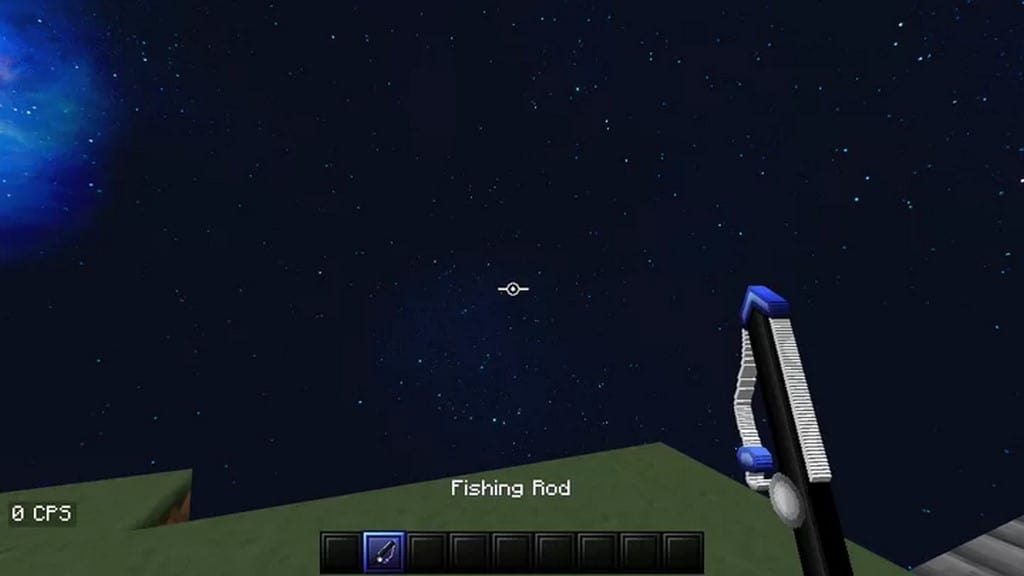
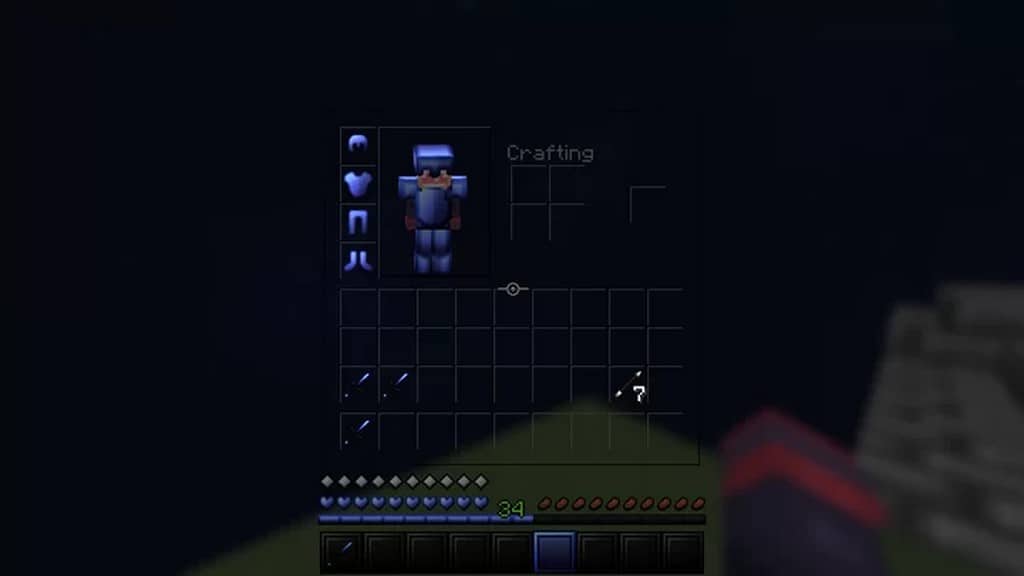
The Anglerfish PvP resource pack was developed about a year ago by user Yuruze due to his pure love for PvP gameplay in Minecraft. Since then, the texture pack managed to get tens of thousands of downloads and it is still enjoyed by many players today. The resource pack has been released in 128x resolution. The 128x version is more resource-demanding and requires a powerful computer to ensure fluid framerates which are essential to hardcore PvP players where every single stutter can translate into a death. Being a PvP resource pack, Anglerfish PvP introduces many new weapons, shields, and armors in the game. There are new swords, new bows, and new tools that bring in new gameplay dynamics for PvP players. However, the introduction of new textures for PvP items alone is not enough to give the Anglerfish PvP texture pack its individuality. What makes the Anglerfish texture pack unique is its visuals. It changes the visual in the game by adding more details to existing textures and introducing new ones as well.
What can be observed, especially in the 128x version of the game is that there is less pixelation on object textures and various items in the game are much easier to tell apart. For PvP players, it makes it easier to spot items and opponents from a distance, an important aspect of an improved PvP gameplay. This was achieved also by changing colors on certain textures or using different shades of the same color. These changes make the entire world much more vibrant when compared to vanilla Minecraft. Everything looks smoother and the textures are much cleaner. A great degree of effort was invested into improving the visuals in the game. Lastly, the Anglerfish PvP resource pack introduces new inventory textures, GUI, and main menu. They are transparent, which, in our opinion, looks amazing and unique. There are also new icons for blocks, items, and PvP items. All these changes and the increased texture resolution make the Anglerfish PvP resource pack quite taxing for players with older systems. It is recommended to use a tool such as Optifine.
Anglerfish PvP should be compatible with all of these Minecraft versions: 1.17.1 – 1.17 – 1.16.5 – 1.16.4 – 1.16.3 – 1.16.2 – 1.16.1 – 1.16 – 1.15.2 – 1.15.1 – 1.15 – 1.8.9 – 1.8.8 – 1.8.1 – 1.8.6 – 1.8 – 1.7.10 – 1.7.9 – 1.7.4 – 1.7
Screenshots


How to Install Texture Pack (Simple 10 Steps)
- Download OptiFine: Most of the texture packs and shaders need OptiFine. That’s why, first download and install OptiFine for the version of Minecraft you want to play.
- Download the Texture Pack: Get the texture pack you want from the download section. Choose the version that works with your Minecraft and your PC’s performance.
- Open Minecraft Launcher: Start Minecraft using the official game launcher — or even TLauncher, if you use that.
- Go to Options: From the main menu, click on the “Options” button.
- Open Resource Packs: Inside Options, click on “Resource Packs…”.
- Open the Resource Pack Folder: Click on “Open Resource Pack Folder” — this will open a folder named “resourcepacks”.
- Move the Pack File: Copy or move the .zip file you downloaded into that “resourcepacks” folder. (Don’t unzip the file — Minecraft uses it as-is!)
- Go Back and Refresh: Close the folder and click “Done”, then go back into “Resource Packs…” again.
- Activate the Pack: You’ll see the pack on the left side. Hover over it and click the arrow to move it to the right (active side).
Tip: If you get a message that the pack is for a different version, just click “Yes” — it usually works fine. - Click Done and Enjoy: Click “Done” again. Now your pack is ready to use in-game. It’s that easy!
Credits
This resource pack was created by Yuruze. We are not the original owners or creators of this content, and we do not claim ownership of any files. All rights belong to the original author. We strongly encourage you to support the creator by visiting their official download links and channels.
Download Instructions
Curseforge: download starts automatically after a few seconds;
Mediafire: click the big blue button with the text “DOWNLOAD”;
Google Drive: in the top right corner you will see a small download icon (down arrow), click it and the download should start;


