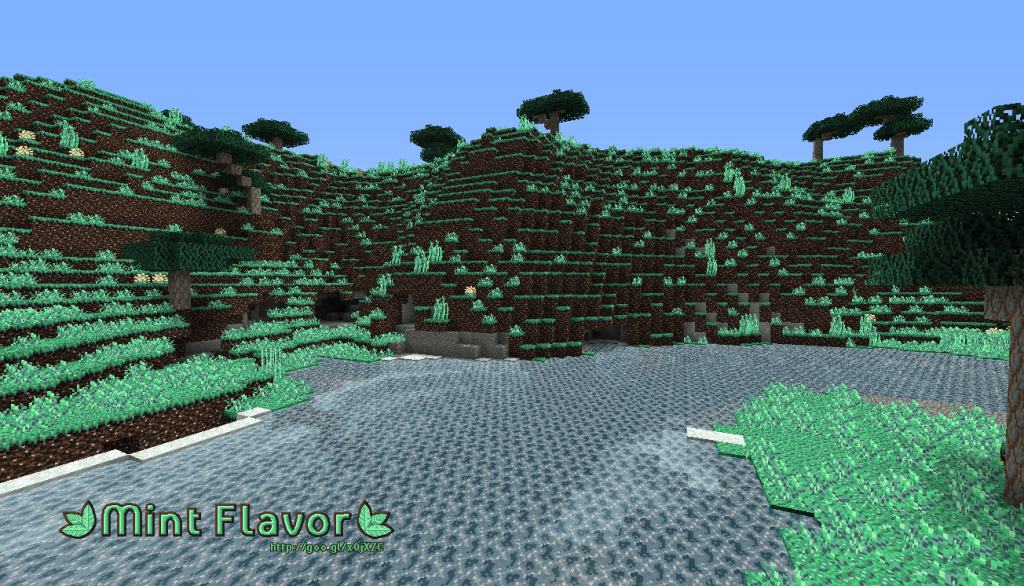
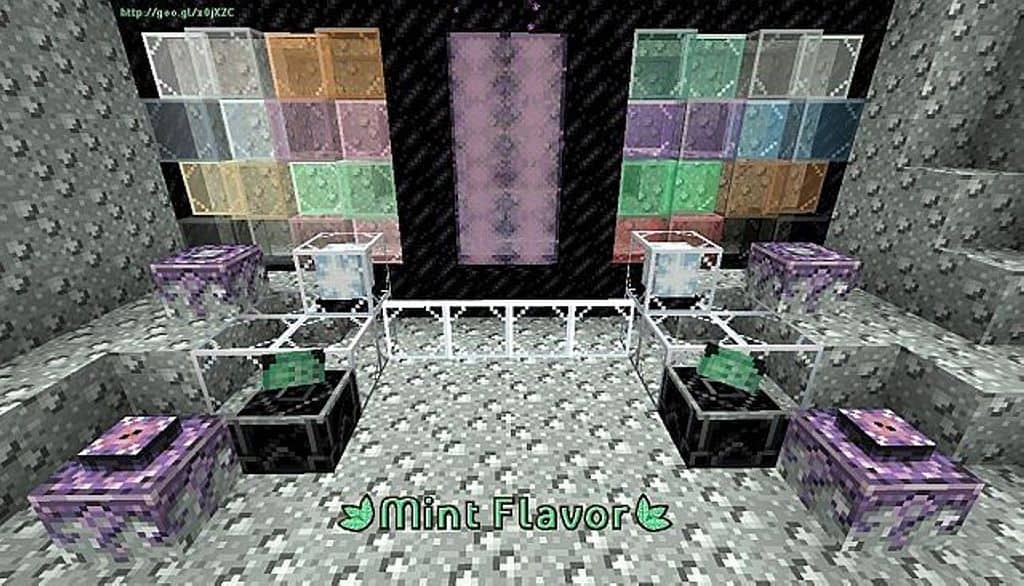
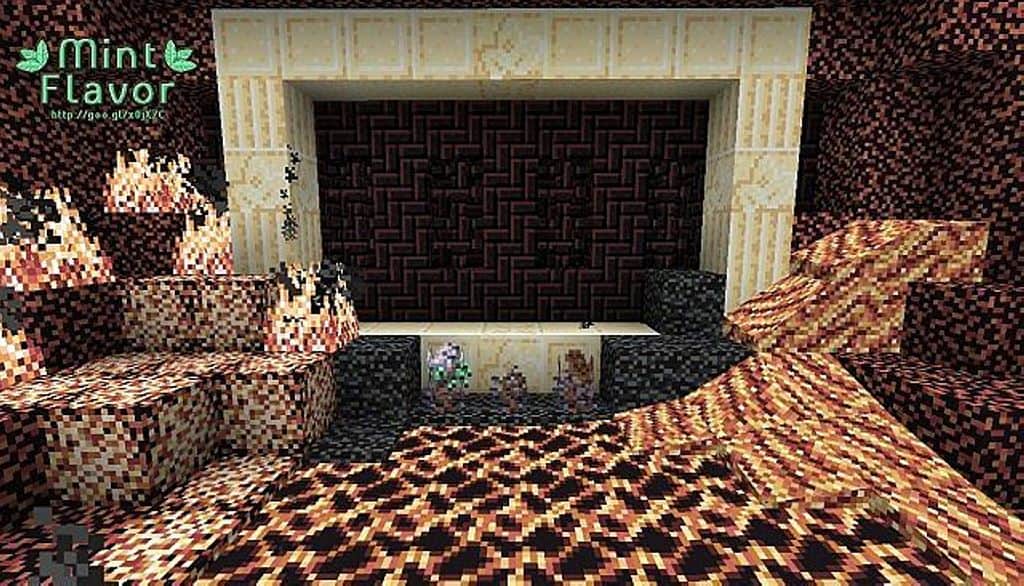
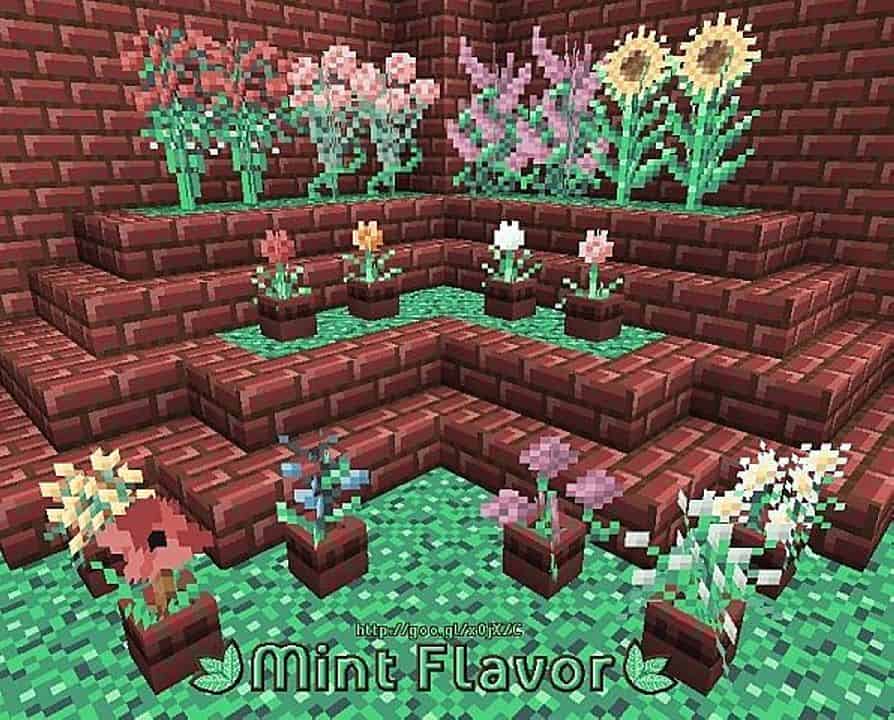
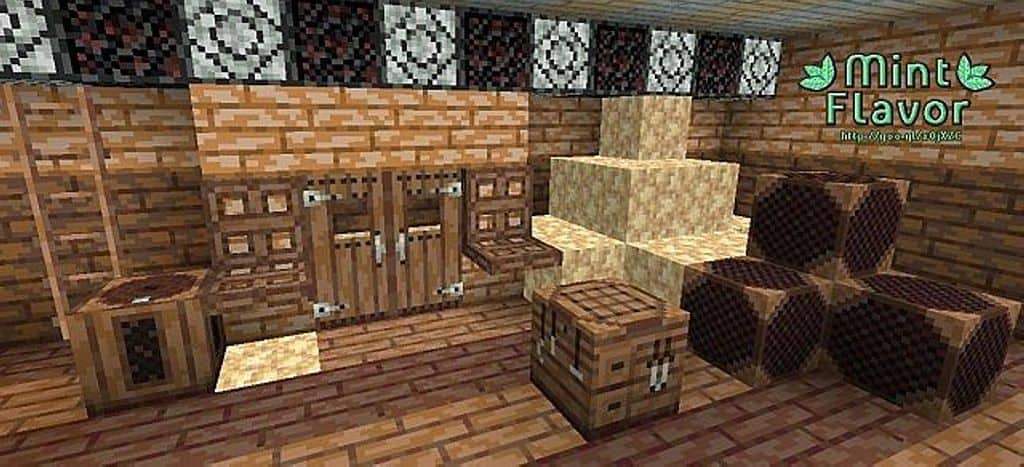
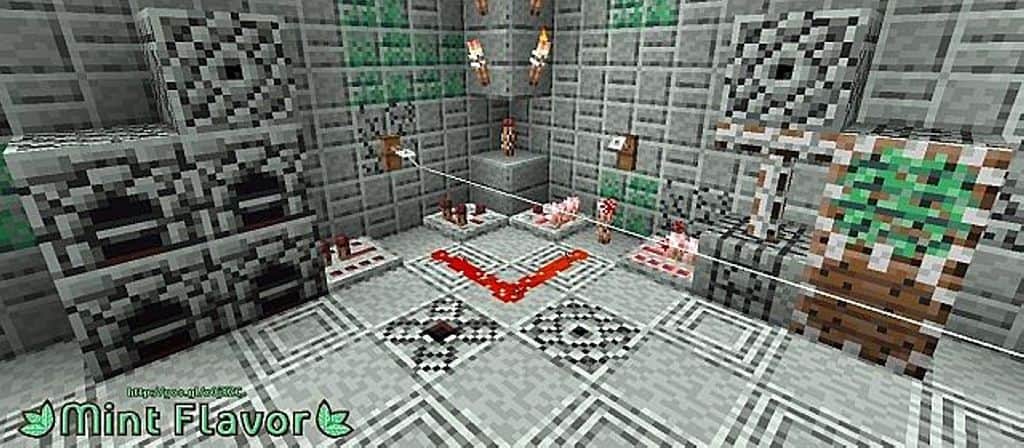
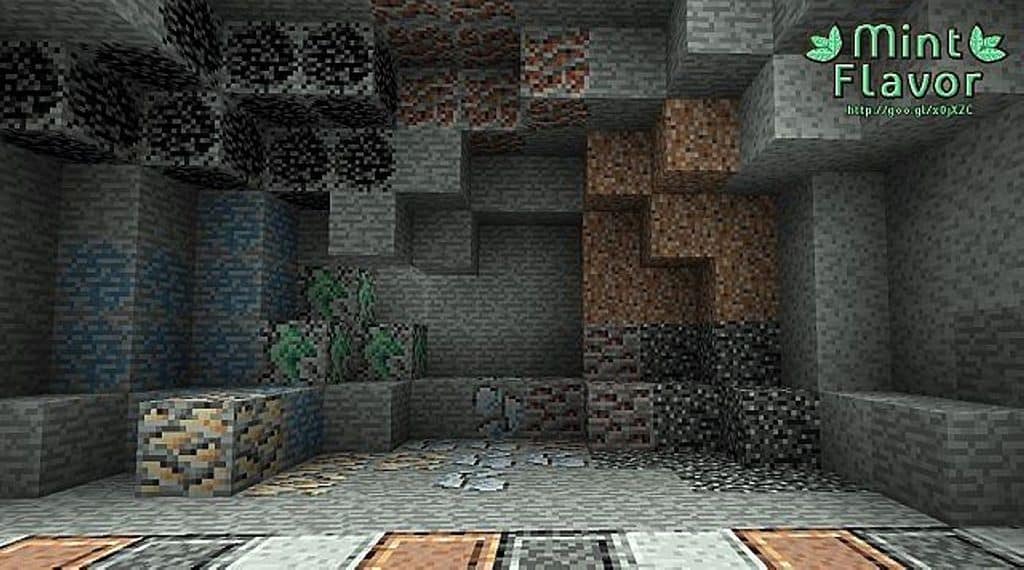
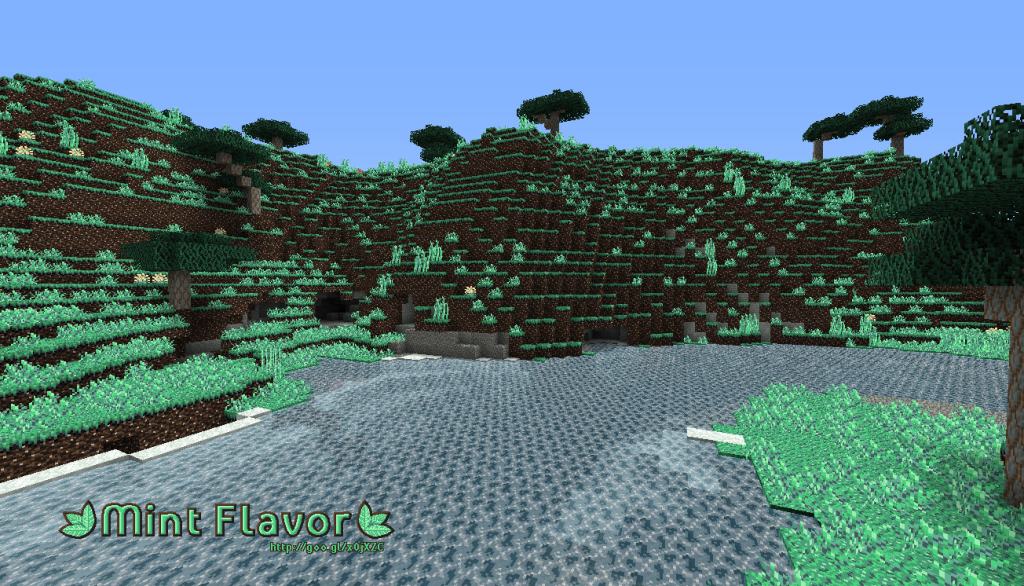
Right now, Alvoria’s Mint Flavor resource pack stands out as one of the most uniquely creative packs available for Minecraft. Countless strange resource packs have tried to completely revamp the game’s conventional appearance in various ways to deliver a stimulating experience, but most of them fall short of what Alvoria’s Mint Flavor Resource Pack achieves. As you can probably guess from its name, it infuses a genuinely refreshing touch of mint into every single standard texture in Minecraft. This pack delivers a holistic experience by carefully modifying all of the game’s vanilla textures to fit that crisp, refreshing minty theme. You might be wondering how it actually looks in-game; first off, you will immediately notice that all the textures appear remarkably sharp compared to the original simple look of vanilla Minecraft, even though the resolution itself remains unchanged.
Alvoria, the brilliant developer behind this pack, has also whitened every texture quite liberally. While this creative shift delivers a surprisingly decent look most of the time, there are moments where the extra whiteness feels just a tiny bit pushed beyond conventional limits. Even so, this distinct color scheme ultimately provides a delightful and unique aesthetic experience since the developer has executed it remarkably well. The creator specifically notes that the core motivation was to give players a top-class experience that can run smoothly on almost any lower-end system configuration. Because it sticks to a performance-friendly 16×16 resolution backed by incredible optimization, Alvoria’s Mint Flavor resource pack runs noticeably smoother than many comparable packs in its class. When you consider how remarkably complete it is, you will likely be as amazed as we were to learn that the developer finished it entirely from start to finish in just thirty-six days—an absolute triumph and a truly commendable achievement for any texture artist.
Alvoria’s Mint Flavor should be compatible with all of these Minecraft versions: 1.12.2 – 1.12 – 1.11.2 – 1.11 – 1.10.2 – 1.10 – 1.9.4 – 1.9 – 1.8.9 – 1.8.8 – 1.8.1 – 1.8.6 – 1.8 – 1.7.10 – 1.7.9 – 1.7.4 – 1.7
Screenshots
How to Install Texture Pack (Simple 10 Steps)
- Download OptiFine: Most of the texture packs and shaders need OptiFine. That’s why, first download and install OptiFine for the version of Minecraft you want to play.
- Download the Texture Pack: Get the texture pack you want from the download section. Choose the version that works with your Minecraft and your PC’s performance.
- Open Minecraft Launcher: Start Minecraft using the official game launcher — or even TLauncher, if you use that.
- Go to Options: From the main menu, click on the “Options” button.
- Open Resource Packs: Inside Options, click on “Resource Packs…”.
- Open the Resource Pack Folder: Click on “Open Resource Pack Folder” — this will open a folder named “resourcepacks”.
- Move the Pack File: Copy or move the .zip file you downloaded into that “resourcepacks” folder. (Don’t unzip the file — Minecraft uses it as-is!)
- Go Back and Refresh: Close the folder and click “Done”, then go back into “Resource Packs…” again.
- Activate the Pack: You’ll see the pack on the left side. Hover over it and click the arrow to move it to the right (active side).
Tip: If you get a message that the pack is for a different version, just click “Yes” — it usually works fine. - Click Done and Enjoy: Click “Done” again. Now your pack is ready to use in-game. It’s that easy!
Credits
Credits to Alvoria as the original creator and owner of Alvoria’s Mint Flavor Resource Pack. We do not claim ownership of this content, nor have we modified the original files. Please support the creator by downloading from official sources.
Download Links
Java Edition
Download Instructions
Curseforge: download starts automatically after a few seconds;
Mediafire: click the big blue button with the text “DOWNLOAD”;
Google Drive: in the top right corner you will see a small download icon (down arrow), click it and the download should start;


