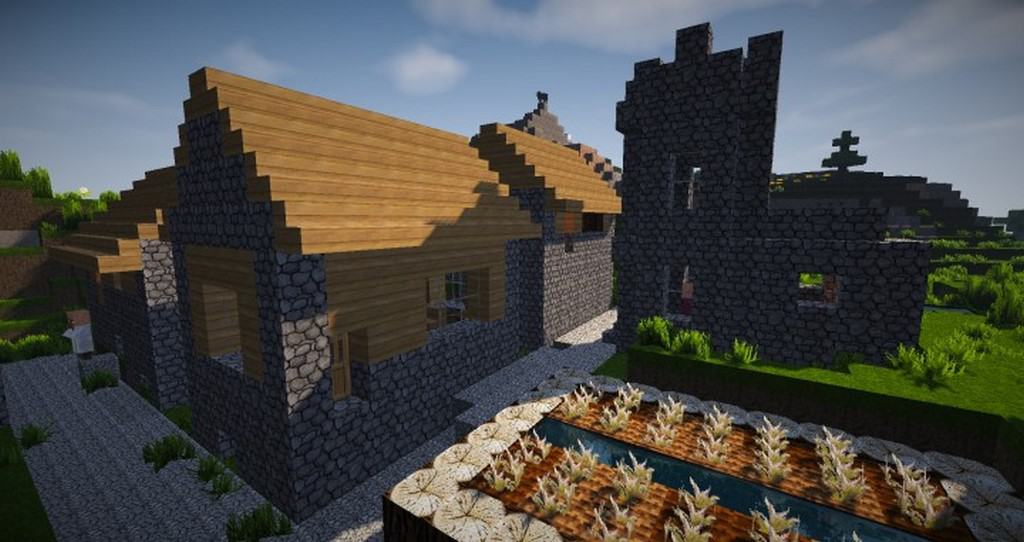
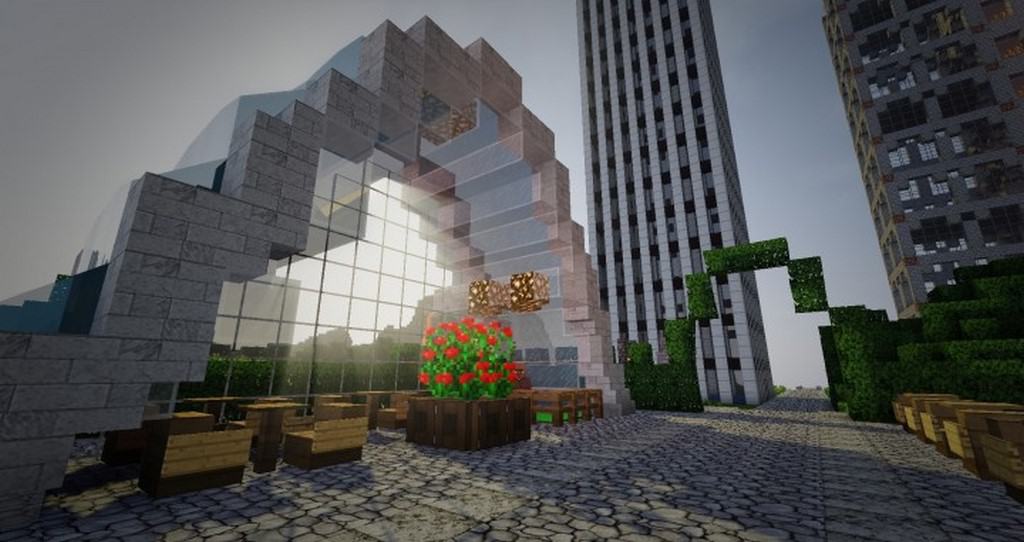
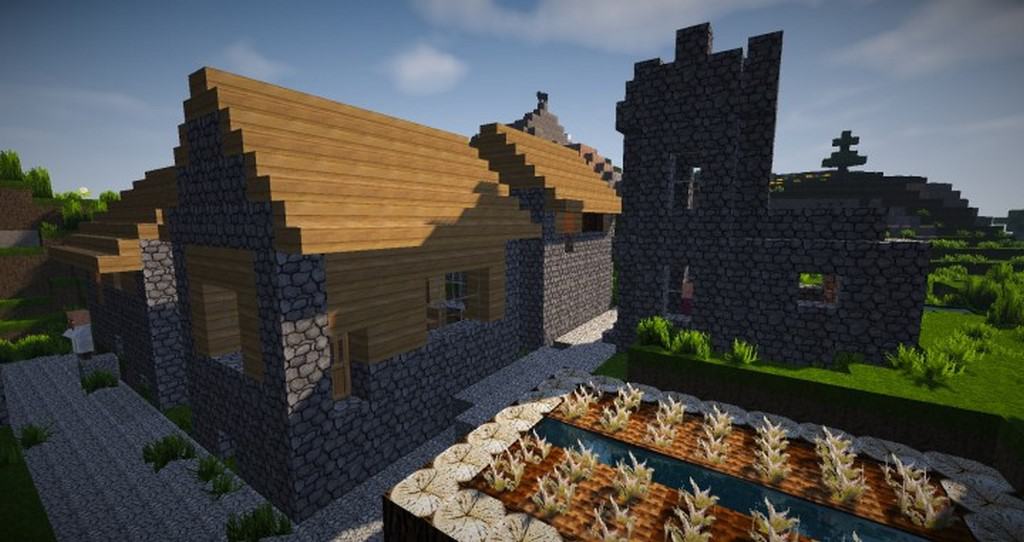
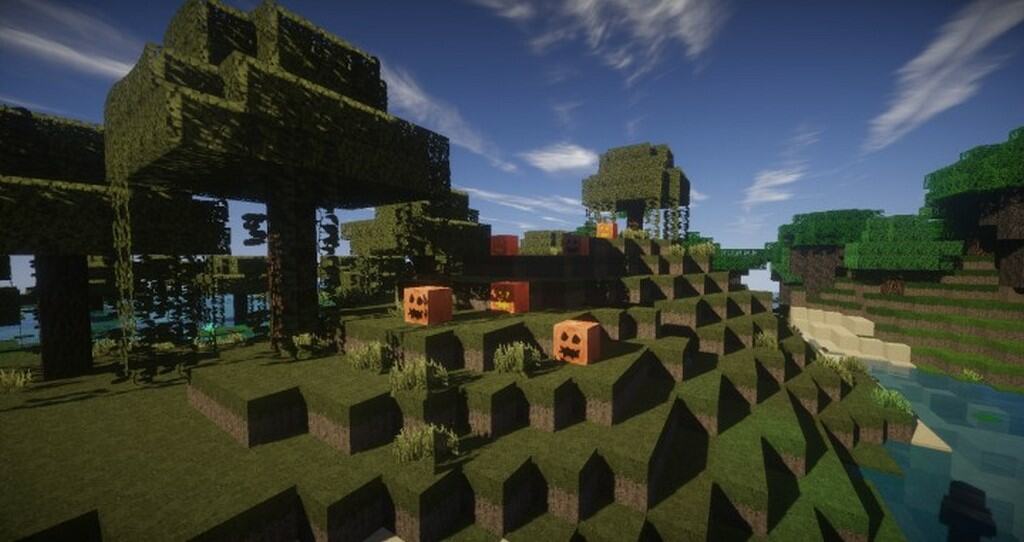
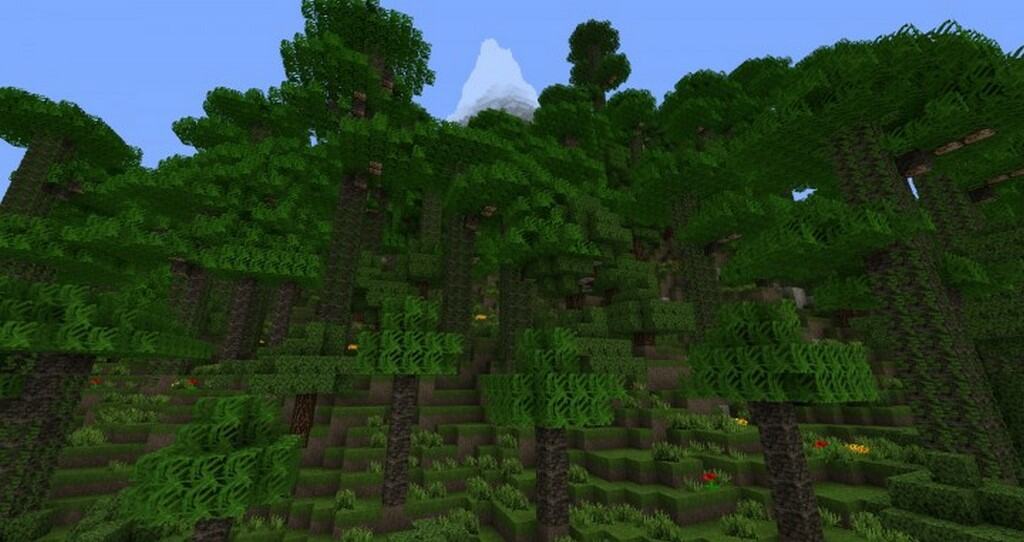
The Aluctral Classical resource pack brilliantly attempts to improve the visuals of vanilla Minecraft without altering the core gameplay too much. While it does a fantastic job with the overall visuals, it does have a few minor quirks in the sense that it is not yet fully finished. Not every single texture in the game has been updated just yet, as most of them have been touched up, but there are still a few missing ones. Fortunately, this minor issue can be easily circumvented if you install the Aluctral Classical texture pack on top of a reliable base texture pack. To upscale the visuals in Minecraft, the Aluctral Classical resource pack uses a gorgeous 64x resolution. This means that you get to enjoy 4 times more intricate details on every single block. Pixelation is no longer obnoxious and many objects seem wonderfully less blocky. Most of the textures replaced by the resource pack had their resolution upscaled beautifully while others were completely reimagined. There are also a delightful few new types of blocks introduced for bricks, stone, pavements, walls, and wood.
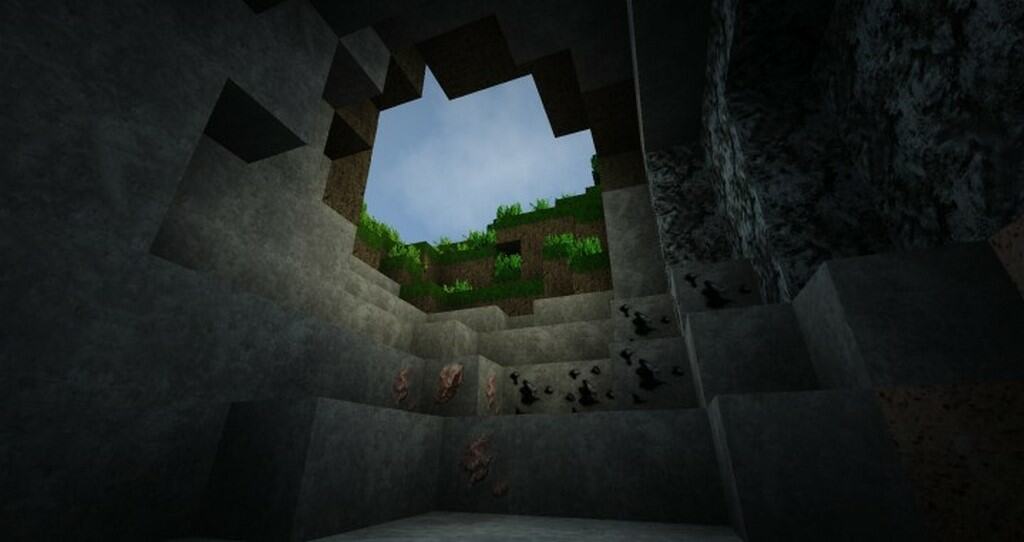
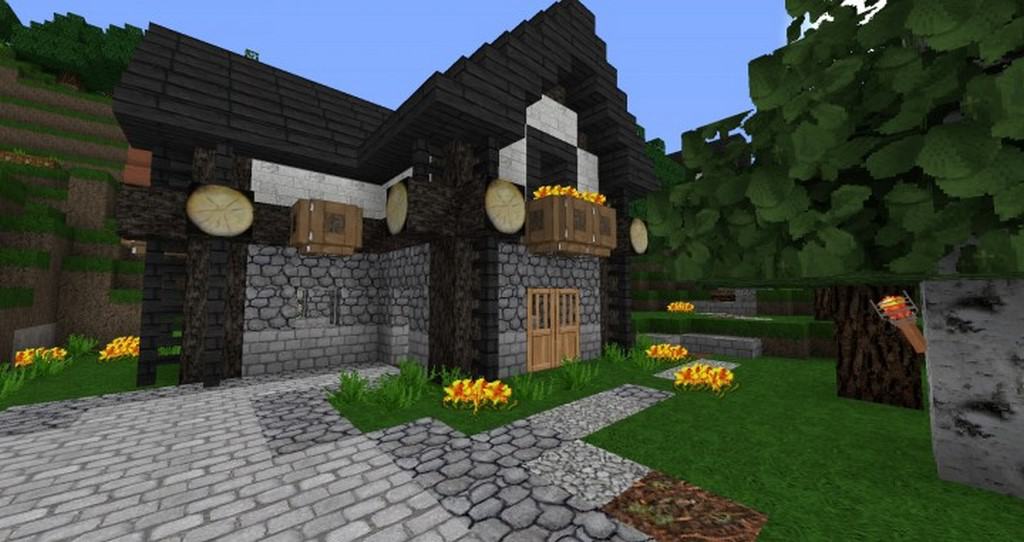
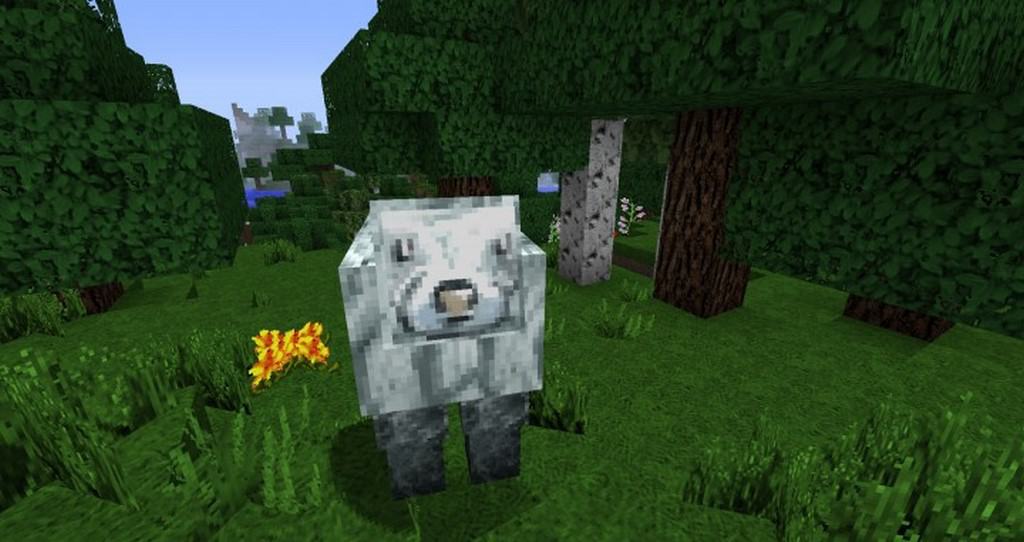
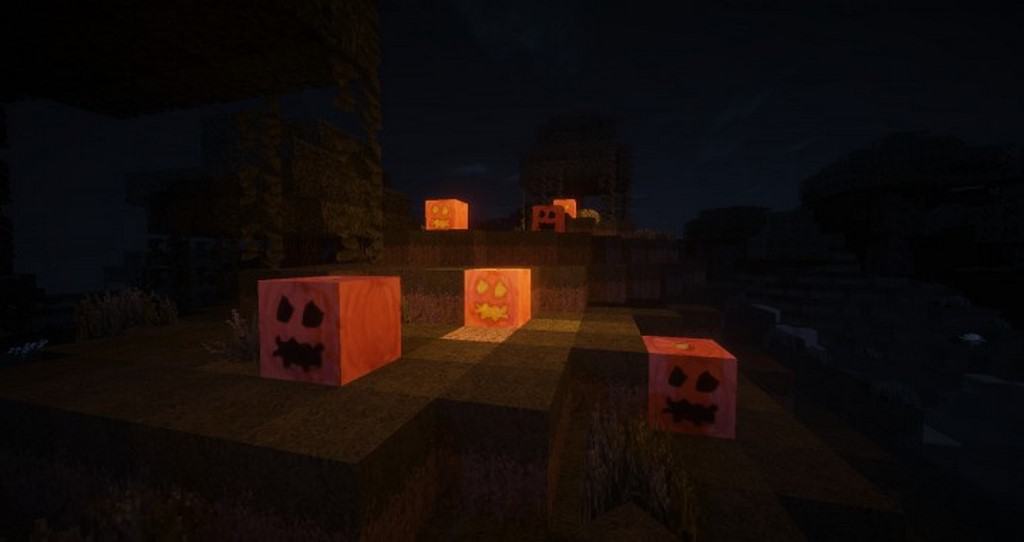
The developer has thoughtfully changed the textures for doors, windows, certain creepers and mobs, as well as flowers and grass. Alongside all these visual changes, the resource pack also adds immersive new sounds and fresh new icons for items in the GUI. The resource pack is available exclusively in the 64x version, and honestly, even though some textures are missing and many were just upscaled, the higher resolution truly makes Minecraft look so much better. The textures are noticeably sharper than in vanilla Minecraft, and even the sky has been overhauled, with clouds now looking less blocky and much closer to how they would look in reality. To perfectly complement the new visuals, it is strongly recommended to use a shader pack as it can considerably improve lighting and texture rendering. What is important to note is that even though 64x resolution feels like the standard these days, it is still 4 times the normal texture resolution and it can cause some performance degradation for players using older computers.
Aluctral Classical should be compatible with all of these Minecraft versions: 1.9.4 – 1.9 – 1.8.9 – 1.8.8 – 1.8.1 – 1.8.6 – 1.8 – 1.7.10 – 1.7.9 – 1.7.4 – 1.7
Screenshots
How to Install Texture Pack (Simple 10 Steps)
- Download OptiFine: Most of the texture packs and shaders need OptiFine. That’s why, first download and install OptiFine for the version of Minecraft you want to play.
- Download the Texture Pack: Get the texture pack you want from the download section. Choose the version that works with your Minecraft and your PC’s performance.
- Open Minecraft Launcher: Start Minecraft using the official game launcher — or even TLauncher, if you use that.
- Go to Options: From the main menu, click on the “Options” button.
- Open Resource Packs: Inside Options, click on “Resource Packs…”.
- Open the Resource Pack Folder: Click on “Open Resource Pack Folder” — this will open a folder named “resourcepacks”.
- Move the Pack File: Copy or move the .zip file you downloaded into that “resourcepacks” folder. (Don’t unzip the file — Minecraft uses it as-is!)
- Go Back and Refresh: Close the folder and click “Done”, then go back into “Resource Packs…” again.
- Activate the Pack: You’ll see the pack on the left side. Hover over it and click the arrow to move it to the right (active side).
Tip: If you get a message that the pack is for a different version, just click “Yes” — it usually works fine. - Click Done and Enjoy: Click “Done” again. Now your pack is ready to use in-game. It’s that easy!
Credits
The Aluctral Classical Resource Pack was created by Aluctral. We do not claim ownership of this content, nor do we host modified files on our servers. All rights remain with the original creator. We highly encourage you to support Aluctral by downloading the pack from the official sources.
Download Links
Java Edition
Download Instructions
Curseforge: download starts automatically after a few seconds;
Mediafire: click the big blue button with the text “DOWNLOAD”;
Google Drive: in the top right corner you will see a small download icon (down arrow), click it and the download should start;


