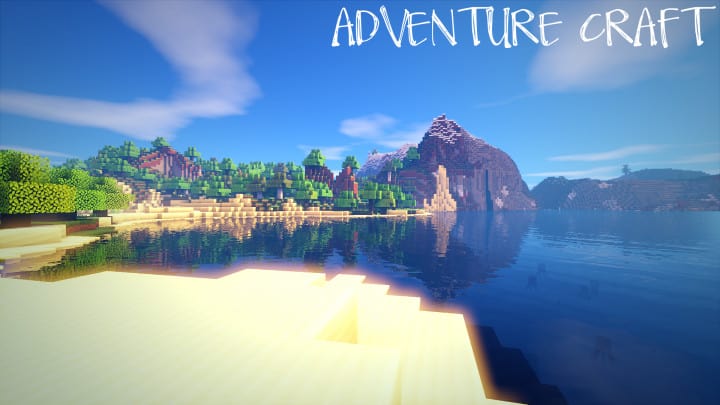
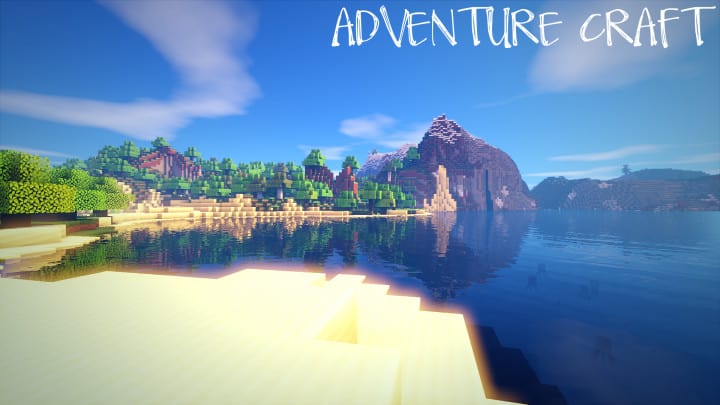
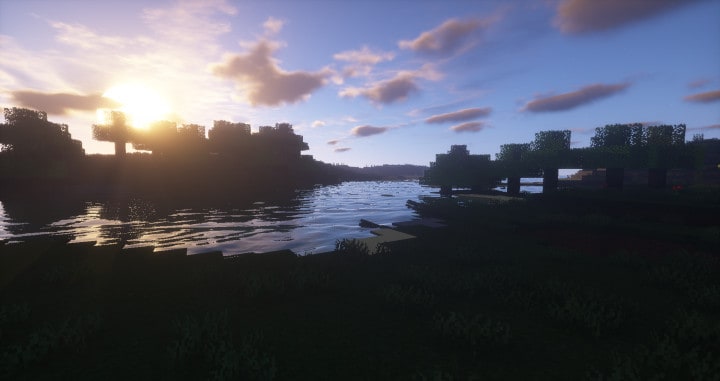
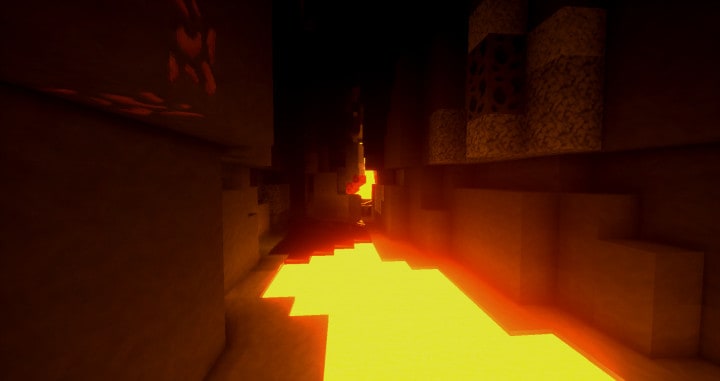
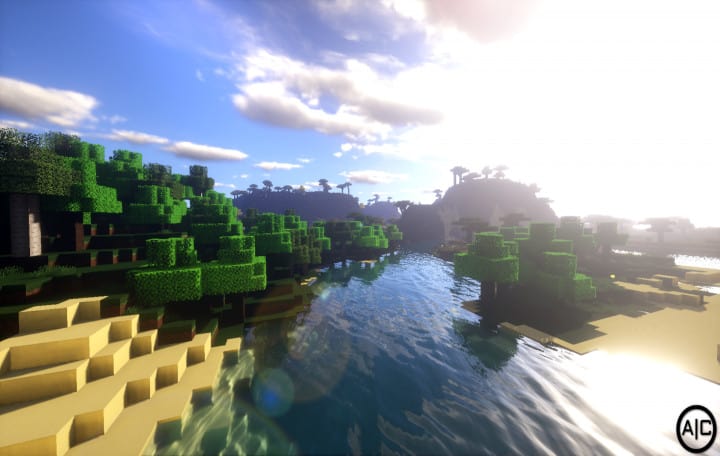
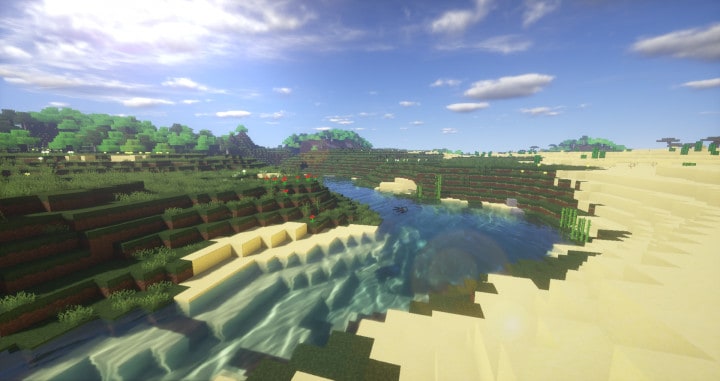
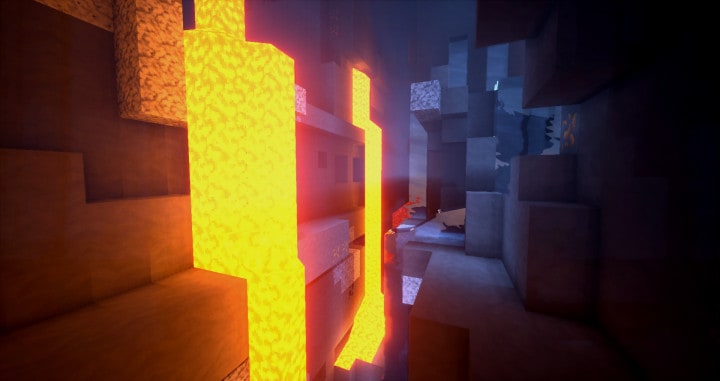
The AdventureCraft resource pack debuted just about a month ago, and it has genuinely amazed a remarkably large number of players thanks to the truly elite level of design poured into it. The pack’s design introduces a wonderfully realistic twist to Minecraft’s classic visuals that will definitely catch your eye the moment you load into a world. If you are searching for a more realistic Minecraft world that feels full of life, you should definitely try out this pack for yourself. There are certainly many resource packs out there that attempt to bring life and a realistic appeal to Minecraft visuals, but the AdventureCraft Resource Pack manages to pull off a cleaner look than almost any other pack out there. At the time of writing, the AdventureCraft resource pack is only 25 days old since its initial release, and during this wonderfully short period, over 12,000 downloads have already been made, which is quite impressive. One major problem with many realism resource packs is that their attempts to bring out realism often completely take away the natural harmony of their textures, resulting in a distorted and messy appeal.
Fortunately, the case is completely different with the AdventureCraft Pack, which maintains a stunning visual balance. Another truly distinctive feature that you will notice right away with this pack is the glittering and vibrant color palette used across the board. These brilliant colors elevate the textures of the AdventureCraft pack a level higher than pretty much any competing pack. Regarding the realistic resolution quality, the AdventureCraft Resource Pack comes with an optimized 32x resolution. While this resolution might not technically be the highest possible resolution to have for a craft pack, it is a great sweet spot. One potential shortcoming of this kind of resolution is that it inherently does not give quite as much room for the implementation of every single ultra-fine detail you might want to see in your pack. However, this limitation certainly does not bar the pack from looking genuinely amazing in-game. A huge advantage you gain from this resolution is the incredible ability to run this pack smoothly on less powerful PCs without experiencing any performance problems.
AdventureCraft should be compatible with all of these Minecraft versions: 1.18.1 – 1.18 – 1.17.1 – 1.17 – 1.16.5 – 1.16.4 – 1.16.3 – 1.16.2 – 1.16.1 – 1.16 – 1.12.2 – 1.12 – 1.11.2 – 1.11 – 1.10.2 – 1.10
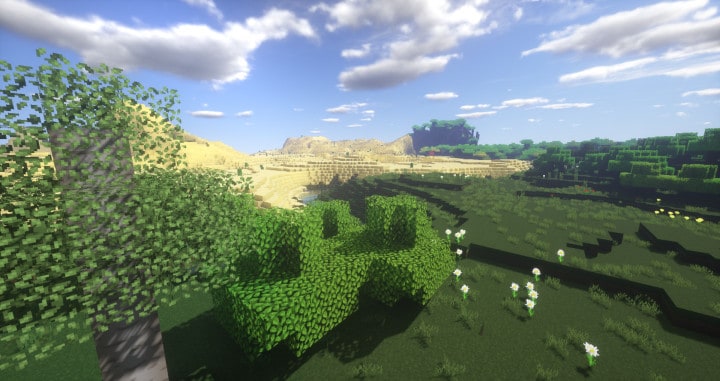
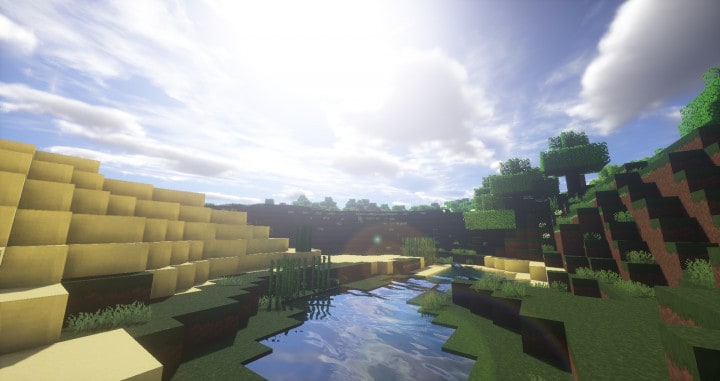
Screenshots
How to Install Texture Pack (Simple 10 Steps)
- Download OptiFine: Most of the texture packs and shaders need OptiFine. That’s why, first download and install OptiFine for the version of Minecraft you want to play.
- Download the Texture Pack: Get the texture pack you want from the download section. Choose the version that works with your Minecraft and your PC’s performance.
- Open Minecraft Launcher: Start Minecraft using the official game launcher — or even TLauncher, if you use that.
- Go to Options: From the main menu, click on the “Options” button.
- Open Resource Packs: Inside Options, click on “Resource Packs…”.
- Open the Resource Pack Folder: Click on “Open Resource Pack Folder” — this will open a folder named “resourcepacks”.
- Move the Pack File: Copy or move the .zip file you downloaded into that “resourcepacks” folder. (Don’t unzip the file — Minecraft uses it as-is!)
- Go Back and Refresh: Close the folder and click “Done”, then go back into “Resource Packs…” again.
- Activate the Pack: You’ll see the pack on the left side. Hover over it and click the arrow to move it to the right (active side).
Tip: If you get a message that the pack is for a different version, just click “Yes” — it usually works fine. - Click Done and Enjoy: Click “Done” again. Now your pack is ready to use in-game. It’s that easy!
Credits
Credits: Developed by InnovationNation. We do not own or modify the files provided. All rights and ownership belong to the original creator. We strongly encourage visiting and supporting the author through their official channels.
Download Links
Java Edition
Download Instructions
Curseforge: download starts automatically after a few seconds;
Mediafire: click the big blue button with the text “DOWNLOAD”;
Google Drive: in the top right corner you will see a small download icon (down arrow), click it and the download should start;


