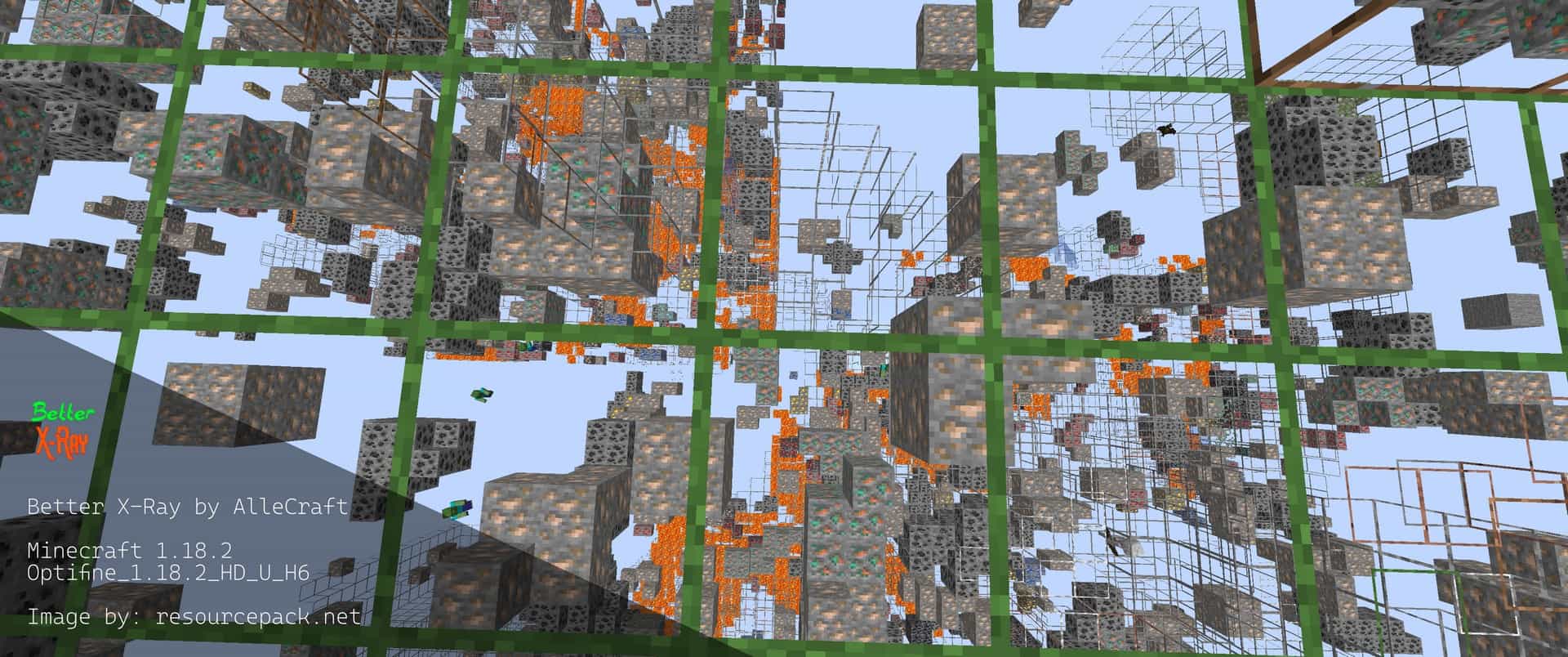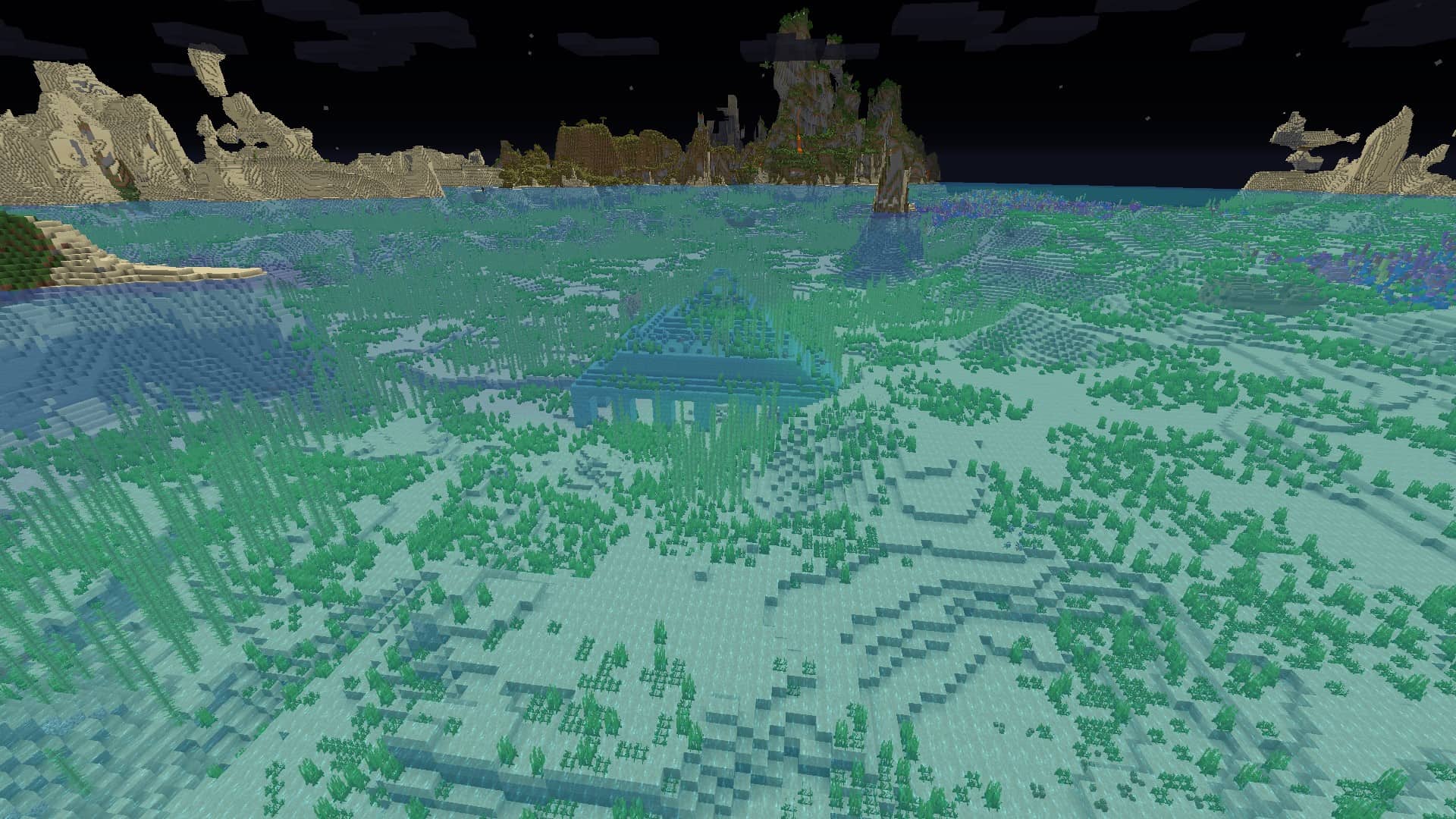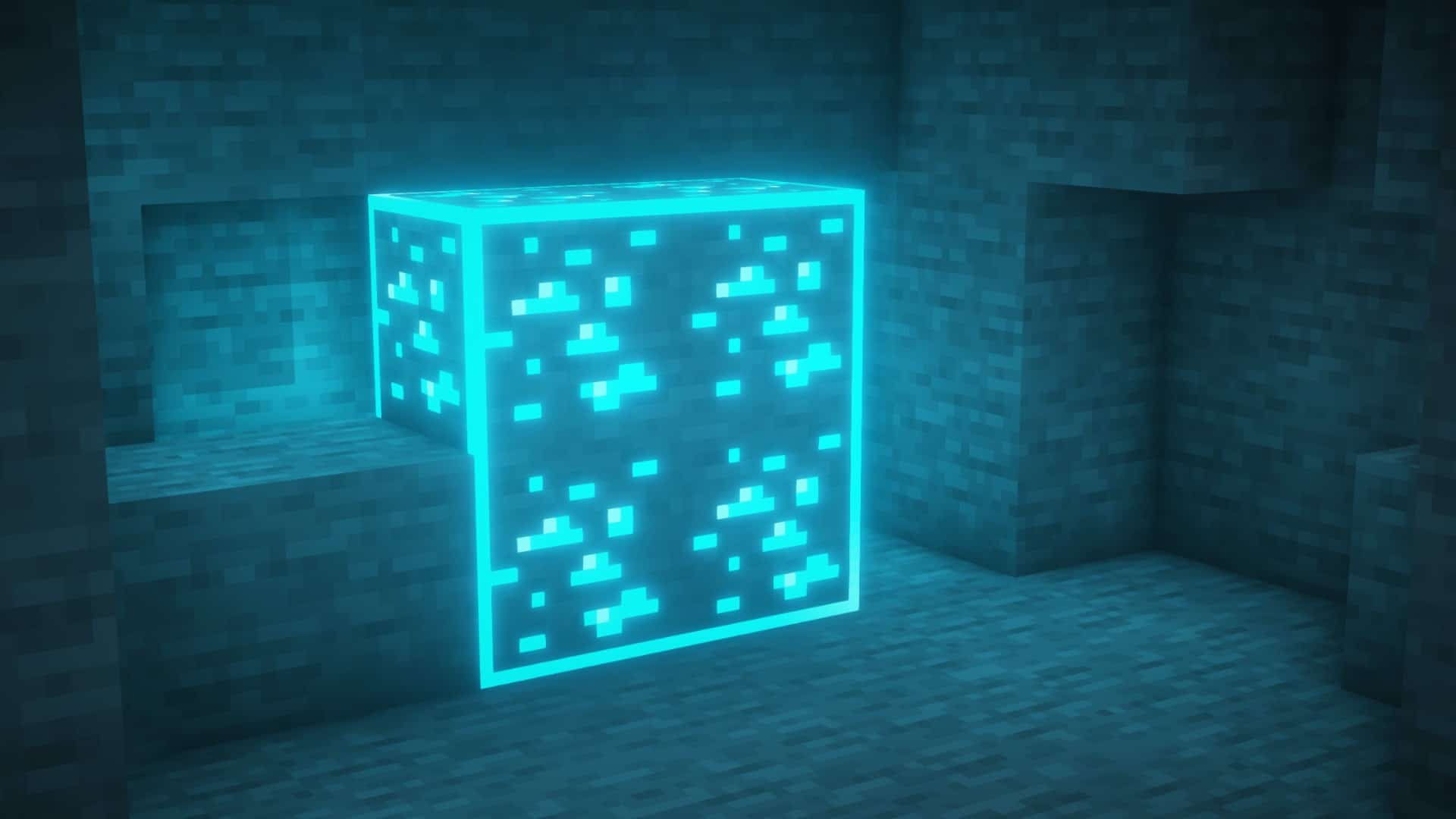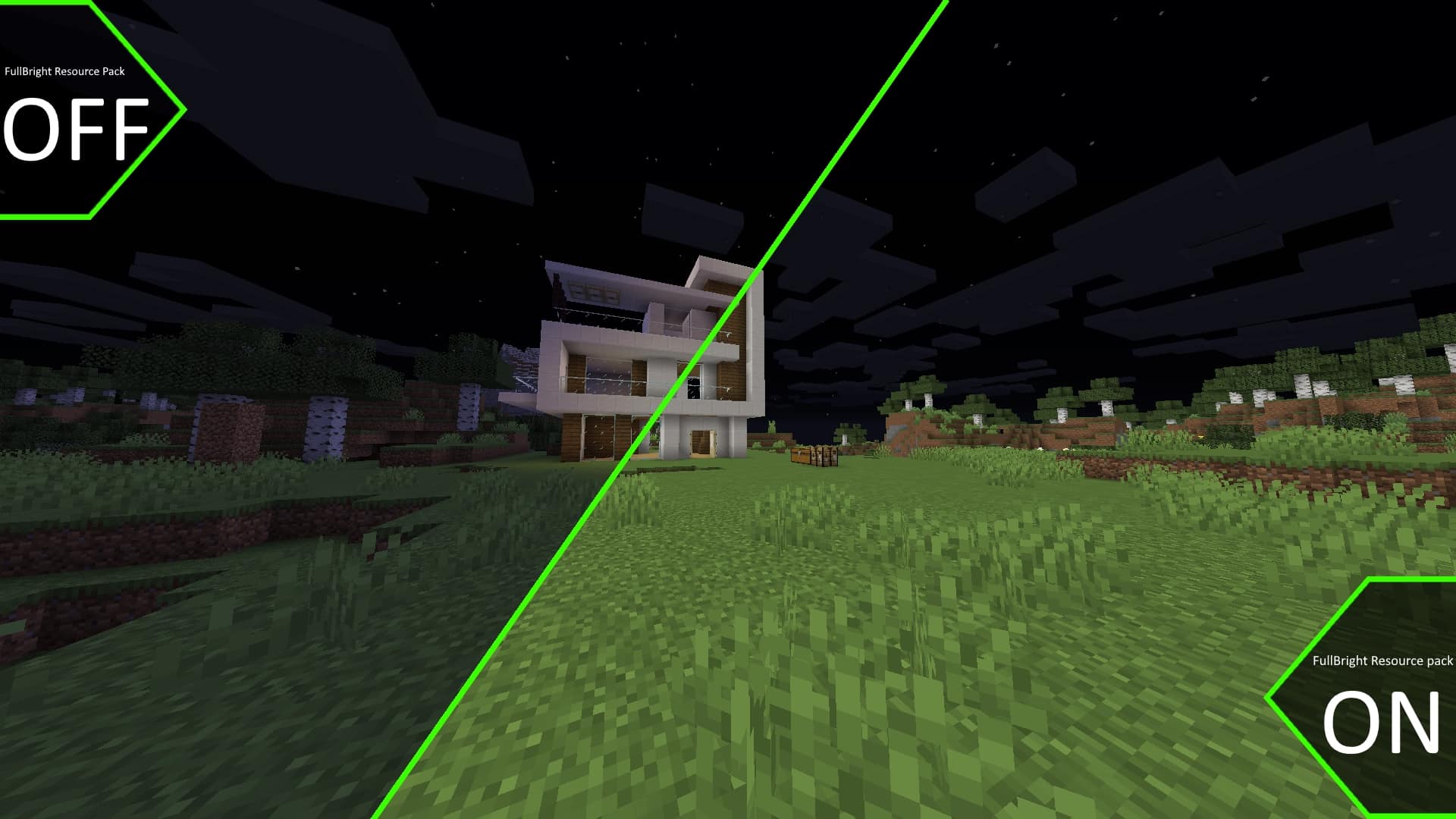
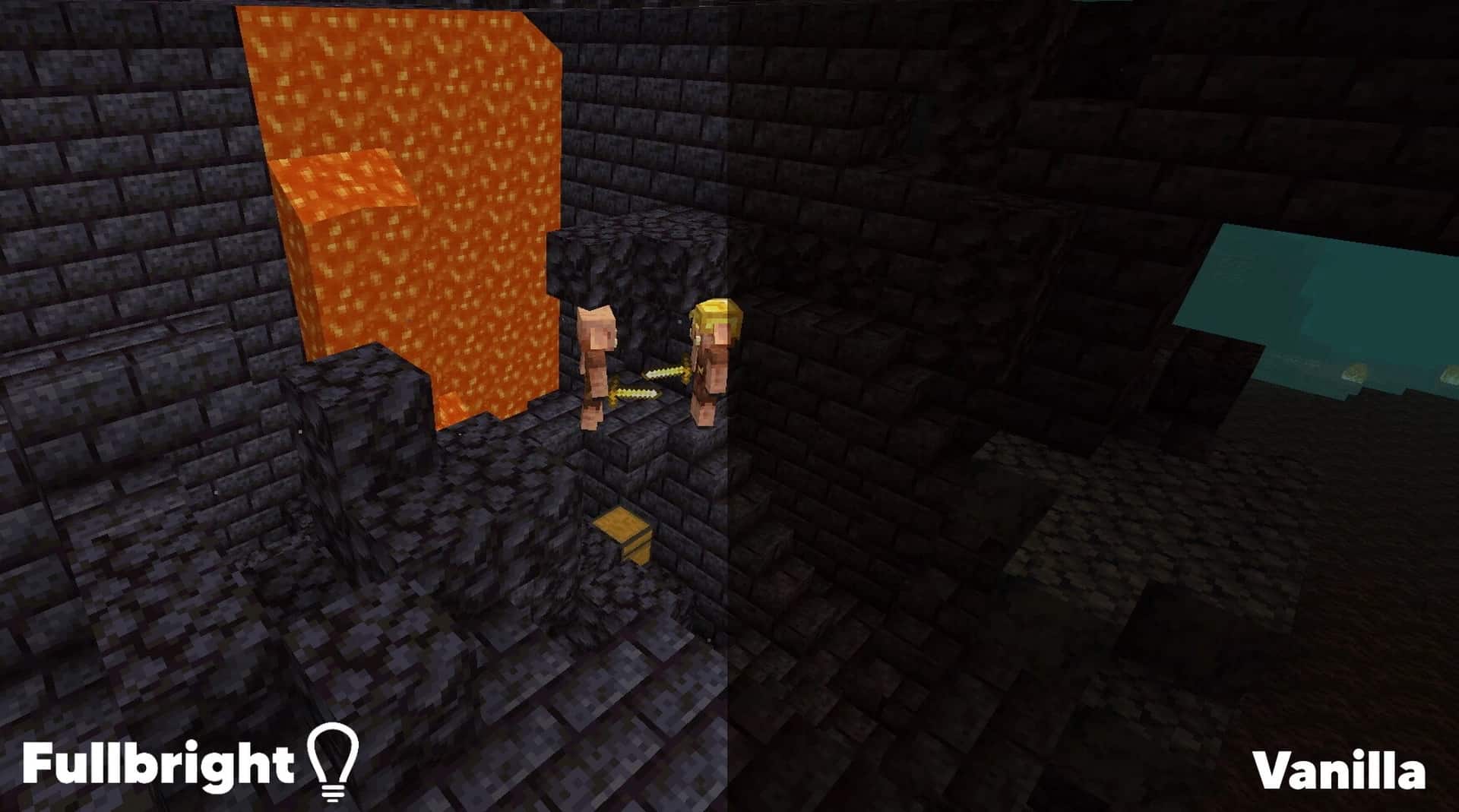
The FullBright resource pack completely transforms Minecraft’s lighting during dim periods, letting you see with absolute clarity in the dark. Along with making nighttime and deep caves so much easier to navigate, this fantastic resource pack also helps you see effortlessly in both the Nether and the End dimensions. You will no longer have to worry about suddenly running into a Creeper in total darkness if you happen to run out of torches, nor will you need a torch just to spot items or valuable ores scattered around. The days of accidentally falling into hidden ravines because it was simply too dark to see them are totally over! I love how players can easily circumvent the age-old struggle of mining at night just by using the Fullbright resource pack. Anyone who downloads this pack will experience a vastly smoother and more relaxed adventure than before. Just how popular is the FullBright texture pack? Despite not needing frequent updates, the resource pack has steadily amassed nearly 1 million downloads on CurseForge, sitting at a massive total of 971,465 downloads at the time this article was written. Players have enthusiastically flocked to this resource pack for all sorts of reasons. Some do it to make survival gameplay a bit easier, others do it to accommodate their eyesight, and a few simply prefer how bright and vibrant Minecraft looks when fully illuminated. Minecrafters who like to spend several days exploring their vast world or strip-mining will be genuinely pleased by how the FullBright resource pack vastly increases overall visibility. The pack makes everything appear as brightly and clearly as if it were midday. Mobs will definitely have a hard time sneaking up on you after dark, and PvE combat is noticeably improved both above and beneath the ground. Clearing out monster dungeons is far easier than if you tried it in vanilla Minecraft. Using the Fullbright resource pack also makes PvP easier, but we strongly urge you to let your friends know when you’re using the resource pack. Many multiplayer servers have banned it due to the extreme advantage players with the resource pack had over those who didn’t download it, so you should definitely check the list of server rules before using the pack online. Playing on a server where the Fullbright resource pack is restricted could easily get you kicked from a realm if anyone found out.
For visually impaired players, we always recommend talking to the moderators or server hosts beforehand and asking permission to use the resource pack. Finally, telling your friends about the Fullbright resource pack also means they can download it too, so you’re sharing all the fun with them. As briefly mentioned before, visually impaired players have an even greater reason to download this pack. By drastically improving players’ overall vision, the FullBright resource pack wonderfully makes Minecraft much more accessible. It can genuinely be challenging for some Minecrafters to play the game once night falls, to go deep mining, or to travel to dangerous places like the End and the Nether due to various vision impairments. It can sometimes be nearly impossible for them to spot details that other players might easily see, meaning they often miss out on valuable loot while monsters sneak up on them more frequently. Using the FullBright resource pack can make the game much fairer and more enjoyable for them to play. For these players, it’s far less about using a cheat or a hack to make fighting and exploring manageable and much more about being able to play the exact same way as everyone else. Minecrafters with vision impairments will finally be placed on an even playing field with those who have regular eyesight. They can finally engage in fair fights, accurately compare their actual skills, and freely explore with other players in ways they simply couldn’t in vanilla Minecraft. You must download Optifine to use the Fullbright resource pack properly, as it simply won’t function without it. Optifine is an incredible mod that optimizes Minecraft by dramatically improving frames per second, using fewer graphical artifacts, configuring the lighting to suit your specific device’s requirements, controlling annoying fog, adding a handy mini map, and much more. It also supports HD shader packs, dynamic lighting, and texture packs such as the Fullbright resource pack. Trying to run the Fullbright resource pack without downloading Optifine will render it completely useless, and you won’t have access to the cool features and useful benefits it comes with. Whether you want a solid edge over hostile mobs, require more accessible lighting because of vision impairments, or simply want to easily find hidden loot, the Fullbright texture pack is an absolute game changer for Minecrafters of all types. We highly recommend that you check out the screenshots to see this resource pack in action, or better yet, download the pack and try it out for yourself today!
FullBright should be compatible with all of these Minecraft versions: 26.2 – 26.1.2 – 26.1.1 – 26.1 – 1.21.11 – 1.21.10 – 1.21.8 – 1.21.7 – 1.21.6 – 1.21.5 – 1.21.4 – 1.21.3 – 1.21.2 – 1.21.1 – 1.21 – 1.20.6 – 1.20.5 – 1.20.4 – 1.20.3 – 1.20.2 – 1.20.1 – 1.20 – 1.19.4 – 1.19.3 – 1.19.2 – 1.19.1 – 1.19 – 1.18.2 – 1.18.1 – 1.18 – 1.17.1 – 1.17 – 1.16.5 – 1.16.4 – 1.16.3 – 1.16.2 – 1.16.1 – 1.16 – 1.15.2 – 1.15.1 – 1.15 – 1.14.4 – 1.14.3 – 1.14.2 – 1.14 – 1.13.2 – 1.13.1 – 1.13 – 1.12.2 – 1.12 – 1.11.2 – 1.11 – 1.10.2 – 1.10 – 1.9.4 – 1.9 – 1.8.9 – 1.8.8 – 1.8.1 – 1.8.6 – 1.8 – 1.7.10 – 1.7.9 – 1.7.4 – 1.7
Screenshots
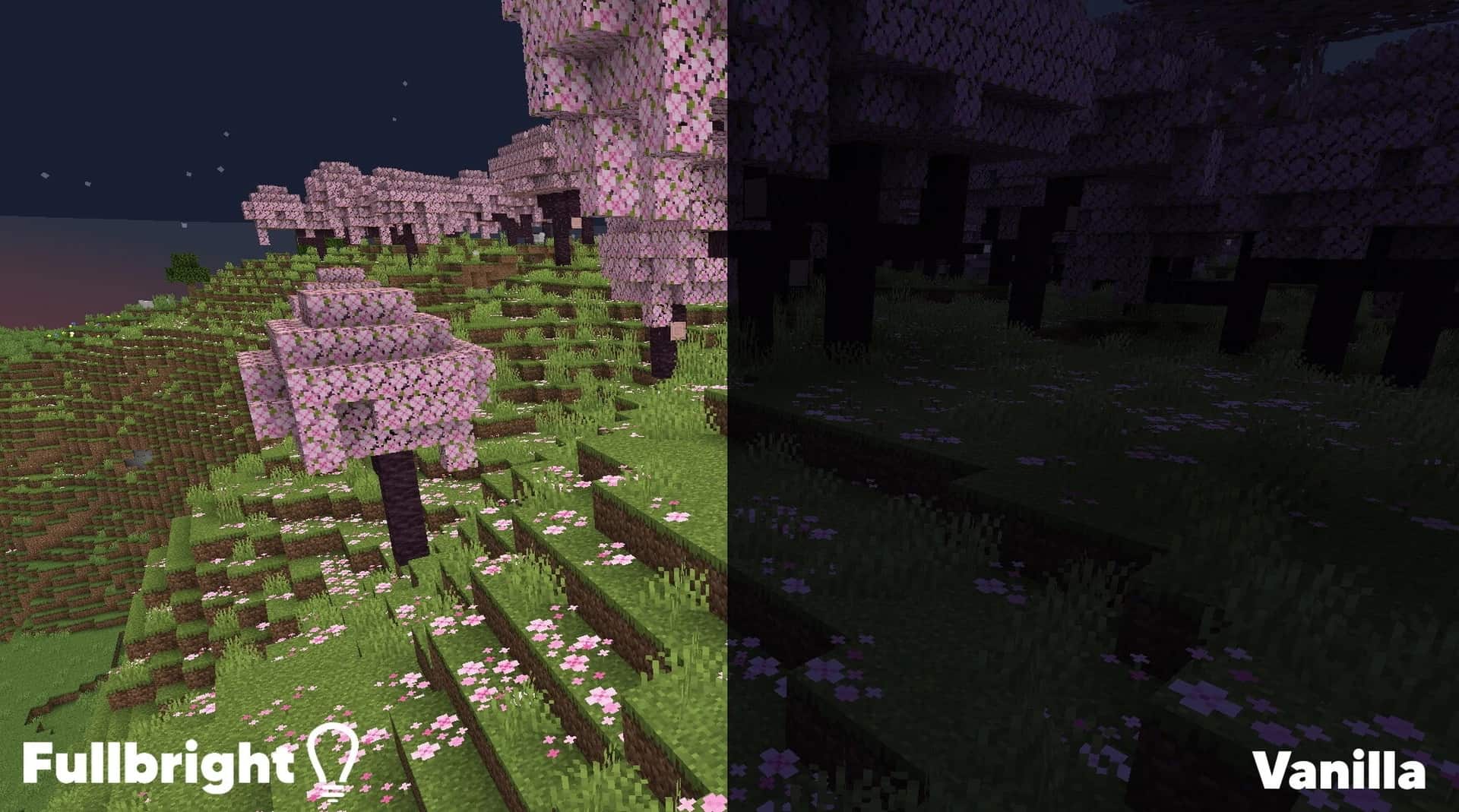
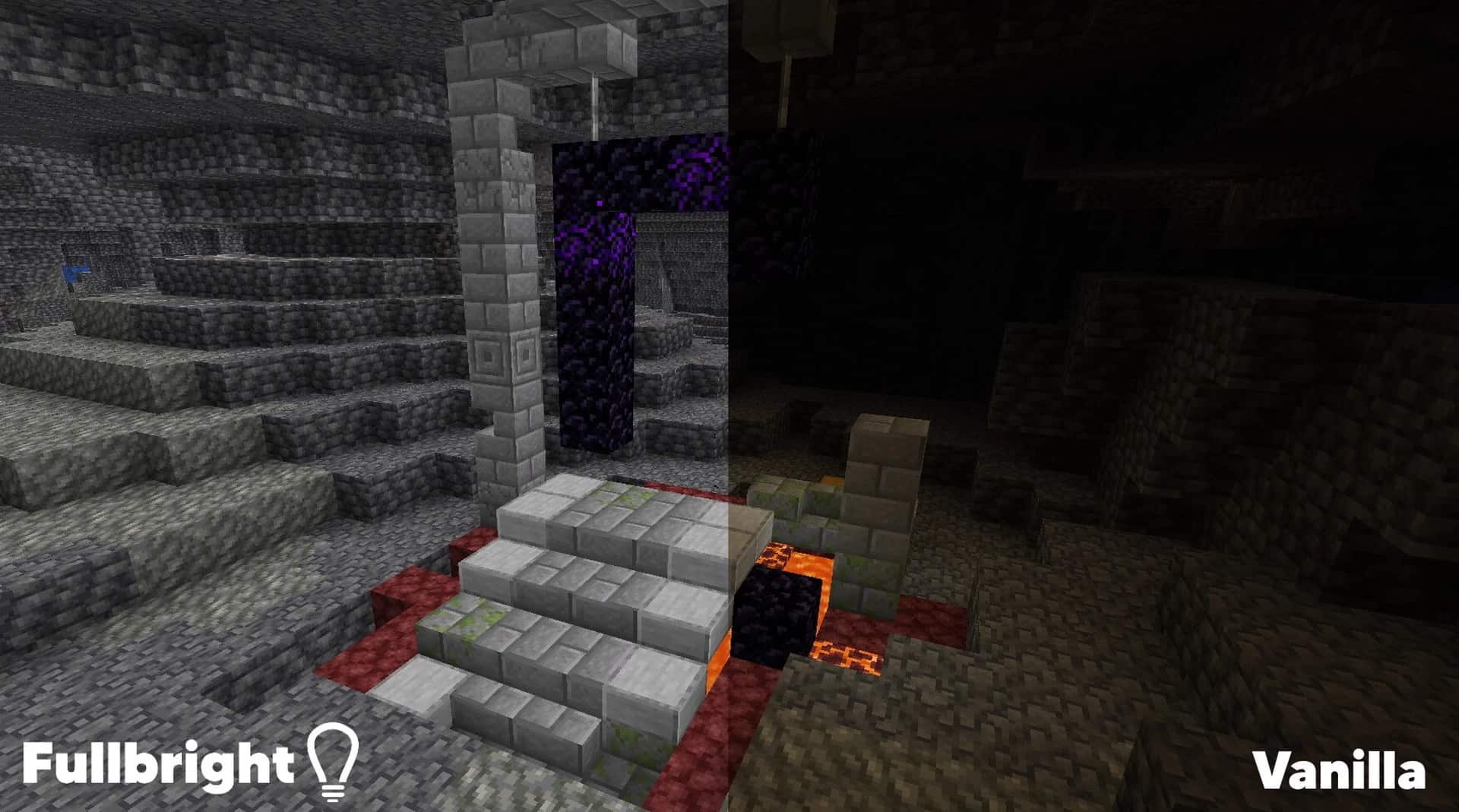
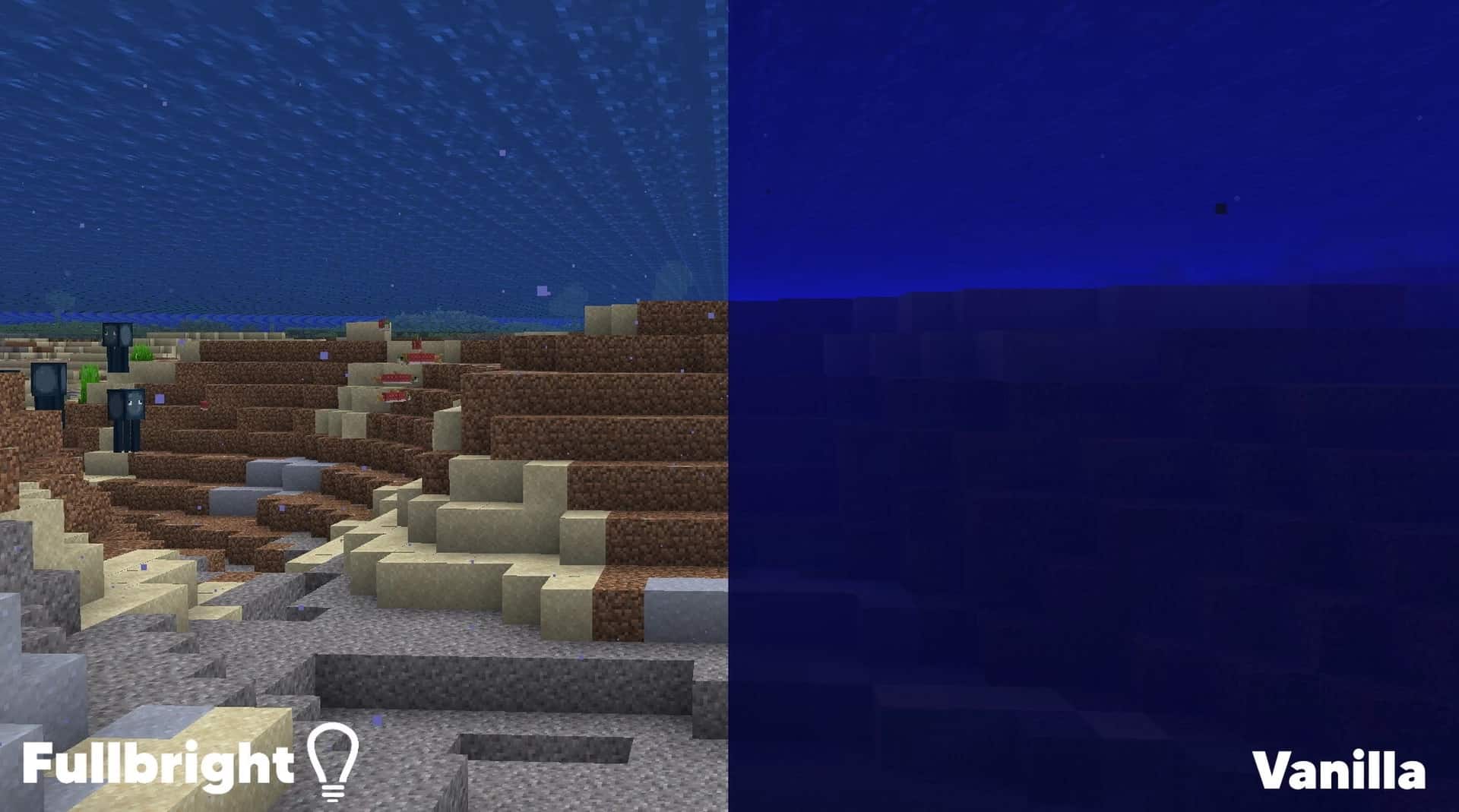
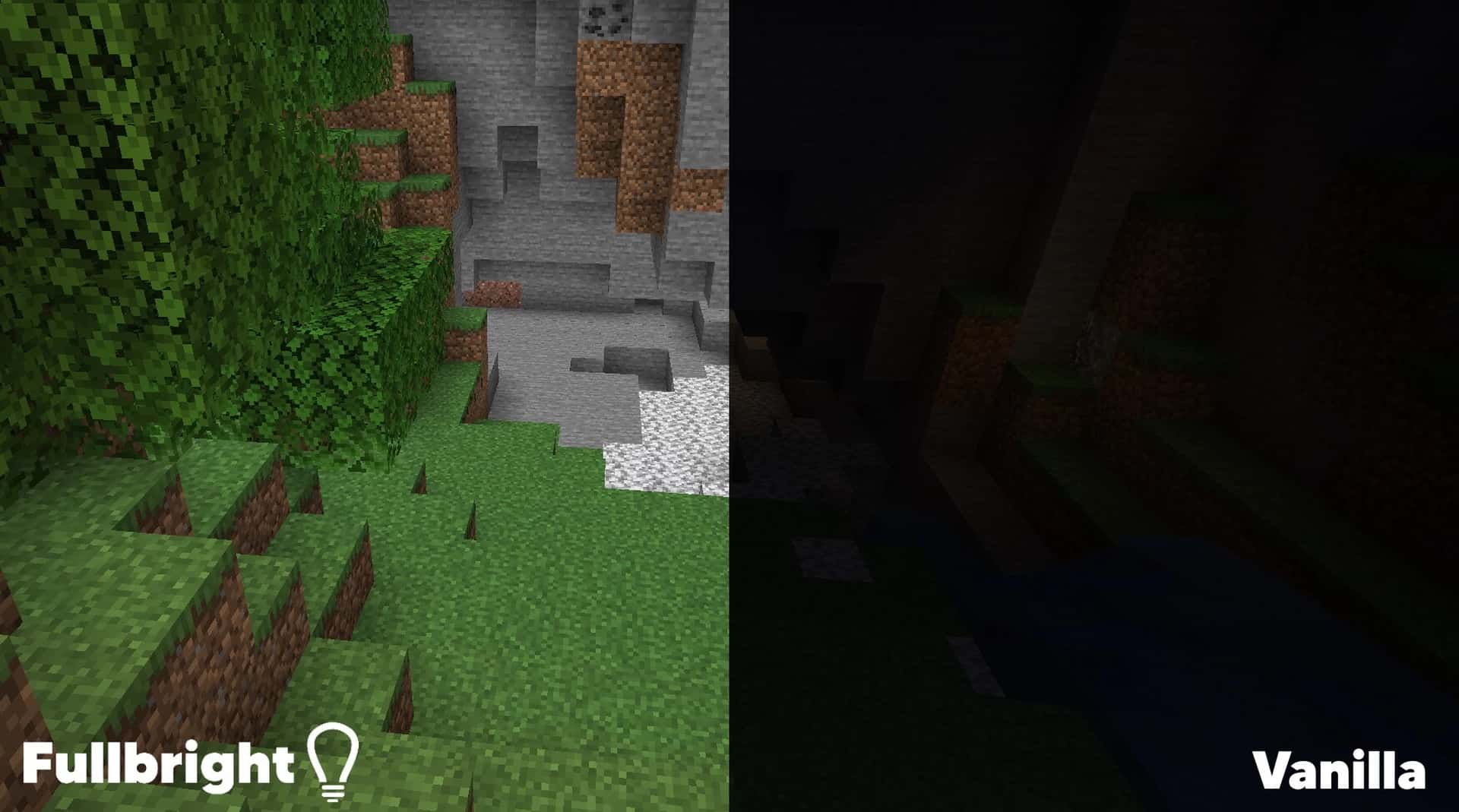
How to Install Texture Pack (Simple 10 Steps)
- Download OptiFine: Most of the texture packs and shaders need OptiFine. That’s why, first download and install OptiFine for the version of Minecraft you want to play.
- Download the Texture Pack: Get the texture pack you want from the download section. Choose the version that works with your Minecraft and your PC’s performance.
- Open Minecraft Launcher: Start Minecraft using the official game launcher — or even TLauncher, if you use that.
- Go to Options: From the main menu, click on the “Options” button.
- Open Resource Packs: Inside Options, click on “Resource Packs…”.
- Open the Resource Pack Folder: Click on “Open Resource Pack Folder” — this will open a folder named “resourcepacks”.
- Move the Pack File: Copy or move the .zip file you downloaded into that “resourcepacks” folder. (Don’t unzip the file — Minecraft uses it as-is!)
- Go Back and Refresh: Close the folder and click “Done”, then go back into “Resource Packs…” again.
- Activate the Pack: You’ll see the pack on the left side. Hover over it and click the arrow to move it to the right (active side).
Tip: If you get a message that the pack is for a different version, just click “Yes” — it usually works fine. - Click Done and Enjoy: Click “Done” again. Now your pack is ready to use in-game. It’s that easy!
Credits
Created by World Resource Pack. We do not own or modify this resource pack. All rights belong to the original author. We encourage supporting the creator by visiting their official download pages.
Download Links
Java Edition
Download Instructions
Curseforge: download starts automatically after a few seconds;
Mediafire: click the big blue button with the text “DOWNLOAD”;
Google Drive: in the top right corner you will see a small download icon (down arrow), click it and the download should start;