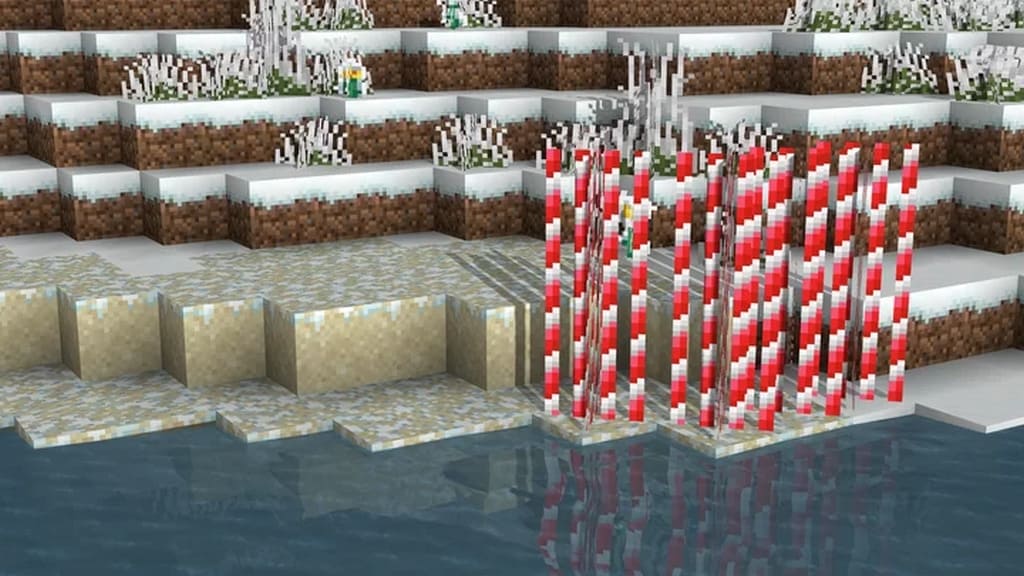
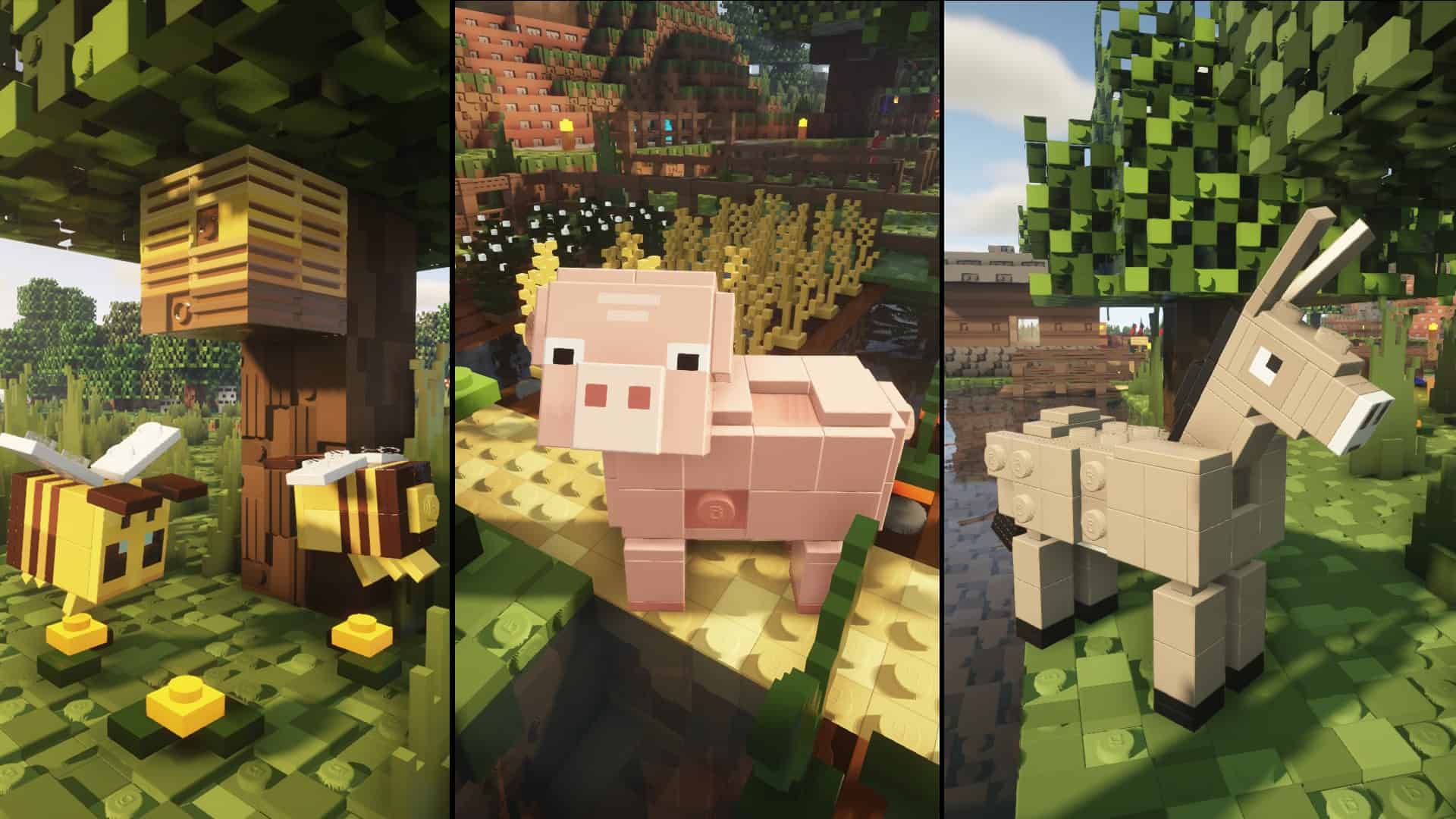
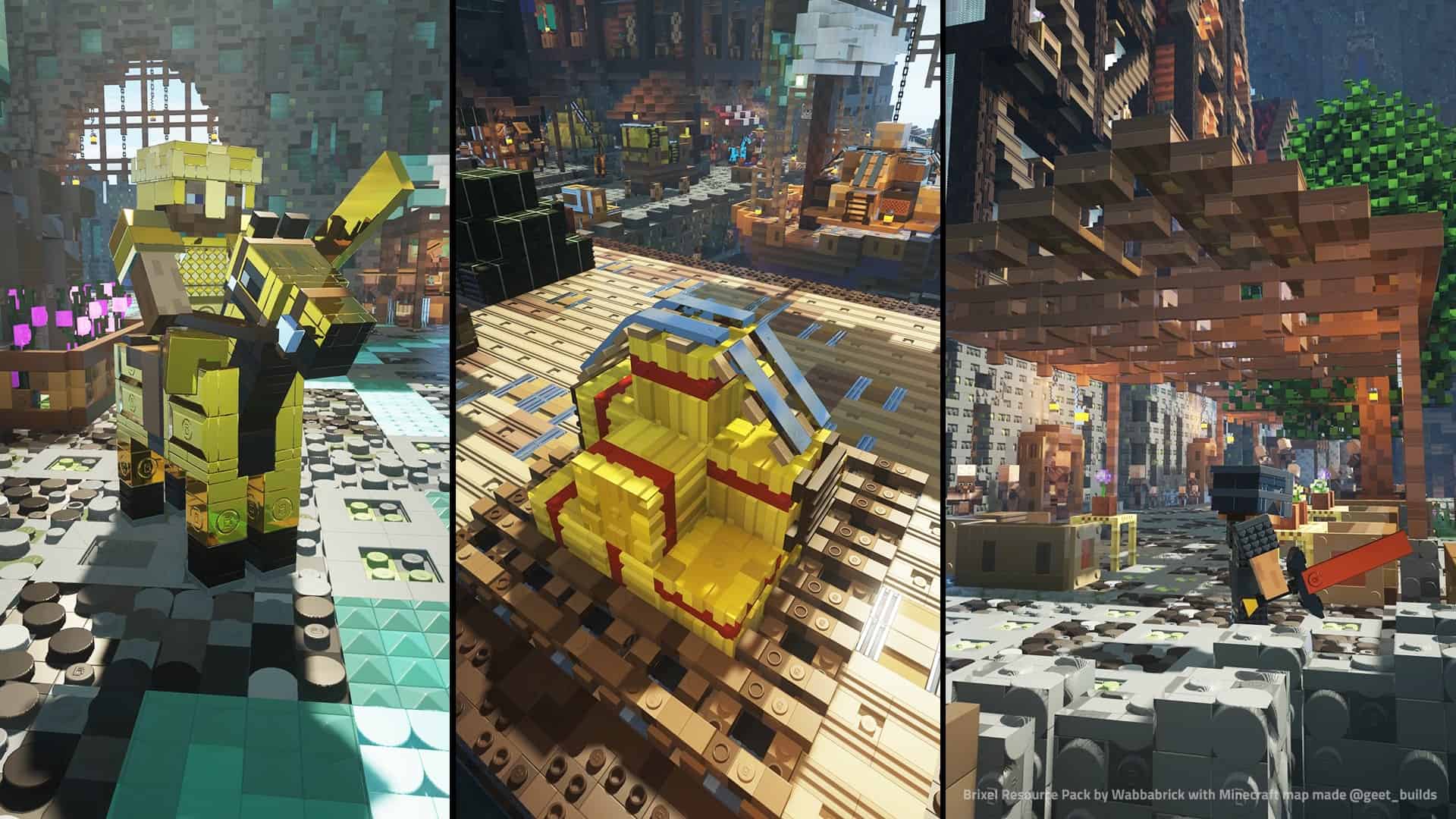
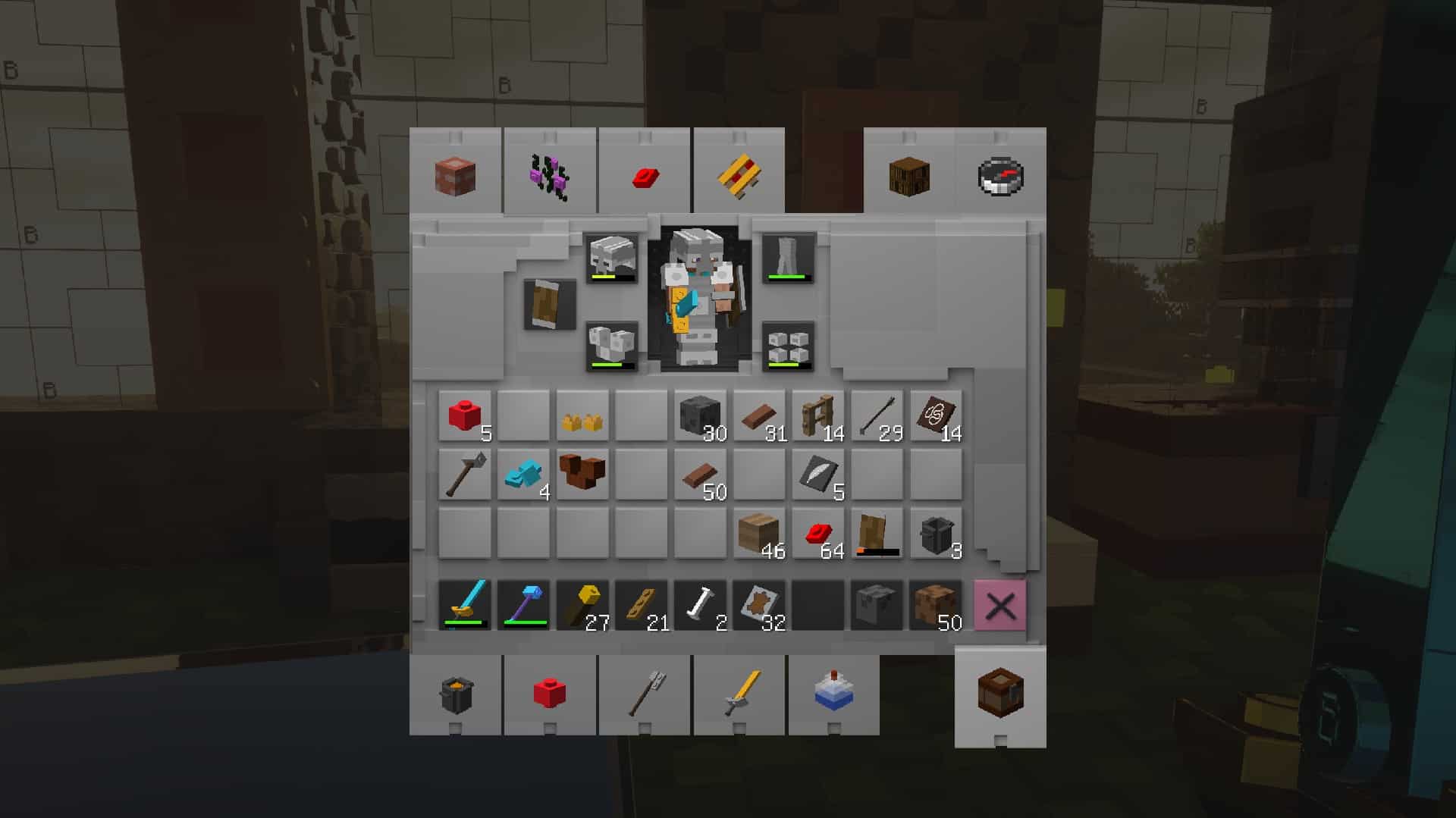
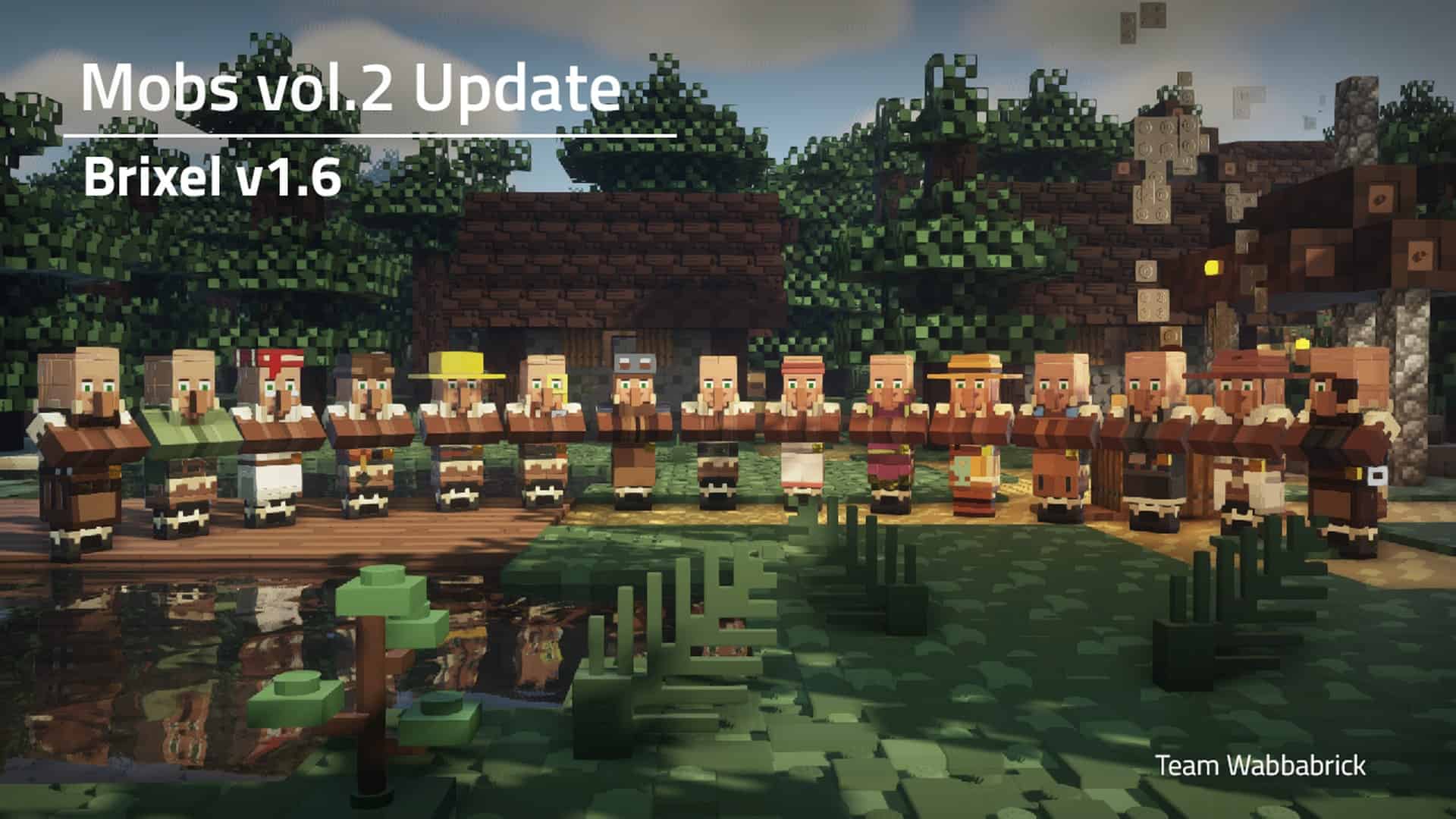
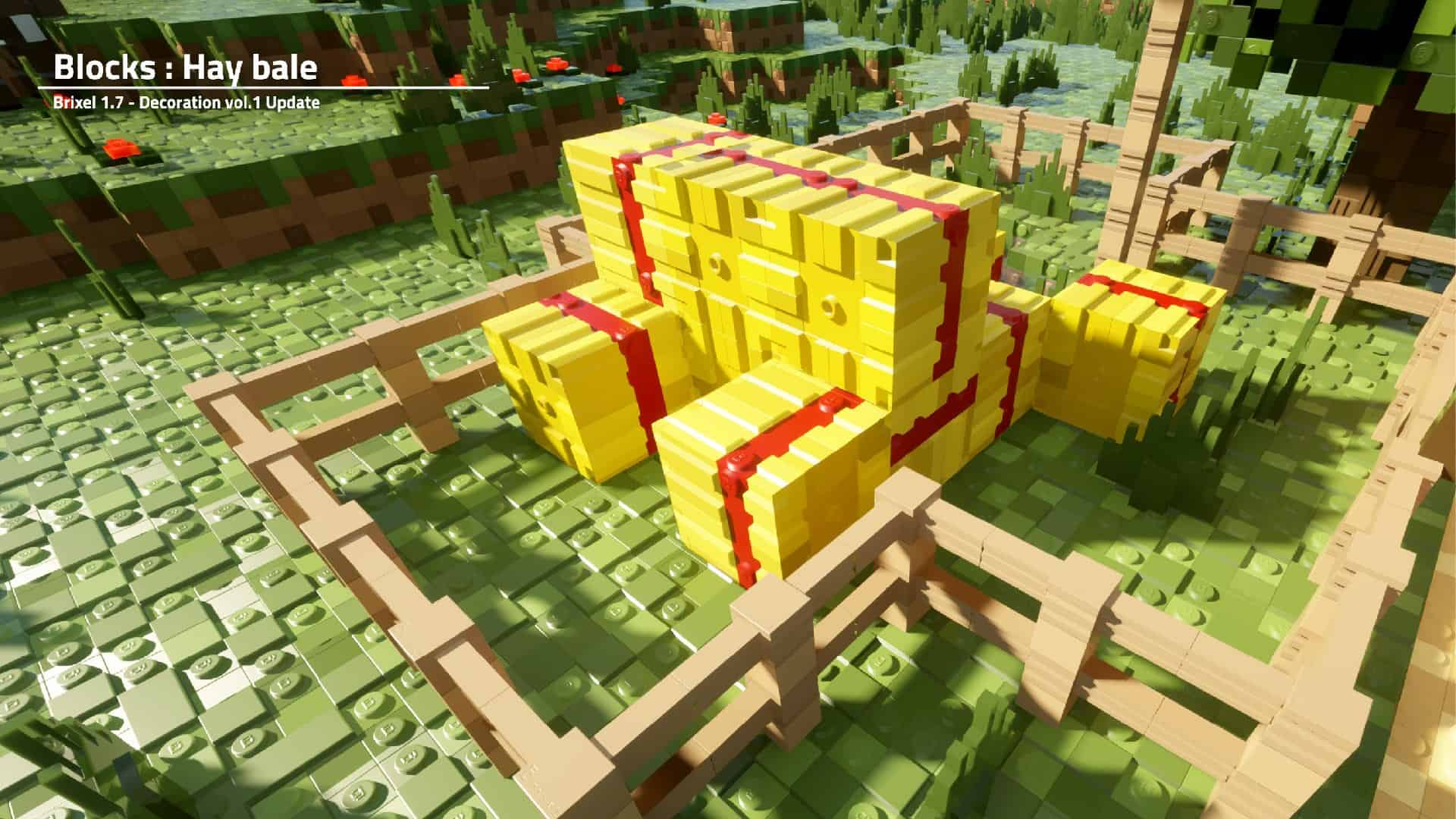
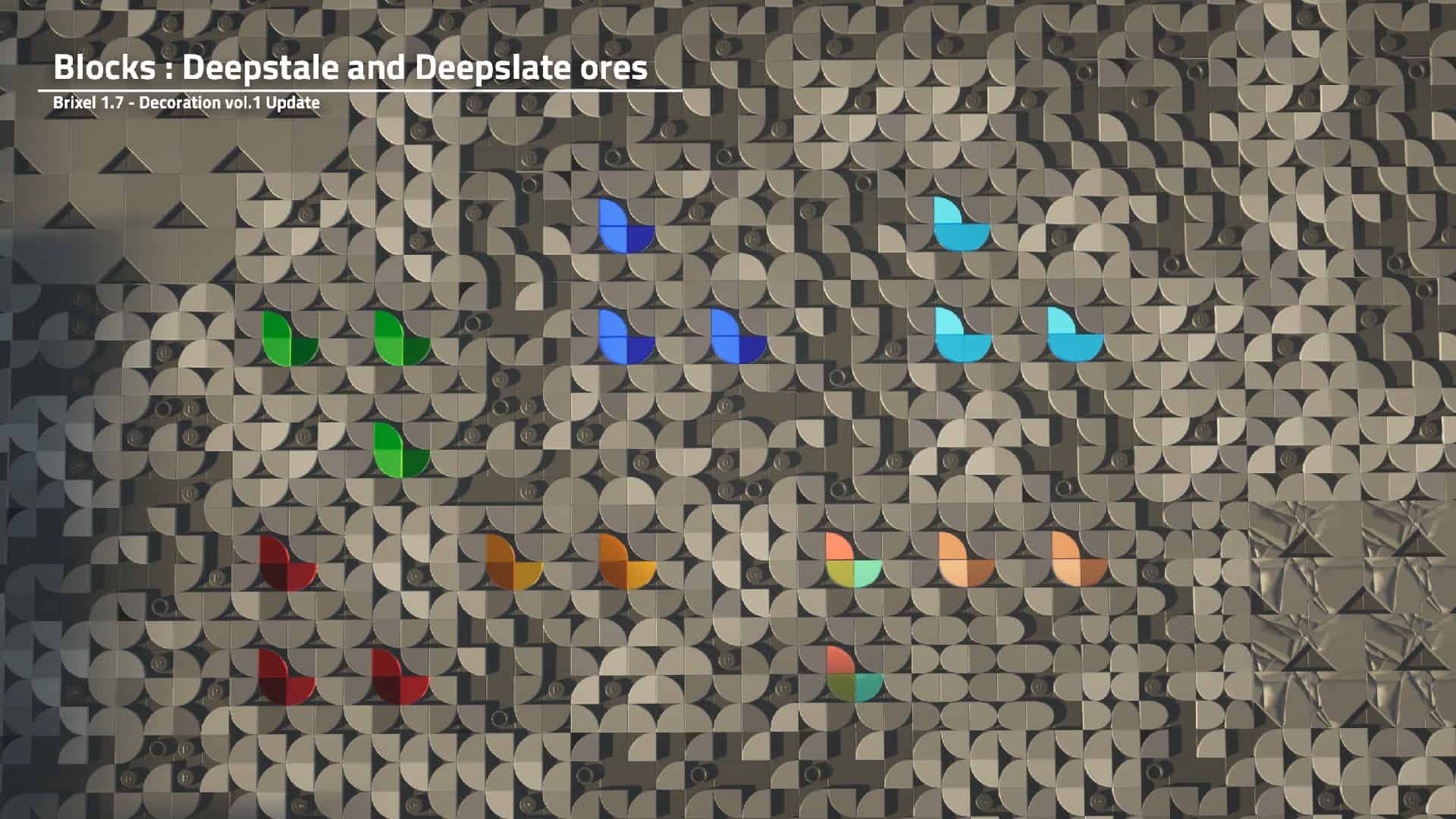
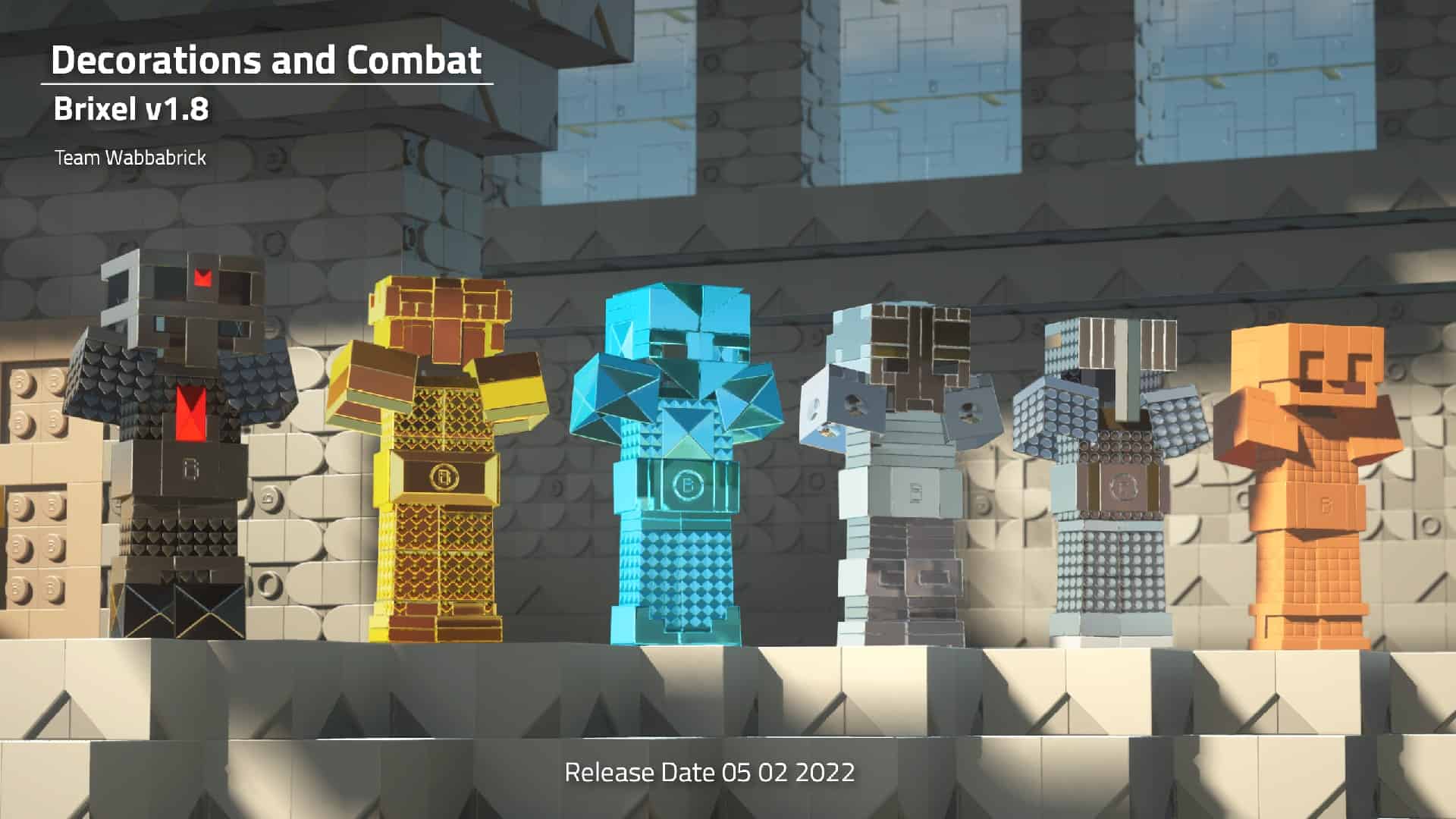
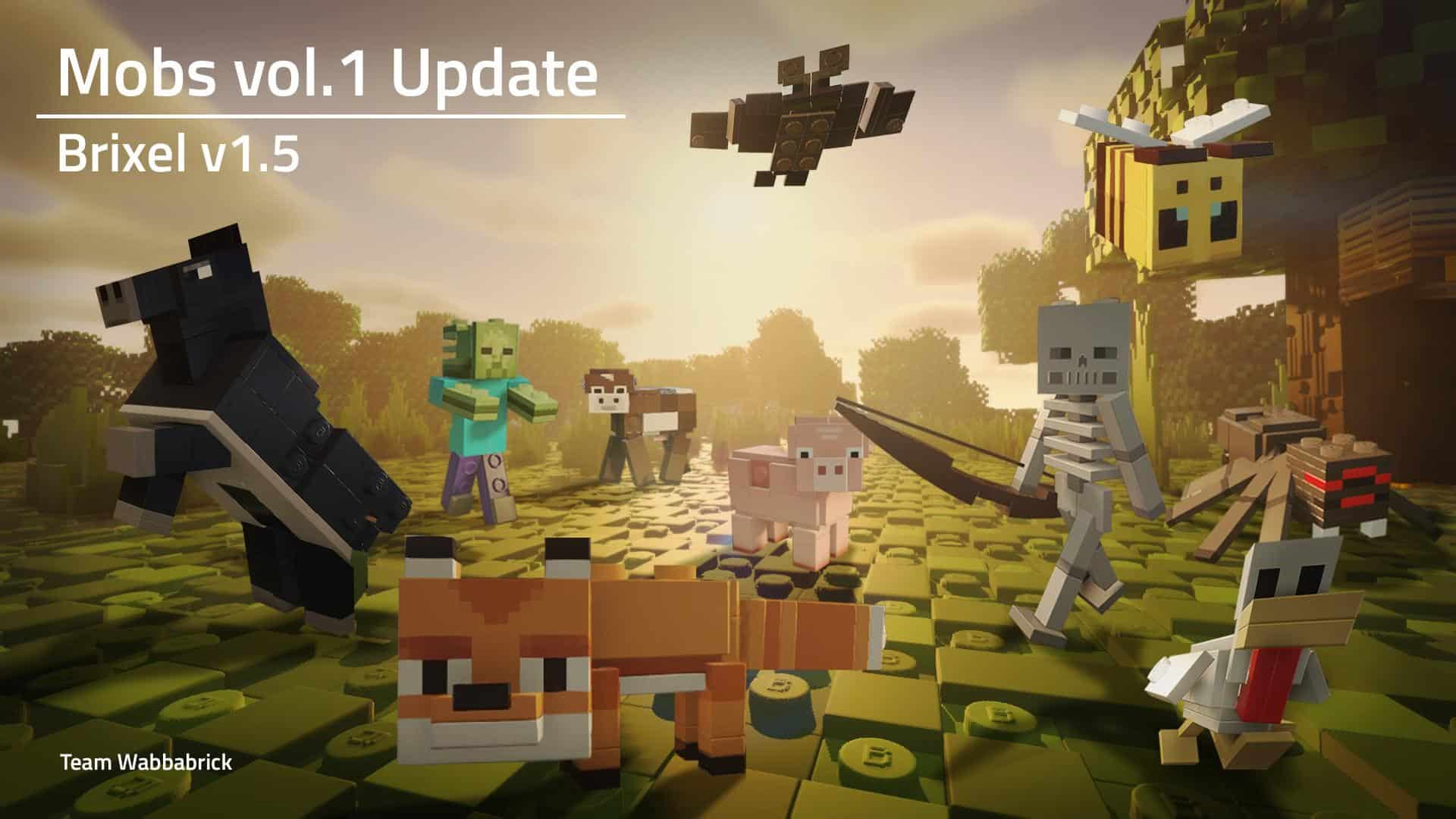
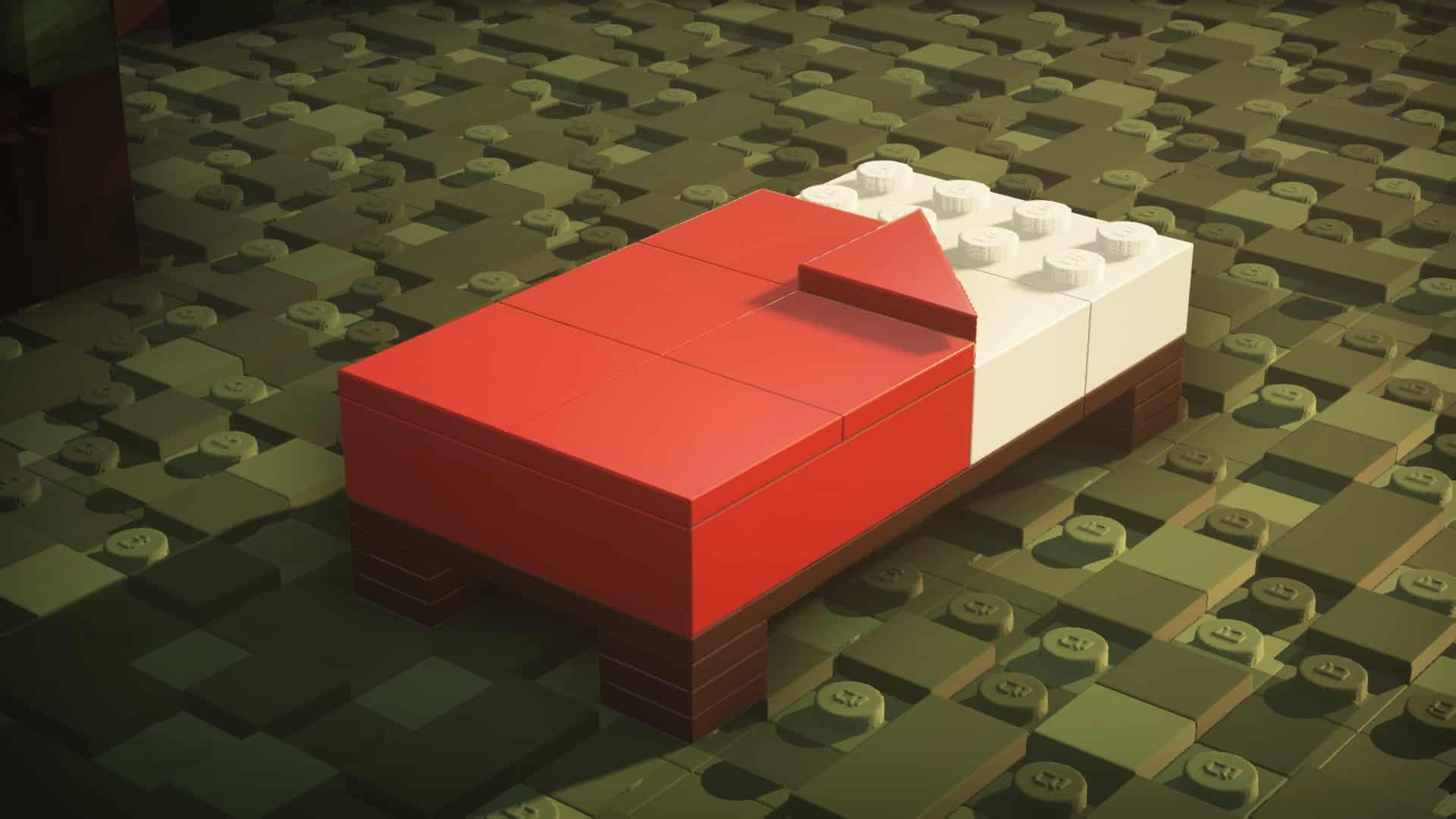
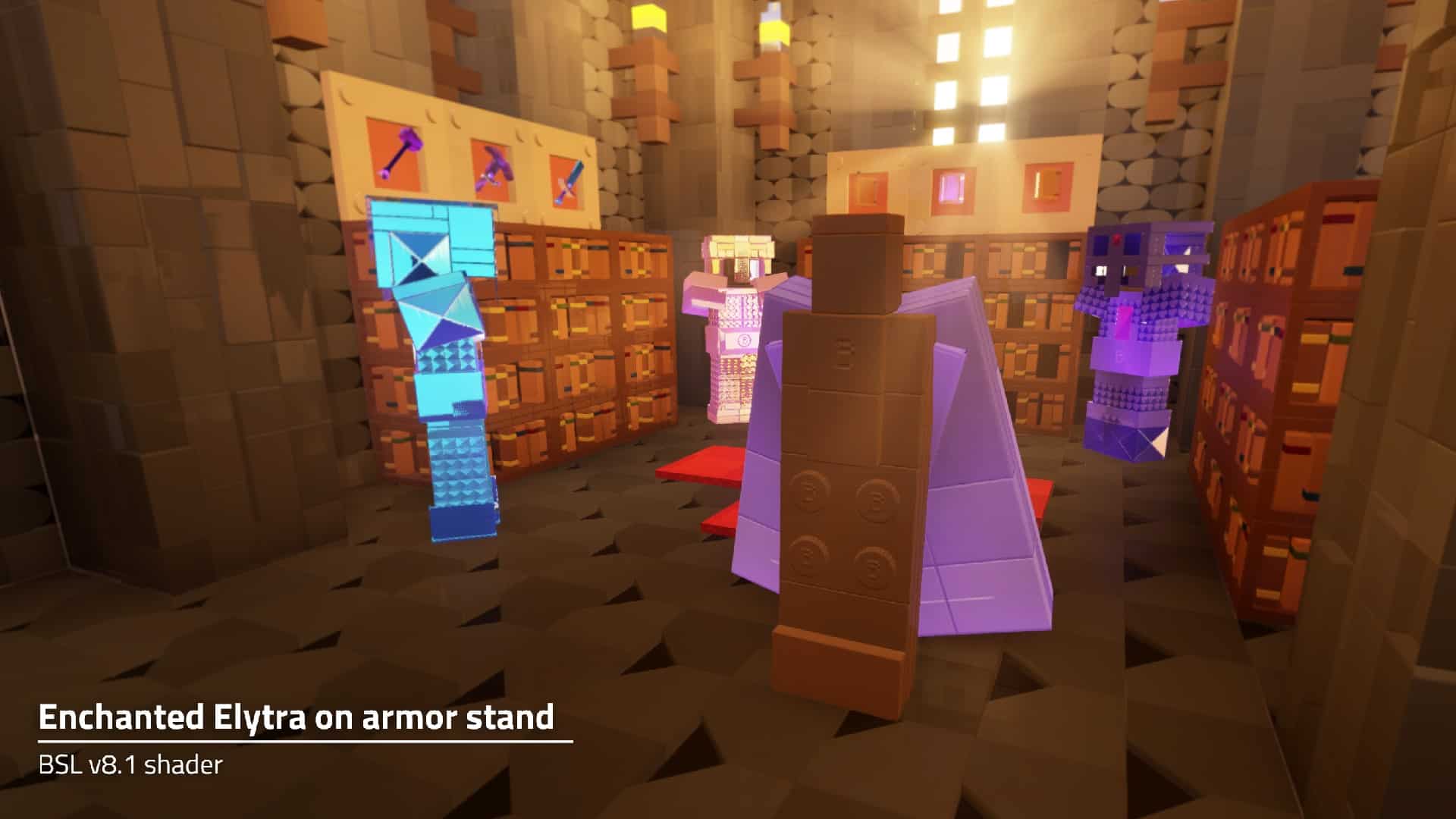
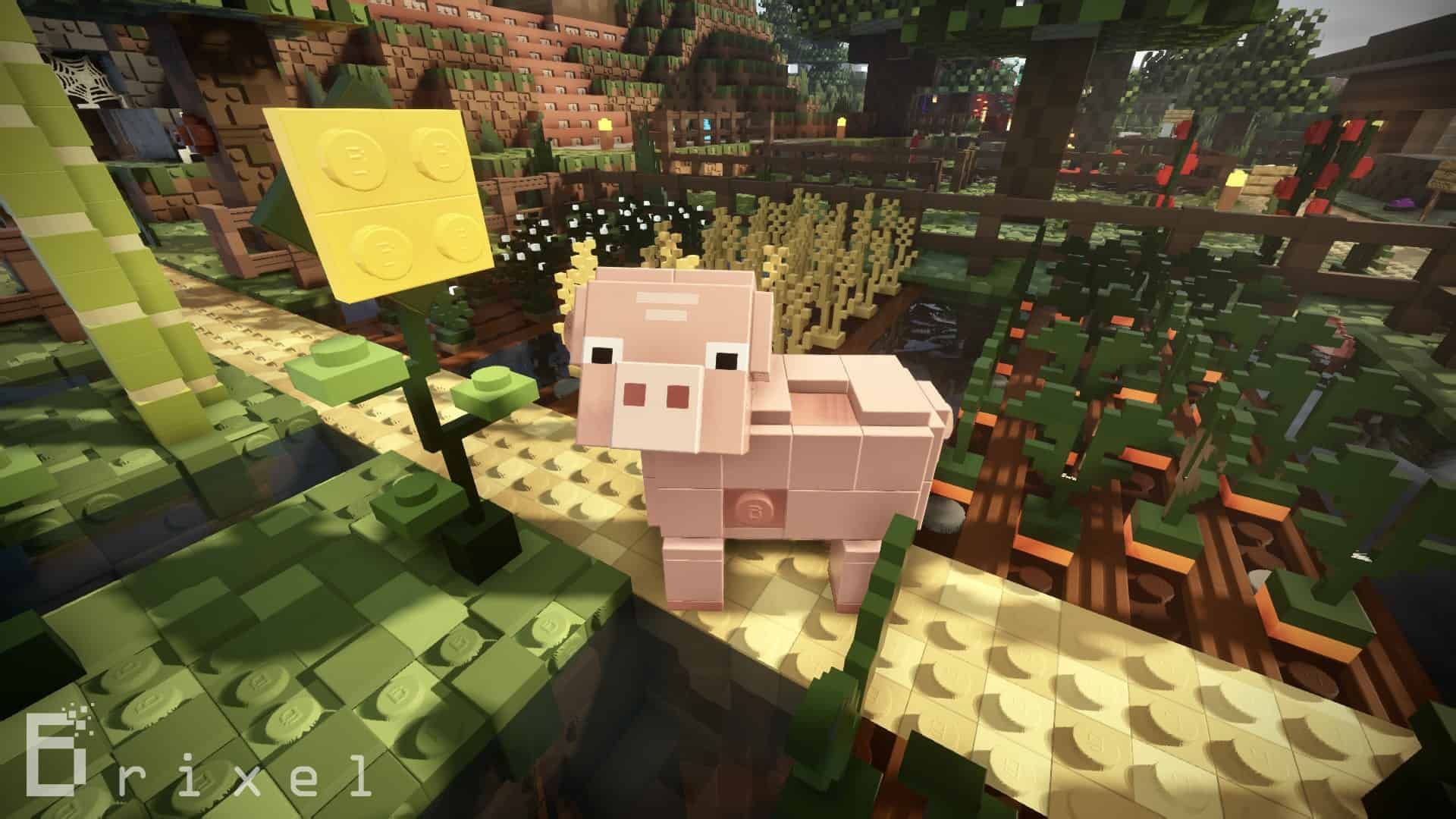
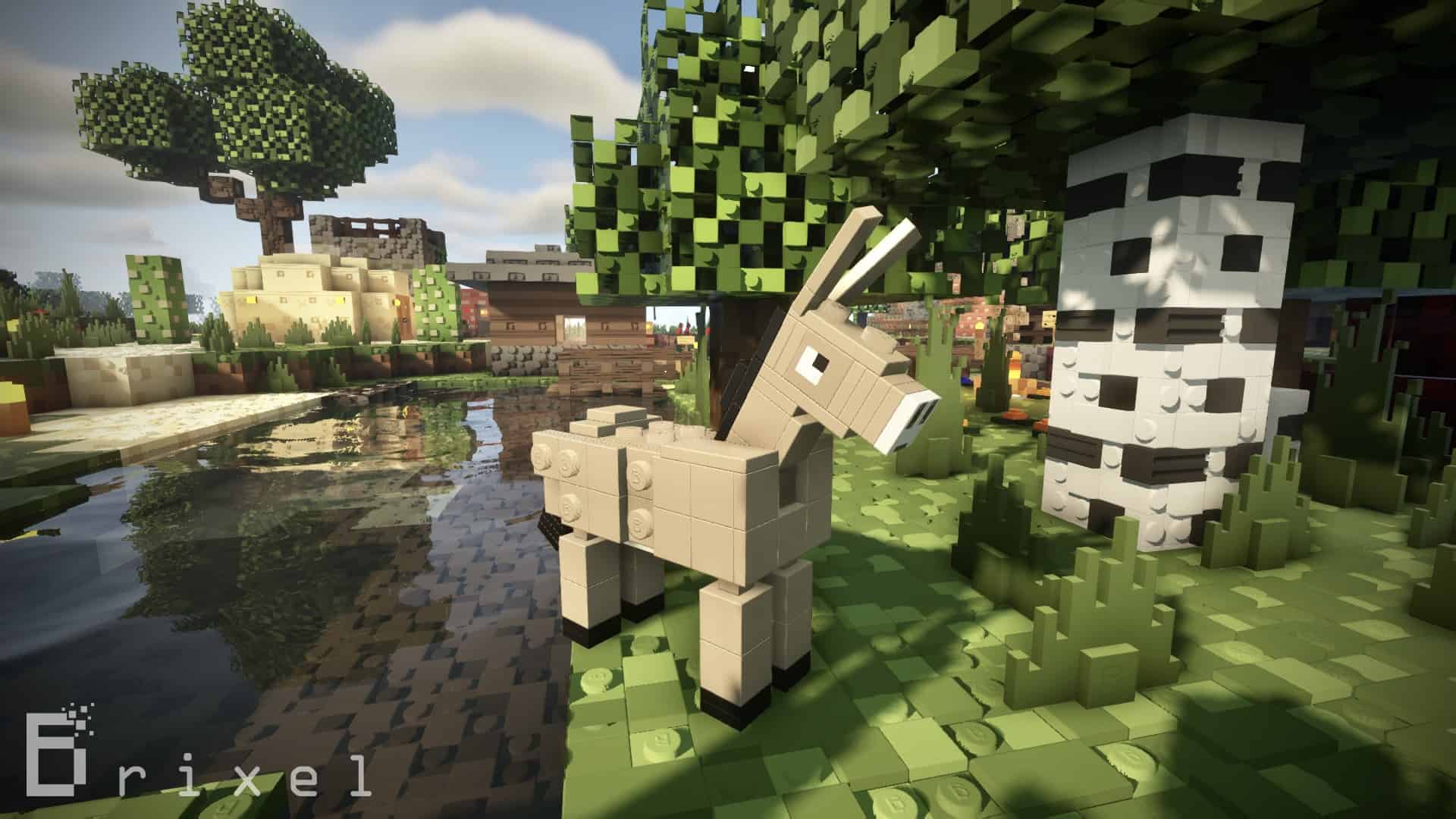
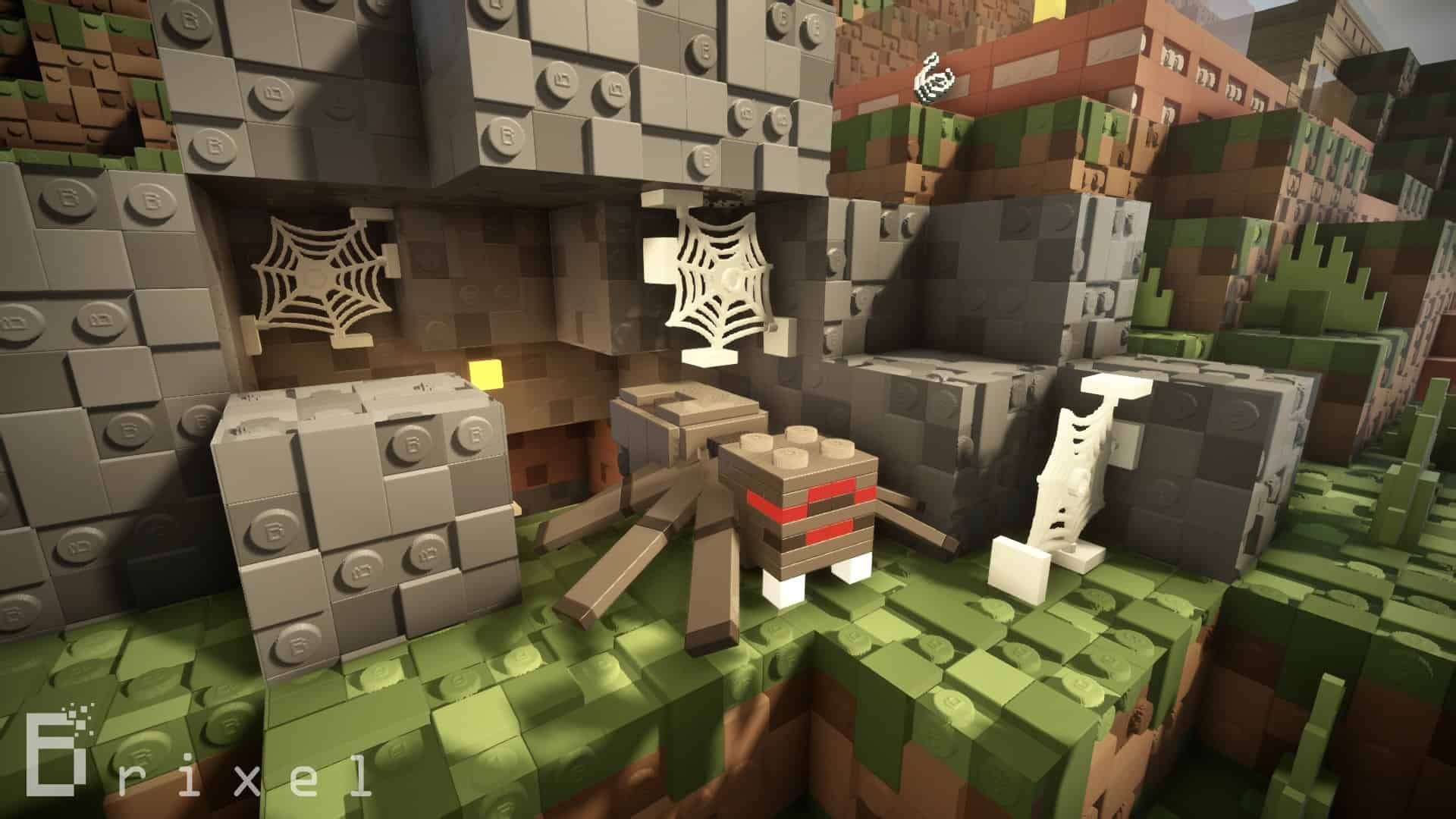
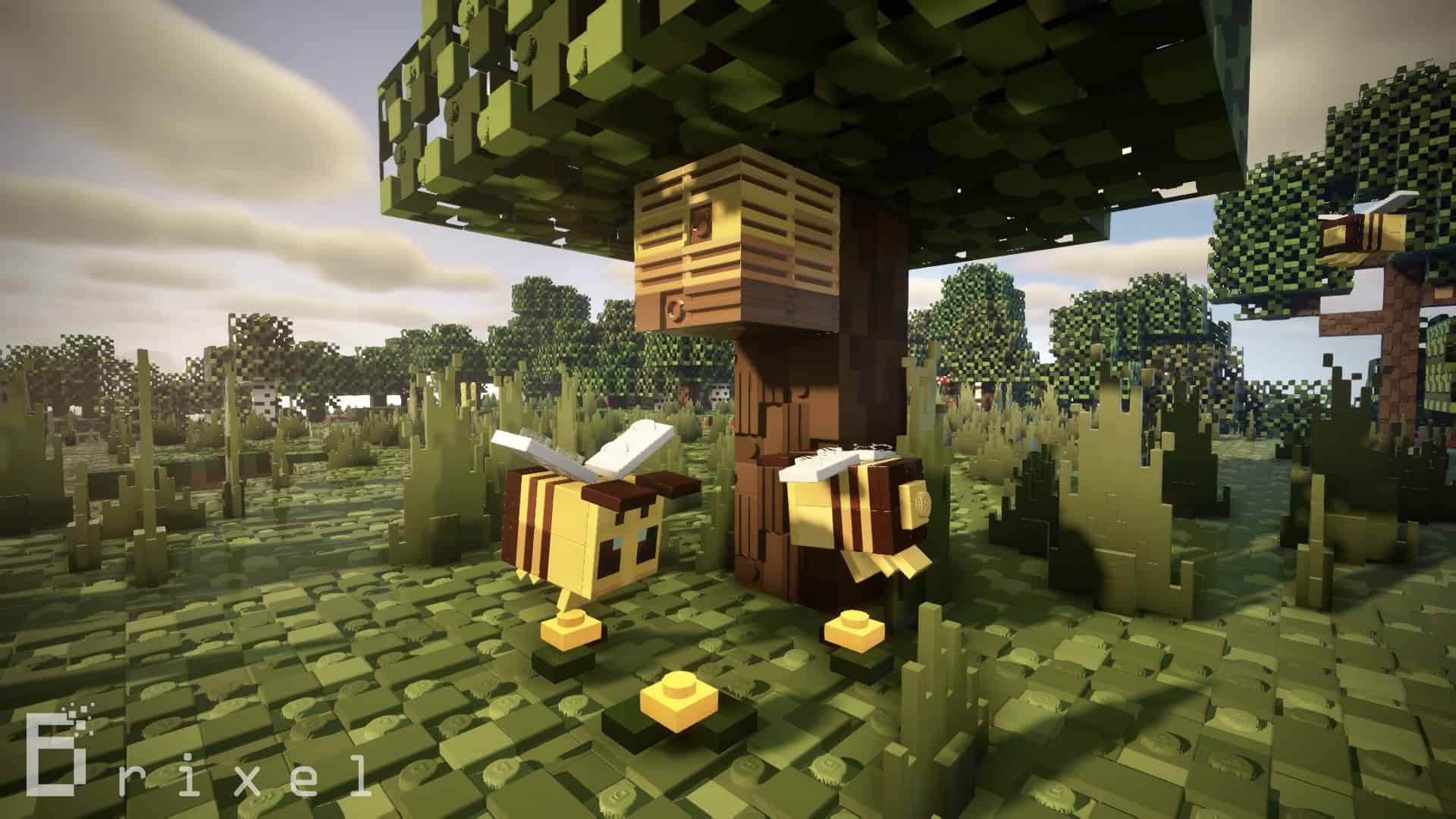
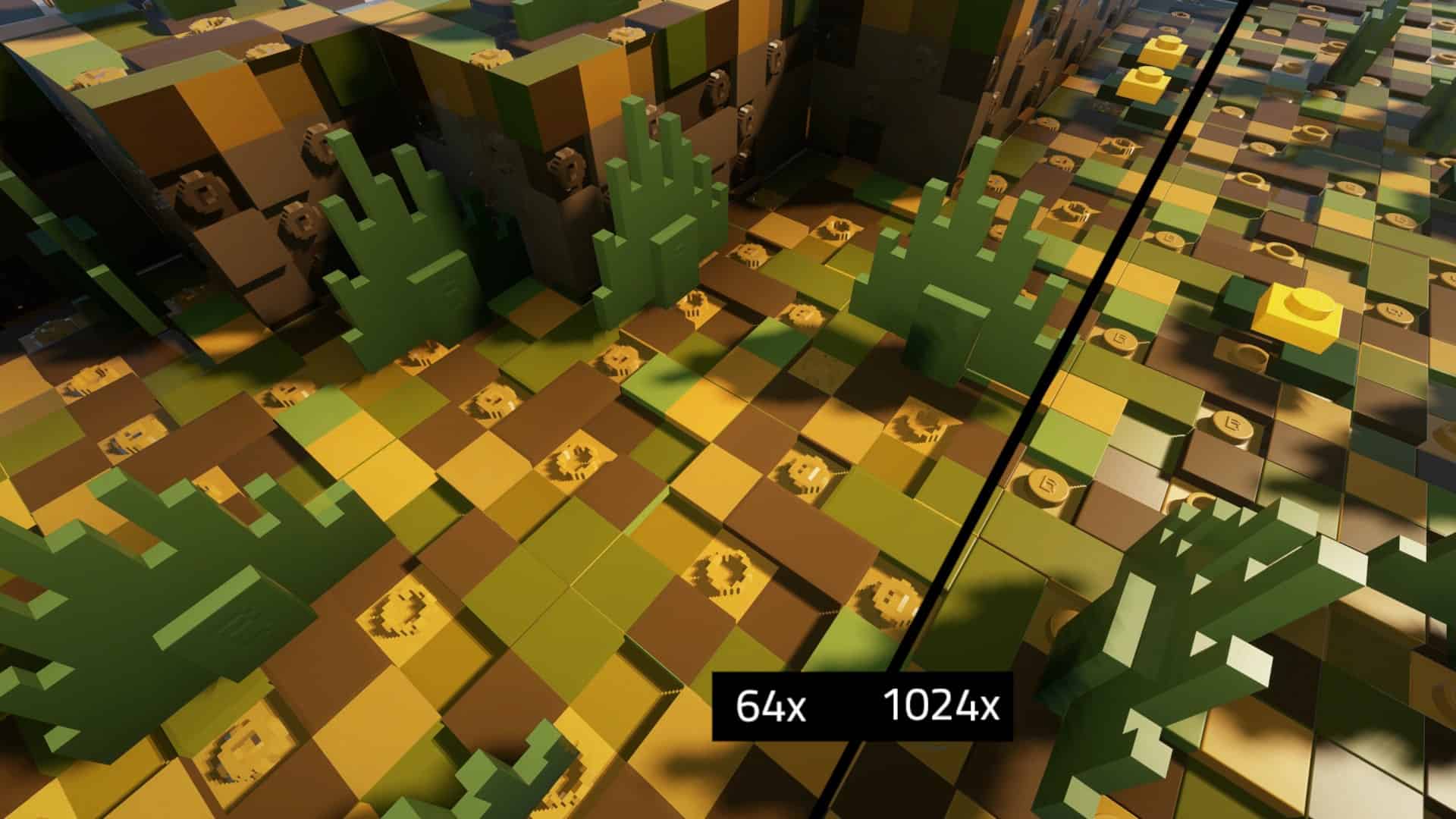
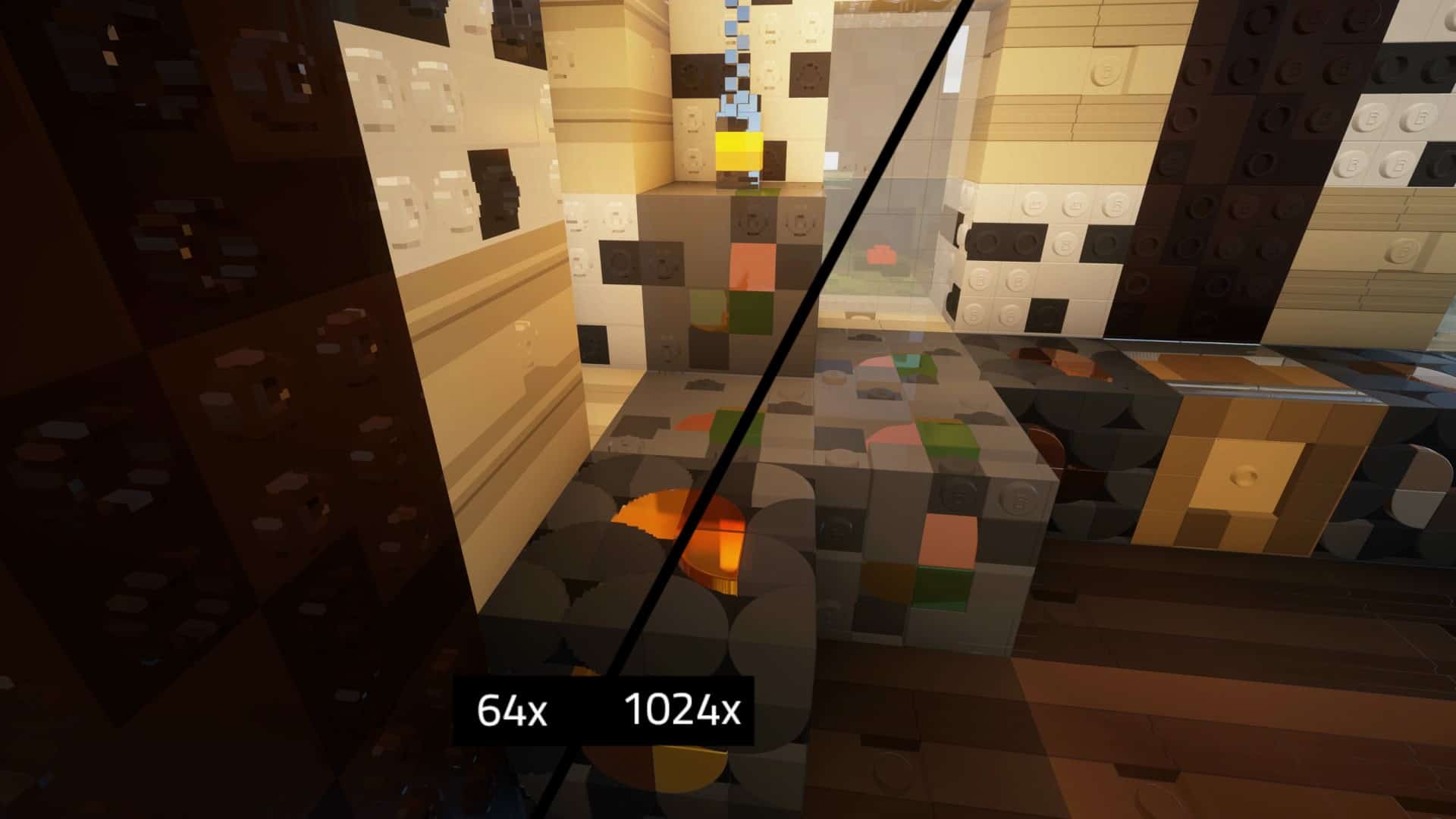
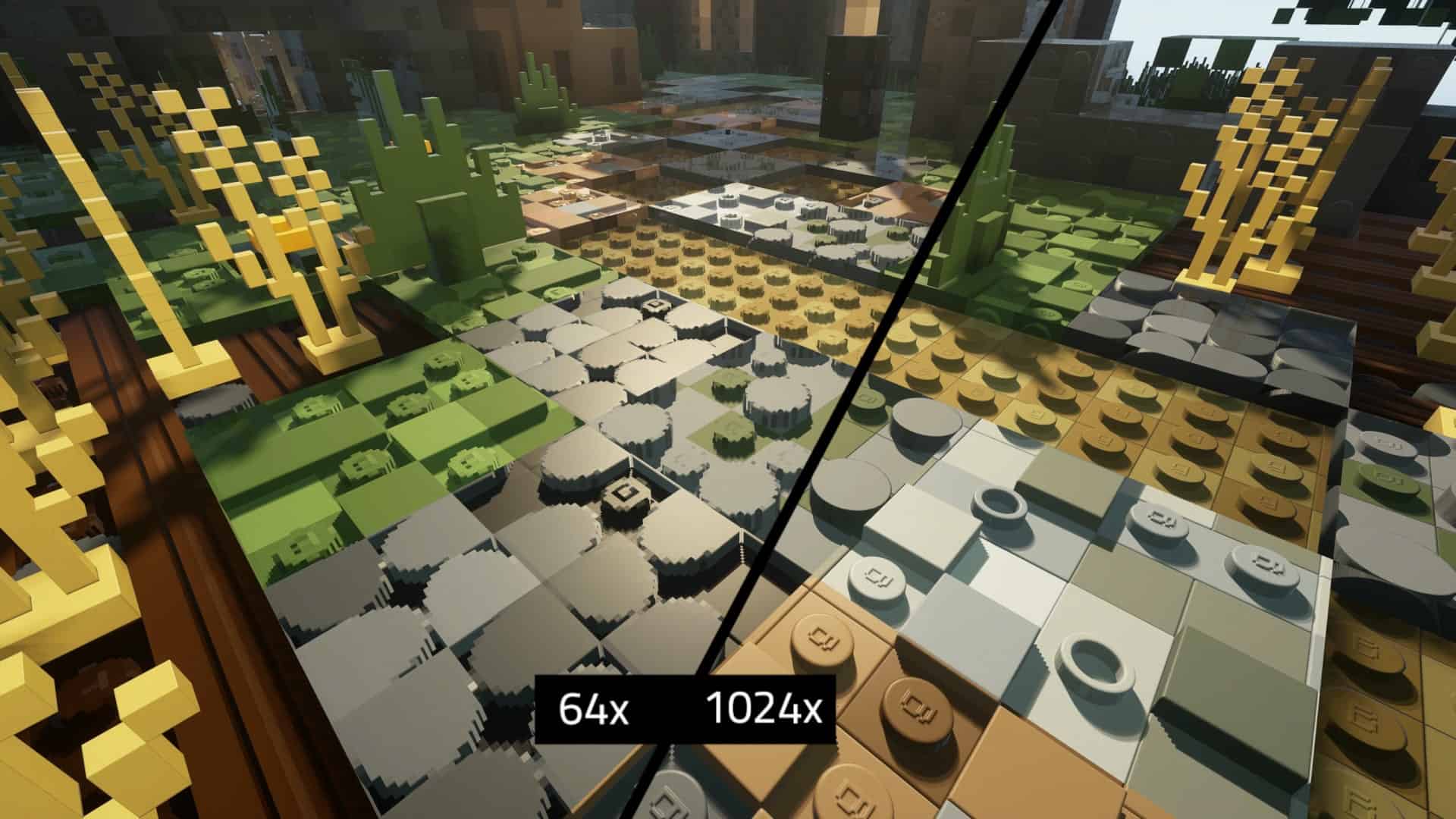
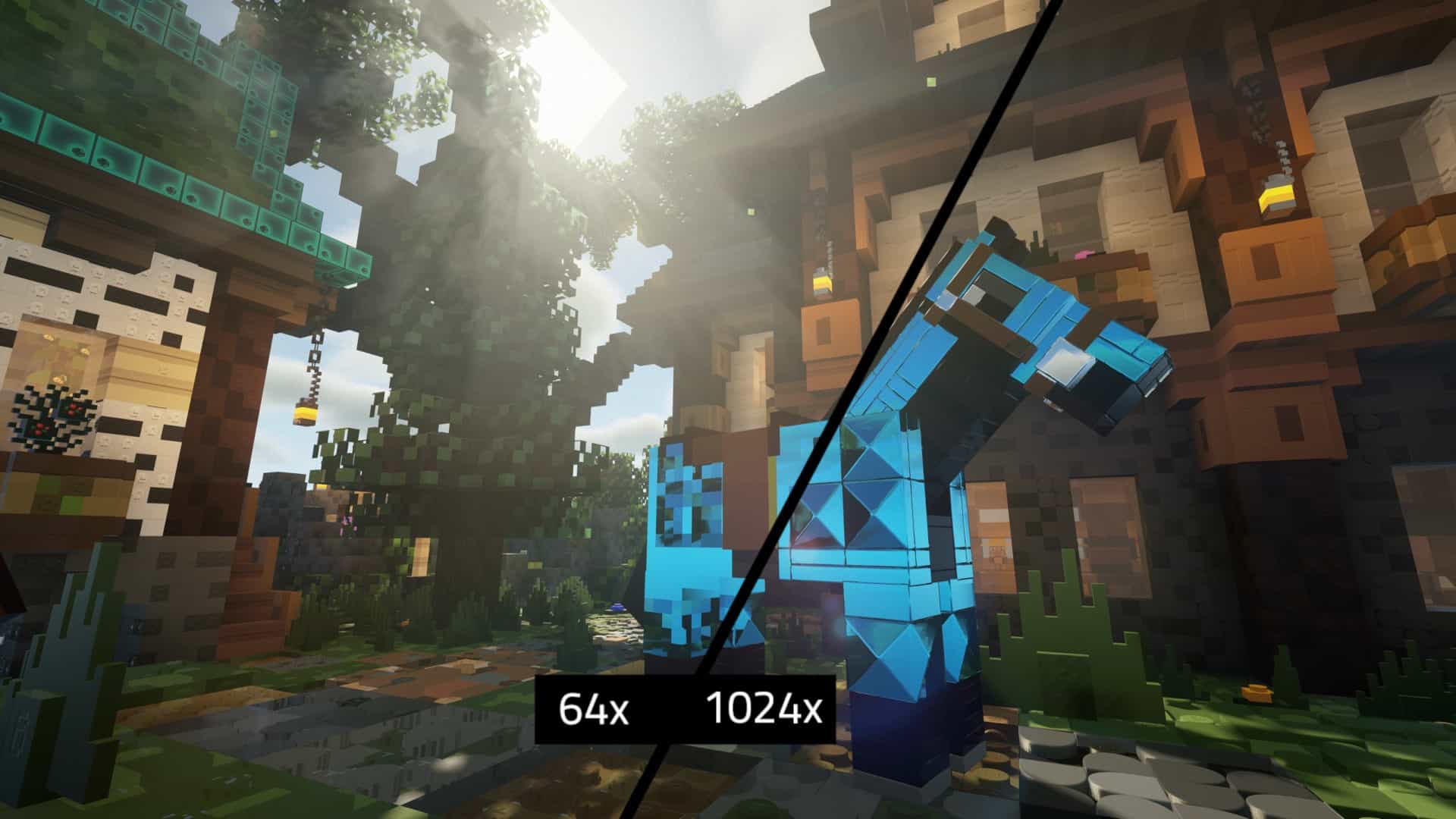
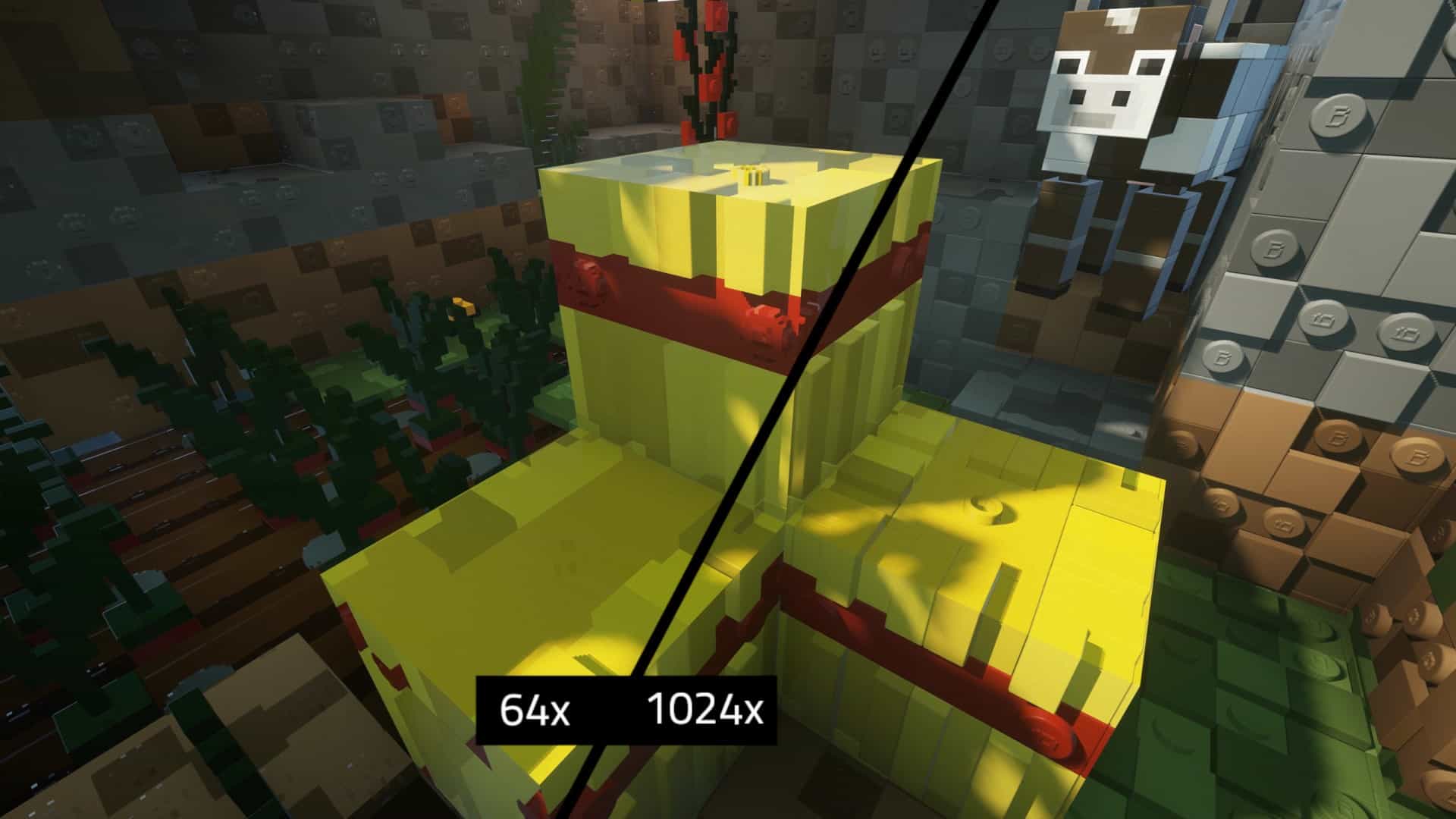
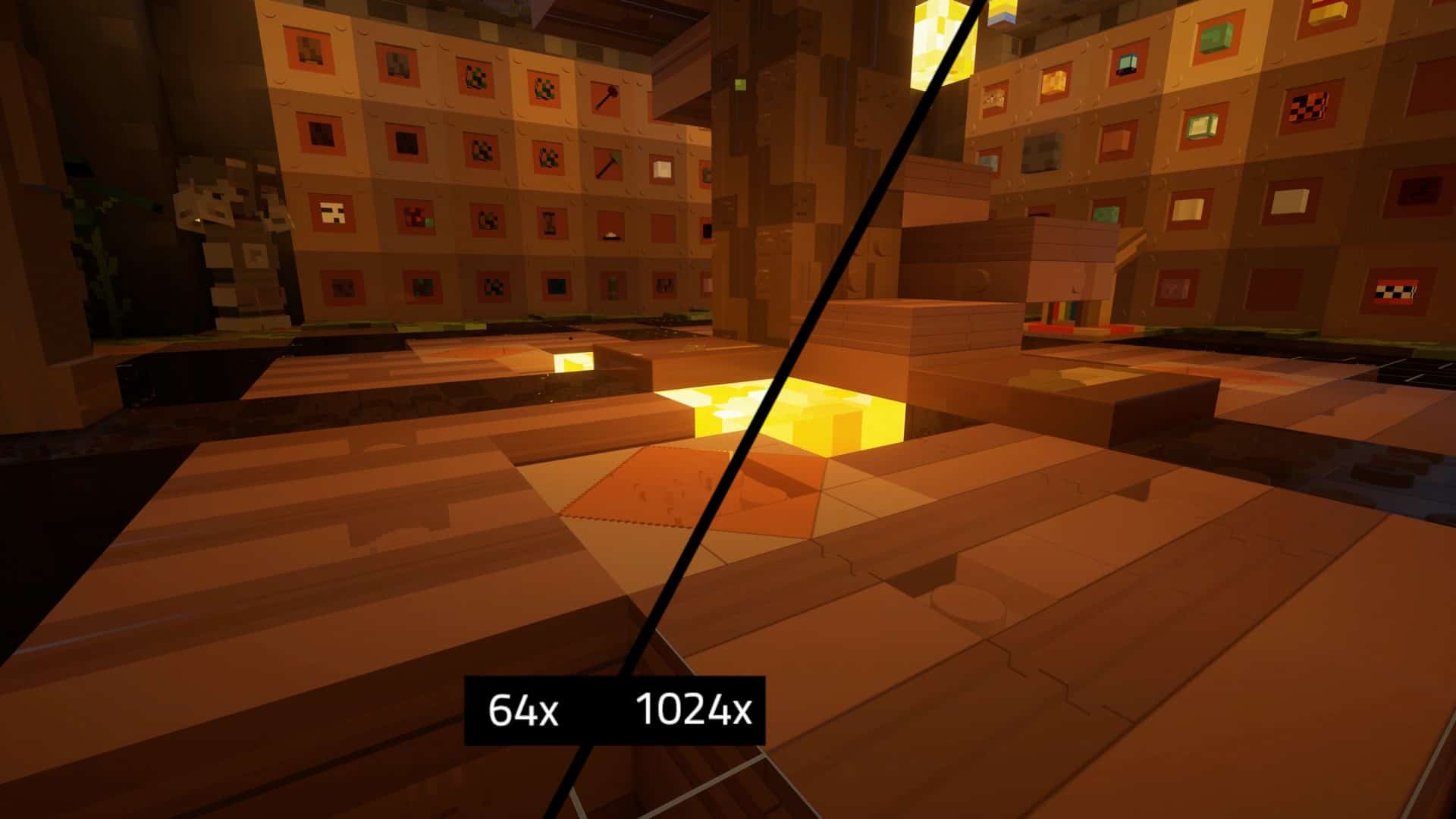
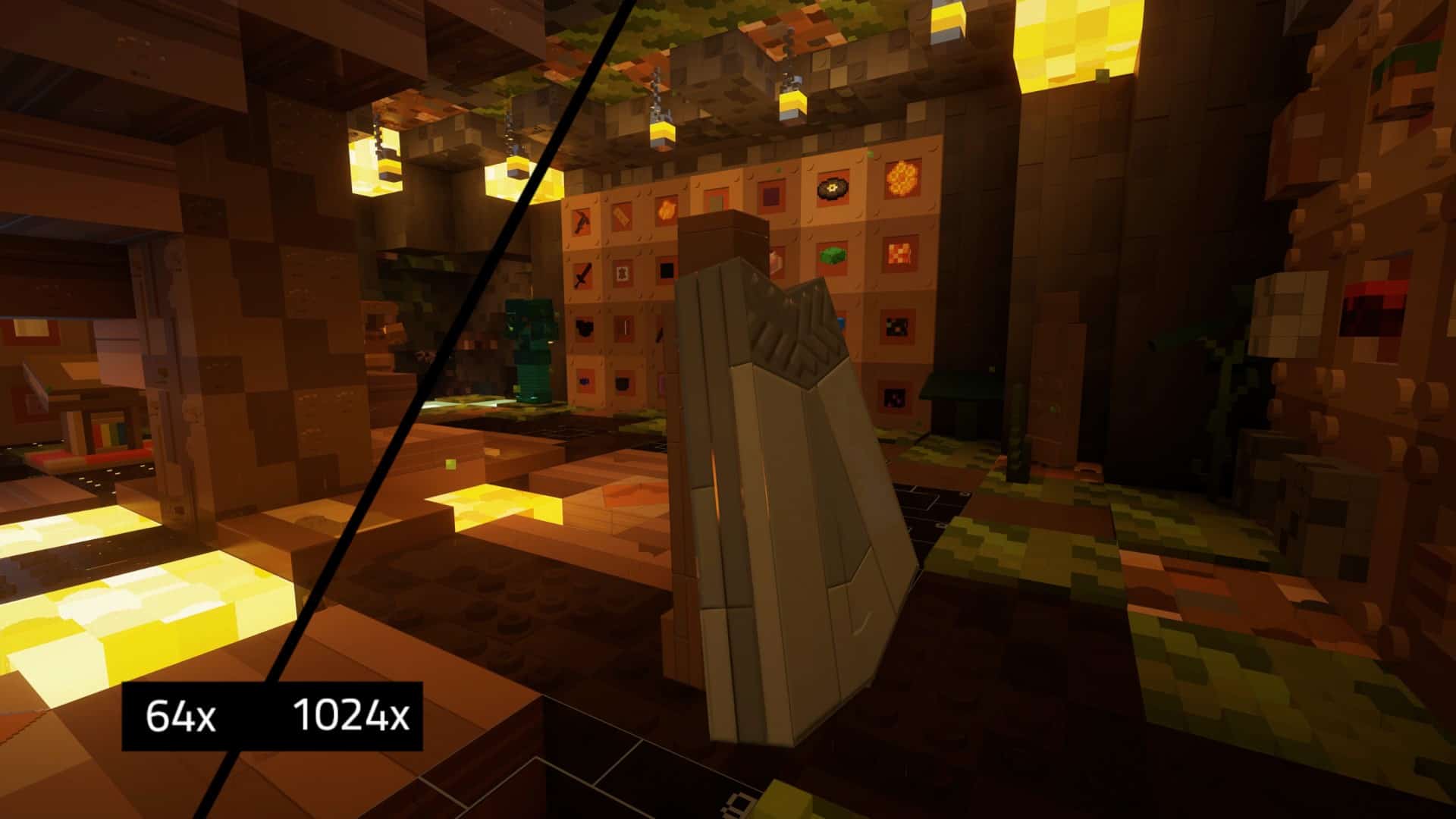
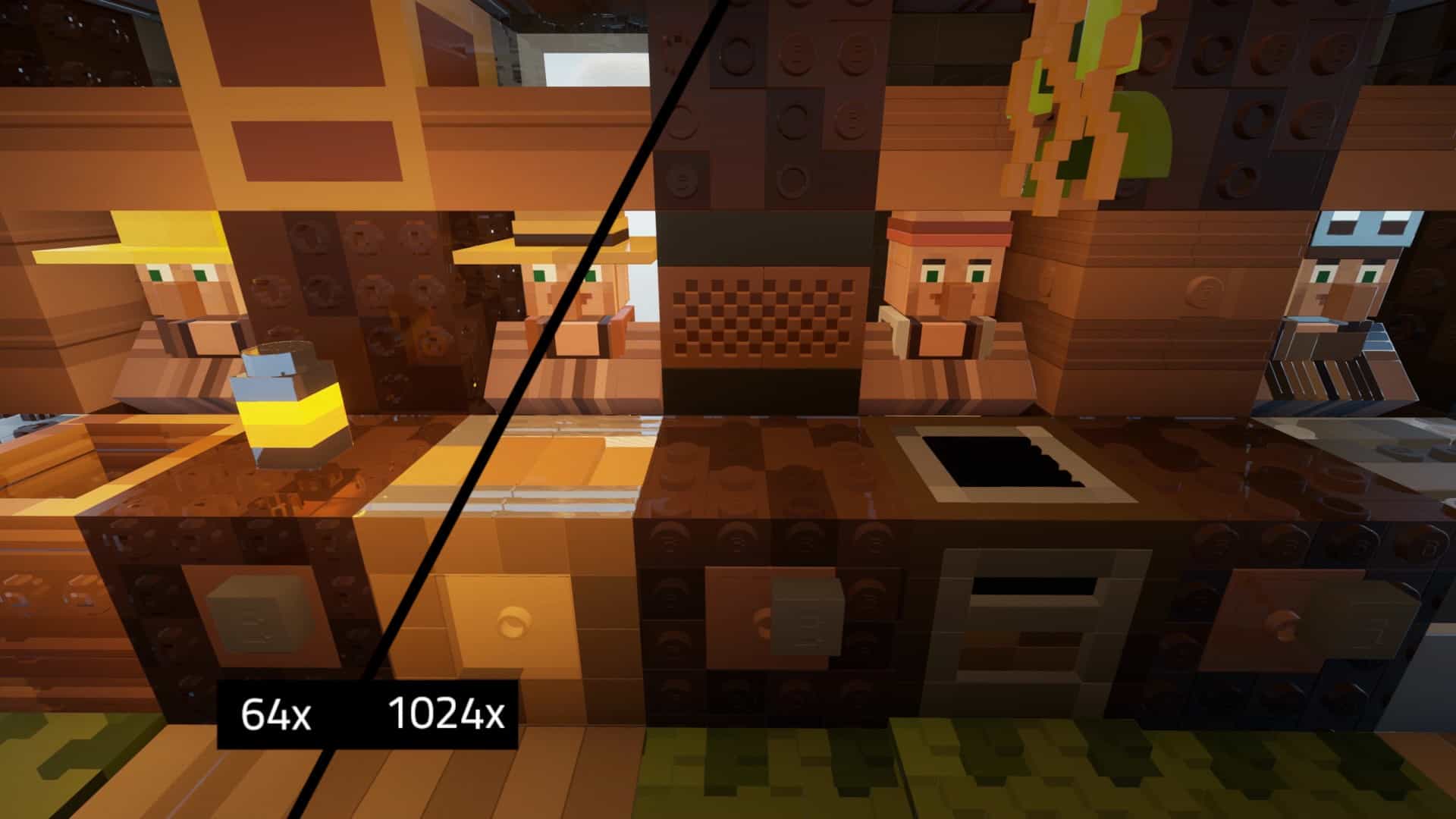
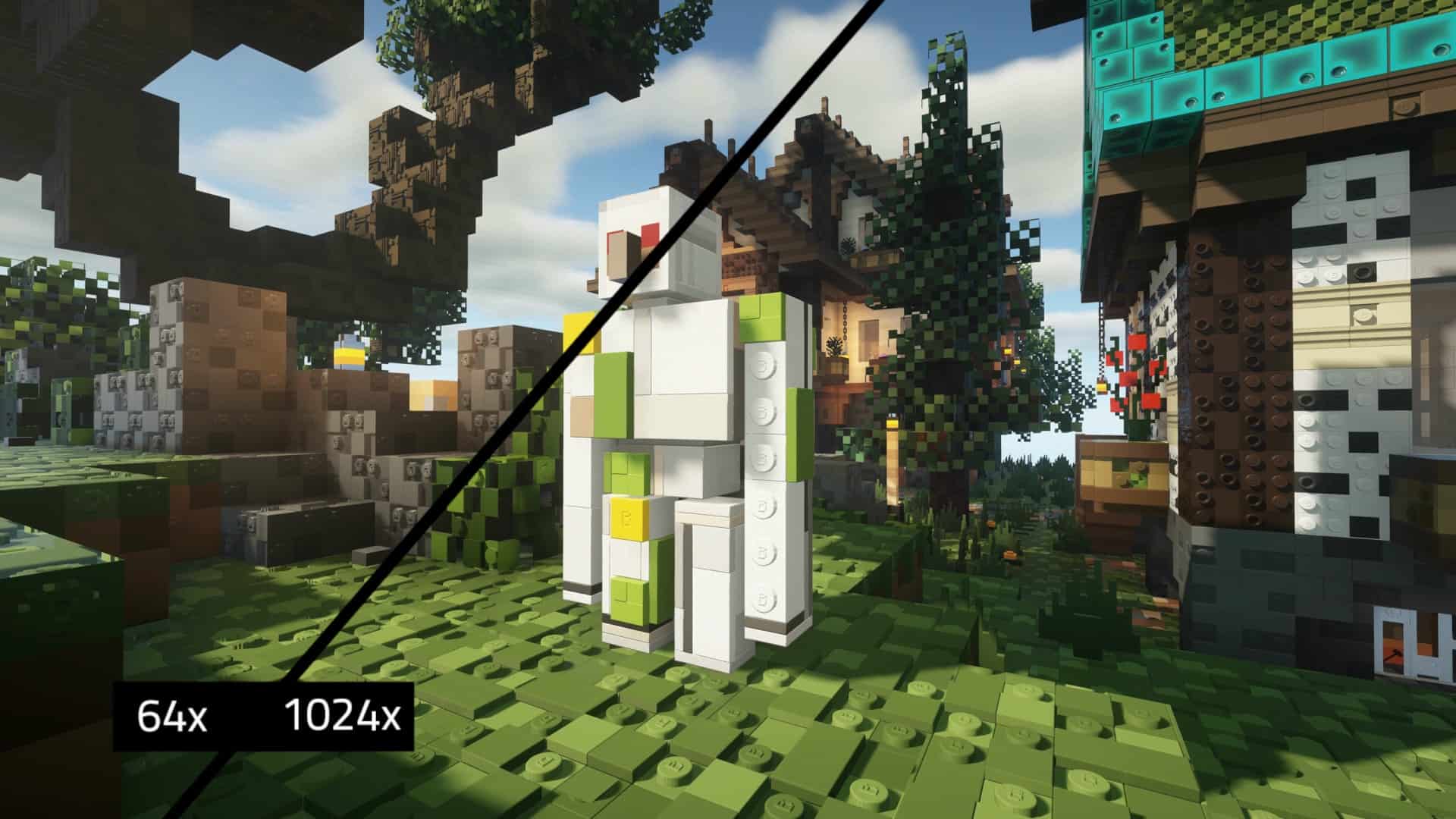
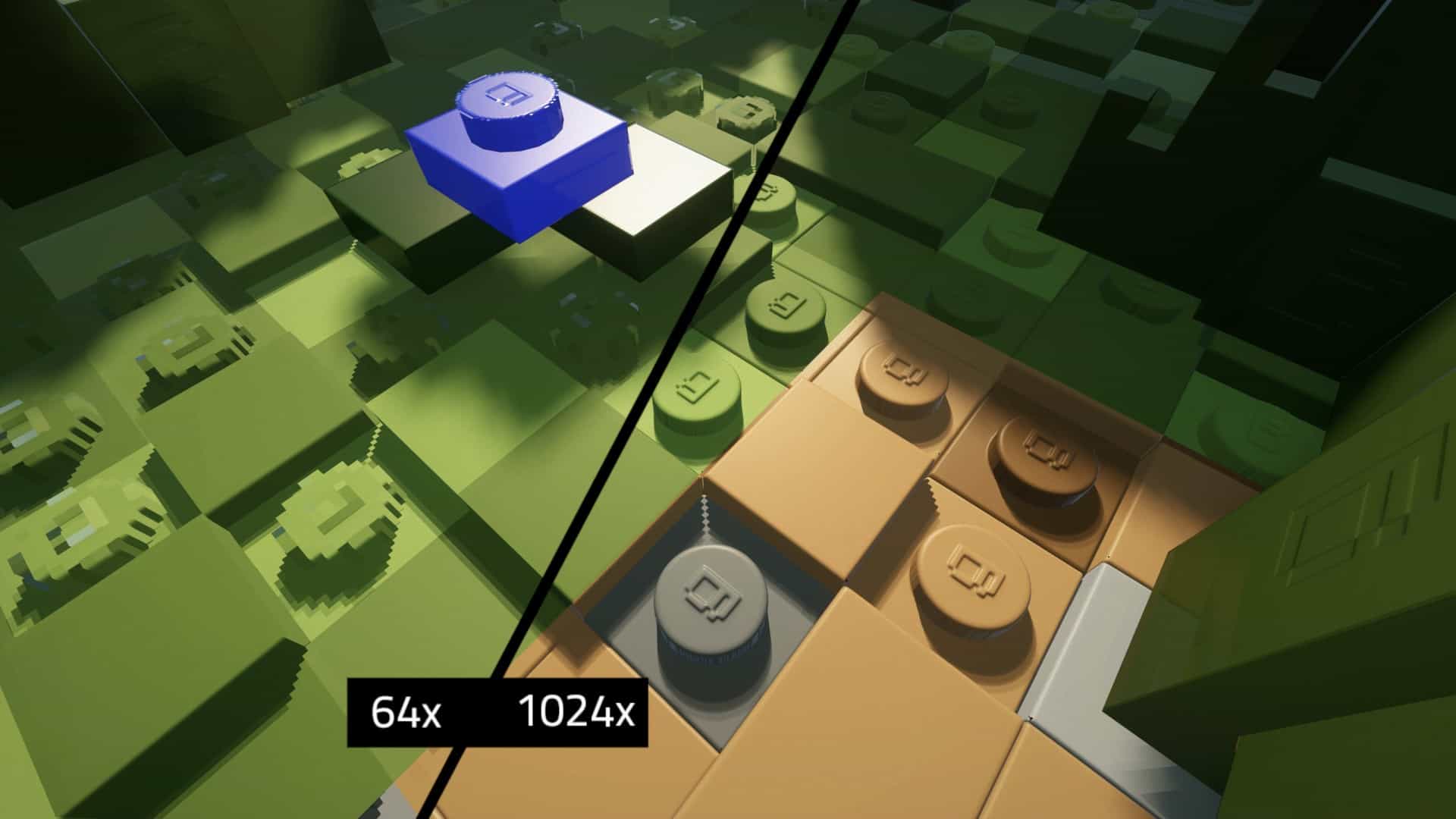
There are truly thousands of different resource packs that you can experiment and play around with, and while most of them are free, I have noticed that the absolute best ones often hide behind a paywall. Developers should definitely be rewarded for their time and effort as they invest their incredible talent into resource packs that genuinely make Minecraft better. The Brixel is one such phenomenal example of a resource pack that was developed not just to change the theme of vanilla Minecraft but to also make it look visually stunning. What makes Brixel so special to me is the fact that it does not enforce an unfair paywall for everyday players, remaining wonderfully available for free for everyone to enjoy. The Brixel resource pack was released in late 2021 by wabbabrick, and since then, I have loved seeing it receive several updates that add exciting new elements, gorgeous visual improvements, and necessary bug fixes. The developer wonderfully created the resource pack out of a pure passion for the game, which is why the pack was released for free for all players to enjoy in the fantastic 64x resolution. There are higher 128x, 256x, and 512x versions available, but I found them to be quite resource-intensive, meaning not all players may be able to enjoy them smoothly. The Brixel texture pack is also nearly complete, having almost all in-game textures expertly redone or improved. It also introduces a fresh new interface and several other visual improvements that completely transform the experience. The incredible visual overhaul offered by the Brixel resource pack may seem familiar, and while it is completely unique, I love how the developer took massive inspiration from LEGOs. Many visual elements were deliberately altered to resemble iconic LEGO blocks, which can be seen brilliantly on all types of terrain such as grass, dirt, sand, animals, critters, mobs, and even player models. While some elements in the game like small items, leaves, certain flowers, and trees could not be fully adapted to resemble LEGO blocks, the source of inspiration is immediately noticeable and delightful. Having just the surfaces remodeled to resemble LEGO blocks is not the only visual change introduced in the Brixel pack, as it generously offers several other visual improvements that really elevate the gameplay. Some of these amazing changes can be clearly seen in the texture colors, which truly pop during your adventures.
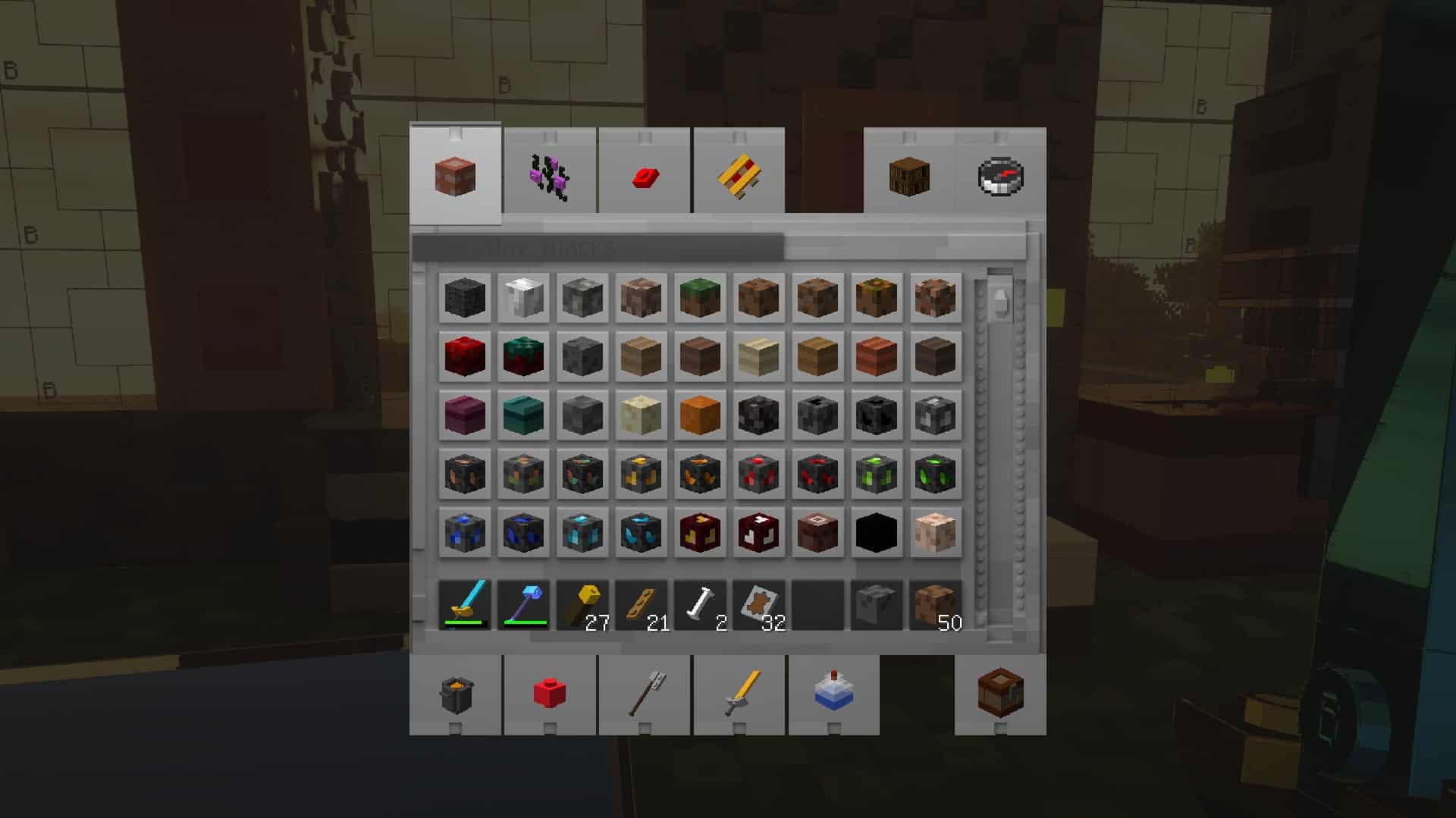
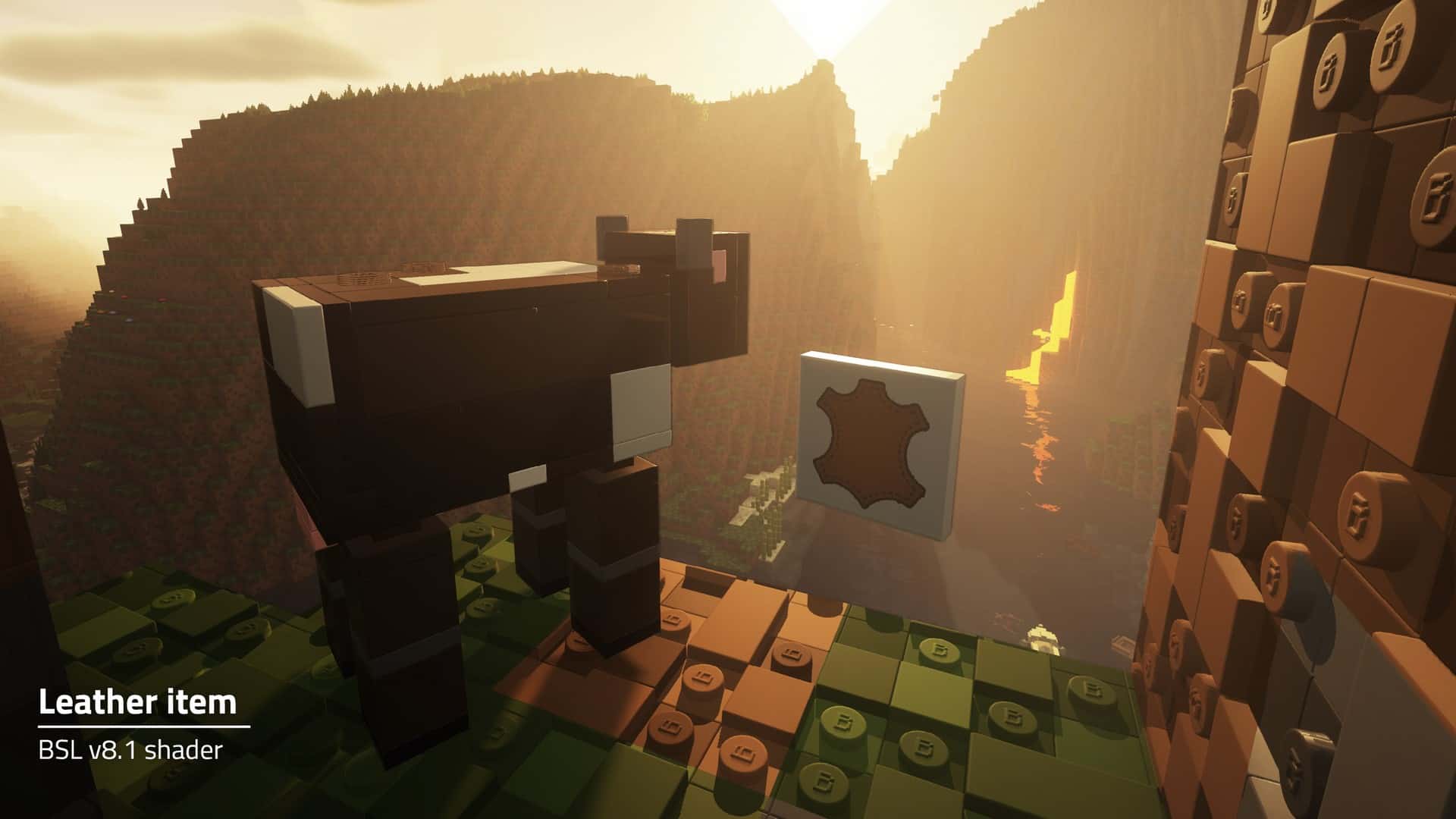
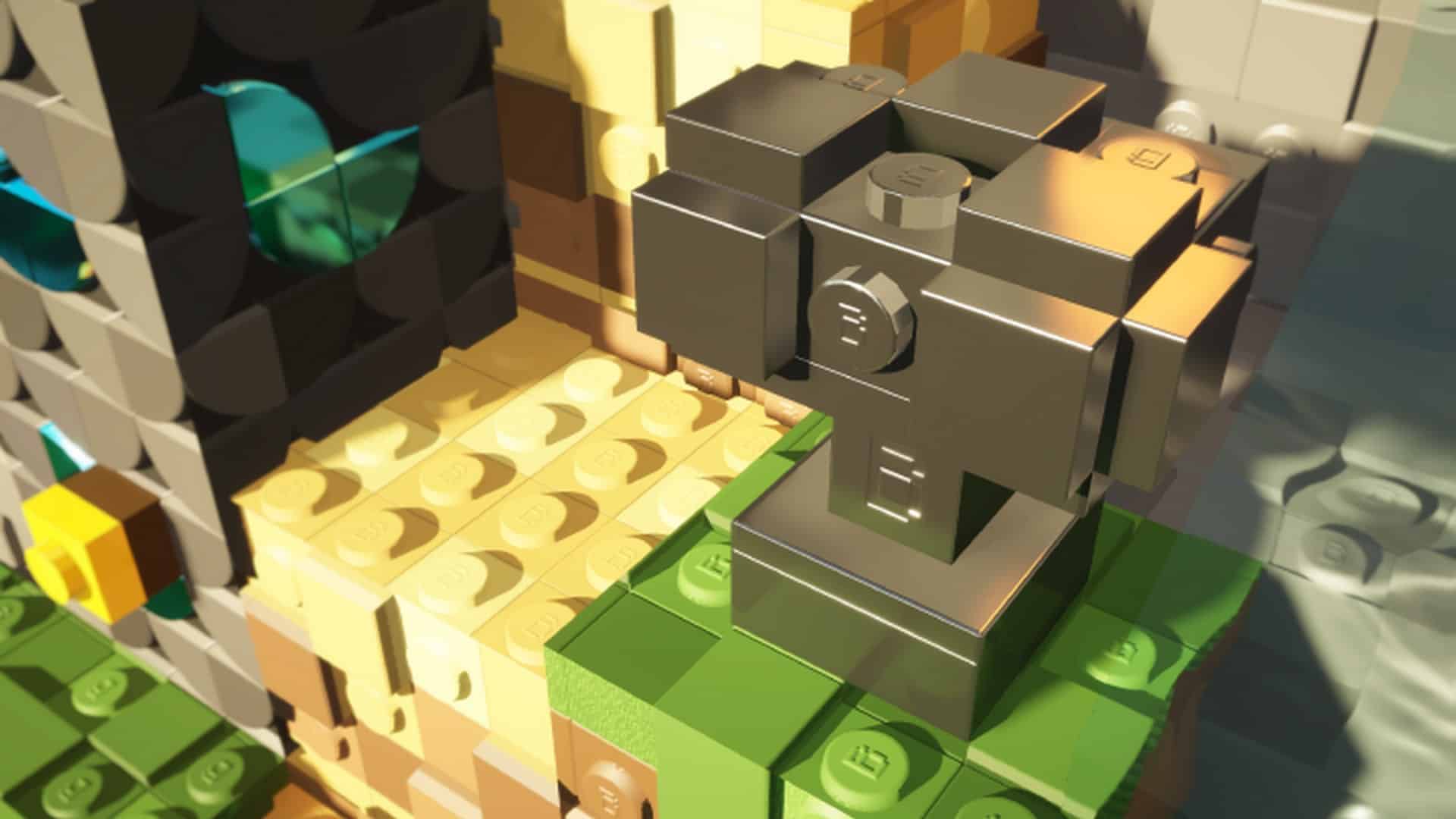
The vibrant color palette of the textures has changed to be noticeably brighter, much more vibrant, and wonderfully joyful. There are also a bunch of cool new blocks such as the grindstone, lectern, stonecutter, beacon, fletching table, and a brand new smithing table that fit the theme seamlessly. I was also thrilled to see that the sky and water textures were heavily improved; the clouds feel less blocky, while the stunning new Sun and Moon are actual LEGO cubes instead of being round. In fact, there are very few, if any, round shapes left once you have the Brixel resource pack installed! To fully enjoy these incredible new textures for the sky and water, it is strongly recommended by the developer to have a compatible BSL shader pack installed alongside it. Lastly, the Brixel resource pack thoughtfully touches upon the interface as well, completely replacing the vanilla Minecraft game interface with exciting new graphical elements that are infinitely more in line with the overall visuals of the resource pack. The developer crafted amazing new widgets, bars, fresh checkboxes, beautiful backgrounds, a wonderful new GUI for world selection, and a bunch of new icons for the in-game player interface. As previously mentioned, the Brixel resource pack is delightfully available in 64x, 128x, 256x, and 512x resolutions. Except for the accessible 64x option, the higher resolution ones are available for contributing members via the developer’s Patreon page. However, I think the 64x version offers a more than good enough visual improvement over the standard vanilla version. Vanilla Minecraft uses basic 16x resolution textures, so using a resource pack with texture resolutions four times higher will naturally imply some performance degradation depending on how powerful your computer actually is. Keep in mind that the 512x version can genuinely cripple your system if you do not have a powerful, modern CPU and dedicated video card. Along with the resource pack, the Brixel developer highly recommends using BSL Shaders to perfectly complement the immersive visuals in the game. Please note that the resource pack may not work properly with other shader packs or could potentially introduce unwanted visual bugs to your game. To properly install the resource pack, an extremely helpful video guide has been created by the Brixel resource pack developer using Optifine. If you are already familiar with using Optifine, the installation process is thankfully the same as with any other resource pack for Minecraft, though remember that BSL Shaders will need to be installed as well. The developer thoughtfully included a comprehensive guide on how to install BSL shaders right along with the Brixel resource pack so you can get everything running smoothly.
Brixel should be compatible with all of these Minecraft versions: 1.21.5 – 1.21.4 – 1.21.3 – 1.21.2 – 1.21.1 – 1.21 – 1.20.6 – 1.20.5 – 1.20.4 – 1.20.3 – 1.20.2 – 1.20.1 – 1.20 – 1.19.4 – 1.19.3 – 1.19.2 – 1.19.1 – 1.19 – 1.18.2 – 1.18.1 – 1.18 – 1.17.1 – 1.17 – Bedrock Edition – PE
Screenshots

How to Install Texture Pack (Simple 10 Steps)
- Download OptiFine: Most of the texture packs and shaders need OptiFine. That’s why, first download and install OptiFine for the version of Minecraft you want to play.
- Download the Texture Pack: Get the texture pack you want from the download section. Choose the version that works with your Minecraft and your PC’s performance.
- Open Minecraft Launcher: Start Minecraft using the official game launcher — or even TLauncher, if you use that.
- Go to Options: From the main menu, click on the “Options” button.
- Open Resource Packs: Inside Options, click on “Resource Packs…”.
- Open the Resource Pack Folder: Click on “Open Resource Pack Folder” — this will open a folder named “resourcepacks”.
- Move the Pack File: Copy or move the .zip file you downloaded into that “resourcepacks” folder. (Don’t unzip the file — Minecraft uses it as-is!)
- Go Back and Refresh: Close the folder and click “Done”, then go back into “Resource Packs…” again.
- Activate the Pack: You’ll see the pack on the left side. Hover over it and click the arrow to move it to the right (active side).
Tip: If you get a message that the pack is for a different version, just click “Yes” — it usually works fine. - Click Done and Enjoy: Click “Done” again. Now your pack is ready to use in-game. It’s that easy!
Credits
This resource pack was created by wabbabrick. All rights and original ownership belong to the creator. We do not claim ownership of or modify this file. We encourage you to support the creator by visiting their official platforms and contributing to their work.
Download Links
Java Edition
- [64x] Minecraft 1.21.x – 1.20.2
- [128x] Minecraft 1.21.x – 1.17.x
- [256x] Minecraft 1.21.x – 1.17.x
- [512x] Minecraft 1.21.x – 1.17.x
- [1024x] Minecraft 1.21.x – 1.17.x
Bedrock Edition
Download Instructions
Curseforge: download starts automatically after a few seconds;
Mediafire: click the big blue button with the text “DOWNLOAD”;
Google Drive: in the top right corner you will see a small download icon (down arrow), click it and the download should start;