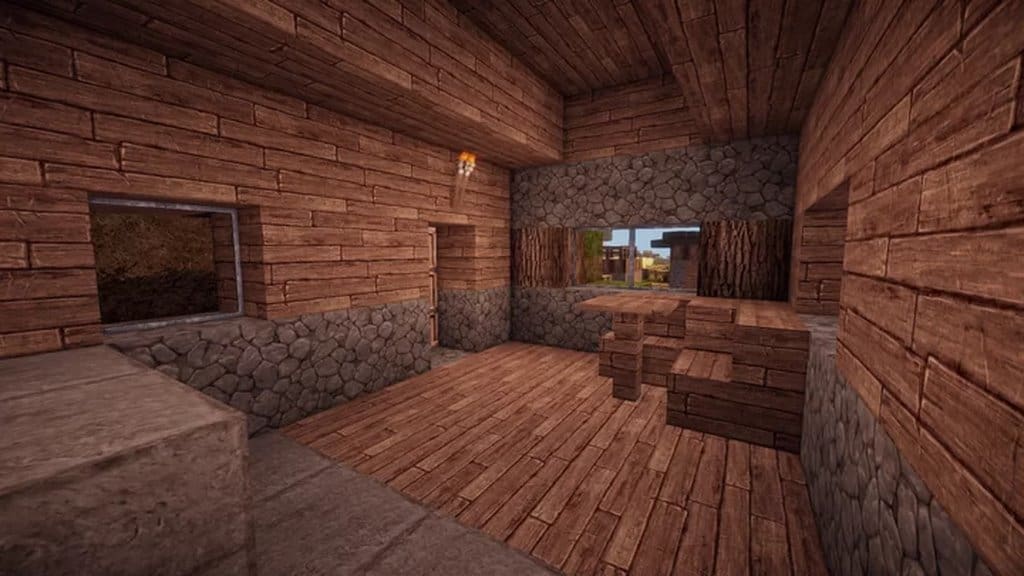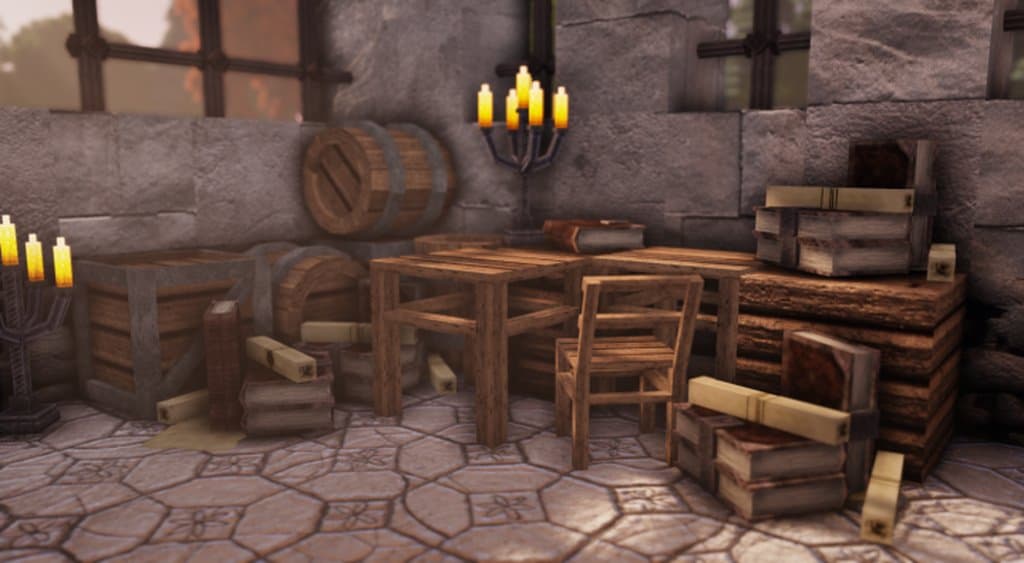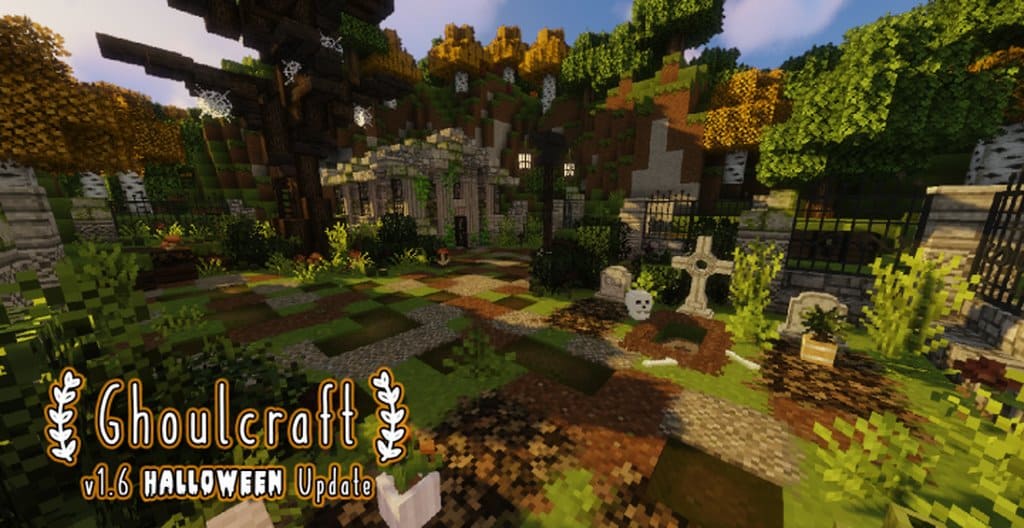
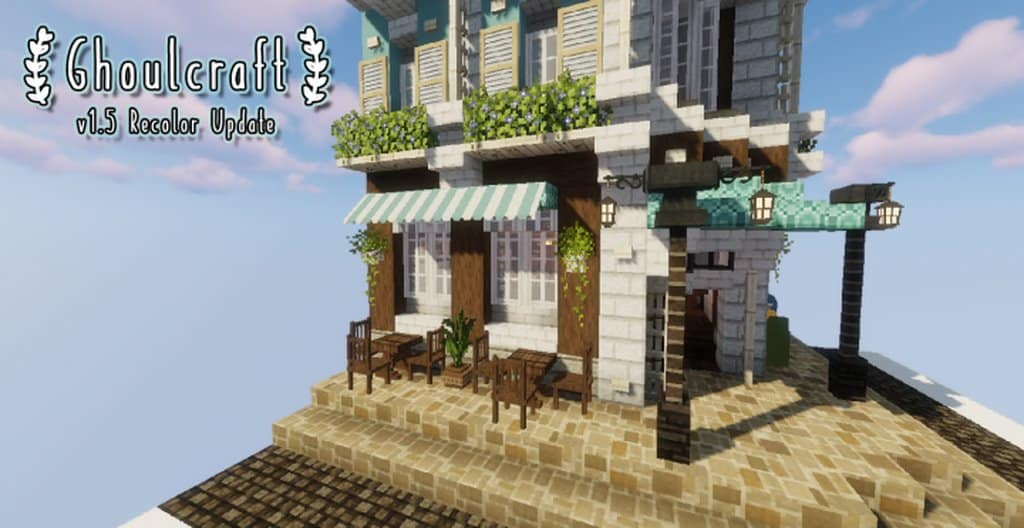
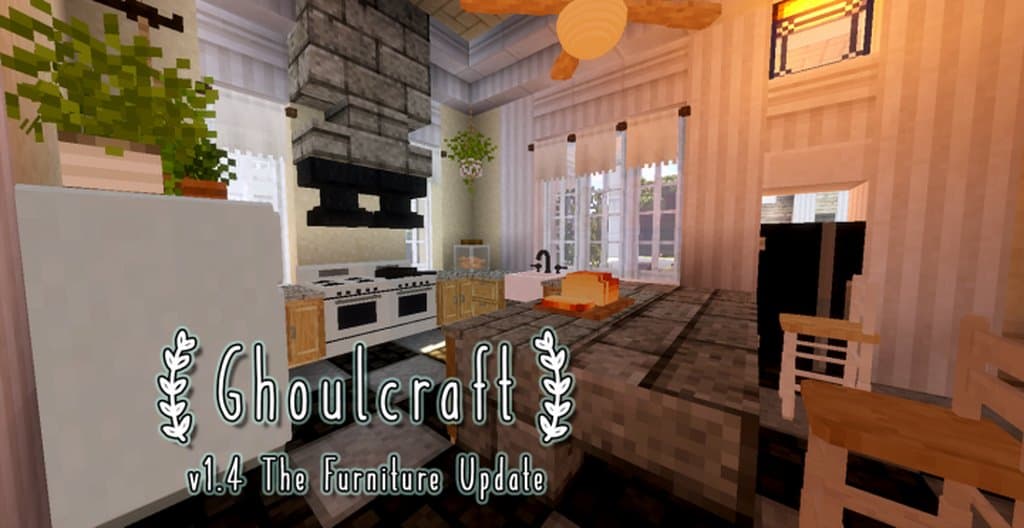
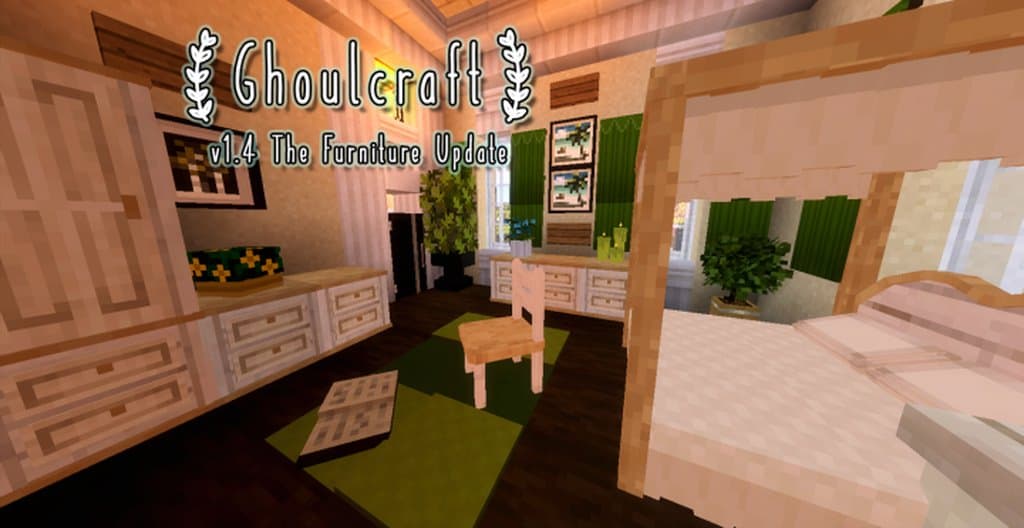
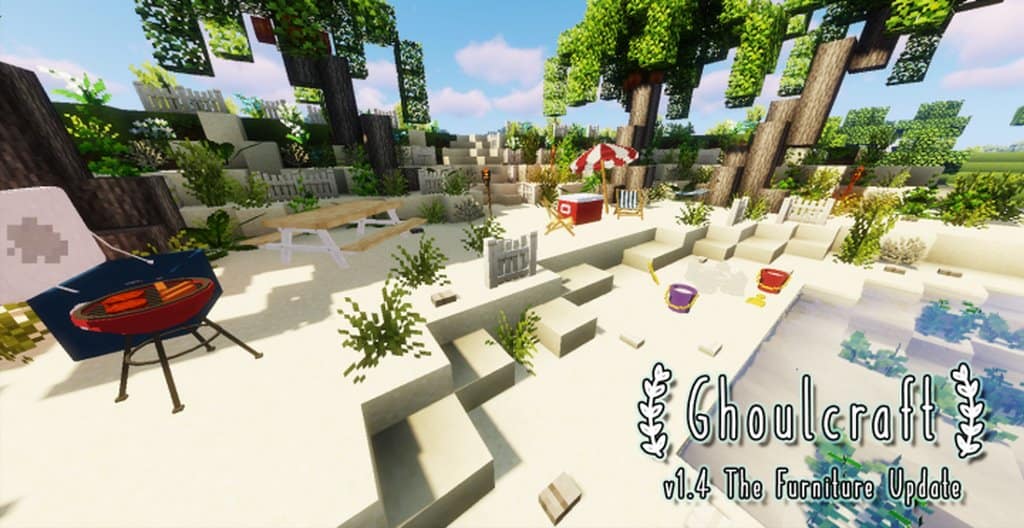
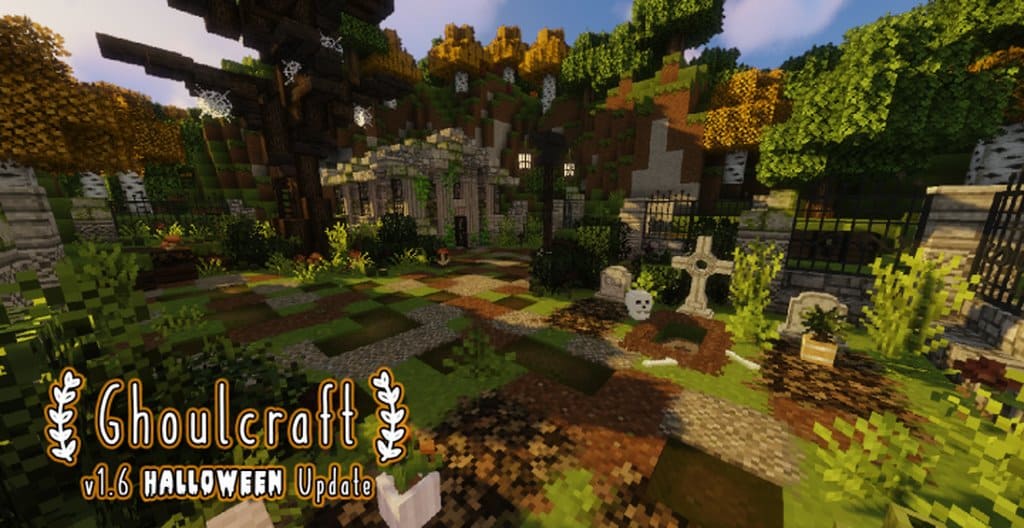
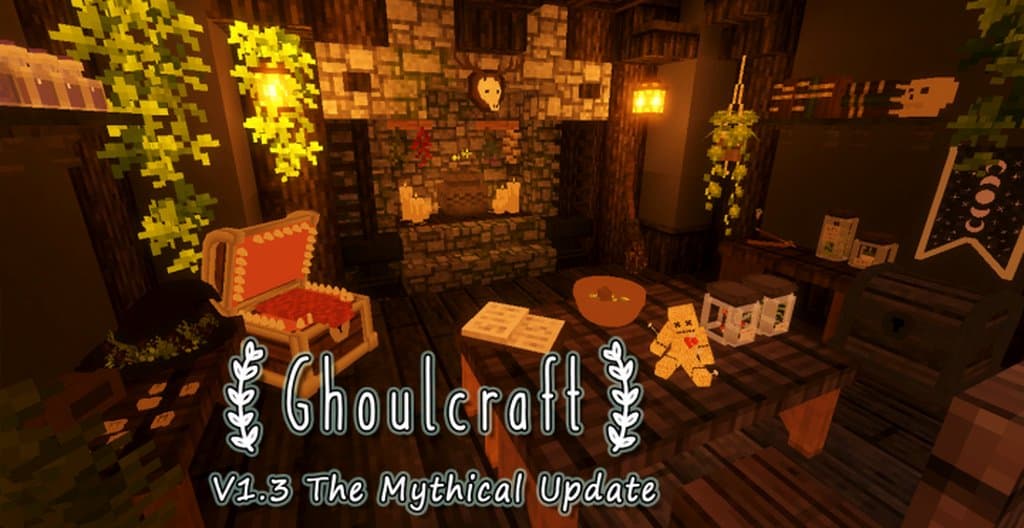
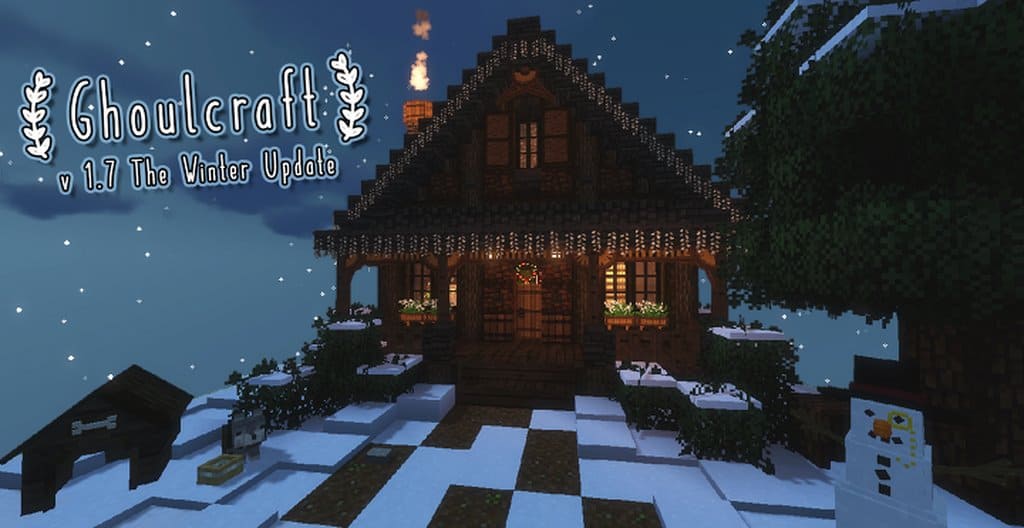
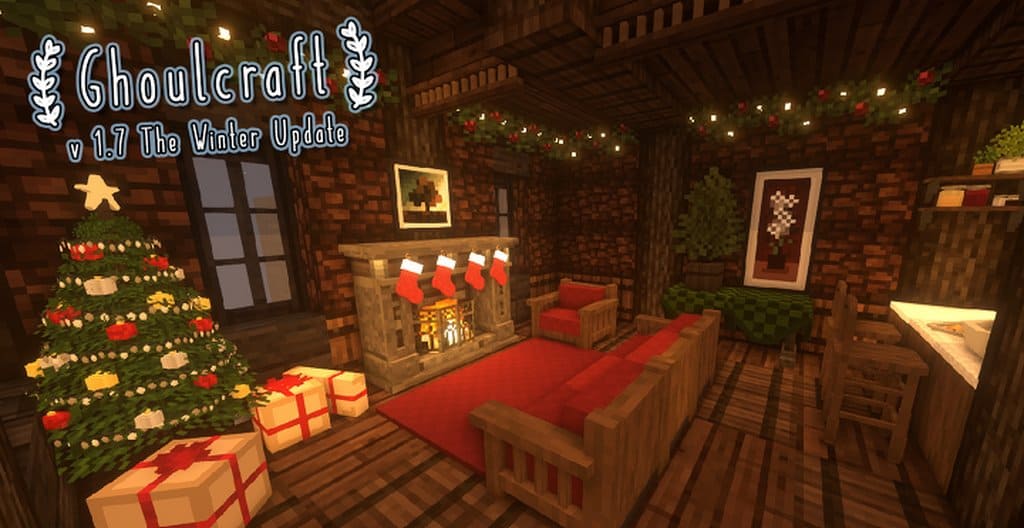
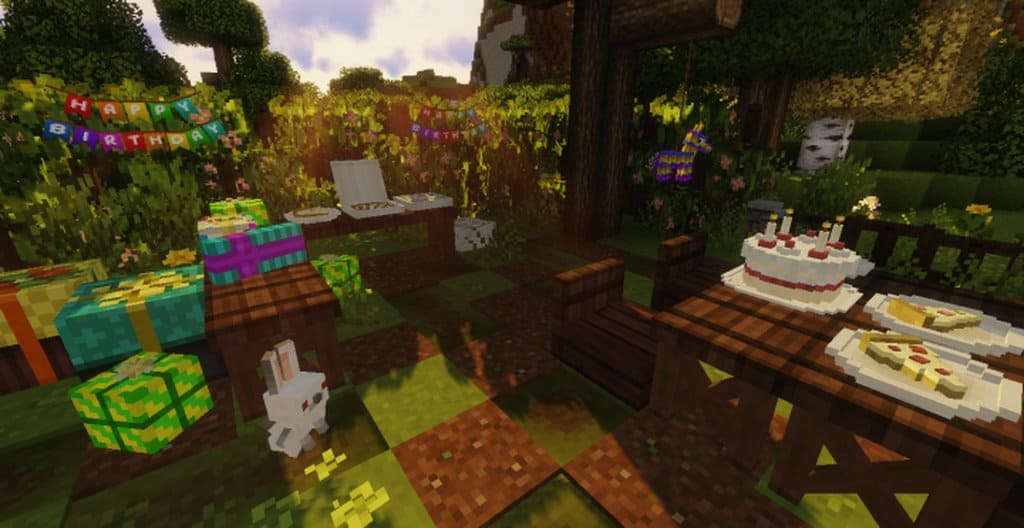
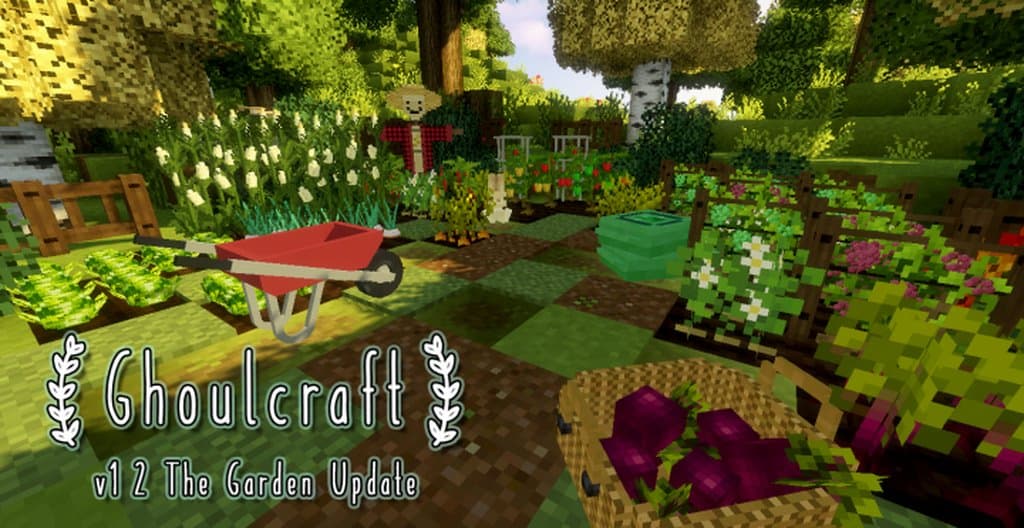
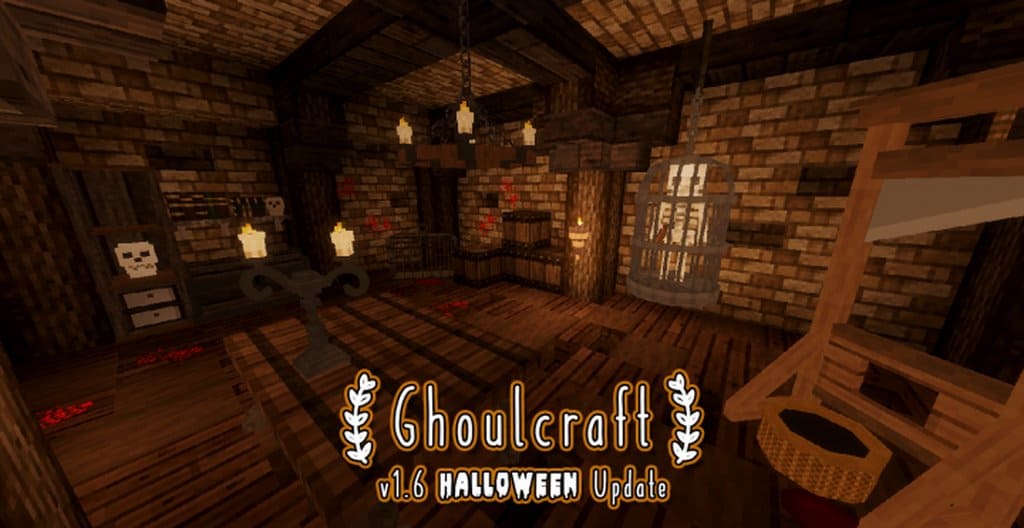
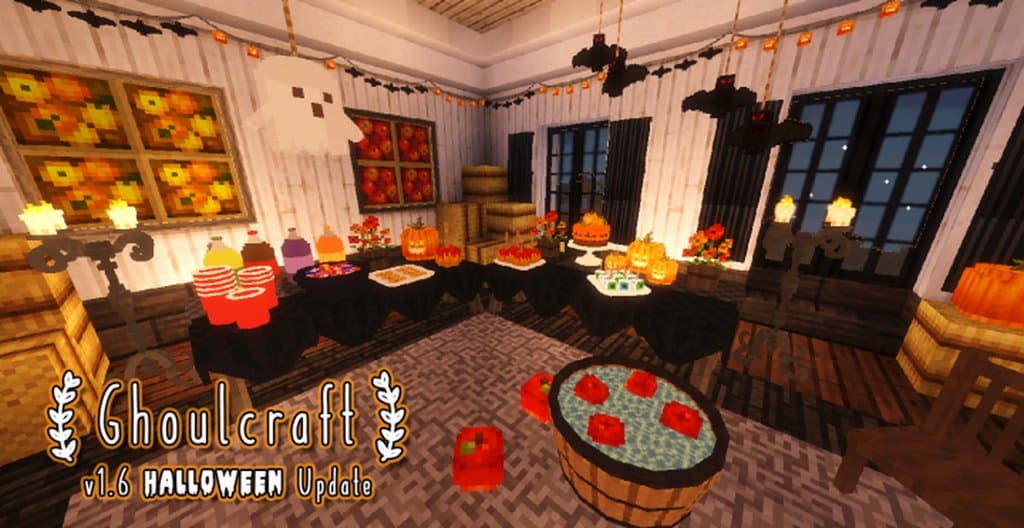
Ghoulcraft, lovingly designed by the talented Minecraft enthusiast MissGhouls, is an incredible Custom Item Texture, or CIT, resource pack that completely transforms how you decorate. Originally created as a phenomenal add-on pack to seamlessly work with Mizuno’s 16 Craft texture pack—a highly favorable resource pack designed by MIZUNO—the Ghoulcraft resource pack constantly provides you with an excess of amazing decorating choices since it is regularly being updated. Users should definitely note that, because it heavily features custom items and connected textures, Ghoulcraft does require Optifine to function properly. As for the fantastic specifics of the resource pack, Ghoulcraft CIT aims to give players countless gorgeous decoration models for their gameplay, and it achieves this wonderfully without needing any mods at all. You only need to give an item a new name in accordance with the approved chart or list and then put the newly named item in an item frame so that the brilliant decorative model is brought to life. Many of those items can even appear fully functional when placed over interactable items, like trapdoors, chests, or slabs!
For example, if you place a cake into your world, drop it in an anvil, and rename it “Cake_bdayv”, you will immediately notice that the texture on the anvil’s right side has been altered. You can then move that item to an item frame in order to display a brand-new 3D model! This can be done with almost any item or object in the game, and while this genuinely works best with Mizuno’s 16 Craft resource pack, it also has the amazing ability to be used with any other Minecraft resource pack you prefer. The vast array of additional models and textures, which are cleverly designed to work with almost any other resource pack, truly makes Ghoulcraft CIT one of the most unique 3D resource packs out there. Best of all, the Ghoulcraft CIT resource pack can be enjoyed by any player, as long as they have Optifine installed, since it is completely free to use. No player—not even those playing on a low-end computer—should experience any performance problems whatsoever using Ghoulcraft, as it maintains a clean and optimized low resolution of 16×16 just like Mizuno’s 16 Craft.
Ghoulcraft should be compatible with all of these Minecraft versions: 1.16.5 – 1.16.4 – 1.16.3 – 1.16.2 – 1.16.1 – 1.16 – 1.15.2 – 1.15.1 – 1.15 – 1.14.4 – 1.14.3 – 1.14.2 – 1.14 – 1.13.2 – 1.13.1 – 1.13
Screenshots
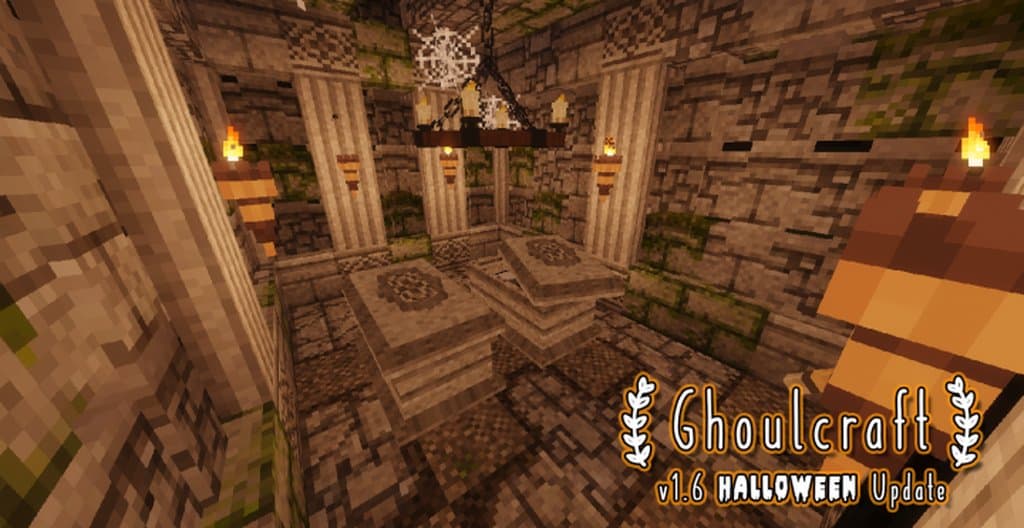
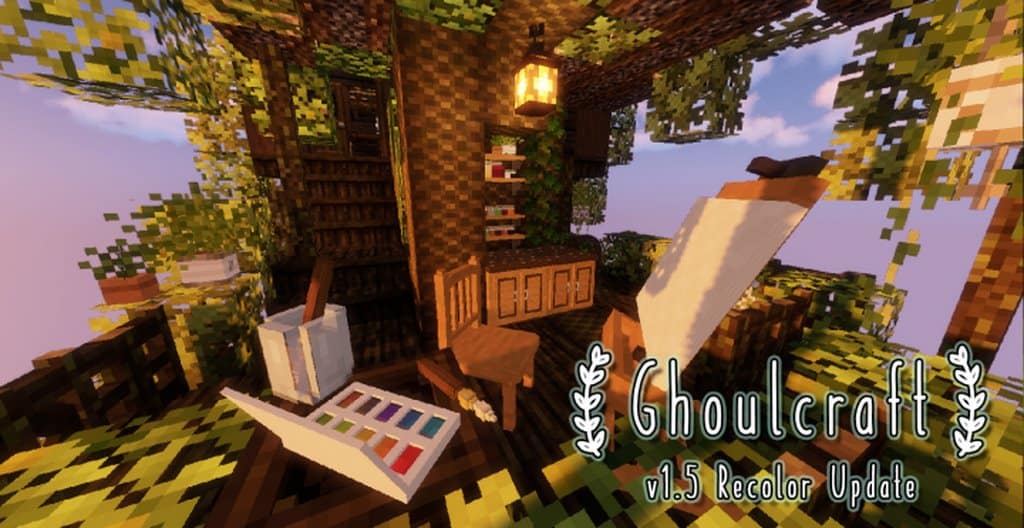
How to Install Texture Pack (Simple 10 Steps)
- Download OptiFine: Most of the texture packs and shaders need OptiFine. That’s why, first download and install OptiFine for the version of Minecraft you want to play.
- Download the Texture Pack: Get the texture pack you want from the download section. Choose the version that works with your Minecraft and your PC’s performance.
- Open Minecraft Launcher: Start Minecraft using the official game launcher — or even TLauncher, if you use that.
- Go to Options: From the main menu, click on the “Options” button.
- Open Resource Packs: Inside Options, click on “Resource Packs…”.
- Open the Resource Pack Folder: Click on “Open Resource Pack Folder” — this will open a folder named “resourcepacks”.
- Move the Pack File: Copy or move the .zip file you downloaded into that “resourcepacks” folder. (Don’t unzip the file — Minecraft uses it as-is!)
- Go Back and Refresh: Close the folder and click “Done”, then go back into “Resource Packs…” again.
- Activate the Pack: You’ll see the pack on the left side. Hover over it and click the arrow to move it to the right (active side).
Tip: If you get a message that the pack is for a different version, just click “Yes” — it usually works fine. - Click Done and Enjoy: Click “Done” again. Now your pack is ready to use in-game. It’s that easy!
Credits
Ghoulcraft is created and developed by MissGhouls. We do not own or modify the files provided for download. All rights belong to the original creator. We strongly recommend supporting MissGhouls via their official Patreon and social media channels.
Download Links
Java Edition
- Download Ghoulcraft [All Packs] from Official Website
- [16x] Download Ghoulcraft [MEGA] Resource Pack
- [16x] Download Ghoulcraft [Food] Resource Pack
- [16x] Download Ghoulcraft [Weapons & Wearables] Resource Pack
- [16x] Download Ghoulcraft [Furniture] Resource Pack
- [16x] Download Ghoulcraft [Garden] Resource Pack
- [16x] Download Ghoulcraft [Halloween] Resource Pack
- [16x] Download Ghoulcraft [Magic] Resource Pack
- [16x] Download Ghoulcraft [Summer] Resource Pack
- [16x] Download Ghoulcraft [Winter] Resource Pack
- [16x] Download Ghoulcraft [Medieval] Resource Pack
- [16x] Download Ghoulcraft [Misc] Resource Pack
- [16x] Download Ghoulcraft [Pets] Resource Pack
- [16x] Download Ghoulcraft [Modern] Resource Pack
- Official Patreon Page
- Official YouTube Channel
- Official Instagram Page
- Official Twitter Page
Download Instructions
Curseforge: download starts automatically after a few seconds;
Mediafire: click the big blue button with the text “DOWNLOAD”;
Google Drive: in the top right corner you will see a small download icon (down arrow), click it and the download should start;