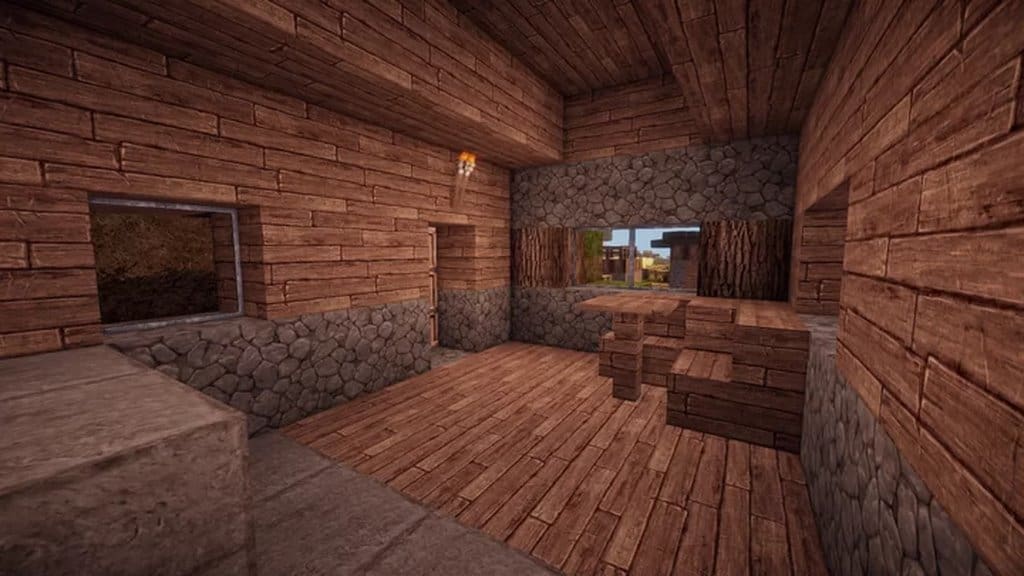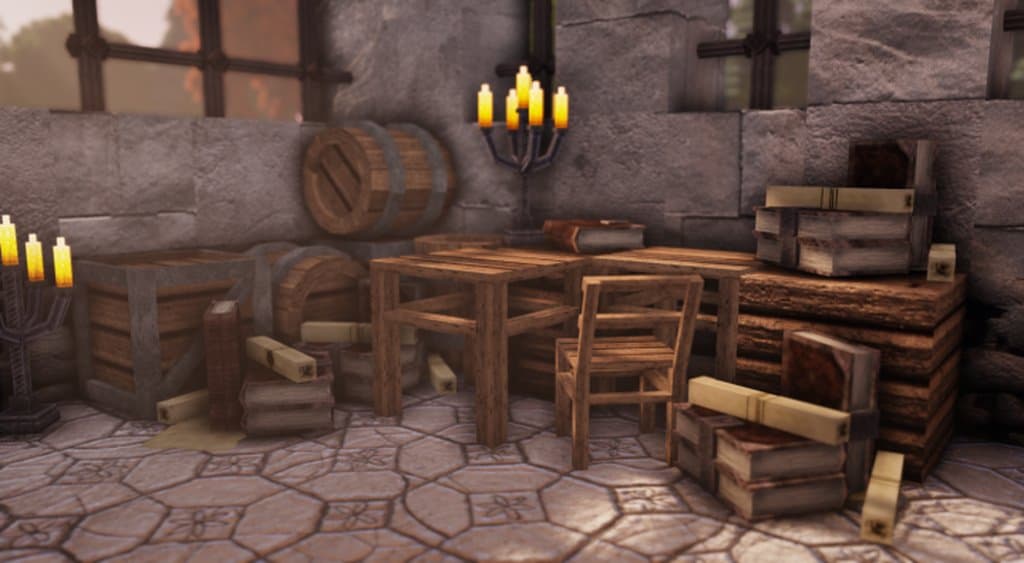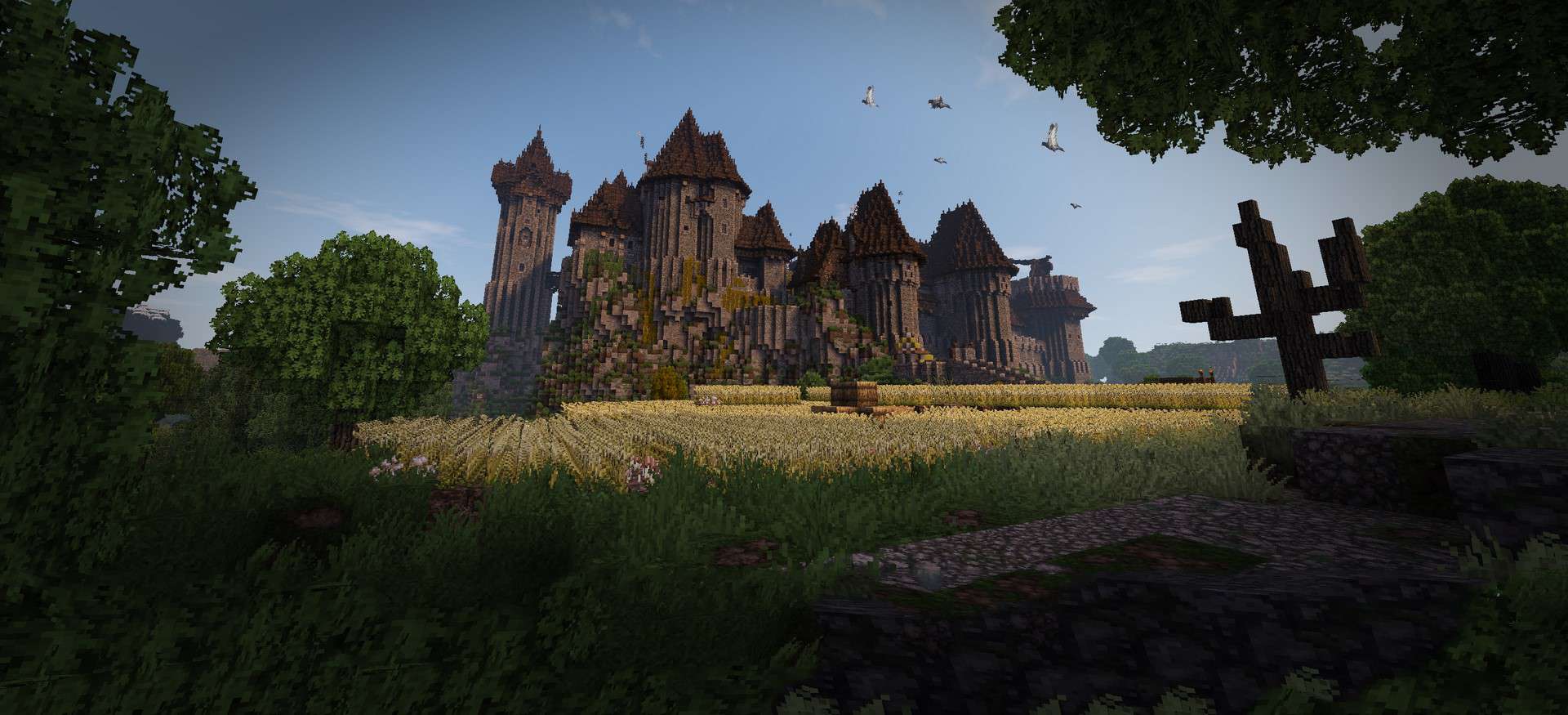
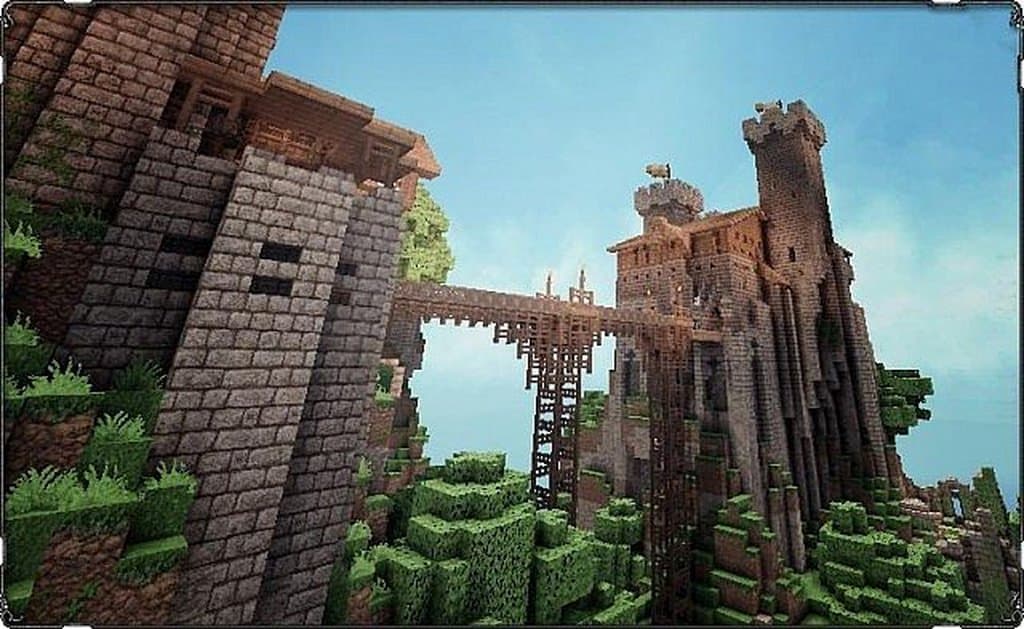
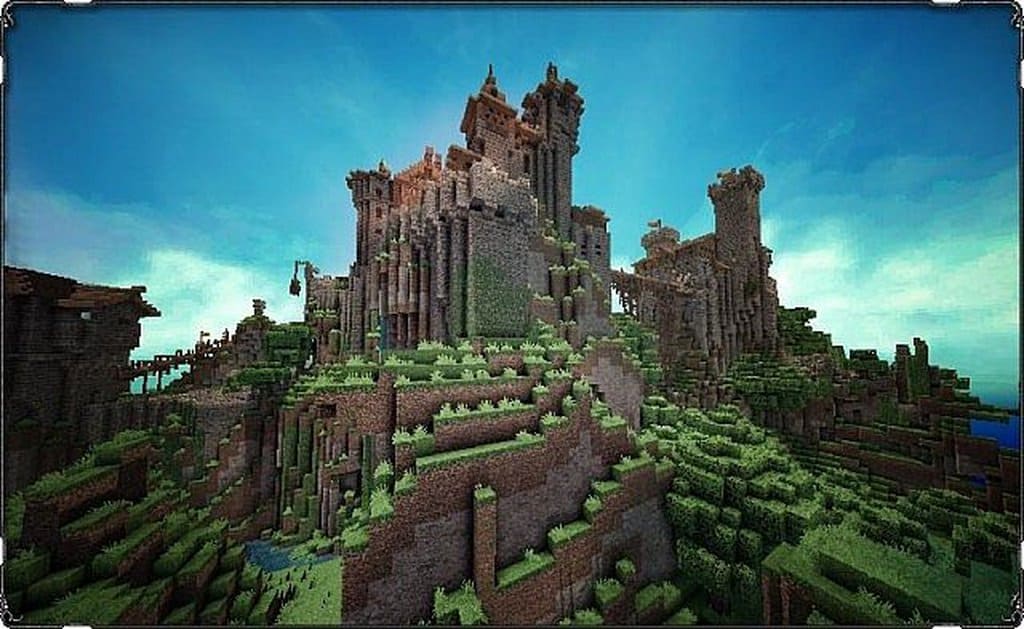
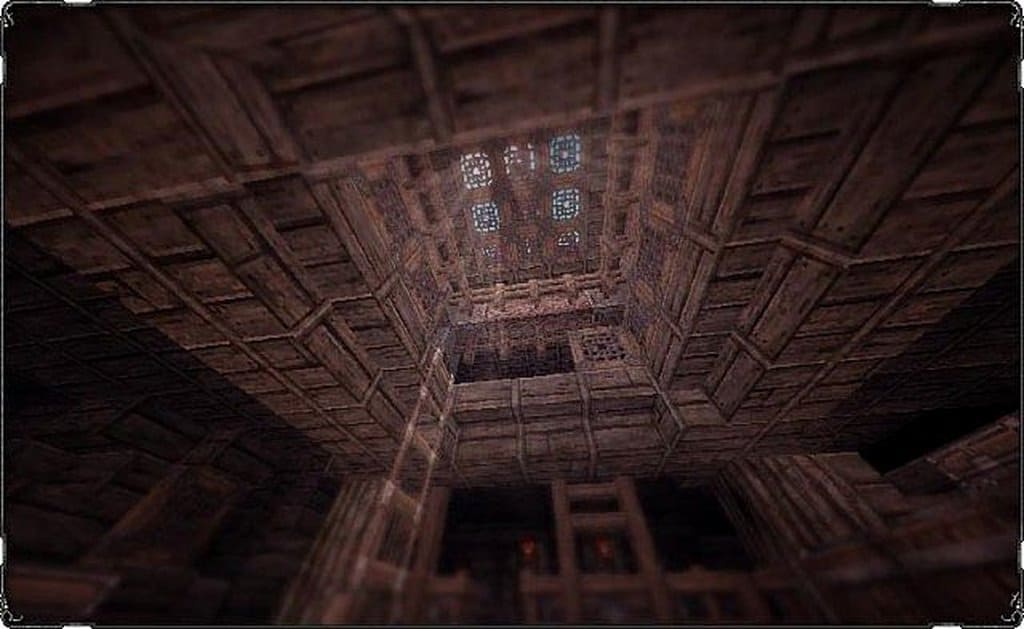
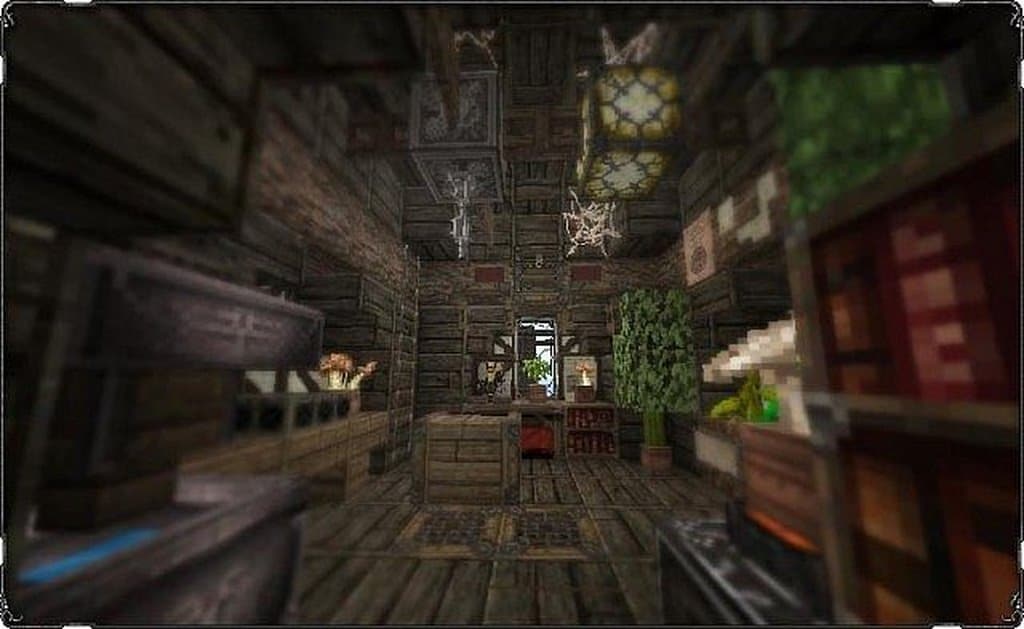
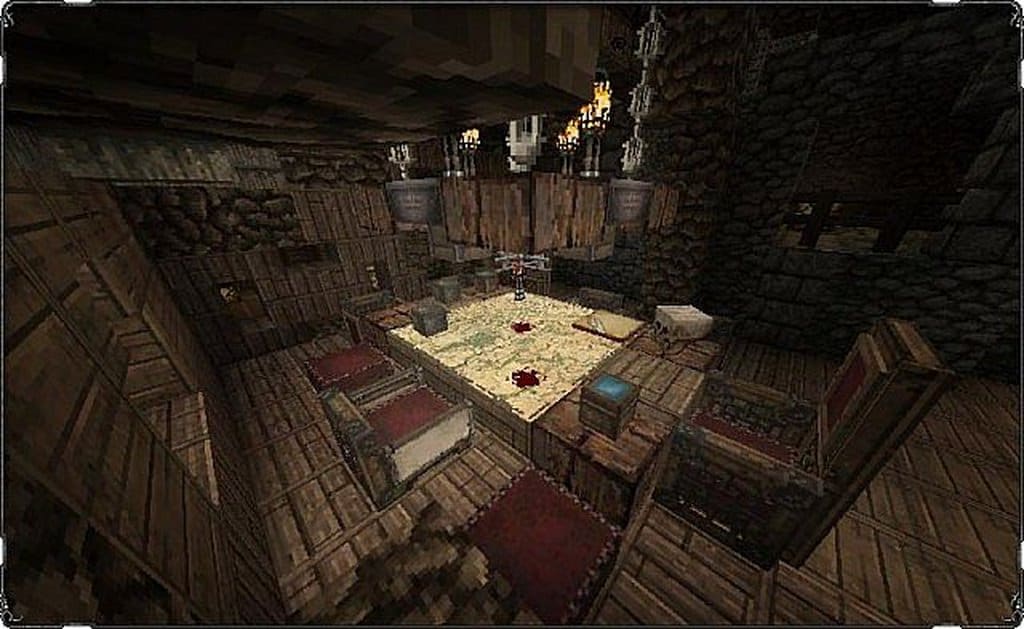
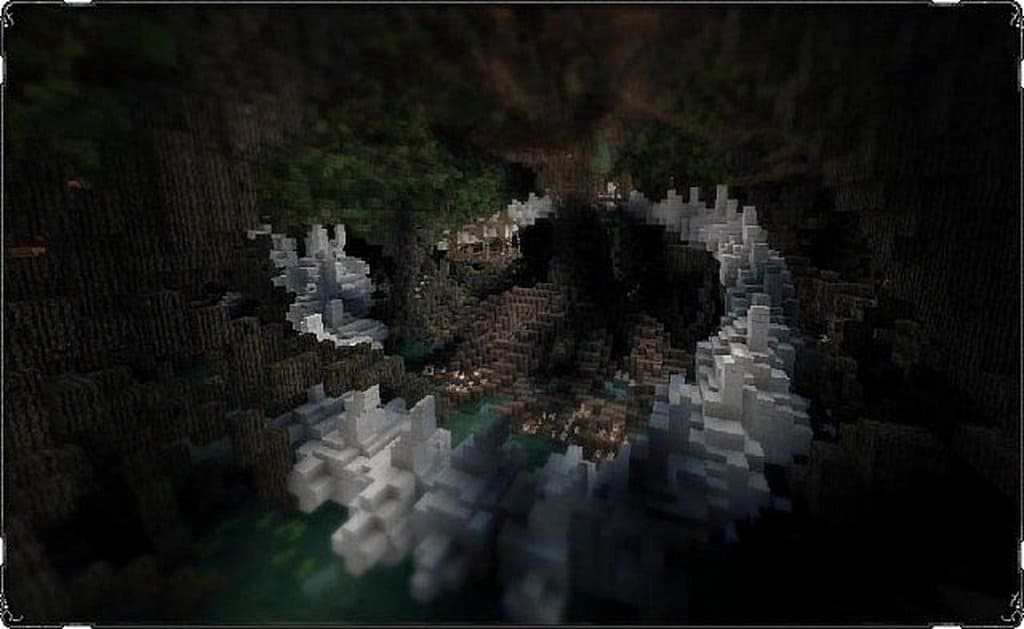
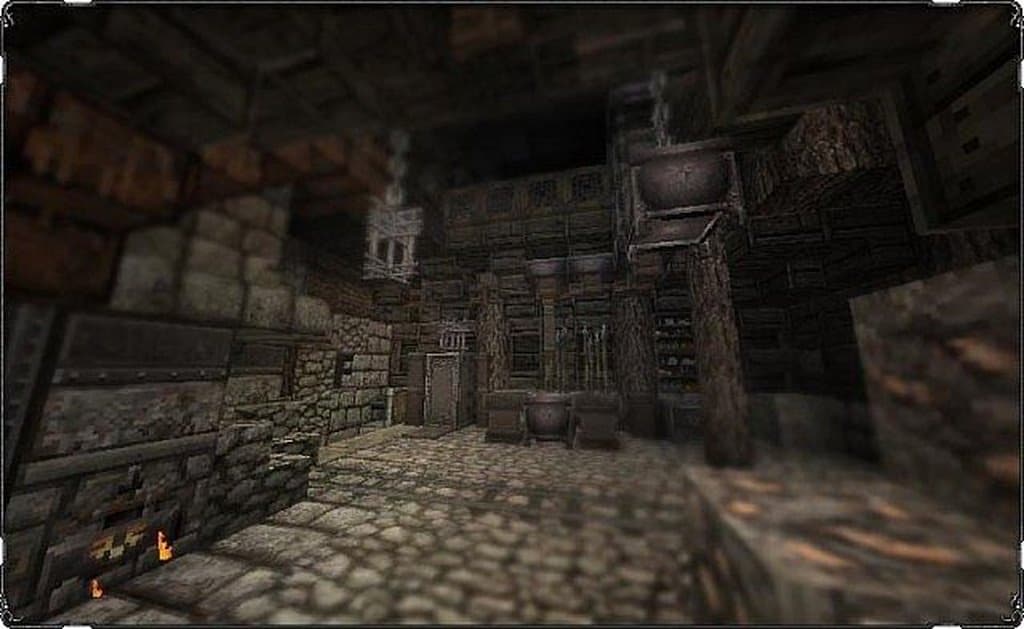
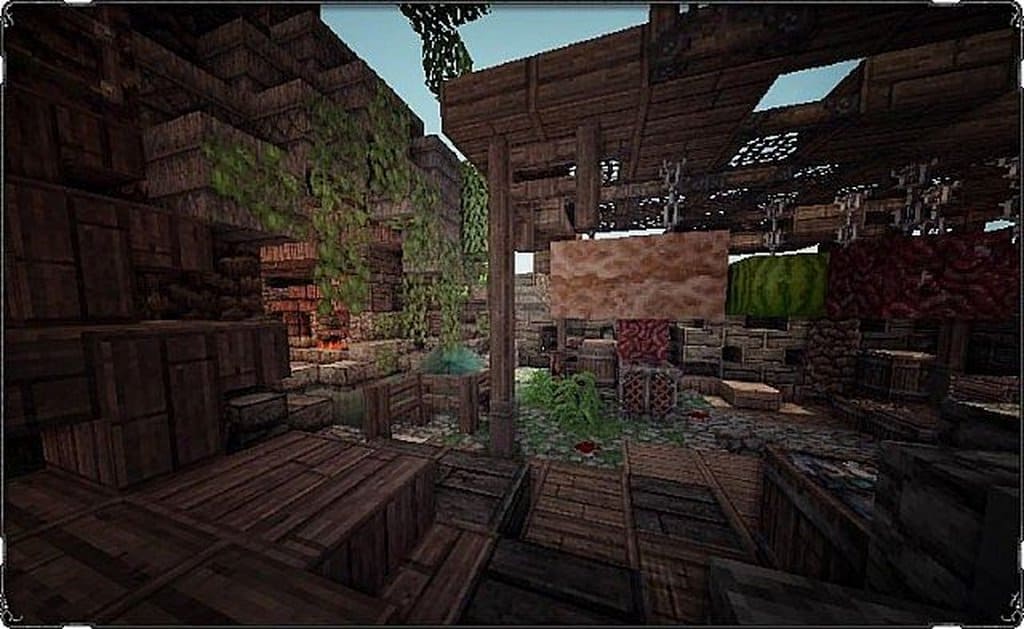
If you love the various versions of the John Smith resource pack, you are definitely going to enjoy the incredible Conquest resource pack for Minecraft! Conquest is largely based on that classic pack, and while there are many familiar similarities between the two, there are plenty of striking differences that give Conquest its own distinct look instead of feeling like a simple copy. For instance, certain items like different wooden planks share that familiar John Smith vibe, but many other items—like torches and tables—are uniquely and meticulously designed specifically for the Conquest pack. In fact, the pack boasts roughly 70% unique content tailored just for this experience. A huge number of the textures feature a wonderfully dingy, dirty, worn-out, and second-hand aesthetic that truly makes this pack stand out. This gorgeous grunginess continues even when you smelt blocks down to convert them into other materials.
For example, when you cook cobblestones to turn them into stone and then craft them into various stone bricks, those textures maintain their delightfully gritty and weathered look. Because of this, many players find that Conquest has a moody, gloomy, and dark medieval feel that transforms building projects completely. Choosing to use Conquest is a matter of personal taste, just like any other pack, and you will quickly decide how much you adore its distinct style. You will also be glad to know that Conquest receives regular updates, sometimes even dropping unexpected patches on an irregular schedule, which proves the creator’s dedication. Since its initial release back on August 27, 2012, more than two hundred updates have been published, with plenty more to come in the future. To get the absolute best performance and visual experience out of Conquest, we strongly recommend using McPatcher or Optifine, as these tools help prevent rendering errors and potential game crashes.
Conquest_ should be compatible with all of these Minecraft versions: 1.19.2 – 1.19.1 – 1.19 – 1.18.2 – 1.18.1 – 1.18 – 1.17.1 – 1.17 – 1.16.5 – 1.16.4 – 1.16.3 – 1.16.2 – 1.16.1 – 1.16 – 1.15.2 – 1.15.1 – 1.15 – 1.14.4 – 1.14.3 – 1.14.2 – 1.14 – 1.13.2 – 1.13.1 – 1.13 – 1.12.2 – 1.12 – 1.11.2 – 1.11 – 1.10.2 – 1.10 – 1.9.4 – 1.9 – 1.8.9 – 1.8.8 – 1.8.1 – 1.8.6 – 1.8 – 1.7.10 – 1.7.9 – 1.7.4 – 1.7 – 1.6.4 – 1.6.2
Screenshots
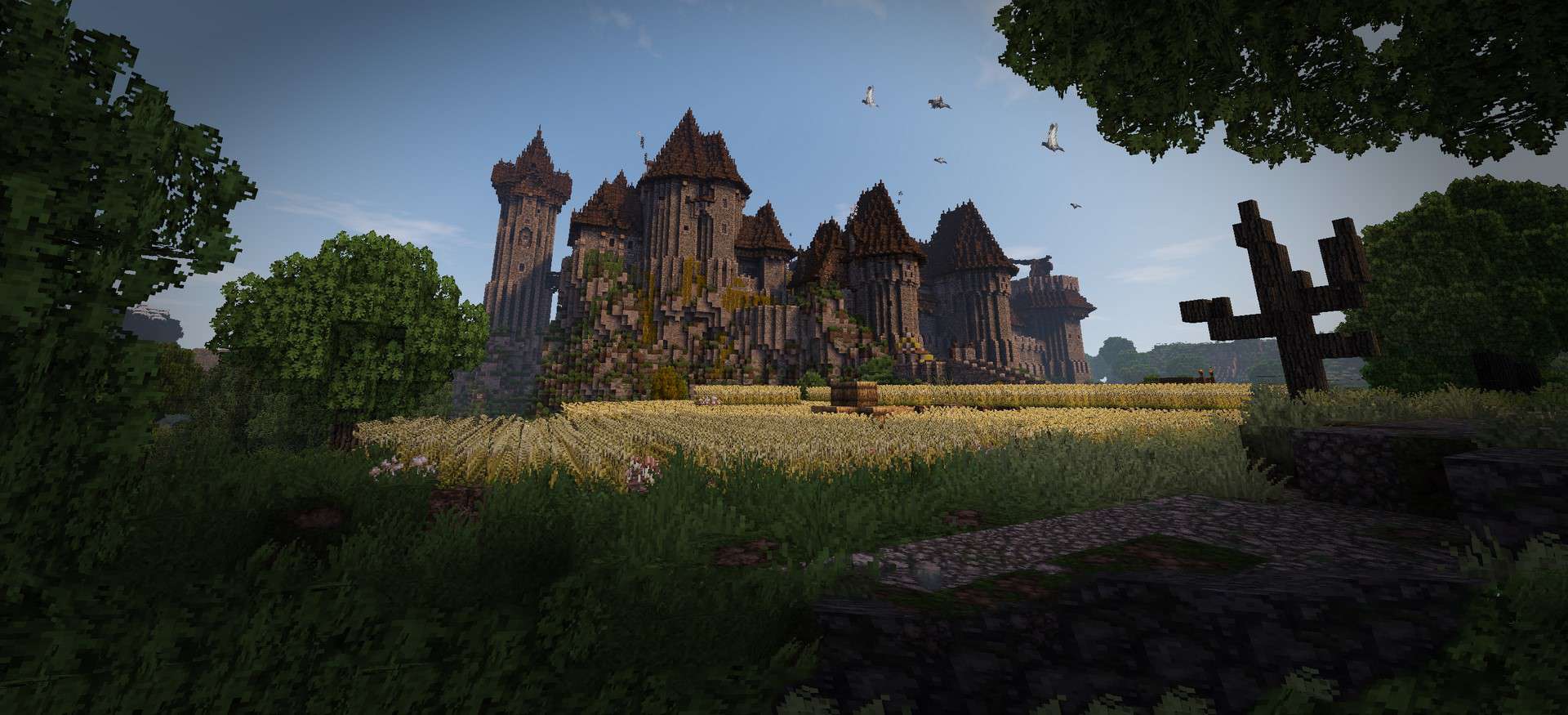
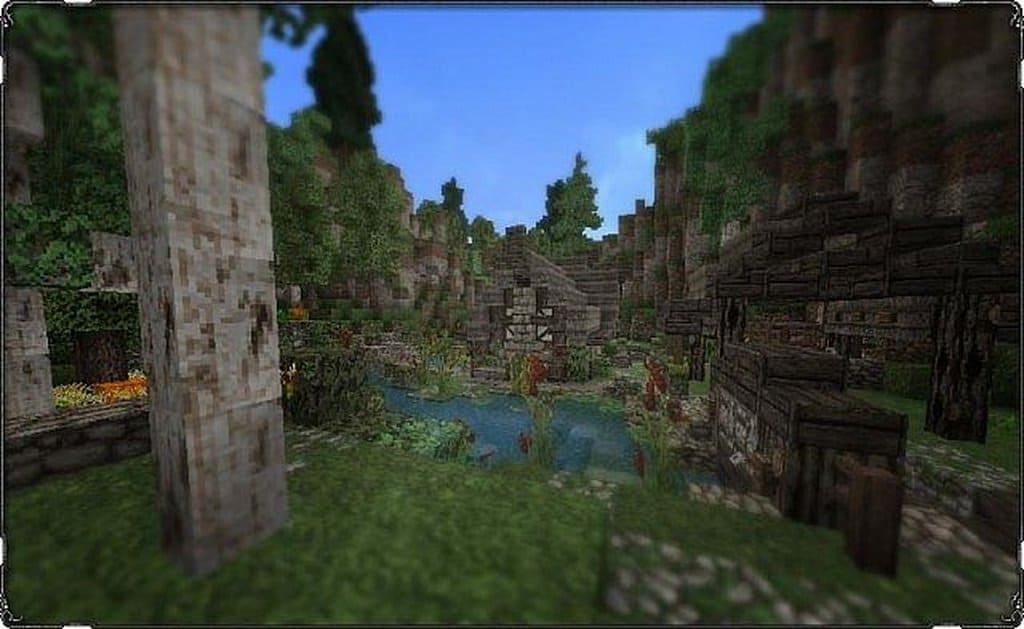
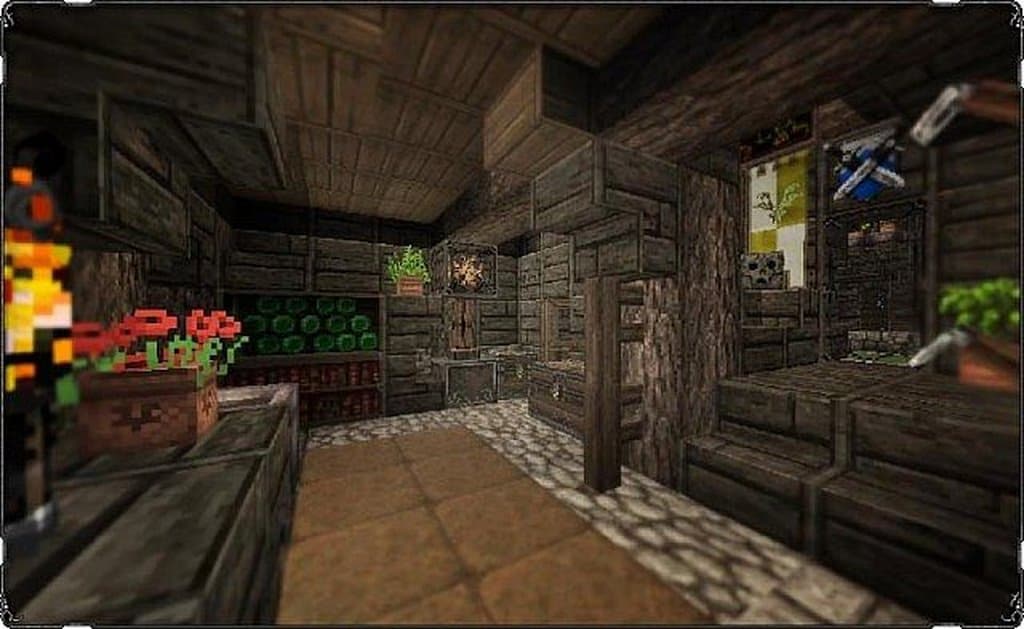
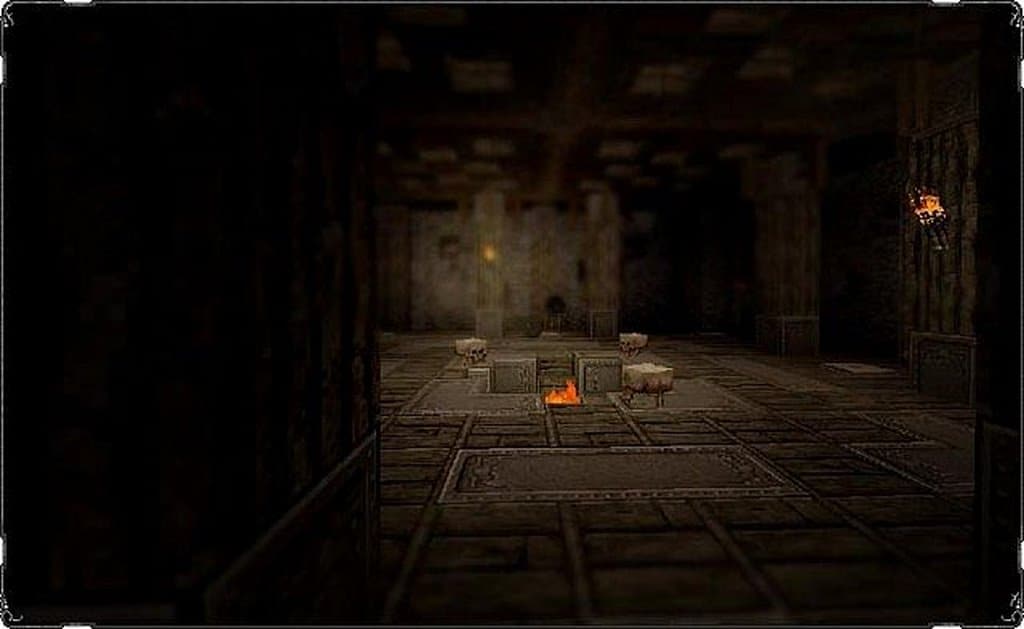
How to Install Texture Pack (Simple 10 Steps)
- Download OptiFine: Most of the texture packs and shaders need OptiFine. That’s why, first download and install OptiFine for the version of Minecraft you want to play.
- Download the Texture Pack: Get the texture pack you want from the download section. Choose the version that works with your Minecraft and your PC’s performance.
- Open Minecraft Launcher: Start Minecraft using the official game launcher — or even TLauncher, if you use that.
- Go to Options: From the main menu, click on the “Options” button.
- Open Resource Packs: Inside Options, click on “Resource Packs…”.
- Open the Resource Pack Folder: Click on “Open Resource Pack Folder” — this will open a folder named “resourcepacks”.
- Move the Pack File: Copy or move the .zip file you downloaded into that “resourcepacks” folder. (Don’t unzip the file — Minecraft uses it as-is!)
- Go Back and Refresh: Close the folder and click “Done”, then go back into “Resource Packs…” again.
- Activate the Pack: You’ll see the pack on the left side. Hover over it and click the arrow to move it to the right (active side).
Tip: If you get a message that the pack is for a different version, just click “Yes” — it usually works fine. - Click Done and Enjoy: Click “Done” again. Now your pack is ready to use in-game. It’s that easy!
Credits
The Conquest resource pack was originally created by Monsterfish_. We do not claim ownership of this modification, nor do we host modified versions of the files on our servers. All rights belong to the original author, and we encourage community members to support the creator by visiting their official download pages.
Download Links
Java Edition
- [32x] Minecraft 1.19.x / 1.18.x
- [32x] Minecraft 1.7.x / 1.6.x
- [32x] Minecraft 1.15.x
- [32x] Minecraft 1.14.x / 1.13.x
- [32x] Minecraft 1.12.x
- [32x] Minecraft 1.11.x
- [32x] Minecraft 1.10.x / 1.9.x
- [32x] Minecraft 1.8.x
- [32x] Minecraft 1.7.x / 1.6.x
- Hymns of Conquest Addon
- Conquest of the Sky / Sun Addon
Download Instructions
Curseforge: download starts automatically after a few seconds;
Mediafire: click the big blue button with the text “DOWNLOAD”;
Google Drive: in the top right corner you will see a small download icon (down arrow), click it and the download should start;