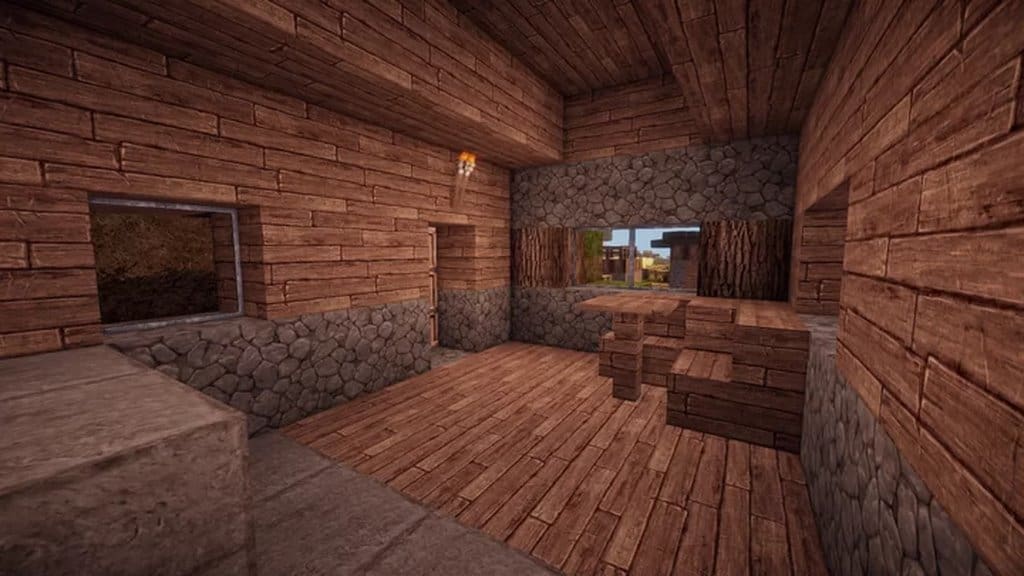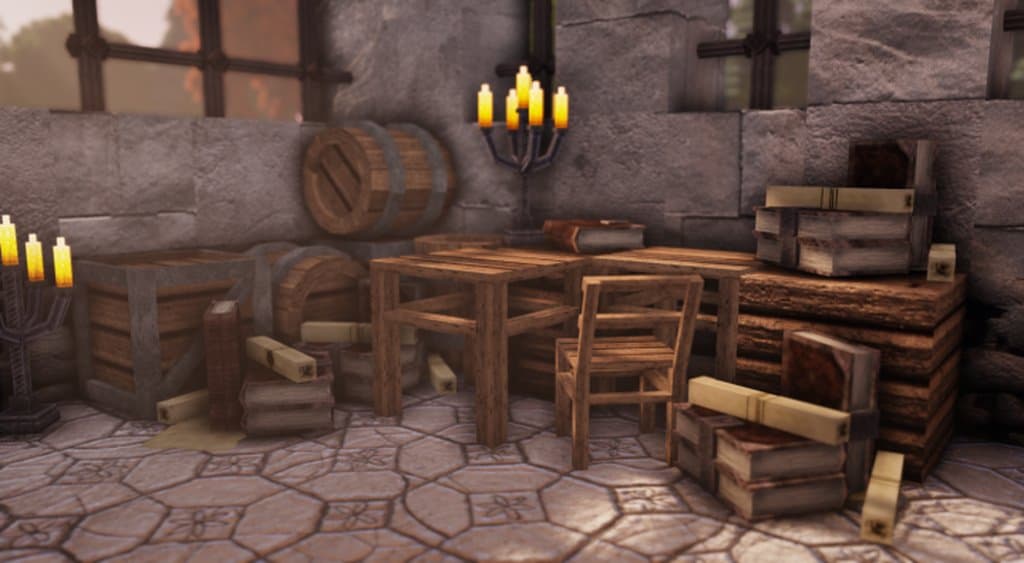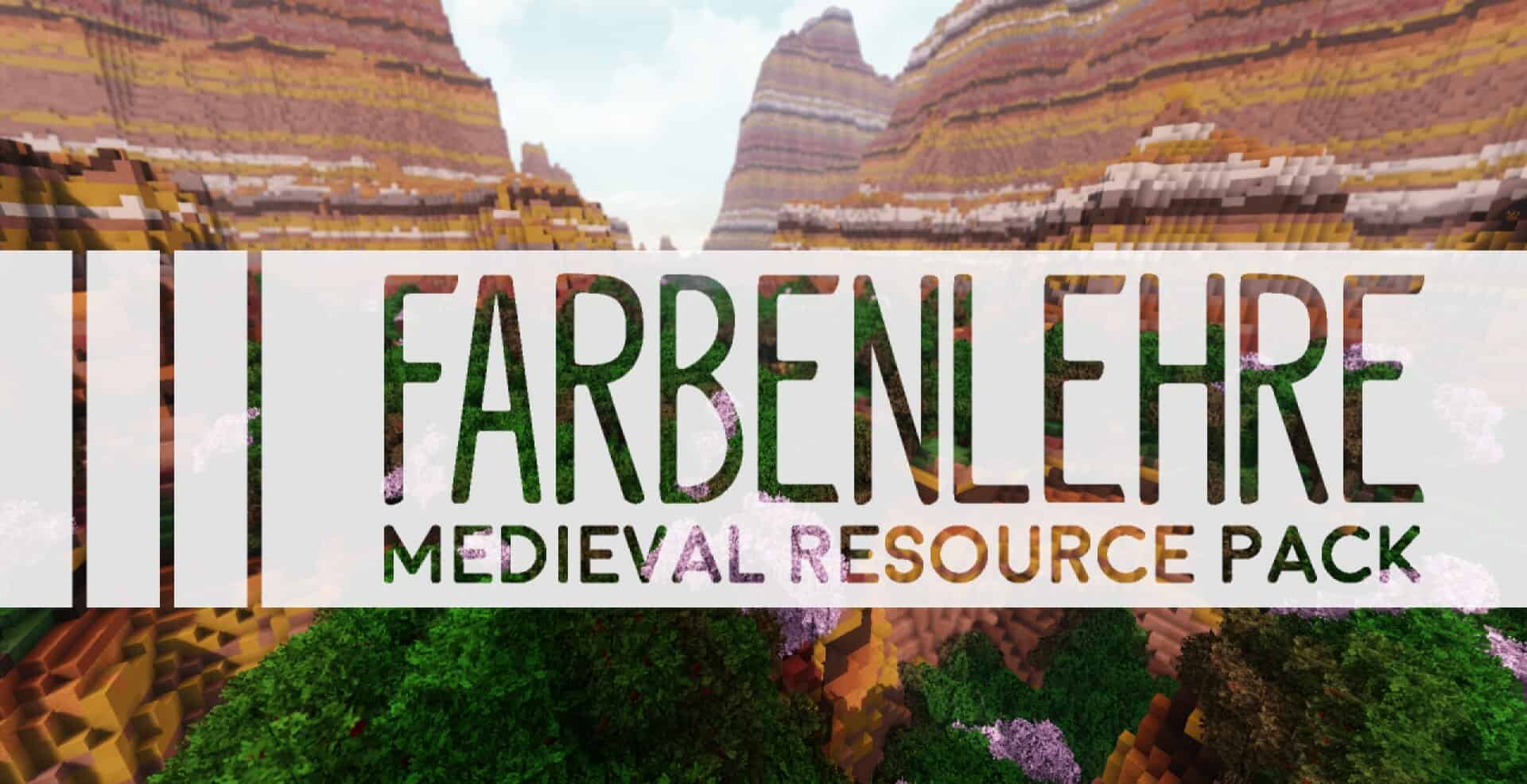
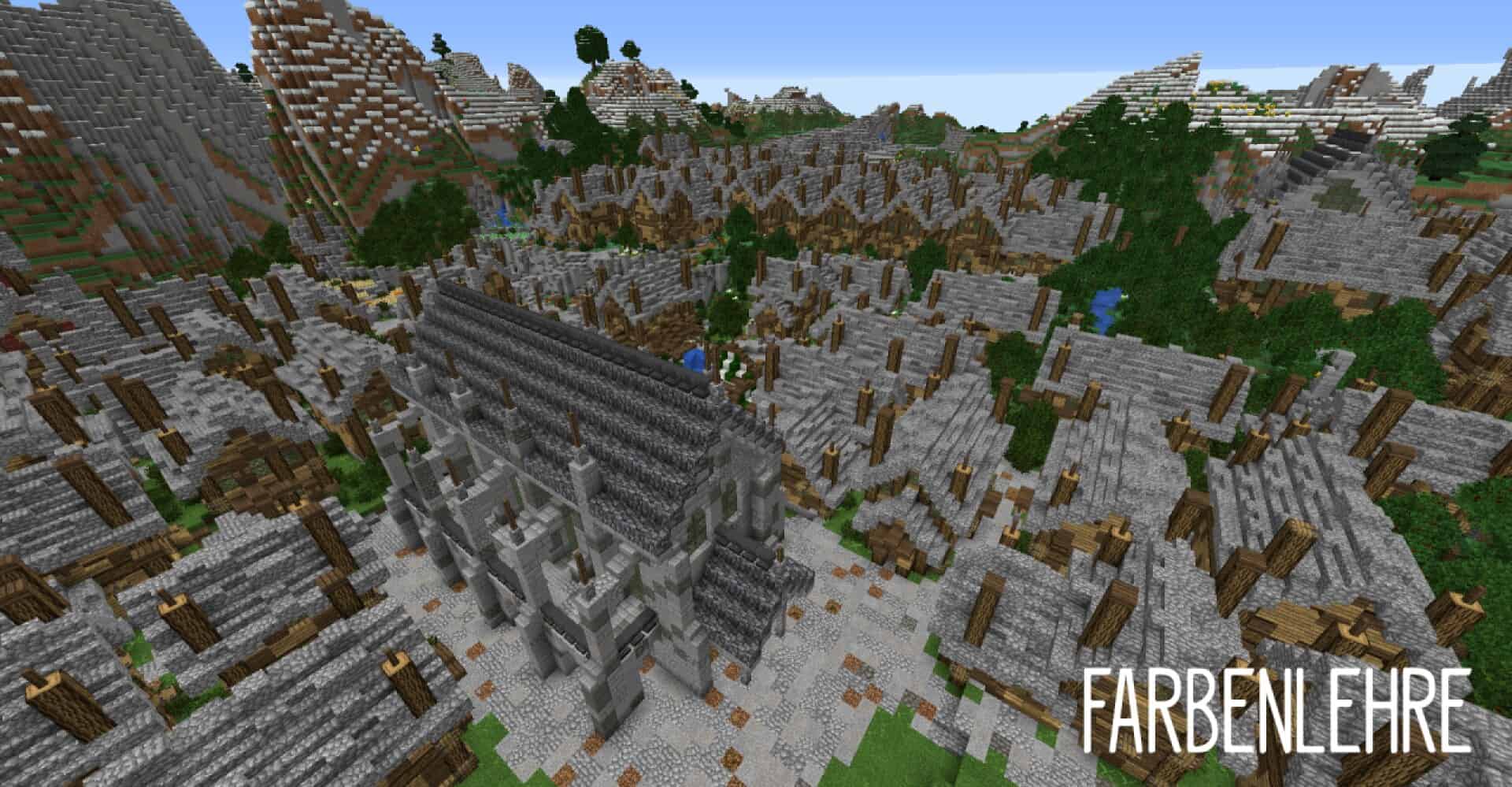
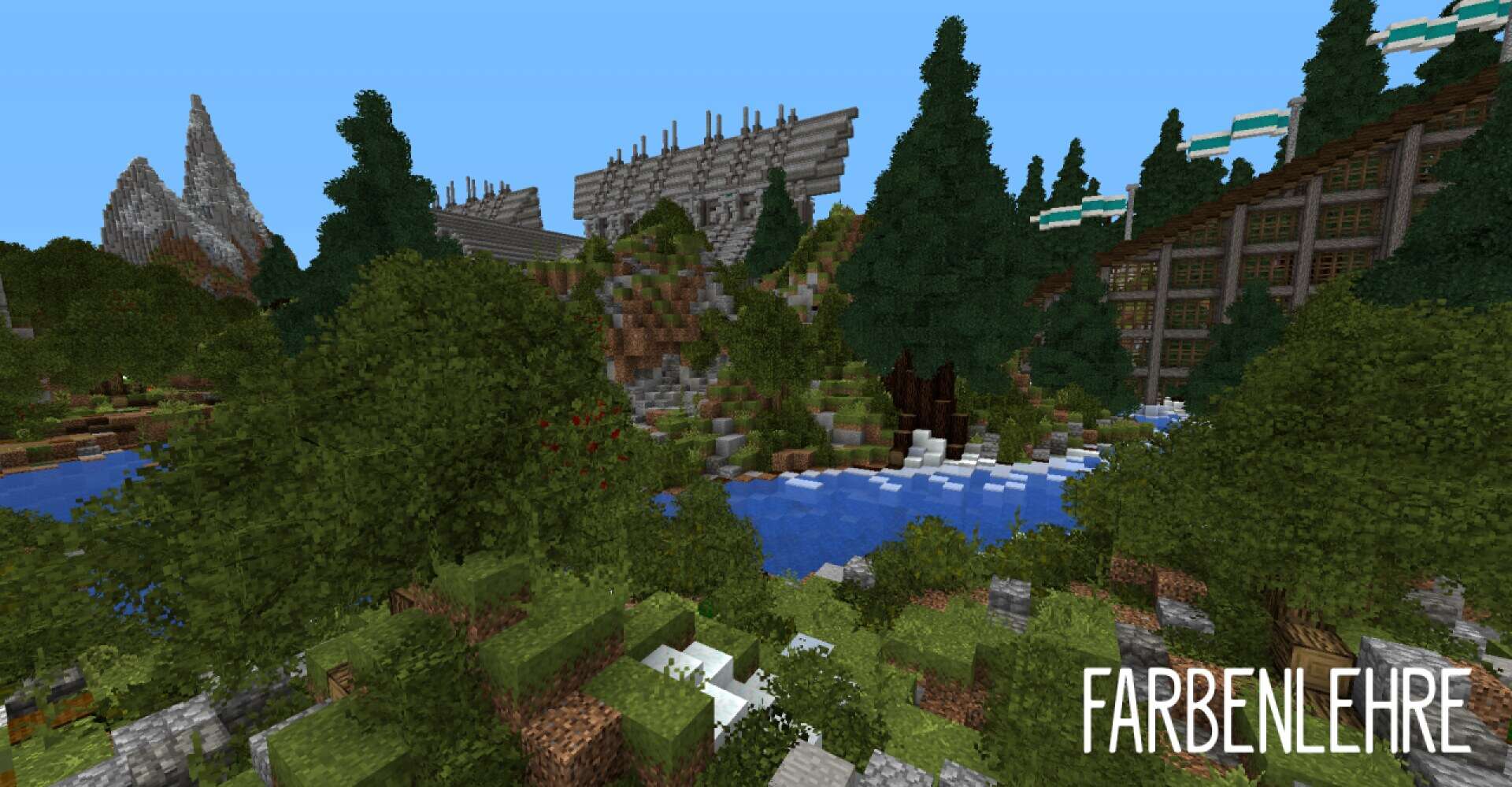
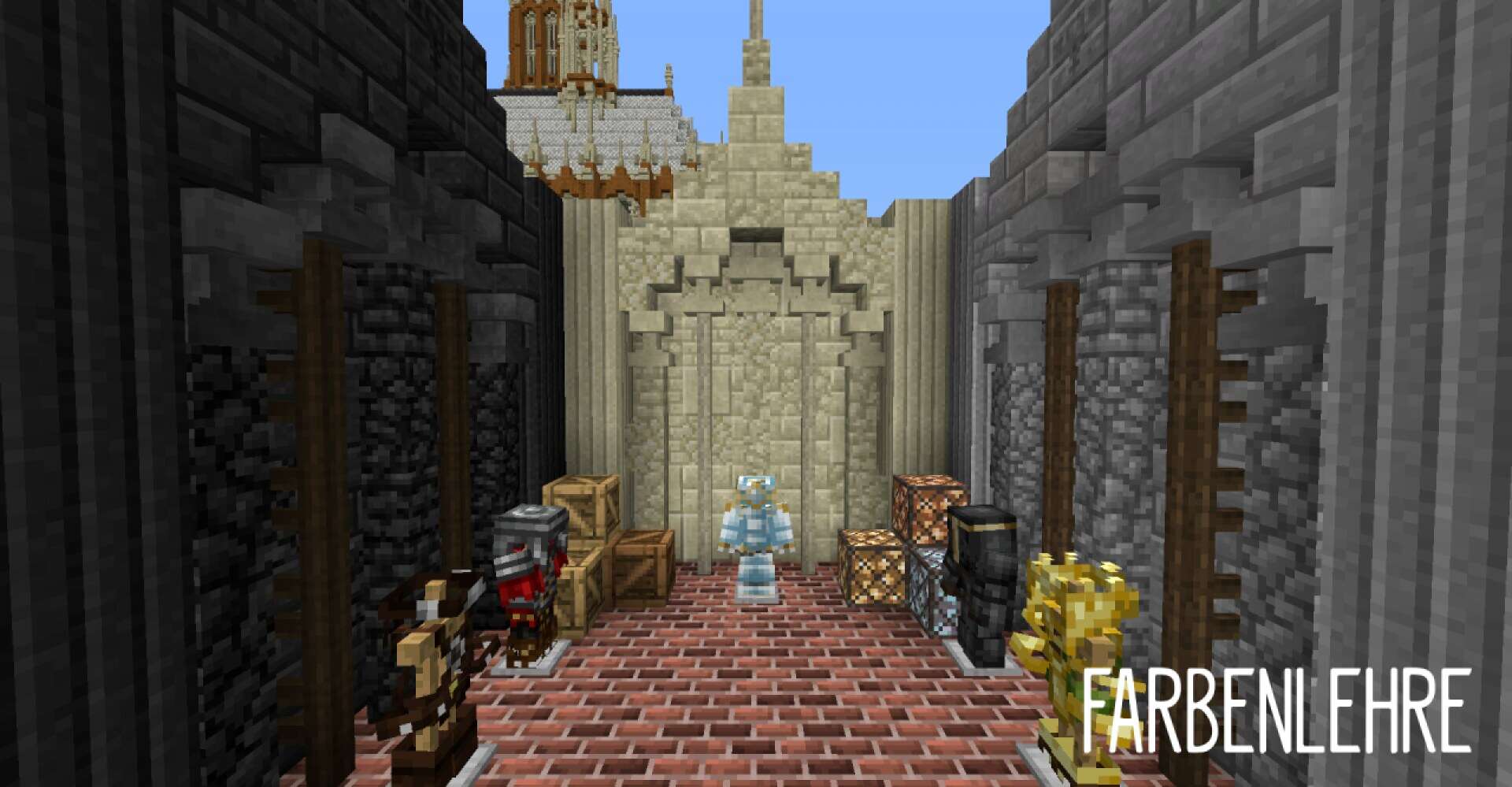
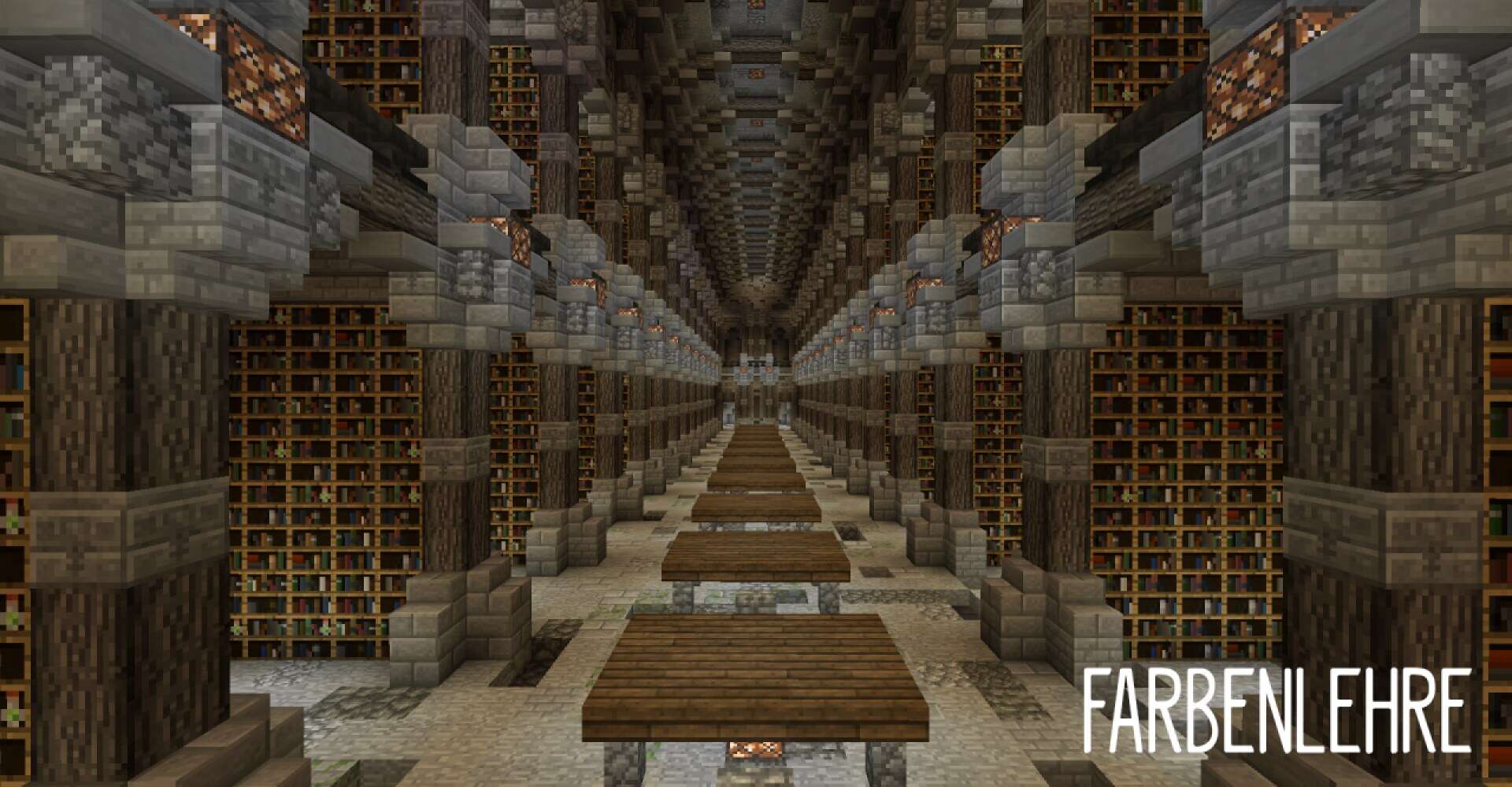
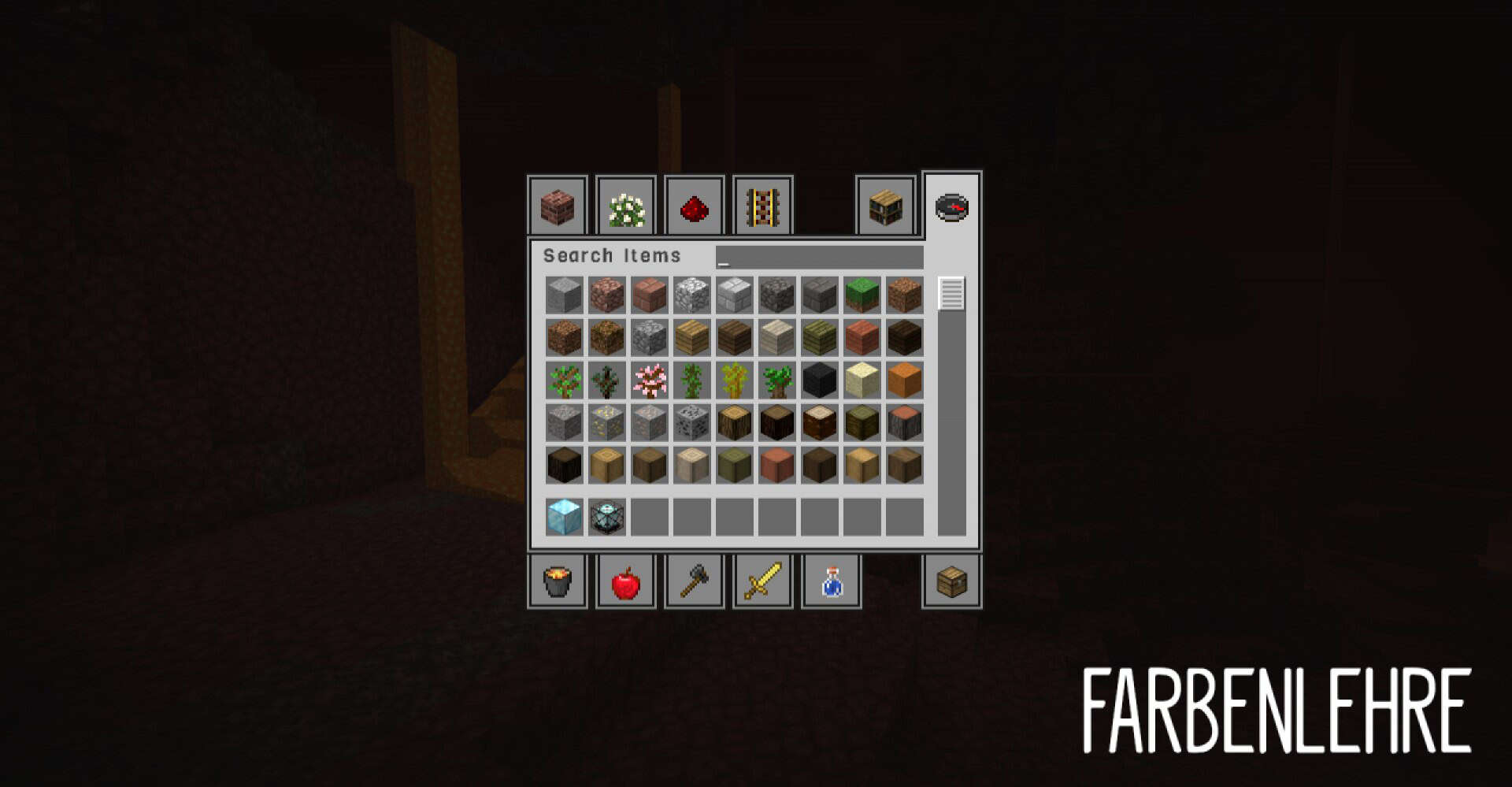
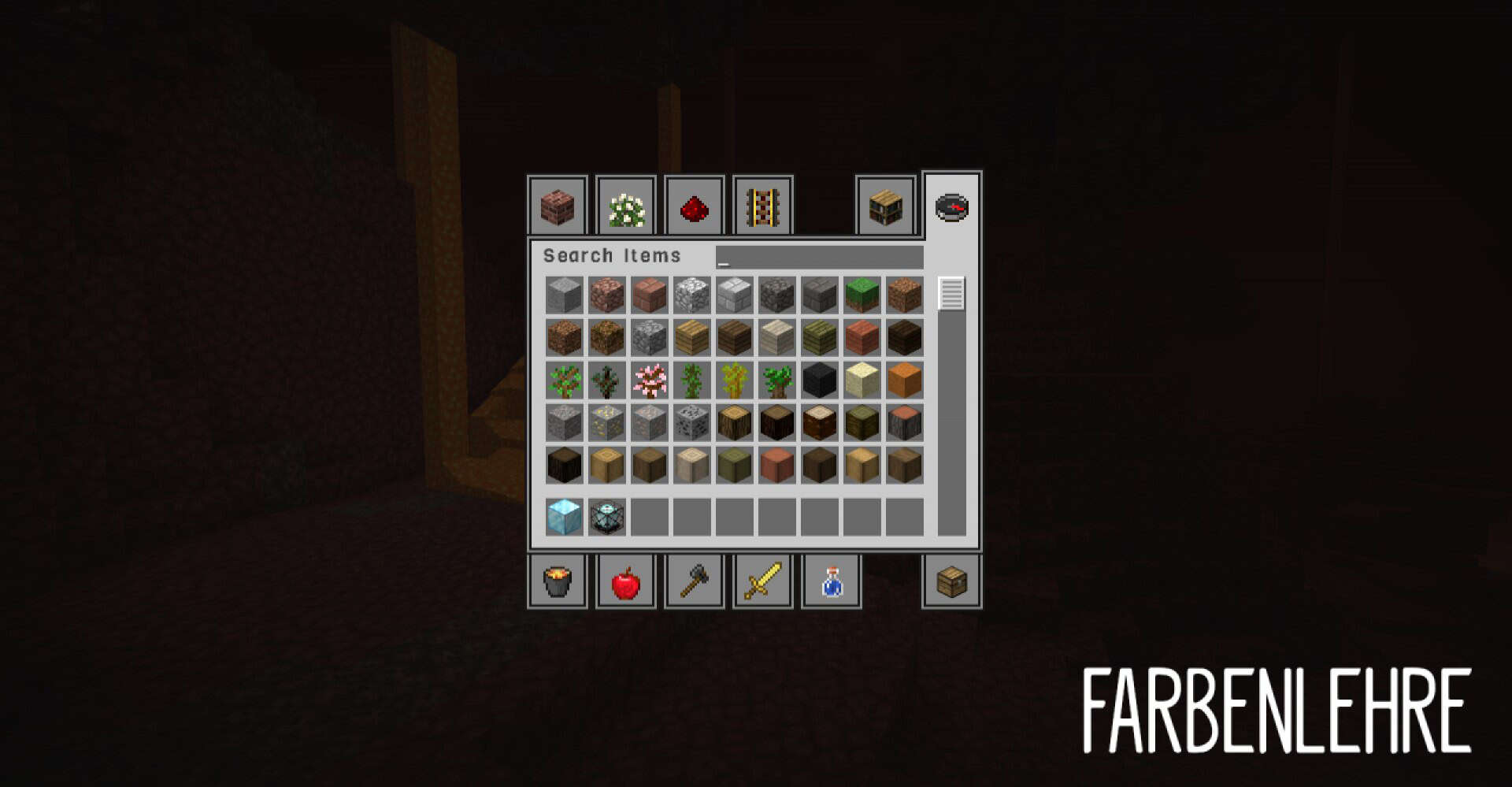
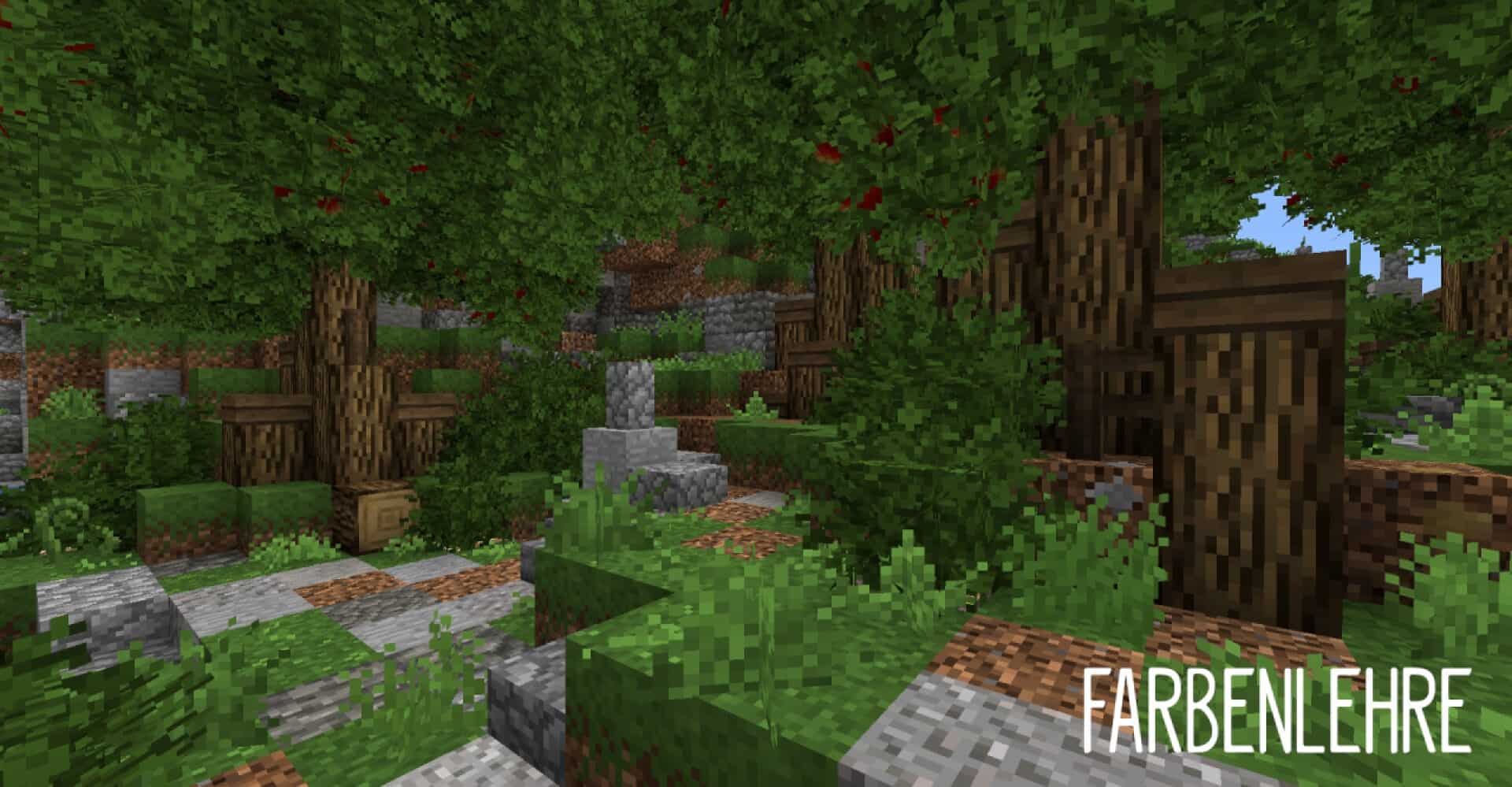
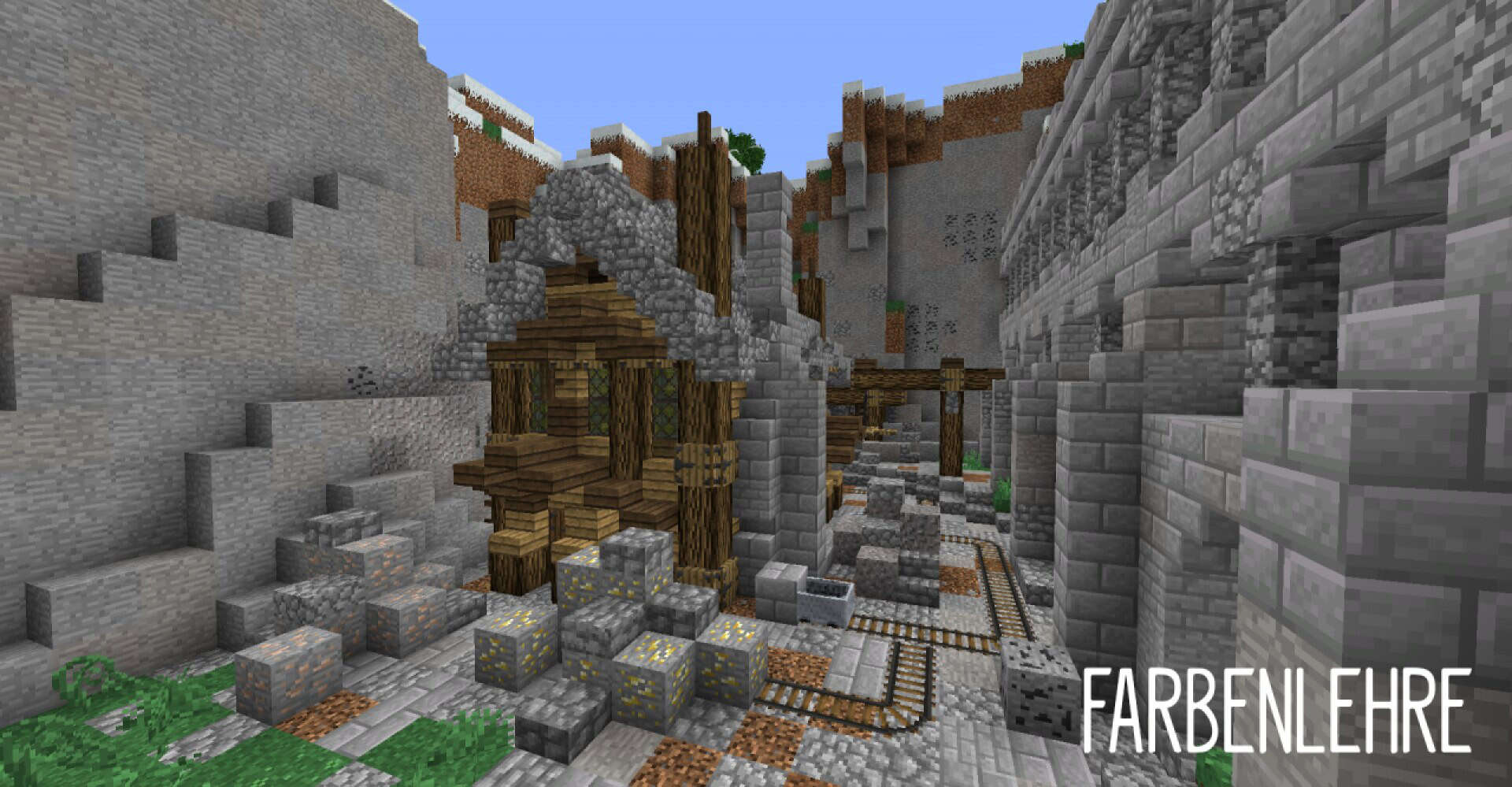
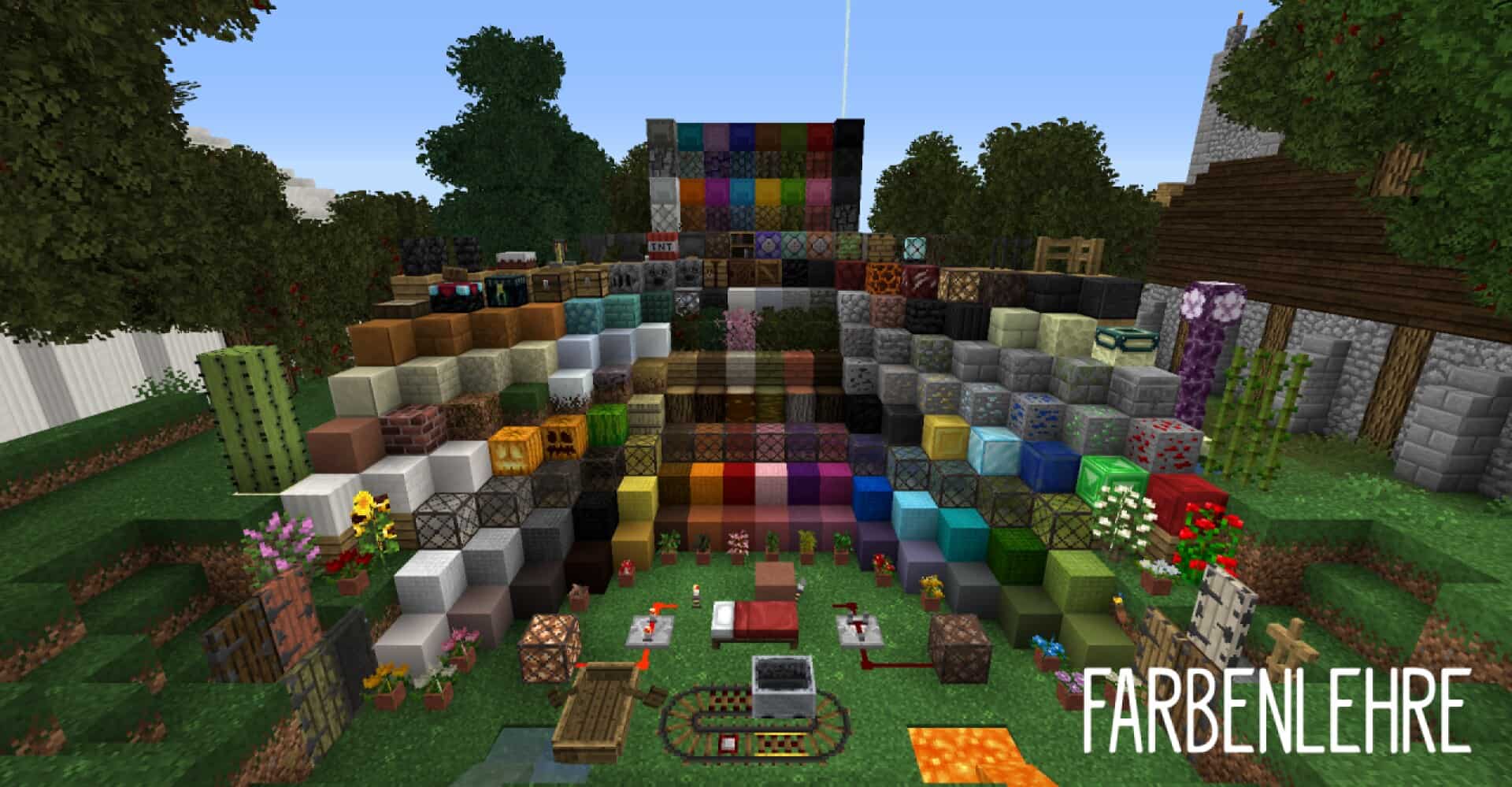
Plenty of Minecraft resource packs have been launched recently. However, only a few of them have managed to catch the attention of the users, and I was genuinely amazed when I tried it out! One of them is the Farbenlehre Medieval resource pack which is basically a medieval themed pack and has been designed with perfection. This pack will take you back to the medieval era in the most immersive way possible. Concept wise, there is nothing unique about this pack because there have been plenty of medieval themed packs in the past. However, what makes it stand out from the others is the brilliant execution. The developers have finally been able to make a resource pack which stands true to its name. Its visually appealing textures make it different from the others, and it also has certain appeals which make it stand out from the crowd. Minecraft is one of those games which will look great in a medieval theme, and as mentioned before, this resource pack gives a complete medieval feel to the game.
You will really enjoy playing with it. You will be surprised to see that each of the game blocks comes with a different kind of variants. The graphics also look very realistic because of the custom models for the vegetation inside the game. Coming to the details of the textures, it is exceptional. Maybe you will find some of them a bit noisy, but that is a very minor flaw, especially if you consider the sheer details of the textures. One of the major problems with some Minecraft packs is that they come with very high resolution, which makes it impossible for users of low end PCs to play. However, this one comes with the basic x16 resolution, which makes it super easy for low end PC users to play smoothly. There will be no frame rate issues at all. Plus, it is a fully completed pack, so you do not have to worry about missing textures.
Farbenlehre Medieval should be compatible with all of these Minecraft versions: 1.13.2 – 1.13.1 – 1.13 – 1.12.2 – 1.12
Screenshots
How to Install Texture Pack (Simple 10 Steps)
- Download OptiFine: Most of the texture packs and shaders need OptiFine. That’s why, first download and install OptiFine for the version of Minecraft you want to play.
- Download the Texture Pack: Get the texture pack you want from the download section. Choose the version that works with your Minecraft and your PC’s performance.
- Open Minecraft Launcher: Start Minecraft using the official game launcher — or even TLauncher, if you use that.
- Go to Options: From the main menu, click on the “Options” button.
- Open Resource Packs: Inside Options, click on “Resource Packs…”.
- Open the Resource Pack Folder: Click on “Open Resource Pack Folder” — this will open a folder named “resourcepacks”.
- Move the Pack File: Copy or move the .zip file you downloaded into that “resourcepacks” folder. (Don’t unzip the file — Minecraft uses it as-is!)
- Go Back and Refresh: Close the folder and click “Done”, then go back into “Resource Packs…” again.
- Activate the Pack: You’ll see the pack on the left side. Hover over it and click the arrow to move it to the right (active side).
Tip: If you get a message that the pack is for a different version, just click “Yes” — it usually works fine. - Click Done and Enjoy: Click “Done” again. Now your pack is ready to use in-game. It’s that easy!
Credits
This resource pack was created by Chiaroscuro. We do not own or modify the files provided, and all rights belong to the original author. We encourage you to support the creator by visiting their official download pages.
Download Instructions
Curseforge: download starts automatically after a few seconds;
Mediafire: click the big blue button with the text “DOWNLOAD”;
Google Drive: in the top right corner you will see a small download icon (down arrow), click it and the download should start;