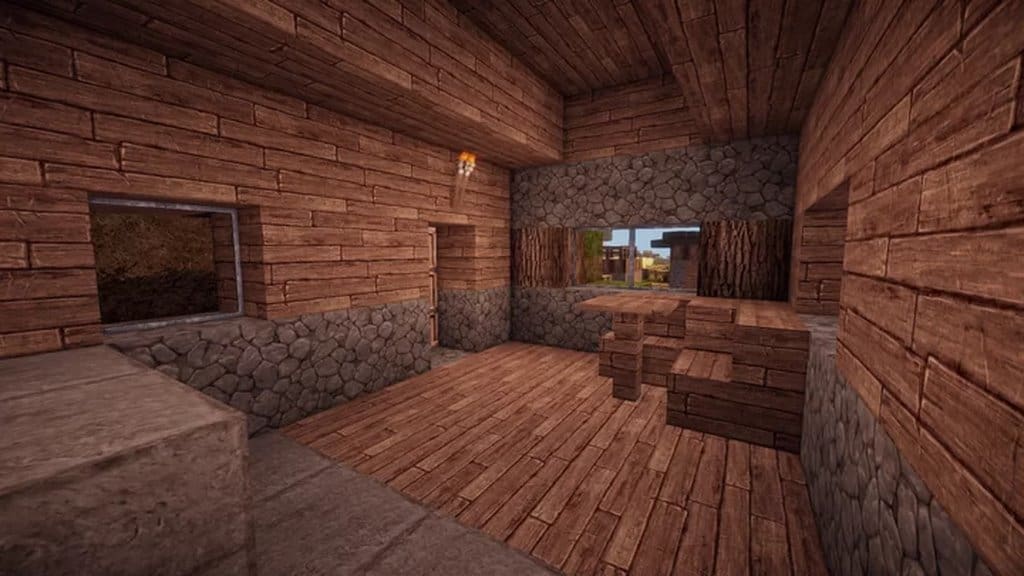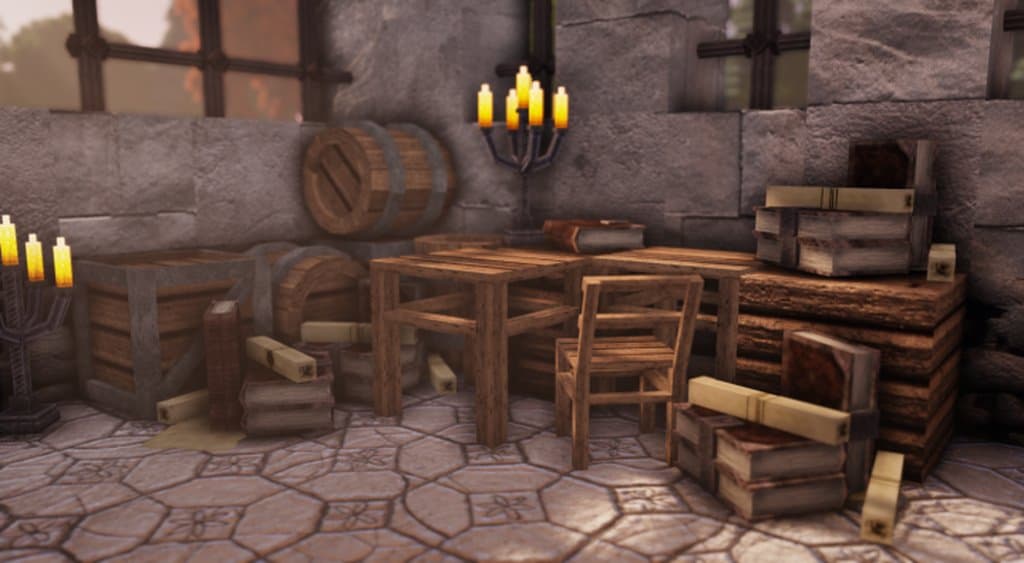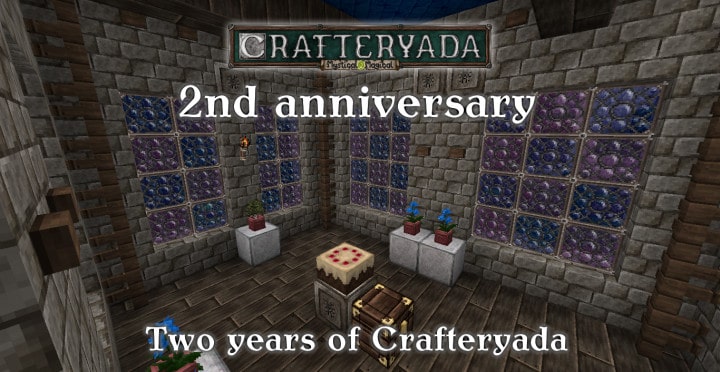
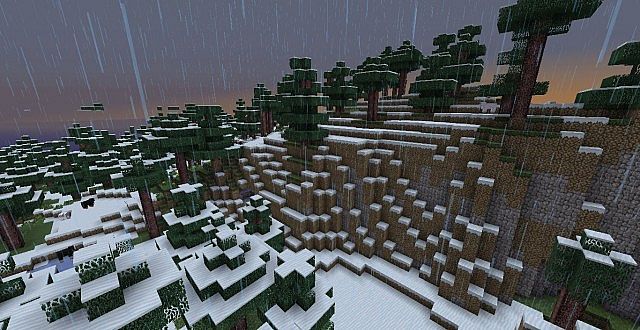
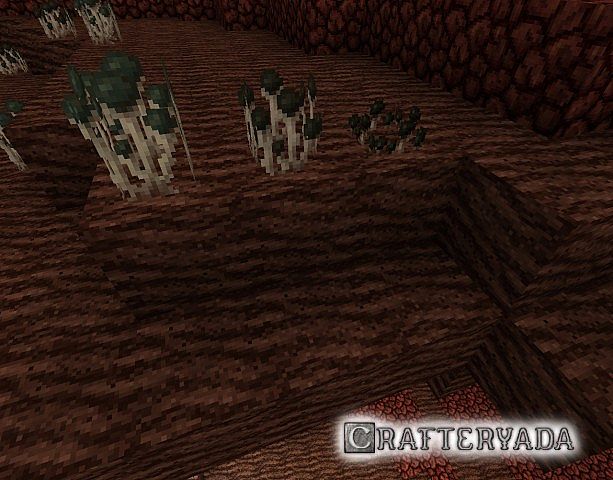
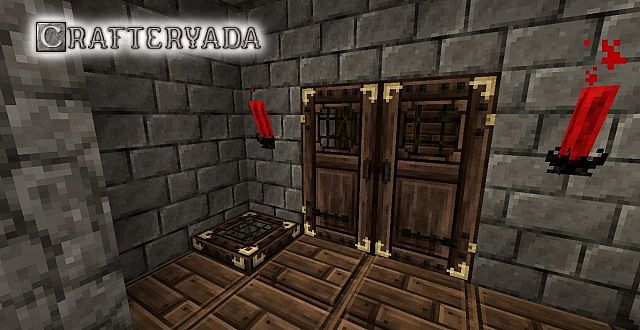
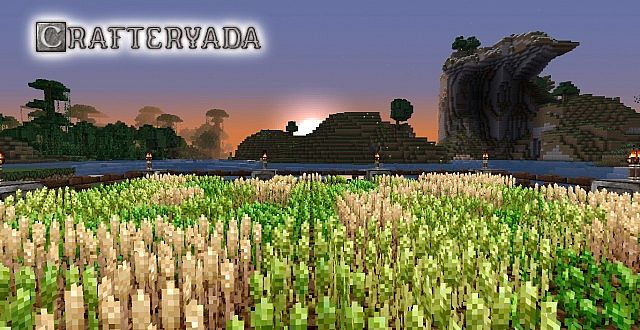
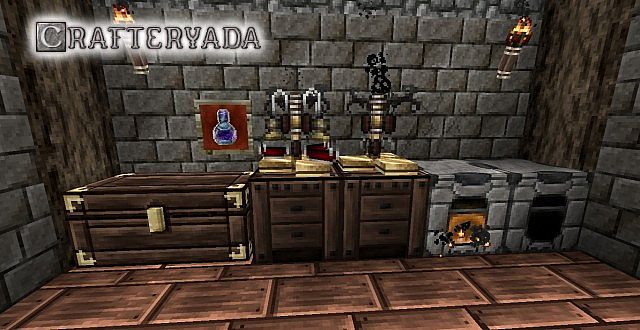
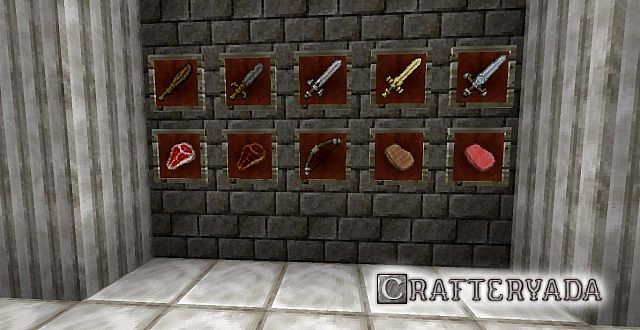
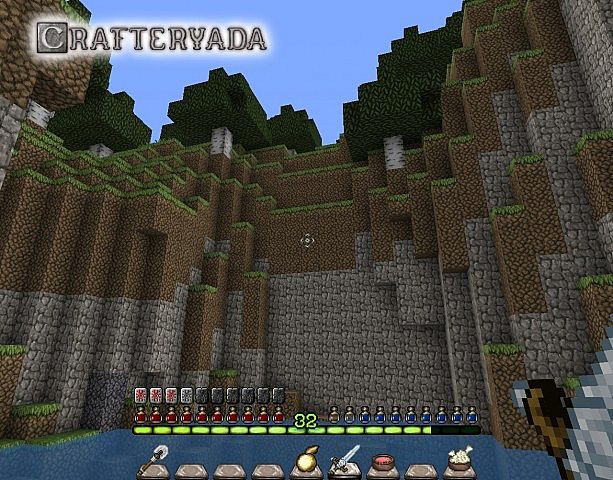
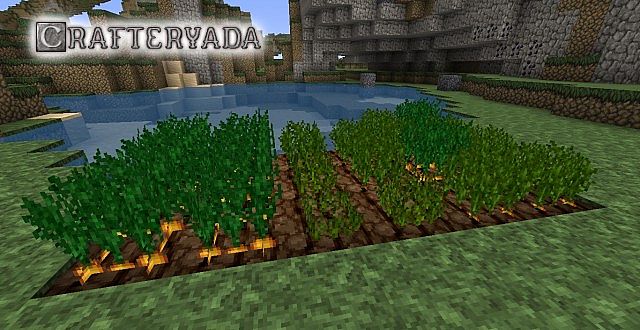
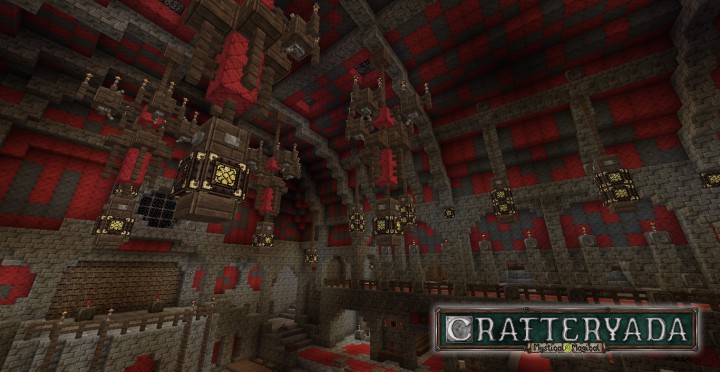
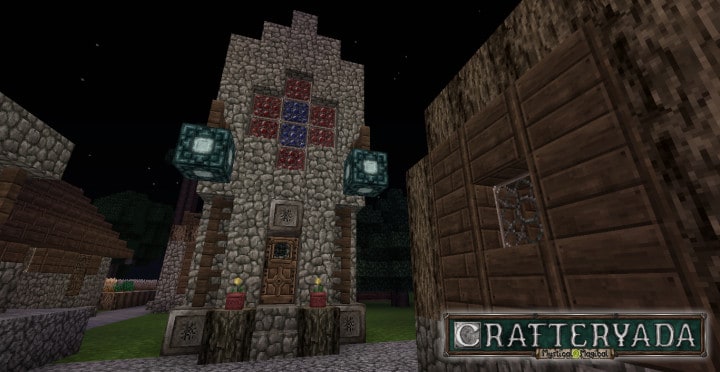
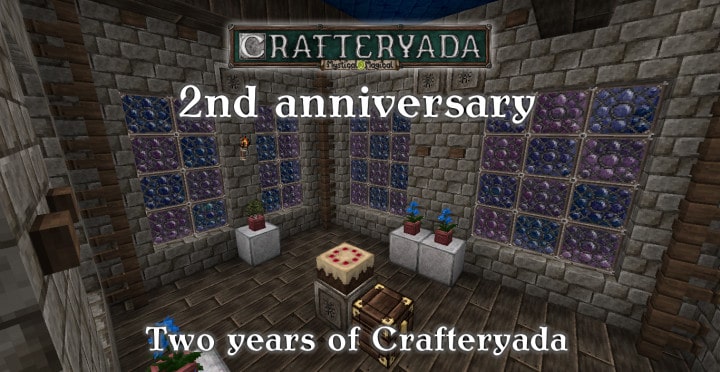
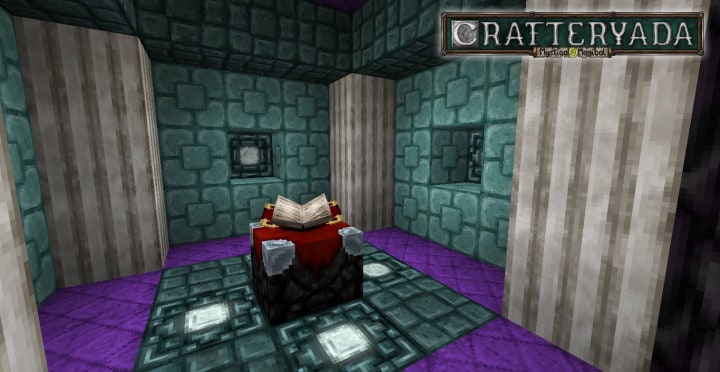
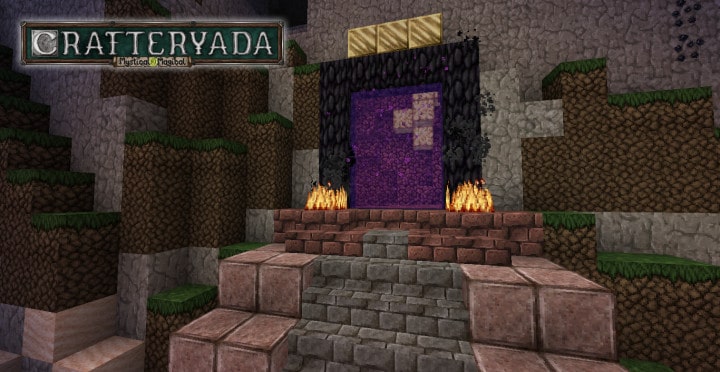
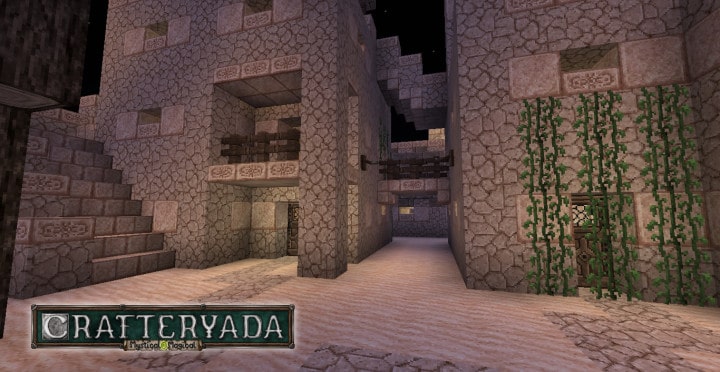
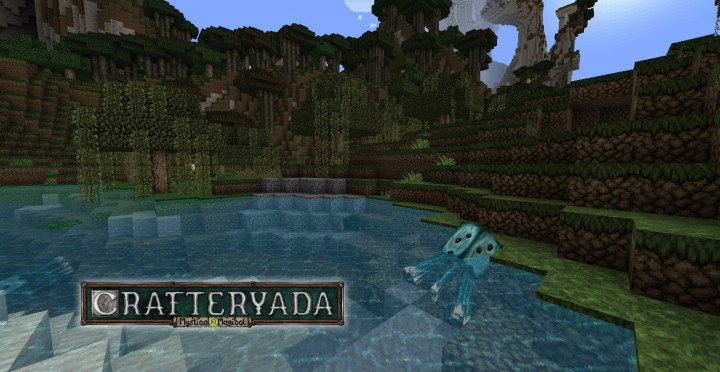
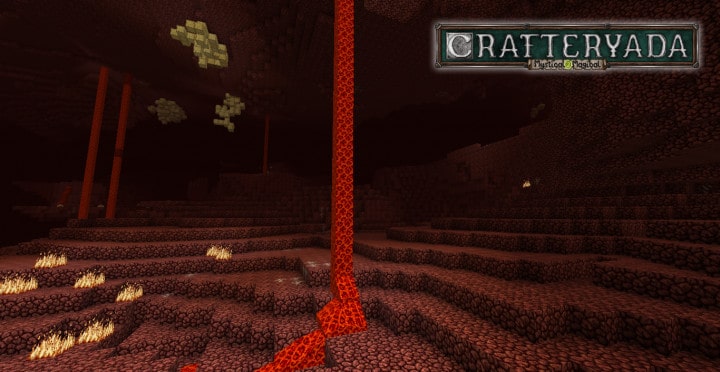
The Crafteryada Resource Pack completely delivers an incredible organic look featuring gorgeous gray-toned colors, and in my absolute opinion, it draws wonderful inspiration from iconic textures such as John Smith, Halcyon, or Werian. Please keep in mind that this is definitely not a cheap clone of John Smith or Werian; instead, it stands proudly as a brand new resource pack loaded with many distinct features and truly unique things. Even when playing with a pretty small resolution, these textures remain remarkably clear and beautifully detailed throughout your entire gameplay. You will discover a huge variety of interesting blocks and other items that will wonderfully decorate the game and enhance your entire Minecraft world. The Crafteryada Resource Pack gives you an amazing opportunity to really test your skills as the creator of massive or cozy medieval-styled castles and buildings. By playing with this pack, you simply will not get bored for a long time. Enjoy every single moment exploring it!
Crafteryada should be compatible with all of these Minecraft versions: 1.12.2 – 1.12 – 1.11.2 – 1.11 – 1.10.2 – 1.10 – 1.9.4 – 1.9 – 1.8.1 – 1.8.6 – 1.8 – 1.7.10 – 1.7.9 – 1.7.4 – 1.7
Screenshots
How to Install Texture Pack (Simple 10 Steps)
- Download OptiFine: Most of the texture packs and shaders need OptiFine. That’s why, first download and install OptiFine for the version of Minecraft you want to play.
- Download the Texture Pack: Get the texture pack you want from the download section. Choose the version that works with your Minecraft and your PC’s performance.
- Open Minecraft Launcher: Start Minecraft using the official game launcher — or even TLauncher, if you use that.
- Go to Options: From the main menu, click on the “Options” button.
- Open Resource Packs: Inside Options, click on “Resource Packs…”.
- Open the Resource Pack Folder: Click on “Open Resource Pack Folder” — this will open a folder named “resourcepacks”.
- Move the Pack File: Copy or move the .zip file you downloaded into that “resourcepacks” folder. (Don’t unzip the file — Minecraft uses it as-is!)
- Go Back and Refresh: Close the folder and click “Done”, then go back into “Resource Packs…” again.
- Activate the Pack: You’ll see the pack on the left side. Hover over it and click the arrow to move it to the right (active side).
Tip: If you get a message that the pack is for a different version, just click “Yes” — it usually works fine. - Click Done and Enjoy: Click “Done” again. Now your pack is ready to use in-game. It’s that easy!
Credits
This resource pack was created by Uziush. We do not own or modify the pack files on this website. All rights belong to the original creator. We highly recommend supporting Uziush by downloading the pack from the official sources.
Download Links
Java Edition
Download Instructions
Curseforge: download starts automatically after a few seconds;
Mediafire: click the big blue button with the text “DOWNLOAD”;
Google Drive: in the top right corner you will see a small download icon (down arrow), click it and the download should start;