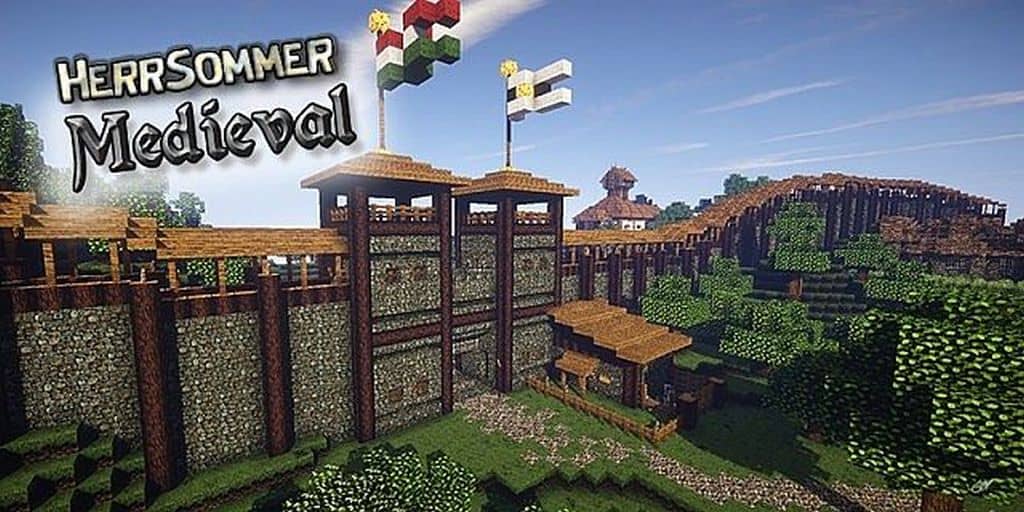
Are you on the hunt for a themed resource pack that completely revitalizes the visual experience of Minecraft? If so, you have stumbled upon an absolute masterpiece to try out: the HerrSommer Medieval resource pack. This incredible texture pack is thoughtfully crafted by the talented DerSommer. Please note that DerSommer is a renowned creator who has designed many meticulously themed and stunningly detailed resource packs over the years. He has now brought us the iconic HerrSommer resource pack, and I really think you will love it. The author has also mentioned that this resource pack is intended as a definitive version, meaning there likely will not be any major future version upgrades, but you can thankfully still expect continuous support. Notably, the HerrSommer Medieval resource pack is fully compatible with Minecraft 1.10.2 and above. Let us now dive into the uniquely crafted textures and features that come packed within the HerrSommer Medieval experience.
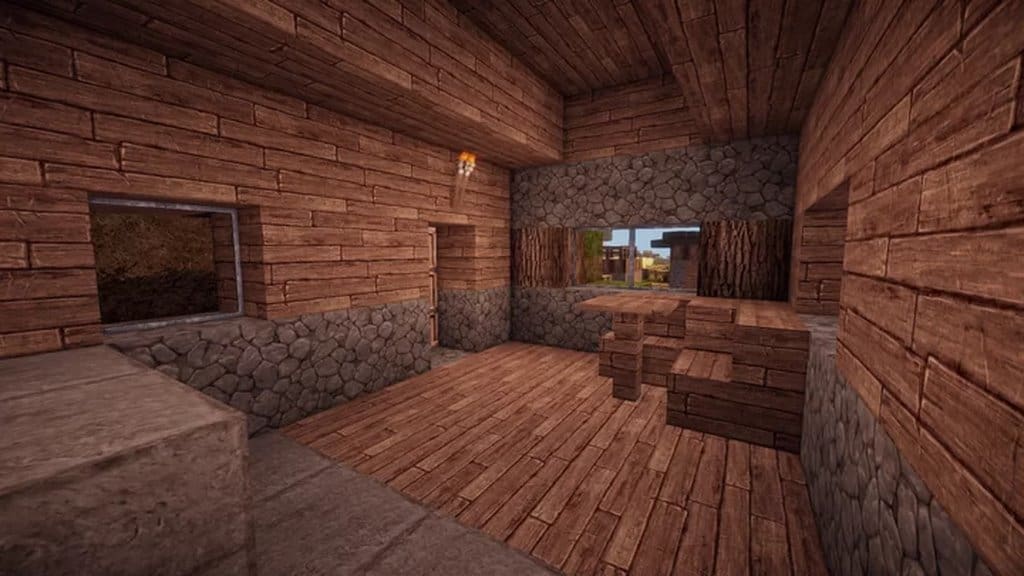
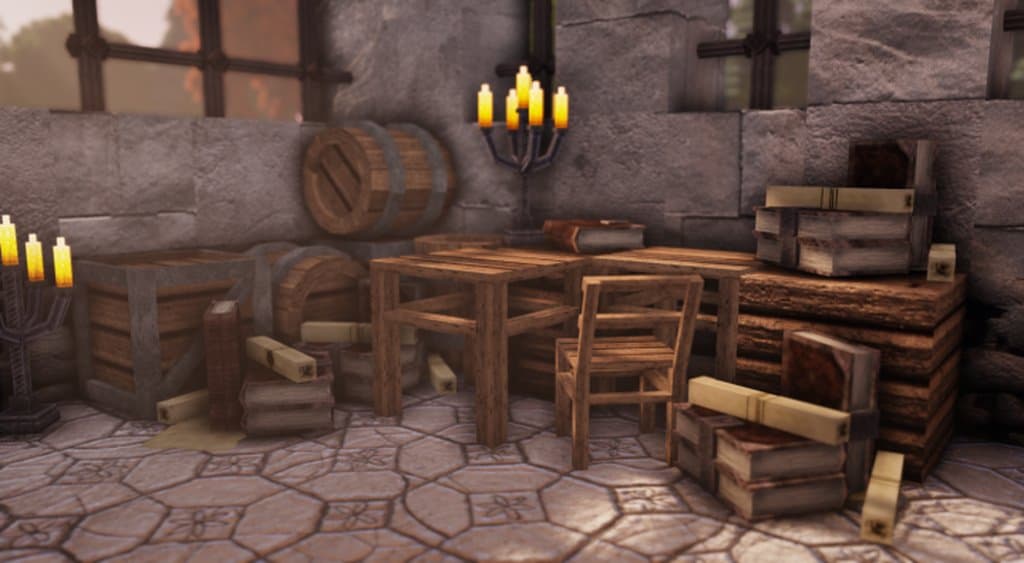
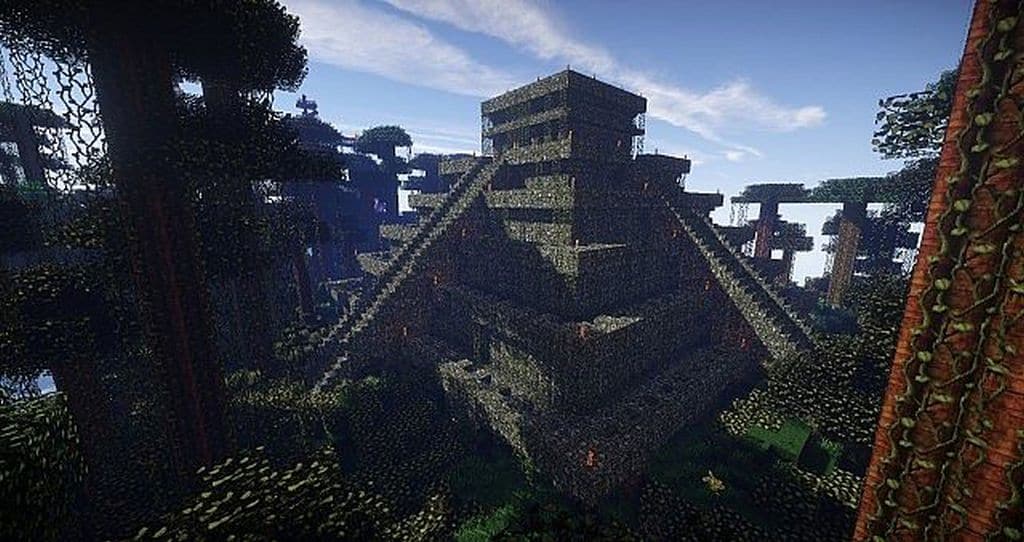
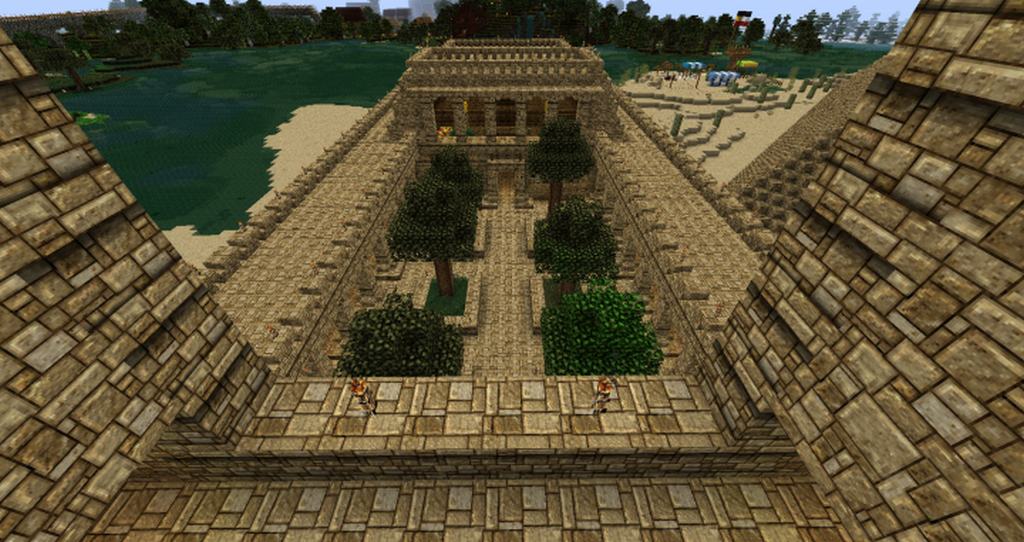
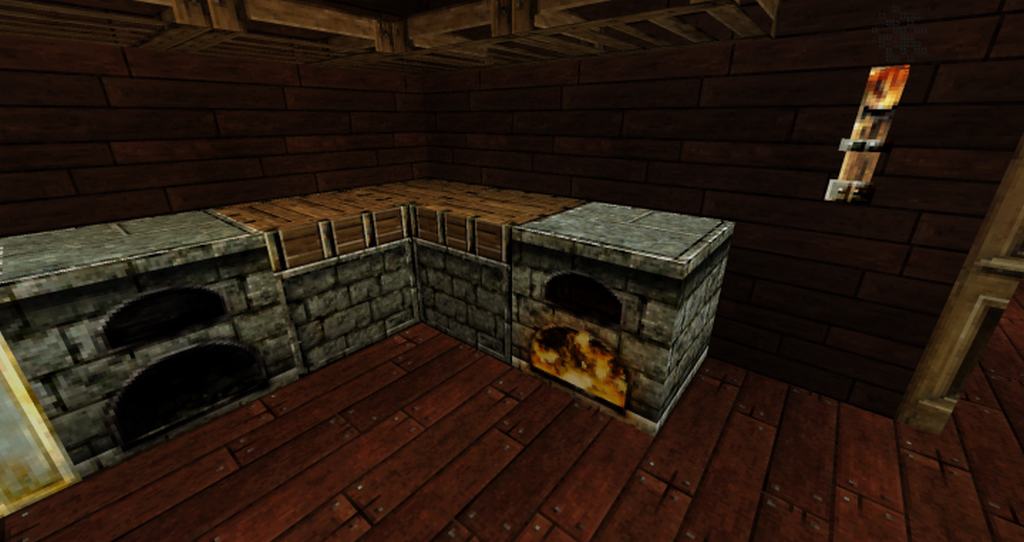
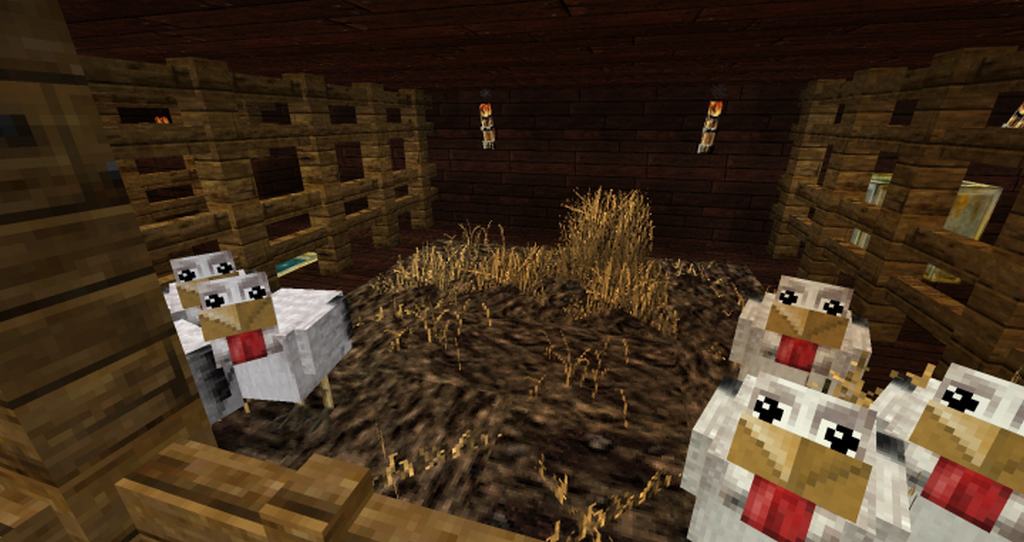
Once you fire up your game and install this pack, you will immediately notice some fantastic changes, such as brighter lighting, much clearer water, deeper and scarier caves, and bolder coloring applied to many of the game’s everyday objects. From wood blocks and rough stone to vibrant grass and golden wheat, everything takes on a wonderfully rustic and naturally appealing aesthetic. There is nothing overly flashy or garish here; instead, the primary goal of this resource pack is to deliver an authentically rustic, natural vibe. Furthermore, if you pair it with a compatible shader mod, your Minecraft gameplay will look genuinely stunning and uniquely atmospheric. There is also a truly one-of-a-kind feature included in the HerrSommer Medieval resource pack that you will struggle to find anywhere else: you get access to different bookshelf block facing options! This brilliant feature allows you to mix, match, and create loads of different visual styles for your libraries. On top of all this, the pack features a remarkably straightforward installation process! Taking all of these fantastic factors into account, I truly believe the HerrSommer Medieval resource pack is one of the greatest creations DerSommer has ever brought to life.
HerrSommer Medieval should be compatible with all of these Minecraft versions: 1.10.2 – 1.10 – 1.9.4 – 1.9 – 1.8.9 – 1.8.8 – 1.8.1 – 1.8.6 – 1.8
Screenshots
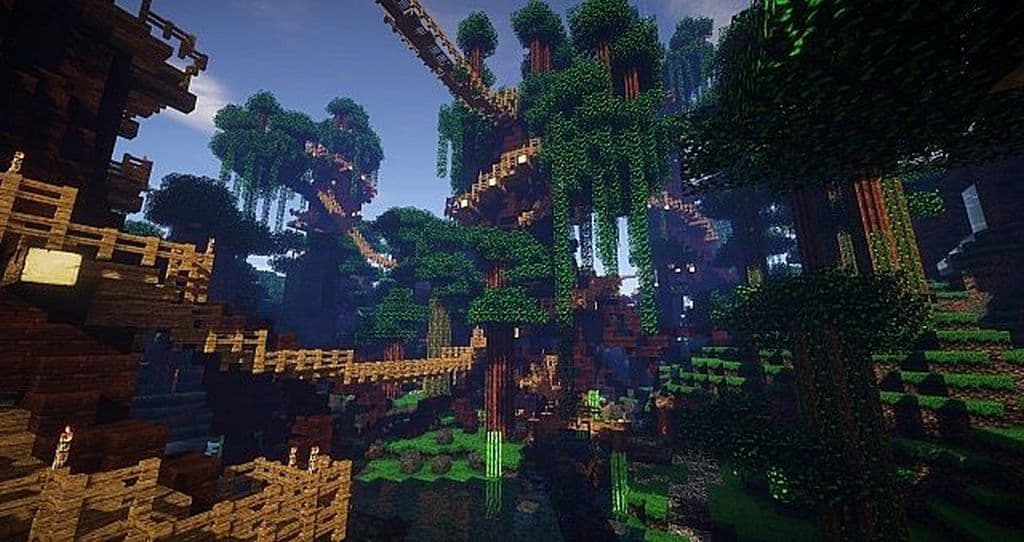
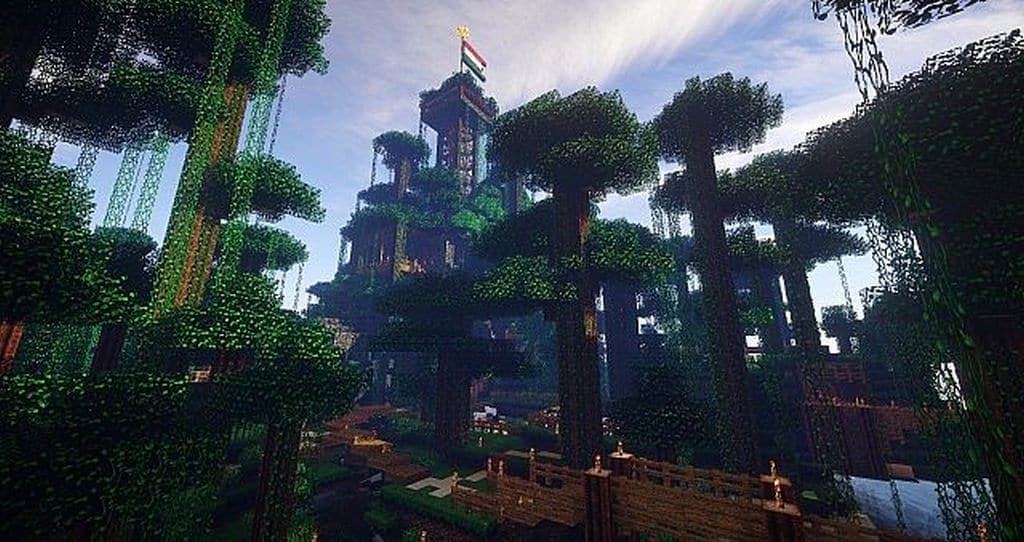
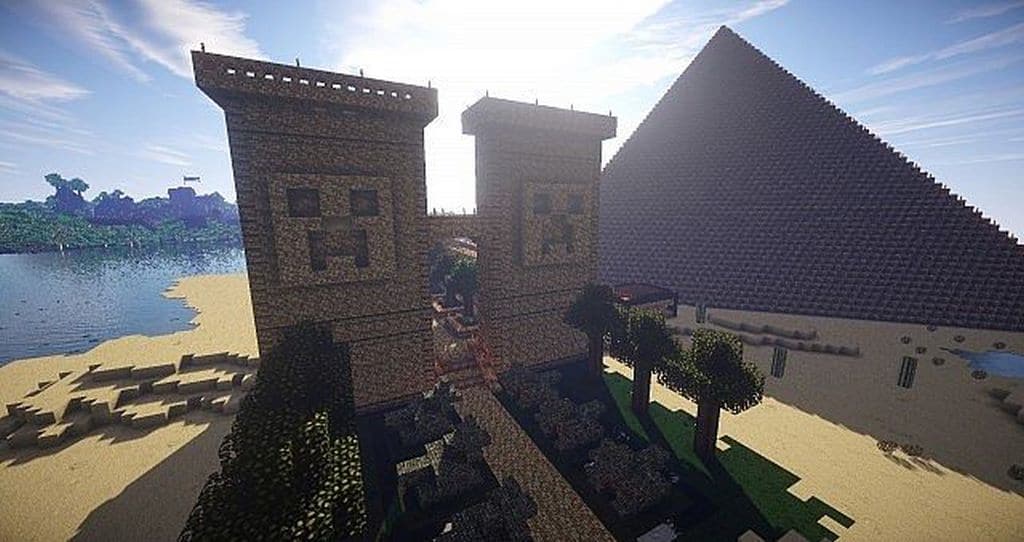
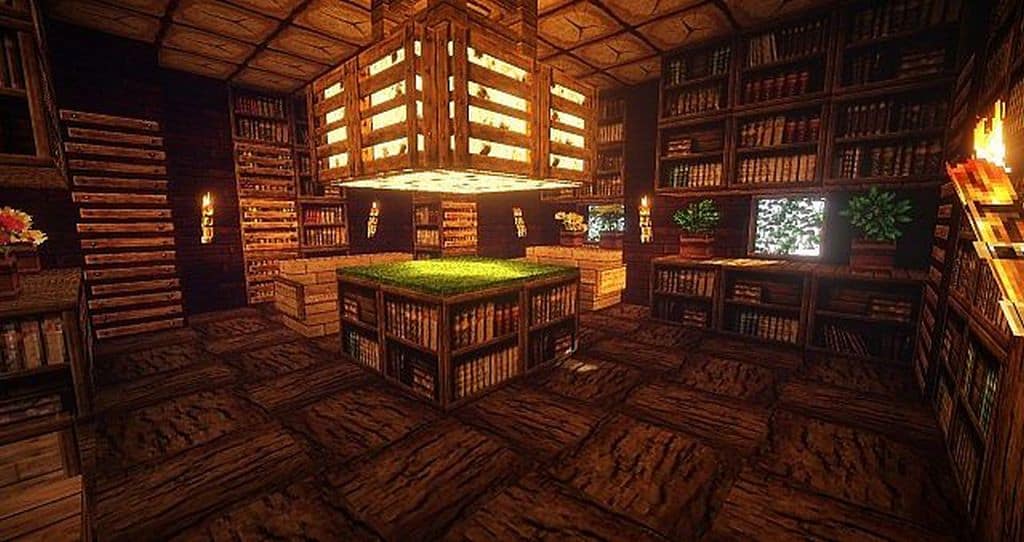


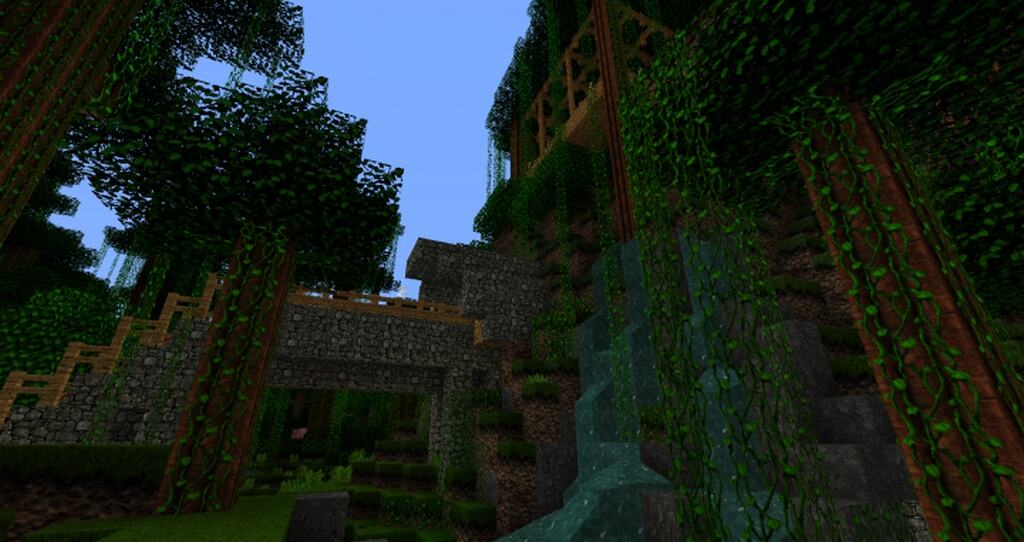
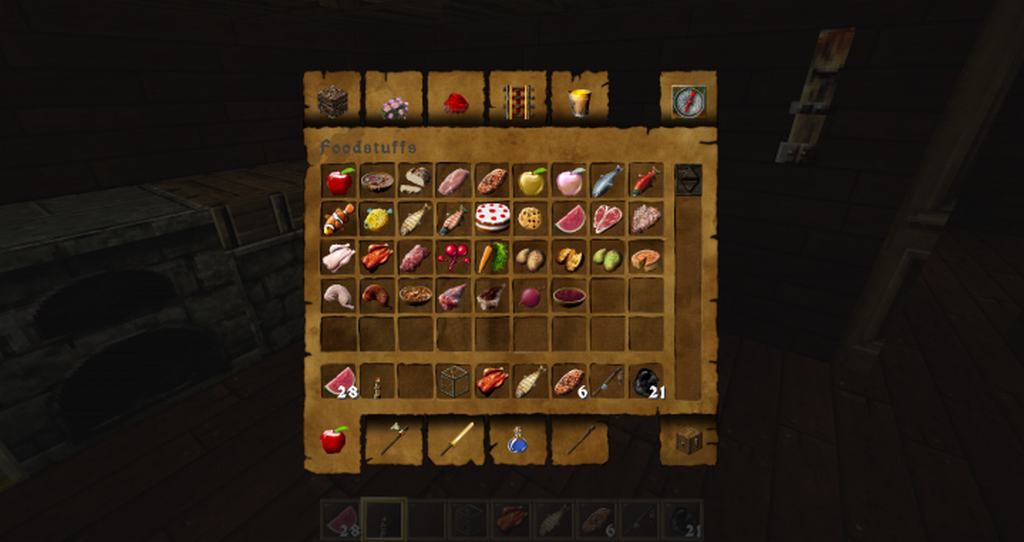
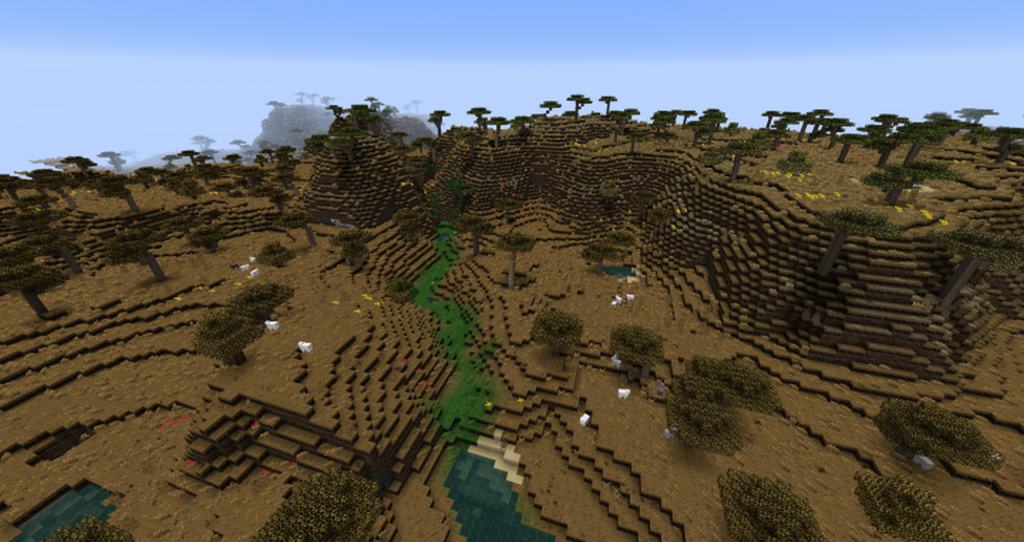
How to Install Texture Pack (Simple 10 Steps)
- Download OptiFine: Most of the texture packs and shaders need OptiFine. That’s why, first download and install OptiFine for the version of Minecraft you want to play.
- Download the Texture Pack: Get the texture pack you want from the download section. Choose the version that works with your Minecraft and your PC’s performance.
- Open Minecraft Launcher: Start Minecraft using the official game launcher — or even TLauncher, if you use that.
- Go to Options: From the main menu, click on the “Options” button.
- Open Resource Packs: Inside Options, click on “Resource Packs…”.
- Open the Resource Pack Folder: Click on “Open Resource Pack Folder” — this will open a folder named “resourcepacks”.
- Move the Pack File: Copy or move the .zip file you downloaded into that “resourcepacks” folder. (Don’t unzip the file — Minecraft uses it as-is!)
- Go Back and Refresh: Close the folder and click “Done”, then go back into “Resource Packs…” again.
- Activate the Pack: You’ll see the pack on the left side. Hover over it and click the arrow to move it to the right (active side).
Tip: If you get a message that the pack is for a different version, just click “Yes” — it usually works fine. - Click Done and Enjoy: Click “Done” again. Now your pack is ready to use in-game. It’s that easy!
Credits
This resource pack was originally created by DerSommer. We do not claim ownership of this content, nor do we host modified or unauthorized versions of these files. We strongly encourage players to support the original creator by utilizing their official download links and following their community pages.
Download Instructions
Curseforge: download starts automatically after a few seconds;
Mediafire: click the big blue button with the text “DOWNLOAD”;
Google Drive: in the top right corner you will see a small download icon (down arrow), click it and the download should start;